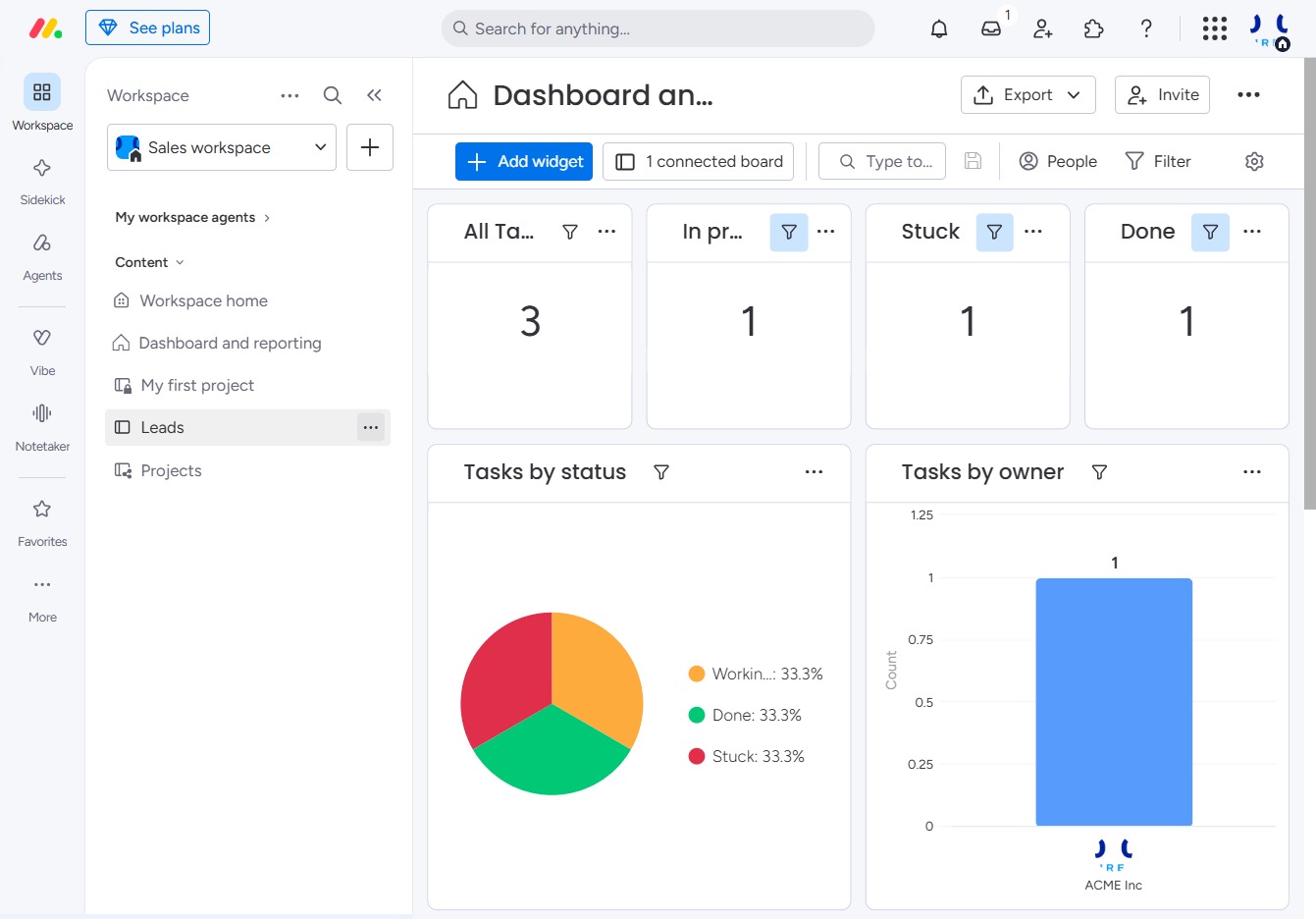
Click the 'Click here' link
This action will redirect you to the specified location or feature related to the current task within the dashboard.
Loading screenshot…
100%
In this how-to guide, you'll learn the step-by-step process to duplicate a board, including options for creating a copy with or without its data, items, and subscriber information.
 viktoria
In this how-to guide, you'll learn the step-by-step process to duplicate a board, including options for creating a copy with or without its data, items, and subscriber information. By following these instructions, you can easily customize a new board layout while keeping your original content intact.
This action will redirect you to the specified location or feature related to the current task within the dashboard.
This action will create a copy of the selected item, enabling you to customize or modify it without altering the original.

Selecting this option allows you to duplicate only the structure of the board without any data. This is useful for creating a new board layout while keeping your previous content intact.
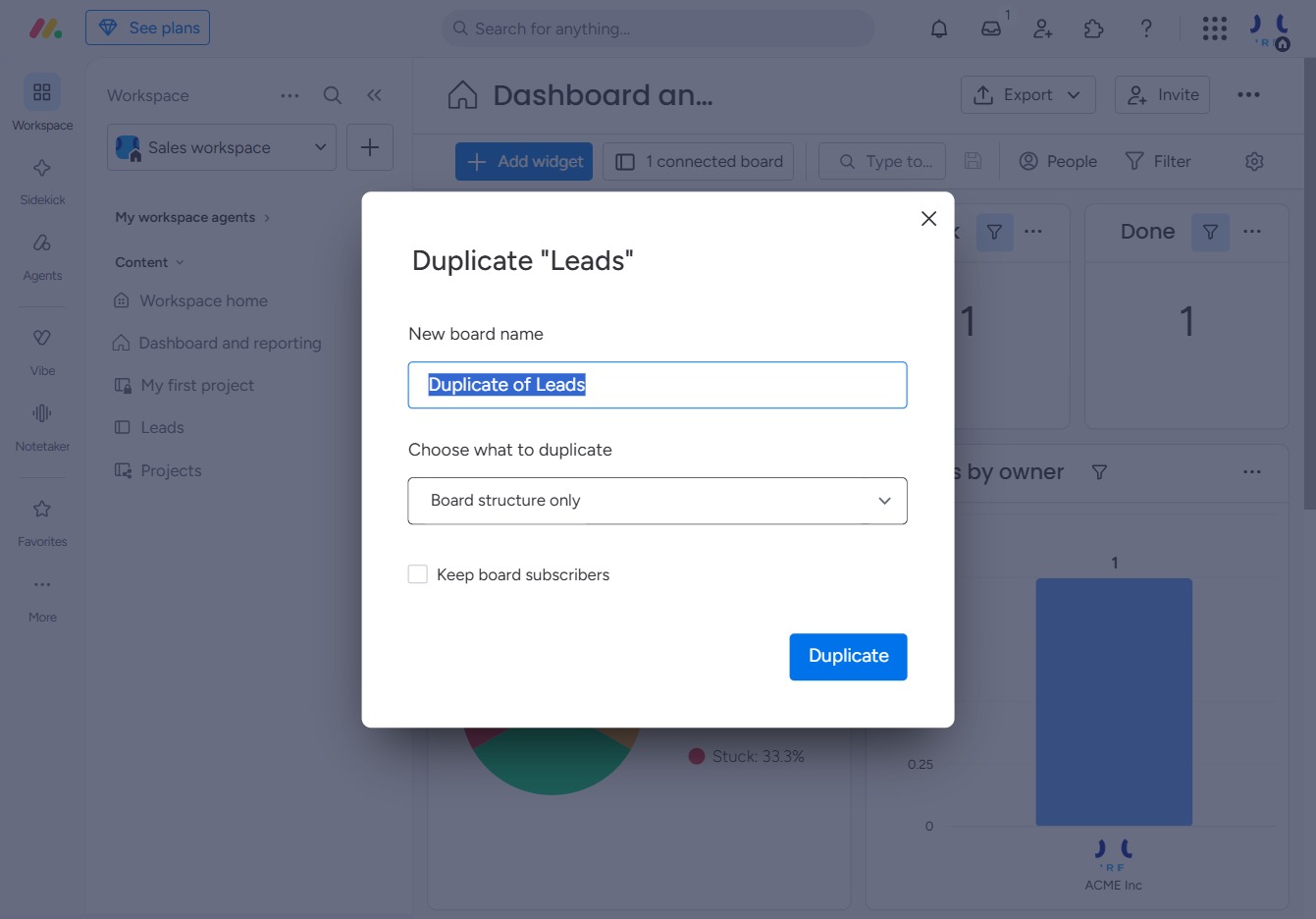
Select the 'Board structure & items' option to include both the organizational structure and the individual items from the original board when duplicating your selected board.
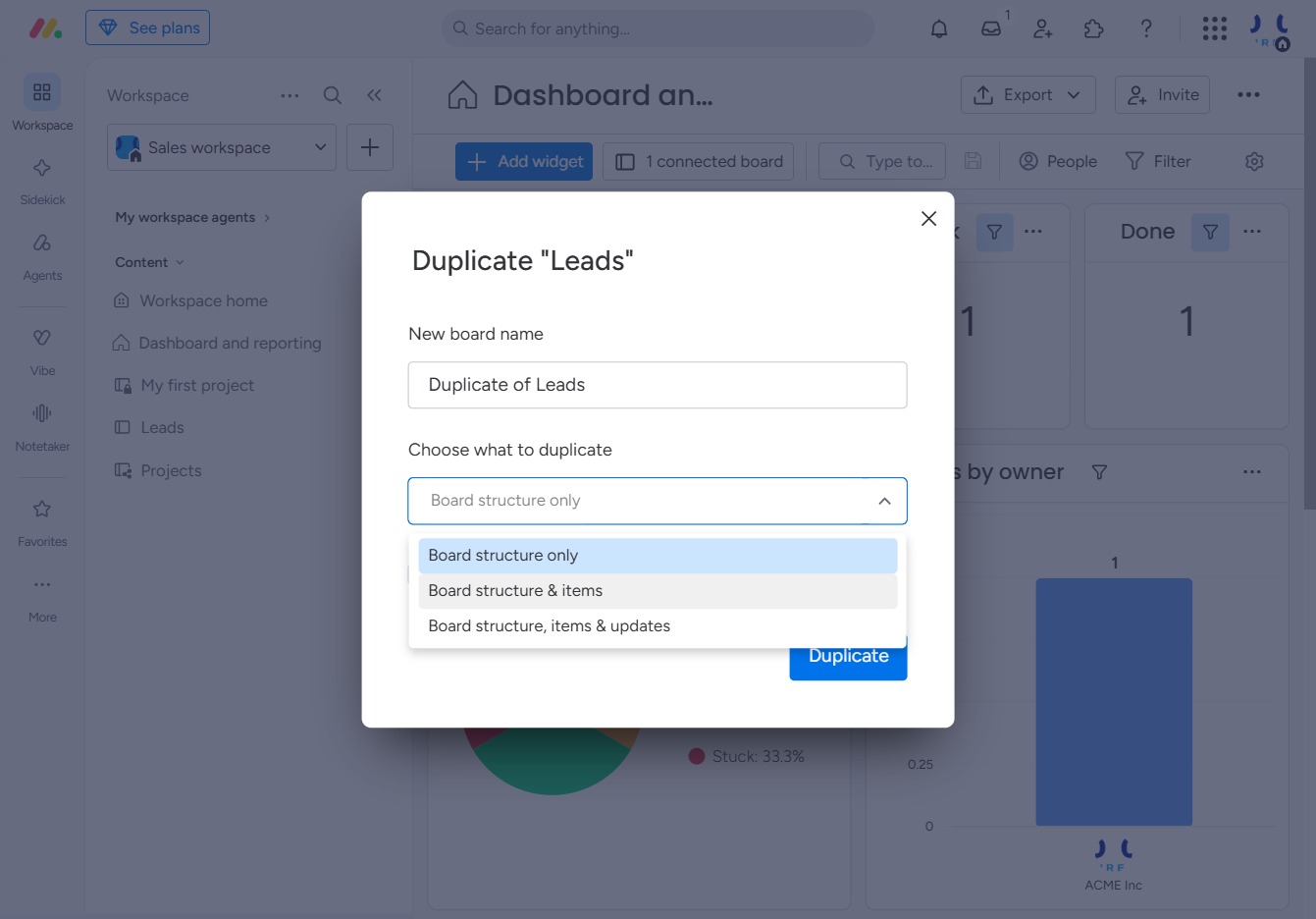
By selecting this option, you ensure that subscribers of the original board are also included in the new duplicated board.

This action will create a copy of the selected board, allowing you to set a new board name and choose the items to duplicate.
