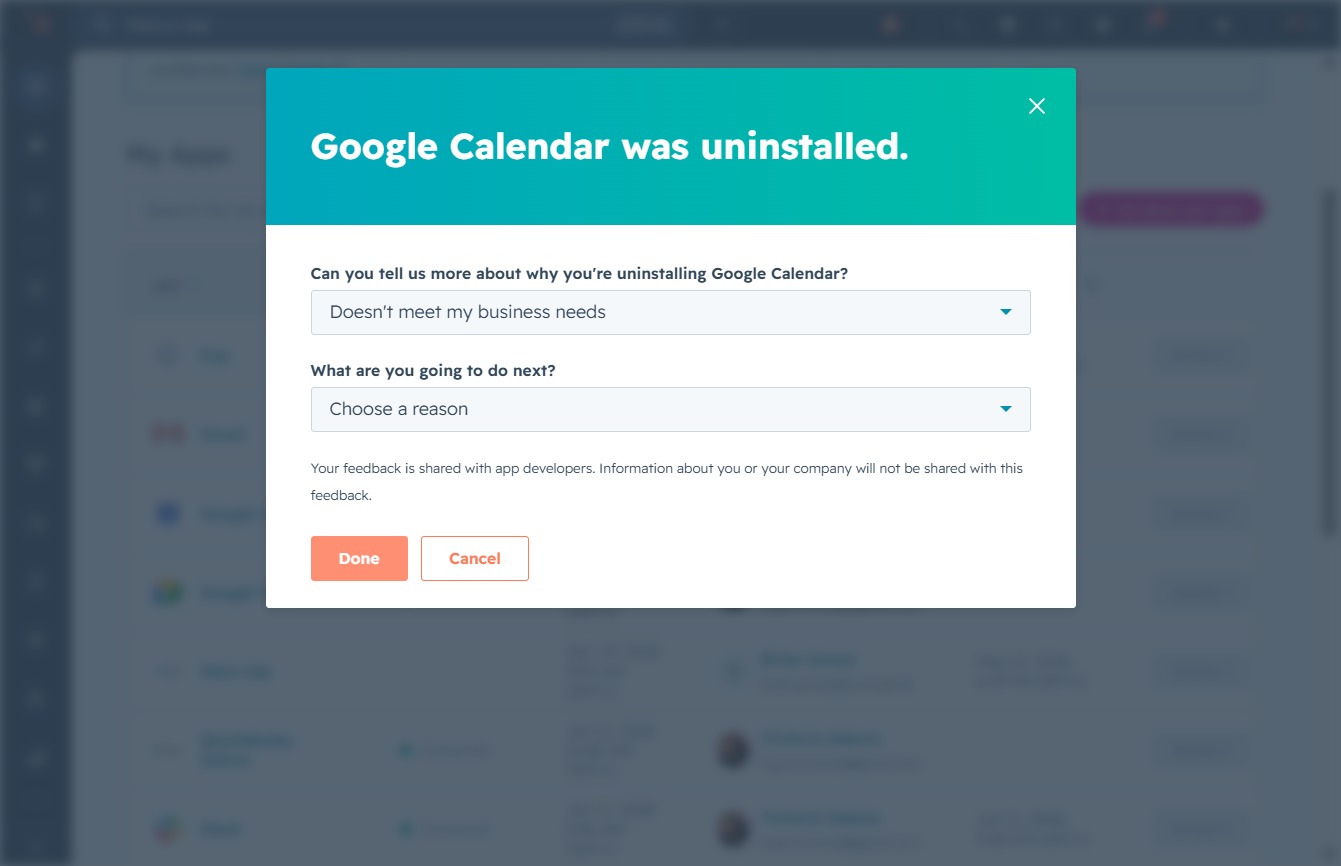
Click here to take action
Clicking this link will allow you to initiate a specific action or view further options related to your current task or setting.
Loading screenshot…
100%
Remove Google Calendar from your HubSpot account through user preferences, confirming the action while providing feedback on its uninstallation and ensuring no data is deleted.
 viktoria
Remove Google Calendar from your HubSpot account through user preferences, confirming the action while providing feedback on its uninstallation and ensuring no data is deleted.
Clicking this link will allow you to initiate a specific action or view further options related to your current task or setting.
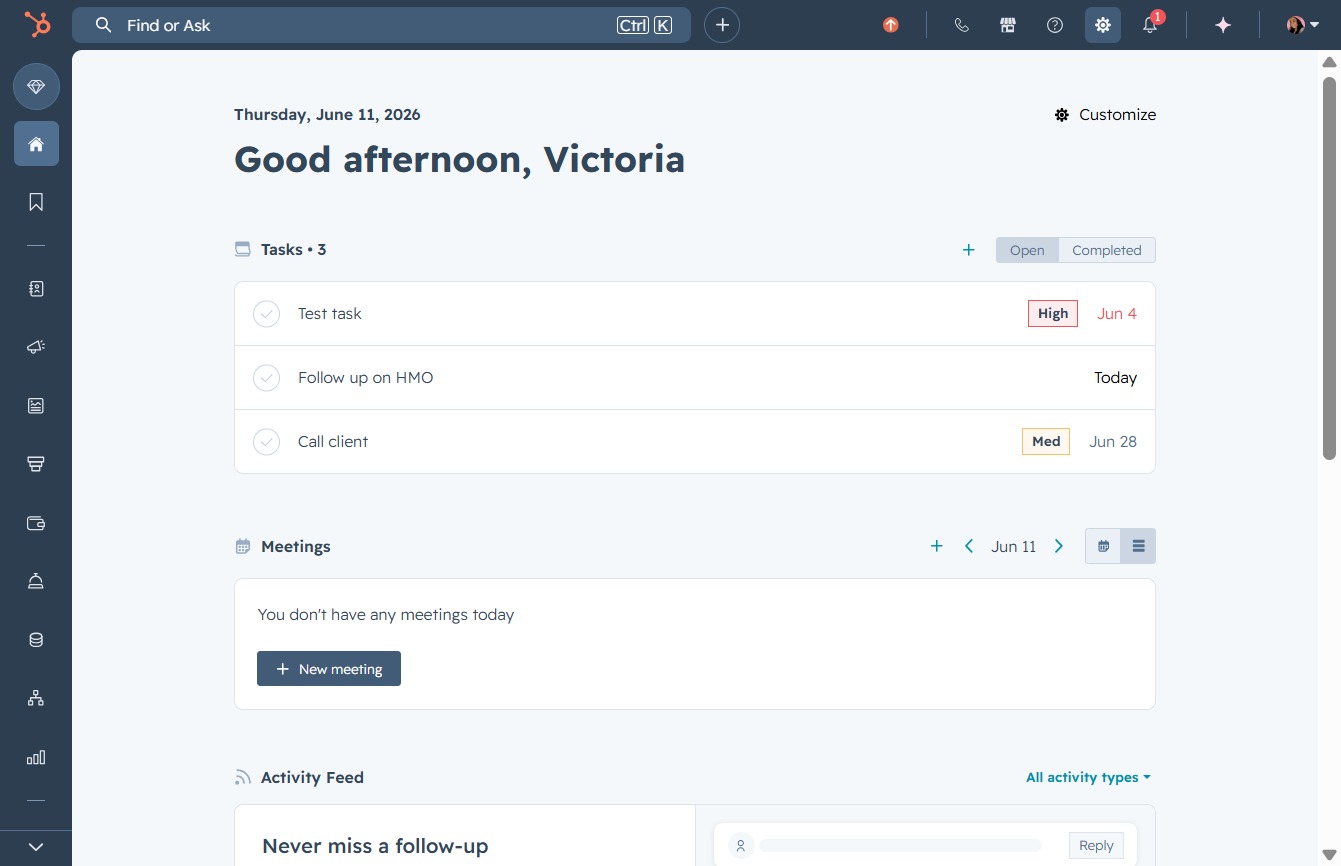
Clicking 'Connected Apps' allows you to manage integrations with third-party applications in your HubSpot account.
Clicking the 'Actions' button allows you to access various management options for the selected app, including connection settings and configuration preferences.

Selecting 'Uninstall' will initiate the removal process for the selected app from your My Apps list, confirming its deletion from your account.

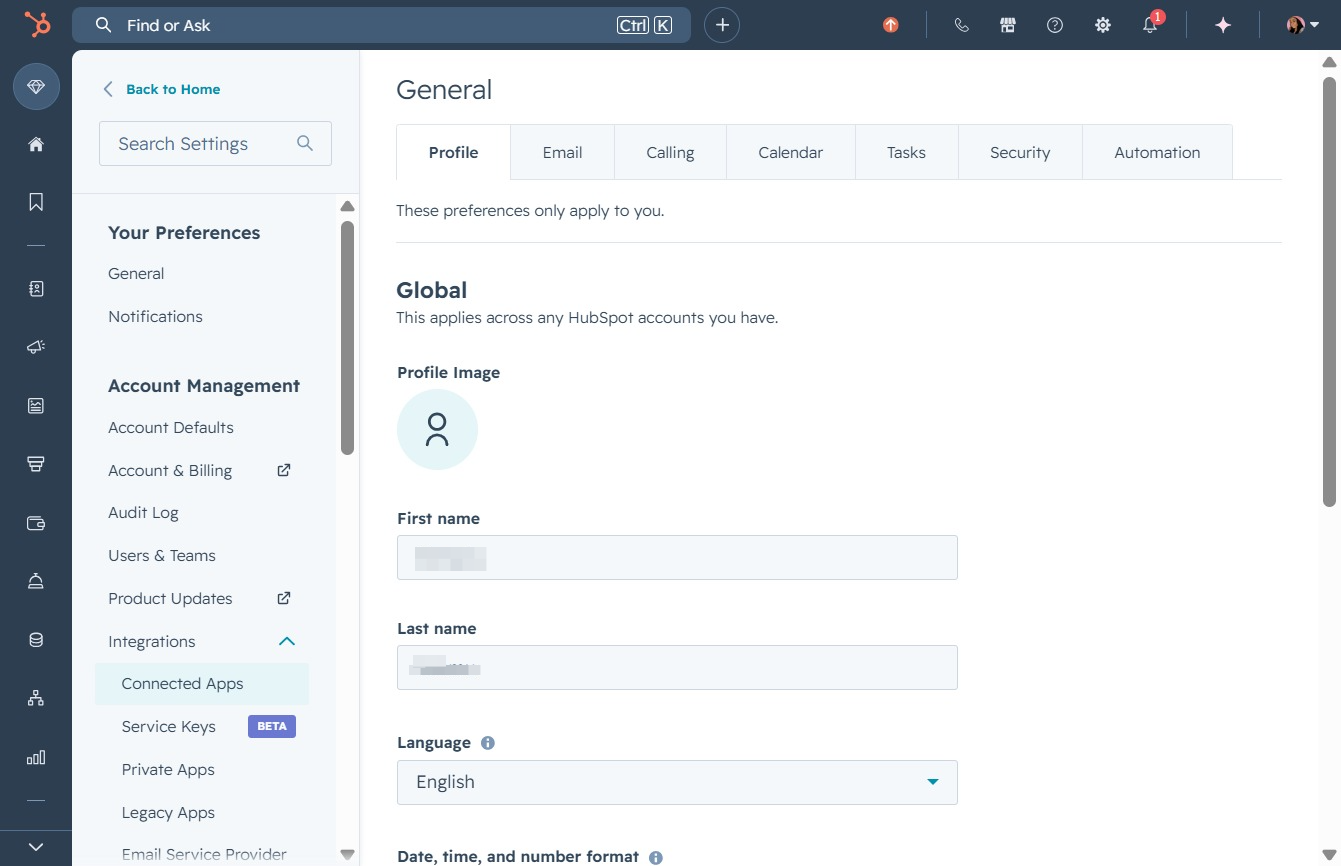
Click the text area to type 'uninstall' and confirm the removal of Google Calendar from HubSpot.

Enter 'uninstall' in the text area below to confirm the removal of Google Calendar from your HubSpot account. This action will not delete existing Google Calendar data, but updates will cease.

Confirm the uninstallation of Google Calendar by clicking the 'Uninstall' button. This action will remove the integration but will not delete any existing Google Calendar data in HubSpot.
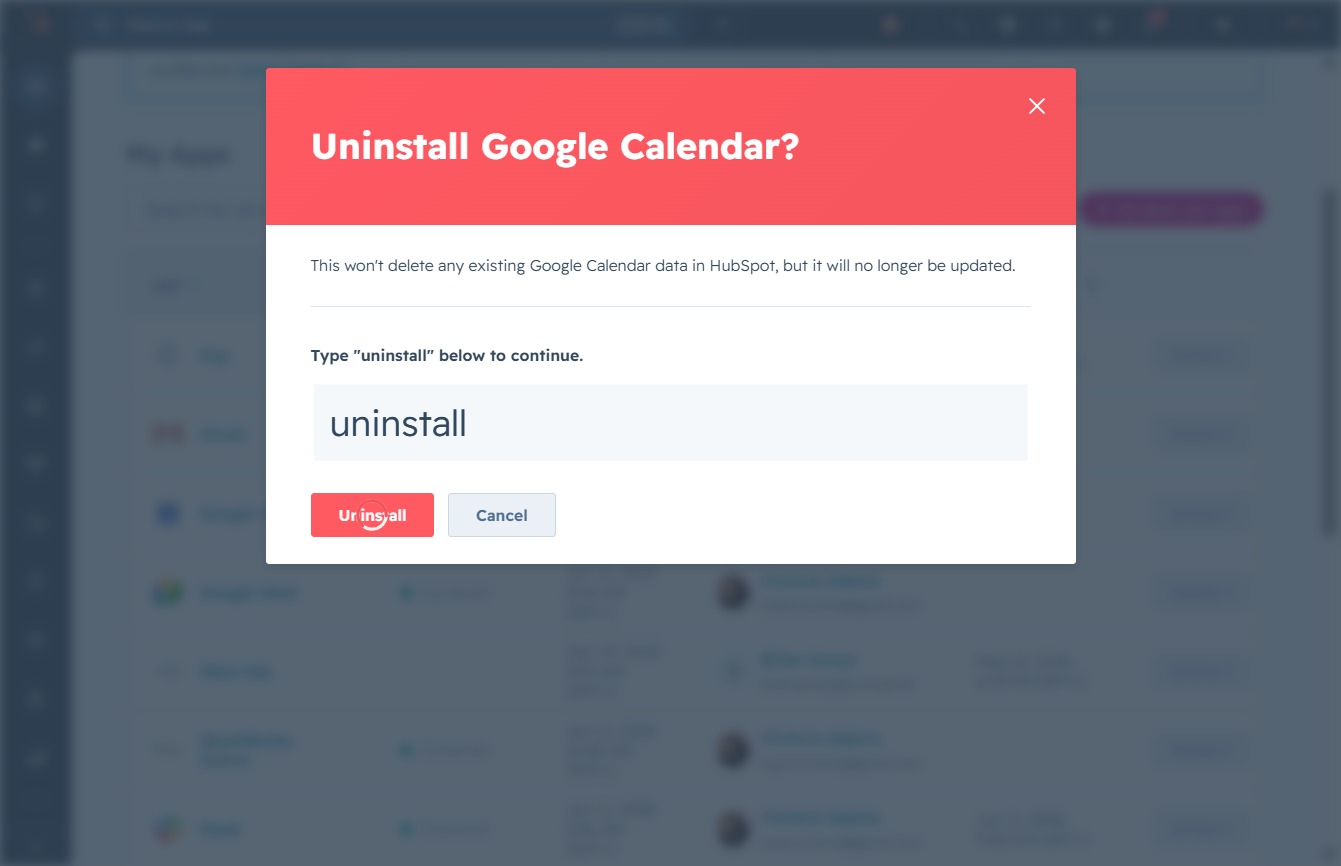
Select an option from the dropdown to provide feedback on why you are uninstalling Google Calendar. This feedback helps the development team understand user preferences and experiences.

Selecting this option allows you to specify that Google Calendar doesn't fulfill your business requirements, which can help provide feedback for improvements.
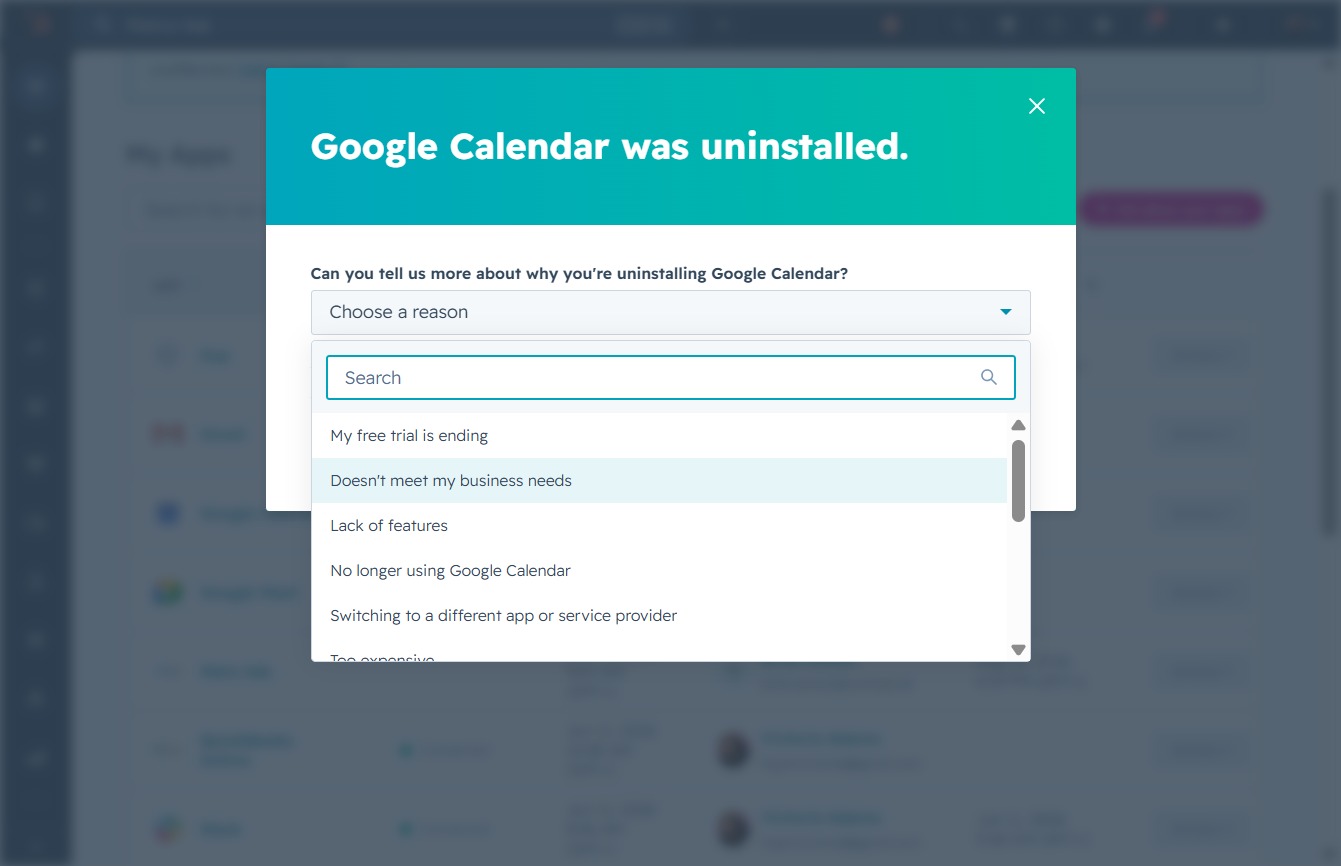
Clicking 'Done' submits your feedback on why you uninstalled Google Calendar, completing the uninstallation process.