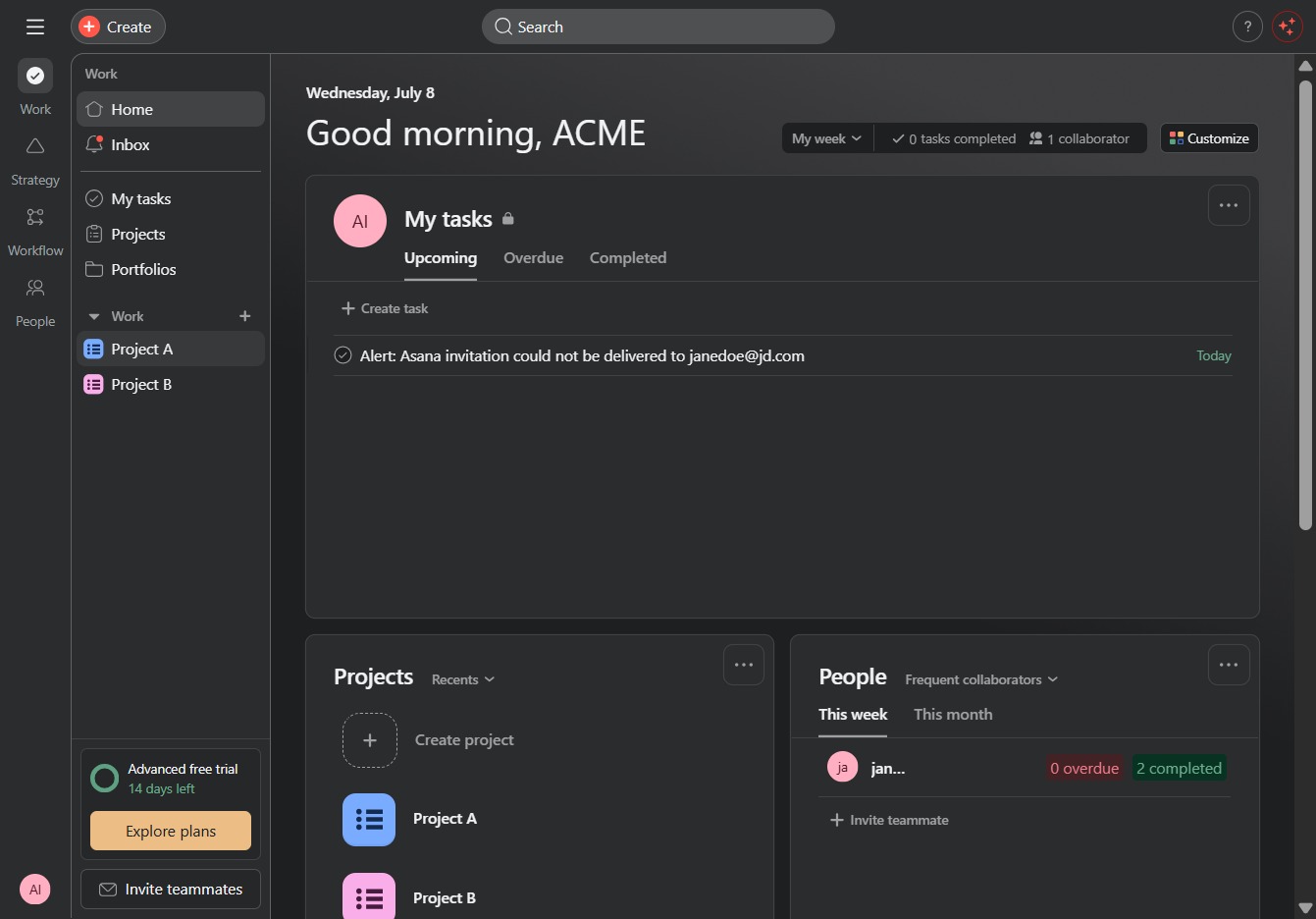
Click the Project A link
This action opens the details and tasks associated with Project A, allowing you to manage and view specific project information.
Loading screenshot…
100%
This how-to guide provides step-by-step instructions on how to permanently delete tasks from your project, including navigating to specific links, reviewing task details, and…
 viktoria
This how-to guide provides step-by-step instructions on how to permanently delete tasks from your project, including navigating to specific links, reviewing task details, and confirming your deletion choice. Follow these clear instructions to effectively manage and organize your project tasks.
This action opens the details and tasks associated with Project A, allowing you to manage and view specific project information.
This will open a panel showing more information about the selected task or project. Review additional specifications or settings associated with the task.
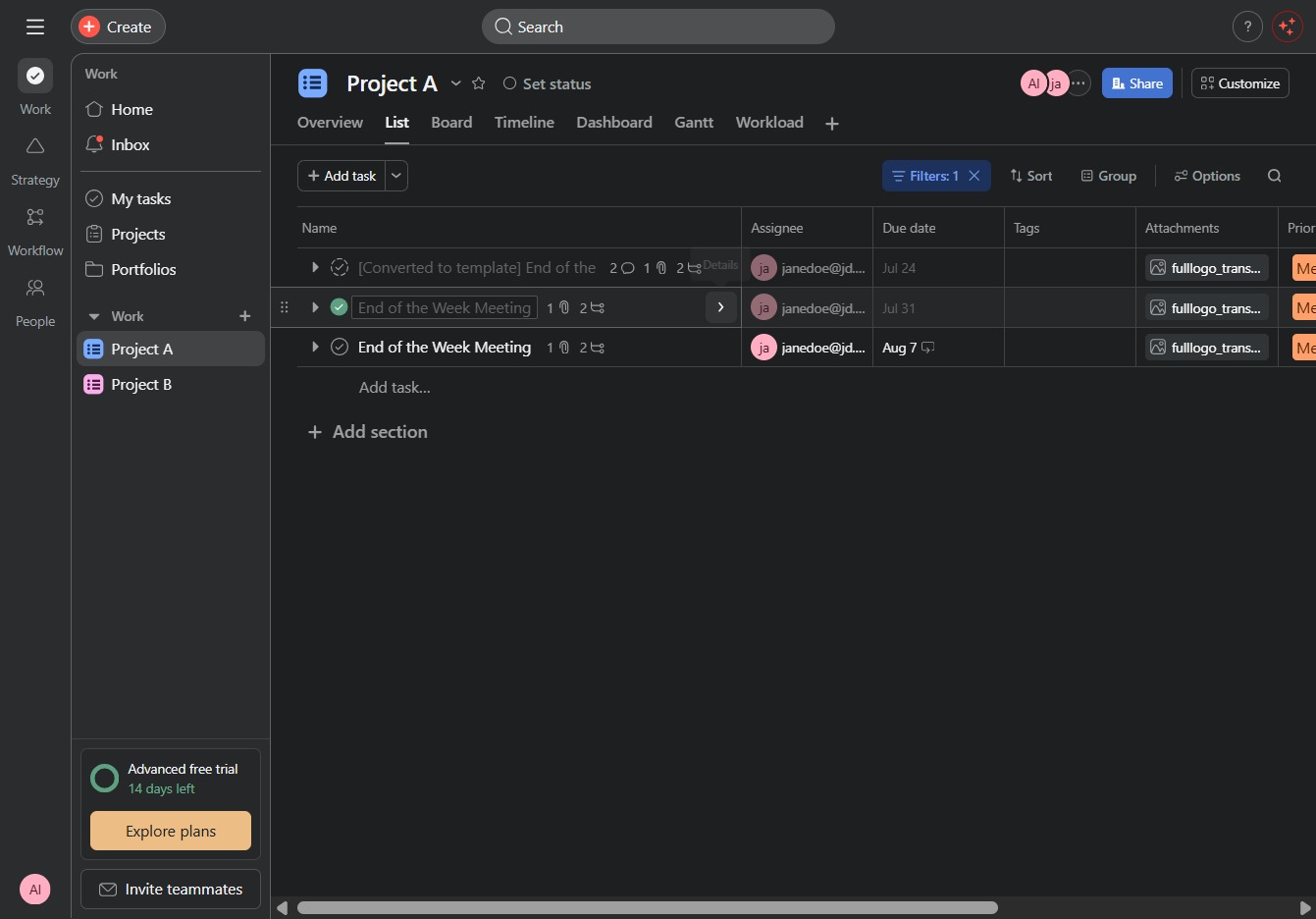
Clicking this link will display more information about the selected task, including assignee, date, dependencies, and any additional notes.
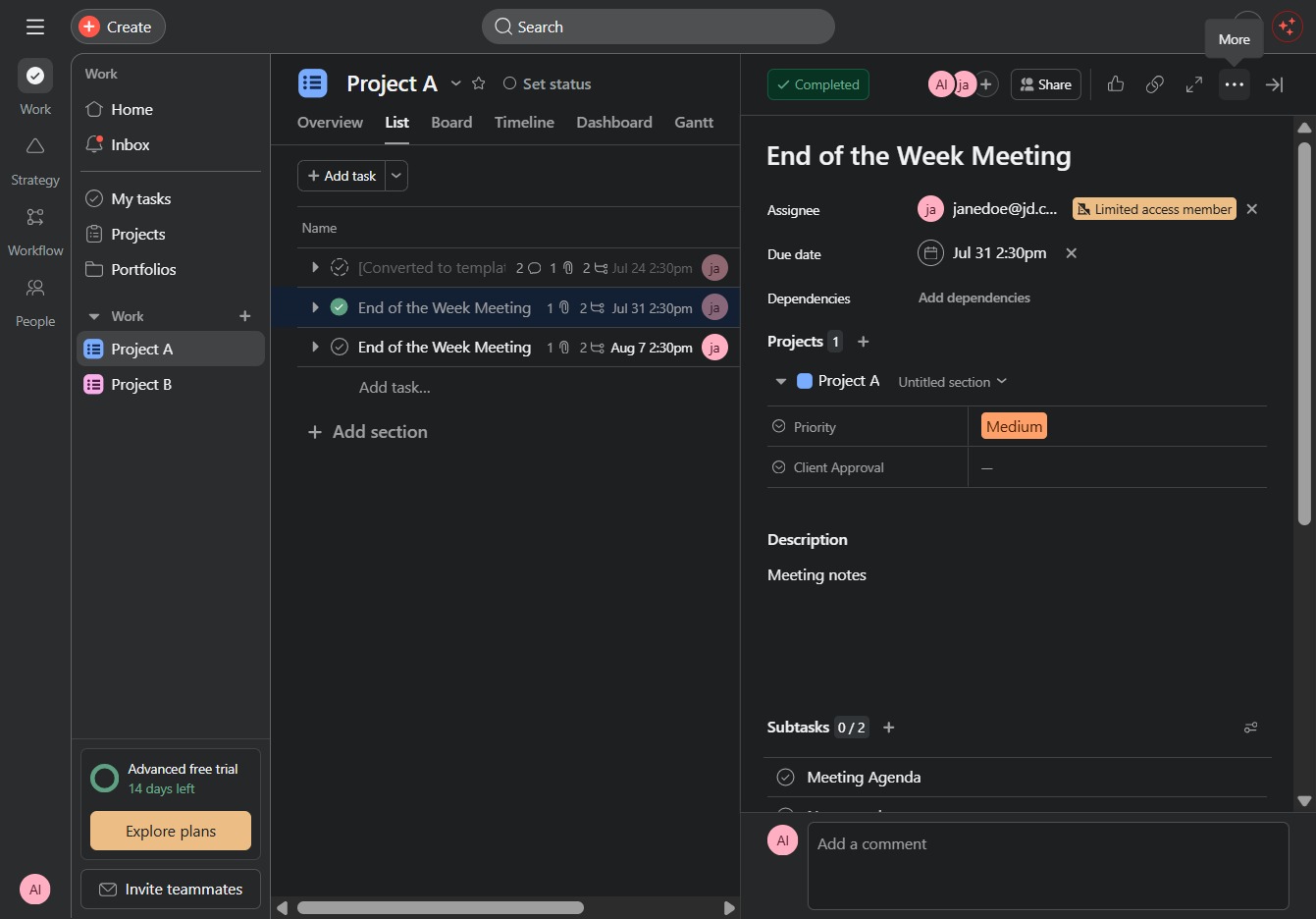
This action will remove the selected task from your project permanently. Ensure you want to delete it, as this action cannot be undone.
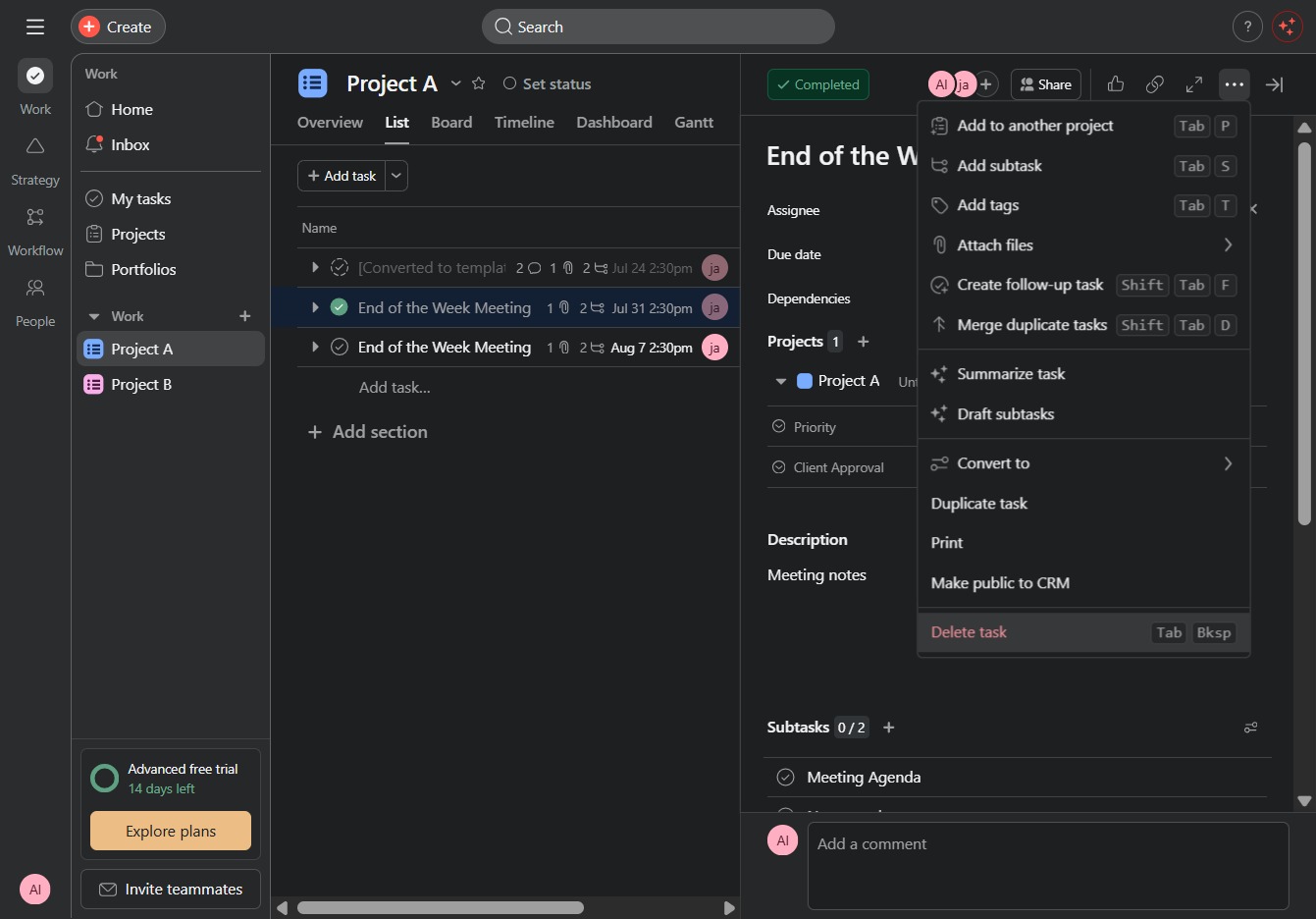
Clicking this option will permanently remove the selected task from the project without any possibility of recovery.
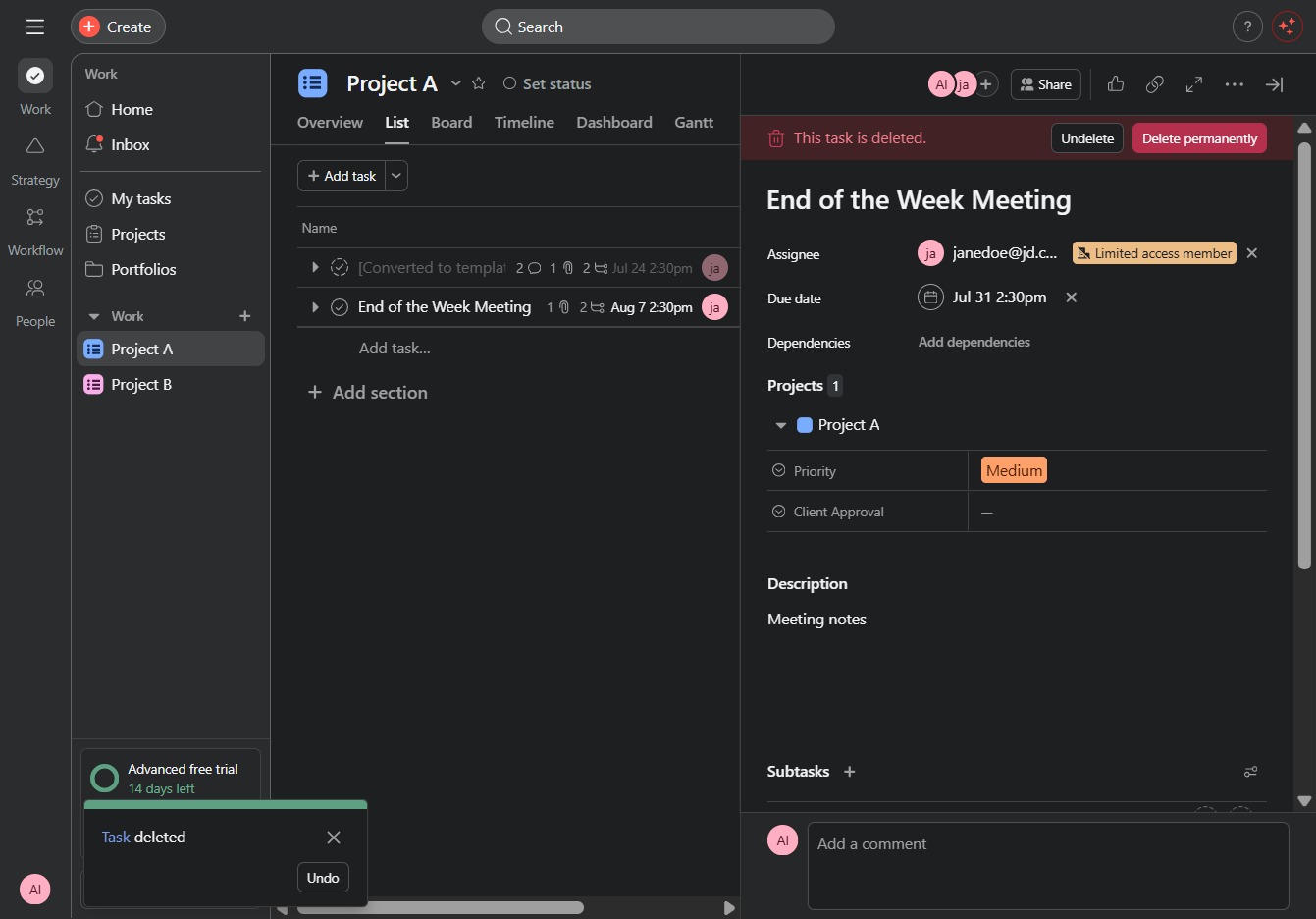
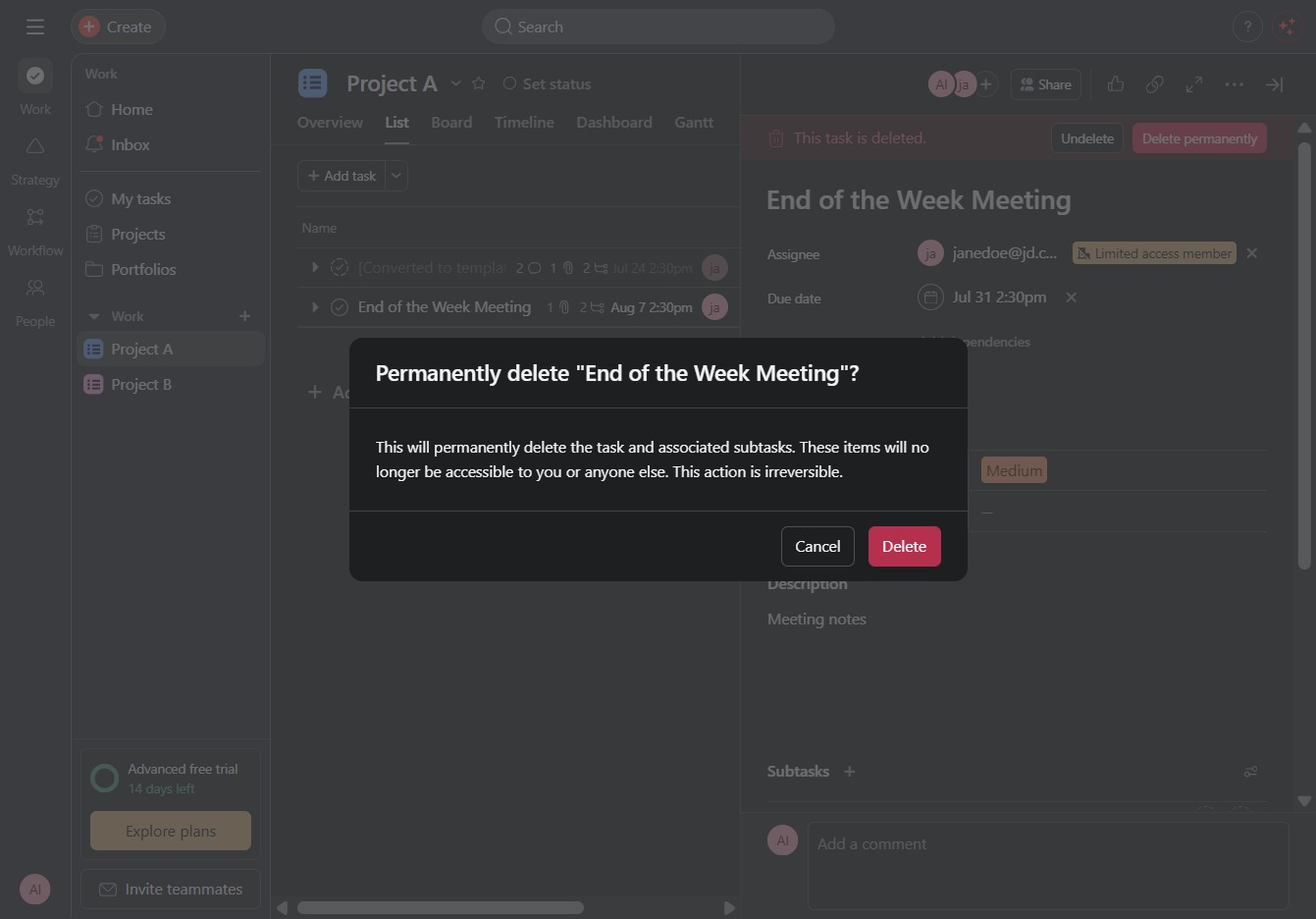
This action will permanently remove the task 'End of the Week Meeting' and its associated subtasks, making them inaccessible to you and others. Confirm your choice to complete the deletion.