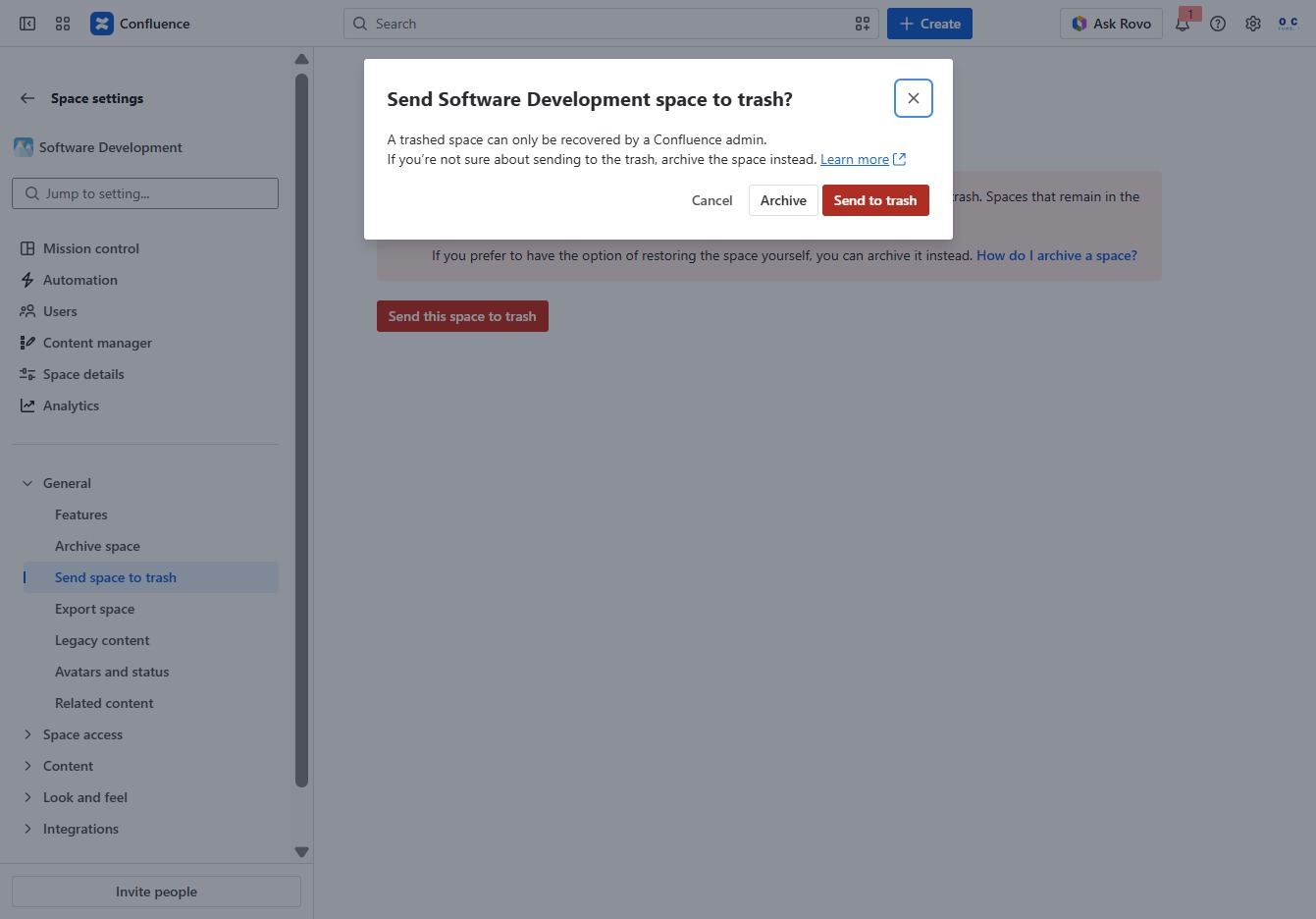
Click the Software Development section
This action opens the Software Development space, allowing you to access and edit documents or pages related to ongoing projects.
Loading screenshot…
100%
Learn how to permanently delete a space in Confluence in this step-by-step guide.
 viktoria
Learn how to permanently delete a space in Confluence in this step-by-step guide. We cover everything from accessing the space to managing its contents, ensuring you understand how to back up essential information before moving it to the trash.
This action opens the Software Development space, allowing you to access and edit documents or pages related to ongoing projects.
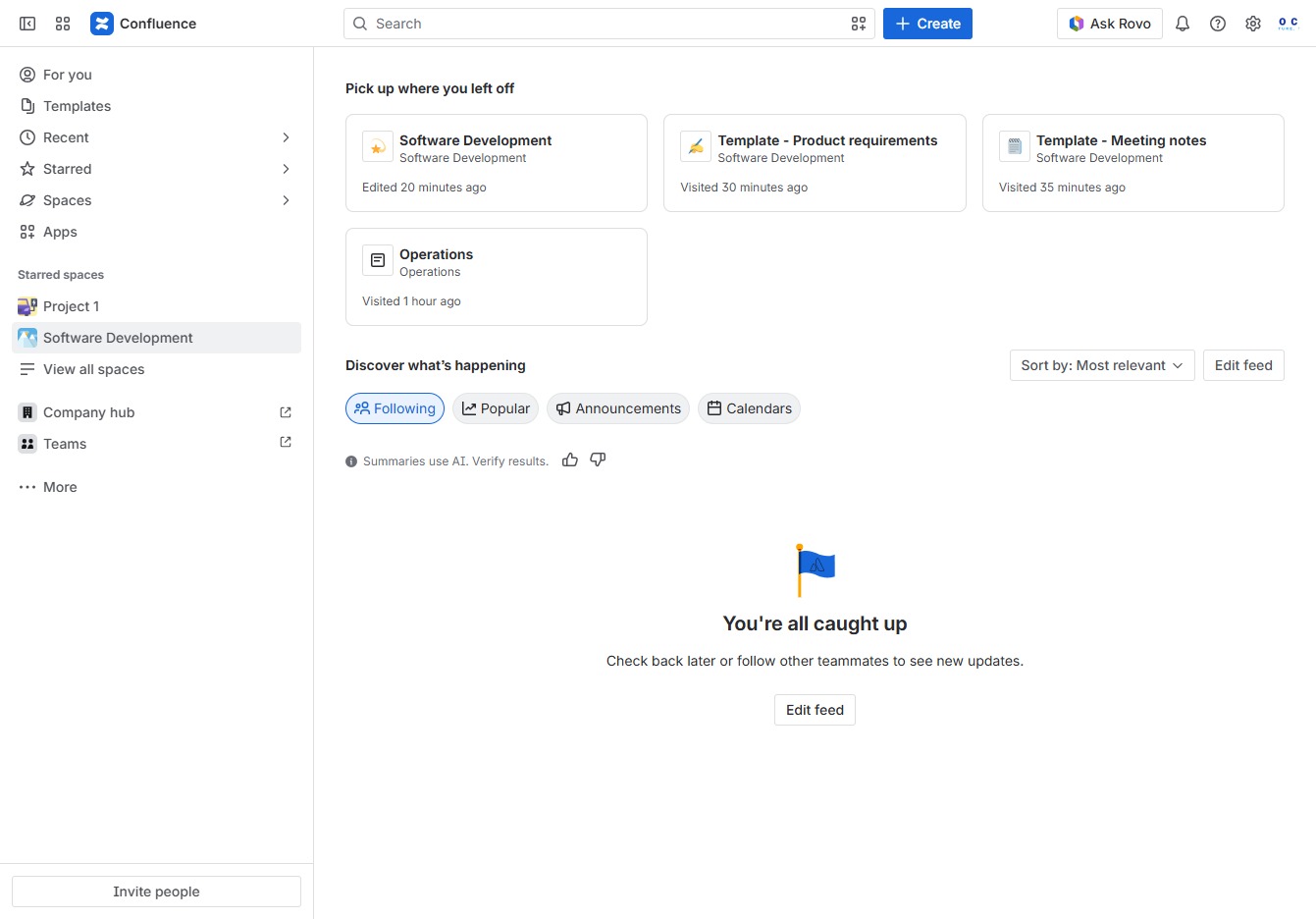
This will open a menu with additional functionalities related to the current section, allowing you to perform tasks such as editing, sharing, or managing permissions.

This action will permanently remove the selected space and all its contents from your Confluence environment. Ensure that you have backed up any necessary information before proceeding.
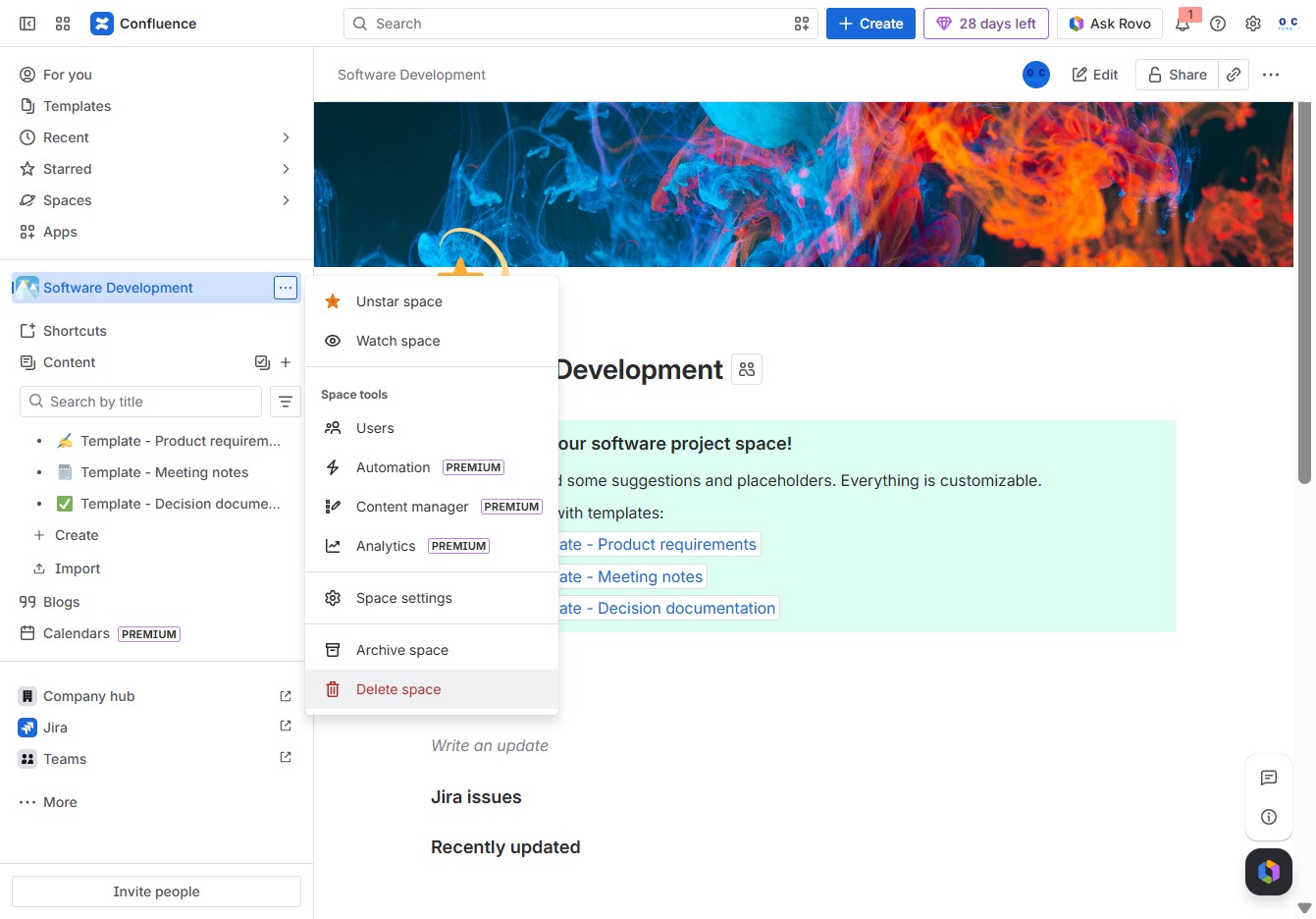
Clicking this button will send the selected space and all its content to the trash. Items in the trash for more than 60 days will be permanently deleted.

This action will move the selected Software Development space to the trash. You can restore the space later if needed.