Click the CRM icon
This action opens the CRM section, allowing you to manage customer relationships and access relevant tools for sales and marketing.

Loading screenshot…
100%
Customize your DocuFast Sales Pipeline by adding stages like 'Closed Won' and 'Closed Lost' to enhance tracking of sales opportunities and accurately manage deal progress.
 viktoria
Customize your DocuFast Sales Pipeline by adding stages like 'Closed Won' and 'Closed Lost' to enhance tracking of sales opportunities and accurately manage deal progress.
This action opens the CRM section, allowing you to manage customer relationships and access relevant tools for sales and marketing.
This will take you to the Deals section where you can manage your sales opportunities and track deal progress.

This action opens the DocuFast Sales Pipeline view, where you can manage and track various sales deals and their respective stages.
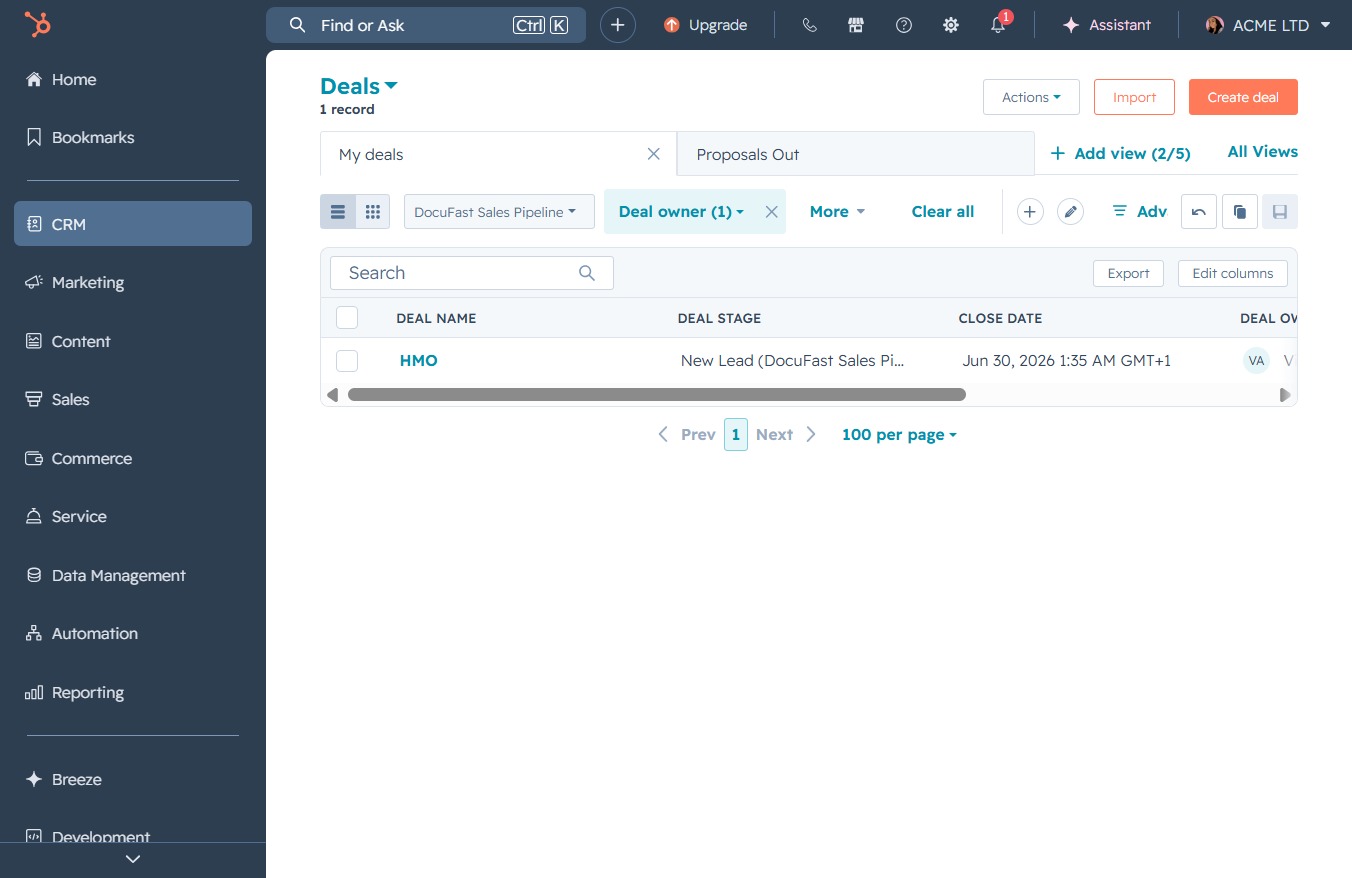
This will open the pipeline editing interface, allowing you to modify existing sales pipelines or create new ones tailored to your business needs.
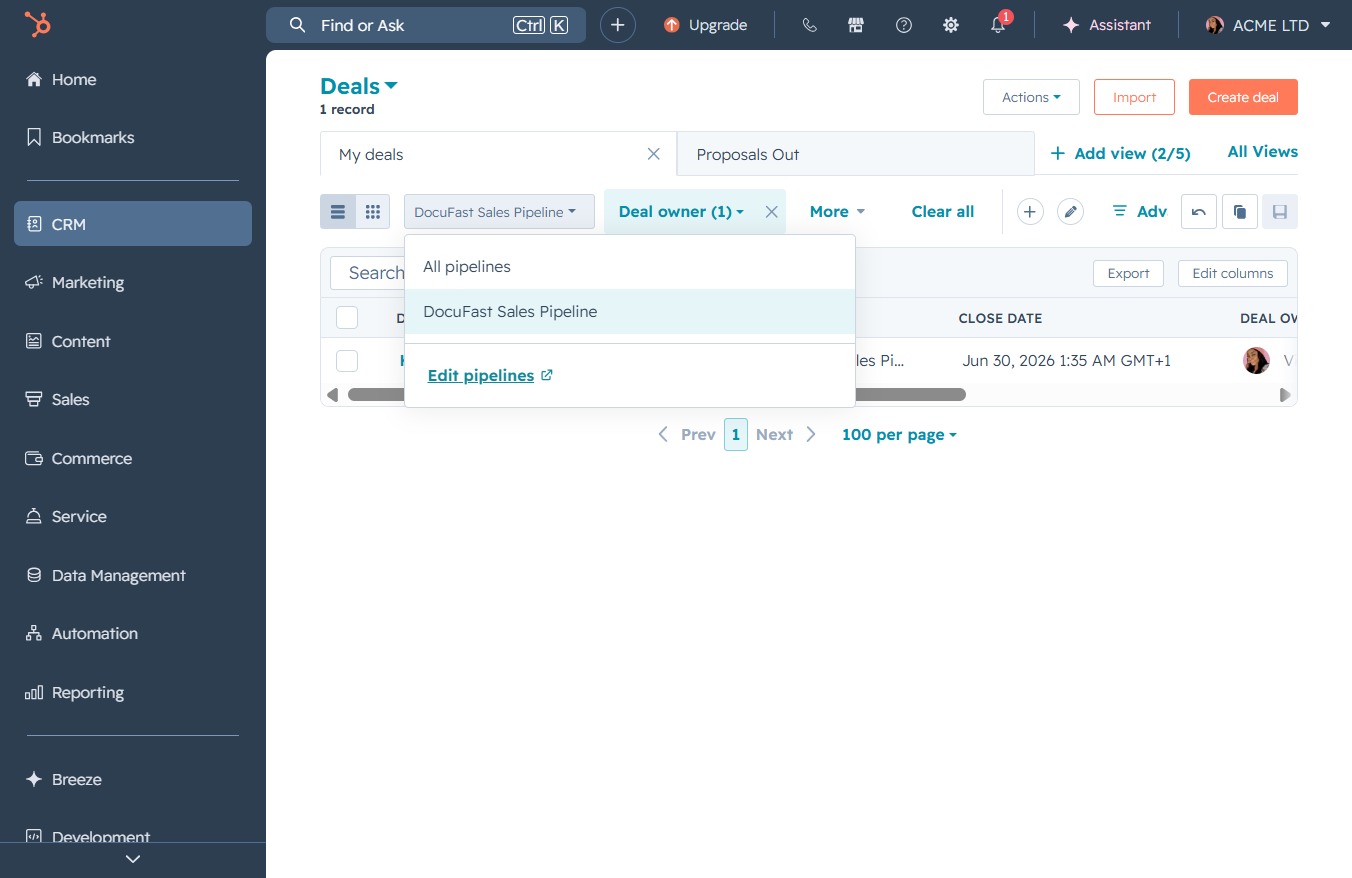
Clicking this button allows you to create a new stage in your sales pipeline, enabling better tracking and management of leads within the DocuFast Sales Pipeline.
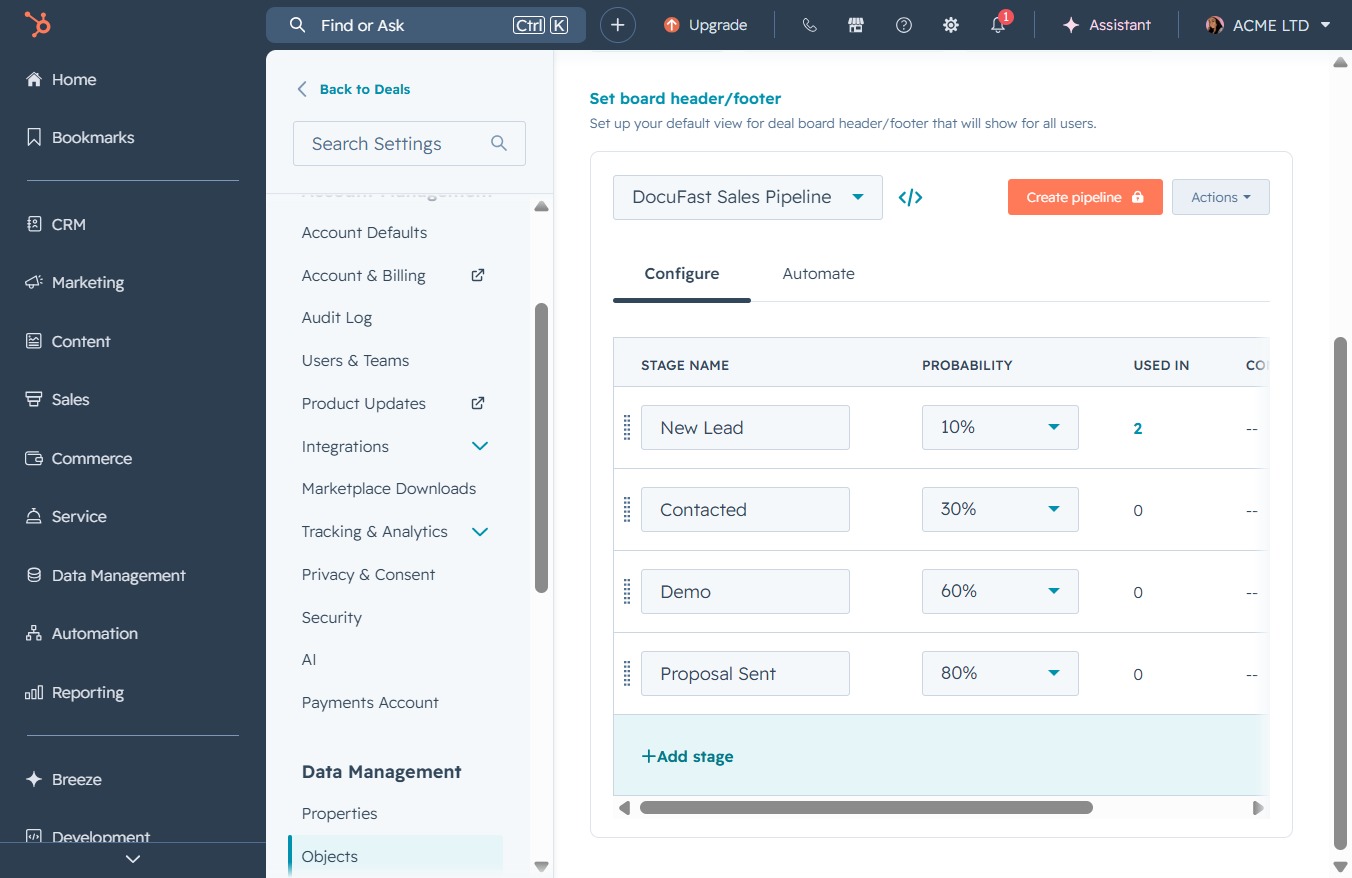
Enter 'Closed Won' to create a new sales stage in your pipeline. This will help you accurately track the progress of your deals.

This action allows you to modify the probability percentage for the selected stage in your workflow settings, specifically targeting the 'Closed' stage in your data management.

Selecting the 'Won (100%)' stage confirms that the deal has been successfully closed, reflecting a completed status in your sales pipeline.
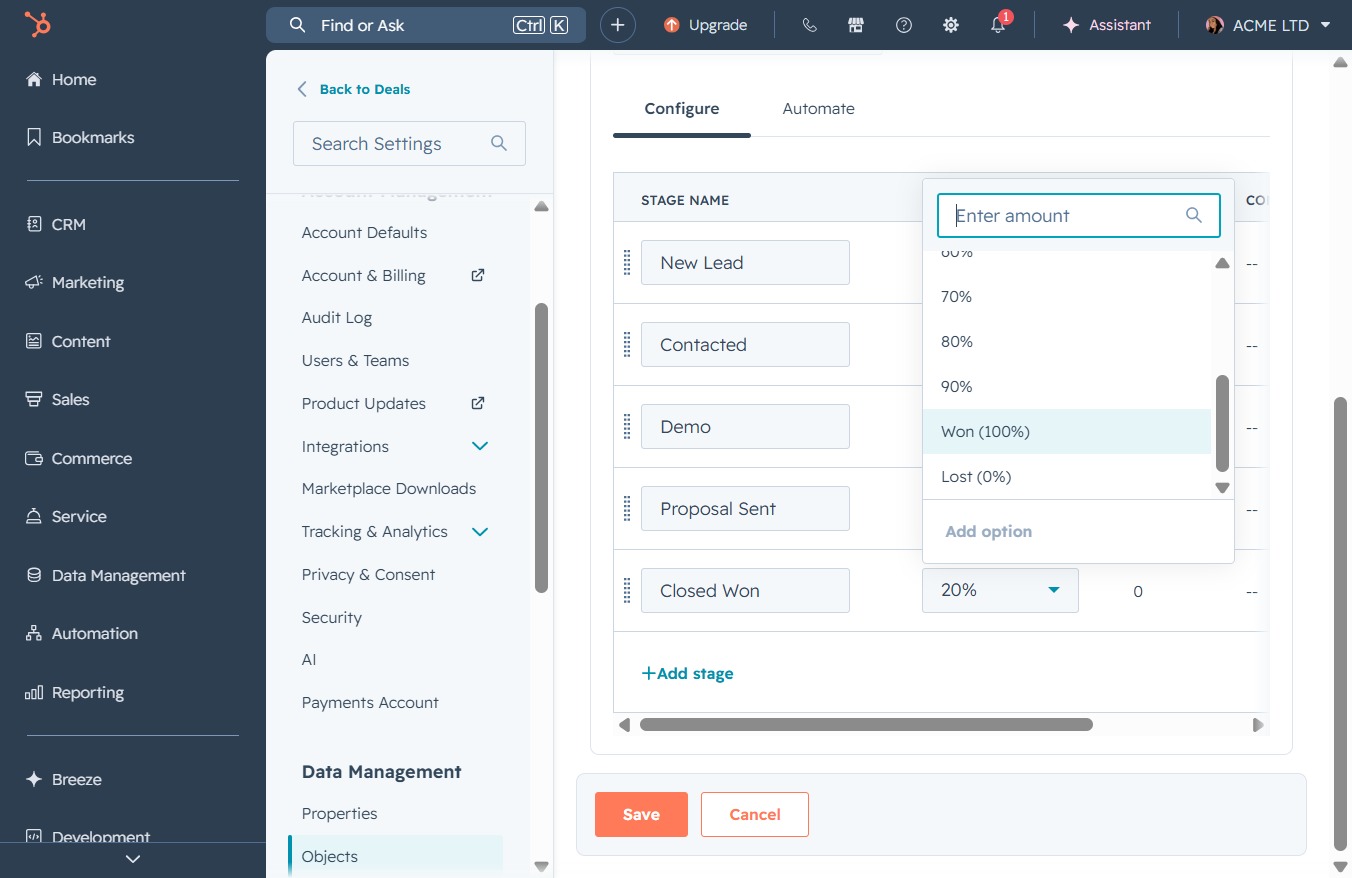
This action allows you to introduce a new sales stage into your workflow, enabling more granular tracking of leads and their associated probabilities.

Enter 'Closed Lost' in the Add stage name field to specify this particular stage in the deal configuration process. This allows you to track opportunities that have been lost.

Clicking the 20% field allows you to adjust the probability percentage for the 'Closed Lost' stage in the sales process.
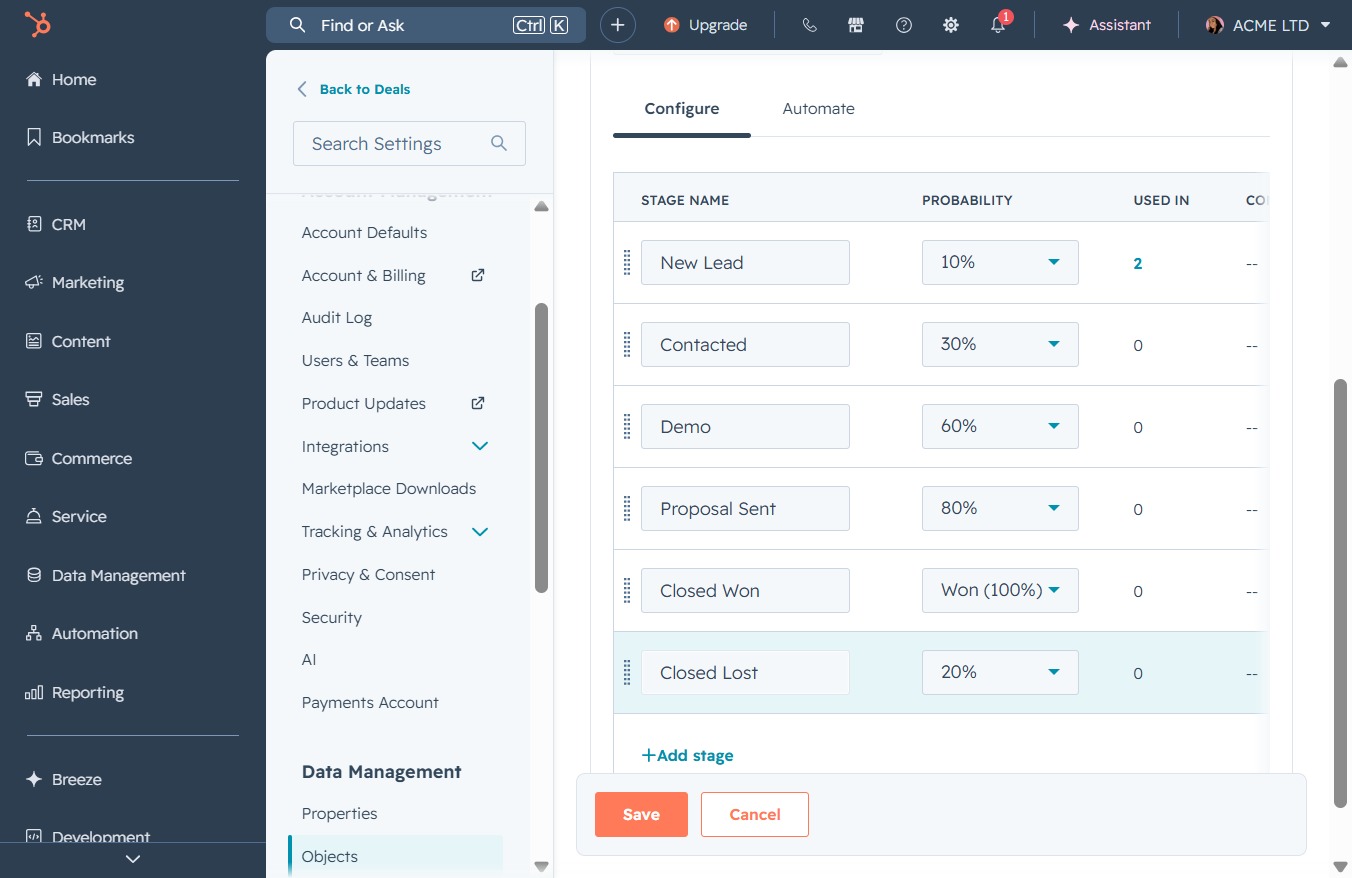
Selecting the 'Lost (0%)' option allows you to specify the probability for leads that are considered lost in your sales pipeline. This adjustment influences the metrics and forecasting within the deals section.

Clicking the 'SaveLoading' button will save your current configuration settings for the stages and probabilities defined in the workflow.
