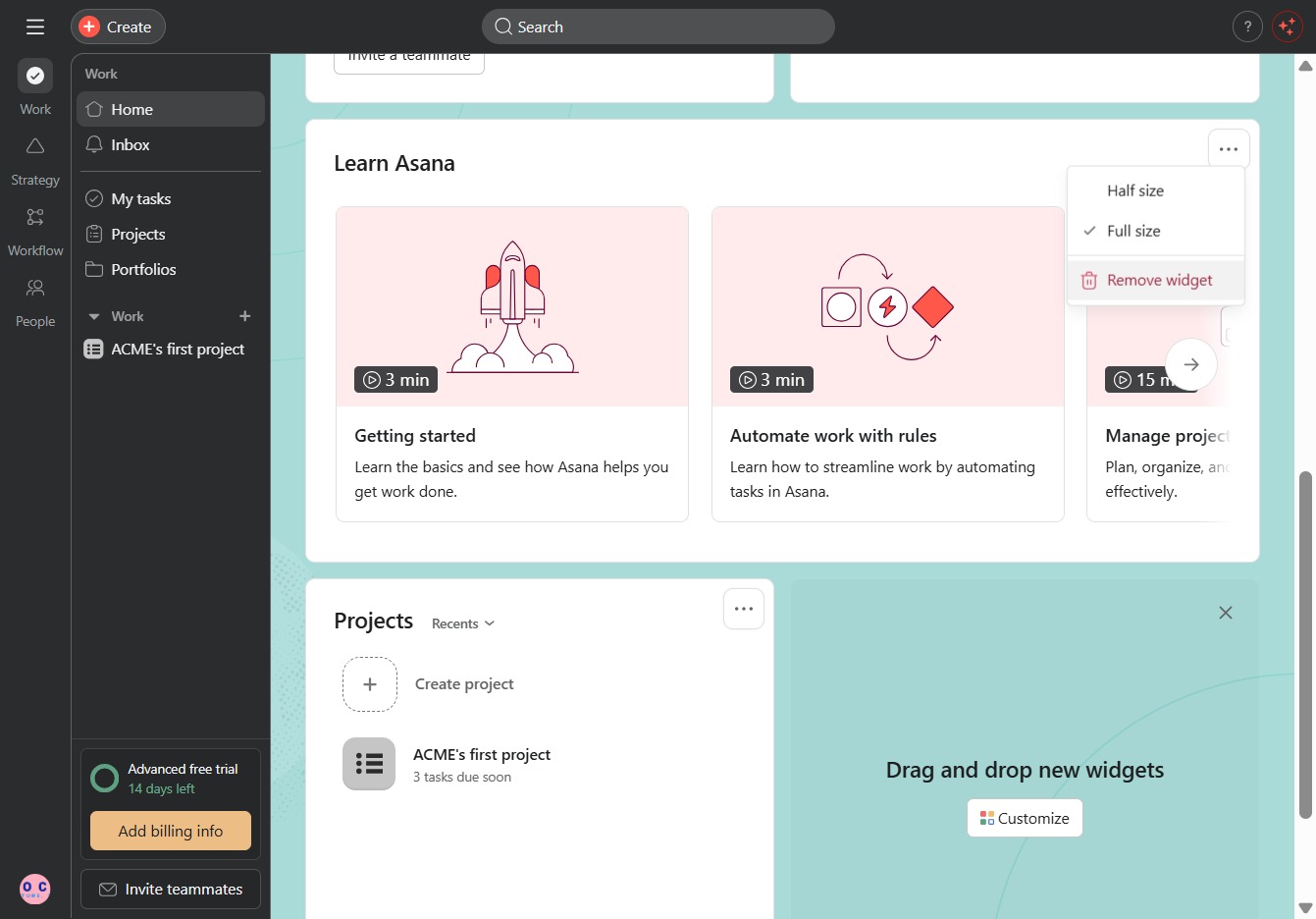
Click the Customize option
This action opens the customization settings for your task view, allowing you to adjust how tasks are displayed and managed.

Loading screenshot…
100%
In this guide, you will learn how to customize your home page in Asana to enhance your task management experience.
 viktoria
In this guide, you will learn how to customize your home page in Asana to enhance your task management experience. Follow the steps to adjust display settings, add widgets like People and Tasks I've Assigned, and personalize your workspace layout for improved efficiency.
This action opens the customization settings for your task view, allowing you to adjust how tasks are displayed and managed.
Clicking here opens the options to change the background and add widgets to your home screen, allowing you to personalize your workspace in the application.
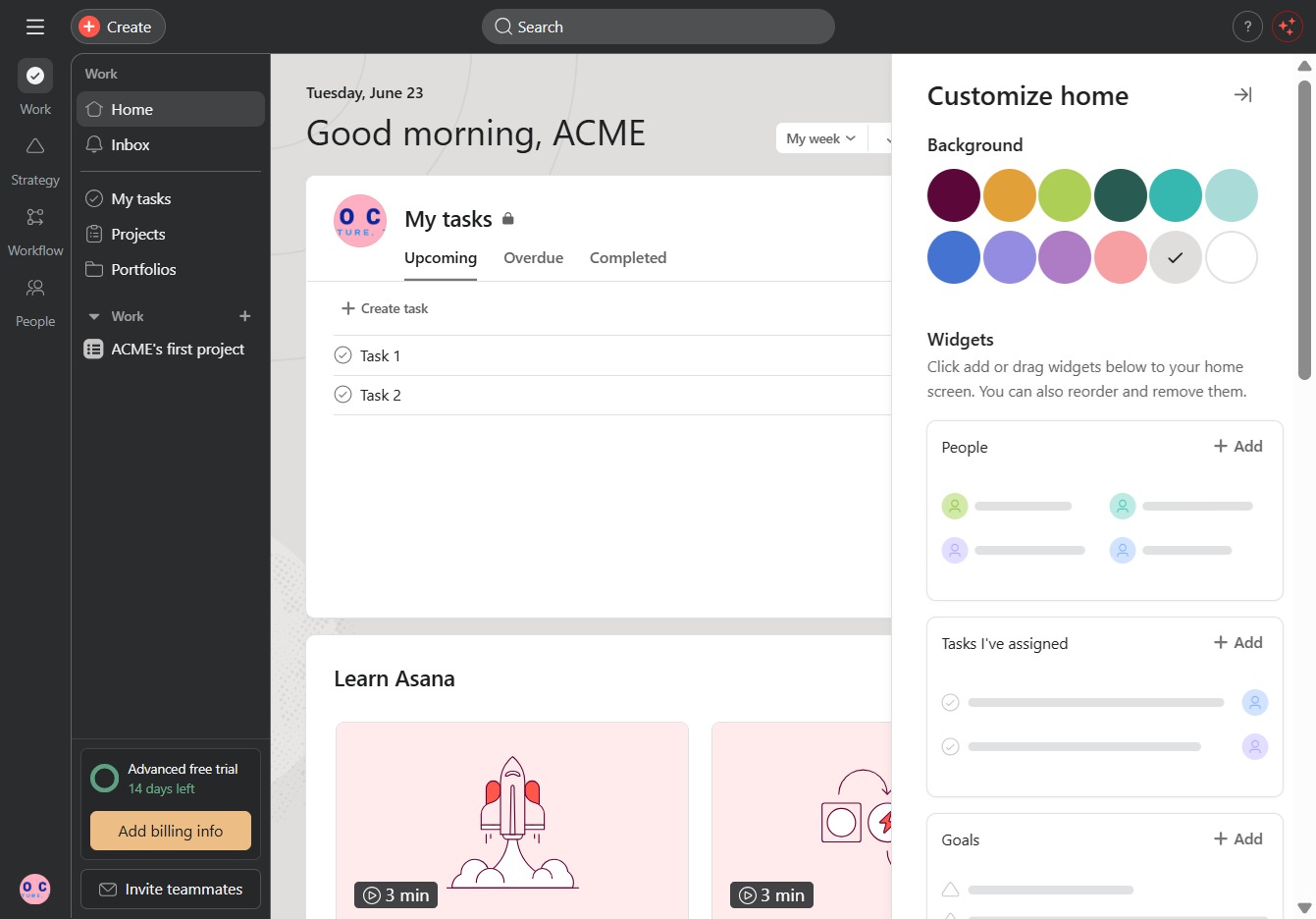
This action adds the People widget to your home page, allowing you to manage contacts and team members directly from the dashboard. You can later customize or rearrange the widget as needed.

Clicking this option will add the 'Tasks I've assigned' widget to your home page, allowing you to easily track tasks assigned to you. You can customize your home screen by rearranging and managing widgets as needed.

This action adds the Asana AI widget to your homepage, allowing you to utilize its features directly from your dashboard for enhanced task management.

This action will close the customization panel, saving any changes you've made to the layout of your home screen. You will return to the main workspace view to continue managing your tasks.
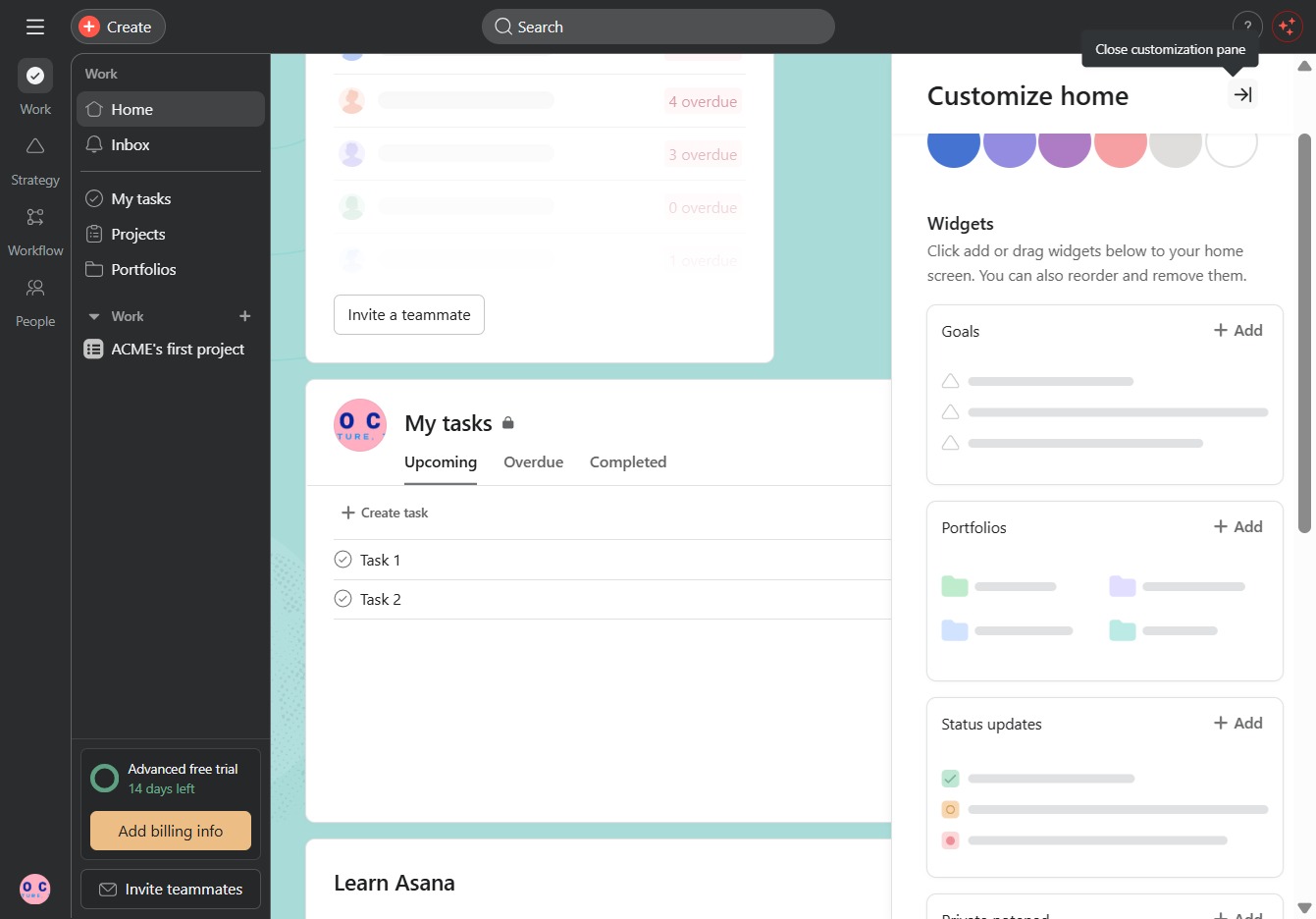
Clicking the Actions menu opens up additional options for managing your tasks, including the ability to modify, delete, or assign tasks within your list.
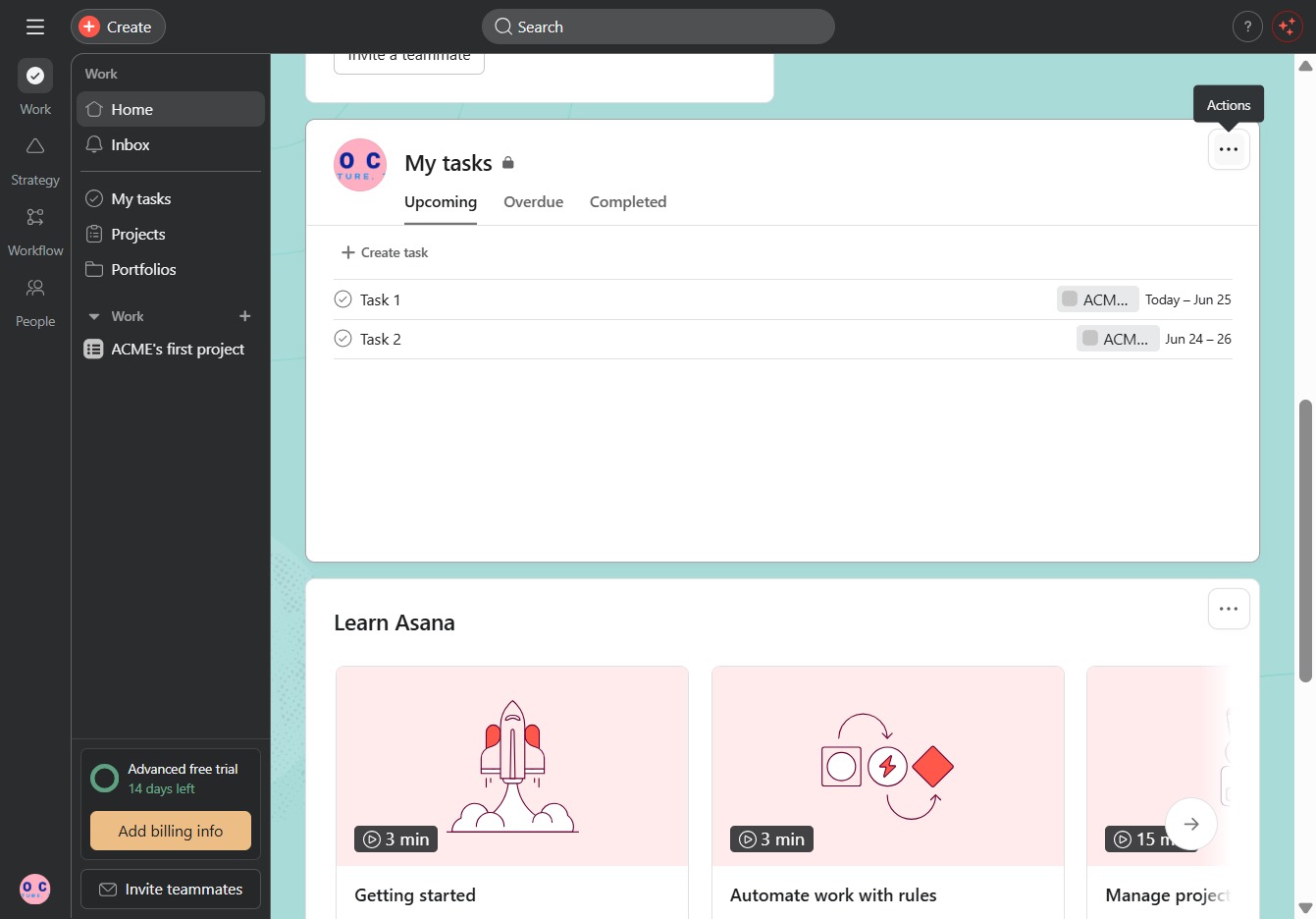
Selecting the 'Half size' option will adjust the display of your tasks and widgets, allowing for a more compact view of your workspace in Asana.
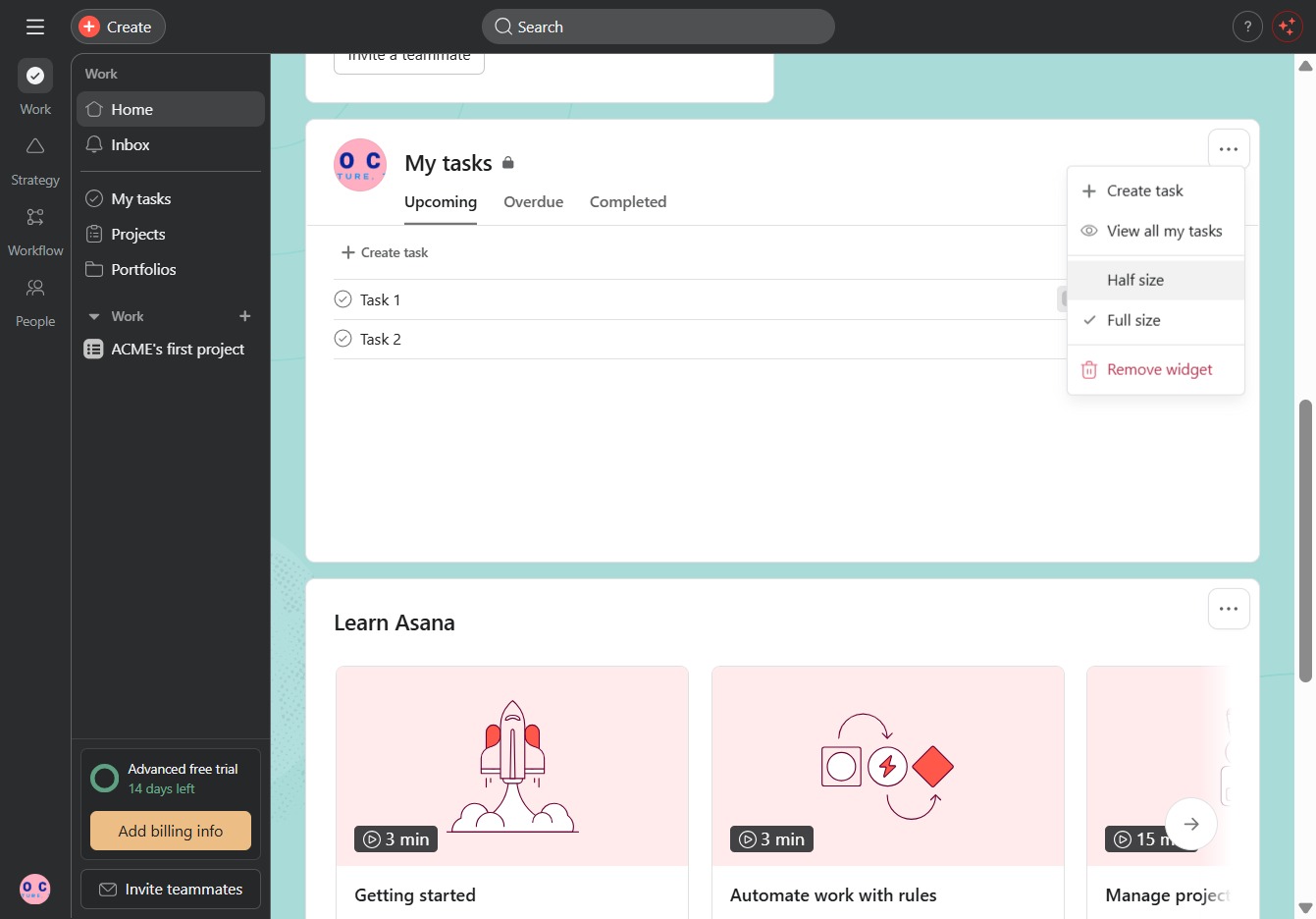
Clicking this link will take you to additional resources or information related to your current task in Asana.
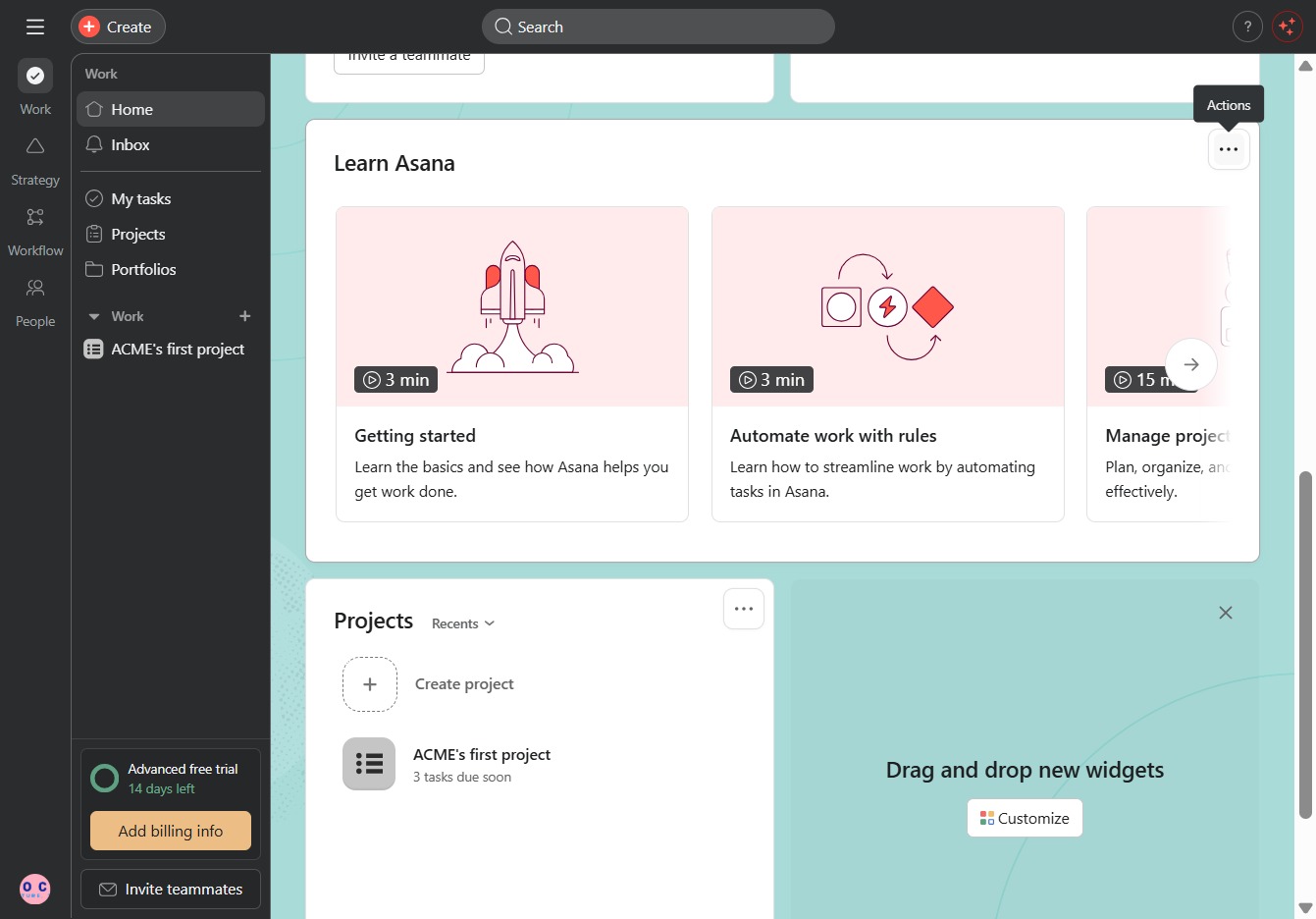
This action will delete the widget from your dashboard, helping you customize your workspace by removing unnecessary elements.