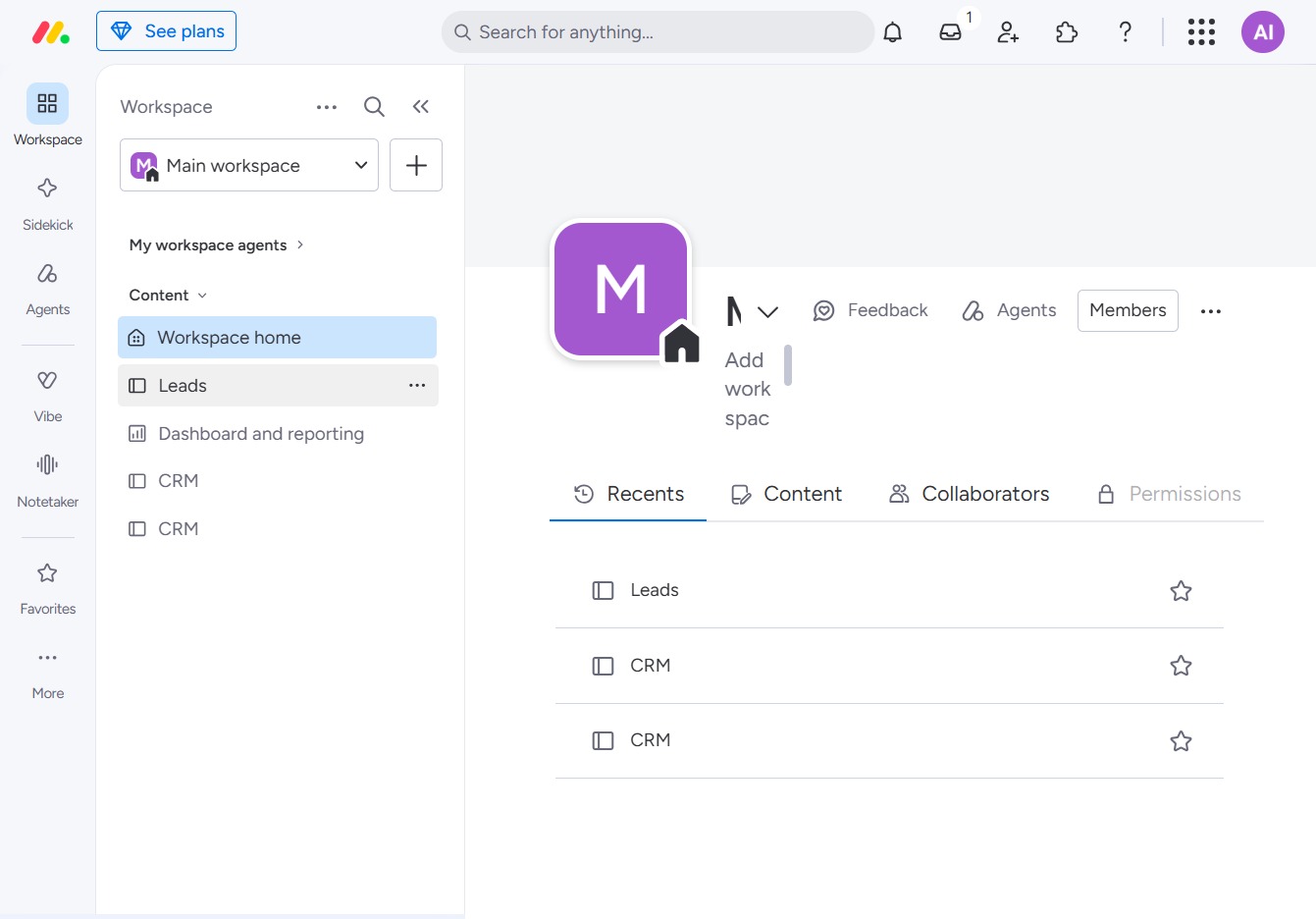
Click the BoardLeads section
After clicking on the BoardLeads section, you will access the specific board dedicated to managing leads within your workspace, enabling you to organize and track lead activities effectively.
Loading screenshot…
100%
Learn how to customize board descriptions in your workspace by navigating through the BoardLeads section and adding a concise description to enhance clarity.
 viktoria
Learn how to customize board descriptions in your workspace by navigating through the BoardLeads section and adding a concise description to enhance clarity. This guide will equip you with the steps to effectively organize and communicate the purpose of your lead management board.
After clicking on the BoardLeads section, you will access the specific board dedicated to managing leads within your workspace, enabling you to organize and track lead activities effectively.
This action opens the Leads section where you can manage your tasks, view their status, and add new tasks.

This action allows you to enter a brief description for the Leads section, helping to clarify the purpose or details of the project.
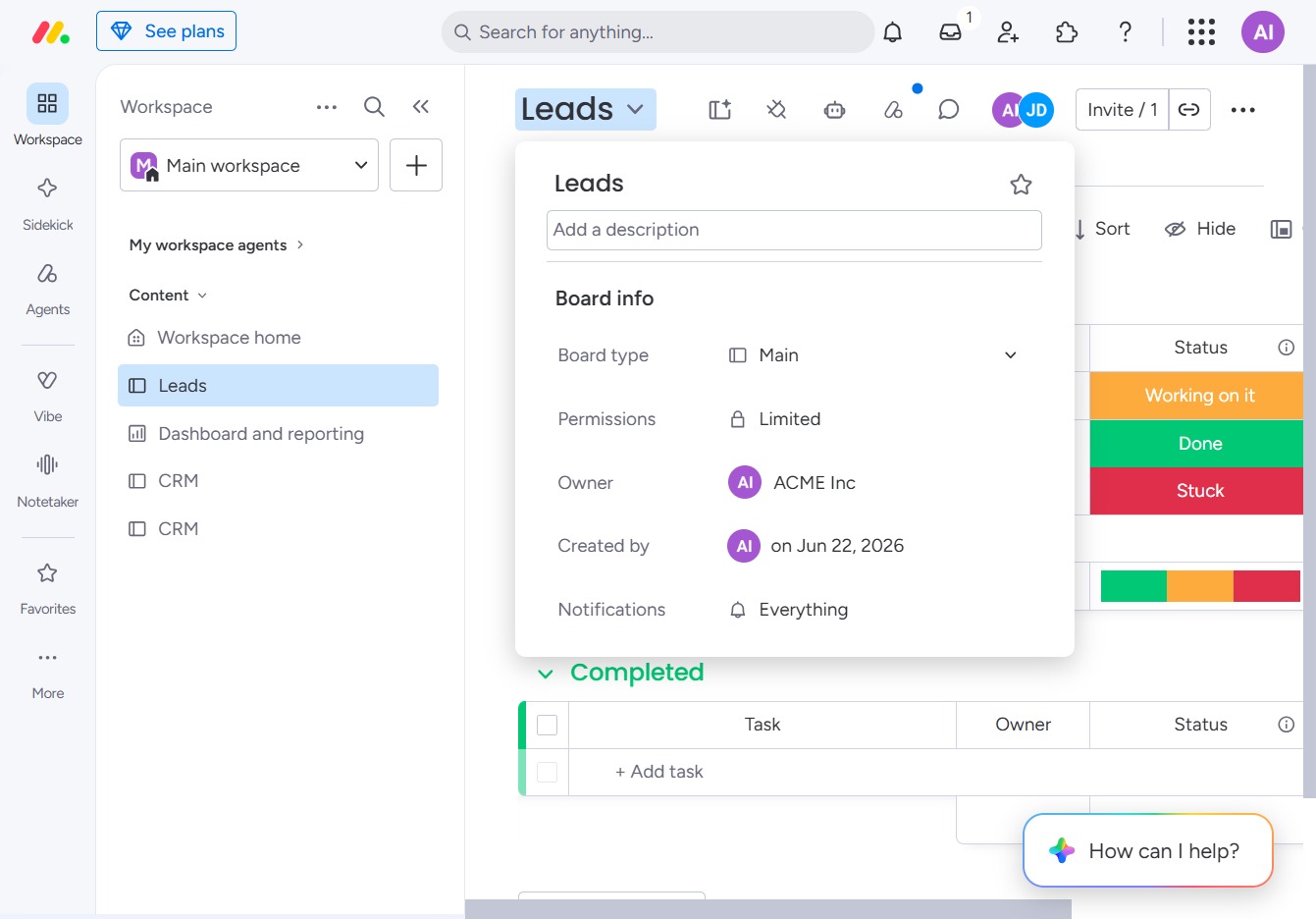
Enter 'Track and manage all leads' in the description field to provide context for the lead management process. This will help team members understand the purpose of the lead board.
