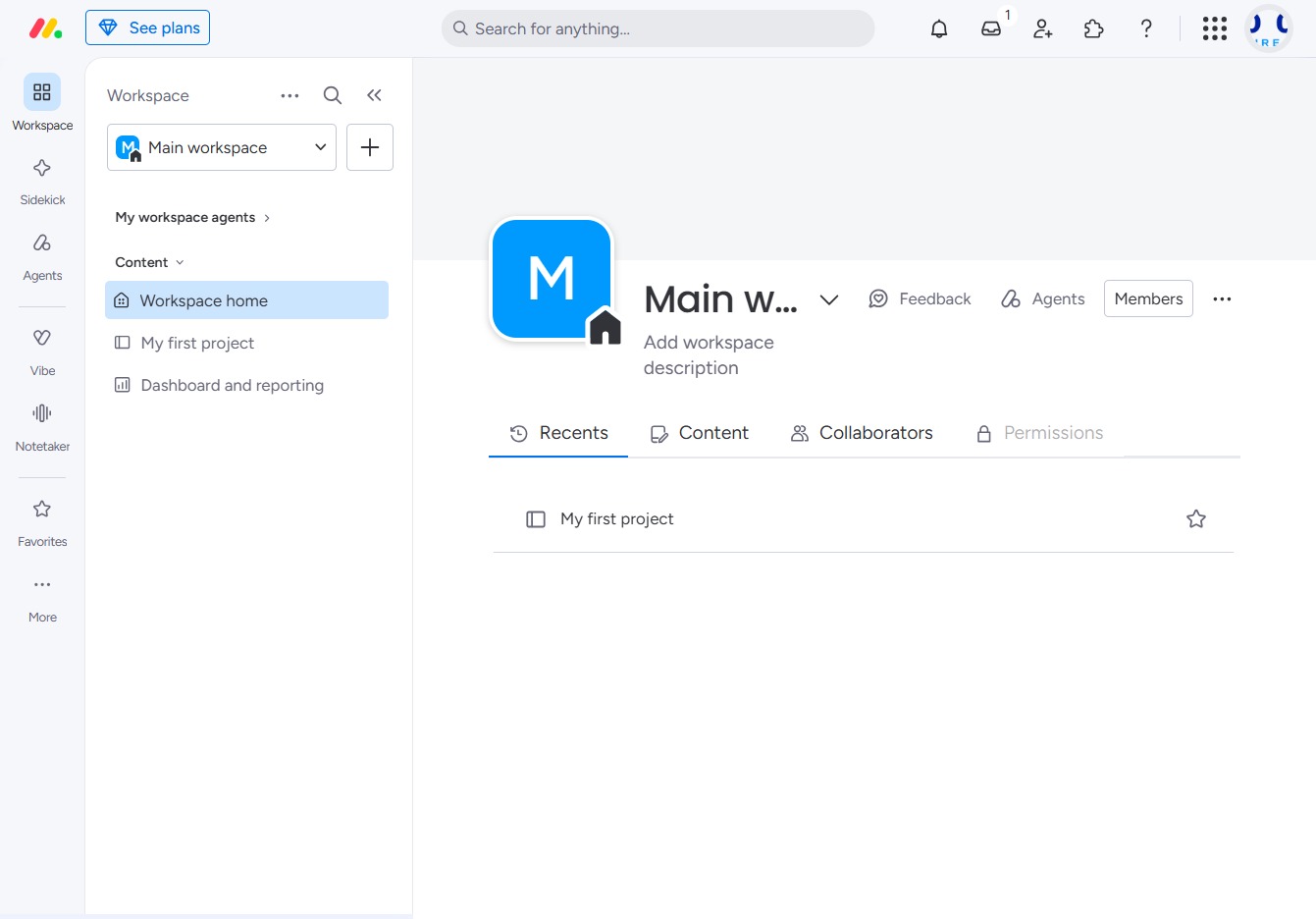
Click the ACME Inc logo
Clicking the ACME Inc logo will navigate you to the main workspace dashboard, allowing you to access features like 'Recents', 'Content', and 'Collaborators'.
Loading screenshot…
100%
In this how-to guide, learn how to effectively customize your account settings in monday.com, from navigating to your workspace dashboard to managing user roles and configuring…
 viktoria
In this how-to guide, learn how to effectively customize your account settings in monday.com, from navigating to your workspace dashboard to managing user roles and configuring sign-up preferences. Follow the step-by-step instructions to enhance your account management and tailor the dashboard to suit your team's needs.
Clicking the ACME Inc logo will navigate you to the main workspace dashboard, allowing you to access features like 'Recents', 'Content', and 'Collaborators'.
Clicking on 'Administration' opens the administrative settings where you can manage user roles, permissions, and other administrative functions for your account.

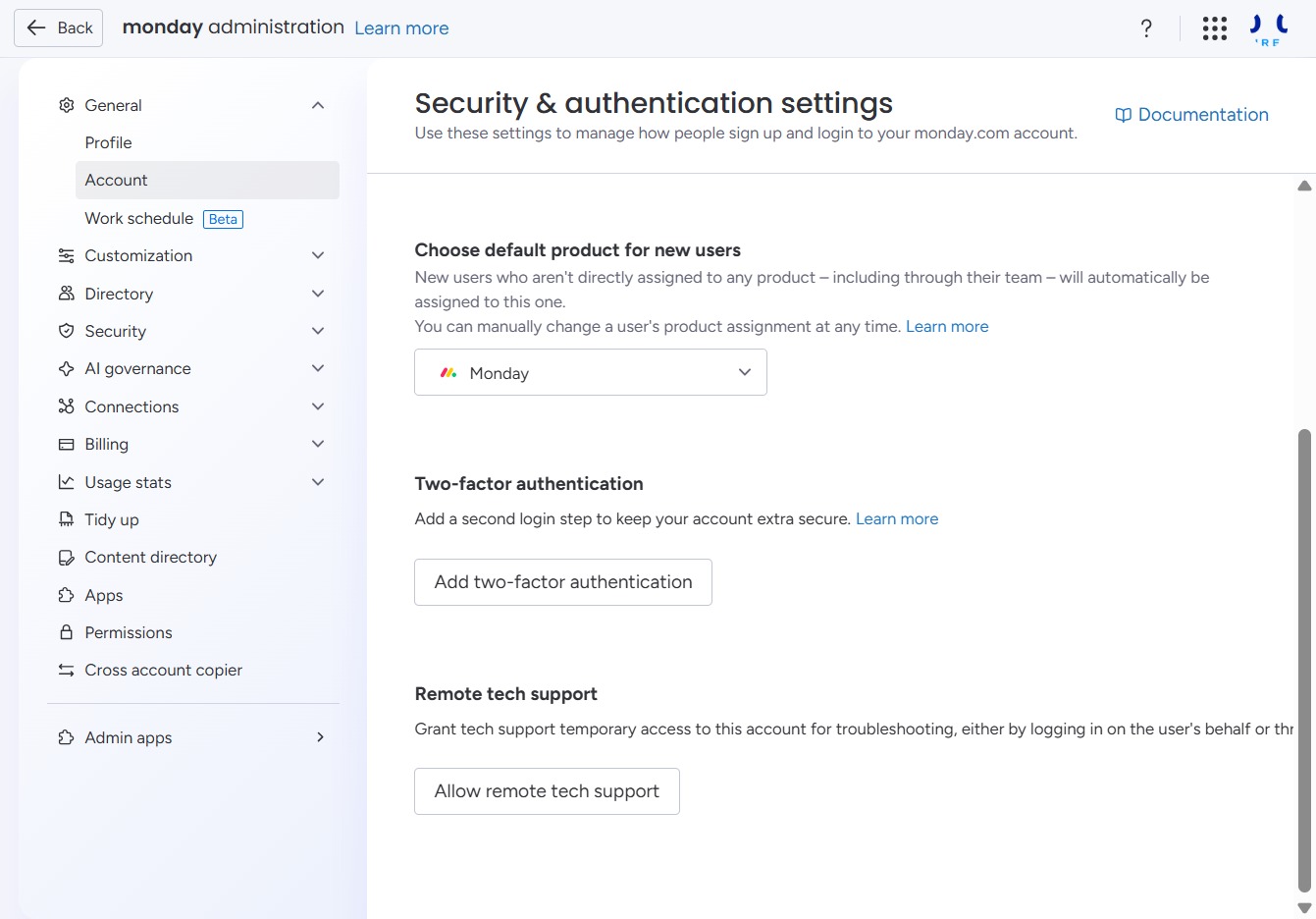
Selecting the 'General' option takes you to the main settings for managing user sign-up and login preferences in your monday.com account.
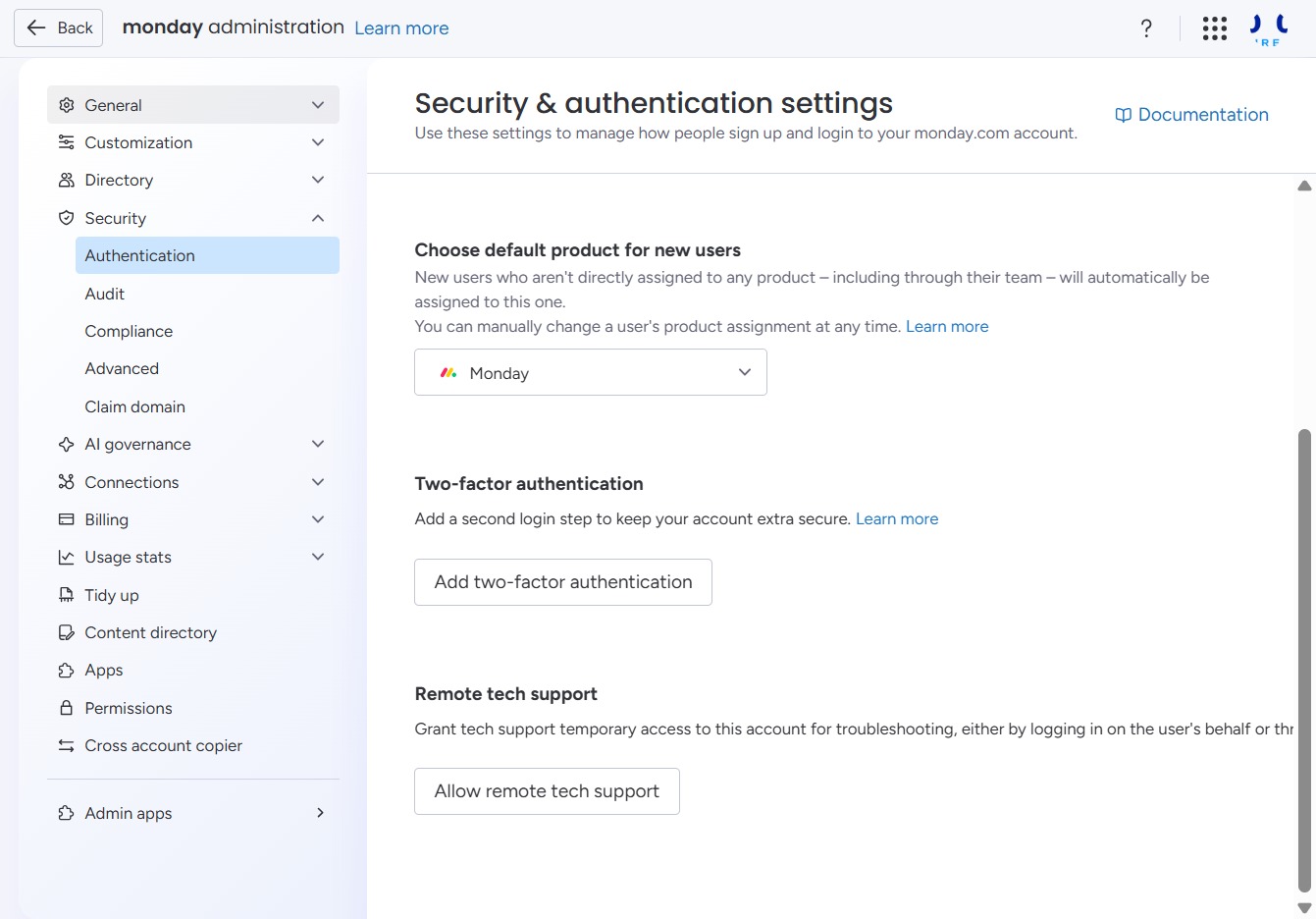
This will open the settings related to account management, allowing you to configure user products and authentication options.
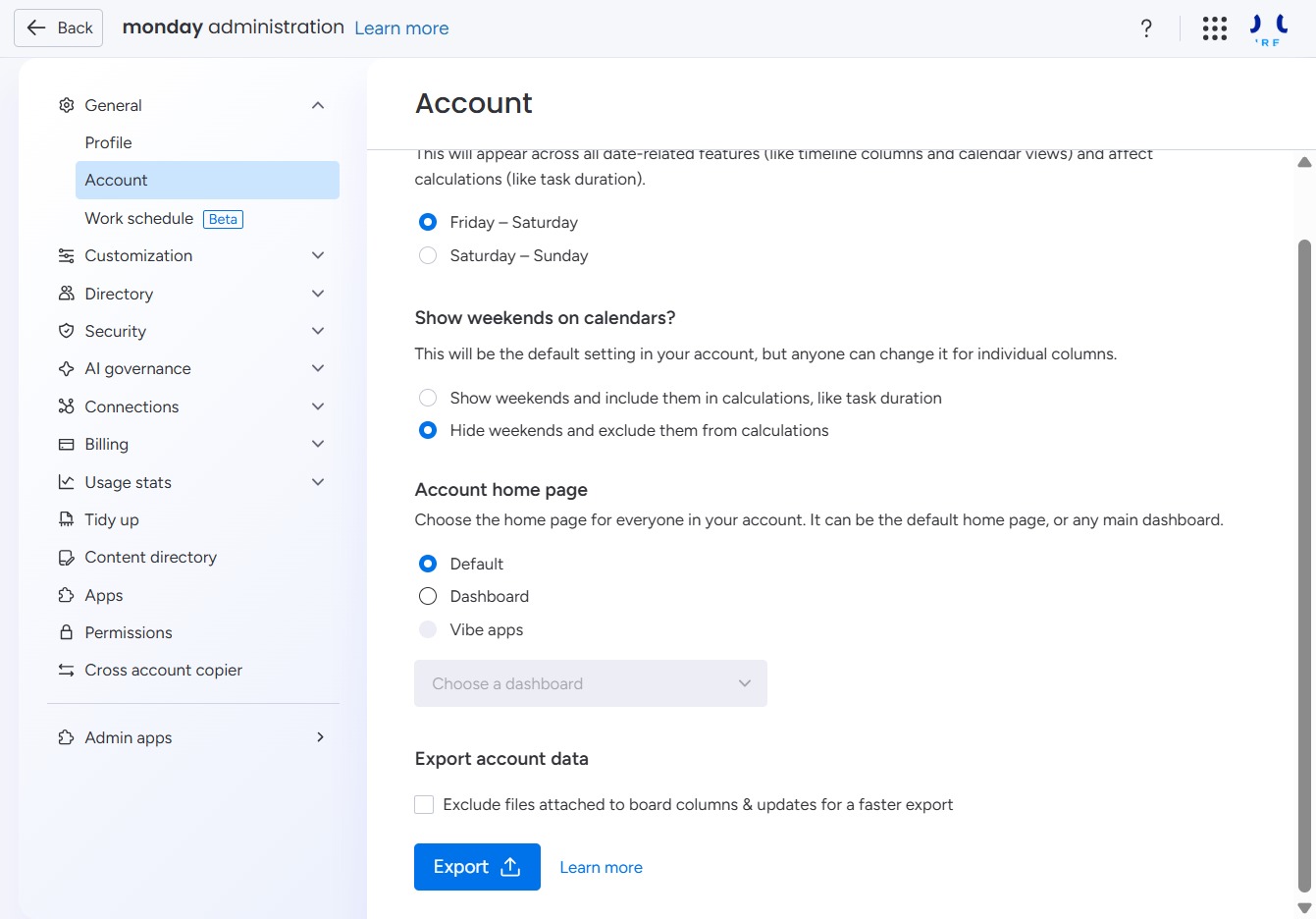
Clicking 'Choose a dashboard' will allow you to select the default home page for everyone in your account, enabling customization of the main dashboard view.
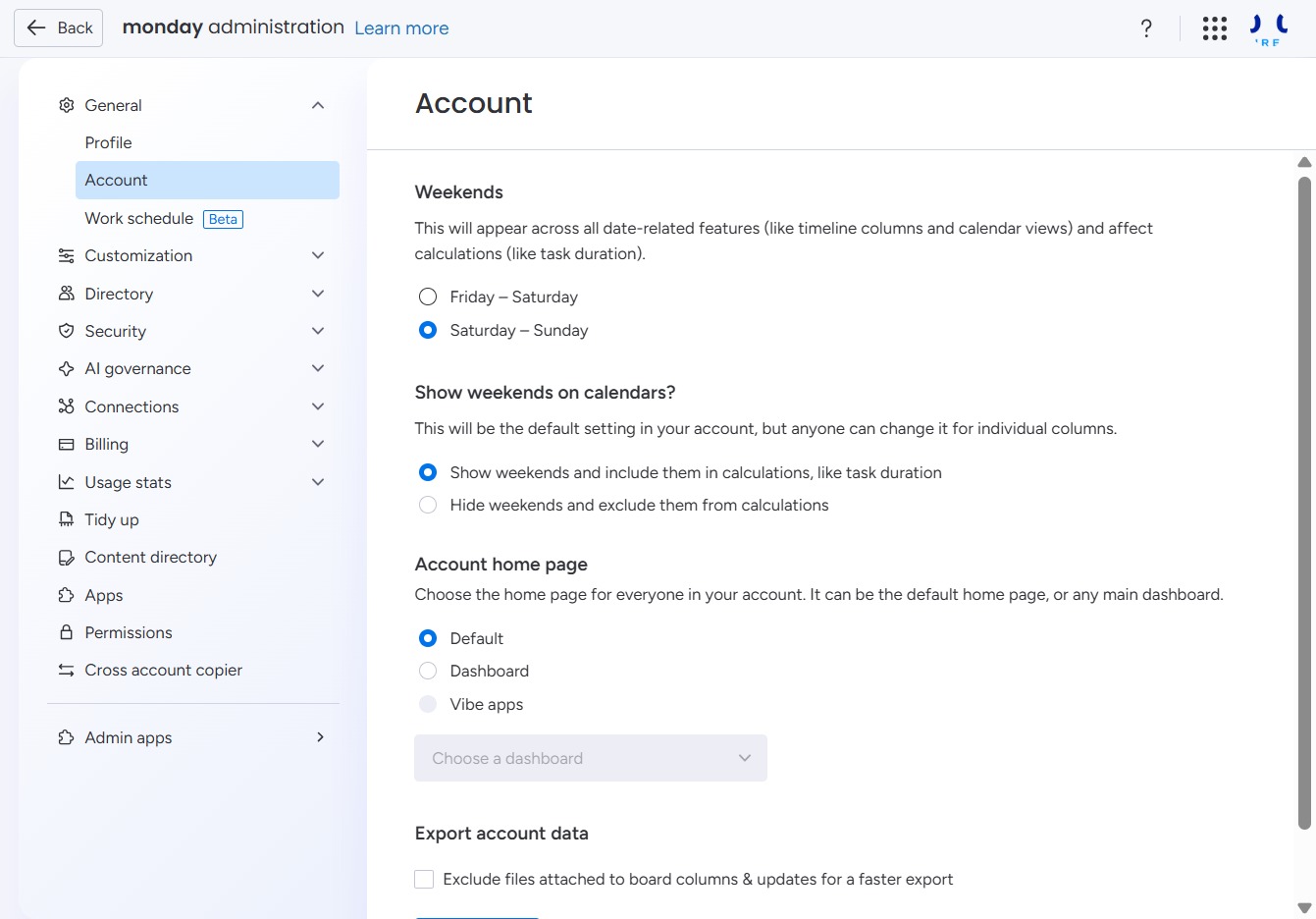
Clicking this button will allow you to export account data, including files attached to board columns, enhancing your data management capabilities.
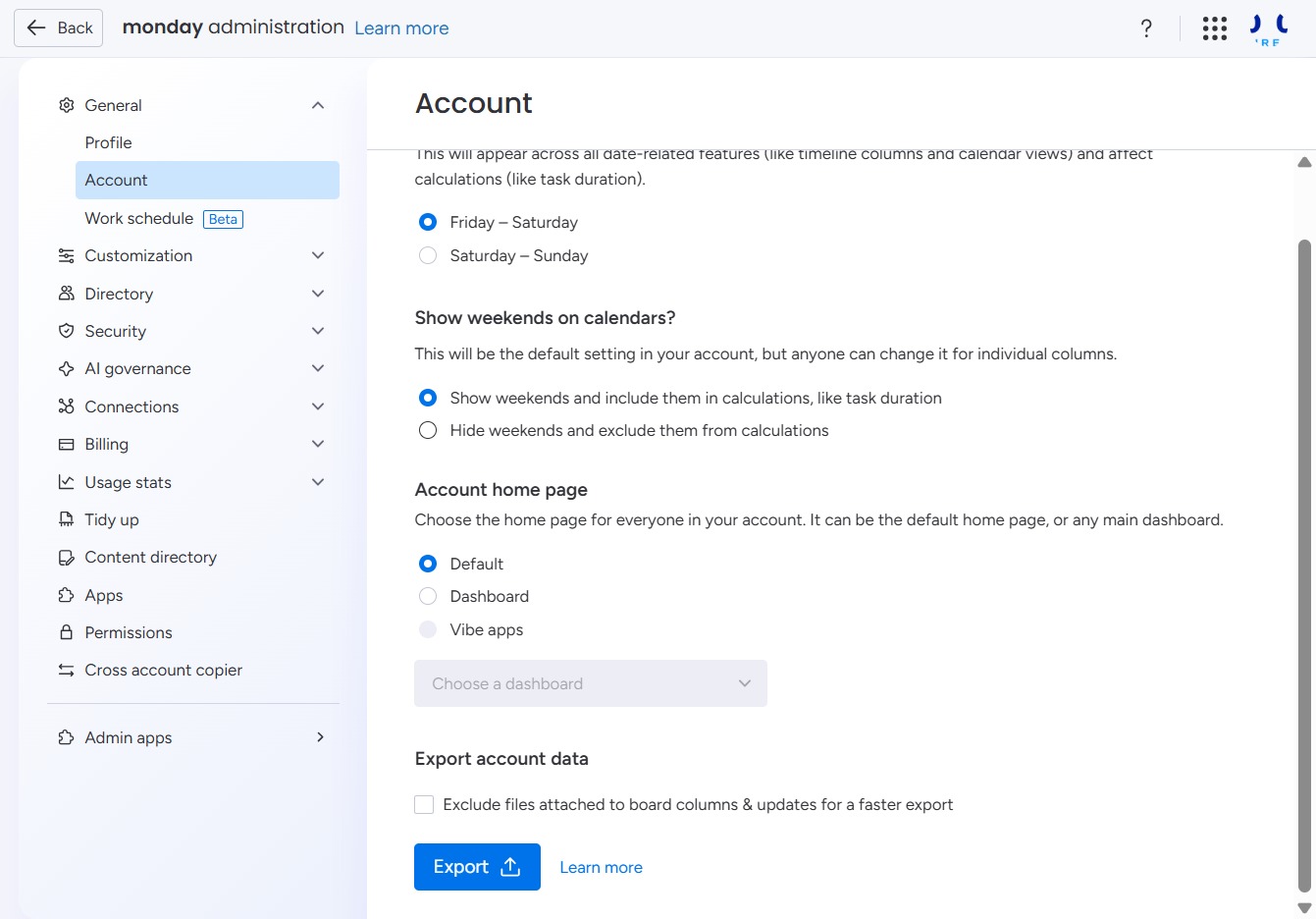
This will initiate the export process for your account data, allowing you to download files attached to board columns and updates for a faster export.