Click the email address victoria@docufast.ai
Clicking this email address will typically initiate a new email to victoria@docufast.ai, allowing you to communicate directly with the specified contact.
Loading screenshot…
100%
This how-to guide provides a step-by-step process for customizing your account preferences in Confluence, including managing your profile settings, adjusting privacy options,…
 viktoria
This how-to guide provides a step-by-step process for customizing your account preferences in Confluence, including managing your profile settings, adjusting privacy options, selecting a time zone, and controlling cookie preferences for a personalized experience. Follow these easy instructions to optimize your account settings and enhance your use of Atlassian services.
Clicking this email address will typically initiate a new email to victoria@docufast.ai, allowing you to communicate directly with the specified contact.
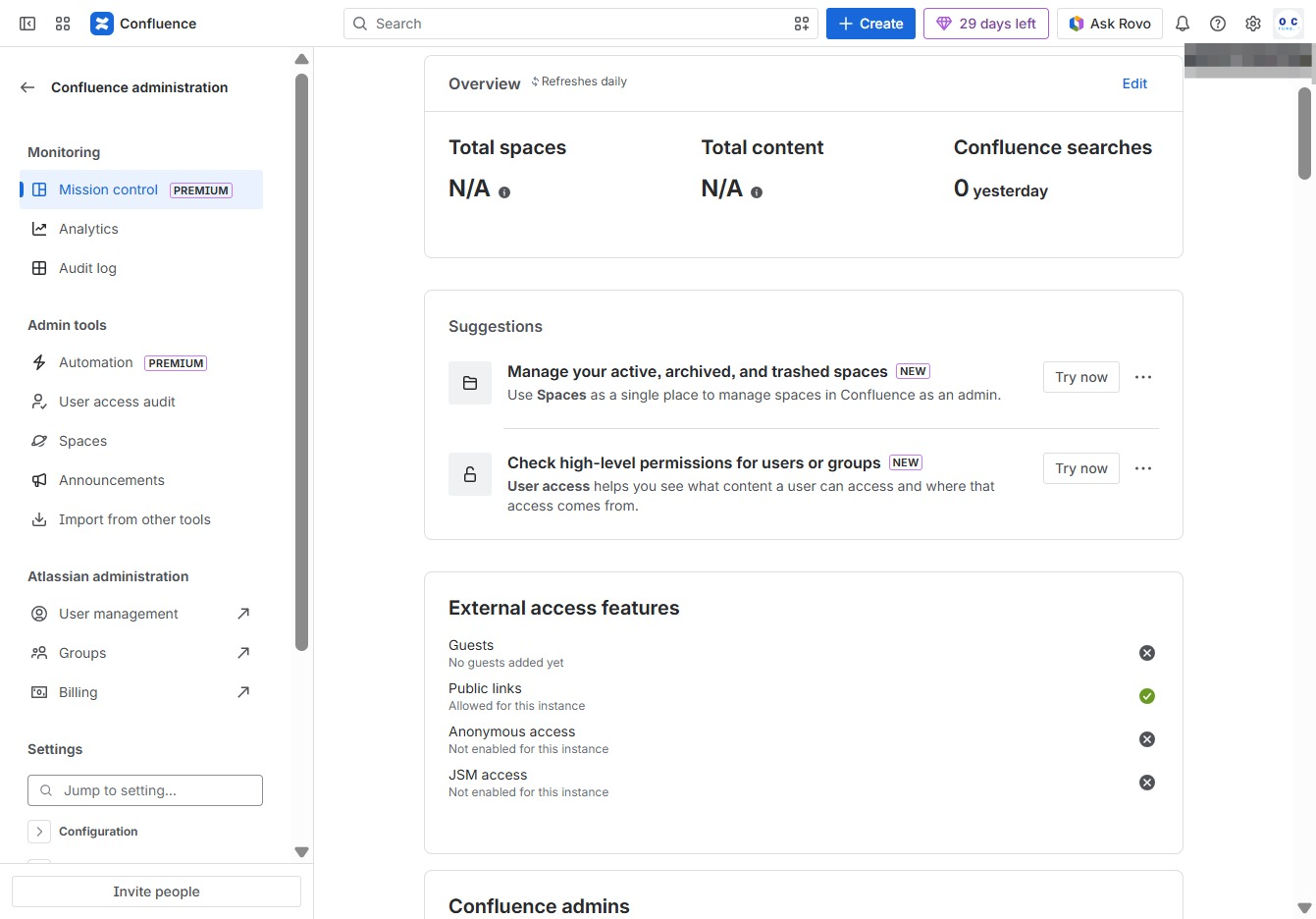
This action opens the account settings menu, allowing you to manage your profile, theme, and personal space settings in Confluence.

This section allows you to adjust your account settings and preferences, including privacy options and visibility control over your personal information.
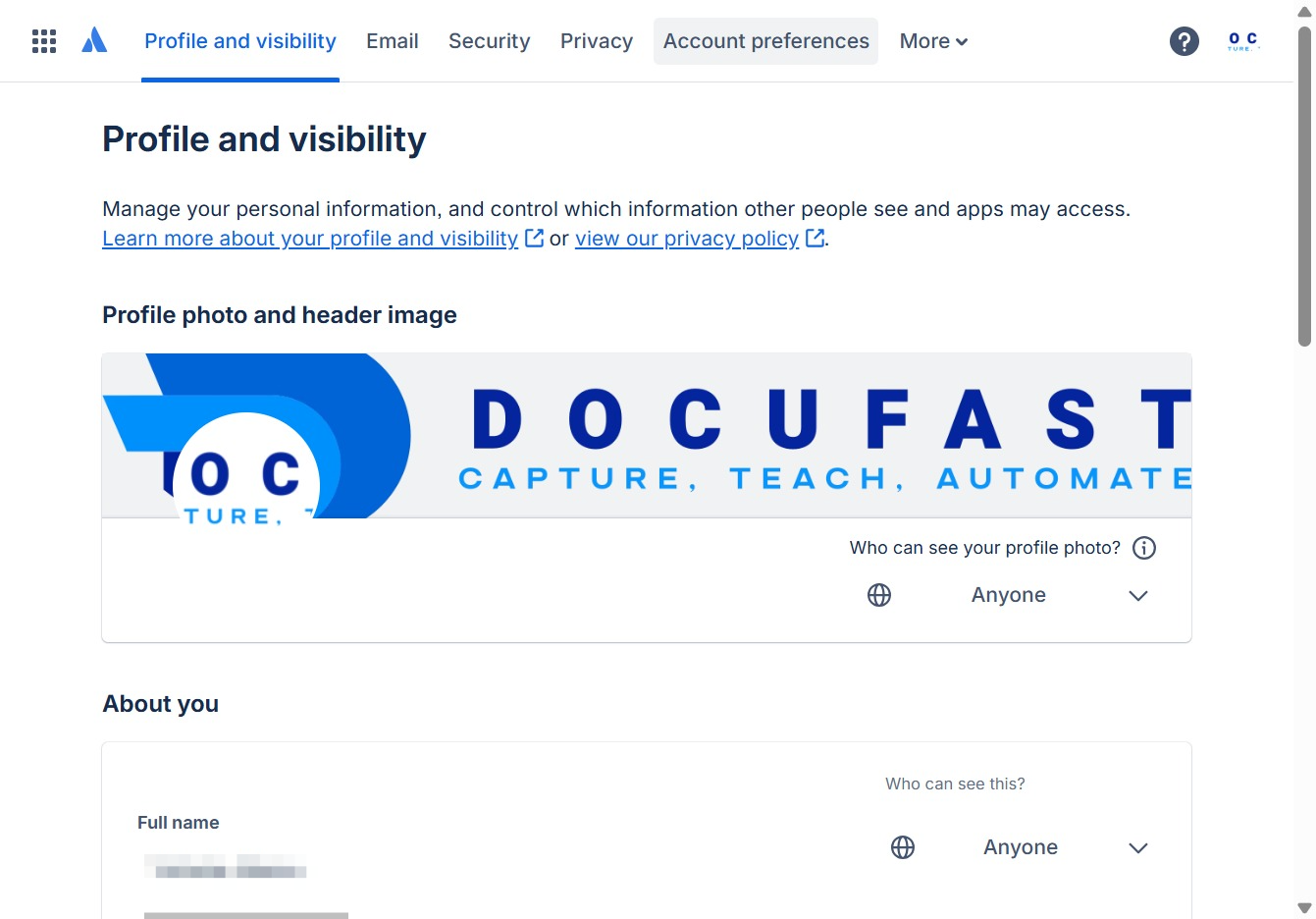
Clicking this button initiates the account deletion process, which will remove your access to Atlassian services and permanently delete your personal data. You have the option to cancel the deletion within 14 days.

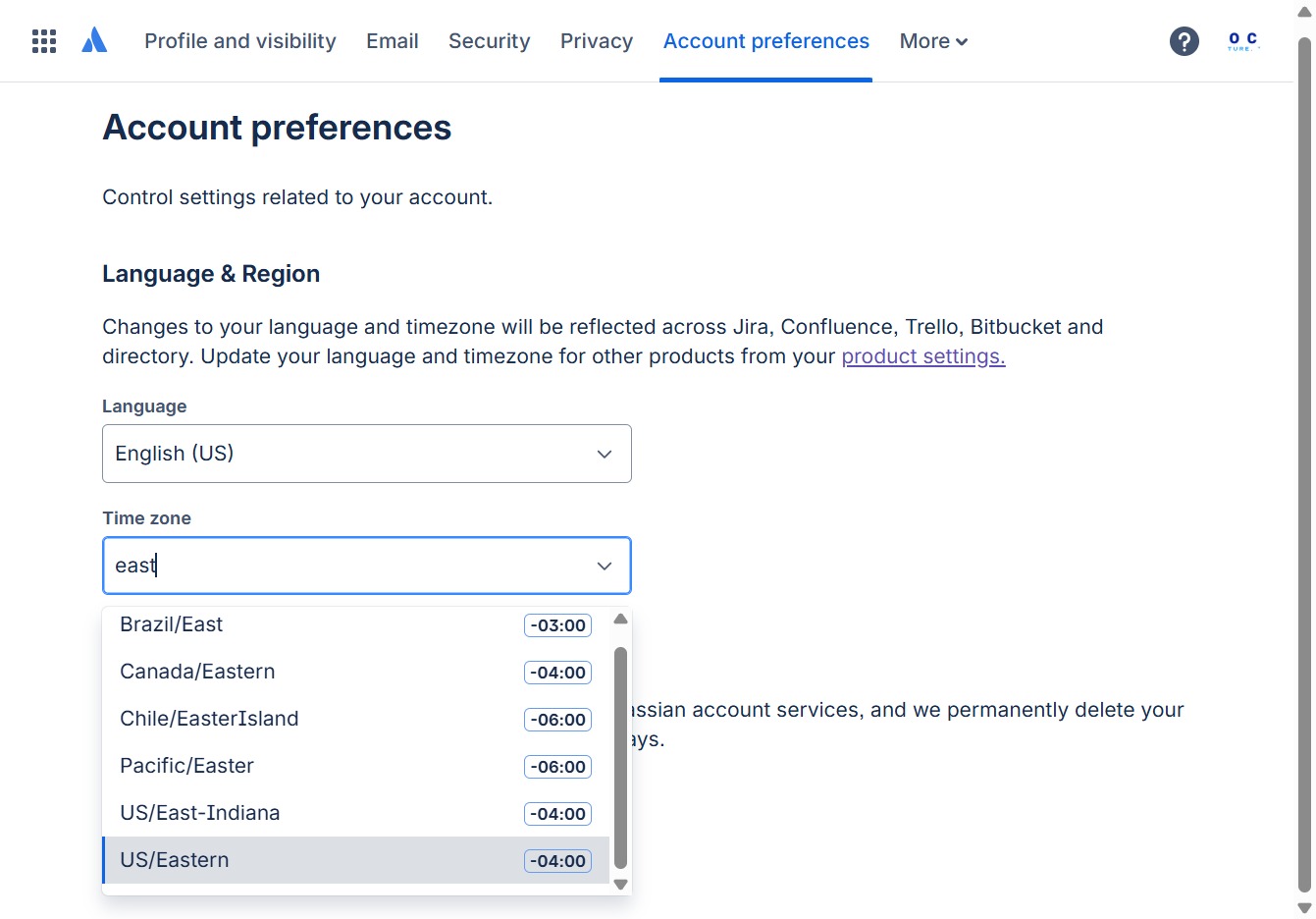
Entering 'east' in the Time zone field will filter the timezone options to show relevant results, making it easier to select your desired time zone.

Selecting the US/Eastern time zone will set your account's time settings to Eastern Standard Time (EST). This change will be applied across all associated products and services.
This action will open the Privacy settings, allowing you to manage control settings related to your account and adjust your visibility preferences.

This link allows you to manage your cookie settings, including which cookies to allow for a more personalized experience when using Atlassian products.

After selecting your cookie preferences, click the Confirm button to save your settings and proceed.

By clicking the Confirm button, you finalize your cookie preferences, allowing the selected cookies for personalized experiences on the site.
