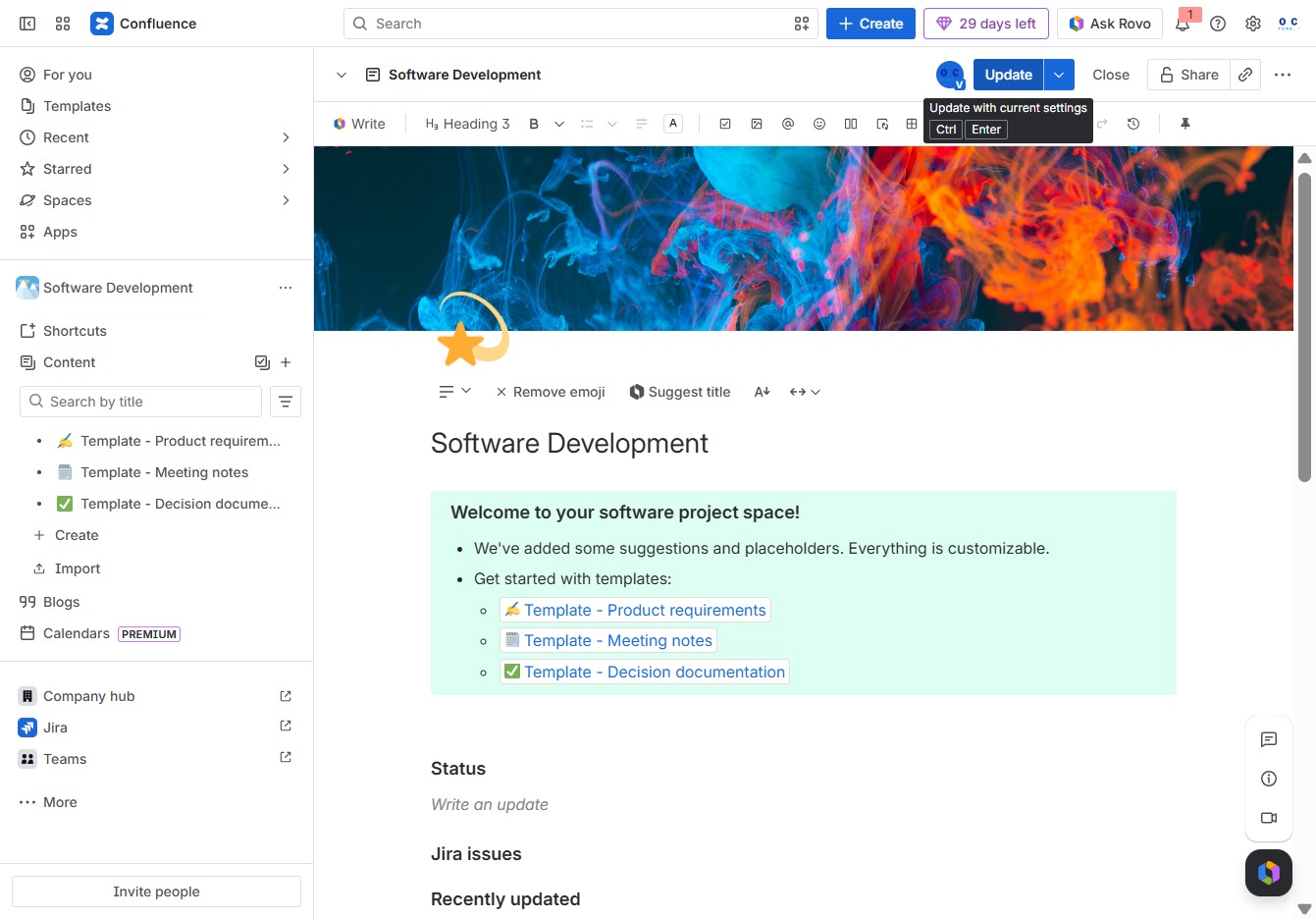
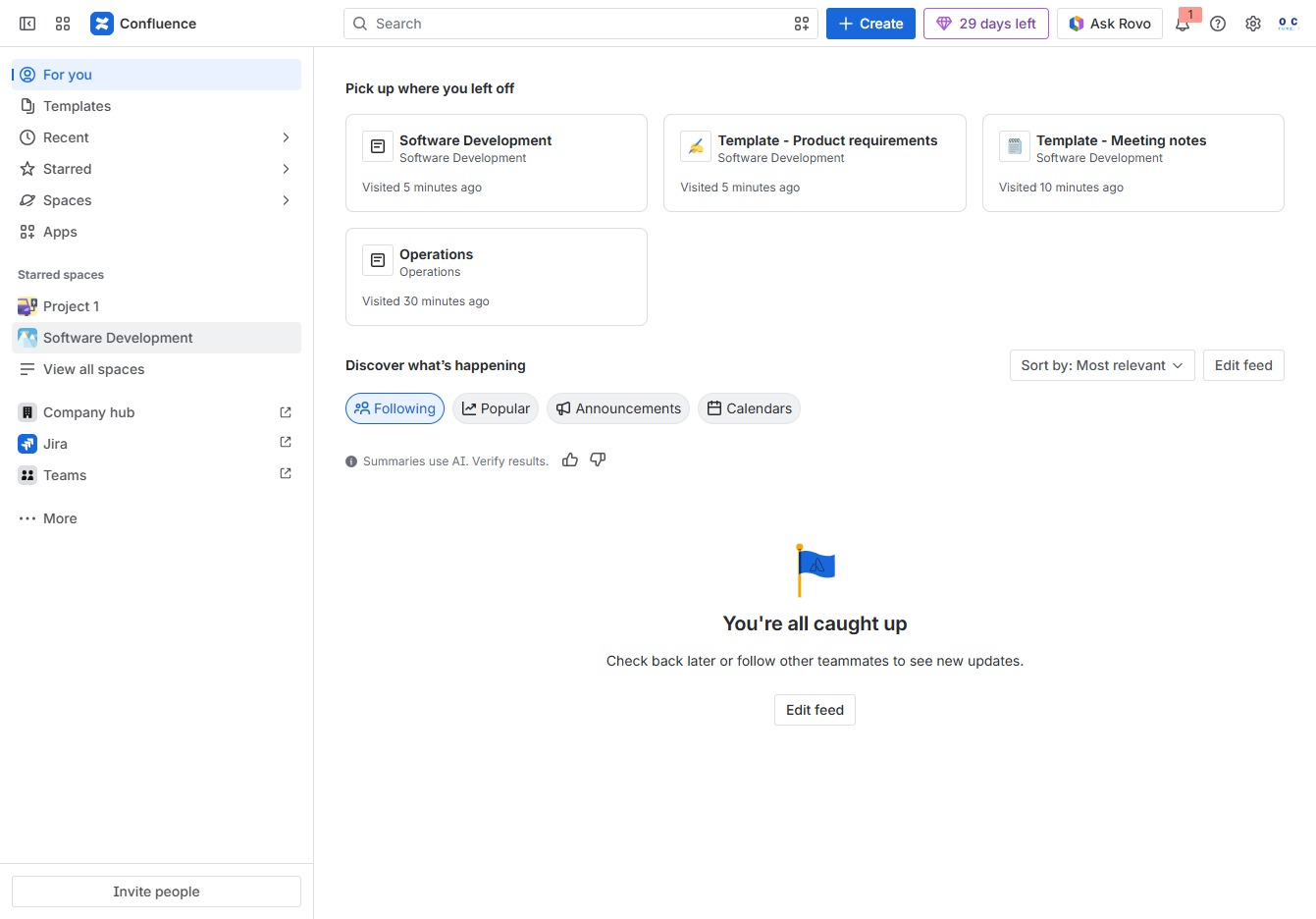
Click the Software Development section
This will open the Software Development space where you can manage documents, collaborate with team members, and access project-related resources.
Loading screenshot…
100%
In this guide, you'll learn how to customize your Software Development space in Confluence, including updating content, changing the header image, and adding emojis for better…
 viktoria
In this guide, you'll learn how to customize your Software Development space in Confluence, including updating content, changing the header image, and adding emojis for better organization. Follow the step-by-step process to enhance your team's collaboration and make your space visually appealing.
This will open the Software Development space where you can manage documents, collaborate with team members, and access project-related resources.
This action allows you to modify the current content in the Software Development space, enabling you to update details and make necessary changes.
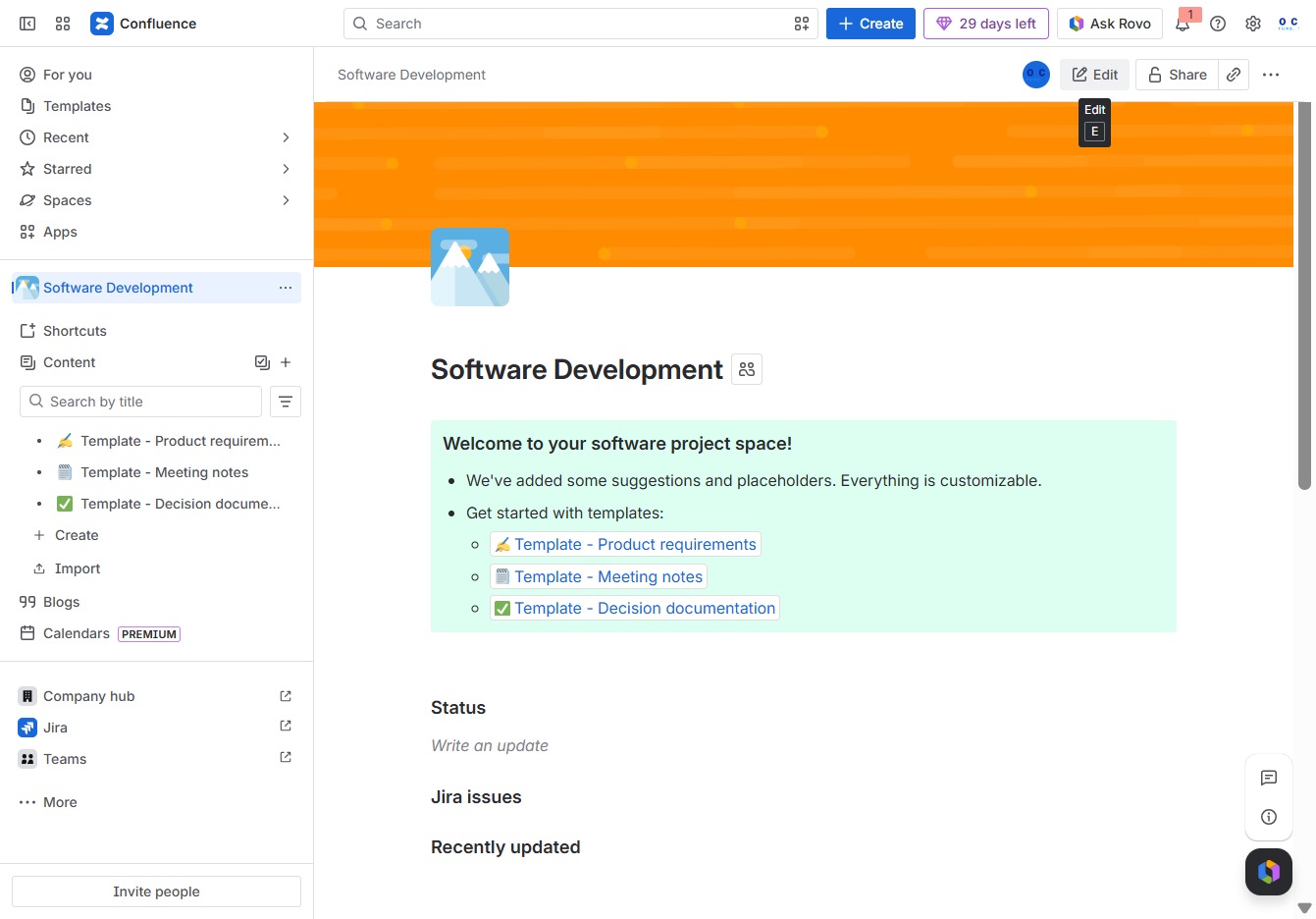
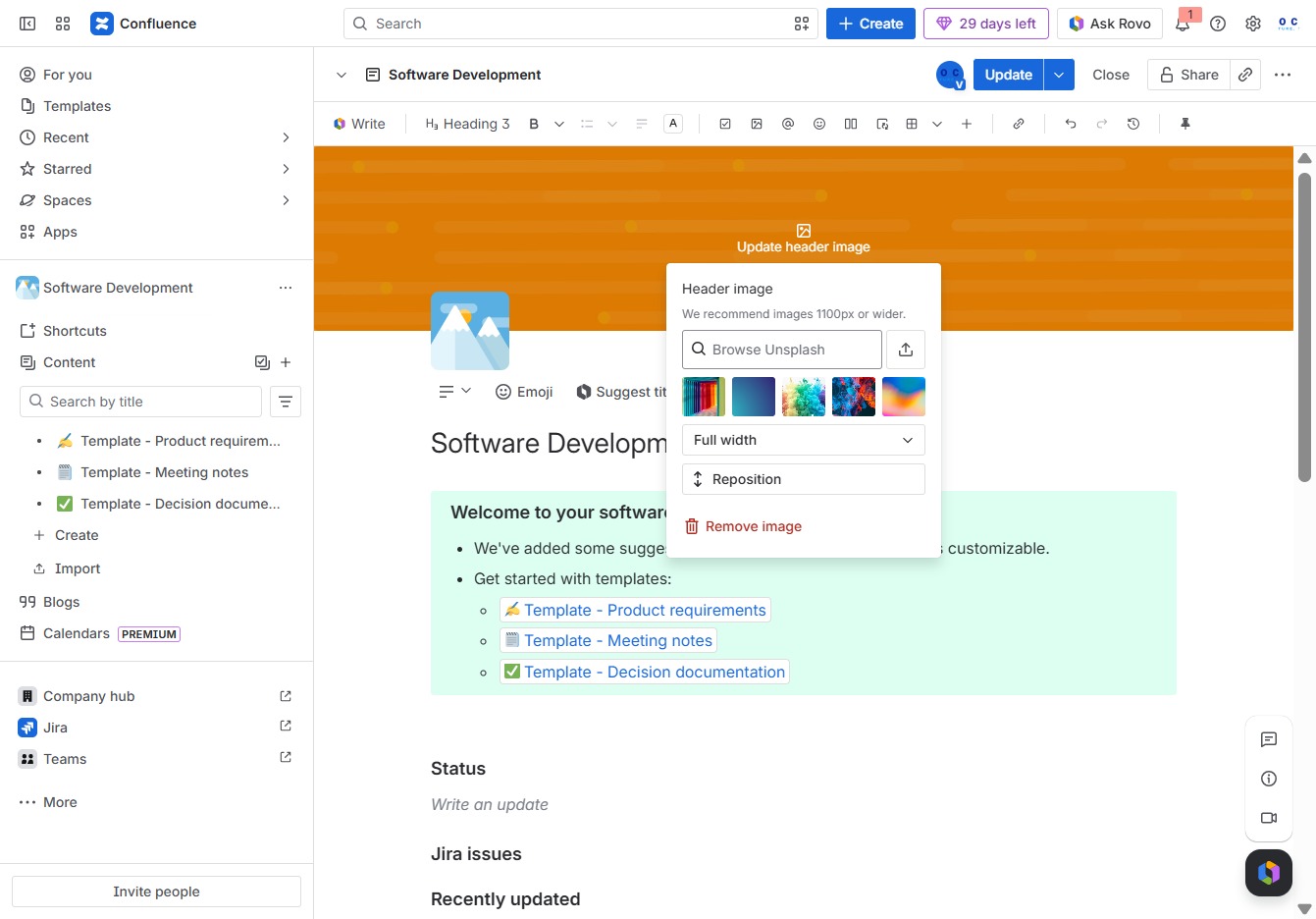
This action allows you to change the current header image for your Software Development space, enhancing its visual appeal.
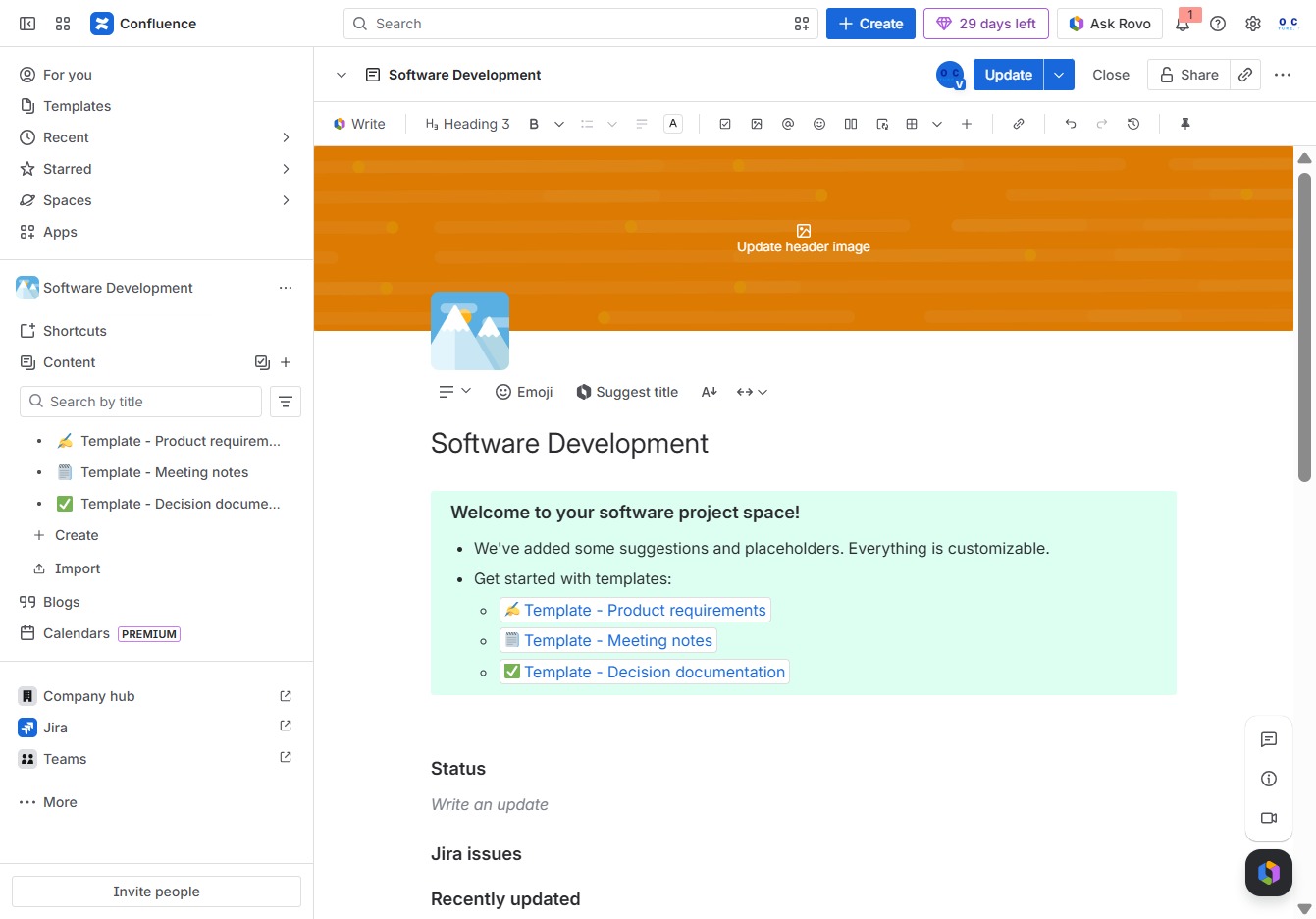
By clicking this button, you will initiate an action related to updating the header image for your document in Confluence.
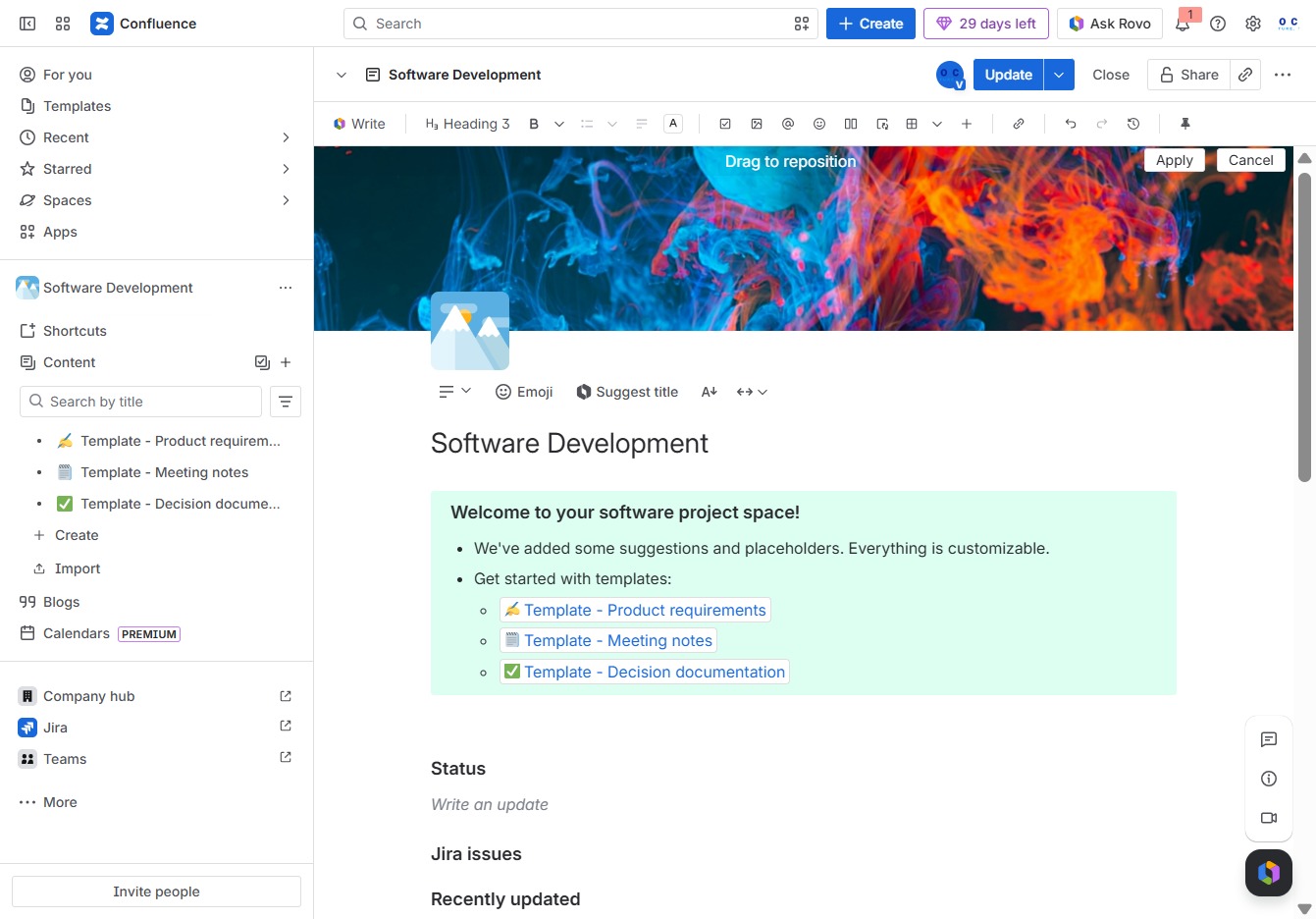
Clicking 'Apply' will save any changes made to the current page in your Confluence software project space.
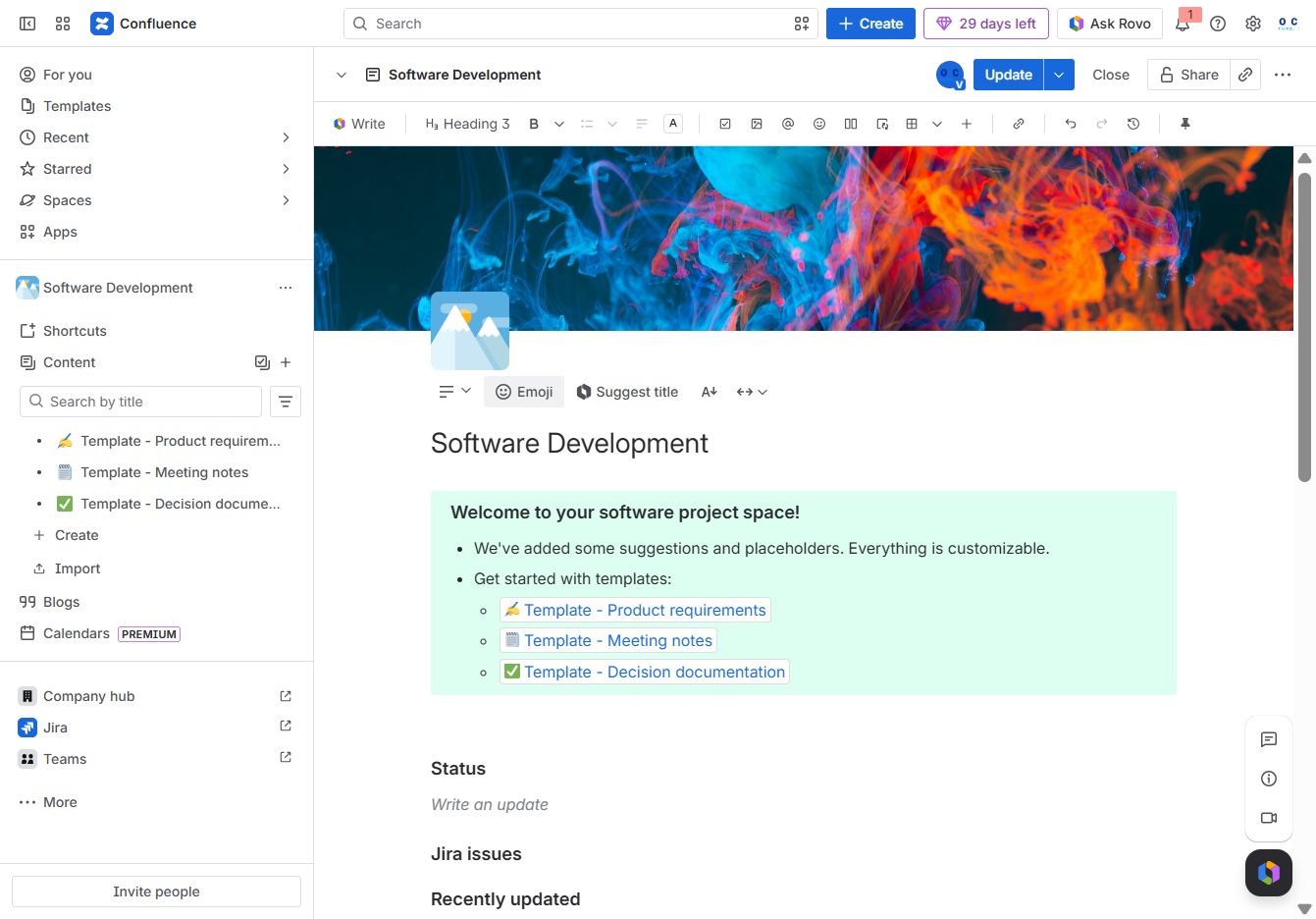
This will open the emoji selection menu, allowing you to insert emojis into your content.
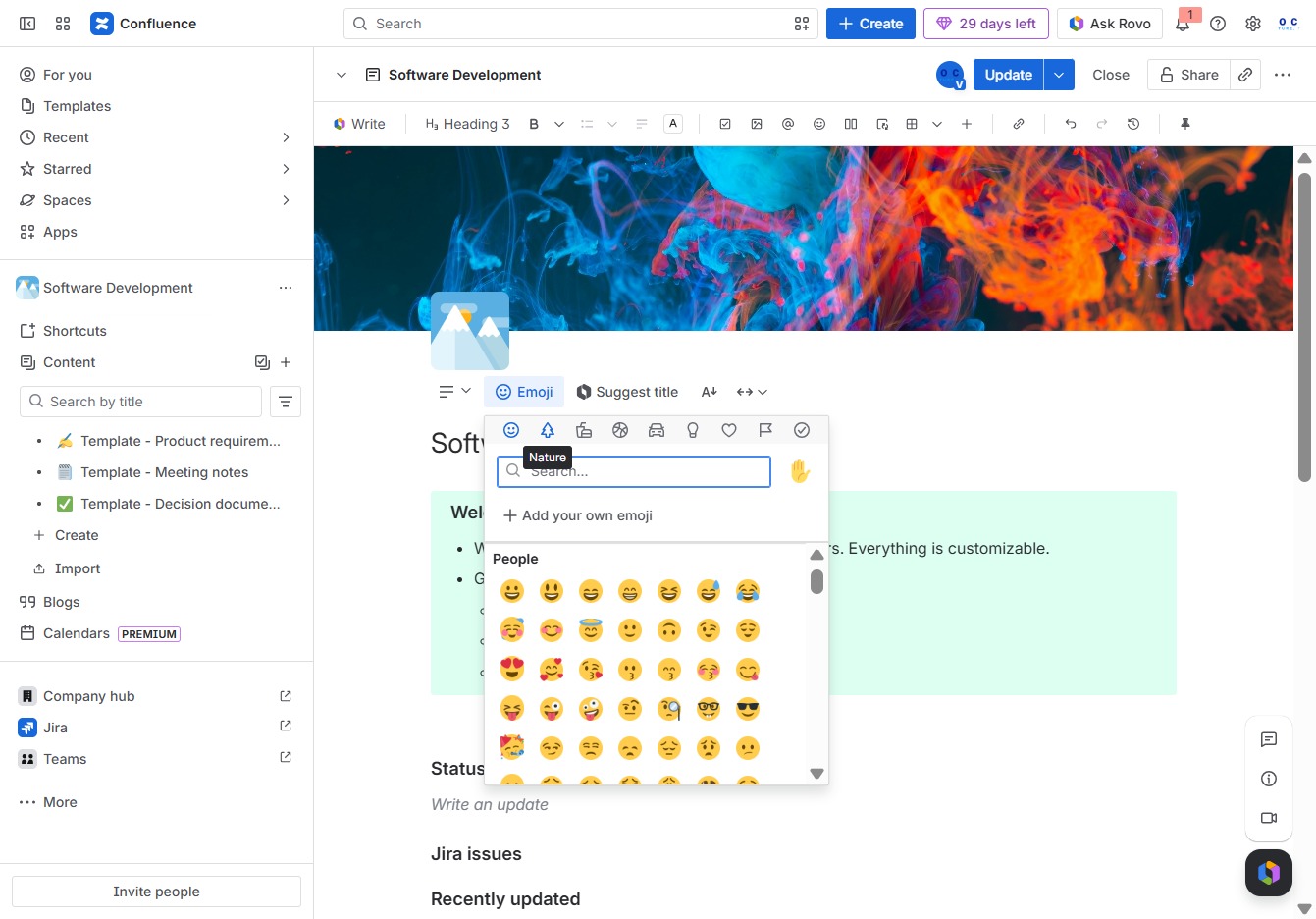
Selecting 'Nature' will apply that category to your current content, allowing for tailored views and organization within your document.
This action inserts the 'dizzy' emoji into your document, enhancing the visual representation of your content.

Clicking the Update button saves your recent changes to the Software Development page, ensuring your edits are stored and visible to other team members.