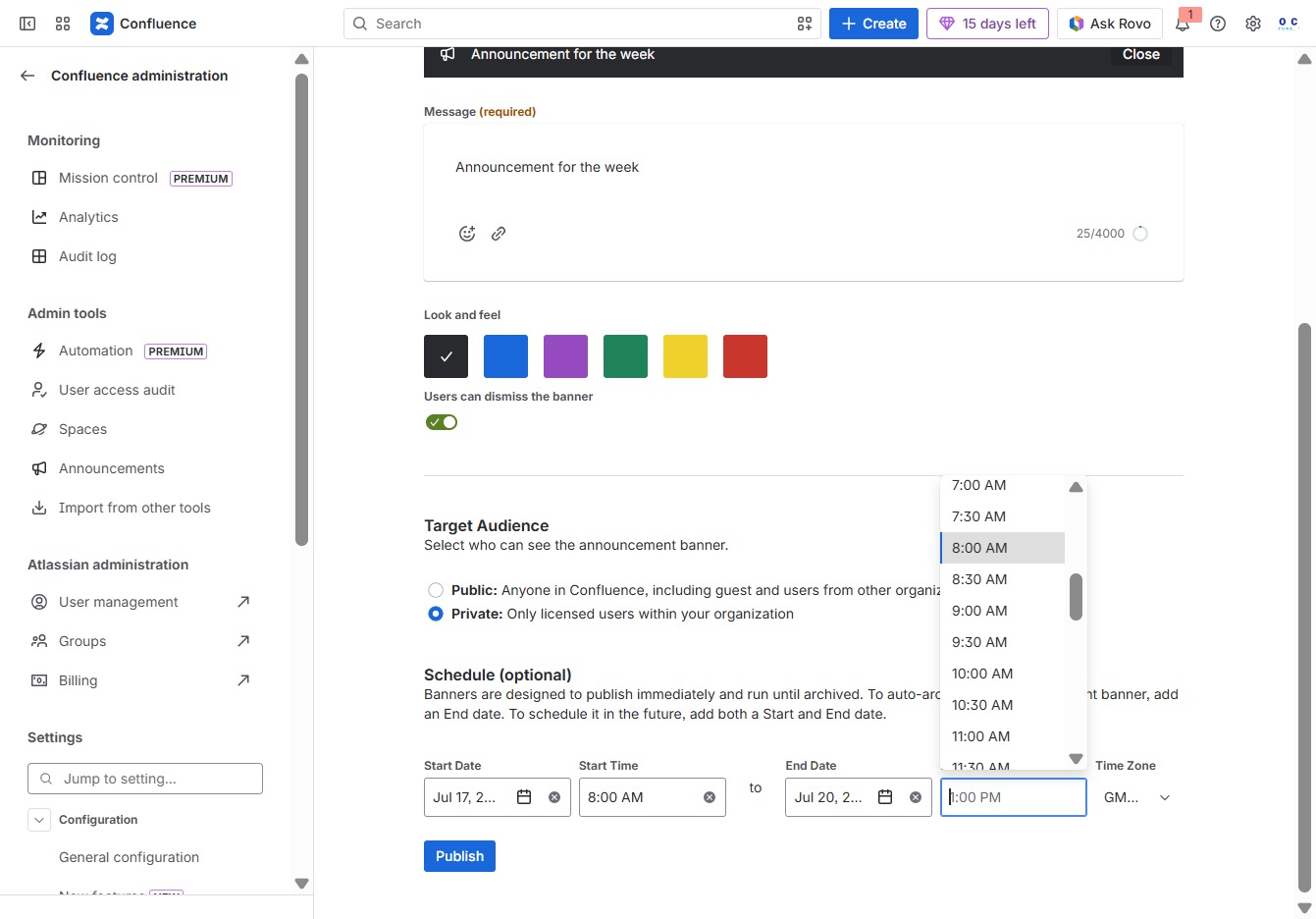
Click the Confluence administration link
This action will take you to the Confluence administration section where you can manage settings and configurations for your Confluence instance.
Loading screenshot…
100%
This how-to guide walks you through creating team announcements in Confluence, detailing each step from accessing the administration section to finalizing and scheduling your…
 viktoria
This how-to guide walks you through creating team announcements in Confluence, detailing each step from accessing the administration section to finalizing and scheduling your announcement for optimal visibility. Learn to effectively communicate updates to your team by setting titles, messaging, and publication times to engage your audience.
This action will take you to the Confluence administration section where you can manage settings and configurations for your Confluence instance.
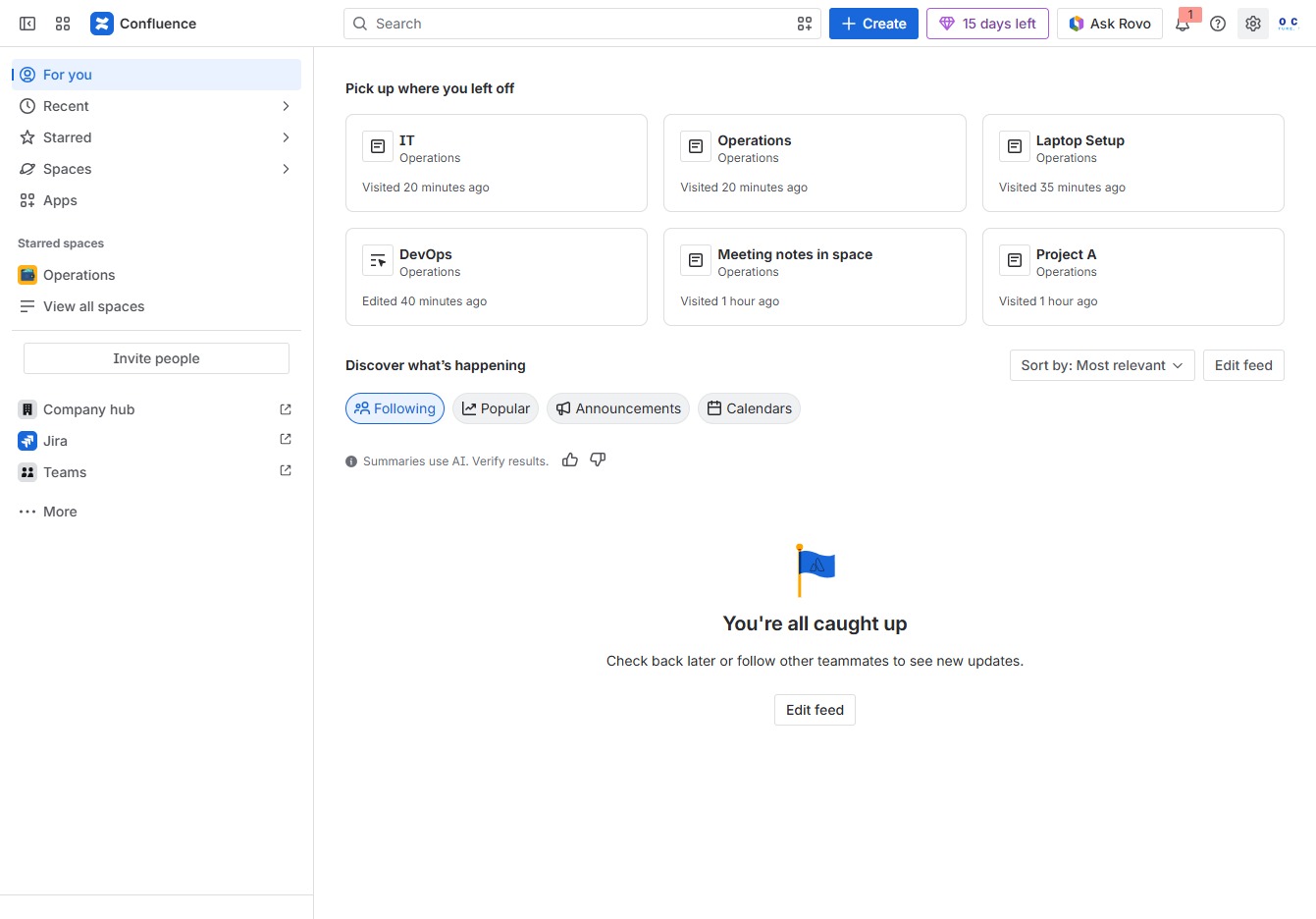
By clicking the Announcements section, you will access updates and notifications relevant to your Confluence spaces.
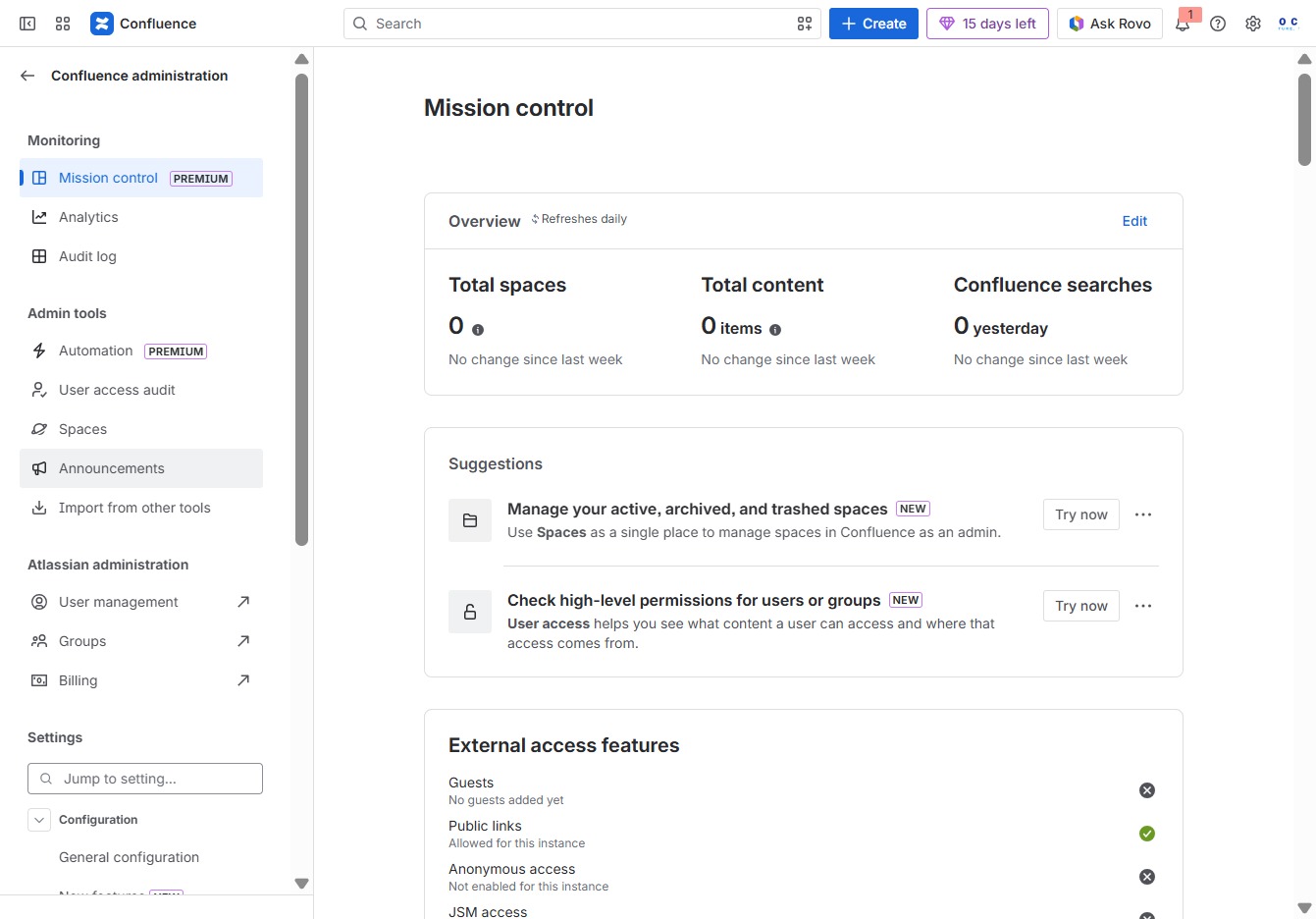
This action opens a form where you can set up and manage your announcement details, including title, audience, and active dates.

This will prompt you to enter a short title for your announcement, which is required for easier reference on the announcements table.
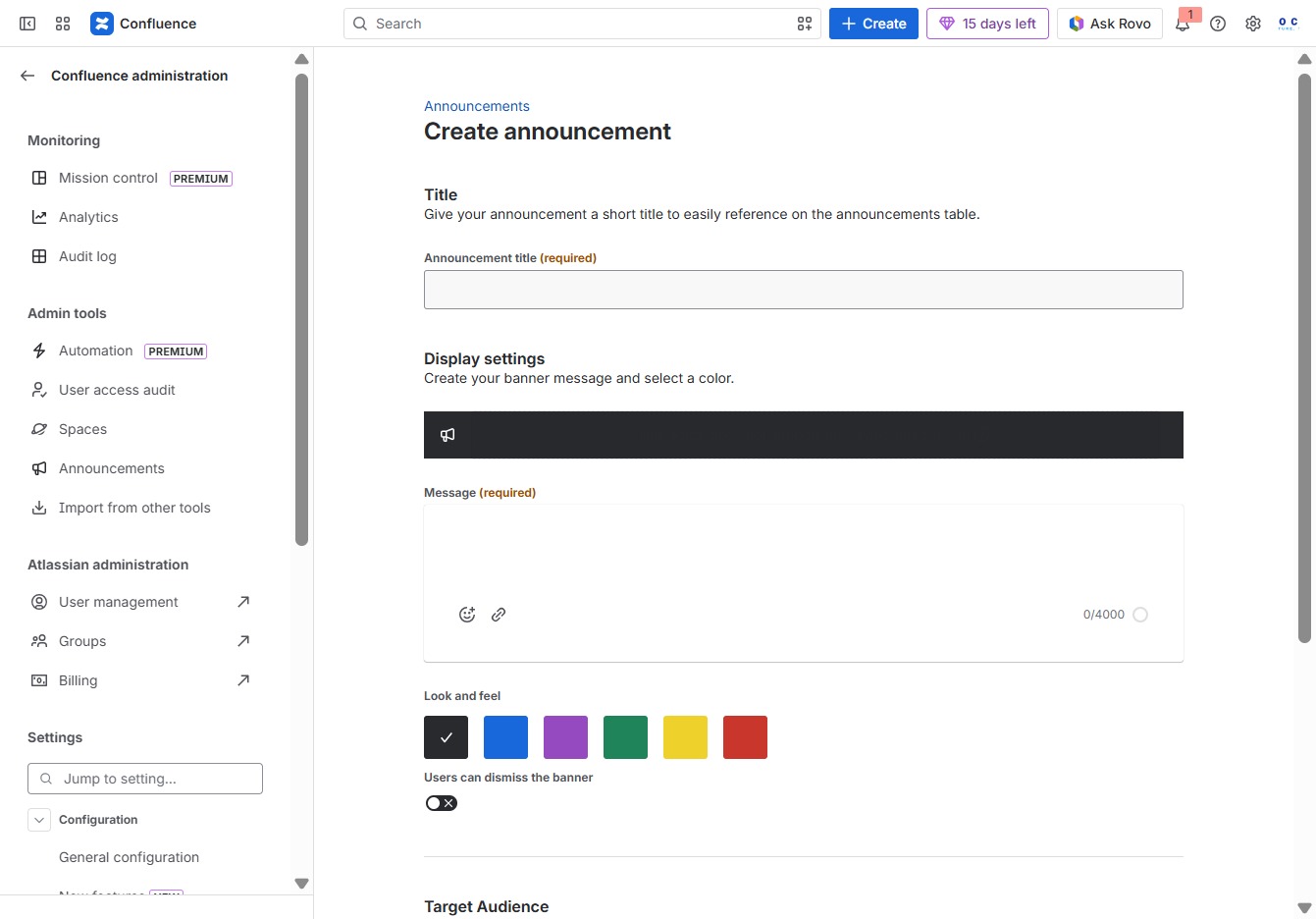
Enter 'Sales Team Announcement' in the Announcement title field to specify the subject of your announcement. This title will help users easily identify the announcement in the announcements table.

Select this option to initiate the process for creating a new announcement in the Announcements section. You will be prompted to fill in the title and display settings for your announcement.

Enter the message 'Announcement for the week' in the AK editor textarea to create a new announcement. This text will be displayed prominently for your target audience.

Clicking this link will publish your announcement to the selected target audience, making it visible according to the specified schedule.

Clicking this button will save and publish the announcement banner for your selected audience, making it visible in Confluence.
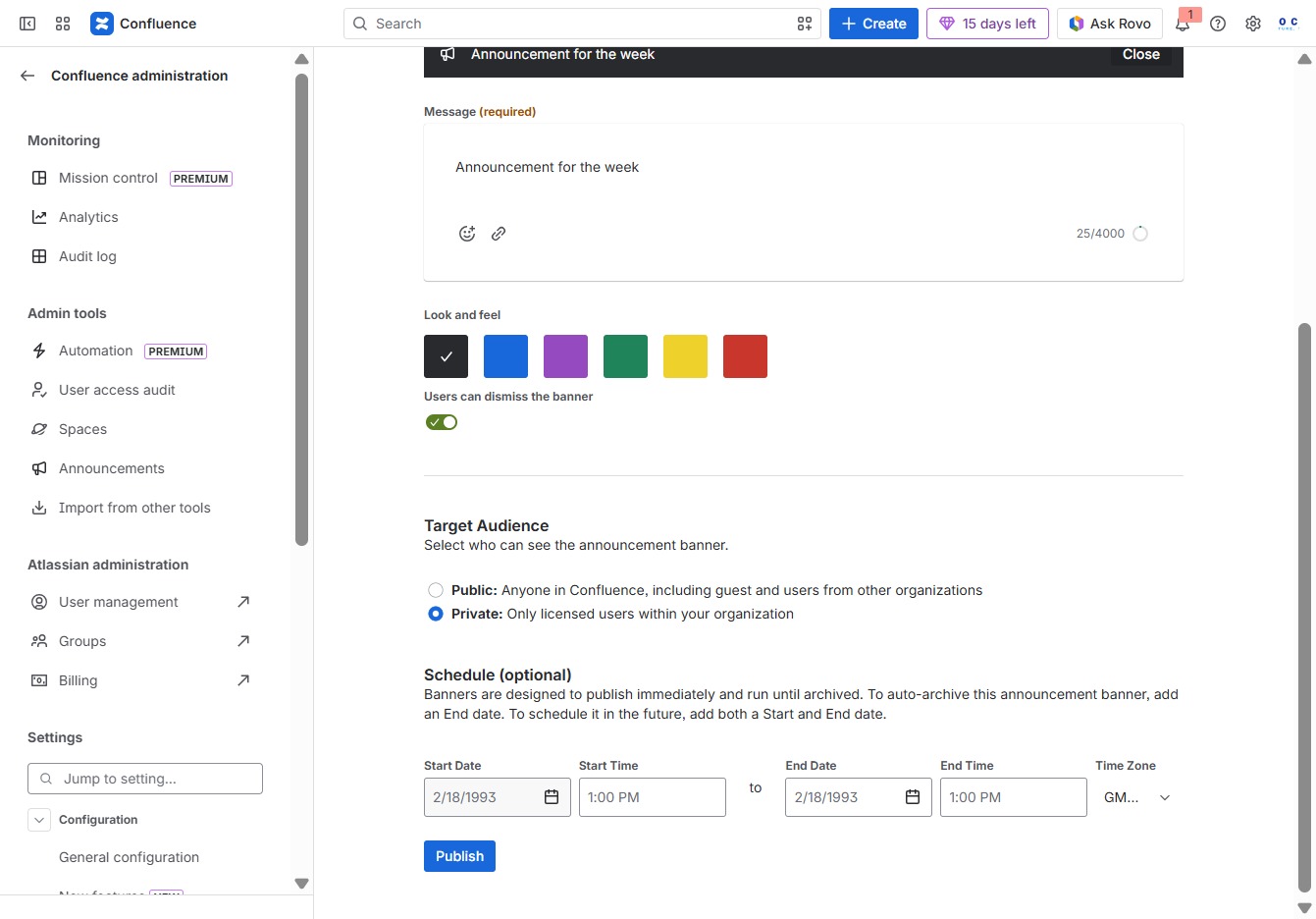
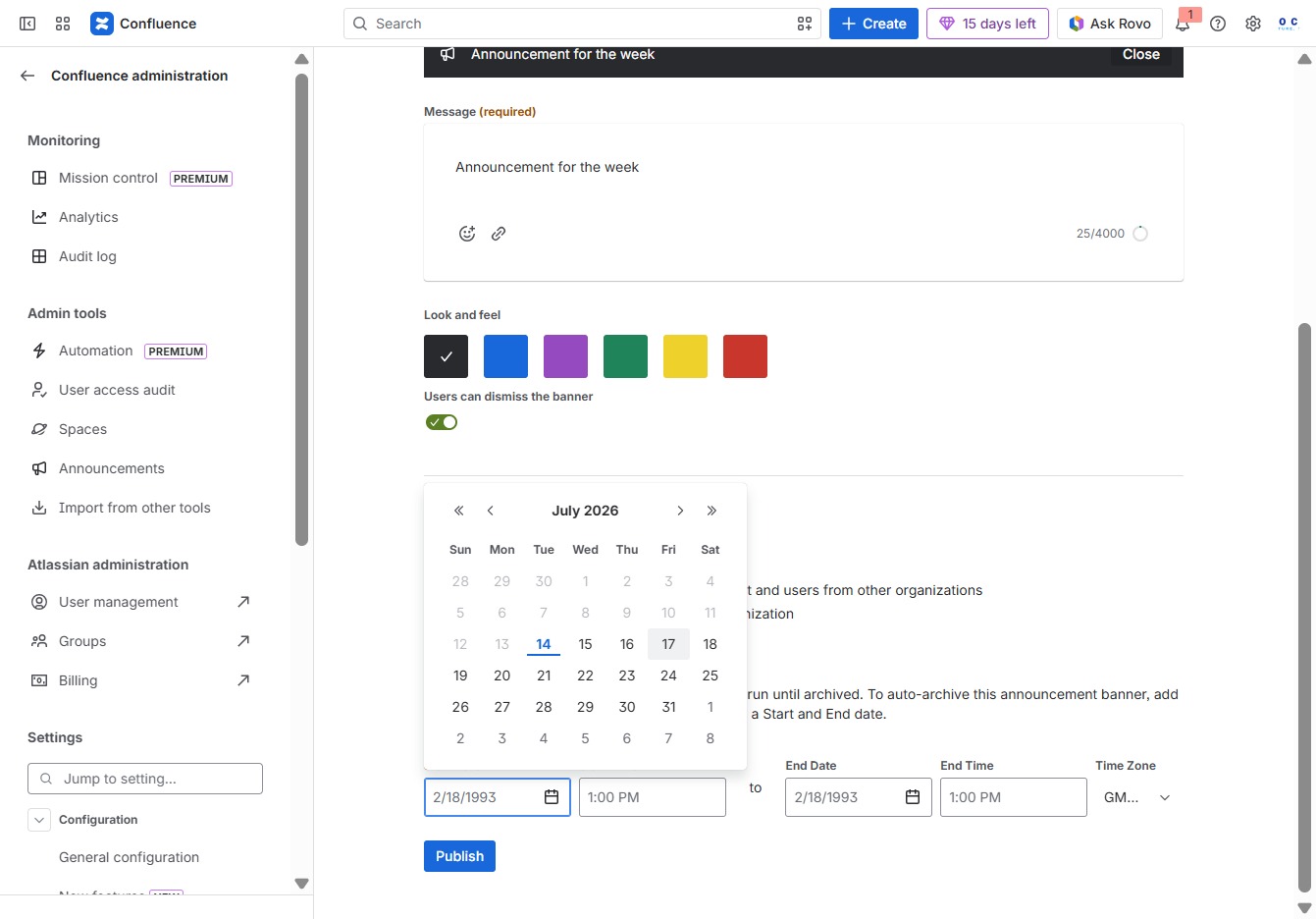
By clicking this date, you will select it for the announcement, allowing you to set specific start and end dates for the visibility of the banner in your announcement.
This action will finalize and post your announcement banner to be visible to the selected audience in Confluence.

Selecting the 8:00 AM time slot sets it for the announcement's schedule. This allows you to specify when the announcement should go live or be displayed.

After clicking, the announcement banner will be published and visible to the selected target audience based on your settings.
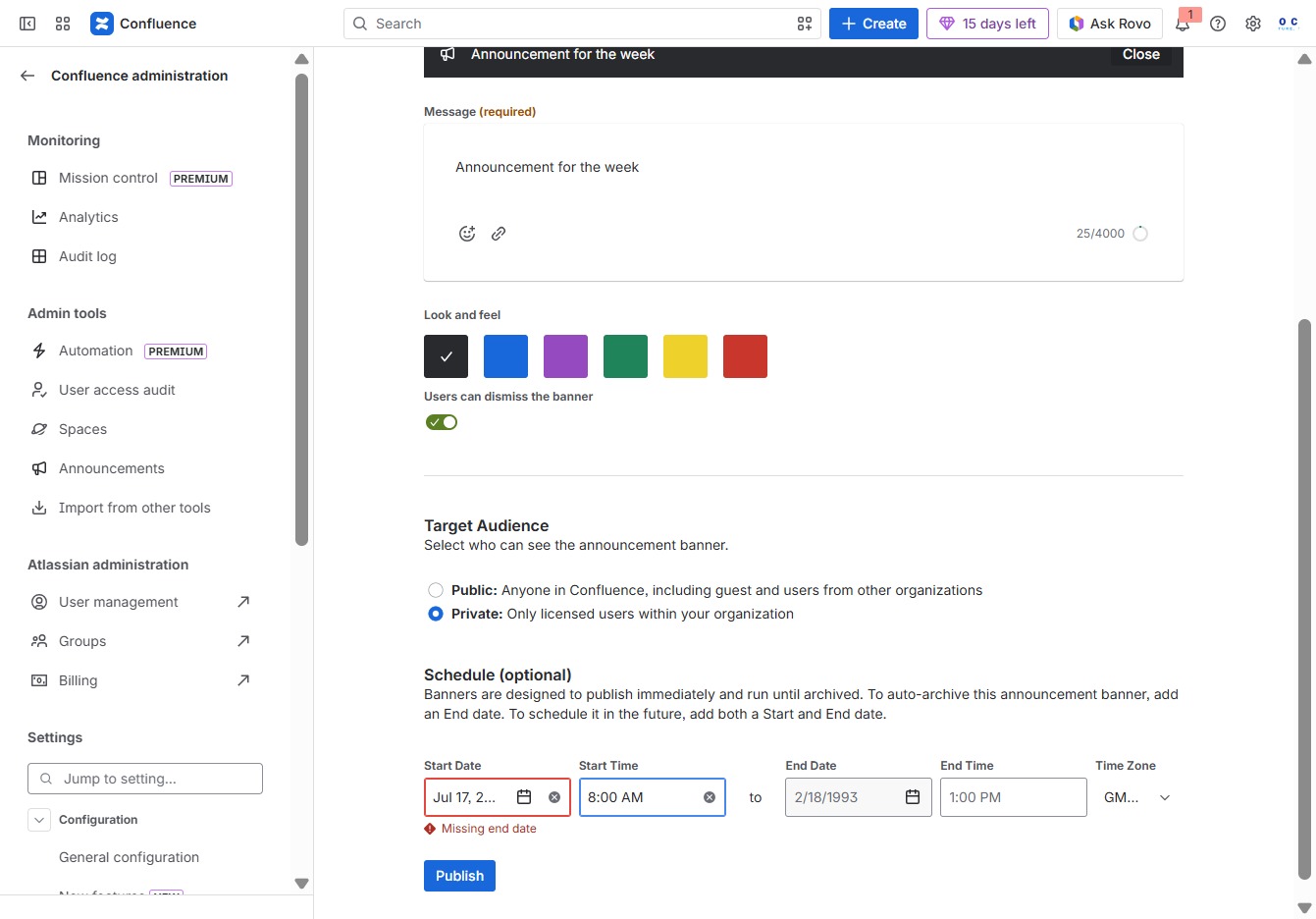
This action allows you to select July 20, 2026, as the scheduled date for your announcement. Make sure to confirm the date for proper visibility in the announcement's schedule settings.

Clicking the Publish button will finalize and display your announcement banner to the selected target audience in Confluence, making it visible according to the specified schedule.

Selecting the 8:00 AM time slot will allow you to schedule the announcement banner for that specific time. This is part of the scheduling options for visibility in Confluence.