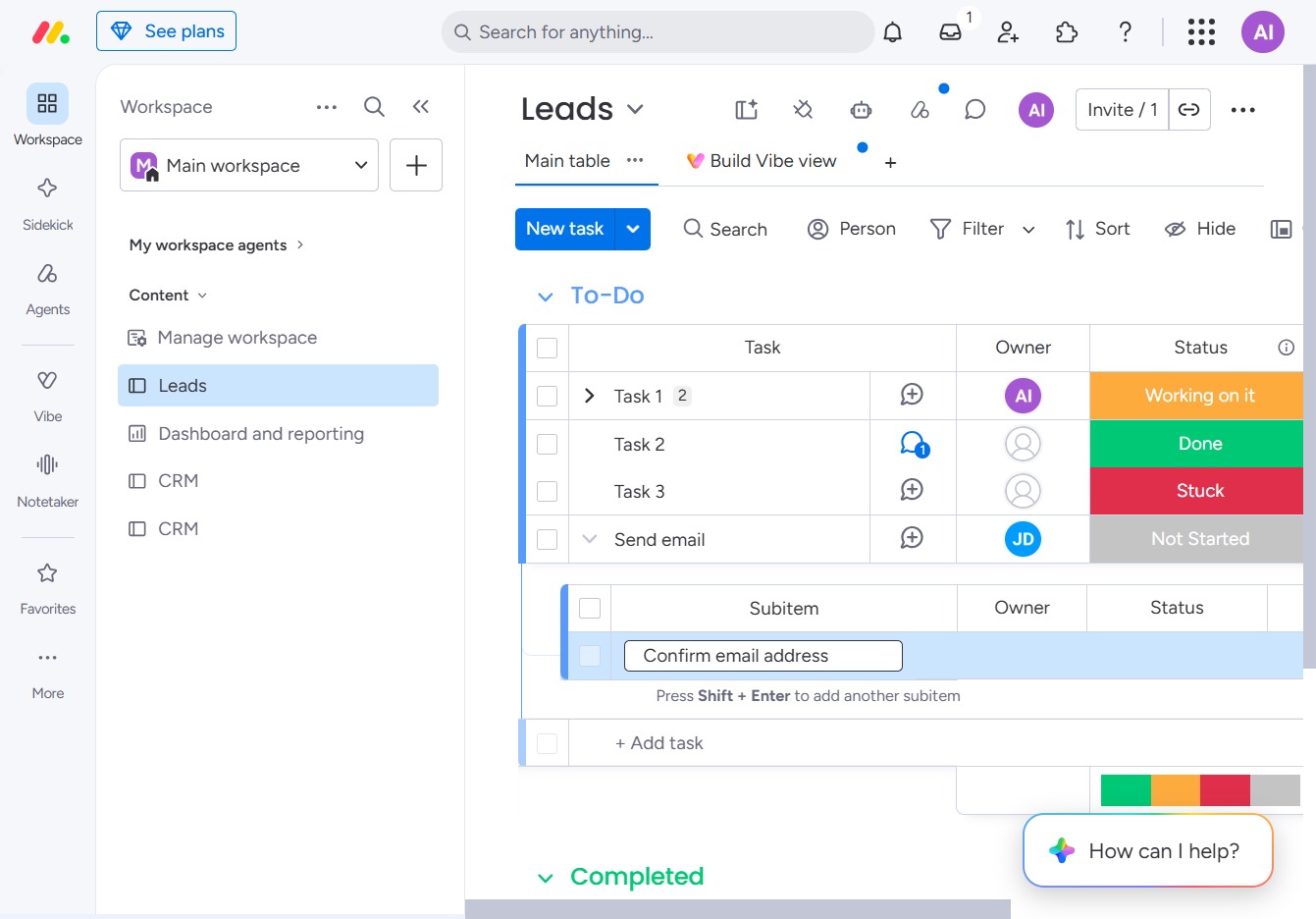
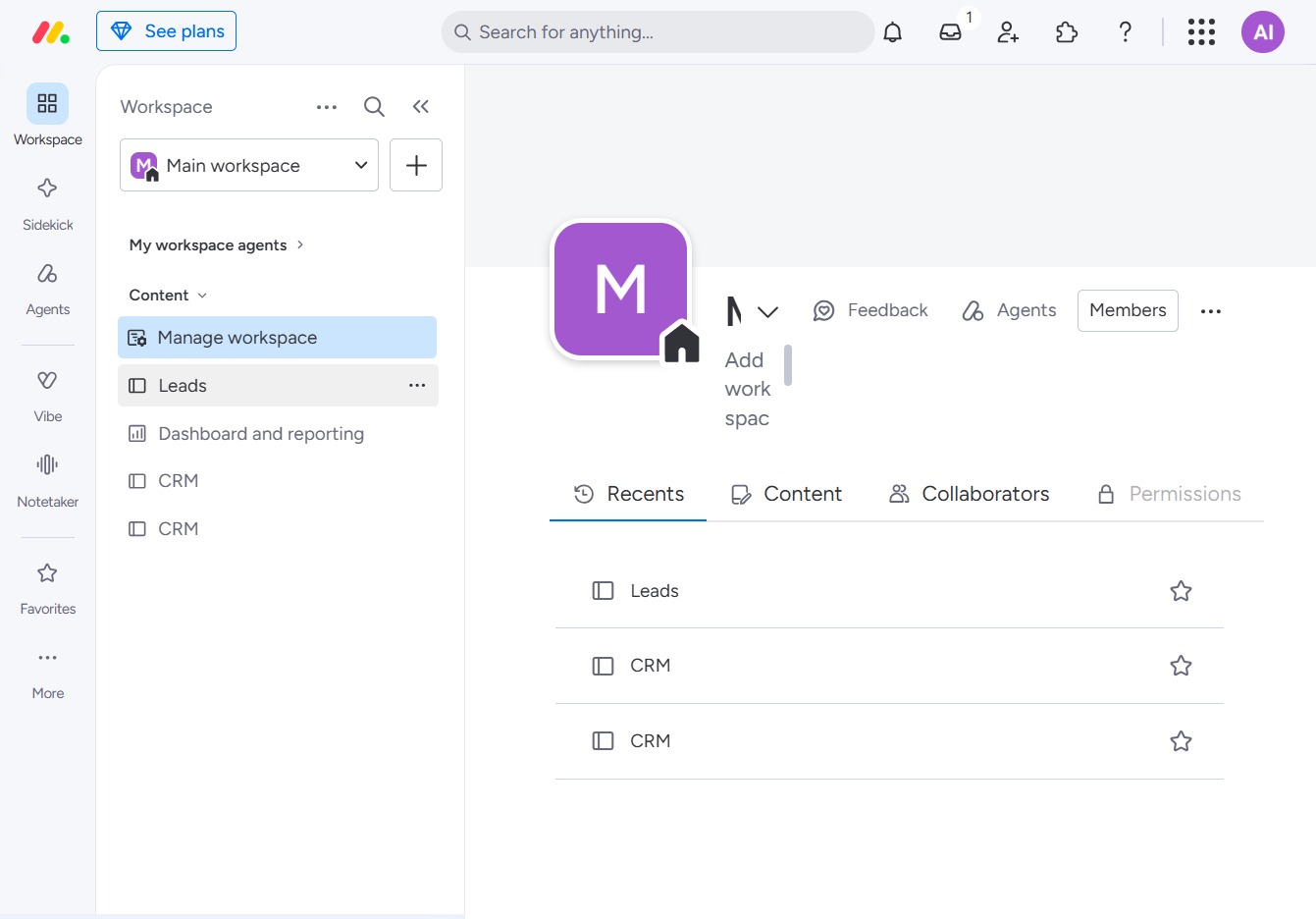
Click the BoardLeads section
This action will navigate you to the BoardLeads overview where you can manage and track your leads effectively.
Loading screenshot…
100%
In this how-to guide, you'll learn the steps to create subitems in your BoardLeads overview, allowing for better organization and management of your tasks.
 viktoria
In this how-to guide, you'll learn the steps to create subitems in your BoardLeads overview, allowing for better organization and management of your tasks. By following the outlined process, you can easily add specific details to existing tasks, helping you keep track of related actions efficiently.
This action will navigate you to the BoardLeads overview where you can manage and track your leads effectively.
Clicking this option will reveal additional details and options related to the selected task. This allows you to view more information about the task and manage its settings effectively.
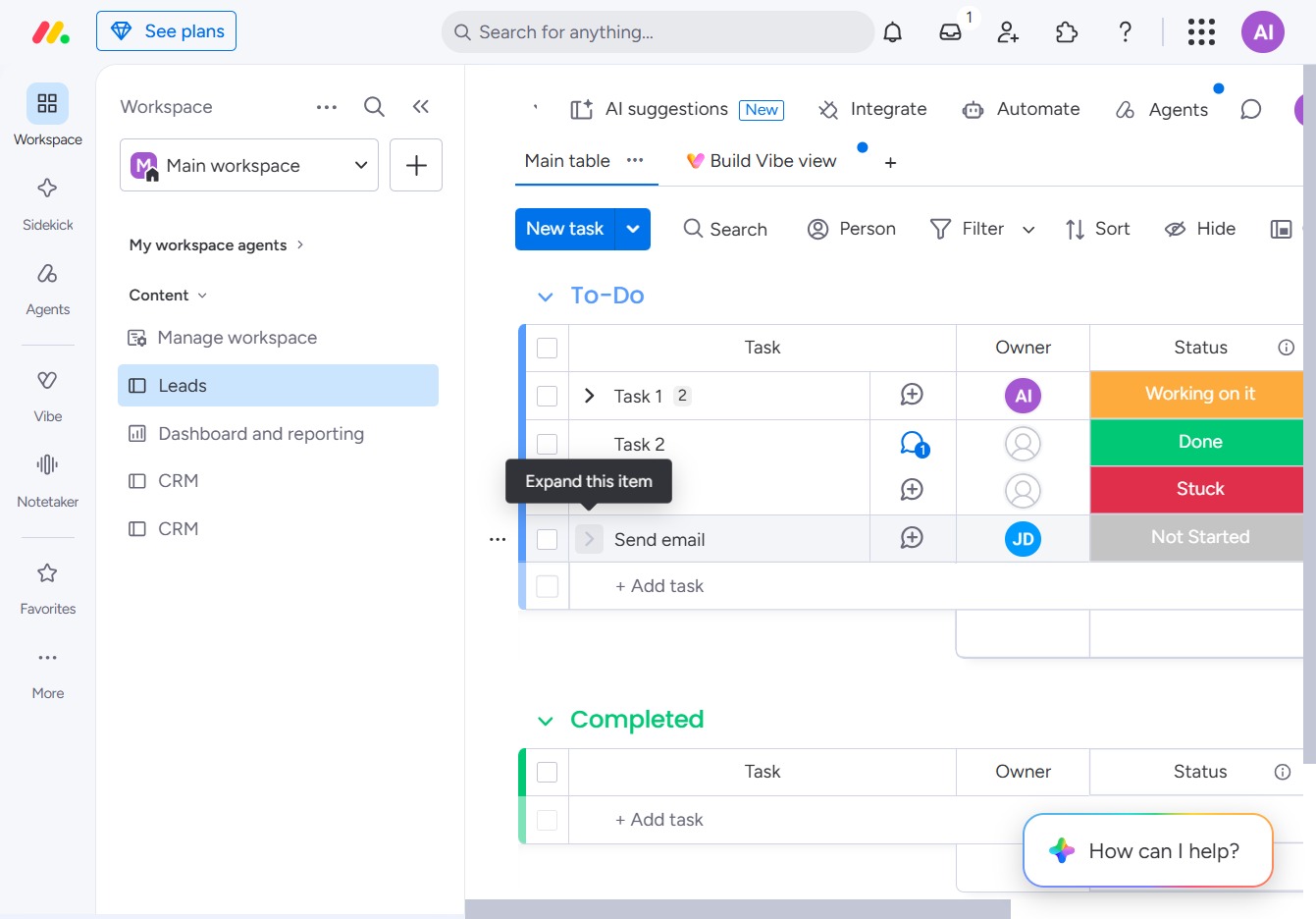
This action will create a new subitem under the currently selected task in the Leads section, allowing you to organize related tasks more effectively.
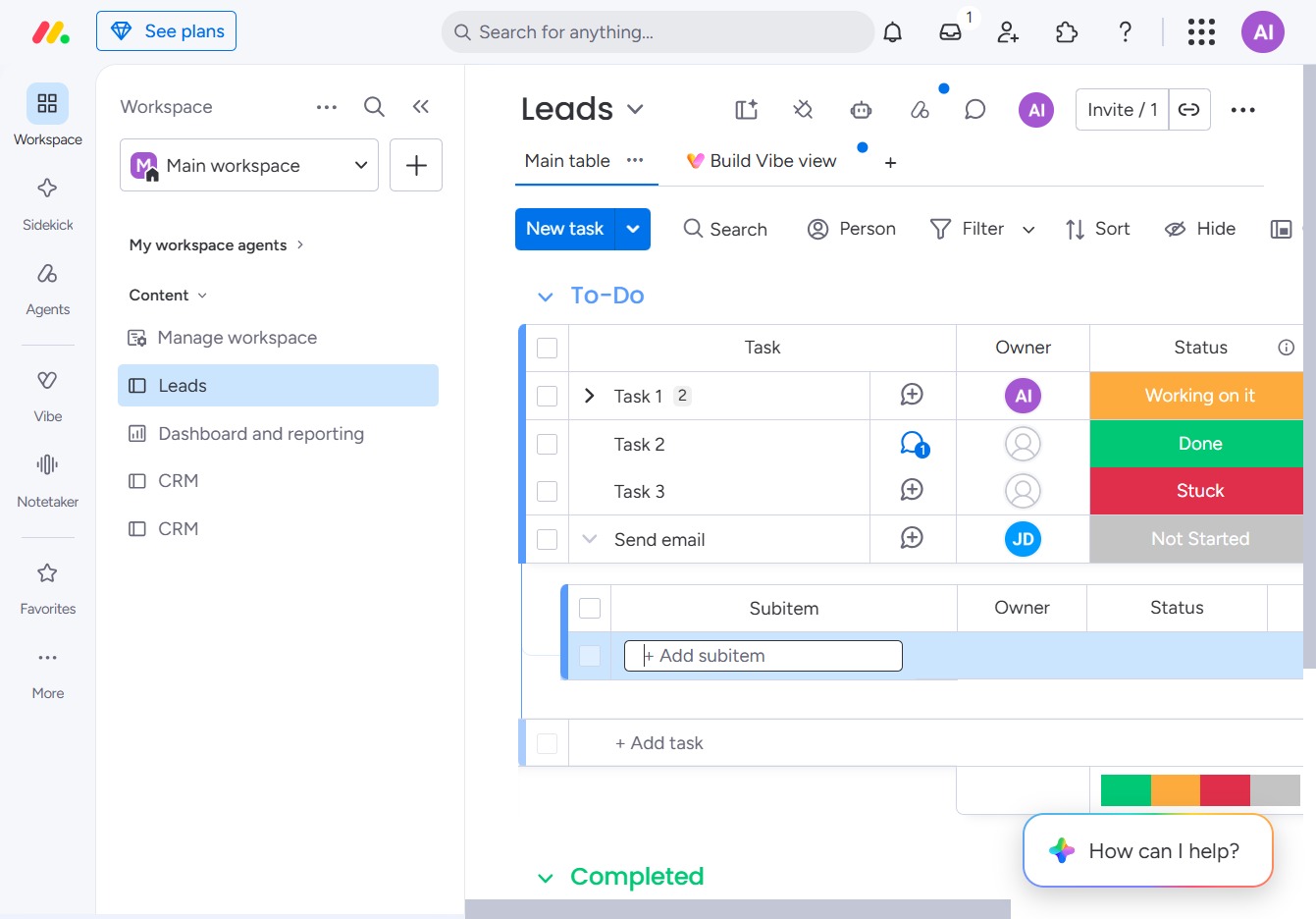
Input 'Confirm email address' in the Subitem field to specify the task detail directly related to the current item. This will help in tracking specific actions required as part of the task.