Click the BoardLeads section
This action will navigate you to the BoardLeads interface where you can manage and view your lead details.

Loading screenshot…
100%
This how-to guide walks you through the process of creating subitems in your task management system, enhancing organization within your Leads board.
 viktoria
This how-to guide walks you through the process of creating subitems in your task management system, enhancing organization within your Leads board. You'll learn how to navigate to the appropriate workspace and board, expand task details, and add new subitems for better task breakdown and management.
This action will navigate you to the BoardLeads interface where you can manage and view your lead details.
This action will reveal additional details for the selected task in the To-Do section. You can view more information, edit task specifics, or manage its status after expanding.

By pressing Shift + Enter, you can insert additional subitems under the current task, allowing for a more detailed breakdown of your tasks within the Leads section.
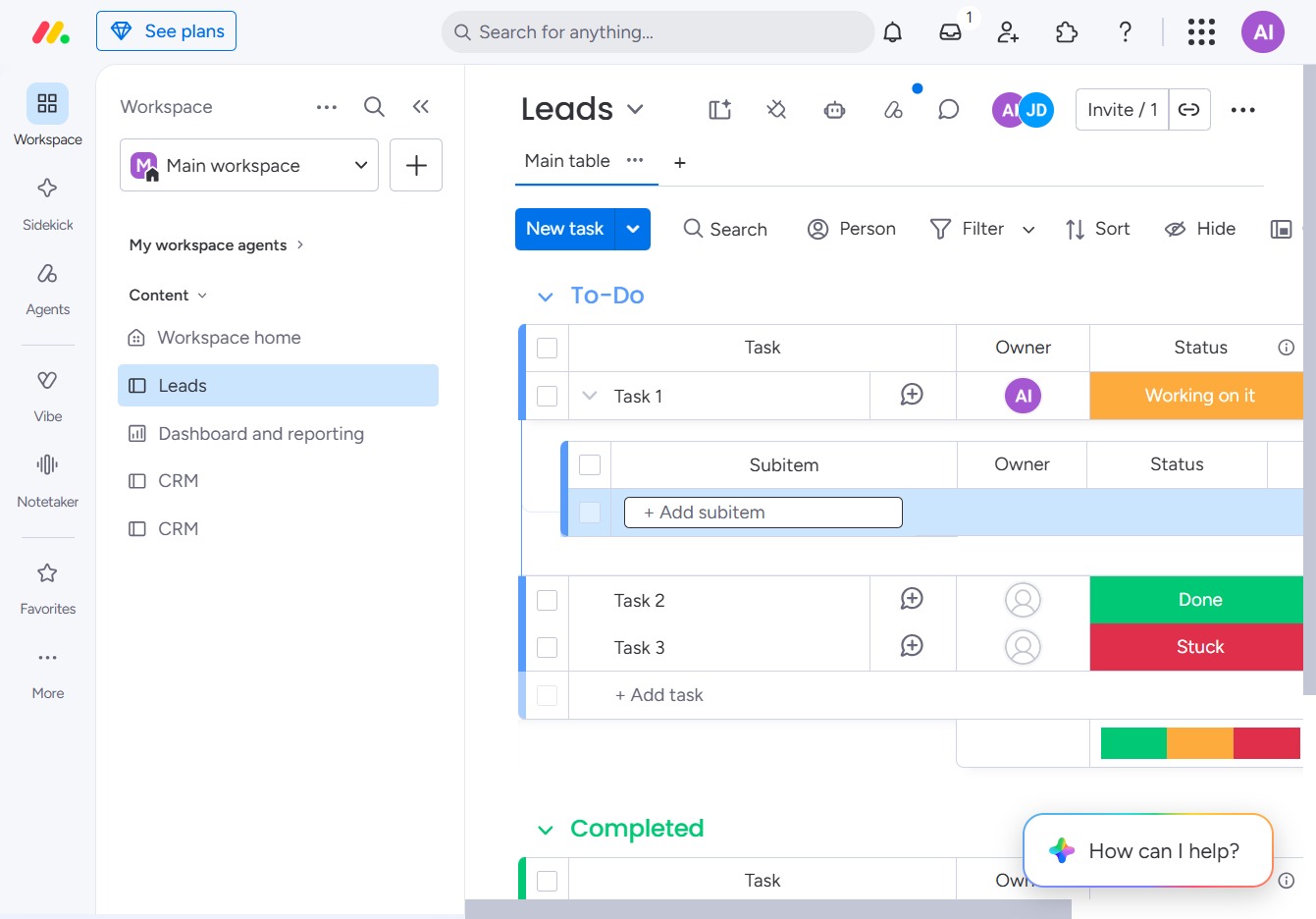
Enter the text 'Subitem 1' in the Add Subitem field to create a new subitem under the selected task. This allows you to organize and manage your tasks more effectively.

This action allows you to create a new subtask under the currently selected task. After clicking, a field will appear where you can enter the details of the subtask.

Enter 'Subitem 2' in the input field under the Subitem section to create a new subitem associated with the selected task. This allows you to organize tasks more effectively within your Leads board.
