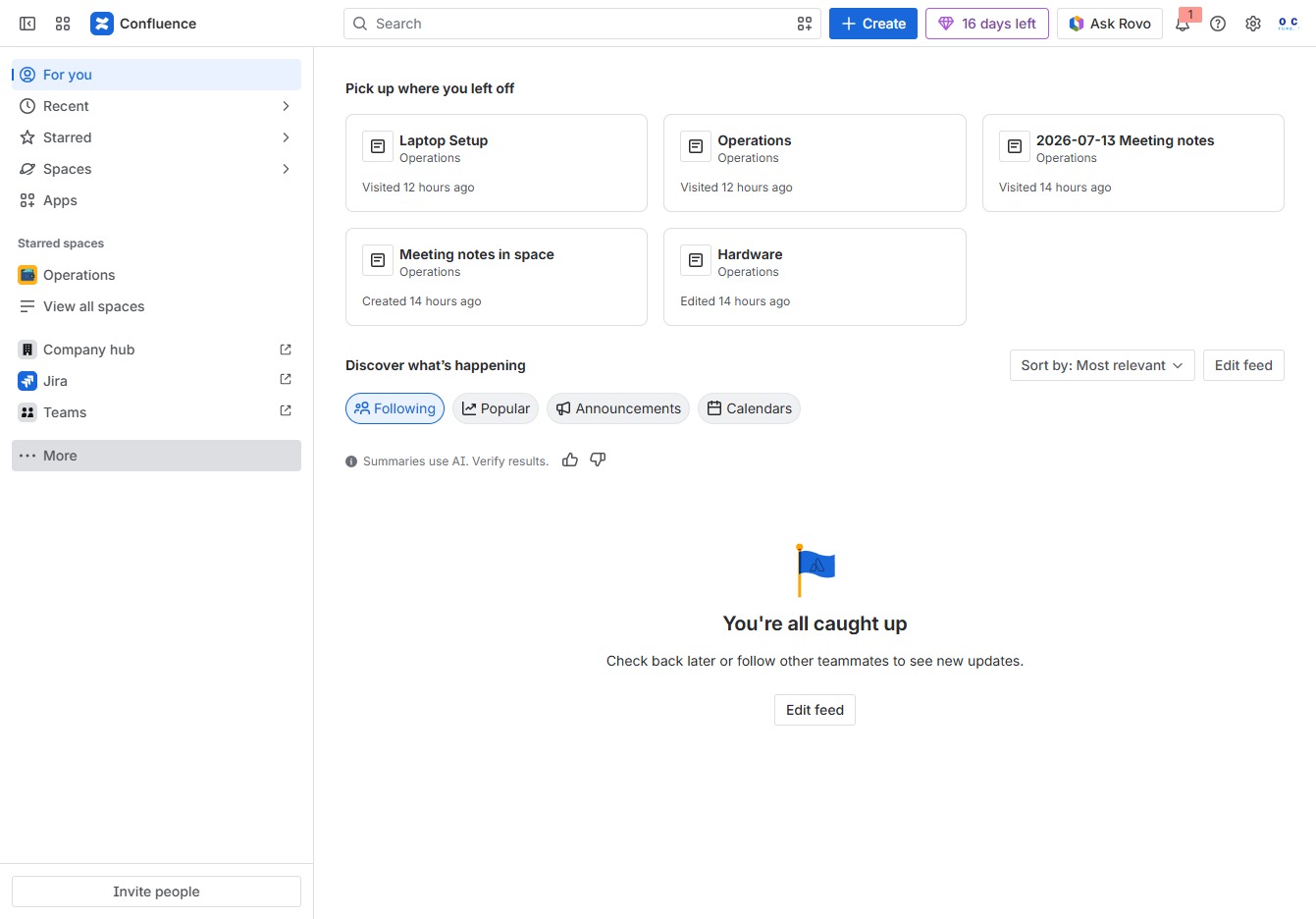
Click the More option
Clicking the 'More' option expands additional features or links related to your current workspace in Confluence.
Loading screenshot…
100%
In this how-to guide, learn to effectively create Standard Operating Procedure (SOP) documentation using Confluence.
 viktoria
In this how-to guide, learn to effectively create Standard Operating Procedure (SOP) documentation using Confluence. Follow step-by-step instructions to locate templates, customize your SOP, and publish it for team access.
Clicking the 'More' option expands additional features or links related to your current workspace in Confluence.
This action opens the Templates section, allowing you to access and manage various pre-defined templates for your projects in Confluence.
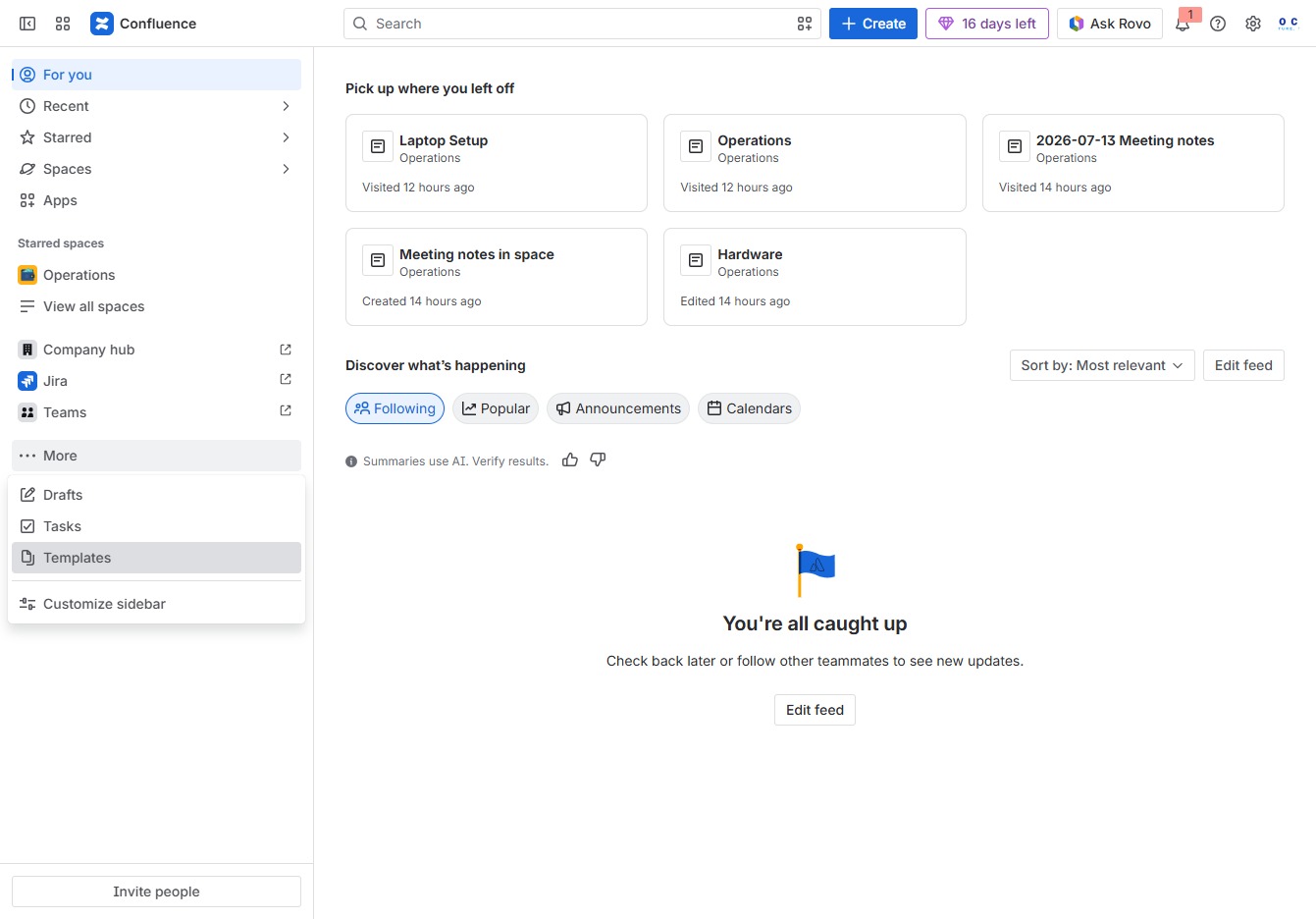
This action opens the search bar, allowing you to enter keywords to find specific templates or documents within Confluence.
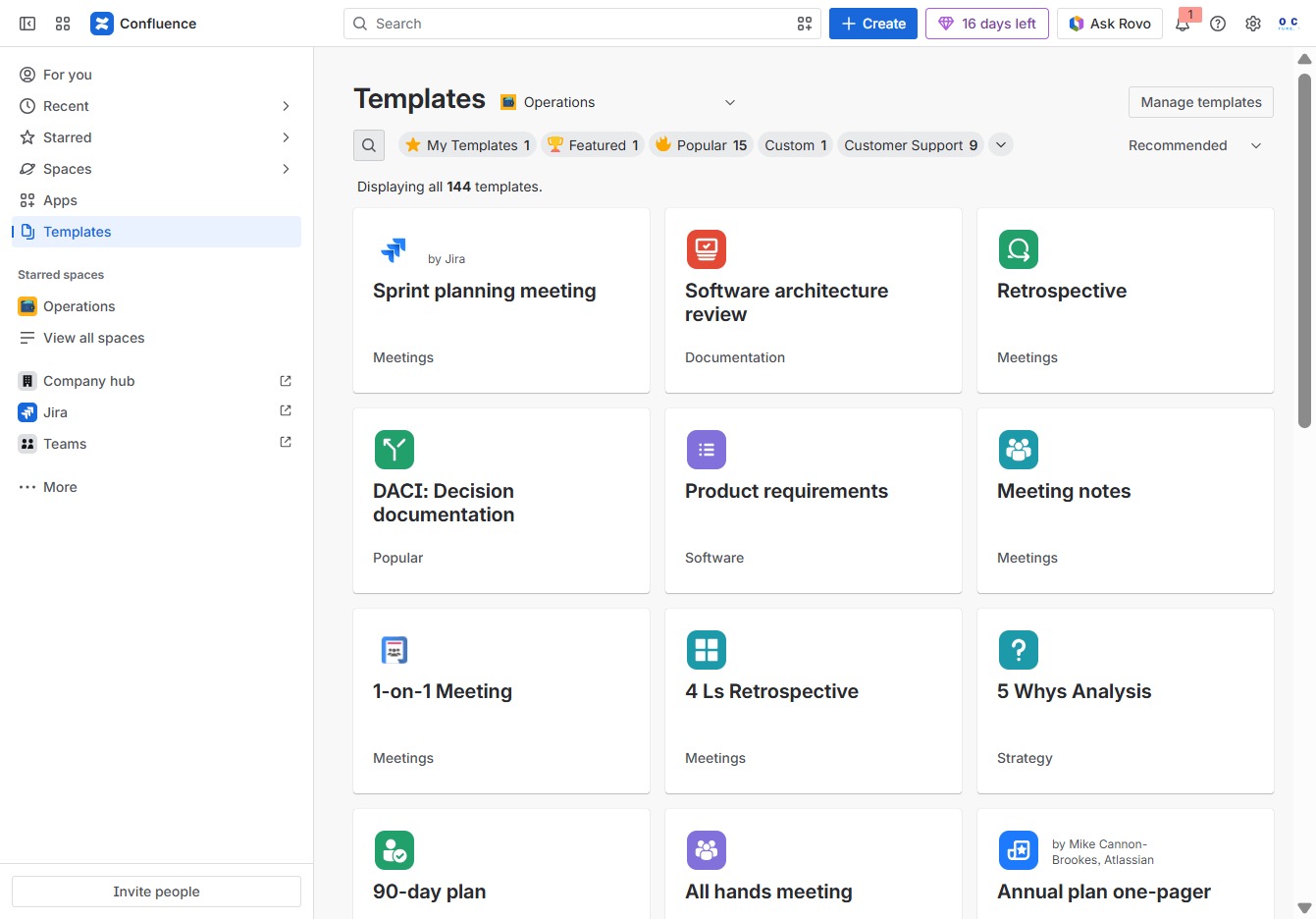
Entering 'sop' in the Search author, category, topic field will filter the Templates display to show relevant results, helping you quickly find the Standard Operating Procedure (SOP) Template.
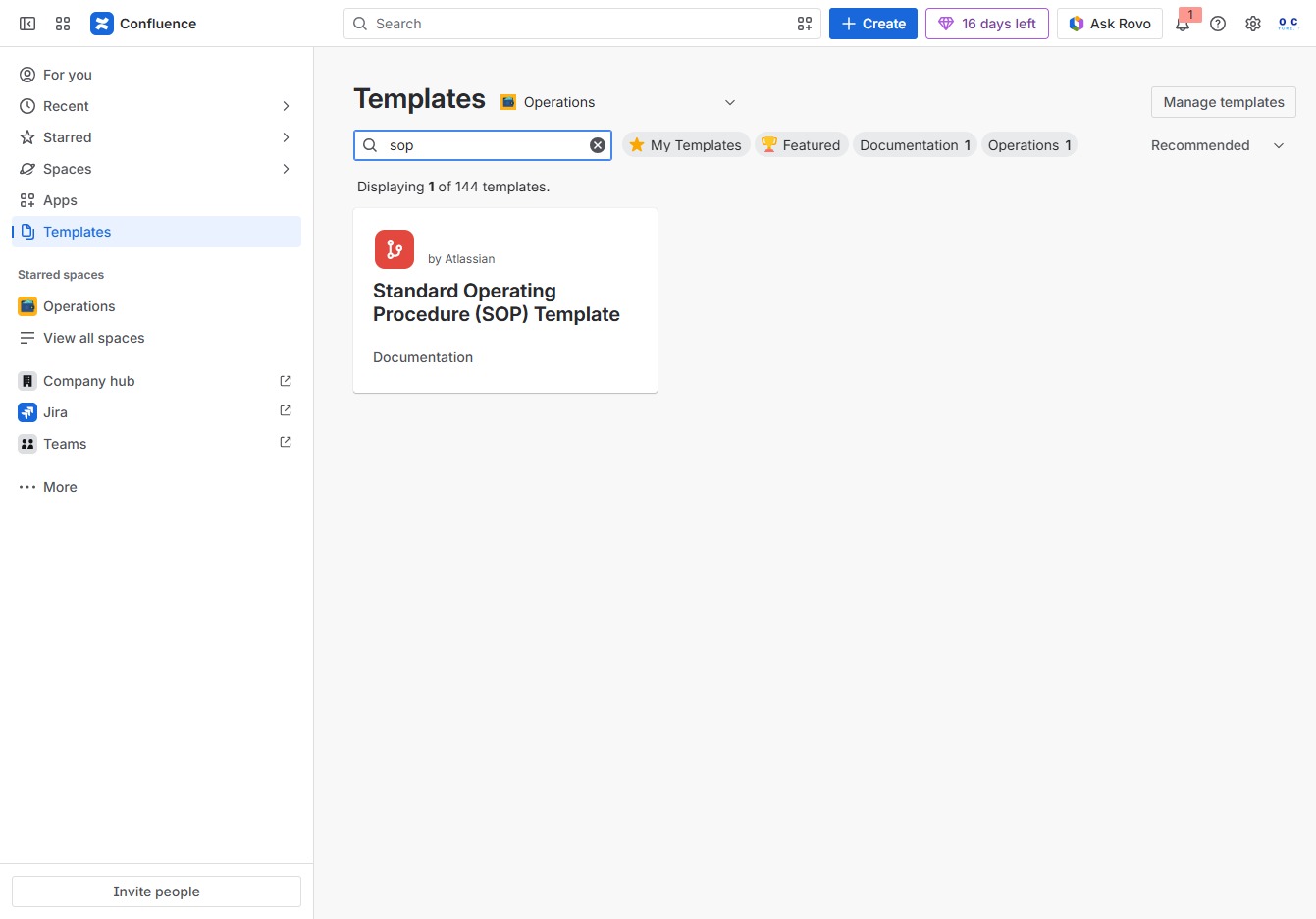
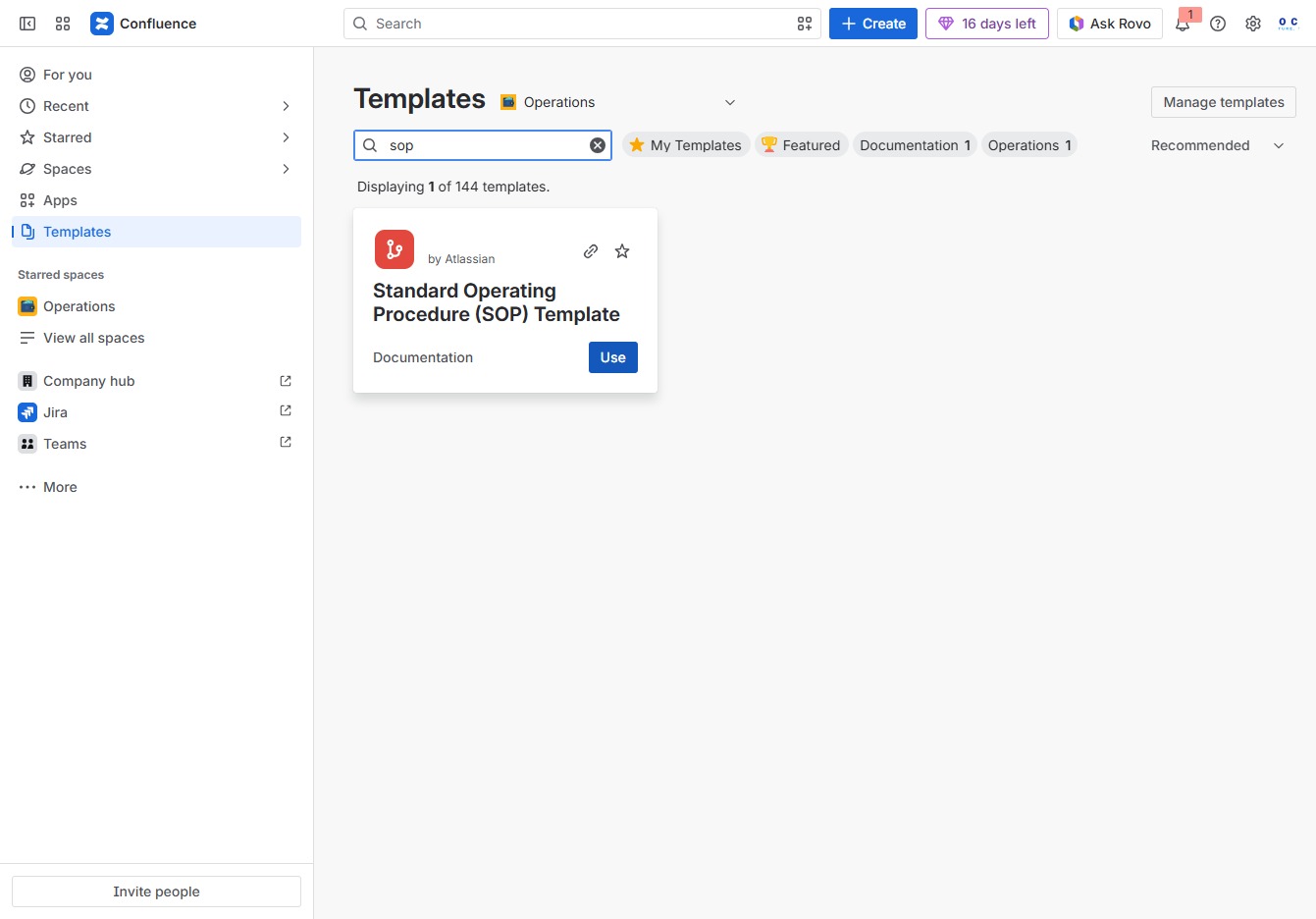
This action will initiate the process to utilize the Standard Operating Procedure (SOP) Template, allowing you to create a new document based on this template.
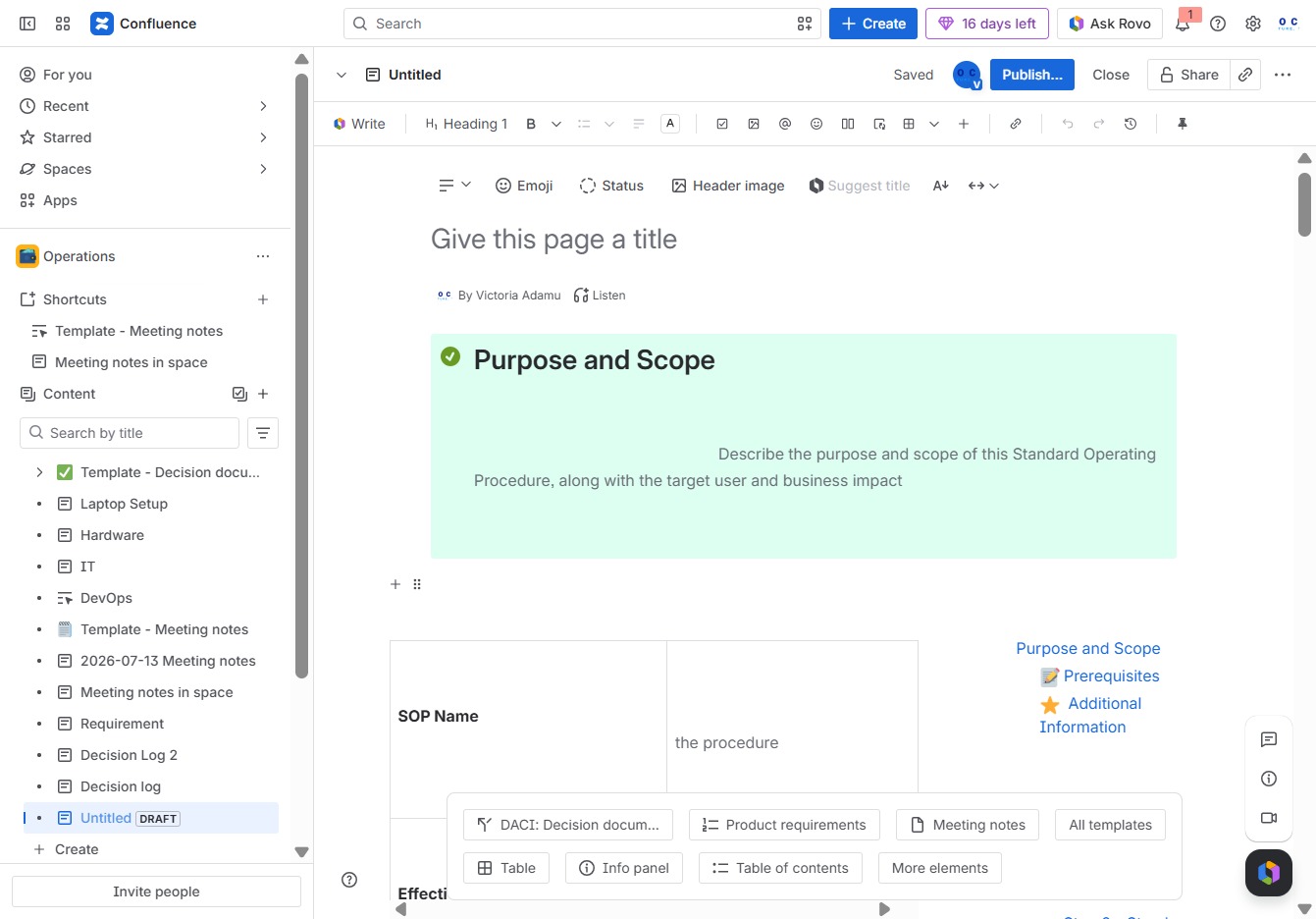
Clicking this field allows you to enter a title for the current page, setting the context for your document. This title will be displayed prominently and used for navigation within your workspace.
Enter 'SOP For Onboarding Interns' in the 'Give this page a title' field to set the main title for your document. This title will be displayed prominently and help users identify the purpose of the page.
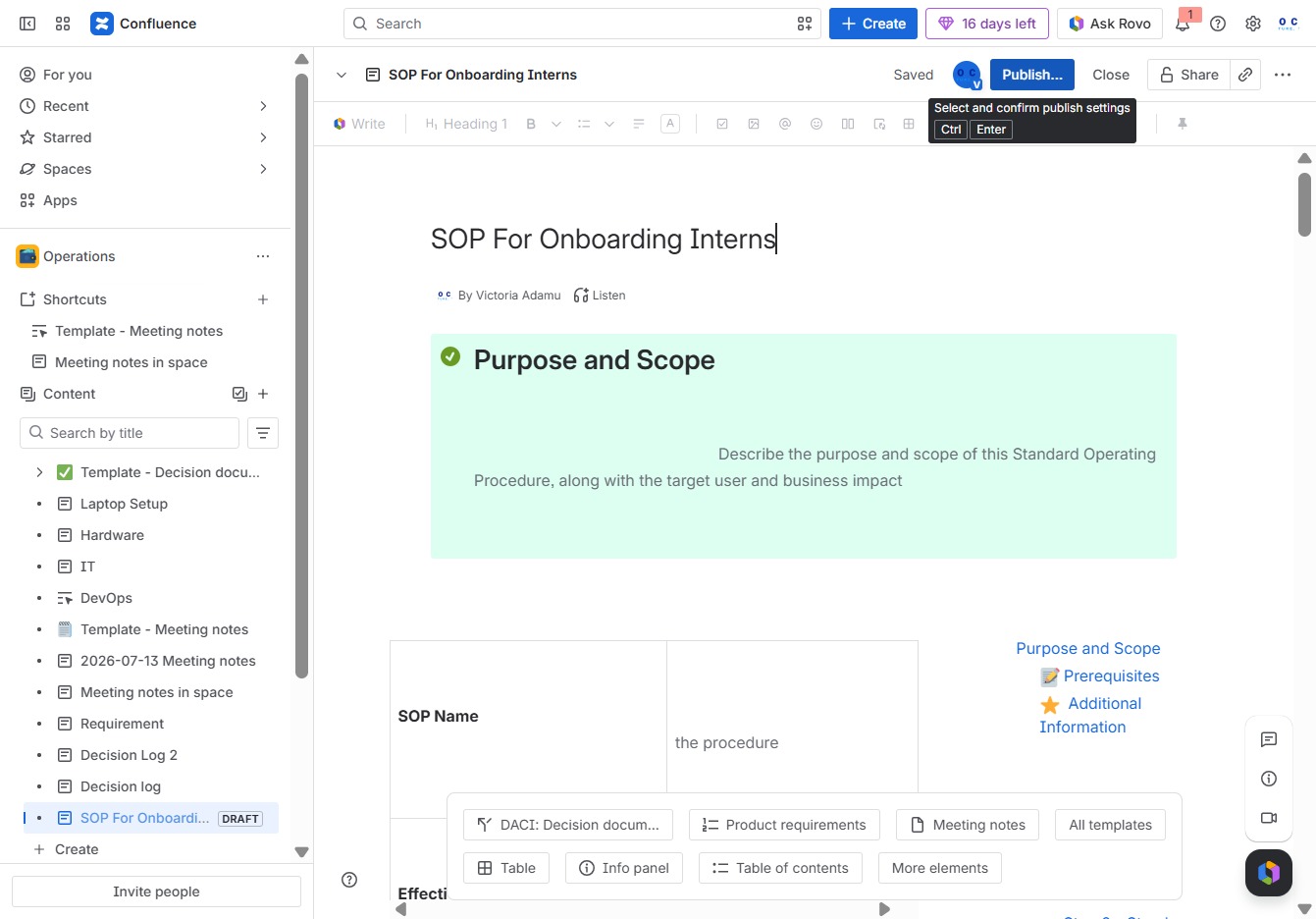
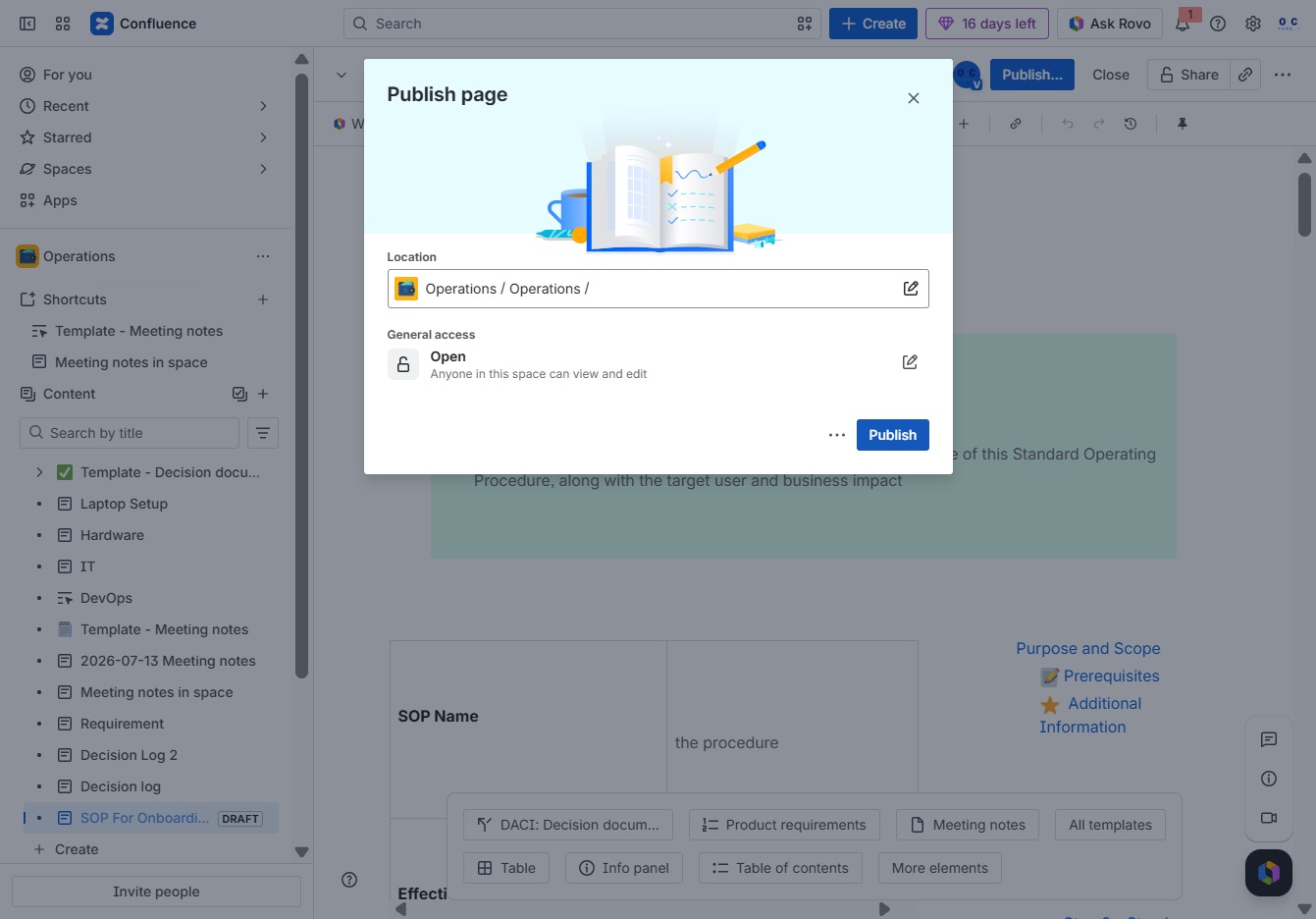
Clicking this button will initiate the publishing process for the current document, making it accessible to users according to the selected visibility settings.
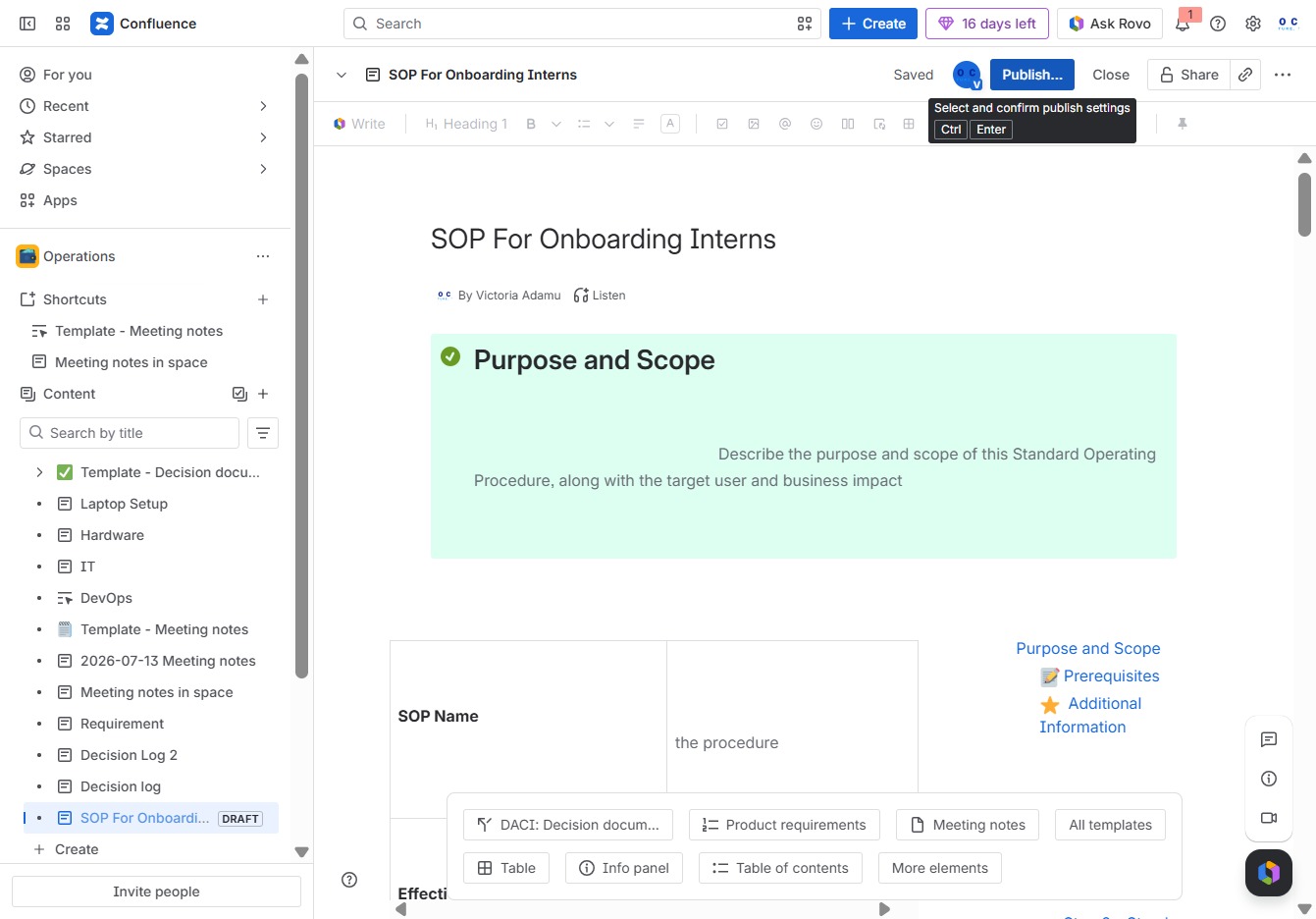
Clicking the Publish button will make your current page visible to others based on the access settings specified. This finalizes the editing process and ensures that the content is saved and shared with the intended audience.