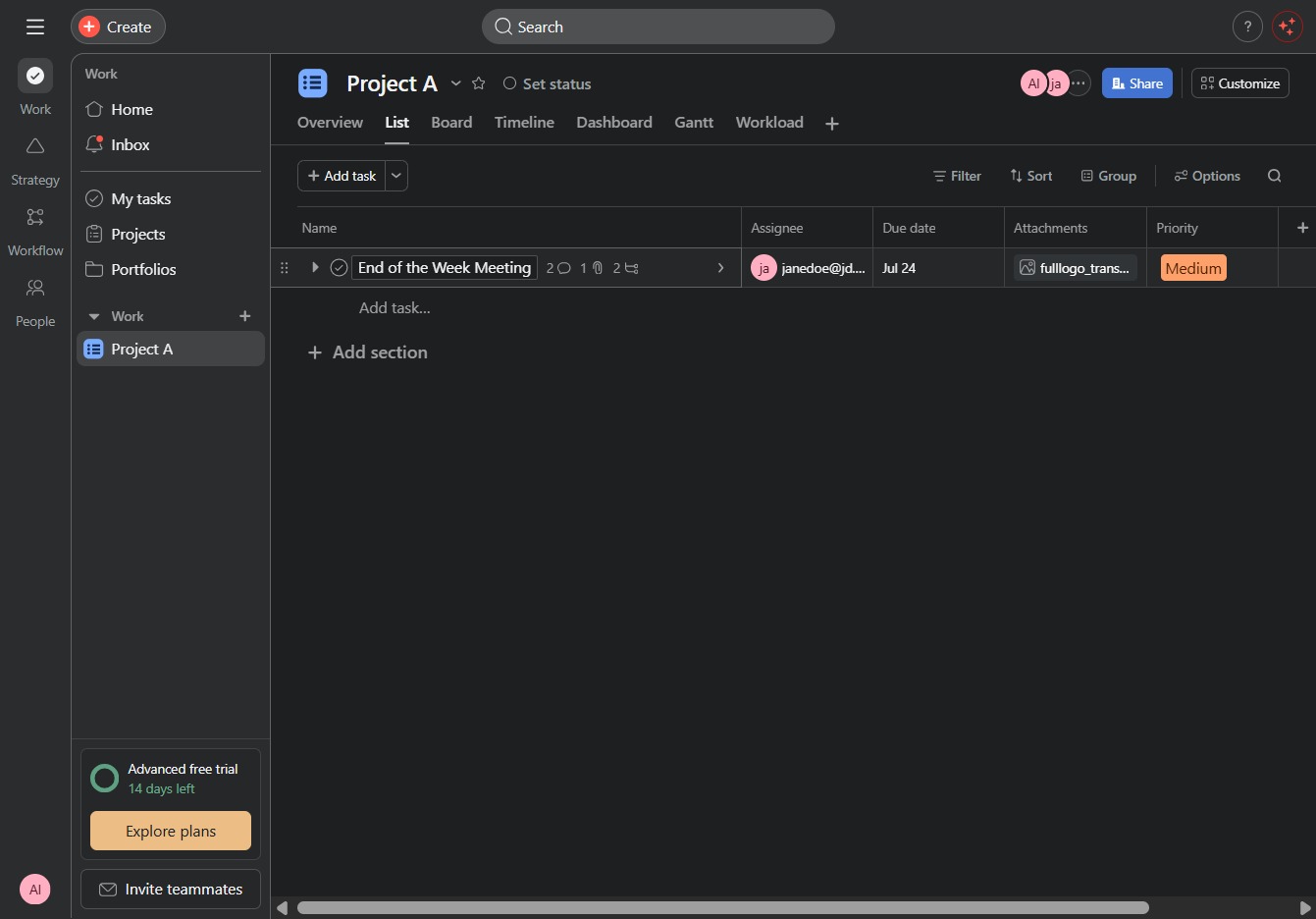
Select Project A
Selecting 'Project A' will open the project details where you can view tasks, updates, and collaborate with team members.

Loading screenshot…
100%
In this guide, you'll learn how to create and manage recurring tasks in your project management tool.
 viktoria
In this guide, you'll learn how to create and manage recurring tasks in your project management tool. By following the step-by-step instructions, you'll be able to set deadlines, edit details, and streamline your task organization, ensuring efficient collaboration throughout your team.
Selecting 'Project A' will open the project details where you can view tasks, updates, and collaborate with team members.
This action selects the 'End of the Week Meeting' task, allowing you to view or edit its details, including assignments and due dates.
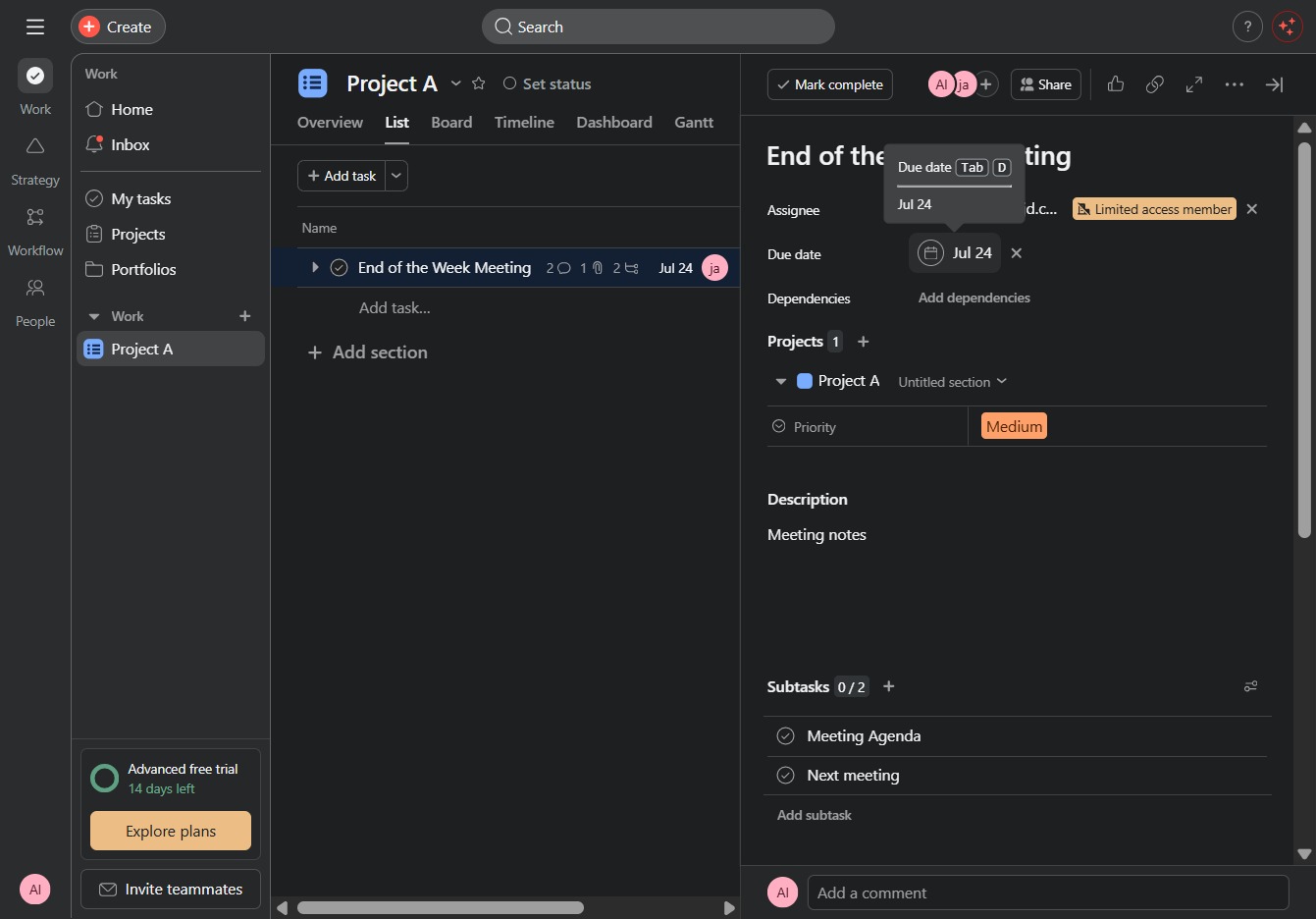
Clicking the Due Date field allows you to select or edit the date for the task within Project A, facilitating better deadline management.
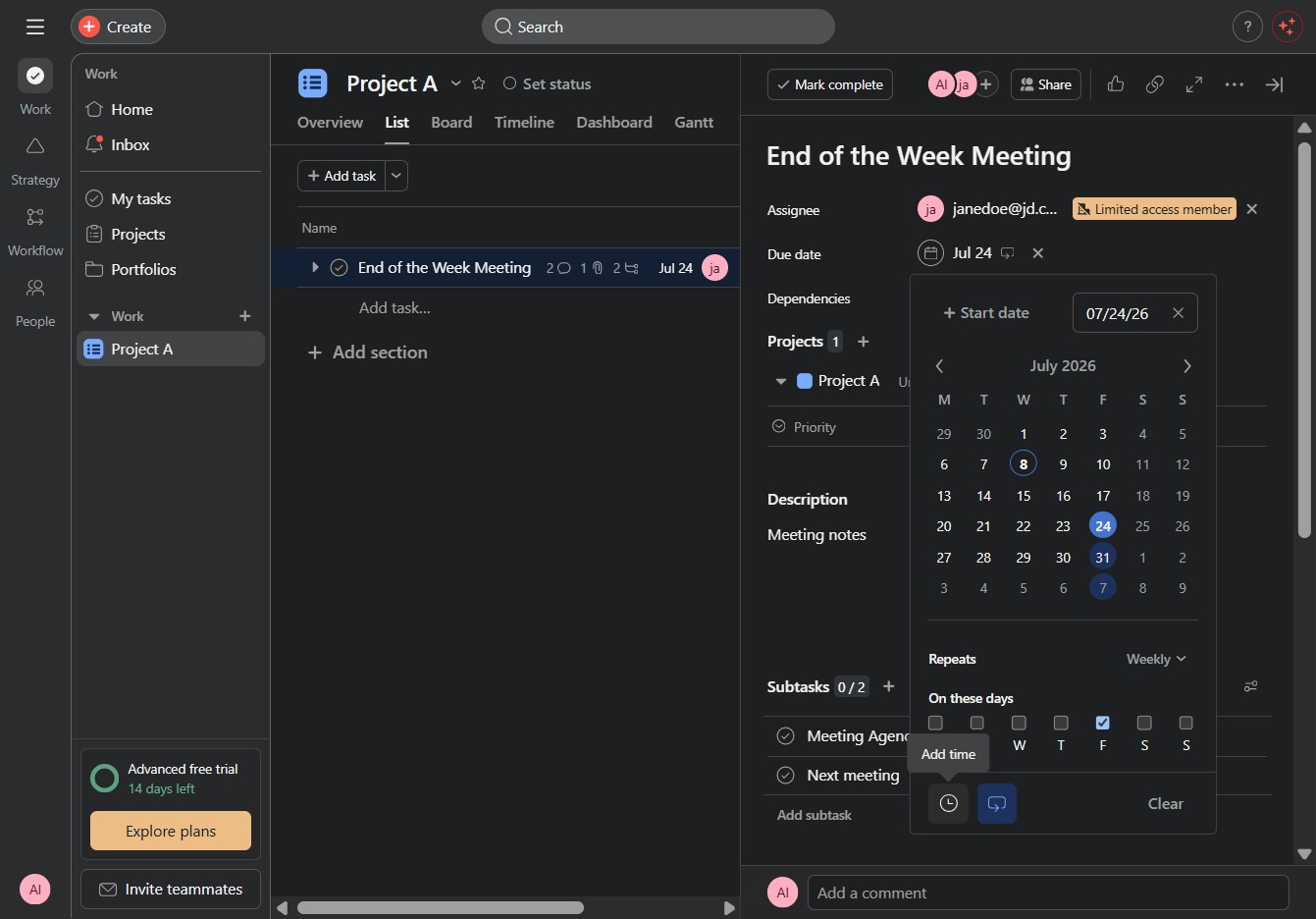
Clicking this link will allow you to create a new task under the 'End of the Week Meeting' section, enabling you to manage your to-do list effectively.

By clicking this link, you will view or modify specific details related to the 'End of the Week Meeting' task in your project management tool.
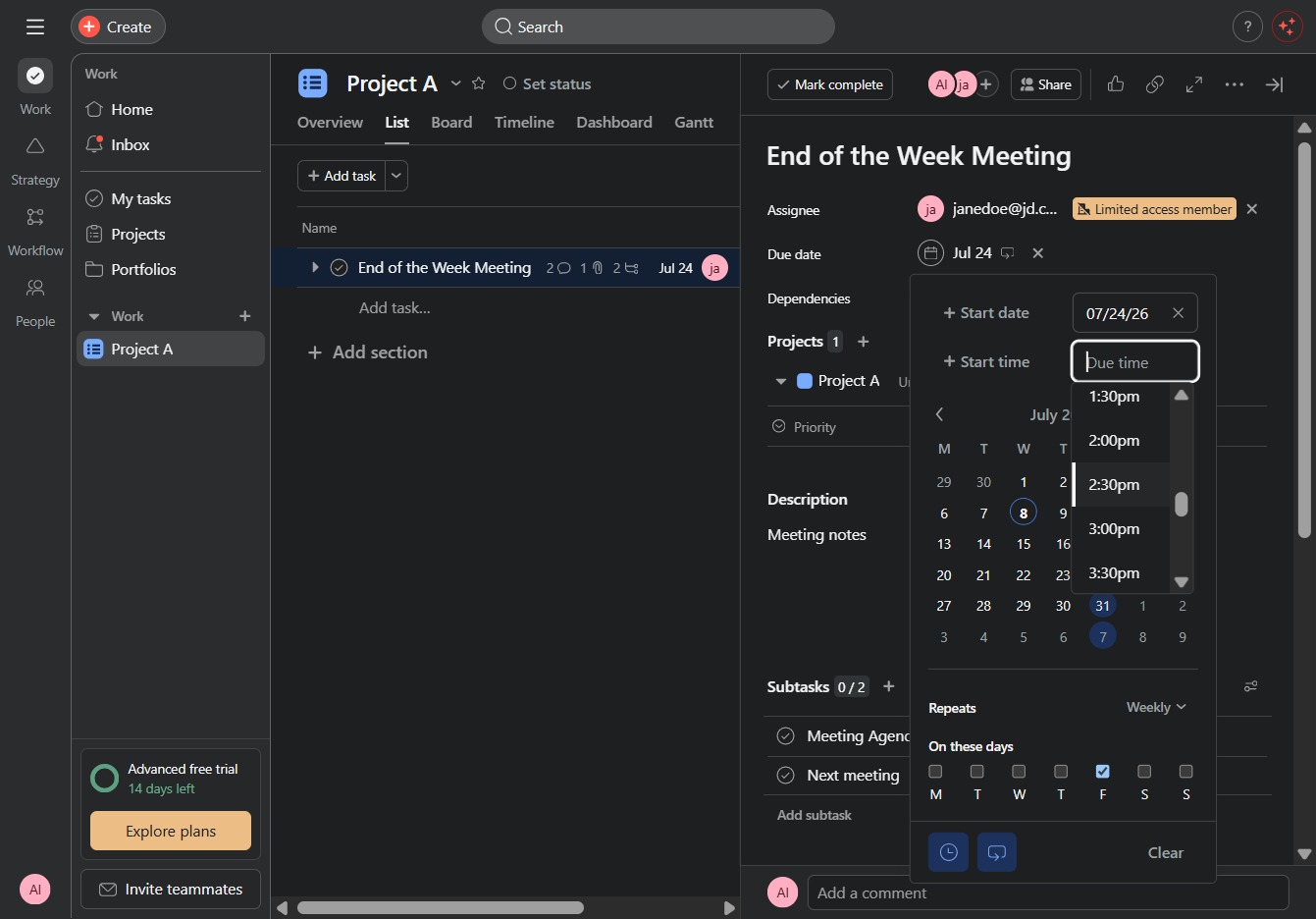
Selecting the 2:30pm option sets the start time for the End of the Week Meeting. This will update the meeting's scheduled start in the calendar.