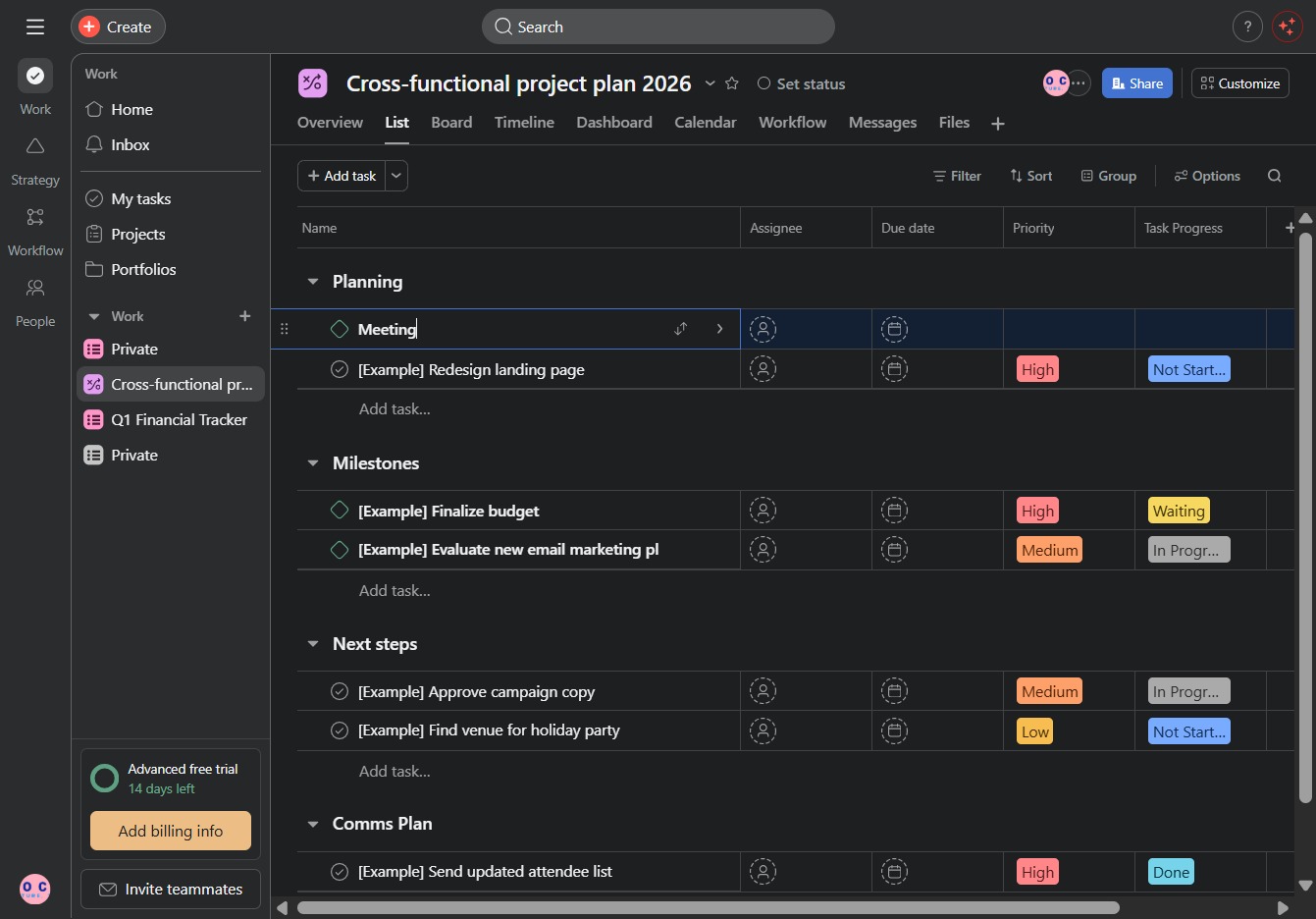
Click the Cross-functional project plan 2026
This action opens the Cross-functional project plan for 2026, allowing you to view or edit the details of the project.

Loading screenshot…
100%
In this how-to guide, you'll learn to create project milestones effectively by navigating through the cross-functional project plan for 2026.
 viktoria
In this how-to guide, you'll learn to create project milestones effectively by navigating through the cross-functional project plan for 2026. The steps include accessing key project features, categorizing tasks as milestones, and entering task details to enhance your project management and collaboration.
This action opens the Cross-functional project plan for 2026, allowing you to view or edit the details of the project.
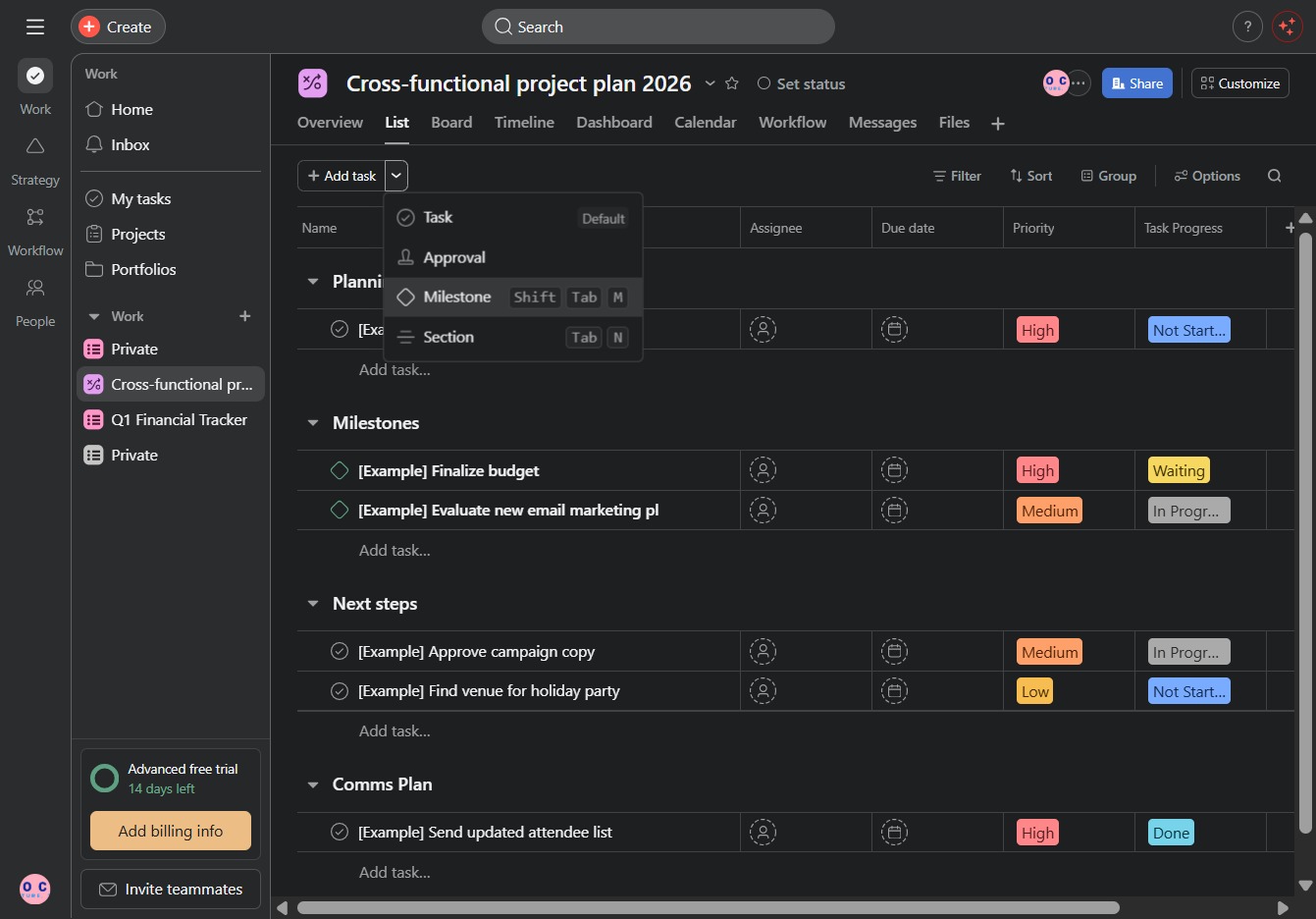
By clicking this link, you will access additional options or features related to your project plan, enhancing your ability to manage tasks and collaborate effectively.

Selecting the Milestone option will allow you to categorize tasks as milestones in the project plan, helping you to track key events and deadlines effectively.
Clicking in the 'Task name' text area allows you to enter the title of your new task. This is the first step in creating a task for your project plan.
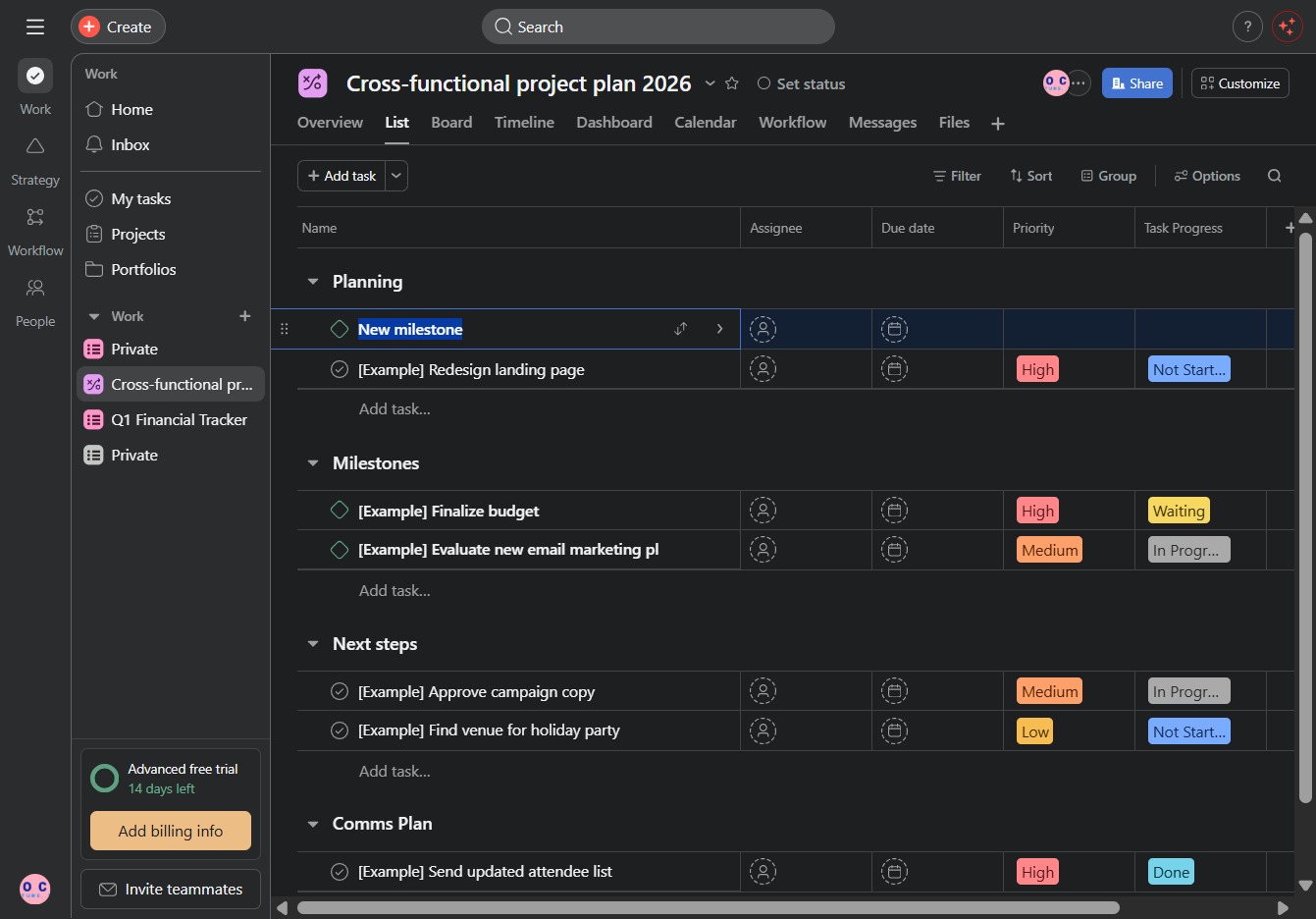
This action will populate the Meeting field with the text 'Meeting', allowing you to categorize or prioritize your task under the Planning section.