Geteilte Anleitung

How to create new email templates

In this how-to guide, you'll learn the step-by-step process to create new email templates, from navigating user profiles to customizing the message and saving it for future use.

victoriaworkflowsvictoriaworkflows
·16 Schritte·65 Aufrufe·Veröffentlicht

In this how-to guide, you'll learn the step-by-step process to create new email templates, from navigating user profiles to customizing the message and saving it for future use. Follow along to efficiently set up your email communications.

Step-by-step Guide16 Schritte
  1. Click People

    Click People
    Loading screenshot…
    100%
  2. Click Email

    Click Email
    Loading screenshot…
    100%
  3. Click John Doe

    Click John Doe
    Loading screenshot…
    100%
  4. Click Subject

    Click Subject
    Loading screenshot…
    100%
  5. Type "Thank You For Your Inquiry!"

  6. Click on "Click here."

    Click on "Click here."
    Loading screenshot…
    100%
  7. Type "Hello "

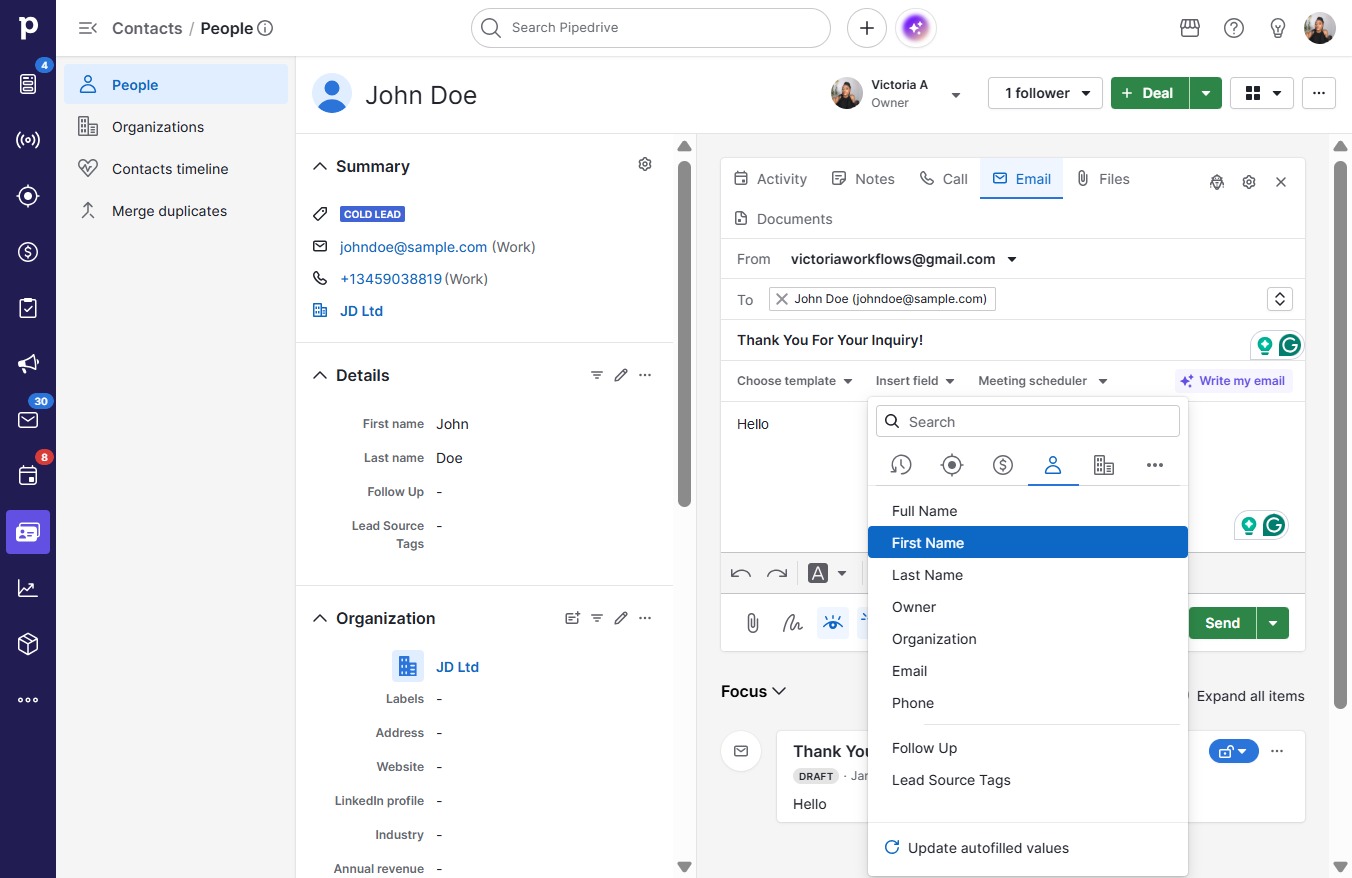
  8. Click Insert field

    Click Insert field
    Loading screenshot…
    100%
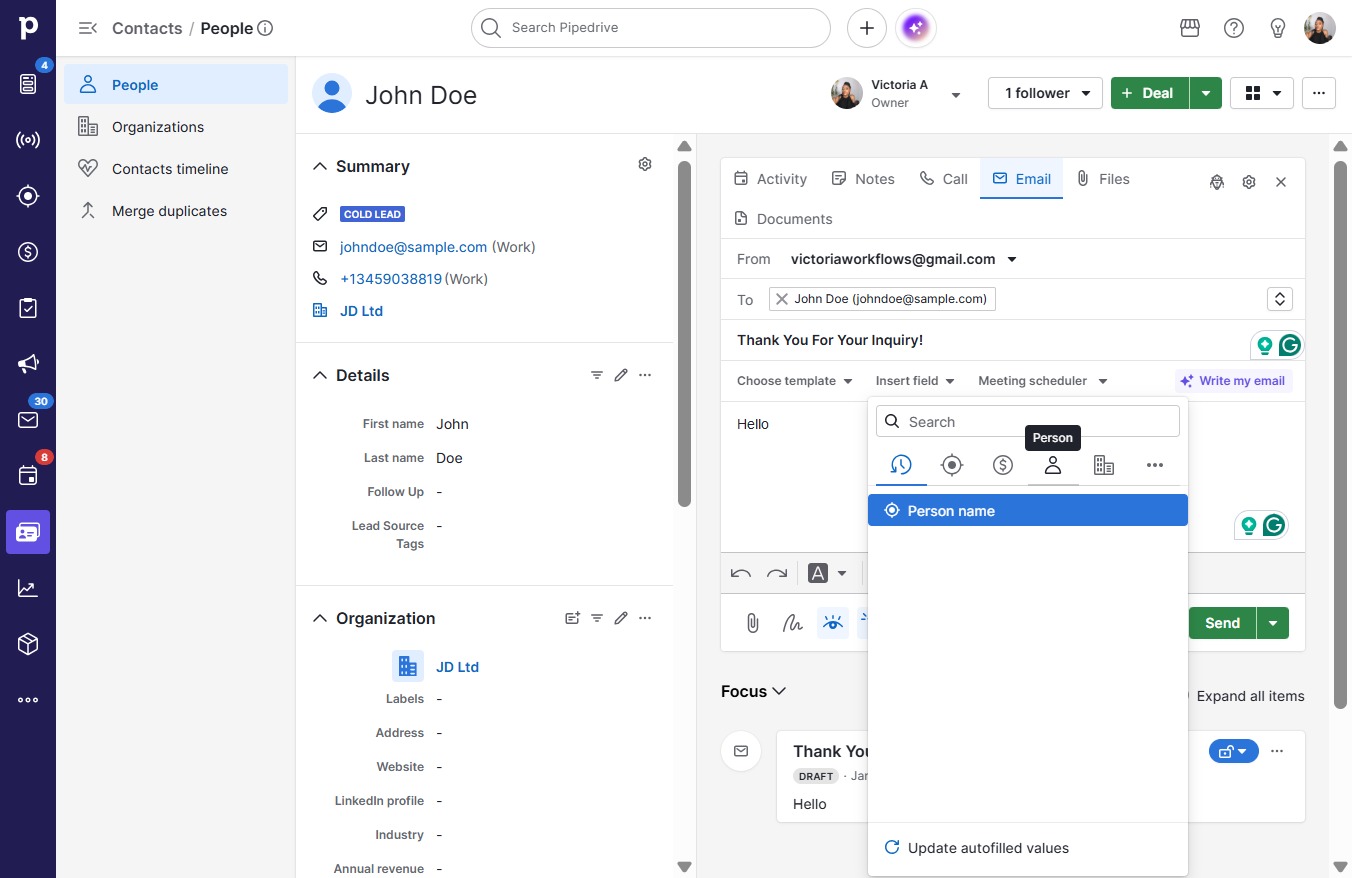
  9. Click First Name

    Click First Name
    Loading screenshot…
    100%
  10. Click on "Click here."

    Click on "Click here."
    Loading screenshot…
    100%
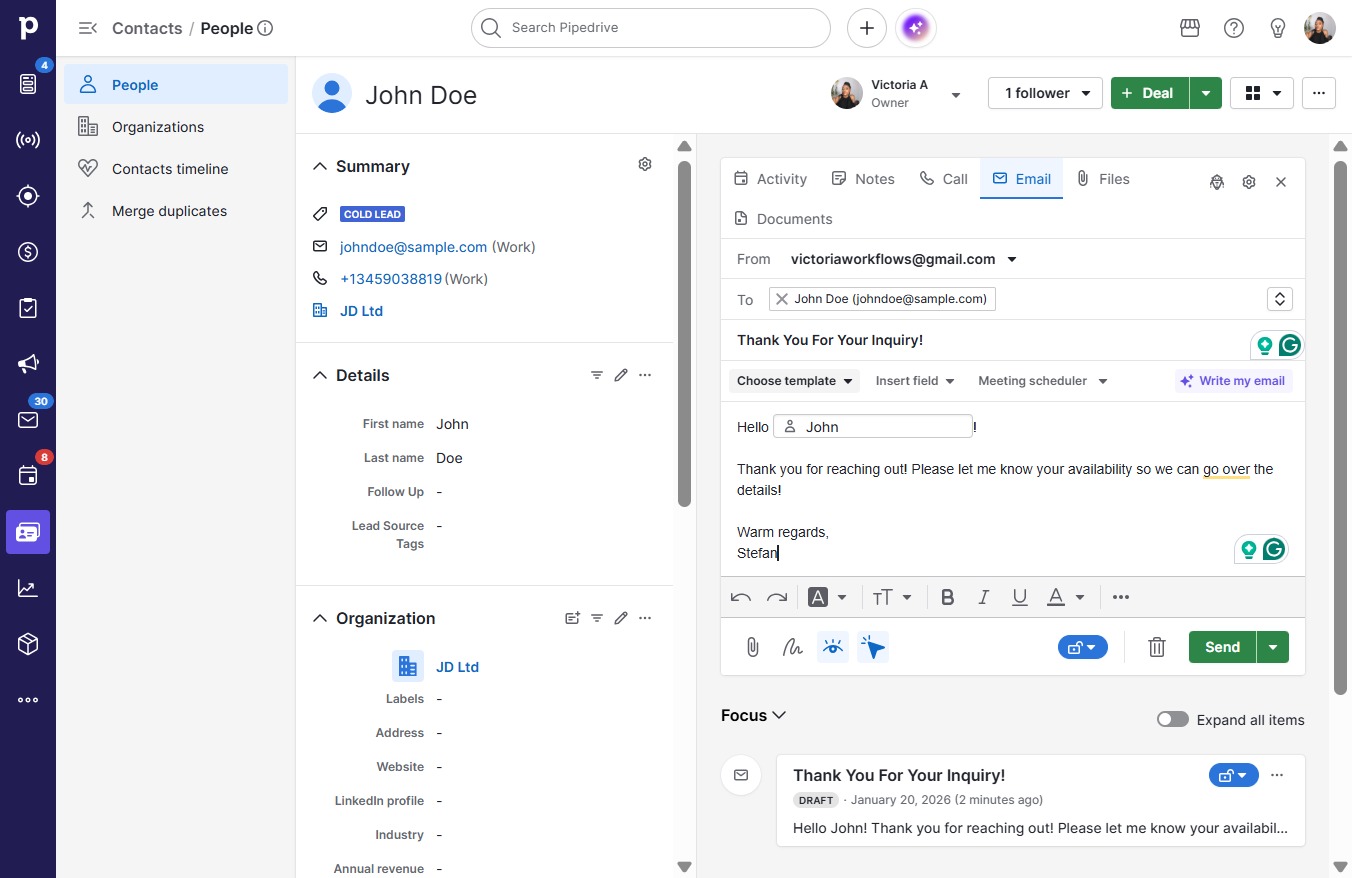
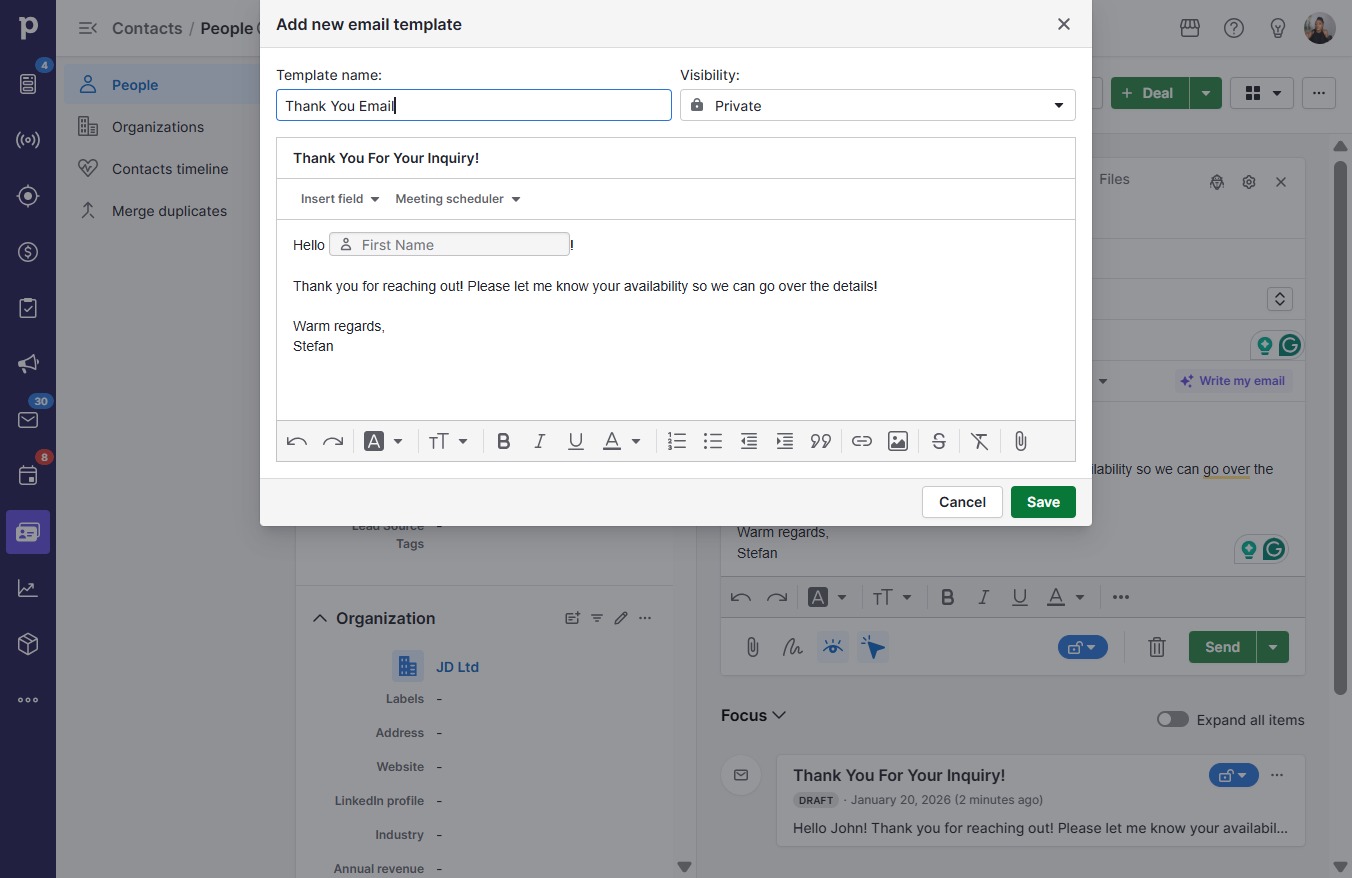
  11. Type "Hello !Thank you for reaching out! Please let me k..."

  12. Click on "Click here."

    Click on "Click here."
    Loading screenshot…
    100%
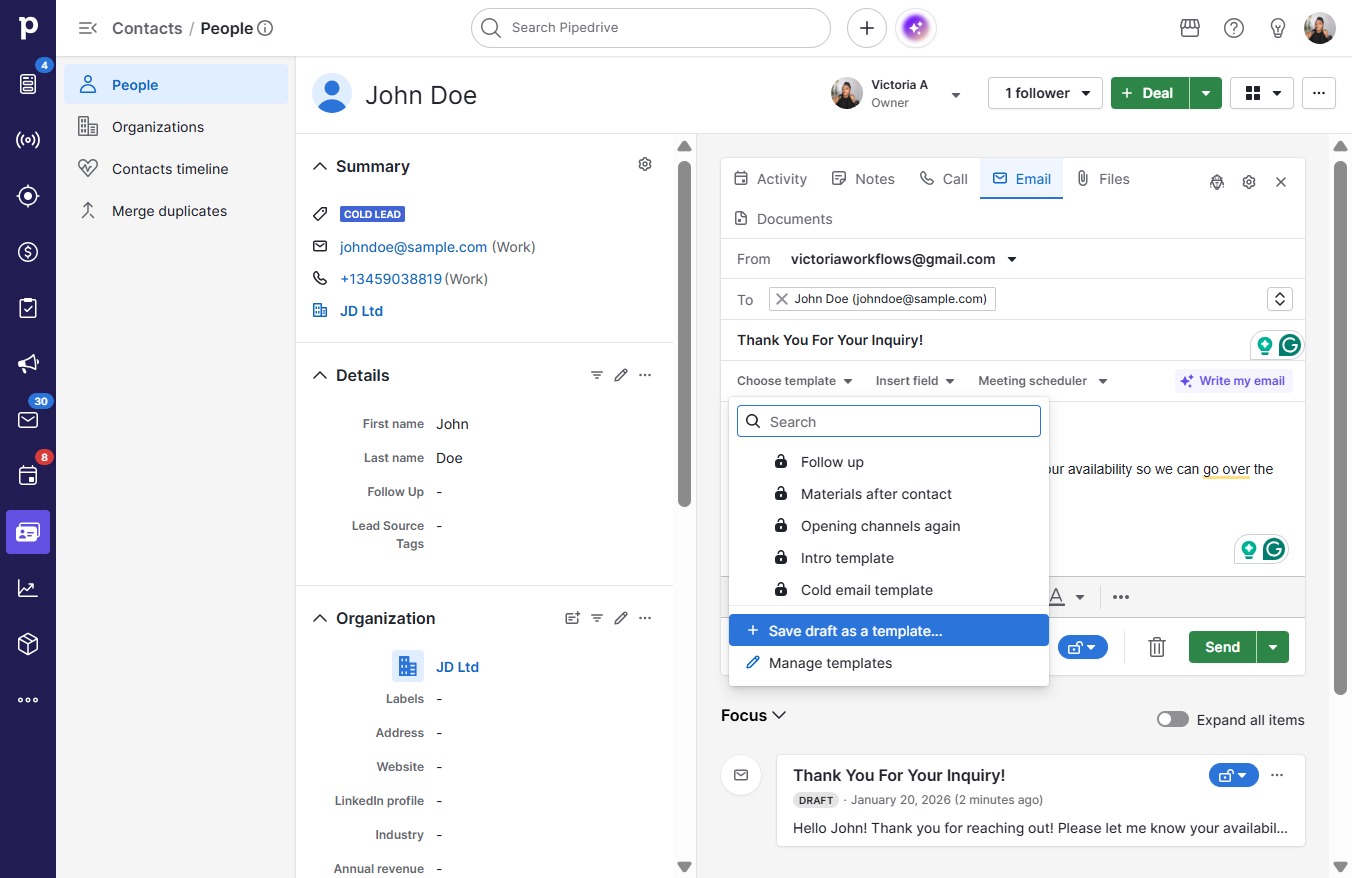
  13. Click Save draft as a template...

    Click Save draft as a template...
    Loading screenshot…
    100%
  14. Click on "Click here."

    Click on "Click here."
    Loading screenshot…
    100%
  15. Type "Thank You Email"

  16. Click Save

    Click Save
    Loading screenshot…
    100%