Click the Leads section
This will display the list of leads associated with your sales workspace, allowing you to manage and track potential customers.
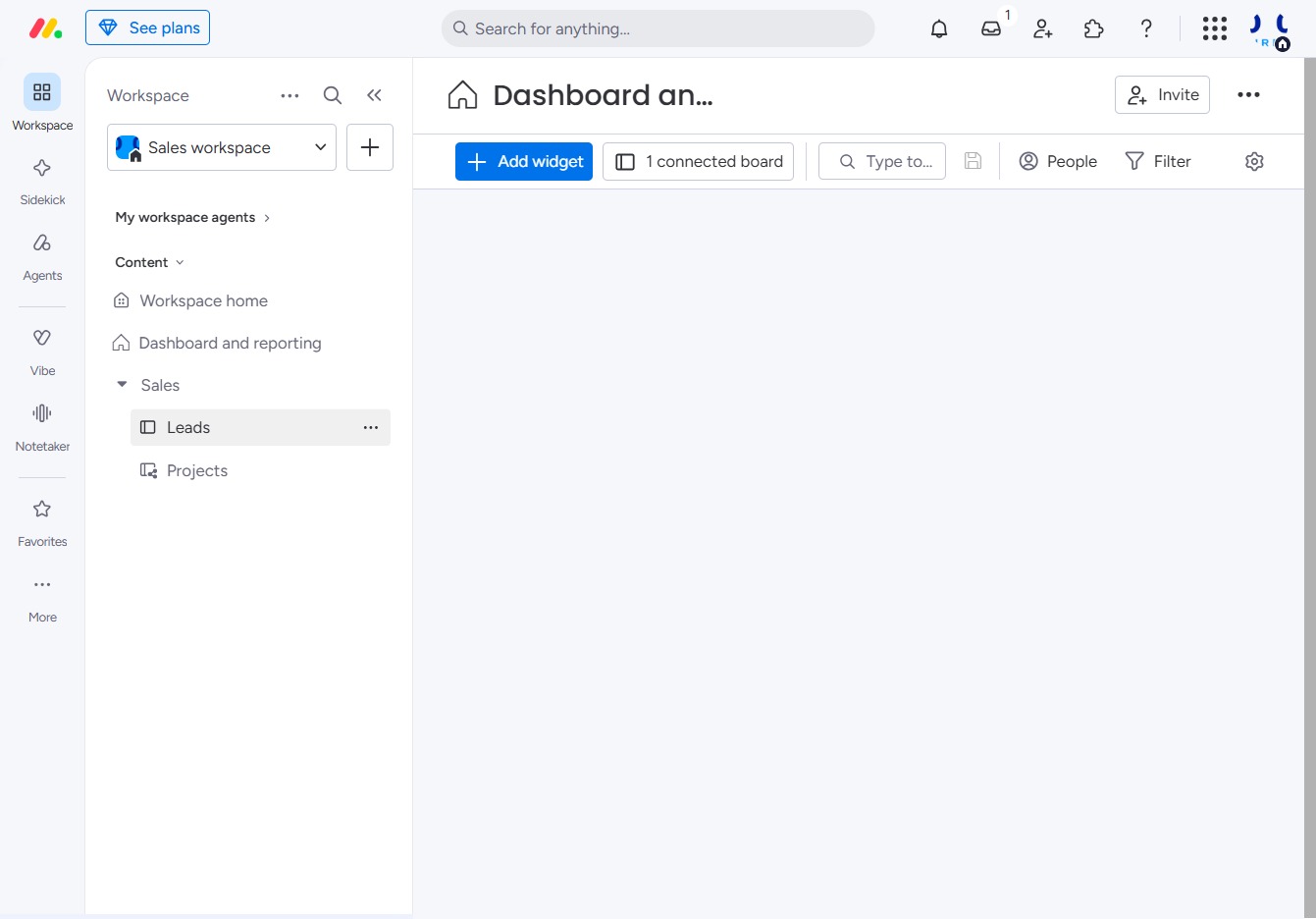
Loading screenshot…
100%
In this guide, you'll learn how to create and manage leads on your sales board.
 viktoria
In this guide, you'll learn how to create and manage leads on your sales board. Follow the simple steps to enter new lead information and effectively track potential customers in your Hot Leads section.
This will display the list of leads associated with your sales workspace, allowing you to manage and track potential customers.
Selecting this input field allows you to enter new lead information. After clicking, you can begin typing the details of the lead.

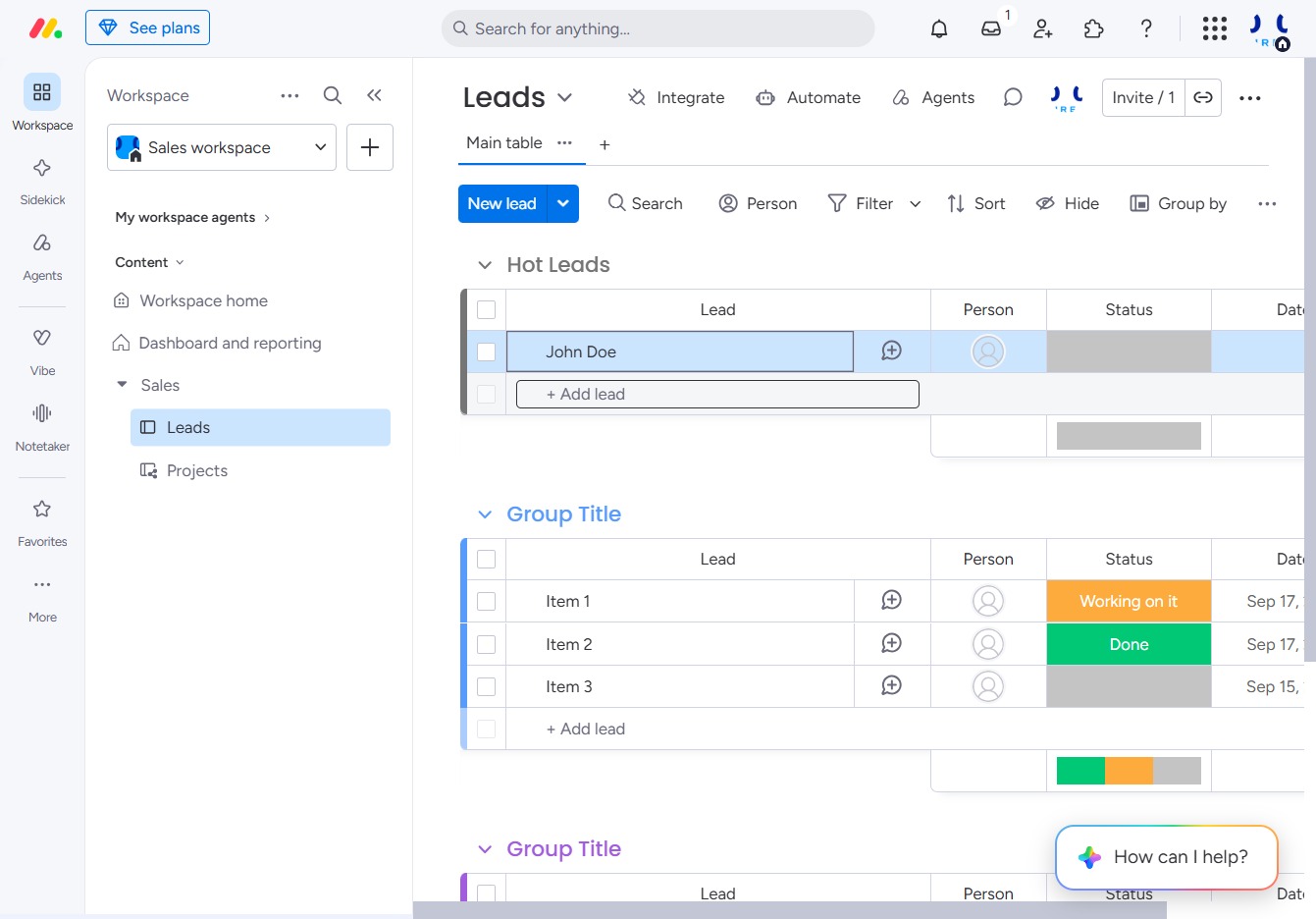
Enter 'John Doe' in the '+ Add lead' input field to create a new lead entry in the Hot Leads section.

Selecting this button allows you to create a new lead entry in your Hot Leads section. Fill in the necessary details to populate the lead information.
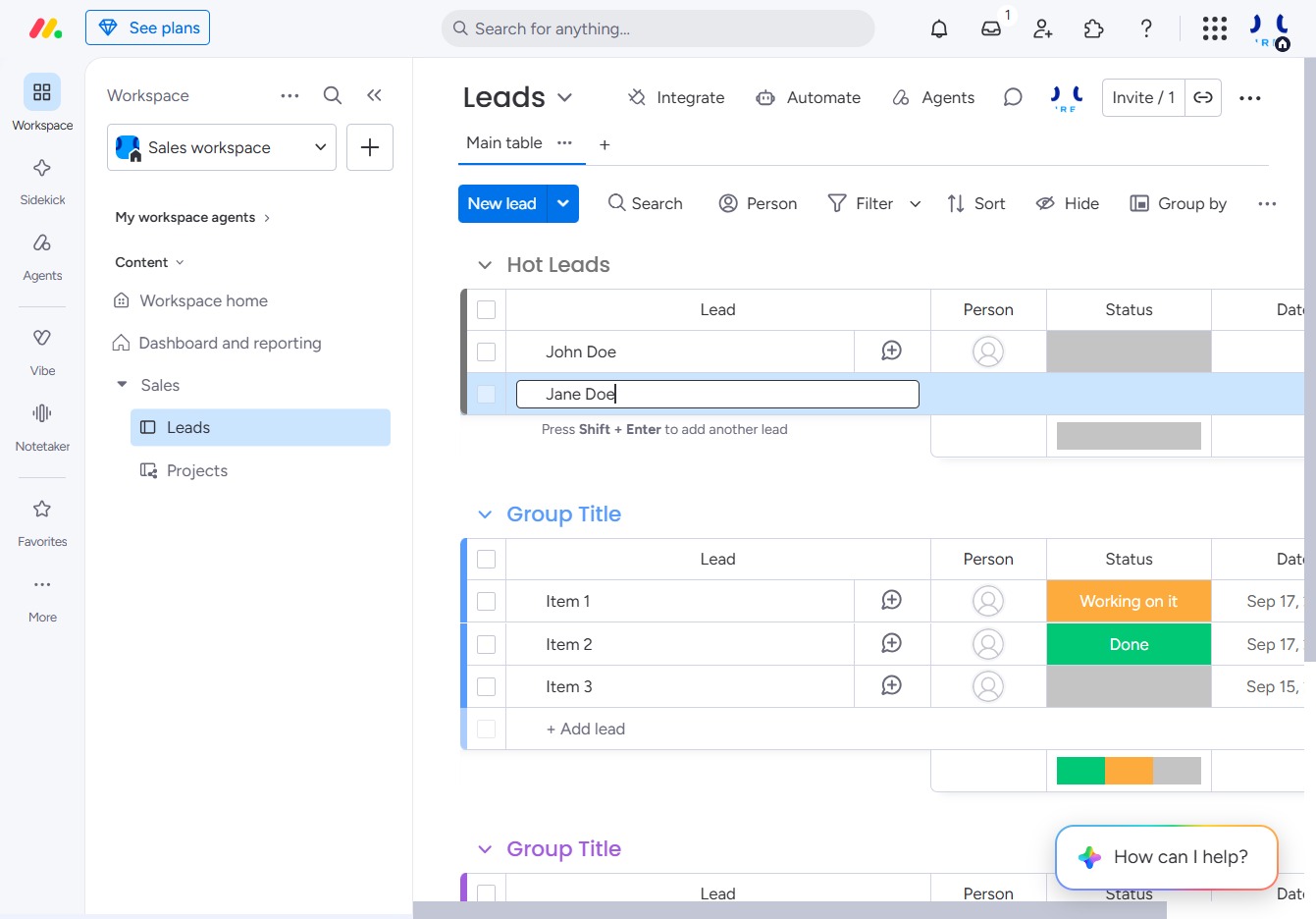
Enter 'Jane Doe' in the '+ Add lead' input field to add a new lead to your Hot Leads list. This action will save the new entry in the system.