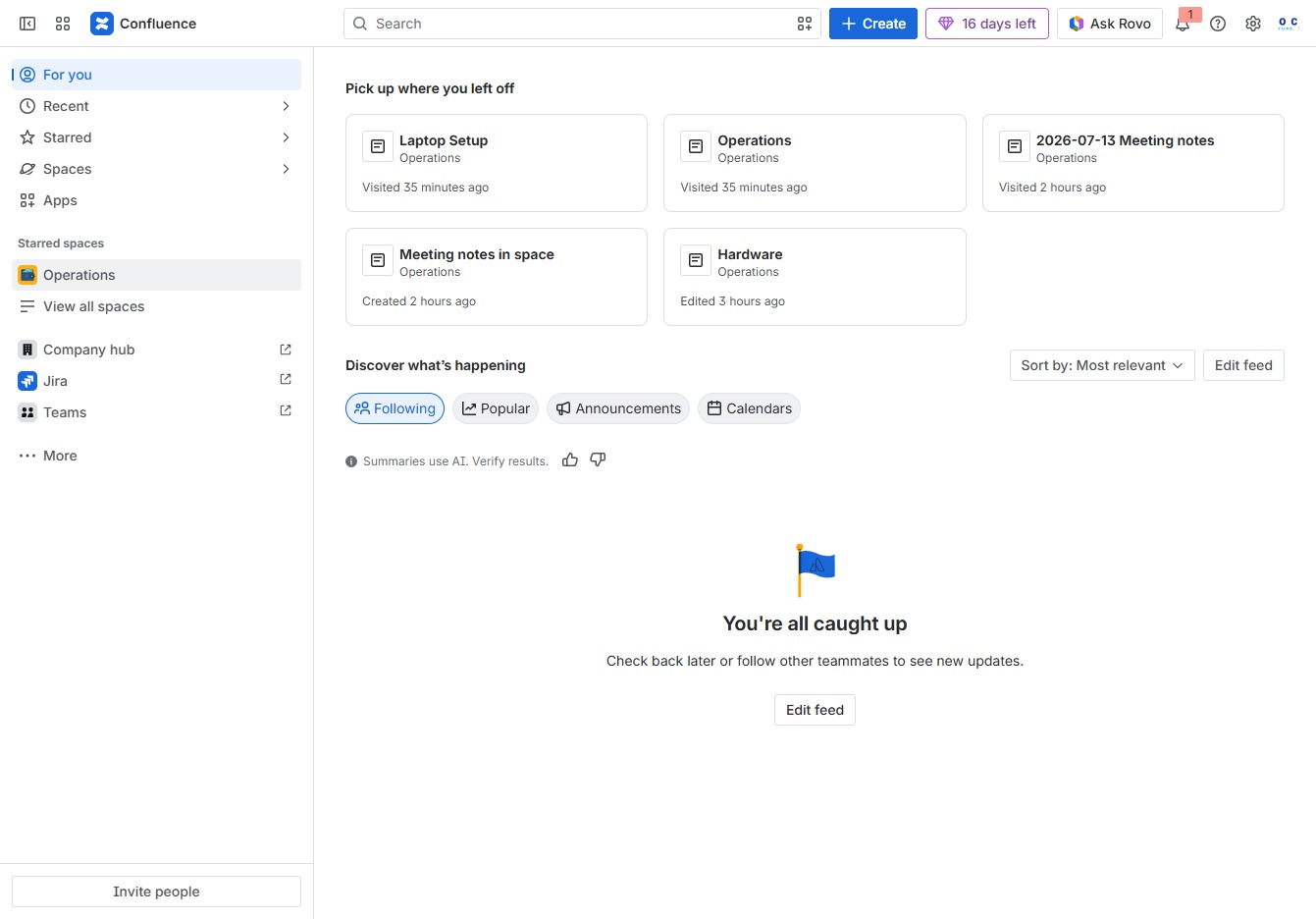
Click the Operations section
Selecting the 'Operations' section will reveal options related to various operational tasks, allowing you to manage and view project-related activities seamlessly.
Loading screenshot…
100%
Learn how to create effective decision logs in Confluence with this step-by-step guide.
 viktoria
Learn how to create effective decision logs in Confluence with this step-by-step guide. From navigating the Operations section to selecting and customizing templates, this tutorial will help you organize your project decisions efficiently and enhance collaboration within your team.
Selecting the 'Operations' section will reveal options related to various operational tasks, allowing you to manage and view project-related activities seamlessly.
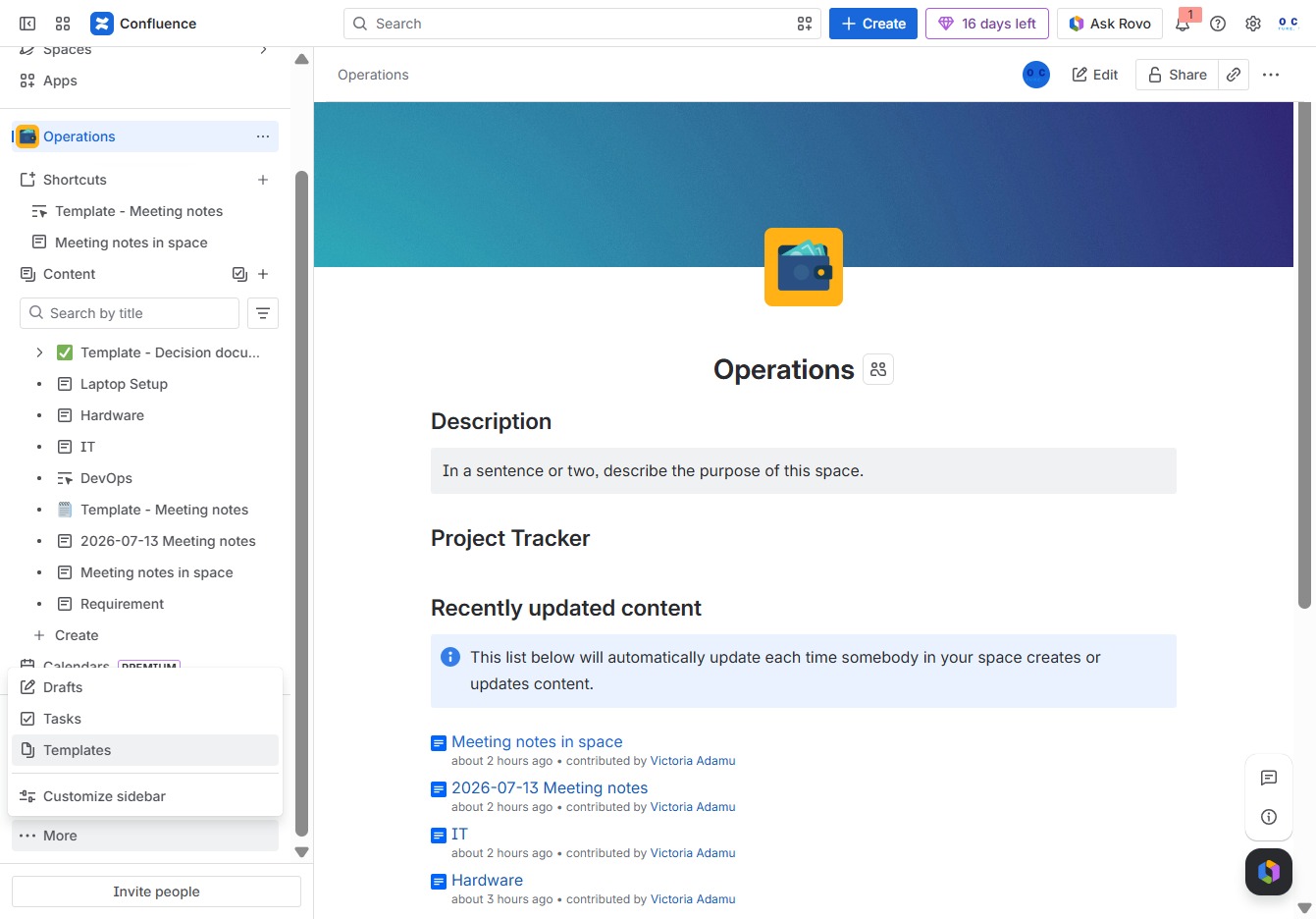
Clicking this button will reveal additional options related to the current space in Confluence, allowing you to access more features or settings.

This action will open the Templates section where you can choose or create various templates for your documents or projects.
Clicking this will display the search bar, allowing you to quickly find templates or documents within the Confluence workspace.

Entering 'dec' in the Search author, category, topic field filters the available templates according to your input, helping you quickly locate relevant options.

Input 'deci' into the Search author, category, topic field to filter and display relevant templates based on your query in the Confluence templates section.

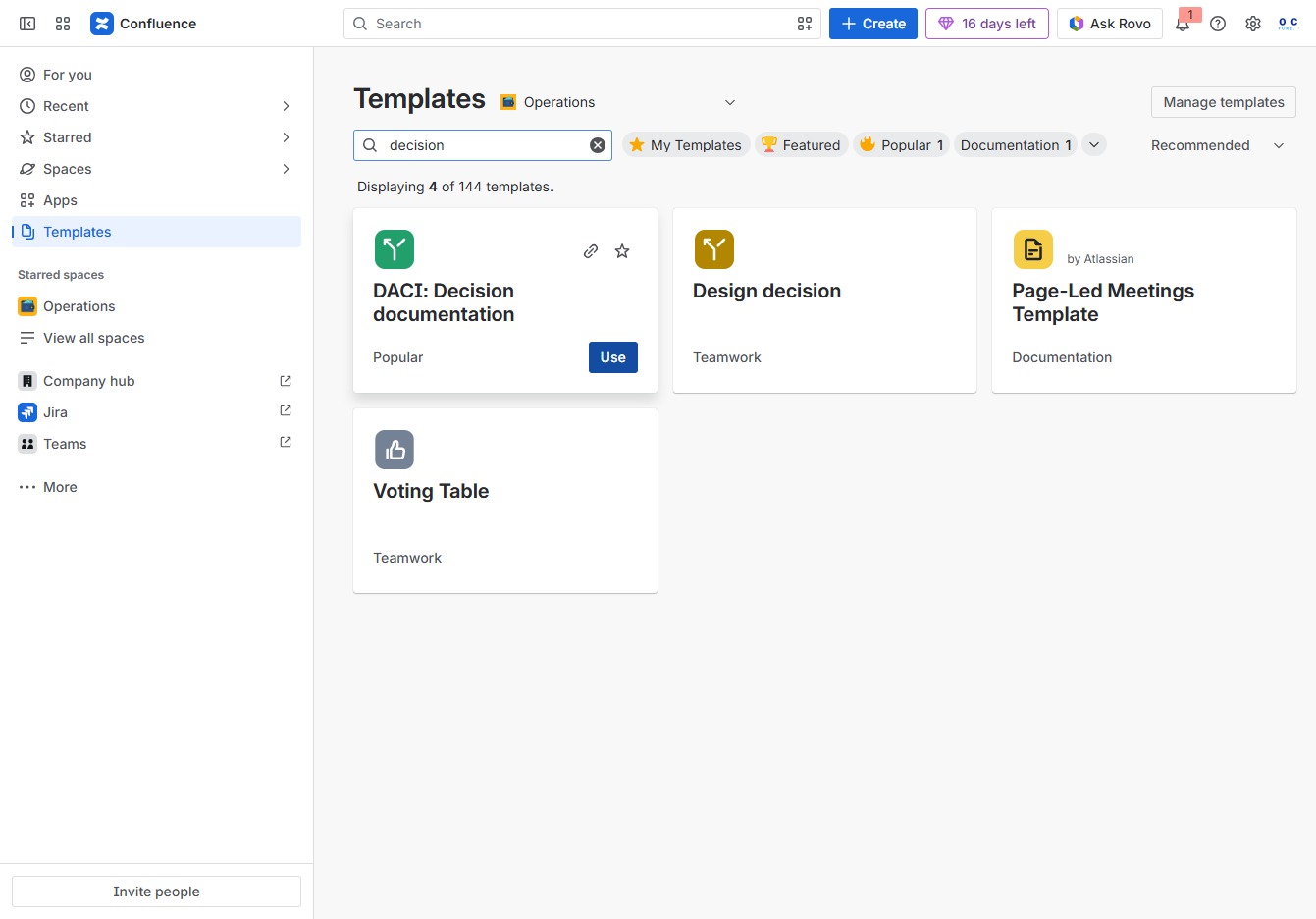
Enter 'decision' in the Search author, category, topic field to filter templates related to decision-making. This will display relevant options, helping you quickly find the template you need.
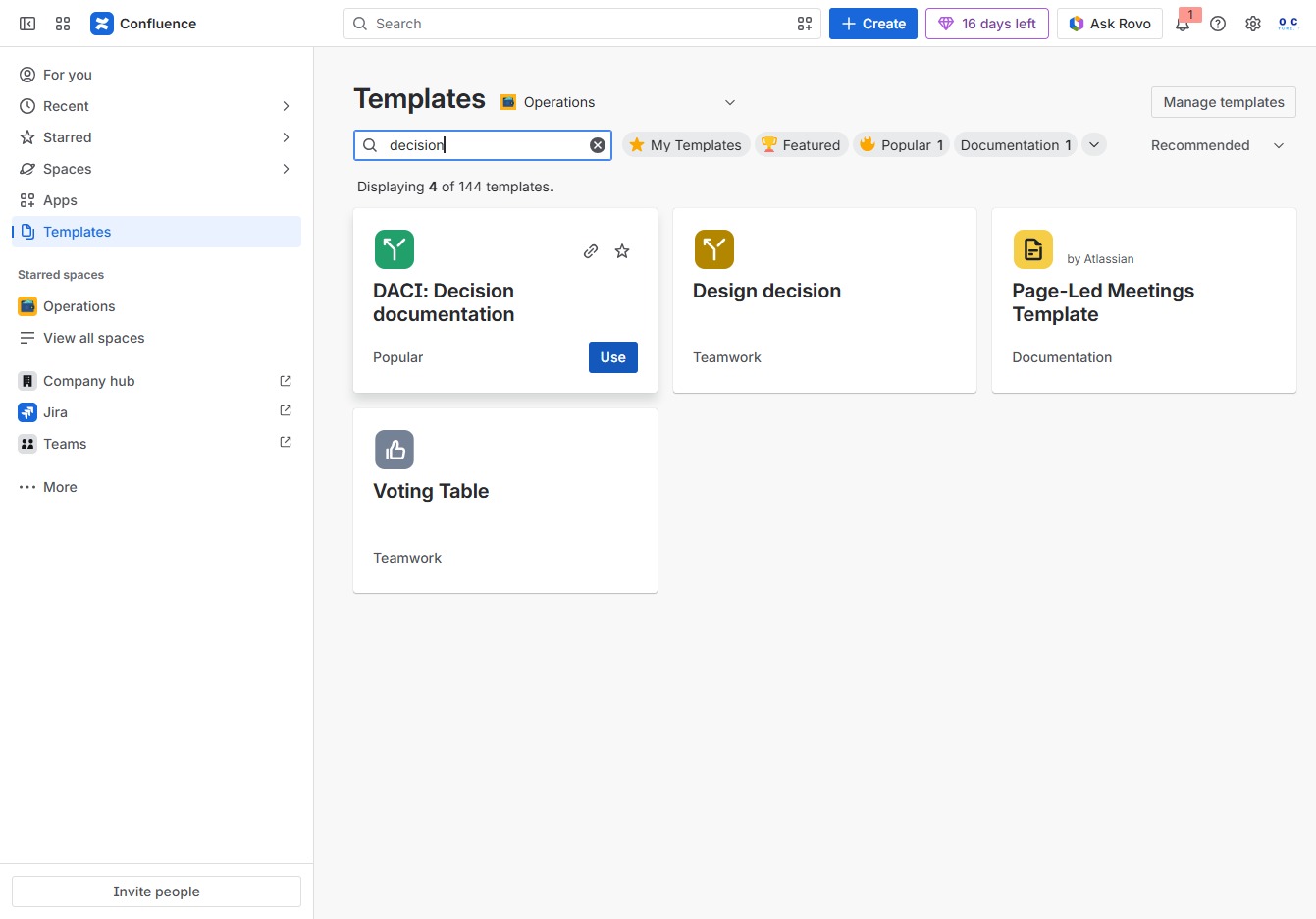
This action will apply the selected template, allowing you to create a new document based on its structure and content. You can customize the document further after it loads.
Input a descriptive title for your page to clearly convey its content. This title will help identify the page within your Confluence space.

Enter 'Decision Log' in the 'Give this page a title' field to clearly label your page. This title will help users locate and identify the document within the Confluence space.
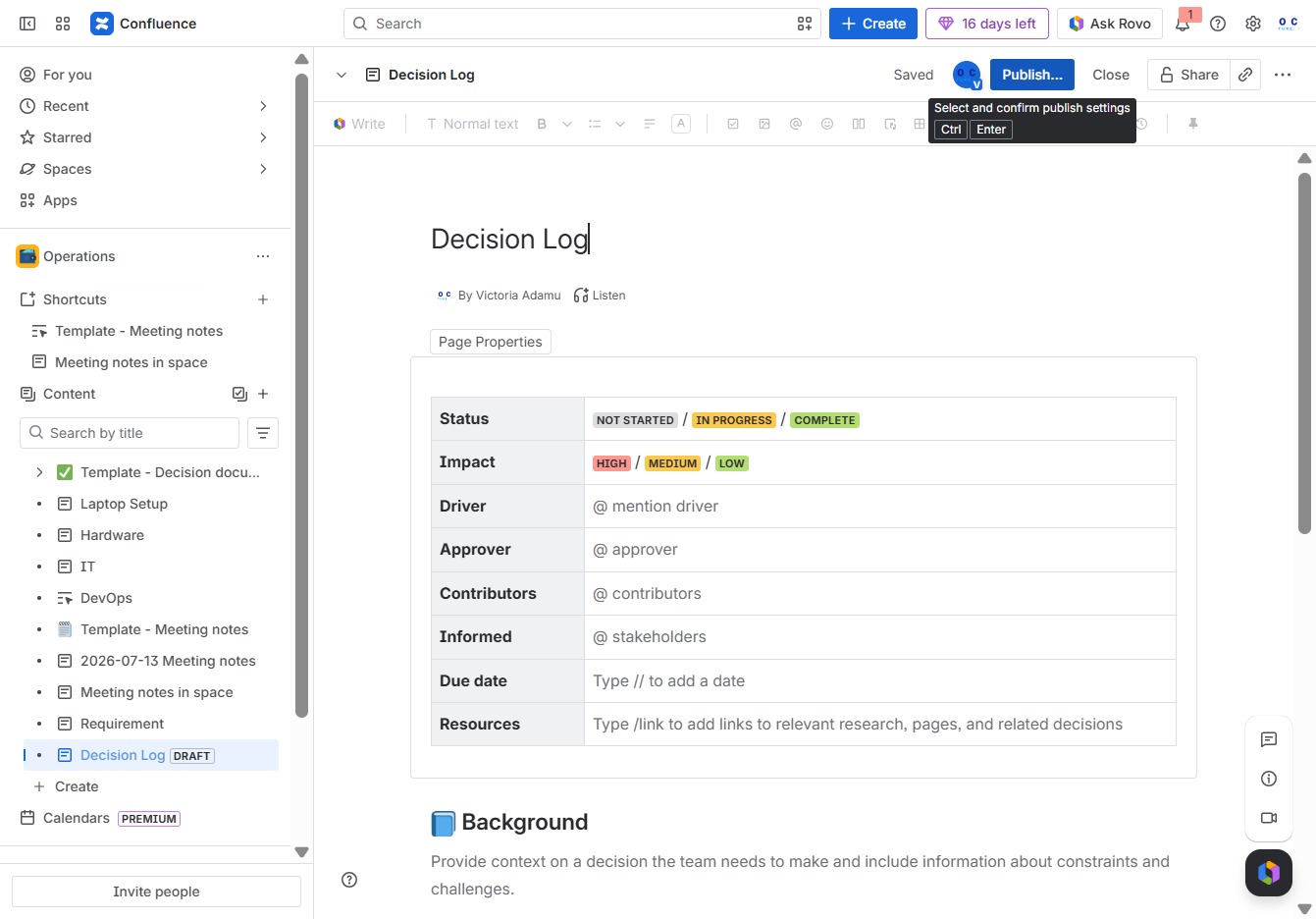
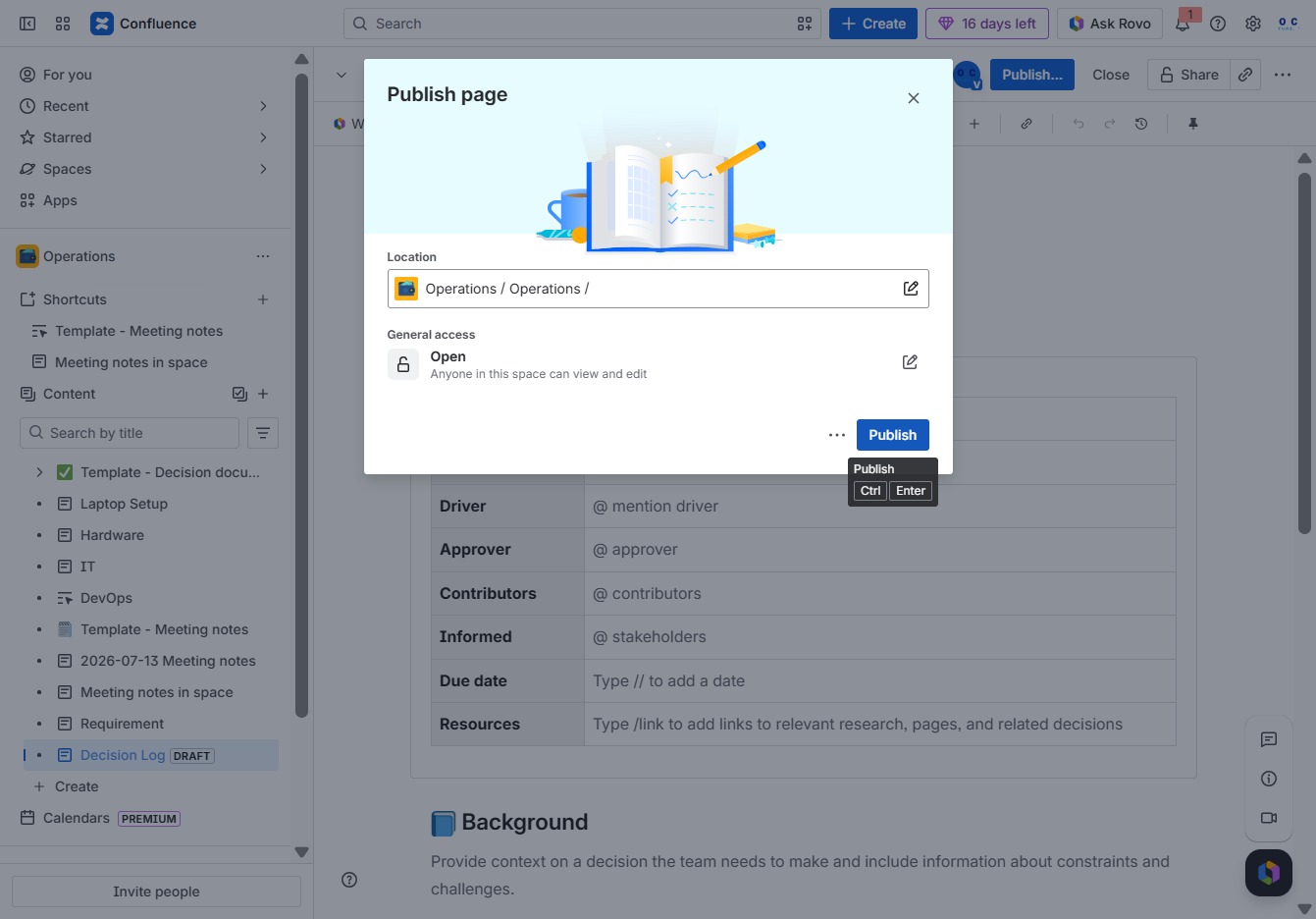
Clicking 'Publish' will save and make your updates to the Decision Log visible to your team. Ensure that all required fields are filled in before publishing.
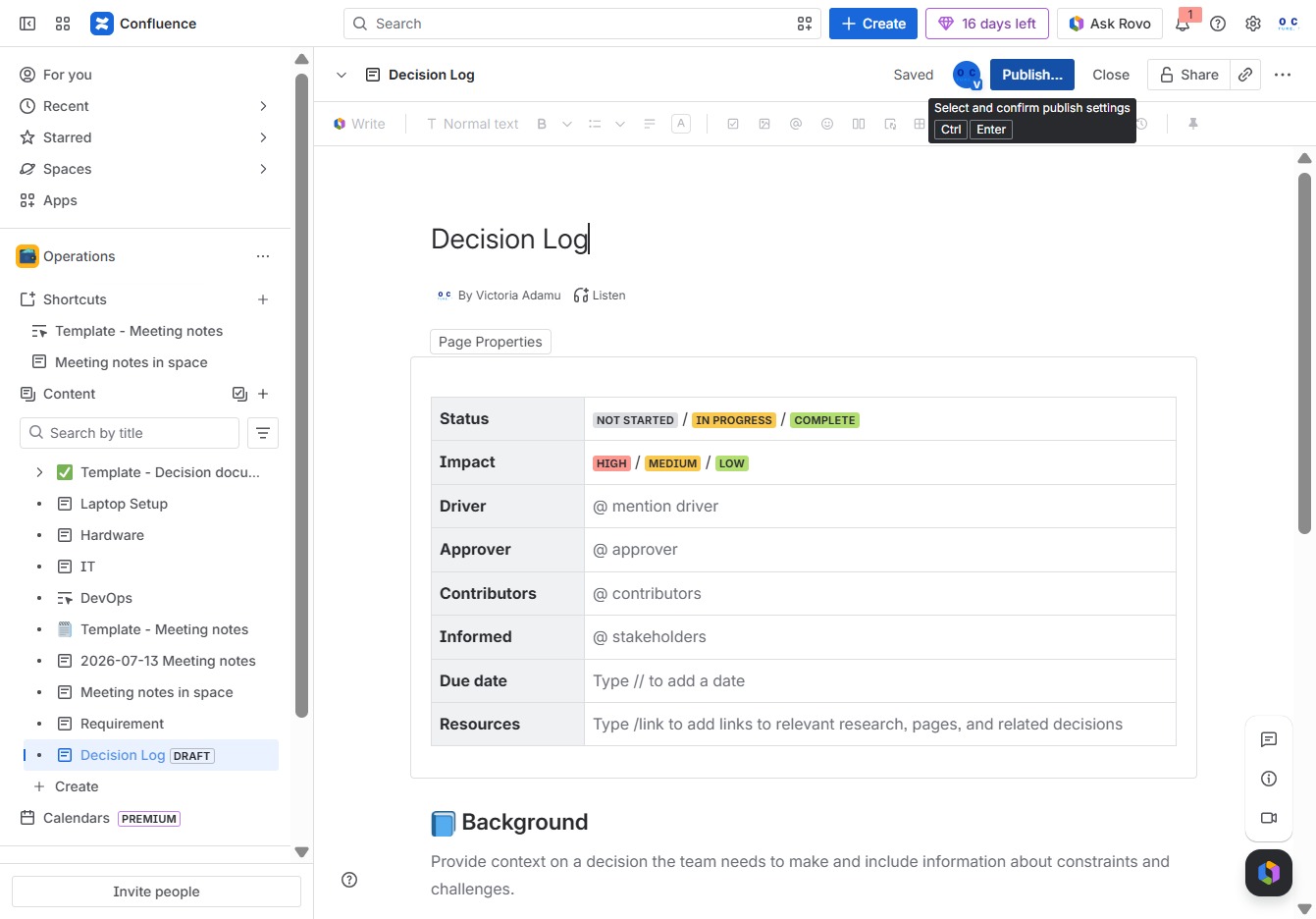
Clicking the Publish button finalizes and shares the current page with users who have access. This allows collaborators to view and edit the content based on the defined permissions.