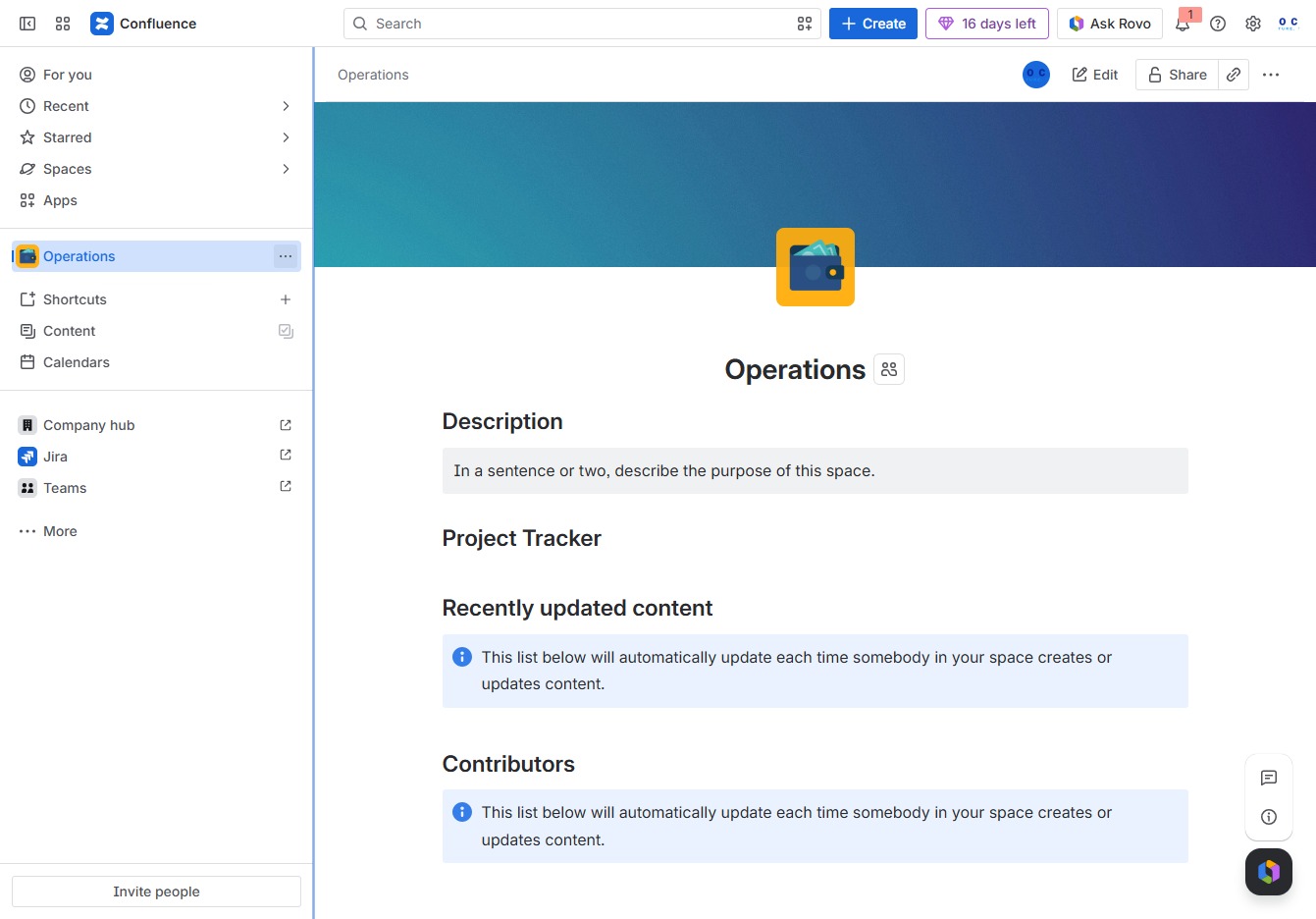
Click the Operations section
This action will display the various operational tasks and activities you can manage within the Confluence workspace. Explore available operations and recent activity updates from your team.

Loading screenshot…
100%
Learn how to create custom page templates in Confluence by navigating through operational tasks and utilizing settings to design a template tailored to your needs.
 viktoria
Learn how to create custom page templates in Confluence by navigating through operational tasks and utilizing settings to design a template tailored to your needs. This guide walks you through the steps of accessing, customizing, and saving your template effectively for better organization and functionality within your workspace.
This action will display the various operational tasks and activities you can manage within the Confluence workspace. Explore available operations and recent activity updates from your team.
Selecting 'More actions' will display additional options that allow you to manage or configure settings related to the current space or page.
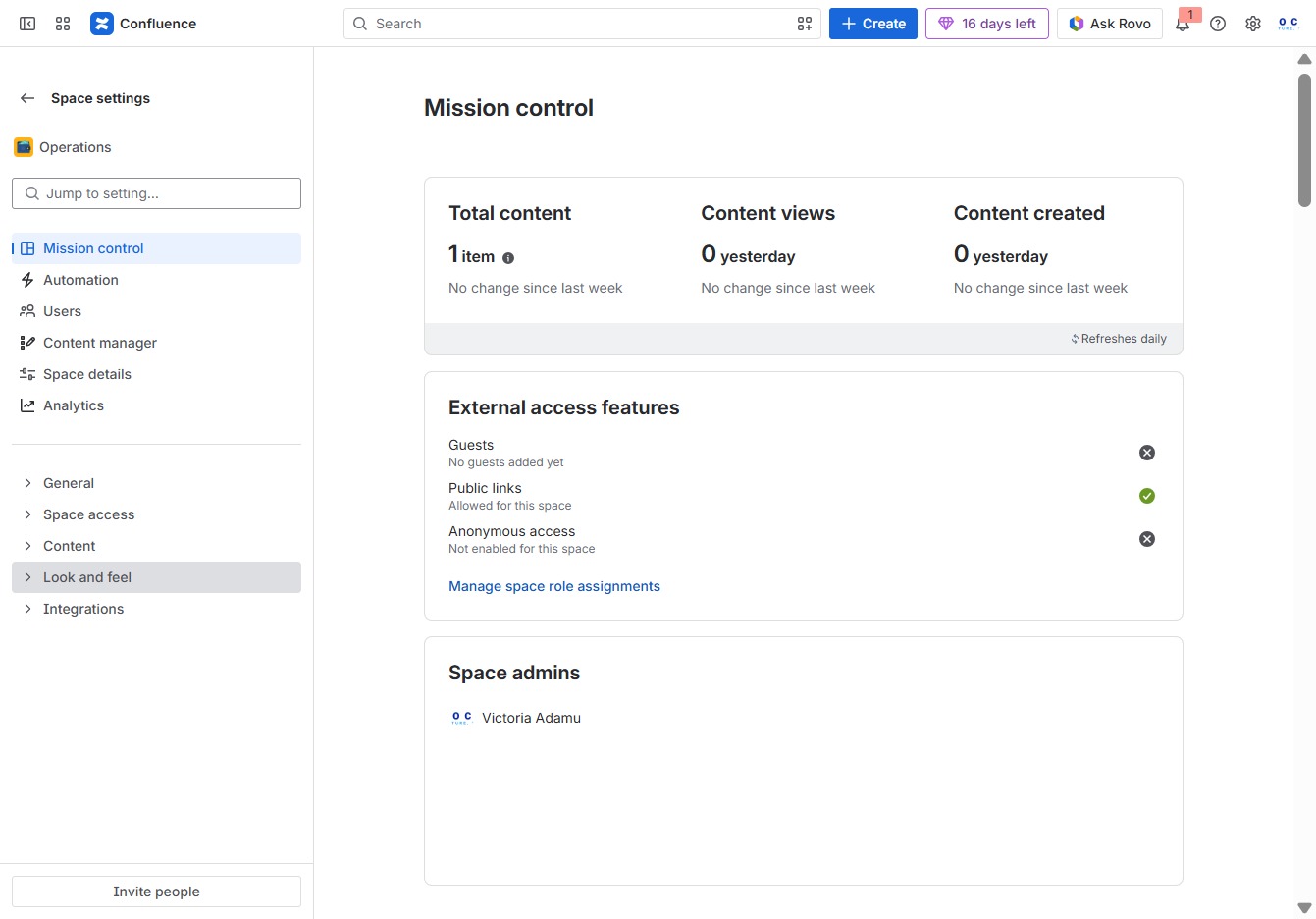
Access the settings for managing permissions, integrations, and other configurations specific to the current space.

After clicking, you'll access the customization settings for the visual style and layout of your Confluence space.
This will take you to the Templates section where you can manage and create various templates for your Confluence space.
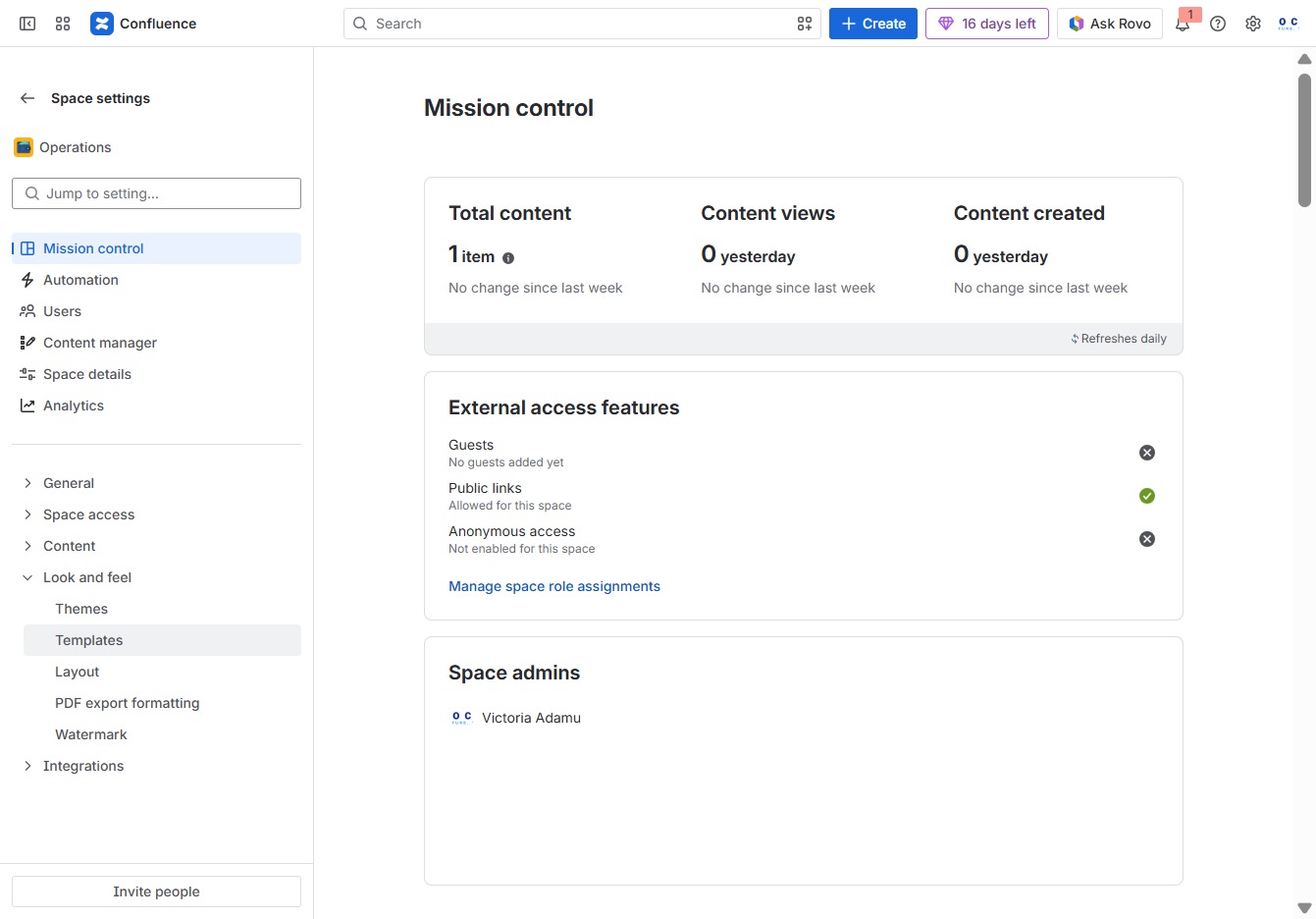
This action opens the template creation interface, allowing you to design and customize a new template according to your needs.

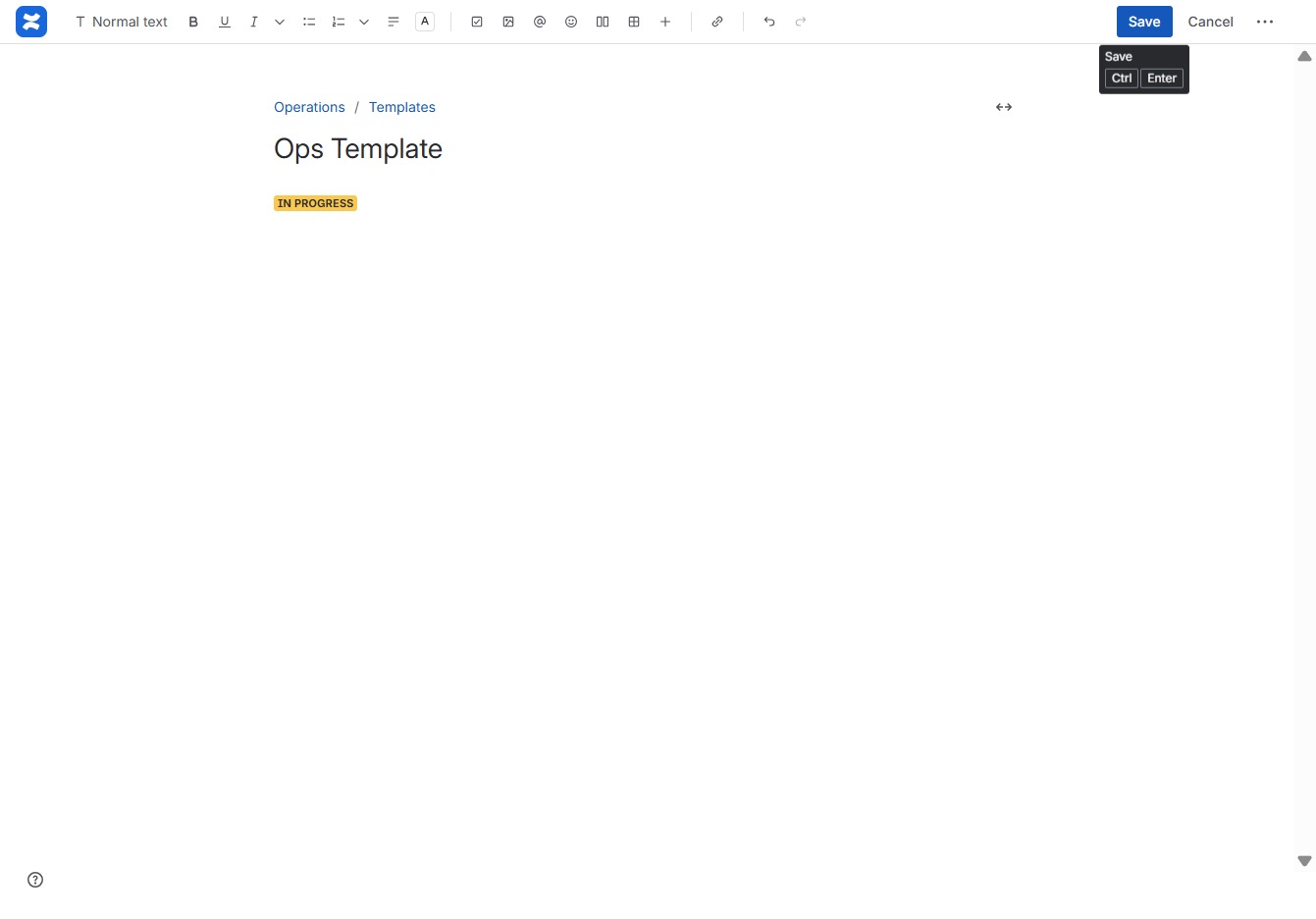
This action allows you to enter a title for the page, which helps identify its content. Type your desired title to ensure easy navigation and organization of your document.

Enter 'Ops Template' in the 'Give this page a title' field to title your new template appropriately. This step is crucial for identifying the purpose of the page in the Templates section.
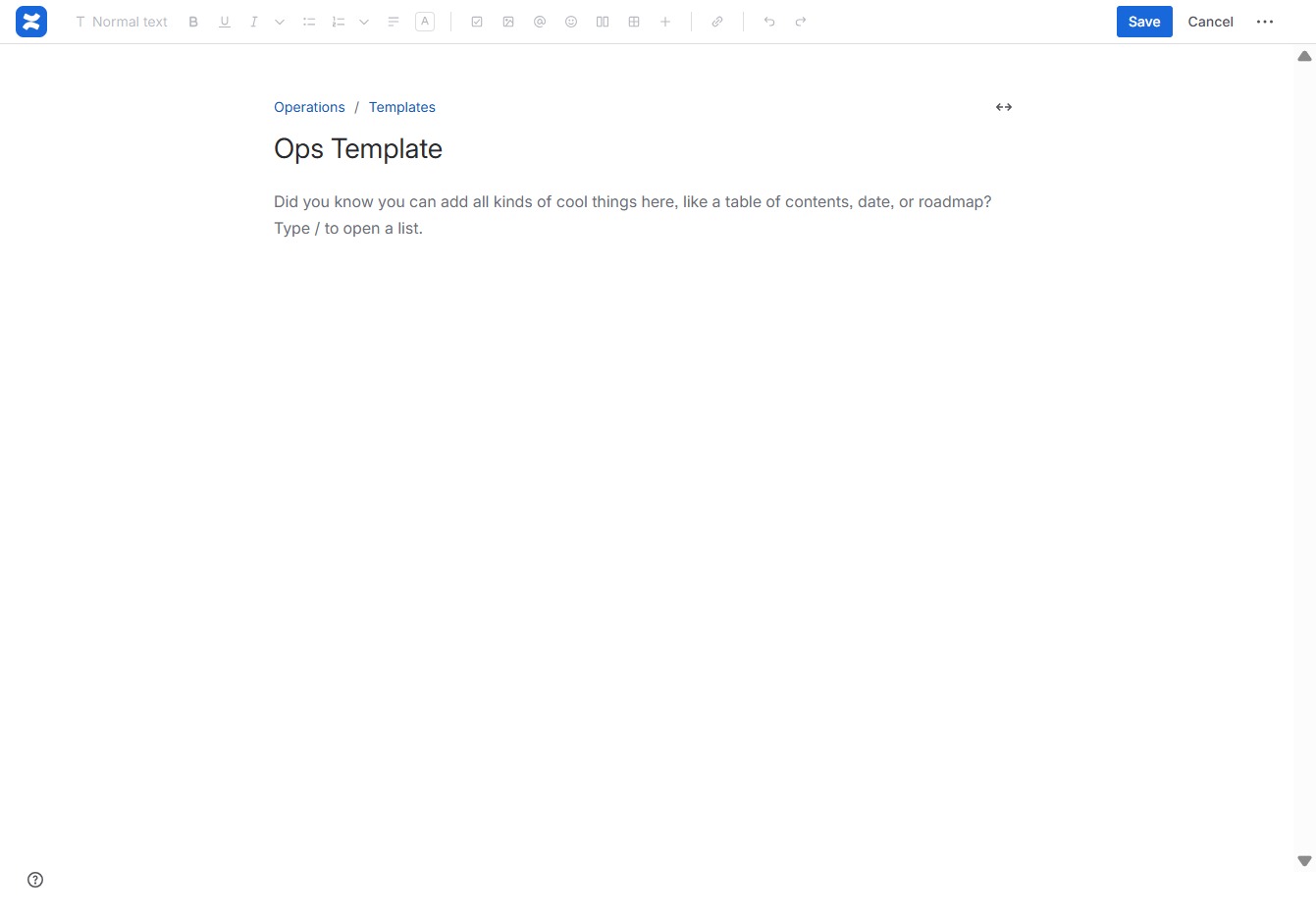
Clicking the 'Add' button will allow you to insert new elements or content into your template, enhancing its functionality.

This allows you to add a custom status label to your template, helping to organize and categorize your operations effectively.

In the 'Set a status' field, type 'In Progress' to indicate the current status of the task. This will help keep the team informed about the progress of the operation.
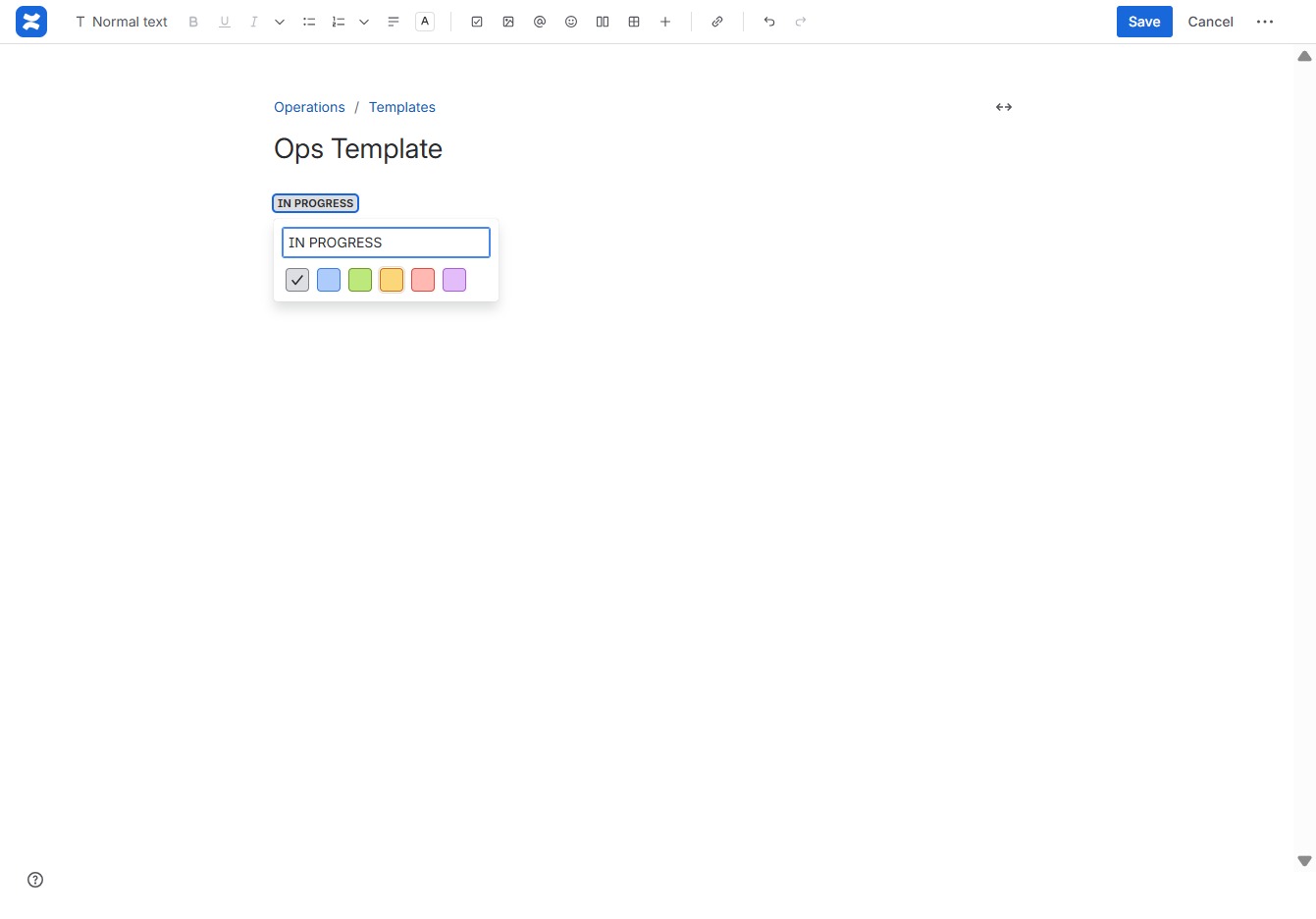
Clicking the Yellow button updates the status to reflect progress in the template management area.

Clicking the 'Save' button will store your changes to the Ops Template, ensuring that all edits are retained and accessible for future use.