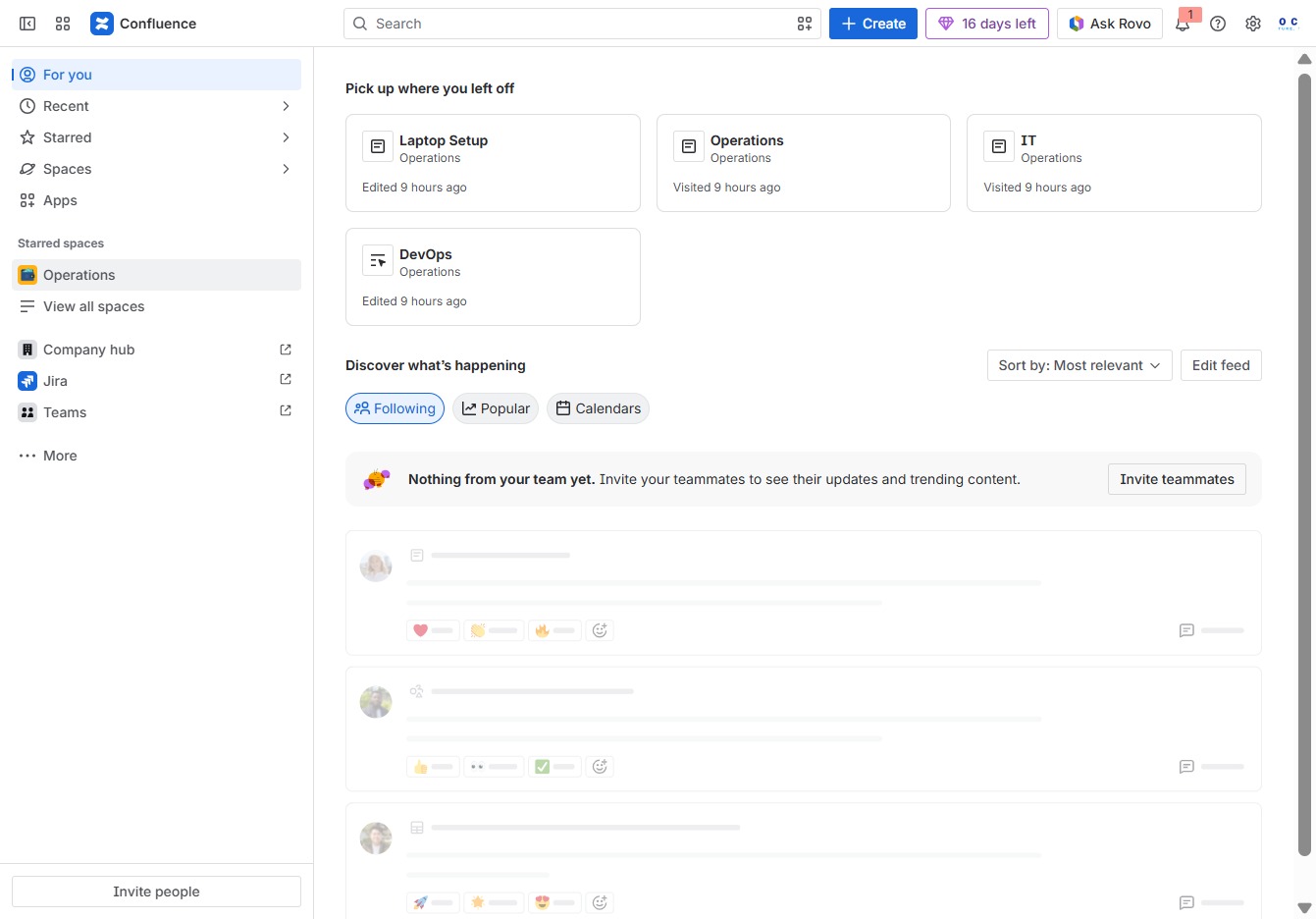
Click the Operations section
This will open the Operations area where you can view and manage various operational items and entries.
Loading screenshot…
100%
This guide walks you through creating checklists in Confluence, detailing steps from navigating operational areas to modifying content and assigning tasks.
 viktoria
This guide walks you through creating checklists in Confluence, detailing steps from navigating operational areas to modifying content and assigning tasks. You'll learn how to effectively manage and collaborate on action items, ensuring your documents are organized and up-to-date.
This will open the Operations area where you can view and manage various operational items and entries.
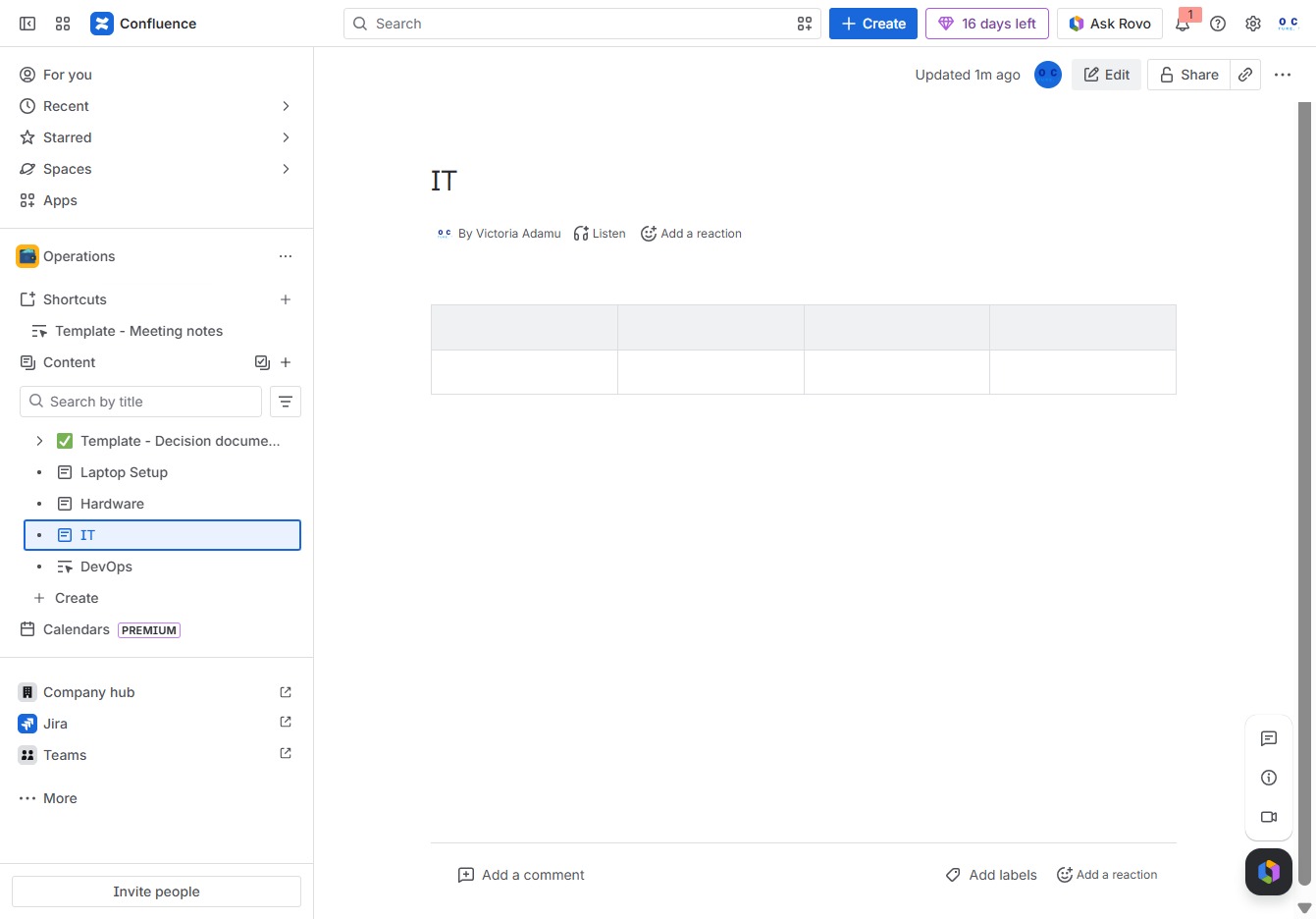
Clicking the 'IT' label will direct you to the relevant section within the Operations space, providing specific information and resources related to IT operations.

This action allows you to modify the current content in the Confluence page. You can update text, images, or any other elements as needed.
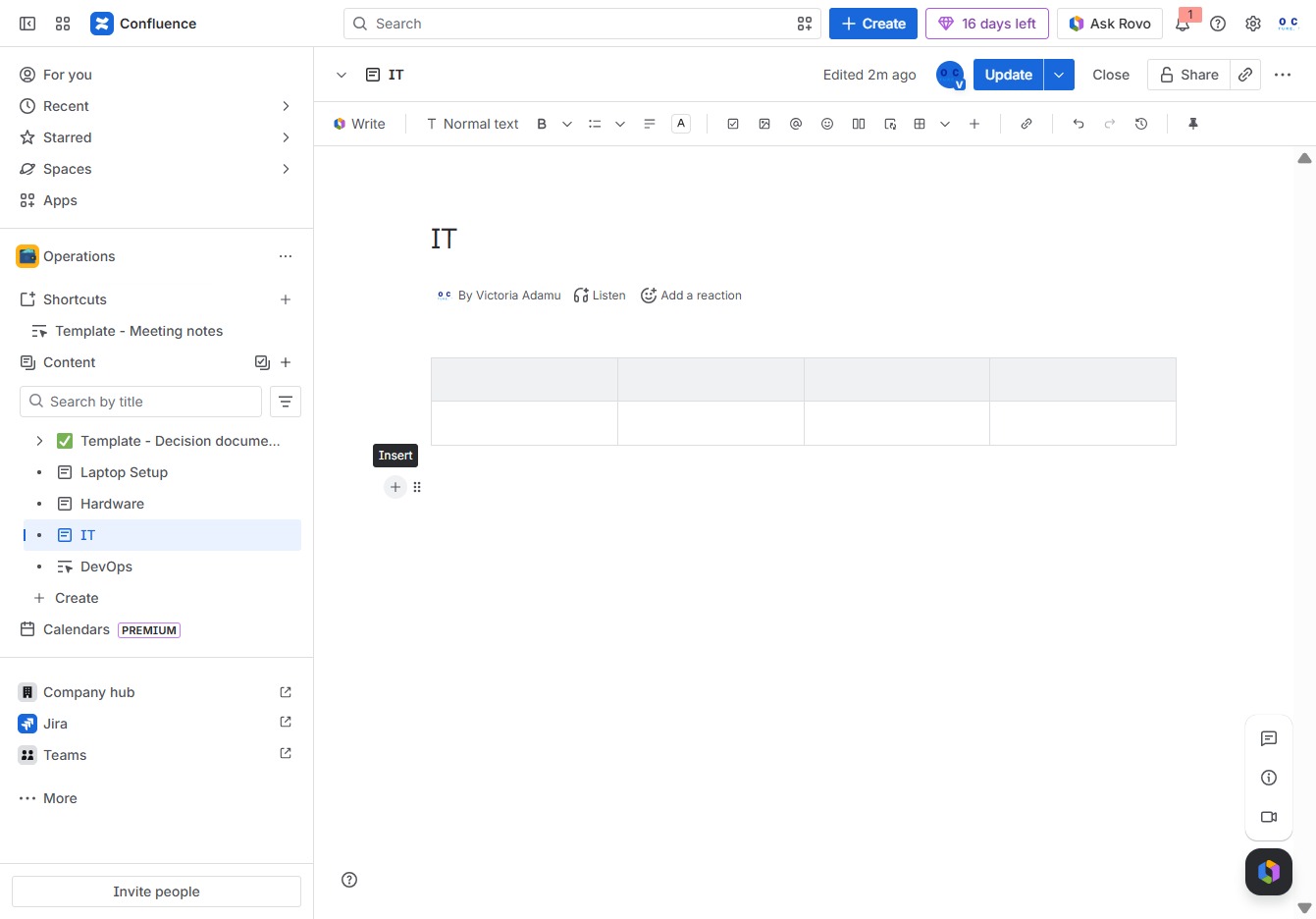
This action allows you to insert a new item or element into the document. You can use this feature to enrich your content with additional details or media.
This action allows you to create action items and assign them to team members within your Confluence page, facilitating task management and collaboration.

Enter your action or message in the Ak editor textarea. Use '@' to assign the action to a specific team member.
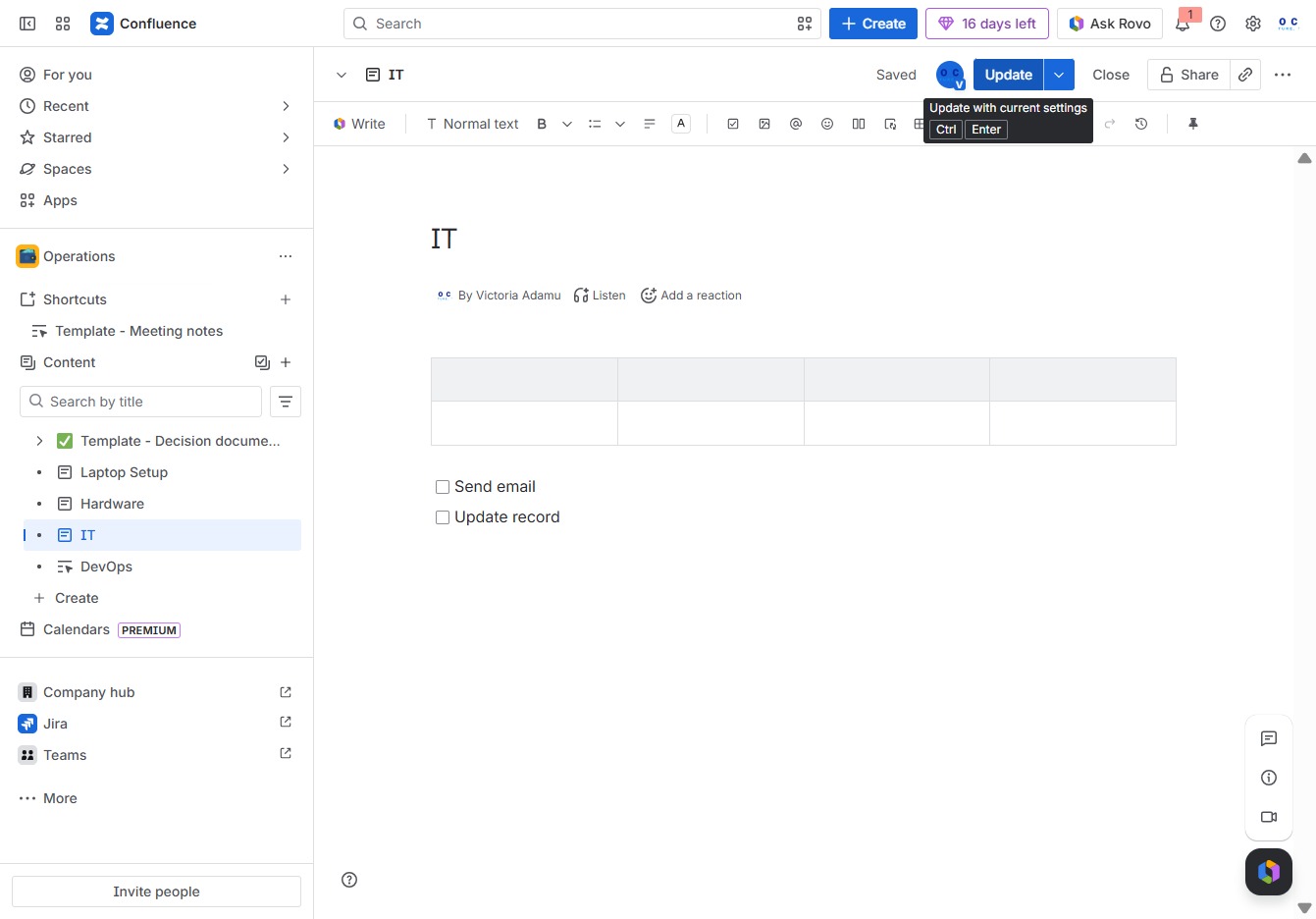
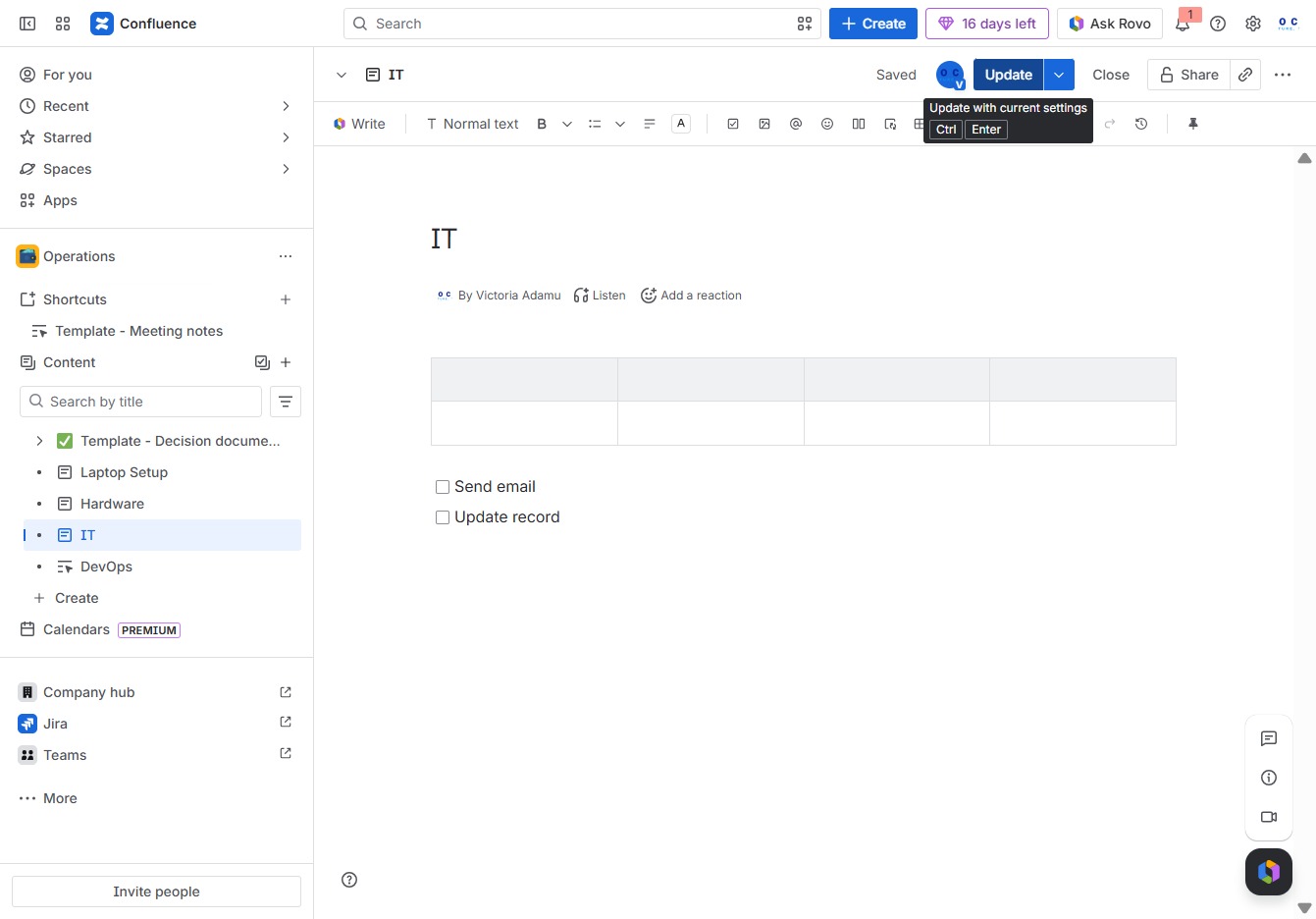
This action saves your changes and updates the current document with the latest information. Make sure all necessary edits are complete before clicking to ensure the record is current.