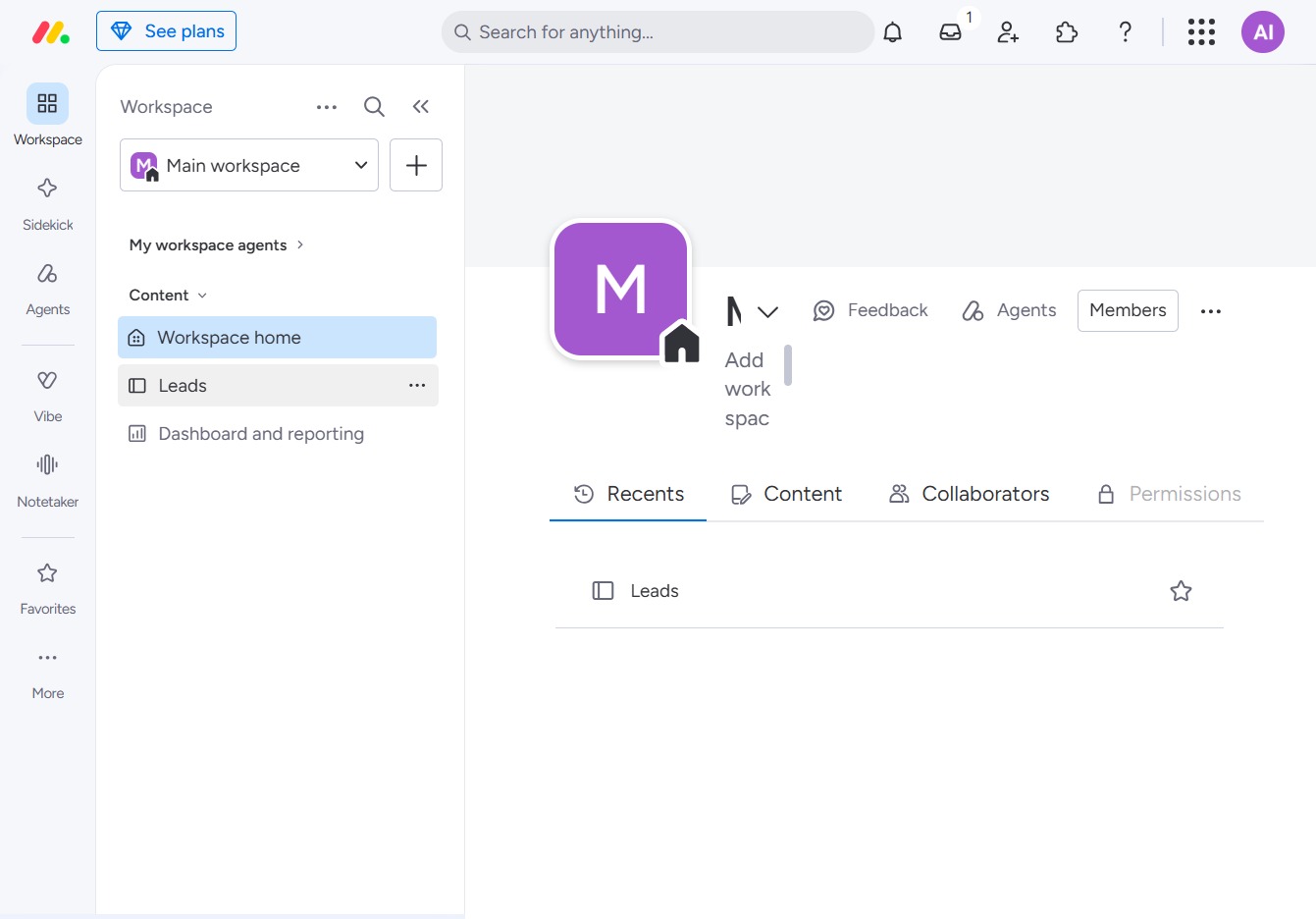
Click the BoardLeads button
This action opens the BoardLeads section where you can manage and view your leads more effectively.
Loading screenshot…
100%
In this how-to guide, you'll learn the step-by-step process for creating board templates that streamline your workflow.
 viktoria
In this how-to guide, you'll learn the step-by-step process for creating board templates that streamline your workflow. By following these instructions, you can set up reusable configurations for future projects, ensuring a more organized and efficient management of your tasks.
This action opens the BoardLeads section where you can manage and view your leads more effectively.
This action will open a prompt allowing you to enter the details for a new task, which will be added to your leads in the To-Do section.
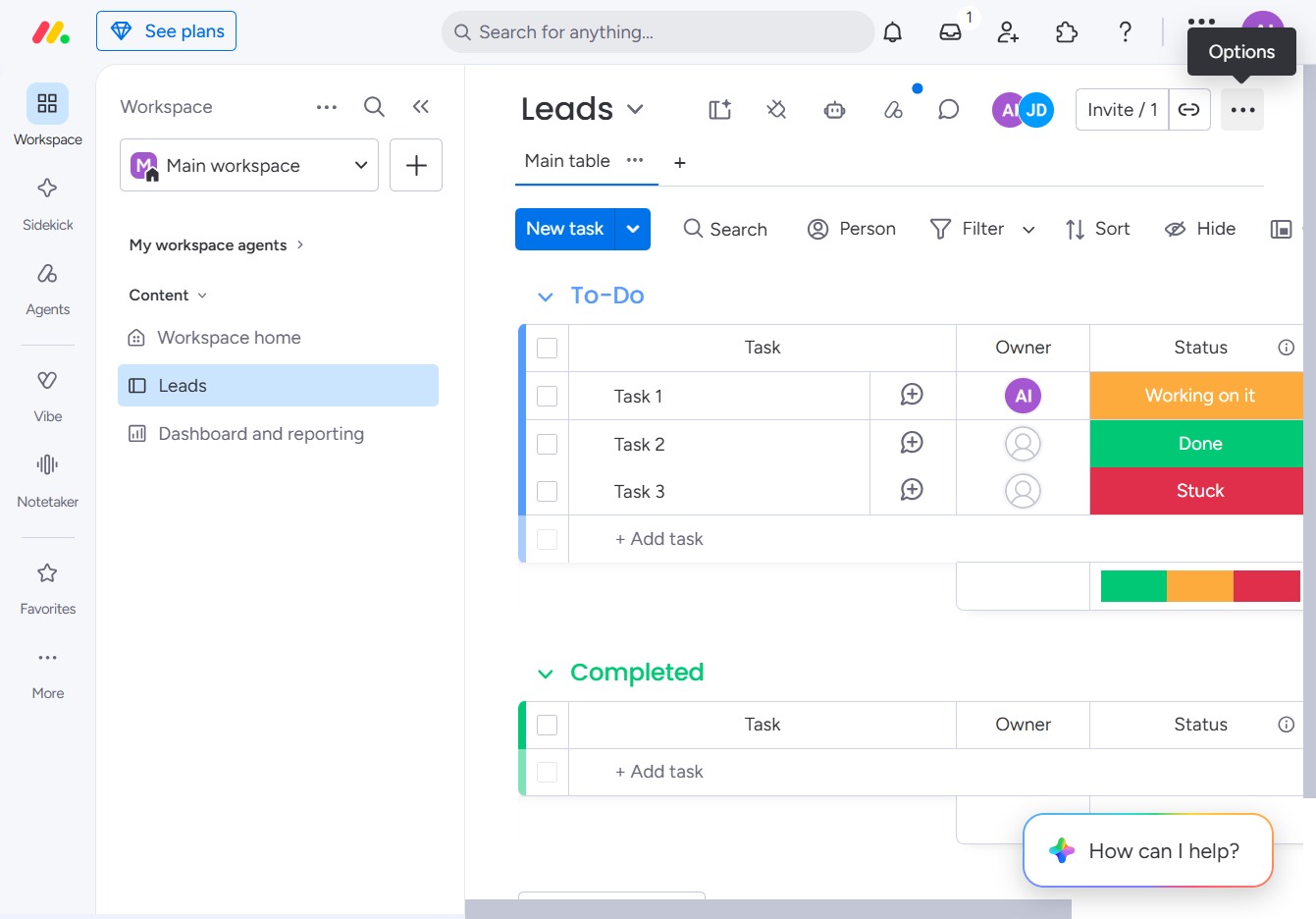
This will allow you to create a template from your current board setup, making it easier to reuse this configuration for future projects.

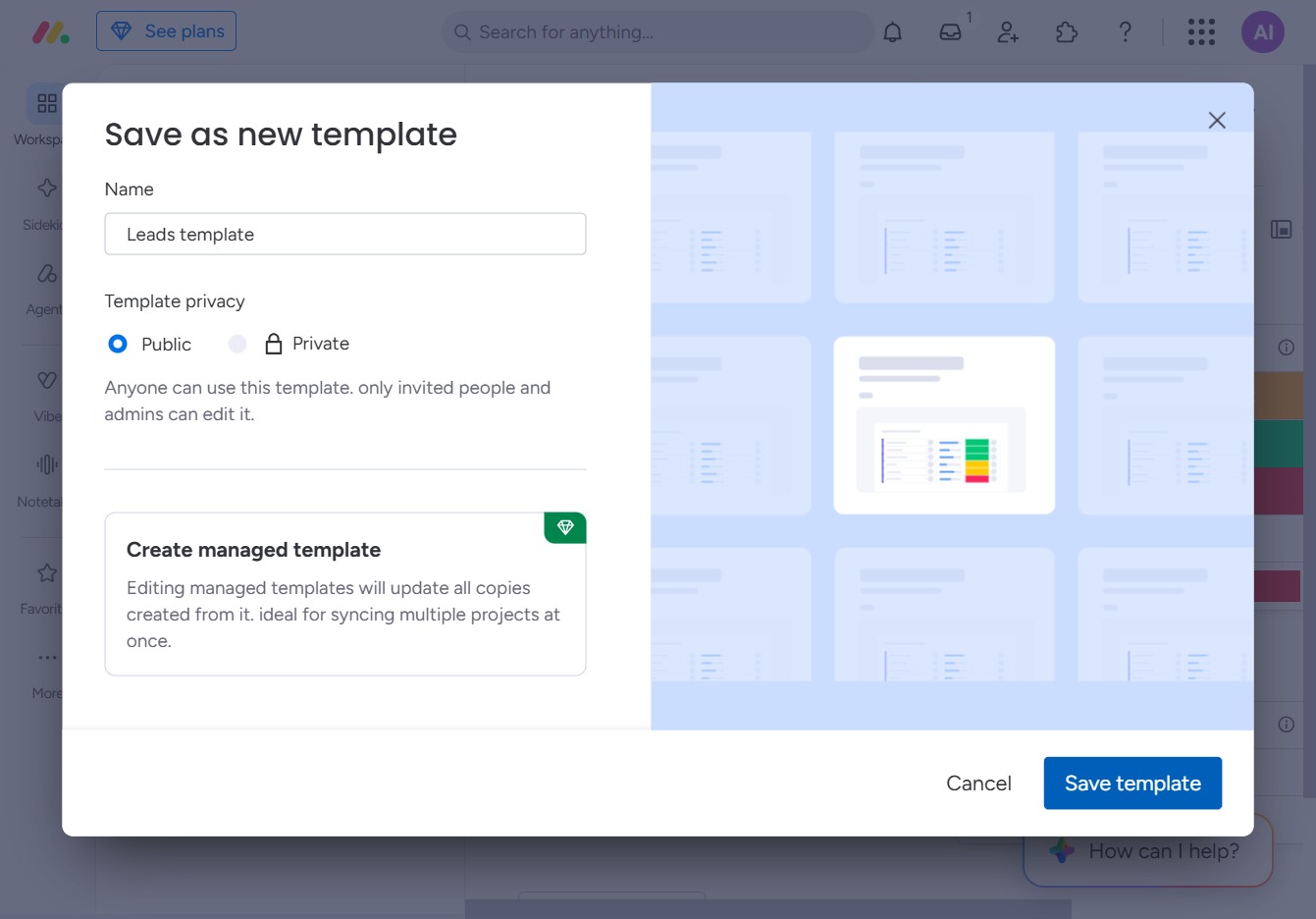
This action saves your newly created template, allowing you to use it for future projects. Ensure that you have selected the desired privacy settings for the template before saving.