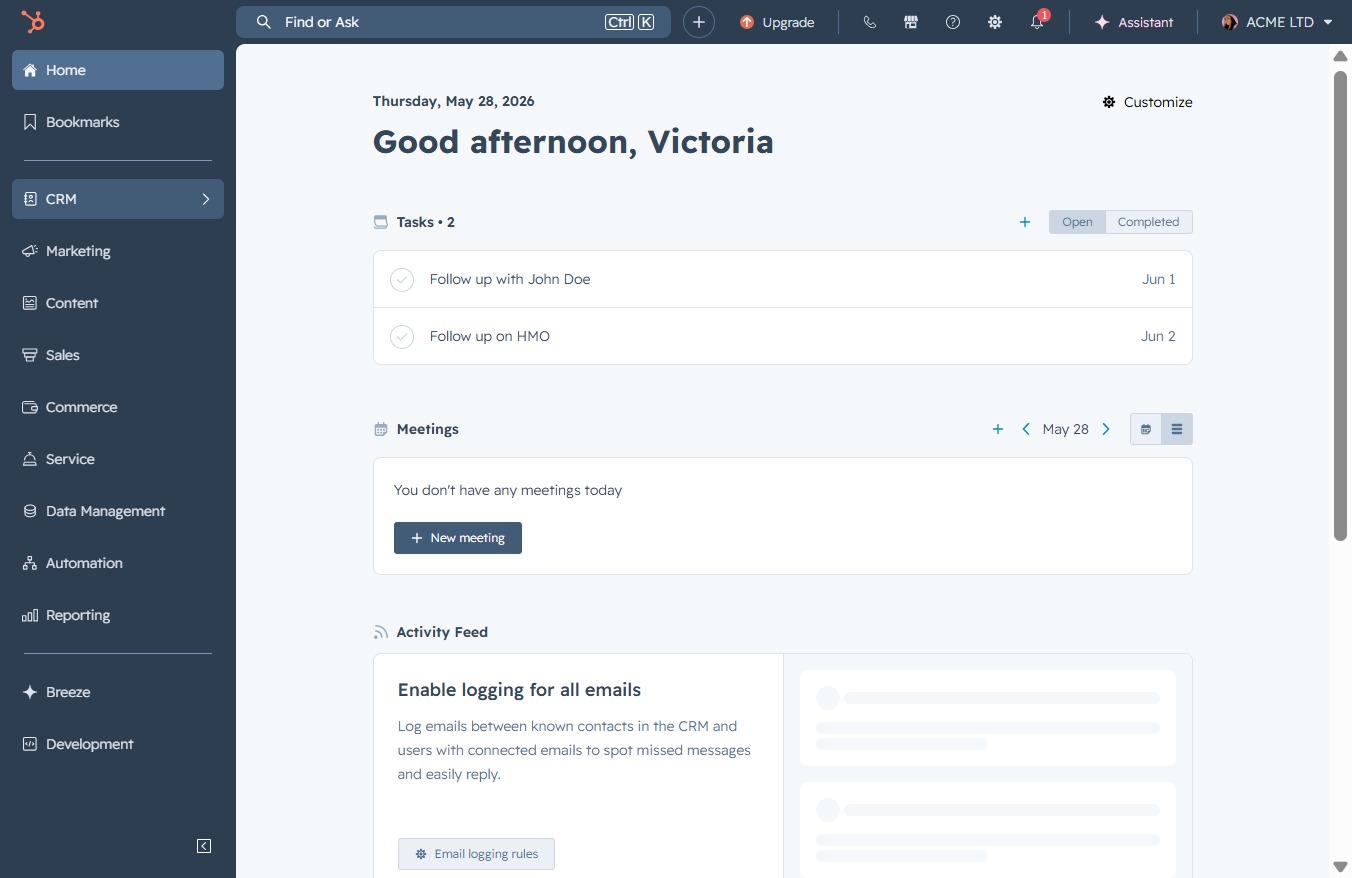
Click the CRM icon
Clicking the CRM icon will navigate you to the Customer Relationship Management section, where you can manage contacts, deals, and other related activities.
Loading screenshot…
100%
Create a task in the CRM software by navigating to the Tasks section, entering task details like title and due date, and assigning it to a user for effective management.
 viktoria
Create a task in the CRM software by navigating to the Tasks section, entering task details like title and due date, and assigning it to a user for effective management.
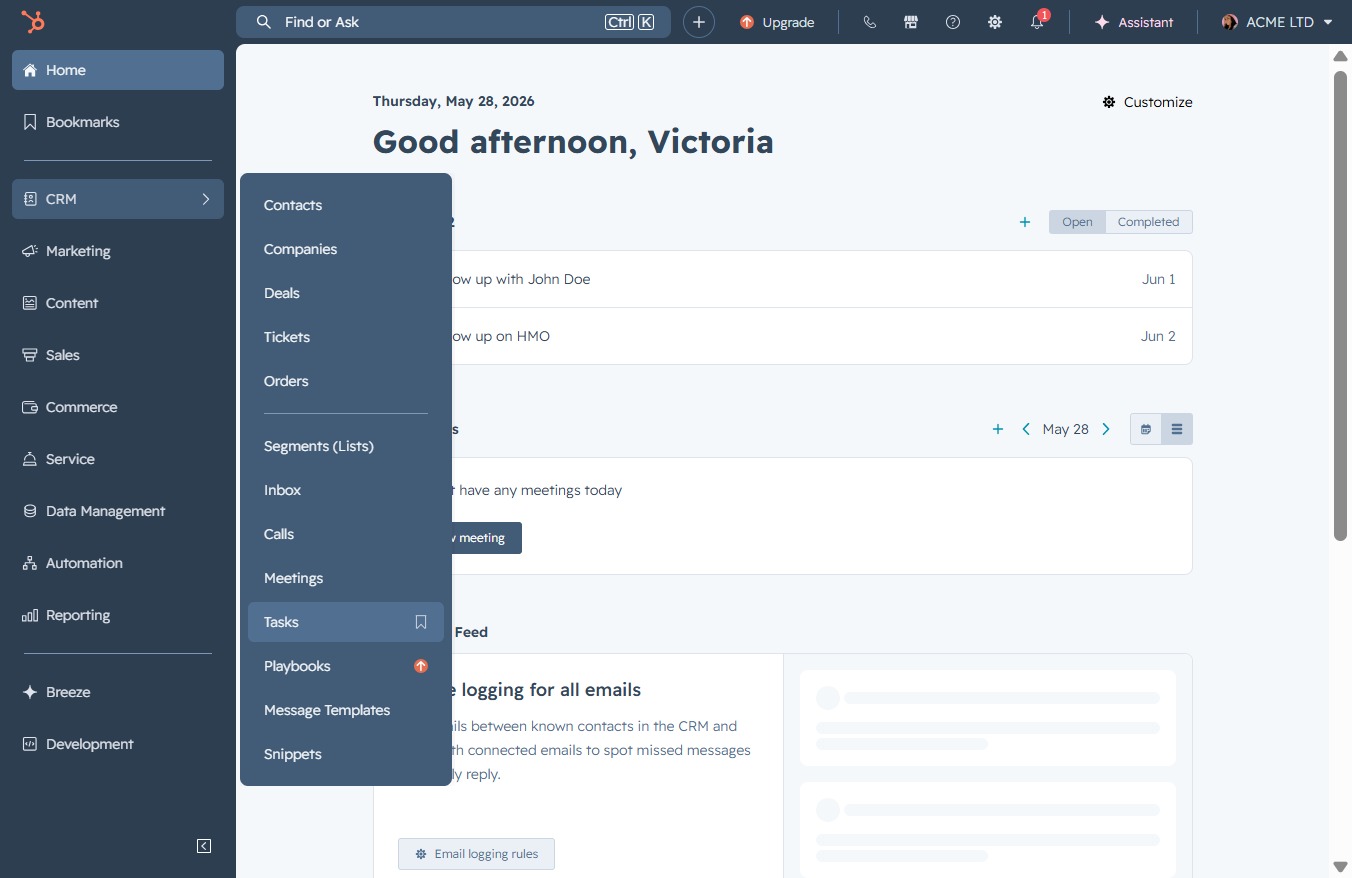
Clicking the CRM icon will navigate you to the Customer Relationship Management section, where you can manage contacts, deals, and other related activities.
This action opens the Tasks section, where you can view, manage, and create new tasks related to your interactions and appointments.
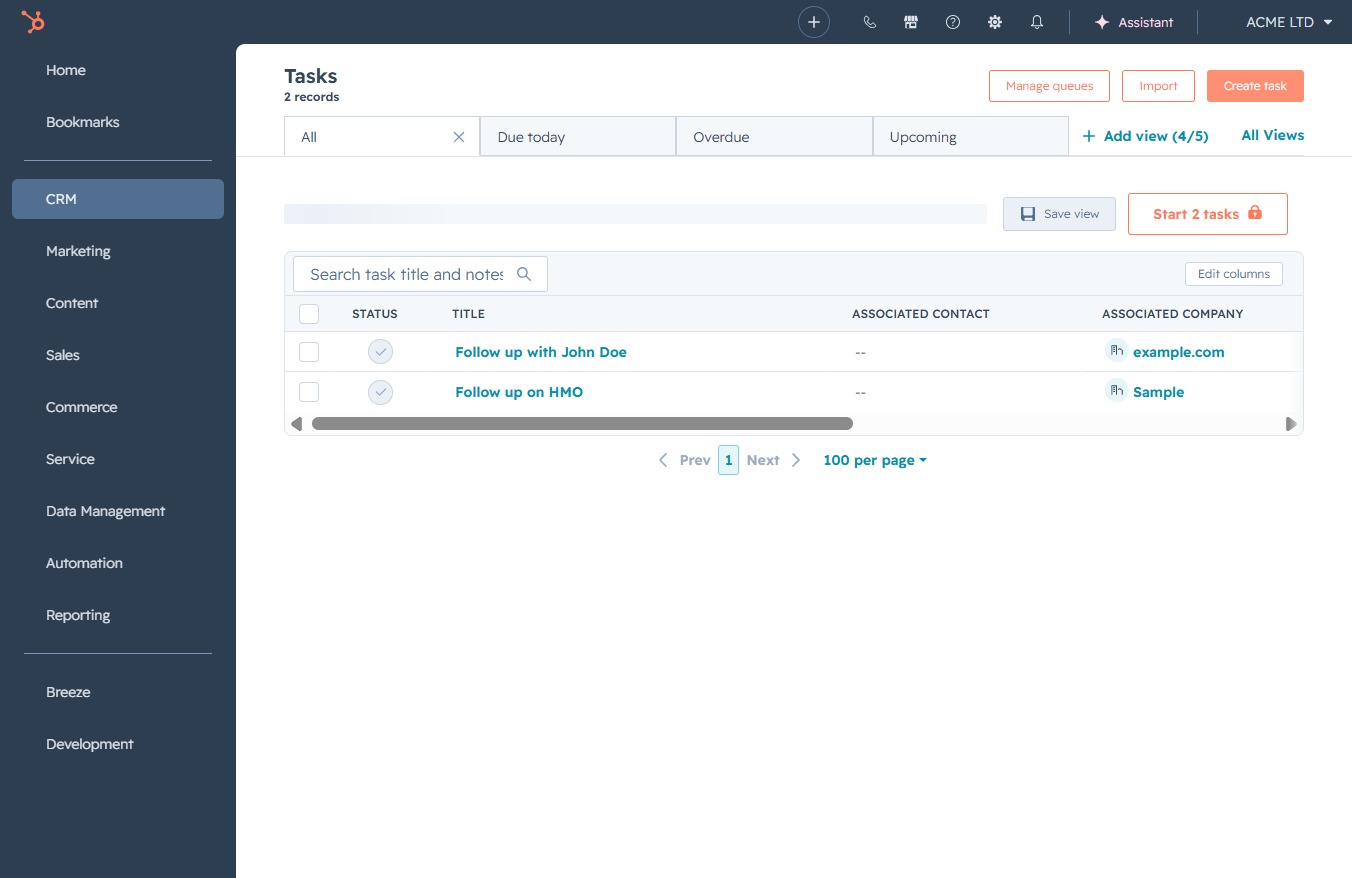
This will open a new task creation form, allowing you to input details such as the task title, associated contacts, and deadlines.
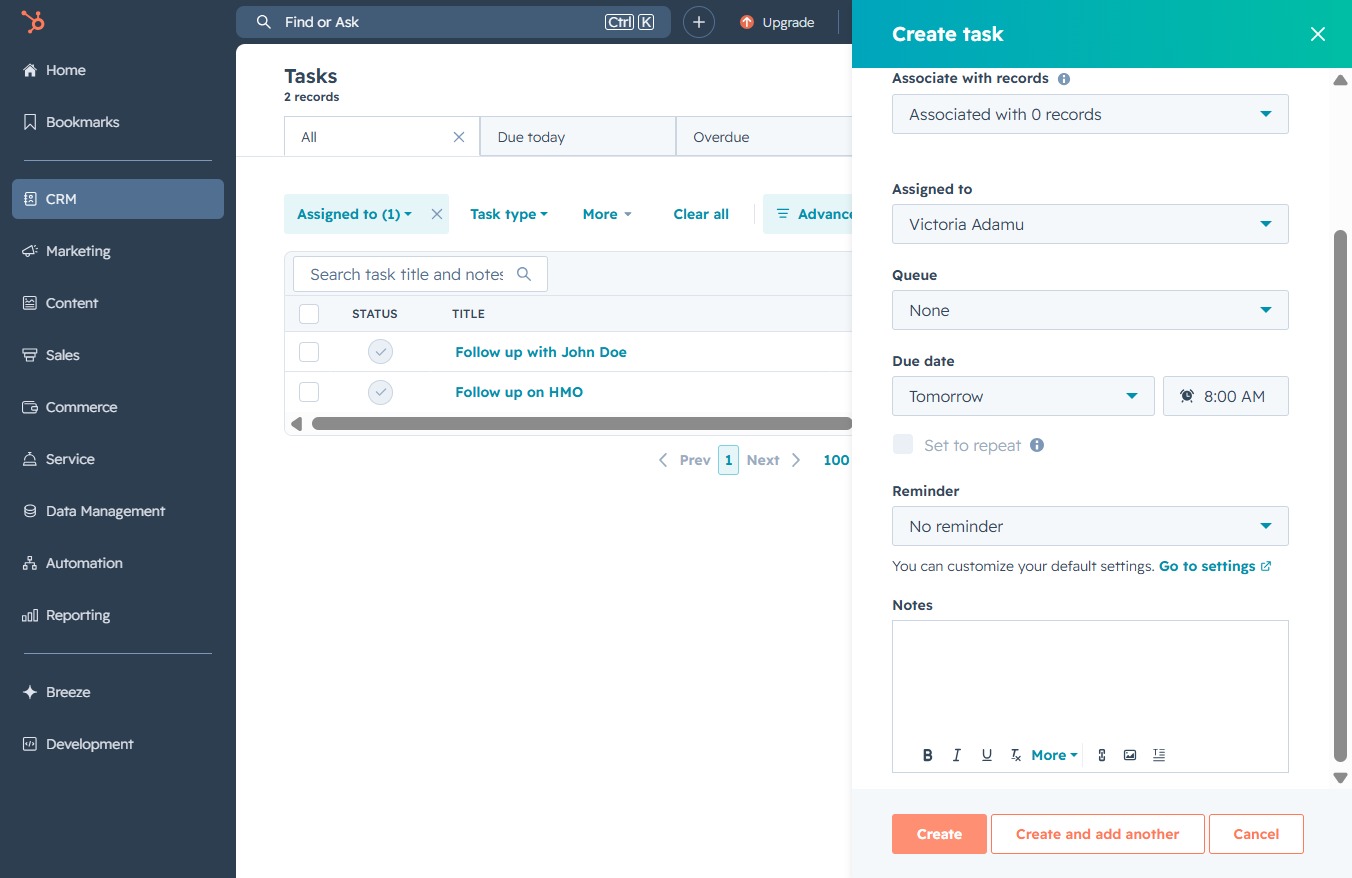
This action opens the task creation dialog, allowing you to set the task title, type, priority, and associations with records, as well as assign it to a user.
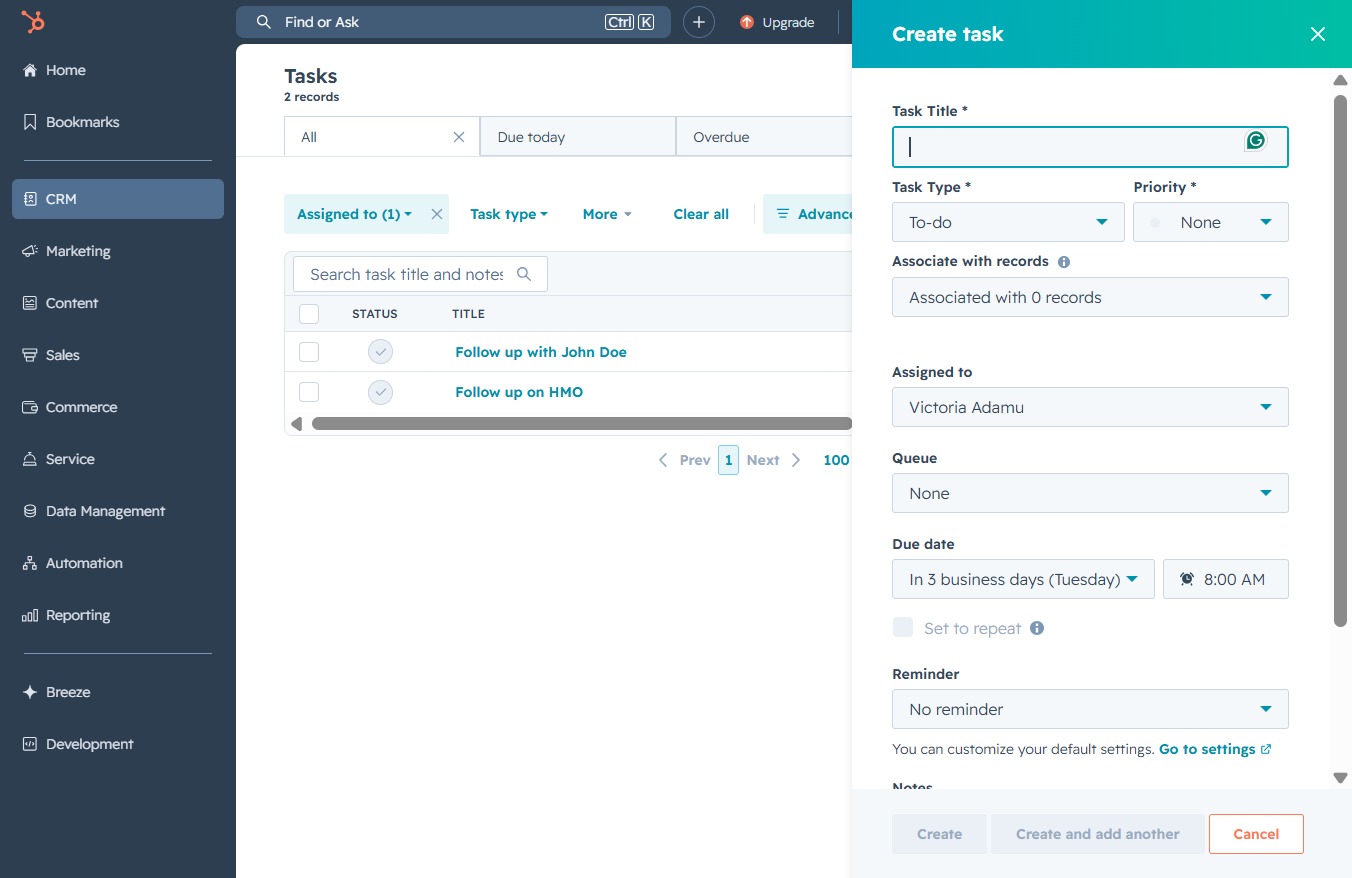
In the Task Title field, enter the description of your task to help organize your to-do list. This title will be used to identify the specific task within your tasks management system.
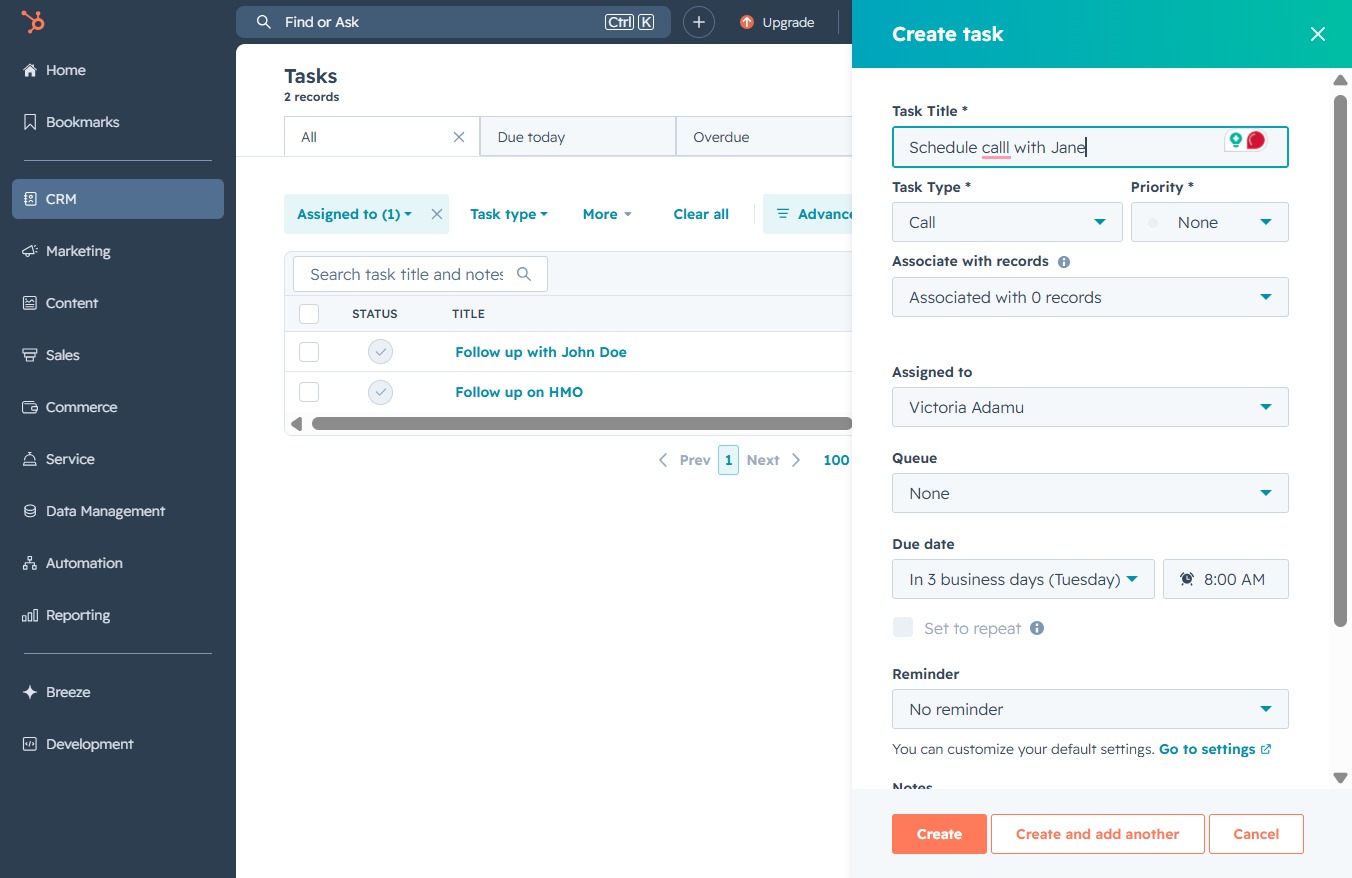
Select the 'Due Date' field to set the deadline for your task. You can choose a specific date, in this case, it indicates the task is due in 3 business days (Tuesday).

Selecting the 'Tomorrow' button sets the due date for your task to the following day, allowing you to schedule tasks effectively.

This action opens a form to create a new task, allowing you to specify details such as the task's assignment, due date, and reminder settings.