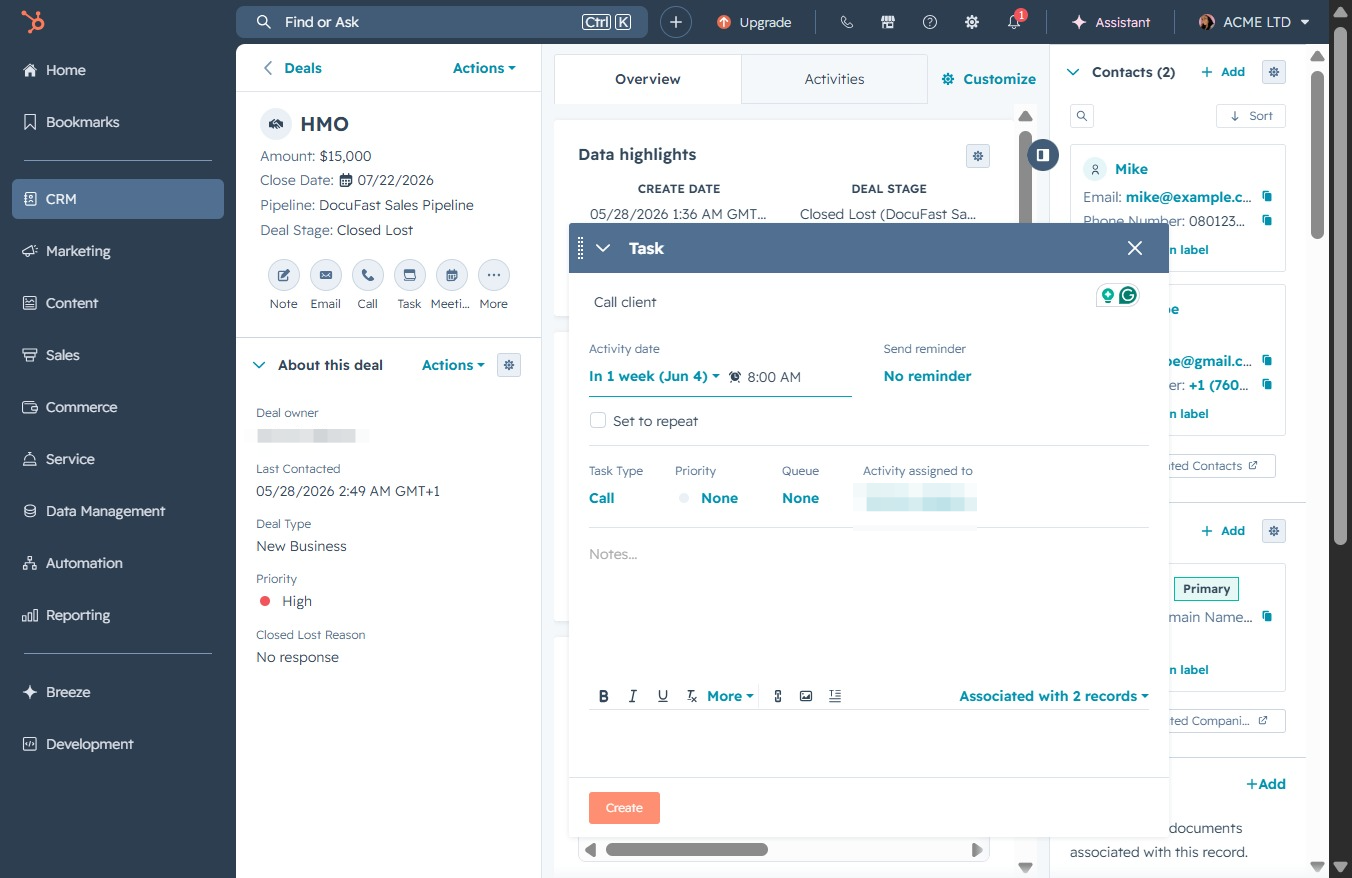
Click the CRM icon
Clicking the CRM icon will navigate you to the Contacts section, where you can manage and view your contacts and their associated details.

Loading screenshot…
100%
Create a task linked to a deal record within the CRM to ensure timely actions and follow-ups, including setting due dates and managing task notifications.
 viktoria
Create a task linked to a deal record within the CRM to ensure timely actions and follow-ups, including setting due dates and managing task notifications.
Clicking the CRM icon will navigate you to the Contacts section, where you can manage and view your contacts and their associated details.
This will navigate you to the Deals section, where you can manage and view your sales opportunities and track their progress.
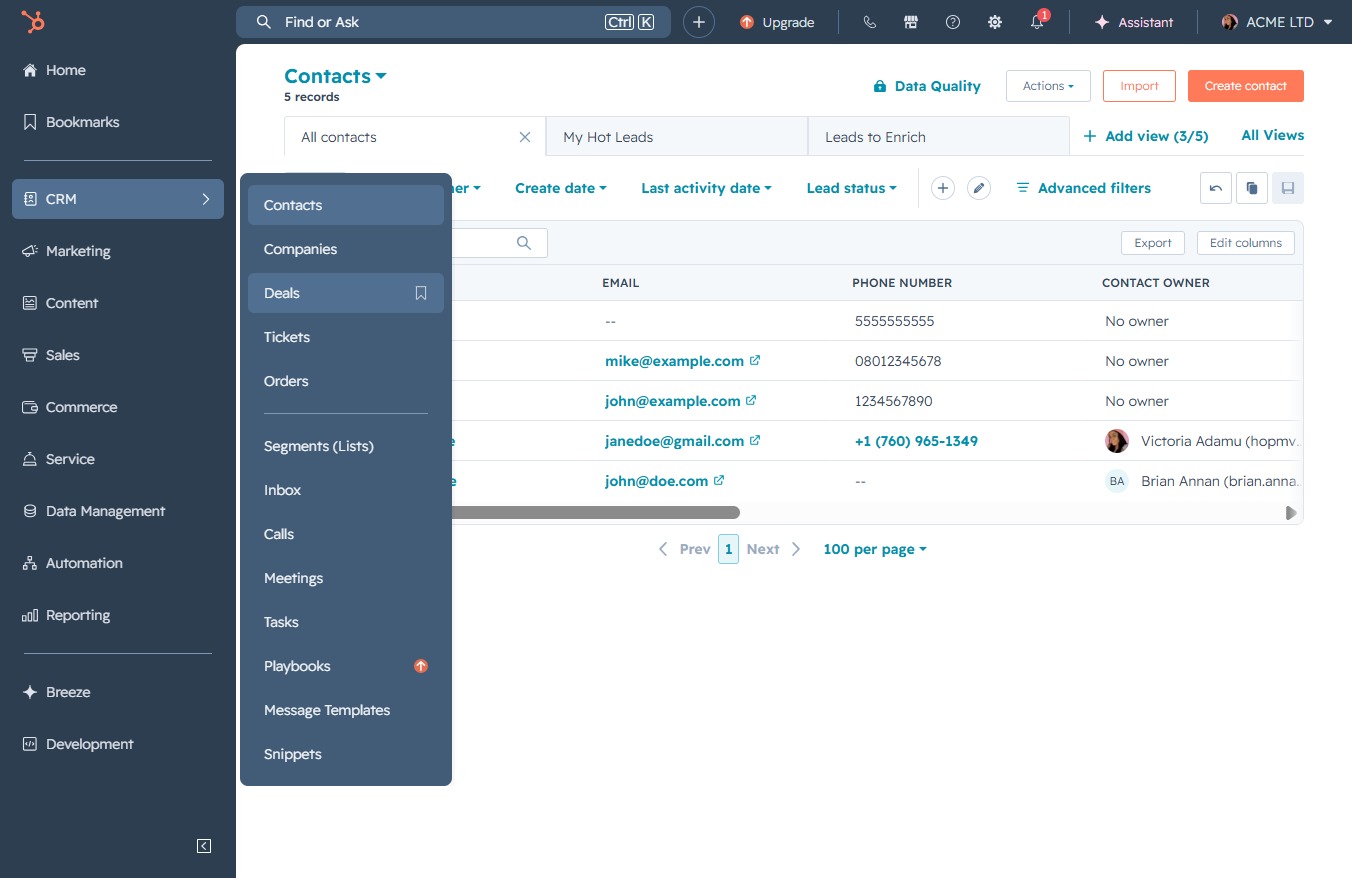
Clicking on the HMO record will allow you to view detailed information about this deal, including its current status and any associated activities.
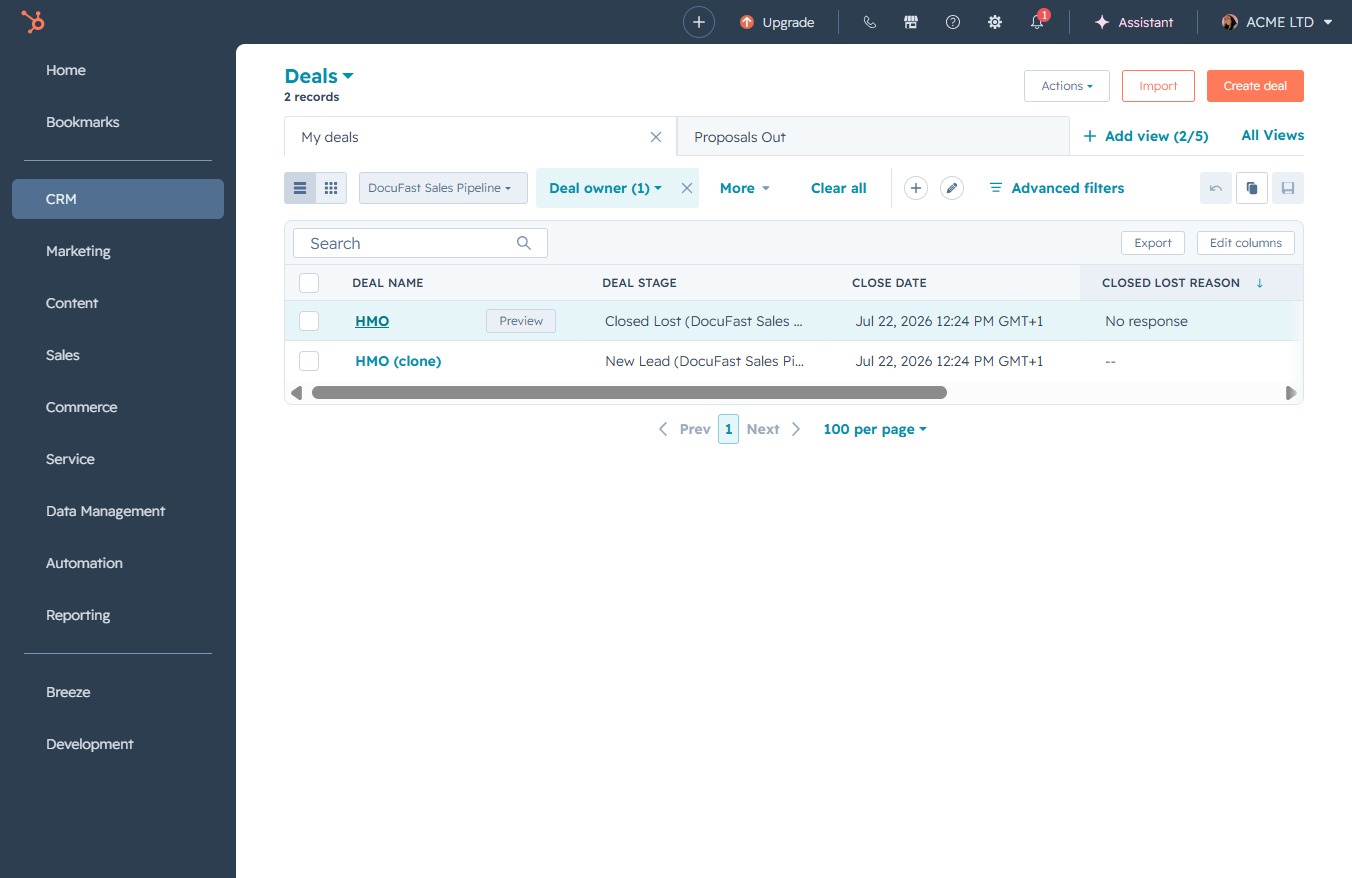
Clicking this option will allow you to generate a shareable link for the deal, enabling easier collaboration or sharing with team members.

This action opens a modal where you can enter details for your new task, including the due date and associated records.

Input a brief description of the task in the designated 'Task' field to specify the action you need to perform regarding the deal.

This action allows you to set a due date for the task associated with the deal. Selecting 'In 3 business days (Tuesday)' will schedule the task for that specific date.
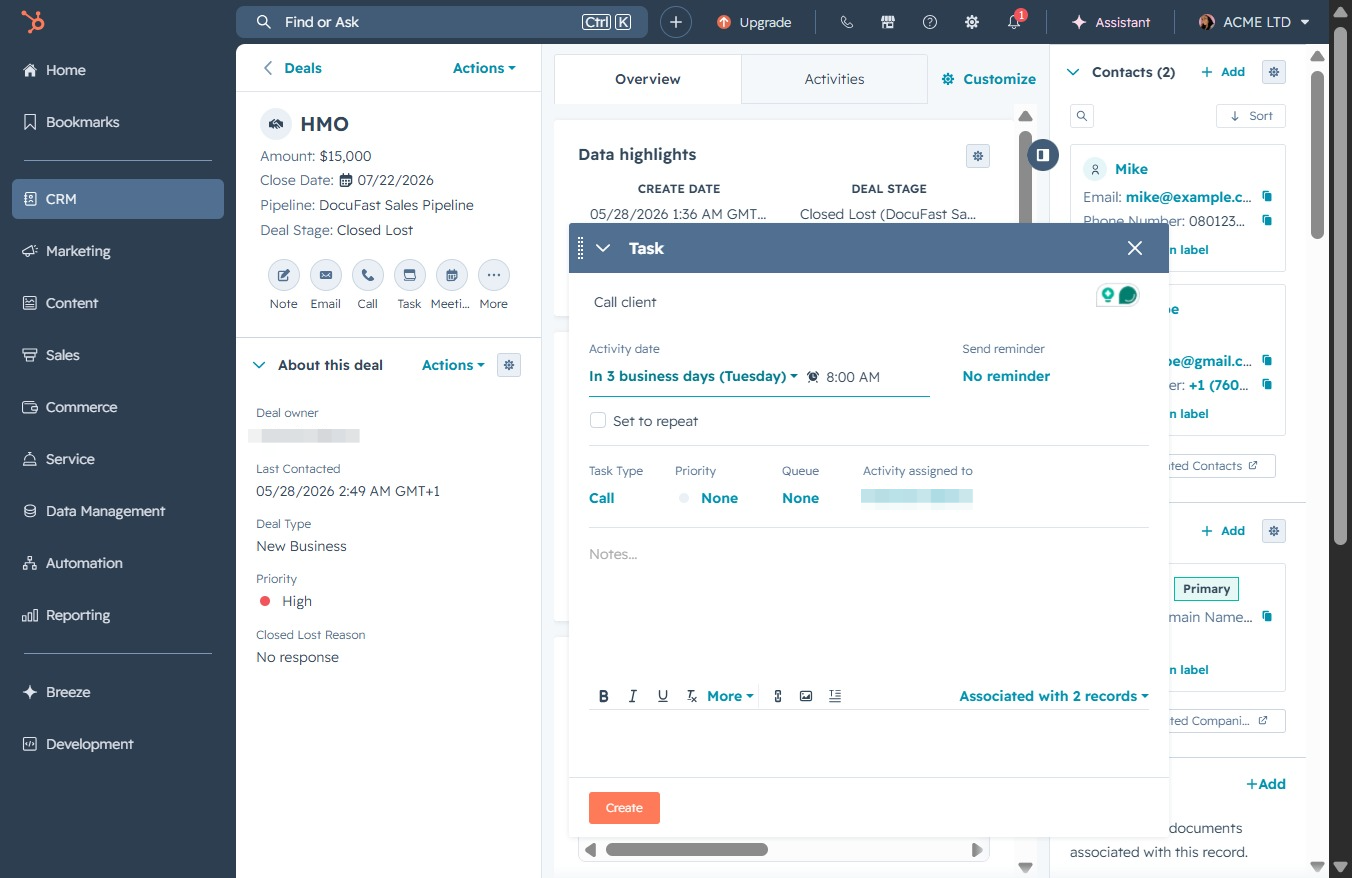
Select this date option to schedule a task reminder for one week from now. This will help you manage your task notifications effectively and ensure timely follow-ups.

By clicking the Create button, you will initiate the process to add a new task or entry related to the selected deal, allowing you to input details and assign it as needed.