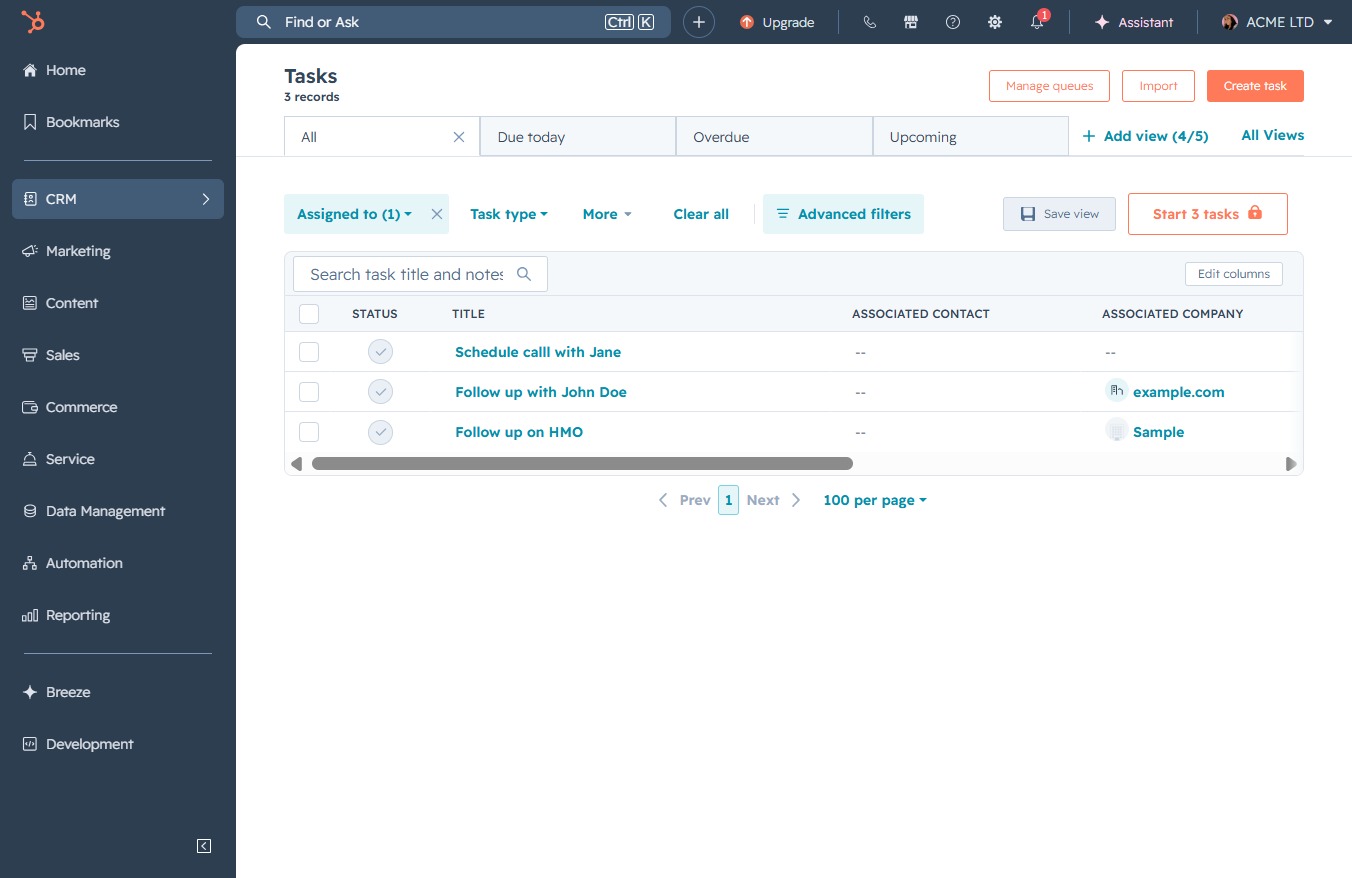
Click the CRM icon
Clicking the CRM icon will navigate you to the customer relationship management section, allowing you to manage leads, contacts, and customer interactions.
Loading screenshot…
100%
Create a task from a contact in the CRM by accessing contact details, entering task specifics, scheduling reminders, and enhancing task management for effective follow-up.
 viktoria
Create a task from a contact in the CRM by accessing contact details, entering task specifics, scheduling reminders, and enhancing task management for effective follow-up.
Clicking the CRM icon will navigate you to the customer relationship management section, allowing you to manage leads, contacts, and customer interactions.
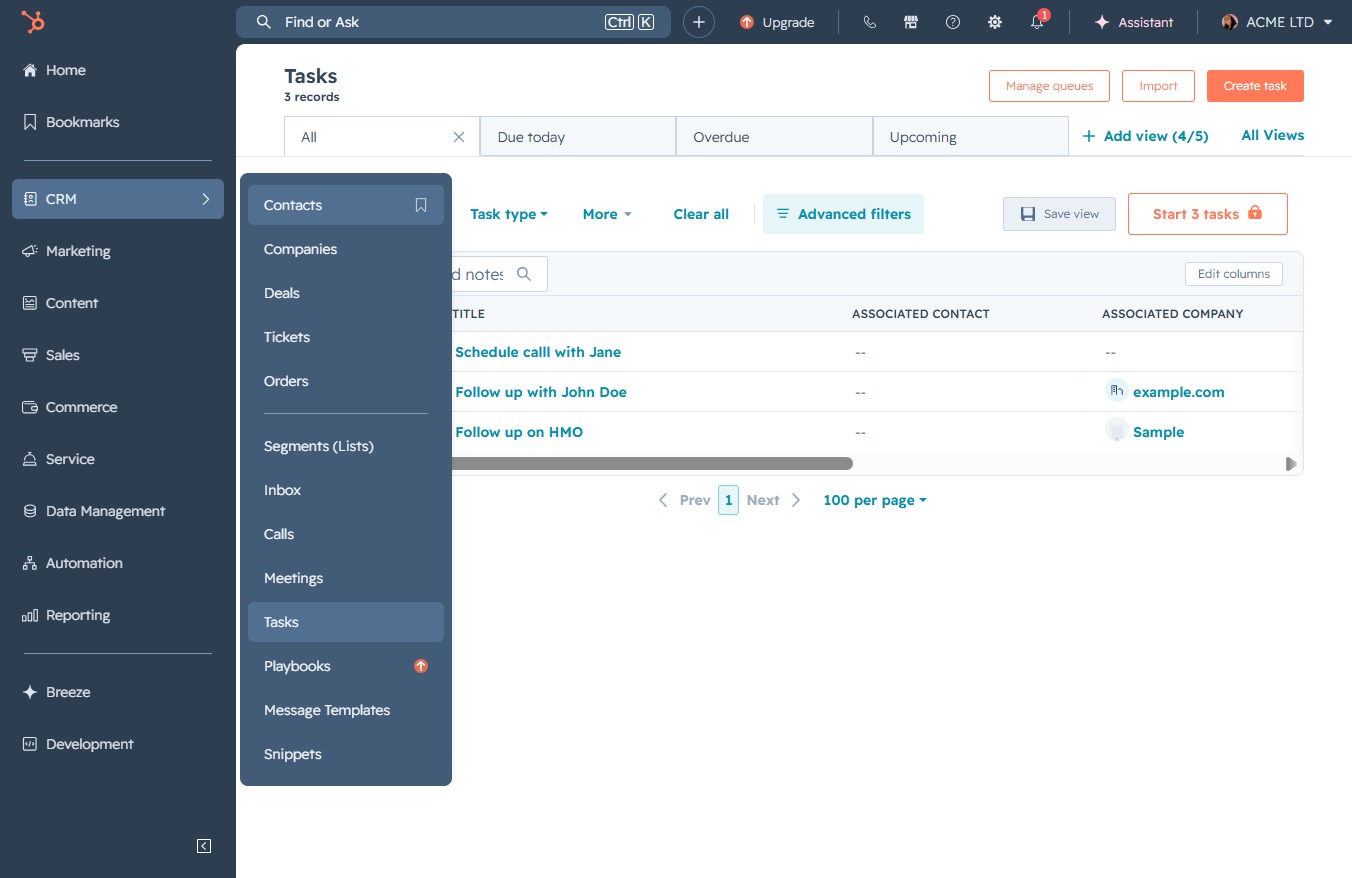
This action will navigate you to the Contacts section where you can view and manage your contact information.
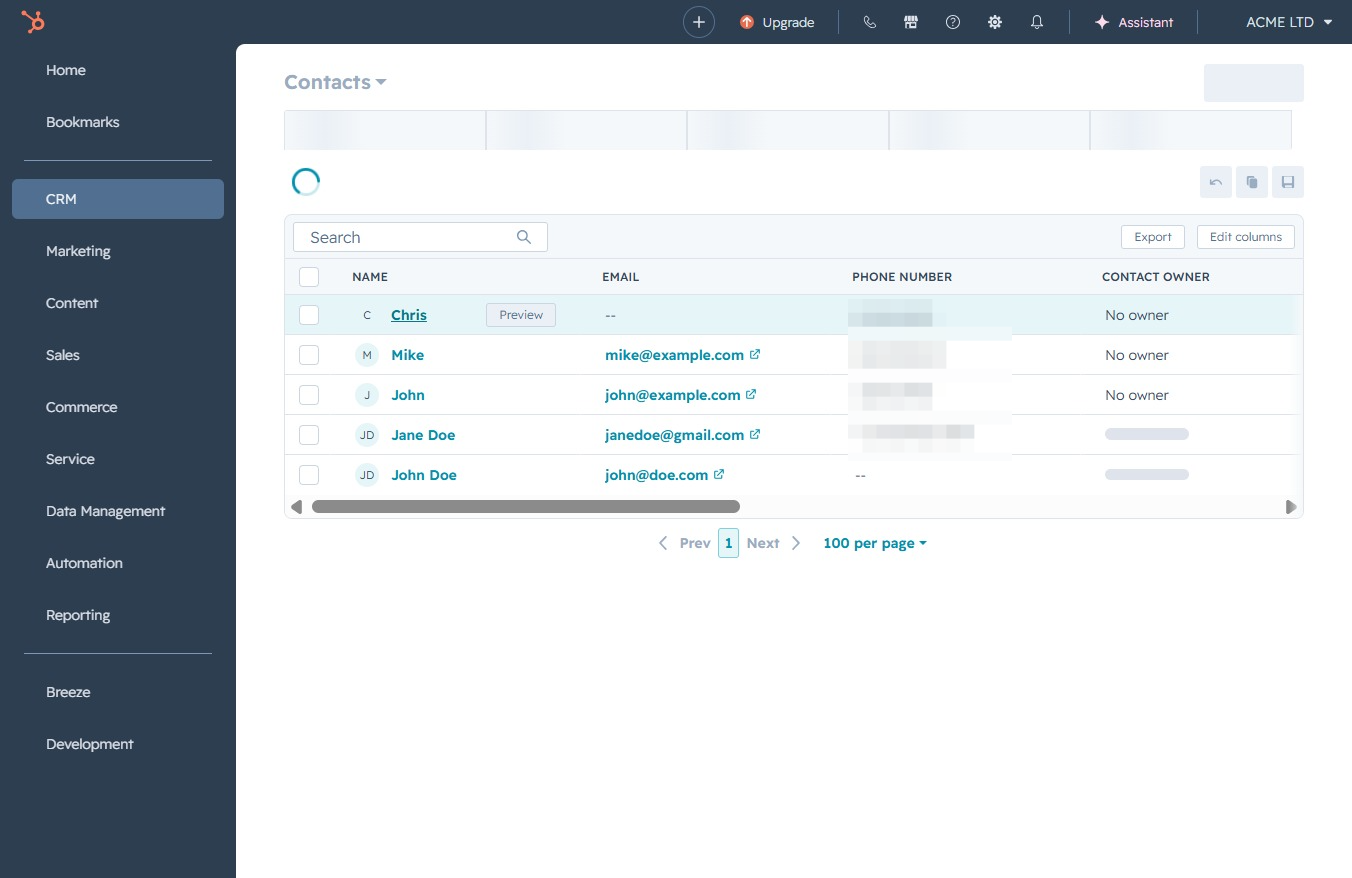
This will open the contact details for Chris, allowing you to view or edit their information within the CRM. Ensure to check the associated email and phone number for updates.
Clicking this button allows you to create a new task associated with the selected contact, facilitating better task management within the CRM.

This button opens a dialog where you can enter details for your new task, including the activity date, task type, and associated records.
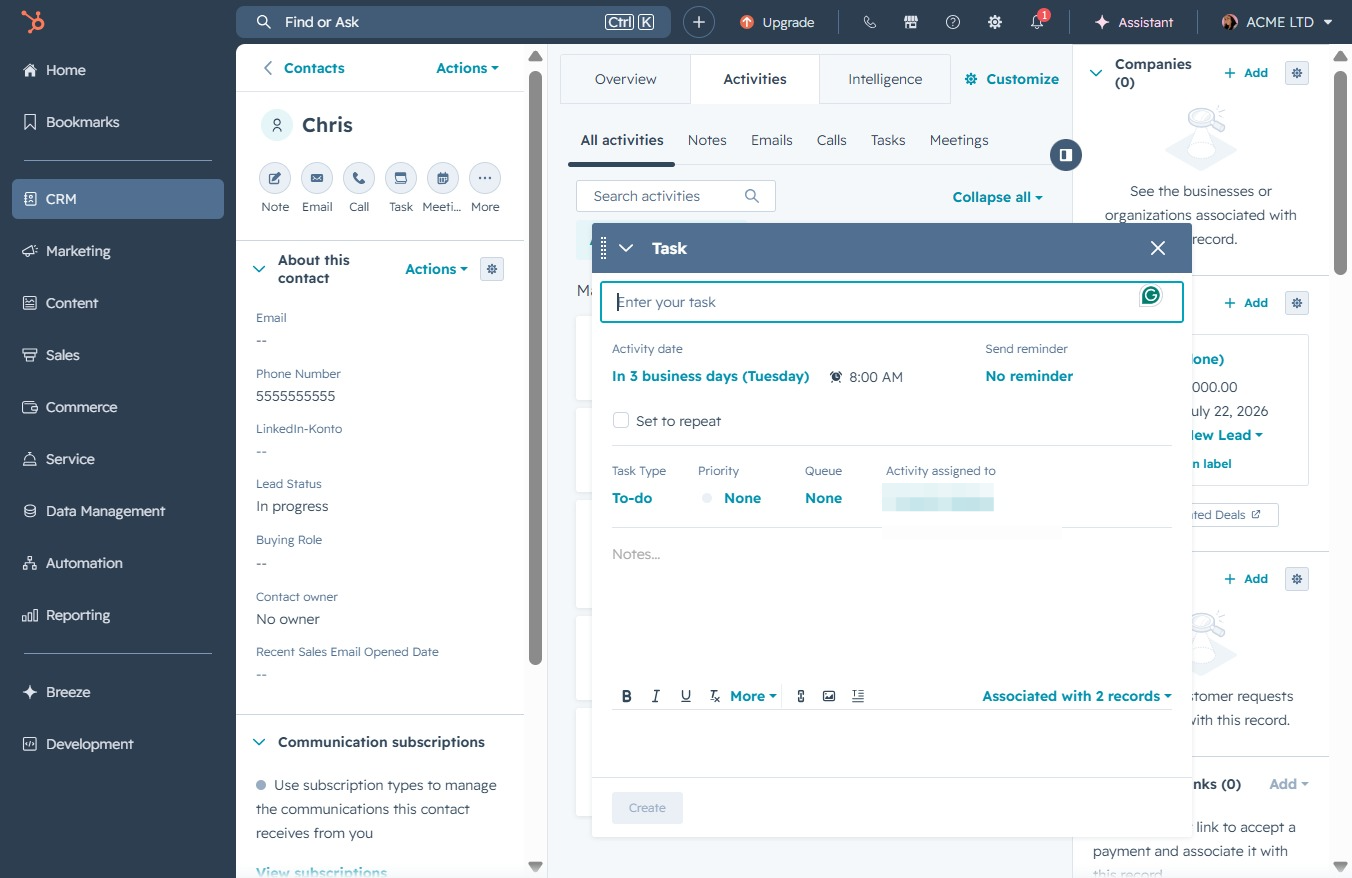
Enter a brief description of the task you want to assign, such as 'send invoice to client'. This will help in tracking the activities related to the contact.

Clicking this link will allow you to schedule a reminder for the task 'Send invoice to client', ensuring you follow up in a timely manner.
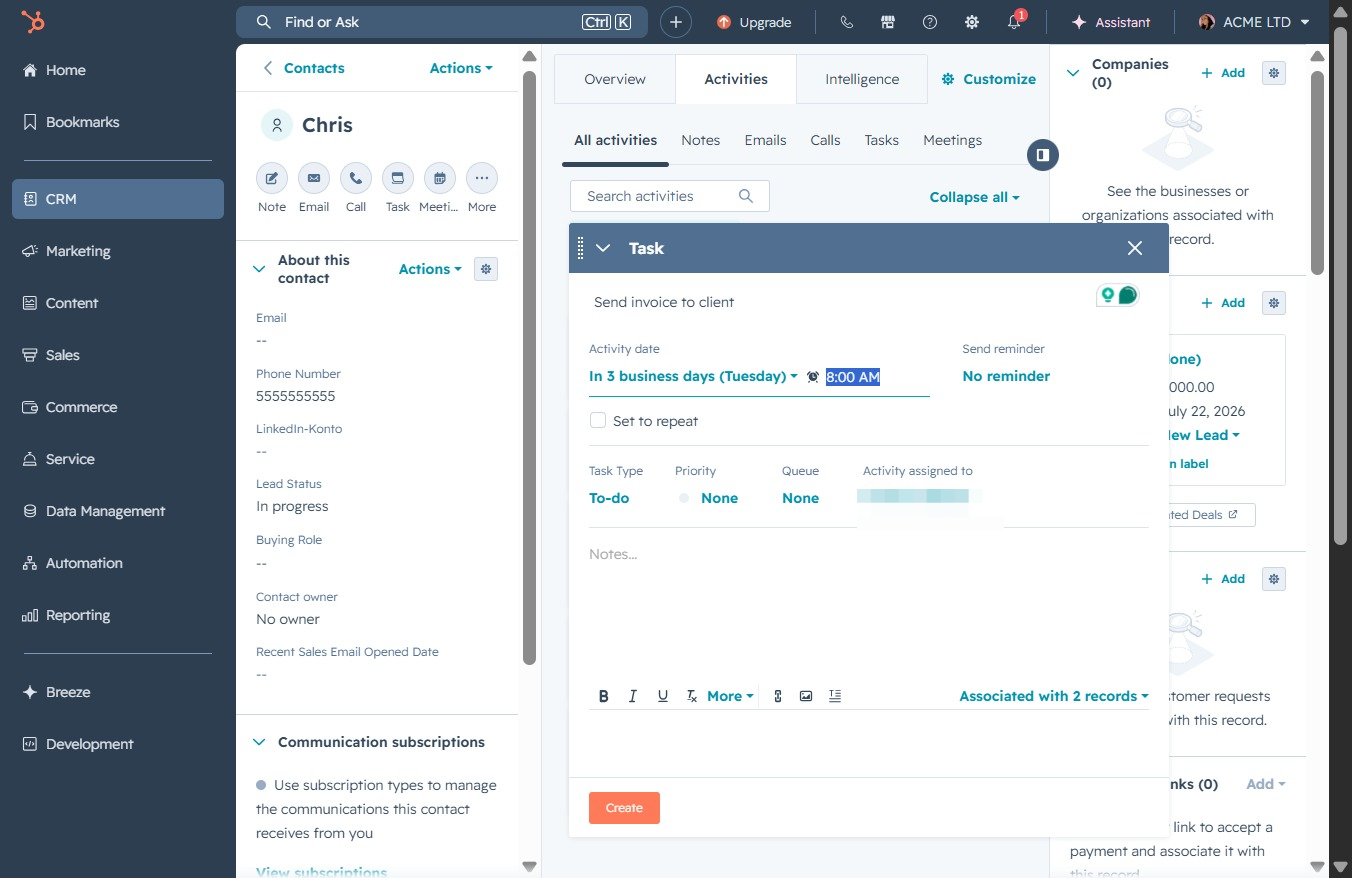
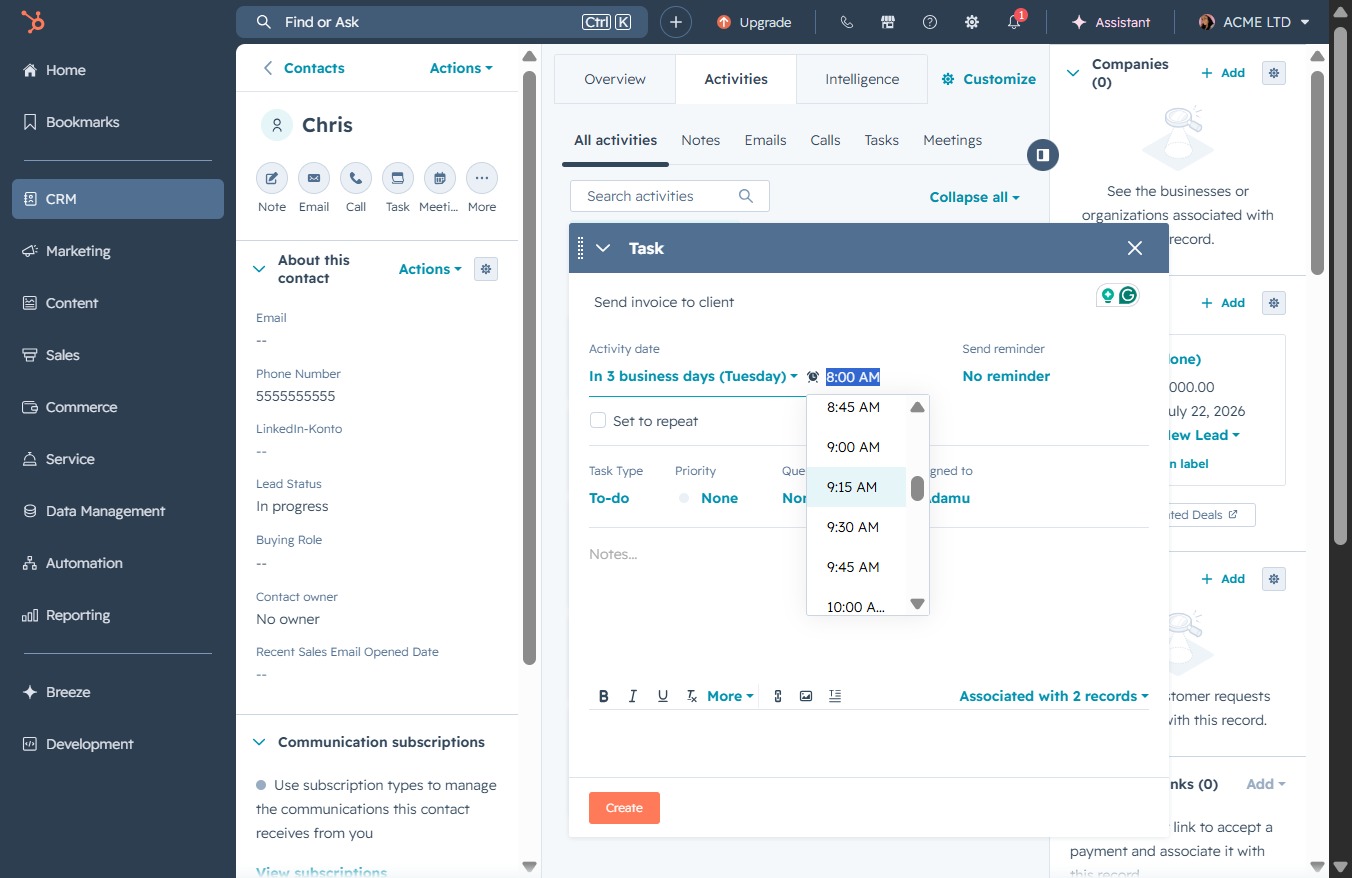
Select the 9:15 AM slot to schedule the task in the client activity. This sets the time when the reminder for the task will be triggered.
After clicking the 'Create' button, a new task window will appear, allowing you to enter details for the task you wish to set up for the contact.
