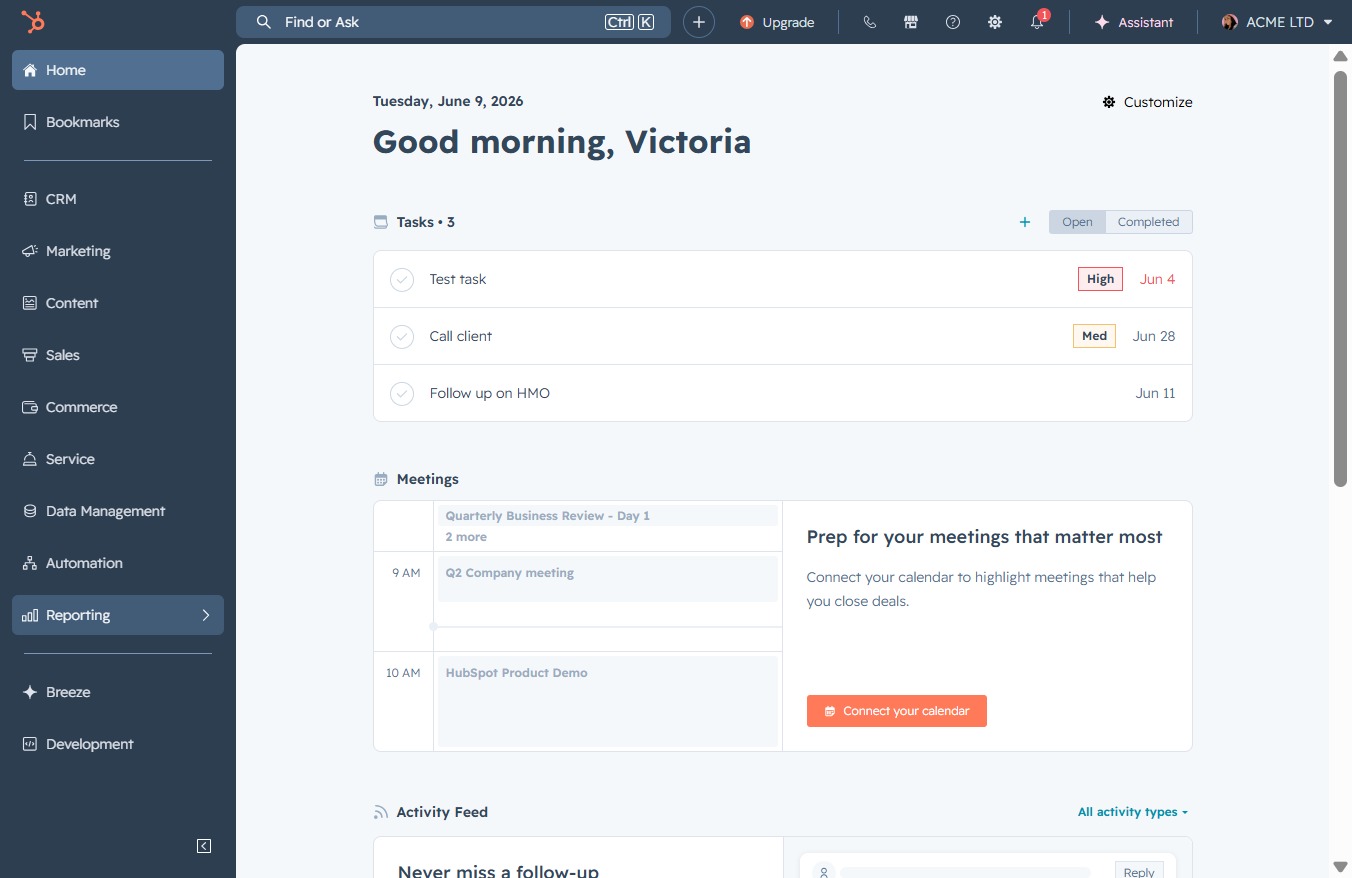
Click the Reporting option
Selecting the Reporting option allows you to access detailed analytics and performance metrics essential for tracking progress and outcomes.
Loading screenshot…
100%
Generate a task completion report in the reporting tool by selecting relevant templates, analyzing incomplete tasks, and saving the report with customized access settings for…
 viktoria
Generate a task completion report in the reporting tool by selecting relevant templates, analyzing incomplete tasks, and saving the report with customized access settings for users.
Selecting the Reporting option allows you to access detailed analytics and performance metrics essential for tracking progress and outcomes.
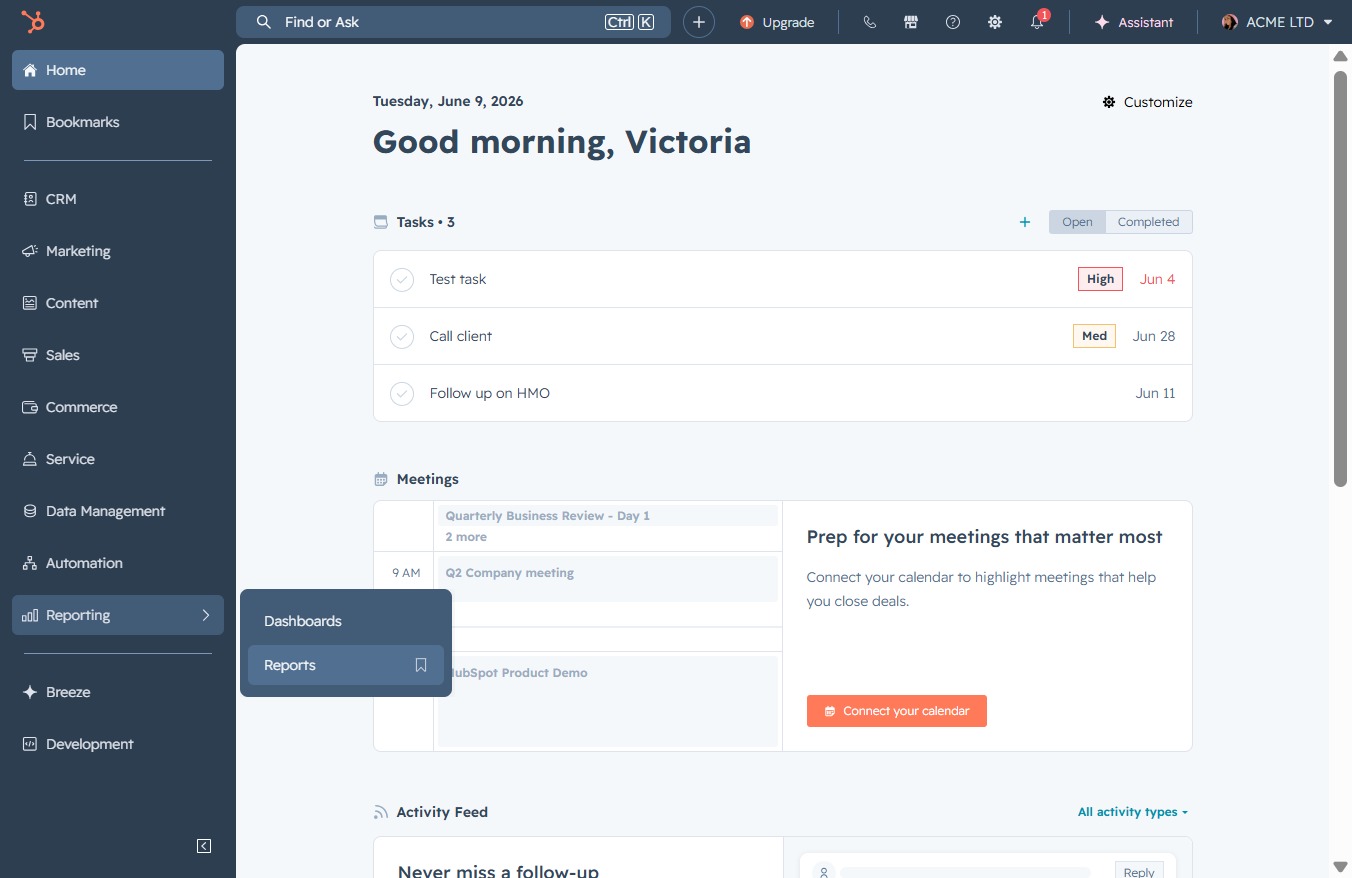
This will take you to the Reports section where you can view and manage various reports related to your data and activities.
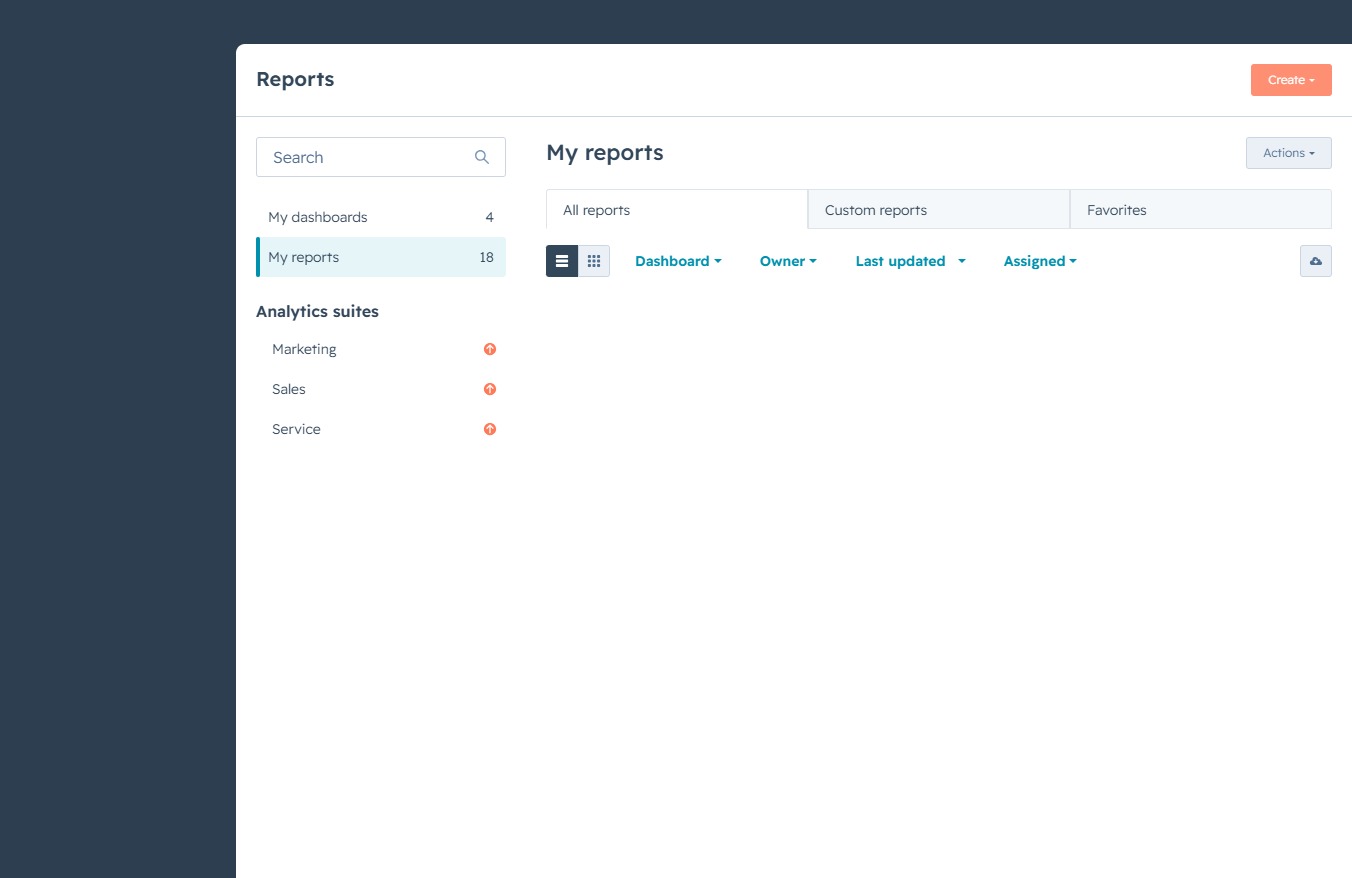
This action opens a new interface to initiate the process of creating a new report in your categorized reports section.
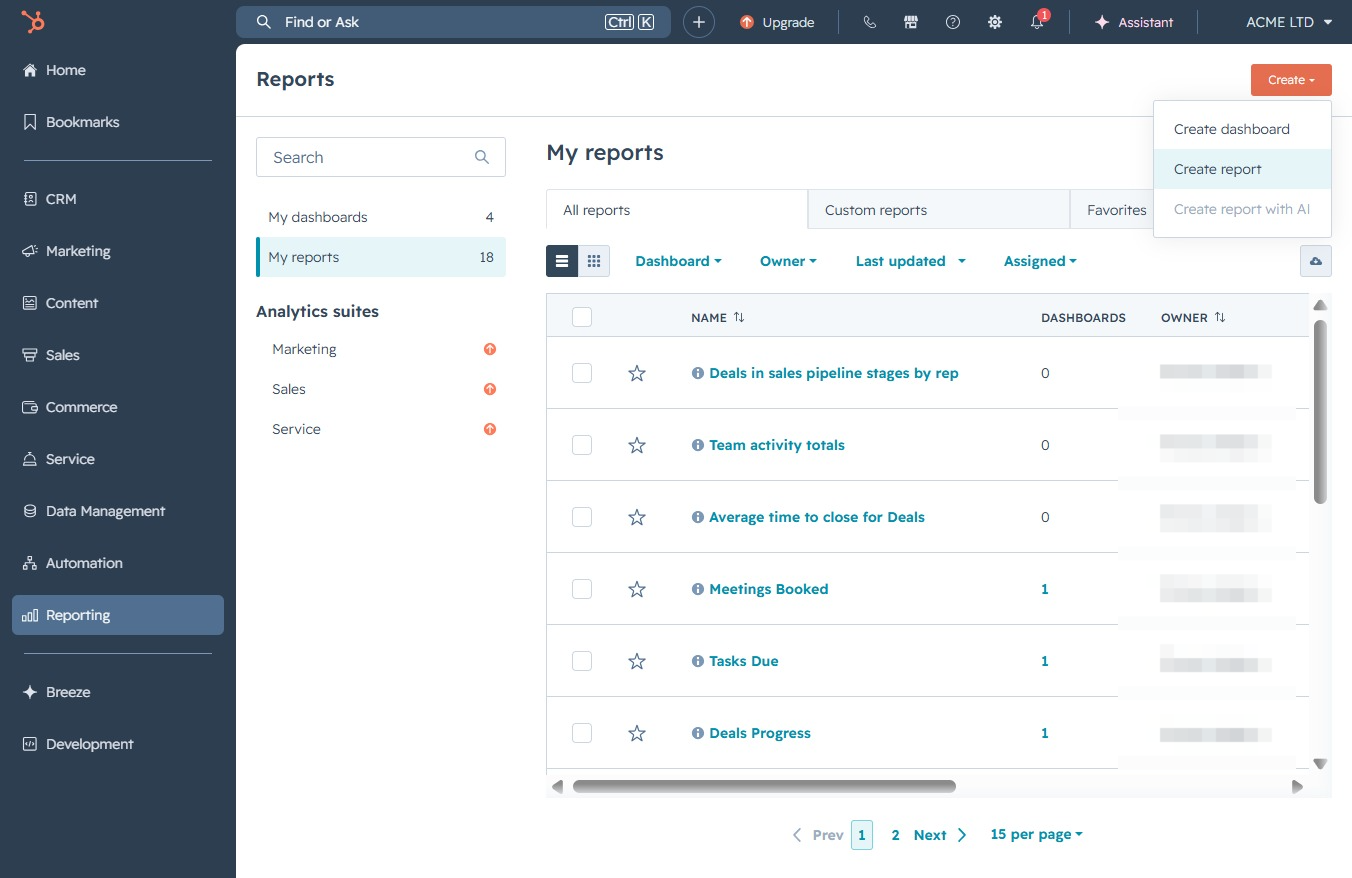
By clicking this button, you will initiate the process to generate a new report within the Reports section, allowing you to customize and analyze your data more effectively.
This will activate the search input, allowing you to type keywords to find specific report templates. Use relevant terms to filter through the suggested templates listed below.
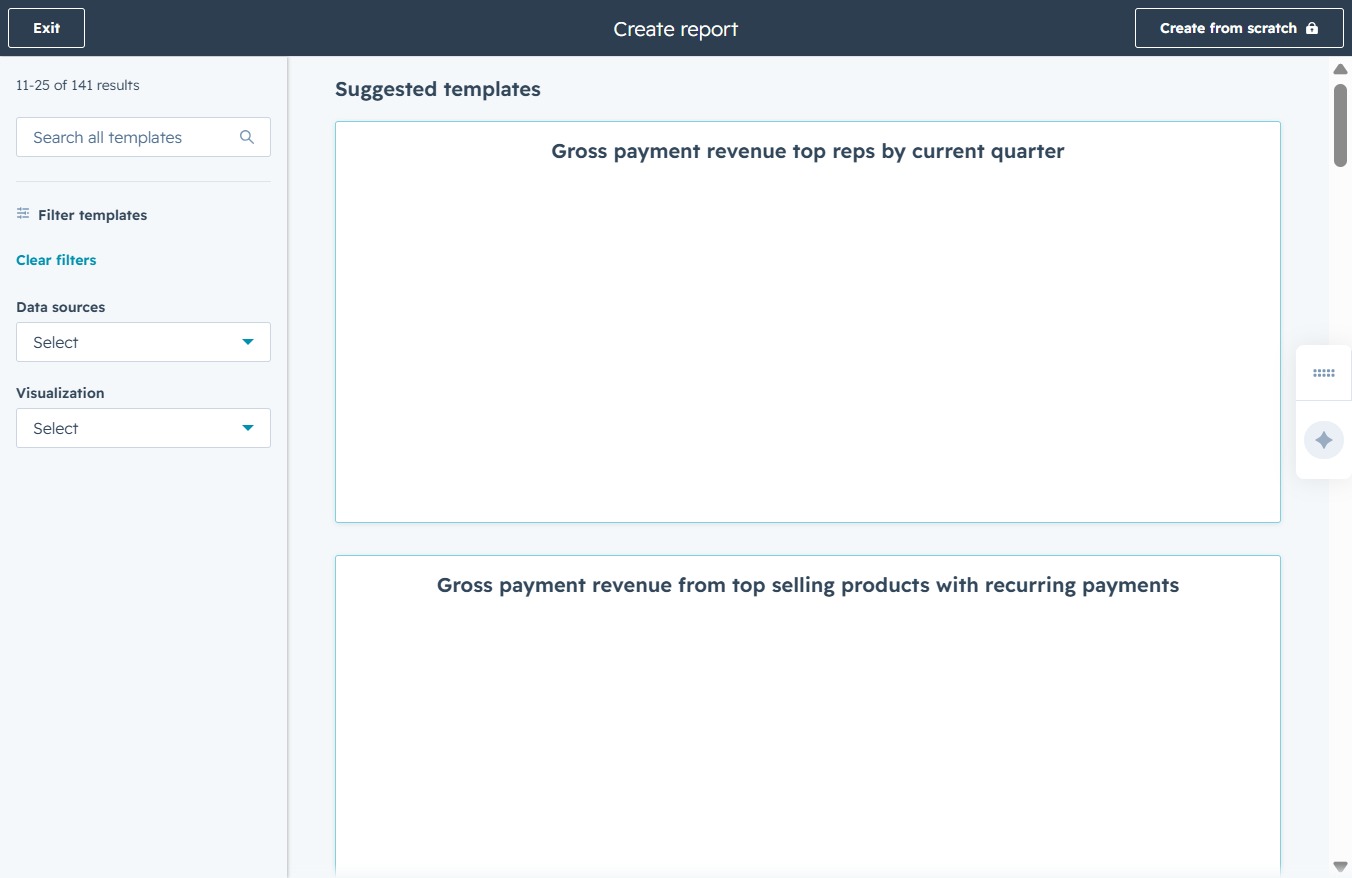
Enter 'task' in the Search all templates field to filter and find specific report templates related to tasks. This action will initiate a search displaying applicable templates immediately.
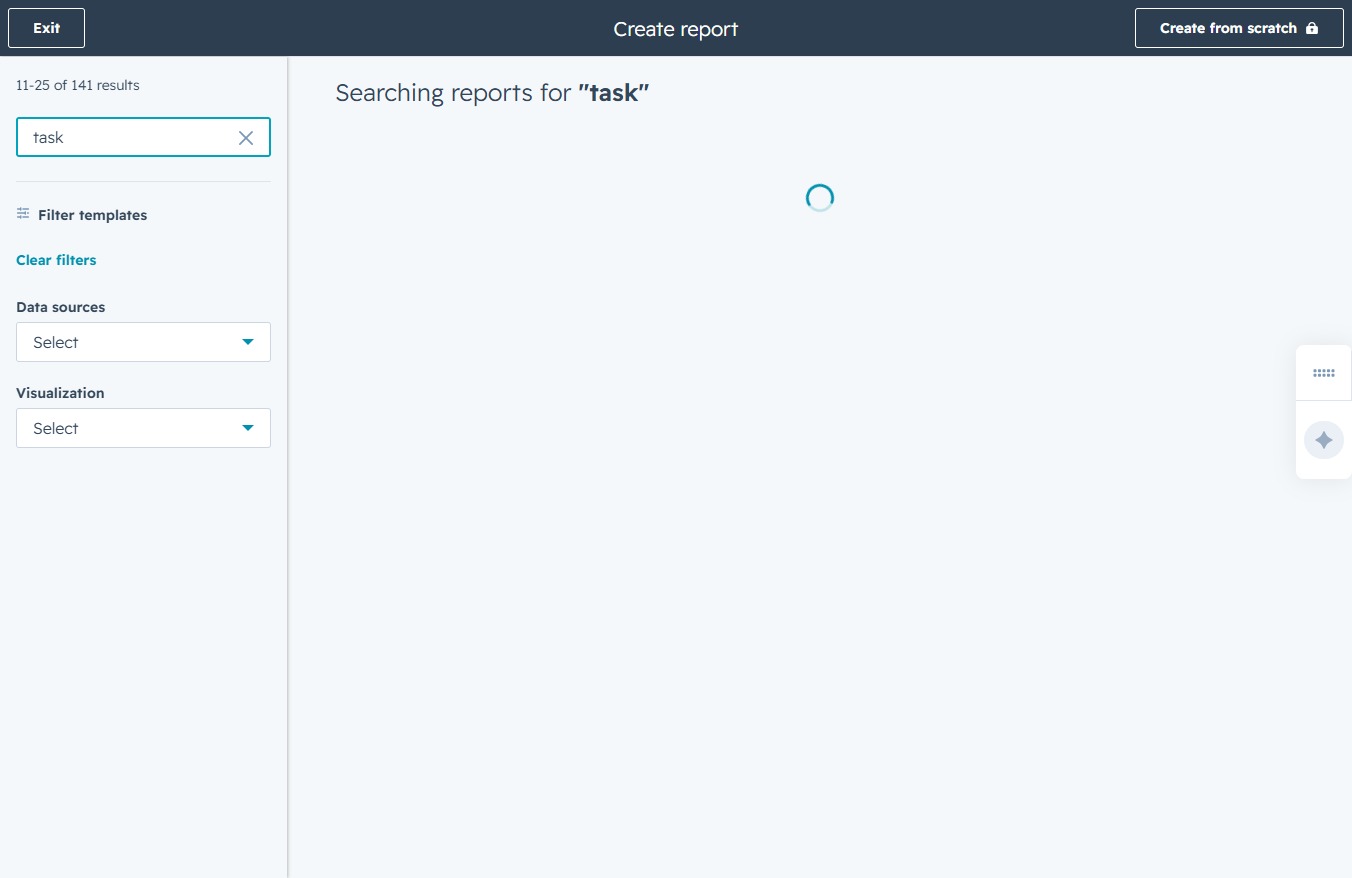
This action displays a detailed list of tasks that are incomplete, sorted by the activity date. You can further analyze the tasks assigned to all representatives, including specific details for each task.

This action will save the current report of incomplete tasks assigned to all representatives, allowing you to keep a record of the activity details shown in the table.

Proceed to the next step in saving your report, where you can finalize details or select dashboard options.

This action will save the report along with the selected access settings for who can view it. Ensure you have chosen the appropriate access level for your report before proceeding.
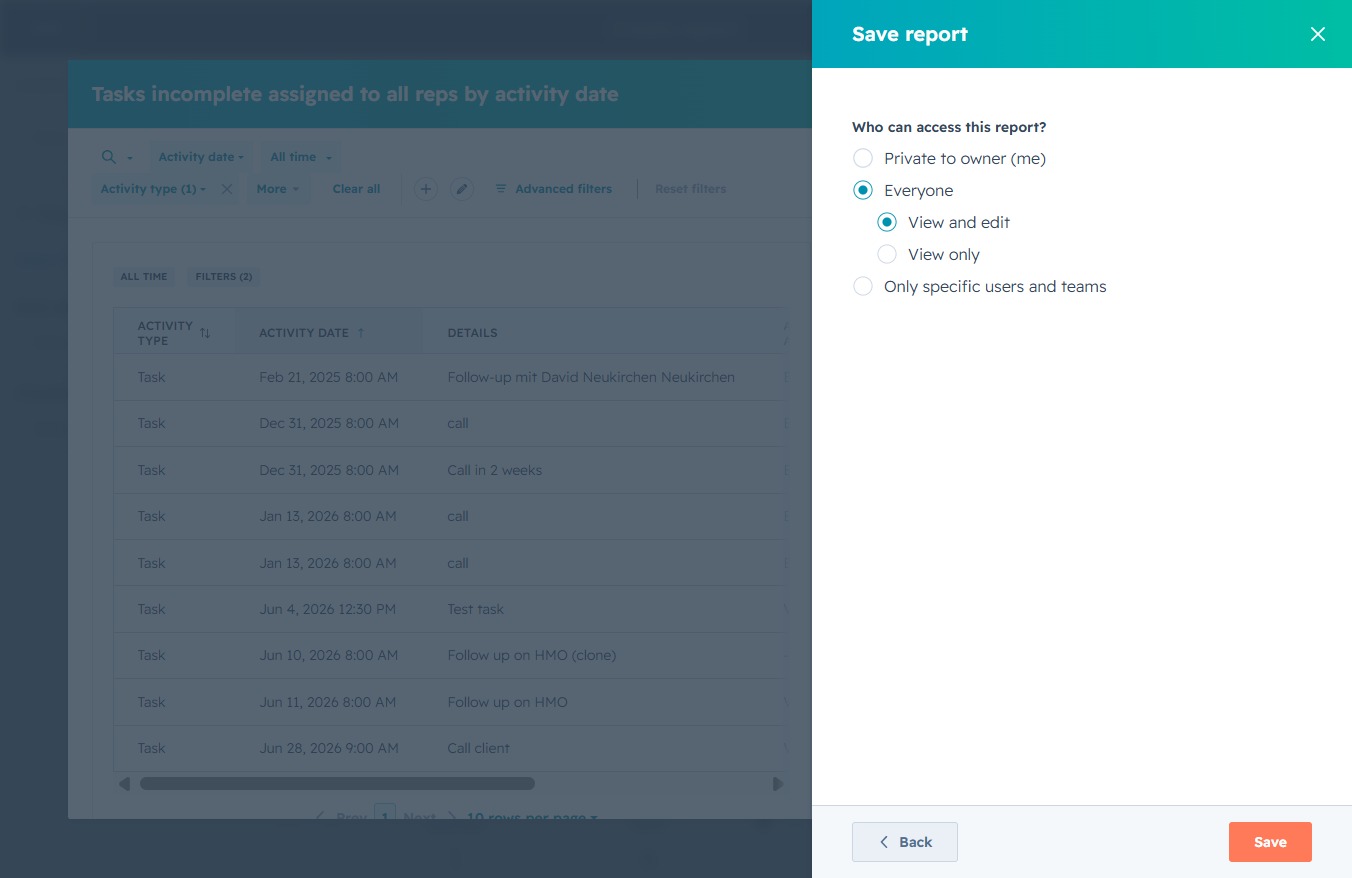
Select this option to save your report with the specified access settings for other users. Ensure you have configured the access options according to who you want to share the report with before clicking.
