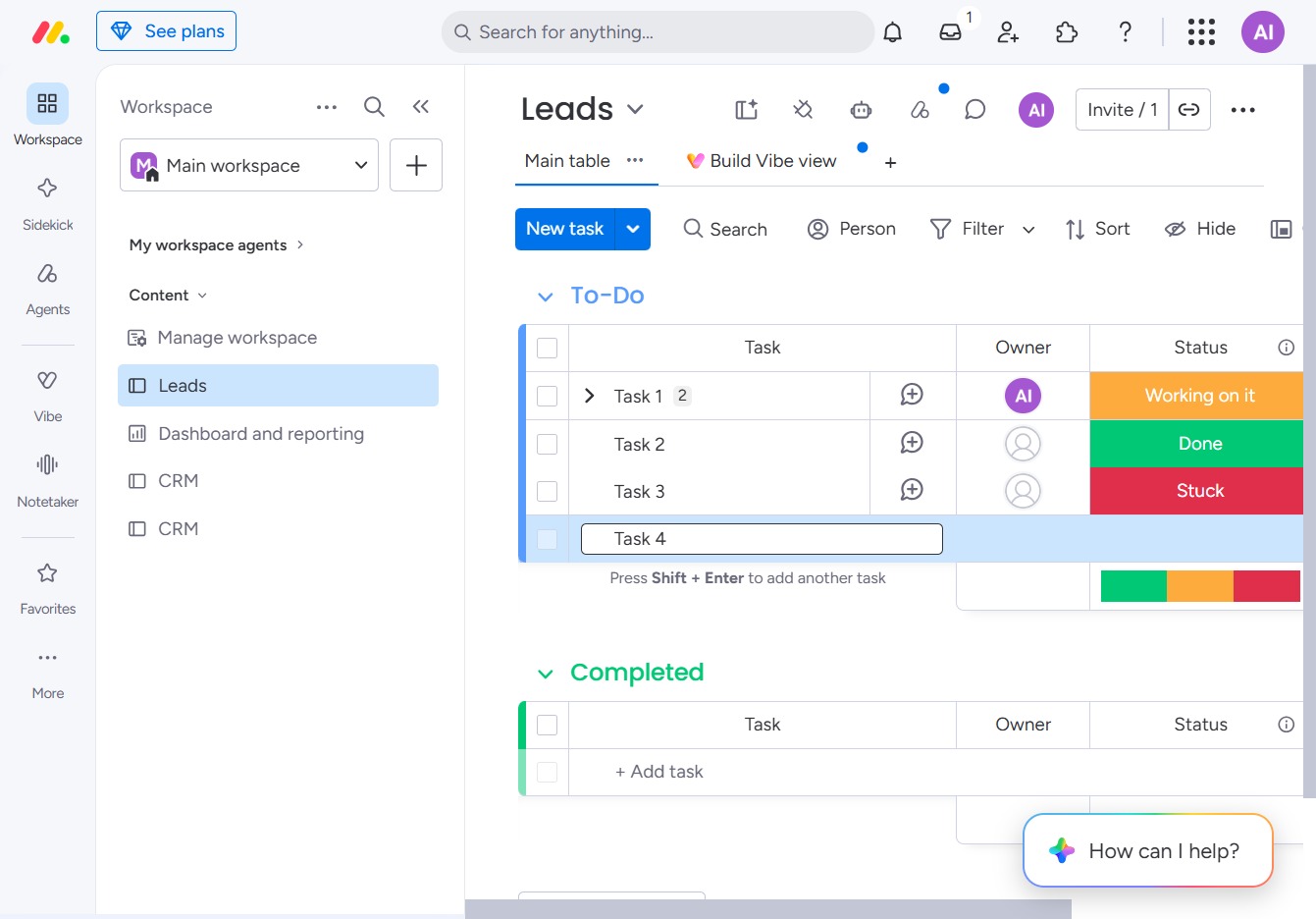
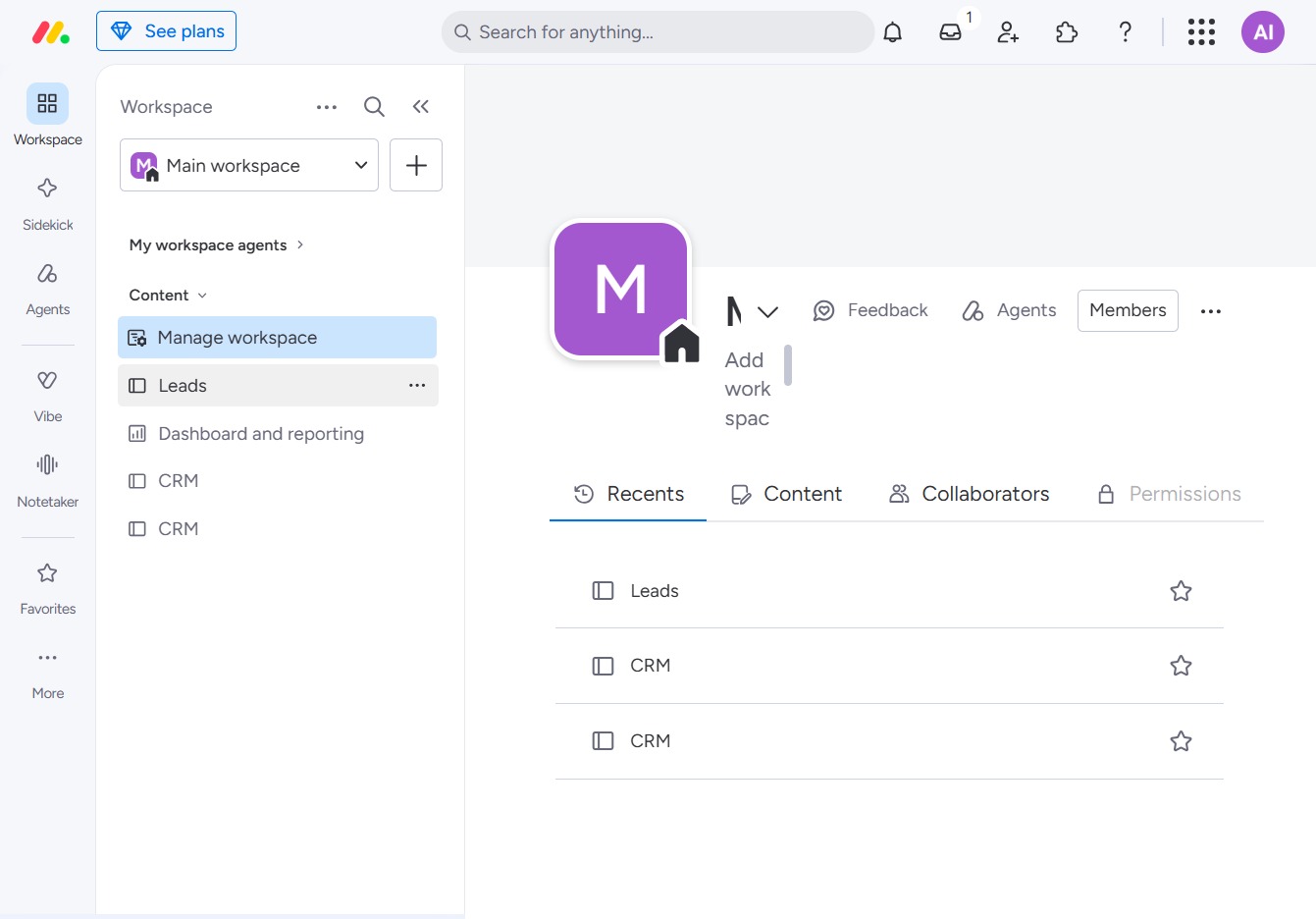
Click the BoardLeads section
This action opens the BoardLeads module, allowing you to manage your leads effectively within the workspace.
Loading screenshot…
100%
This how-to guide walks you through creating a task within the BoardLeads module, enabling you to effectively manage your leads.
 viktoria
This how-to guide walks you through creating a task within the BoardLeads module, enabling you to effectively manage your leads. You'll learn how to input task details and add a new task to your To-Do list, helping you organize your ongoing activities.
This action opens the BoardLeads module, allowing you to manage your leads effectively within the workspace.
By clicking the 'Click here' input field, you will be prompted to enter additional details or instructions related to your task or project.

Input 'Task 4' into the '+ Add task' field to create a new task in your To-Do list. This will allow you to keep track of your ongoing activities within the Leads section.