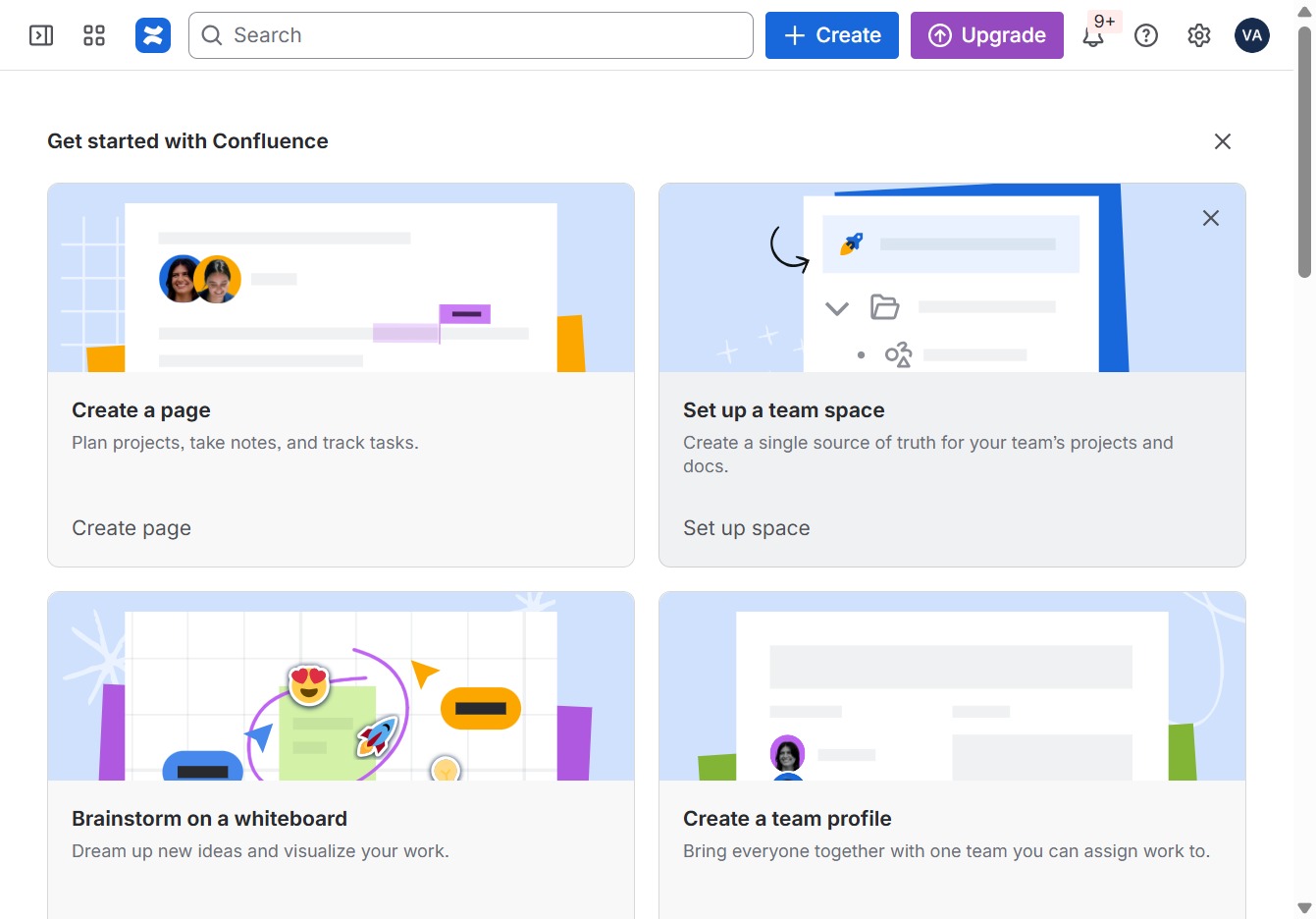
Click the Set up a team space option
This action will guide you to create a centralized location for your team’s projects and documents, ensuring everyone has access to a single source of truth.
Loading screenshot…
100%
This guide will walk you through the process of creating a centralized knowledge base space for your team, making it easy to access and manage important documents and projects.
 viktoria
This guide will walk you through the process of creating a centralized knowledge base space for your team, making it easy to access and manage important documents and projects. You will learn how to name your space, choose a visual icon, and utilize various features to optimize collaboration and documentation sharing.
This action will guide you to create a centralized location for your team’s projects and documents, ensuring everyone has access to a single source of truth.
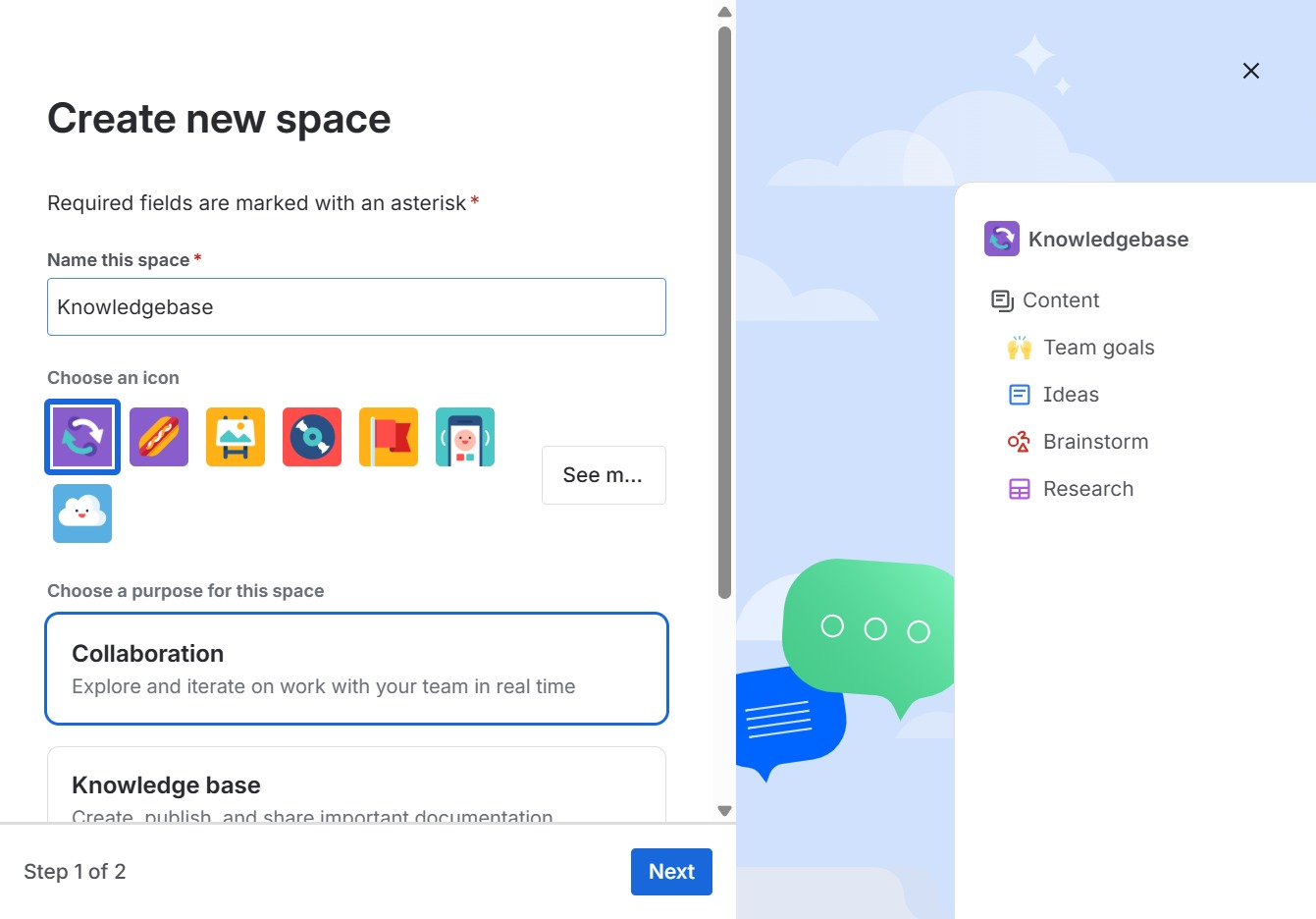
Enter 'Knowledgebase' into the field labeled 'Name this space' to designate the identifier for your new space. This name will help you and your team easily locate and reference this space later.

Selecting the landscape painting icon sets a visual representation for your new space, helping to distinguish it from other areas in your project.
This will allow you to create, publish, and share important documentation within your knowledge base. Selecting this option prepares your workspace for managing documentation effectively.
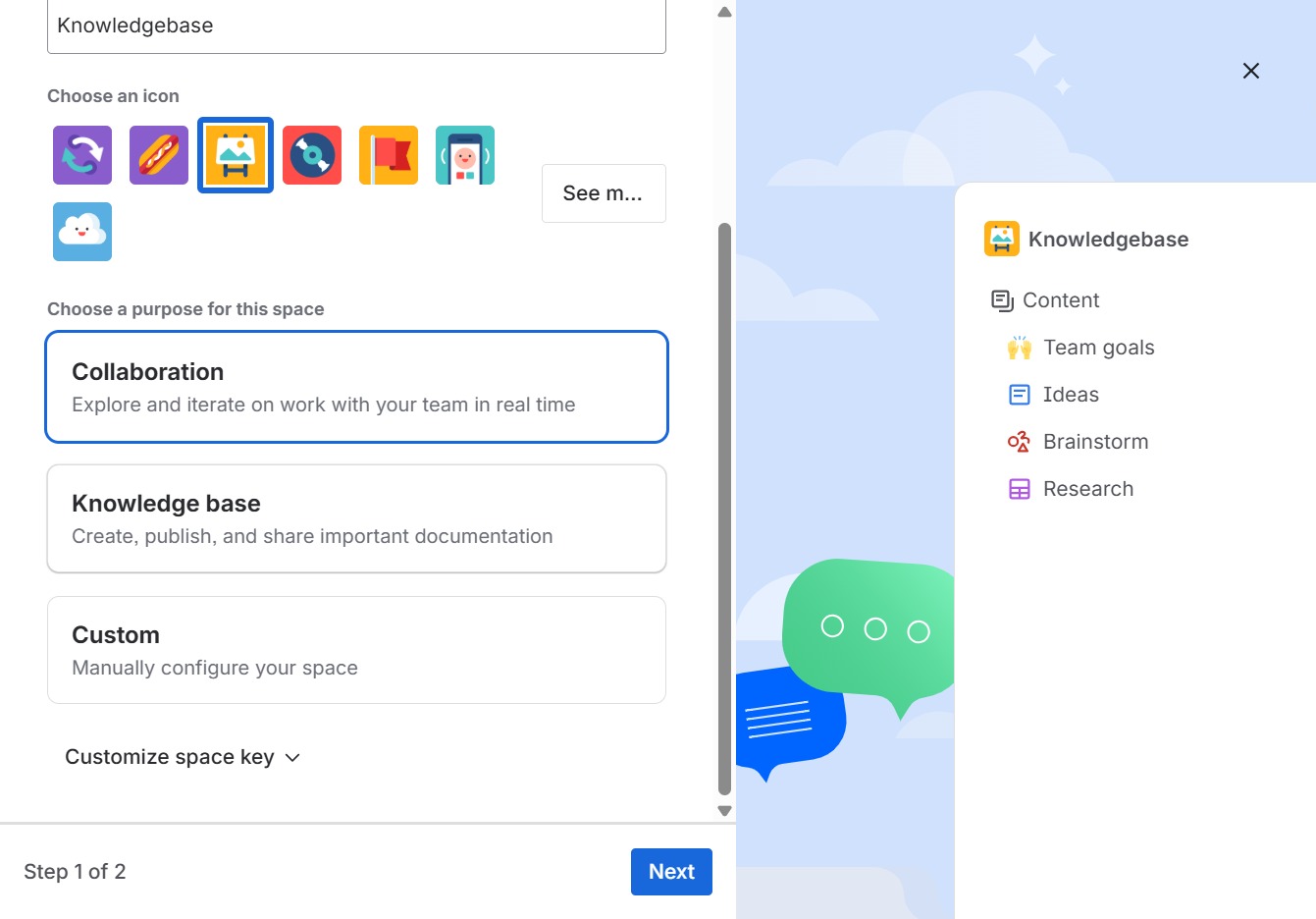
This will proceed to the next step in the process of creating your Knowledge base space.

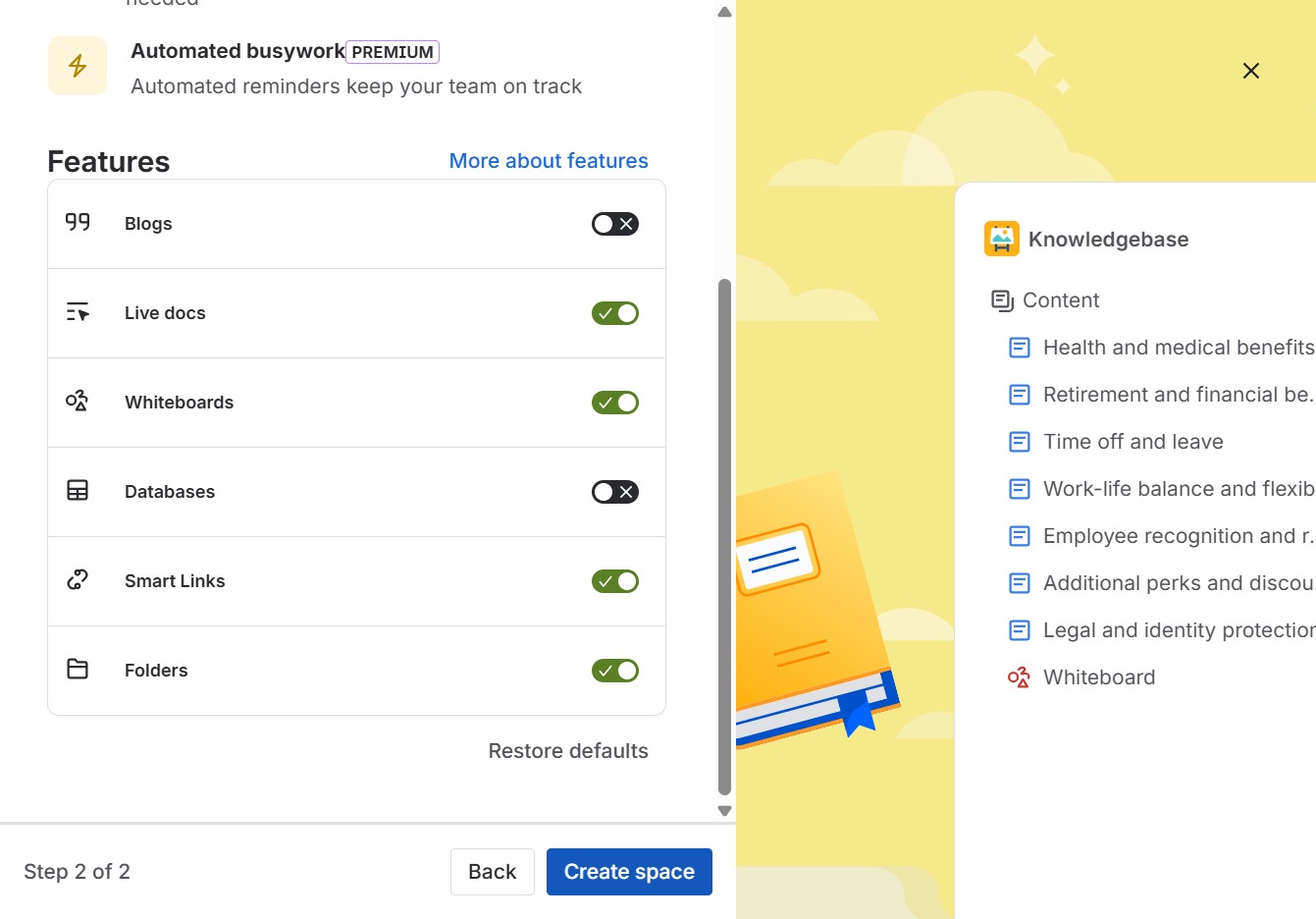
By clicking this link, you will access detailed information about the various features available, helping you understand how to utilize them effectively.
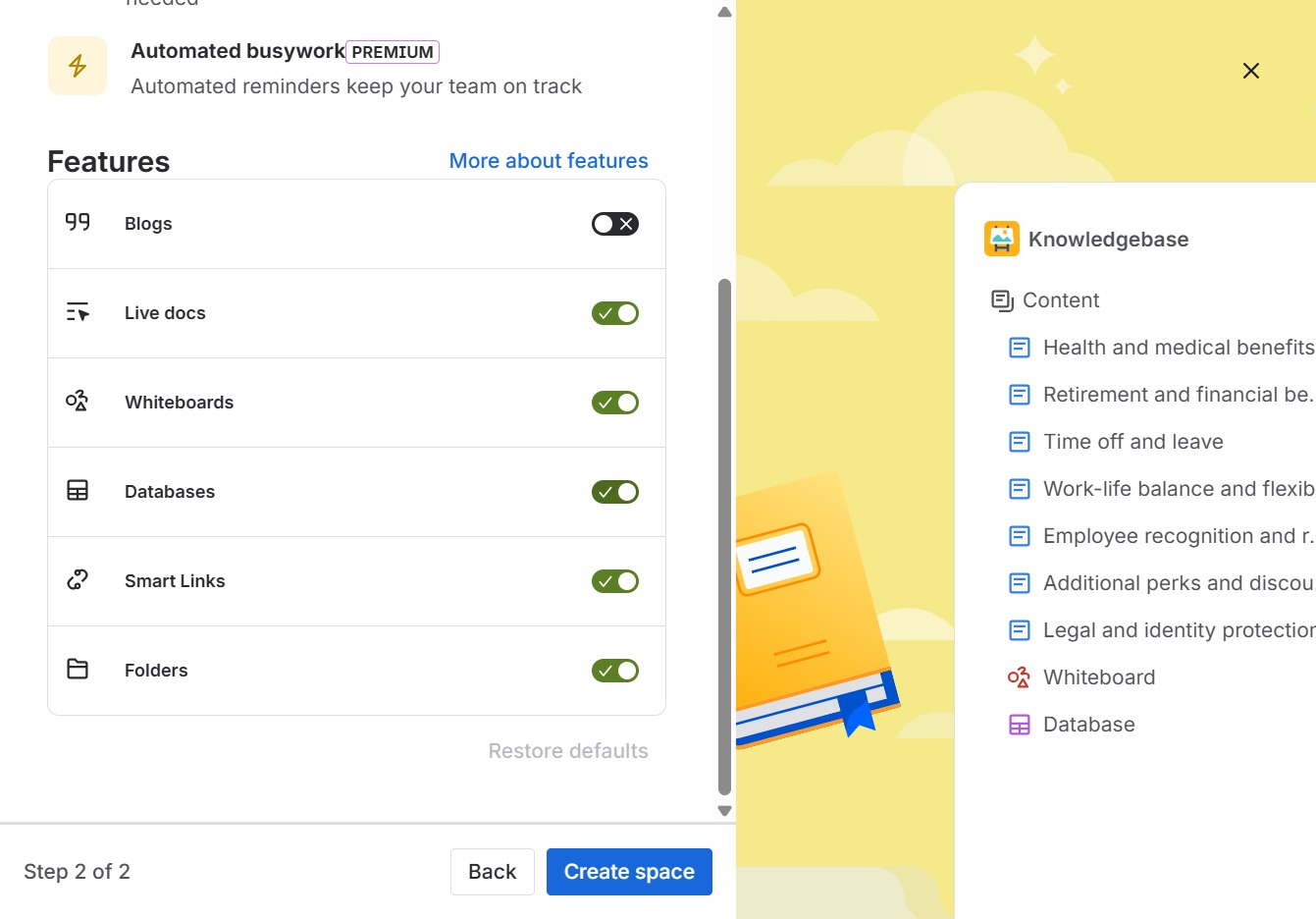
This action will begin the process of establishing a new space within the application, allowing you to organize your projects and collaborate with team members effectively.