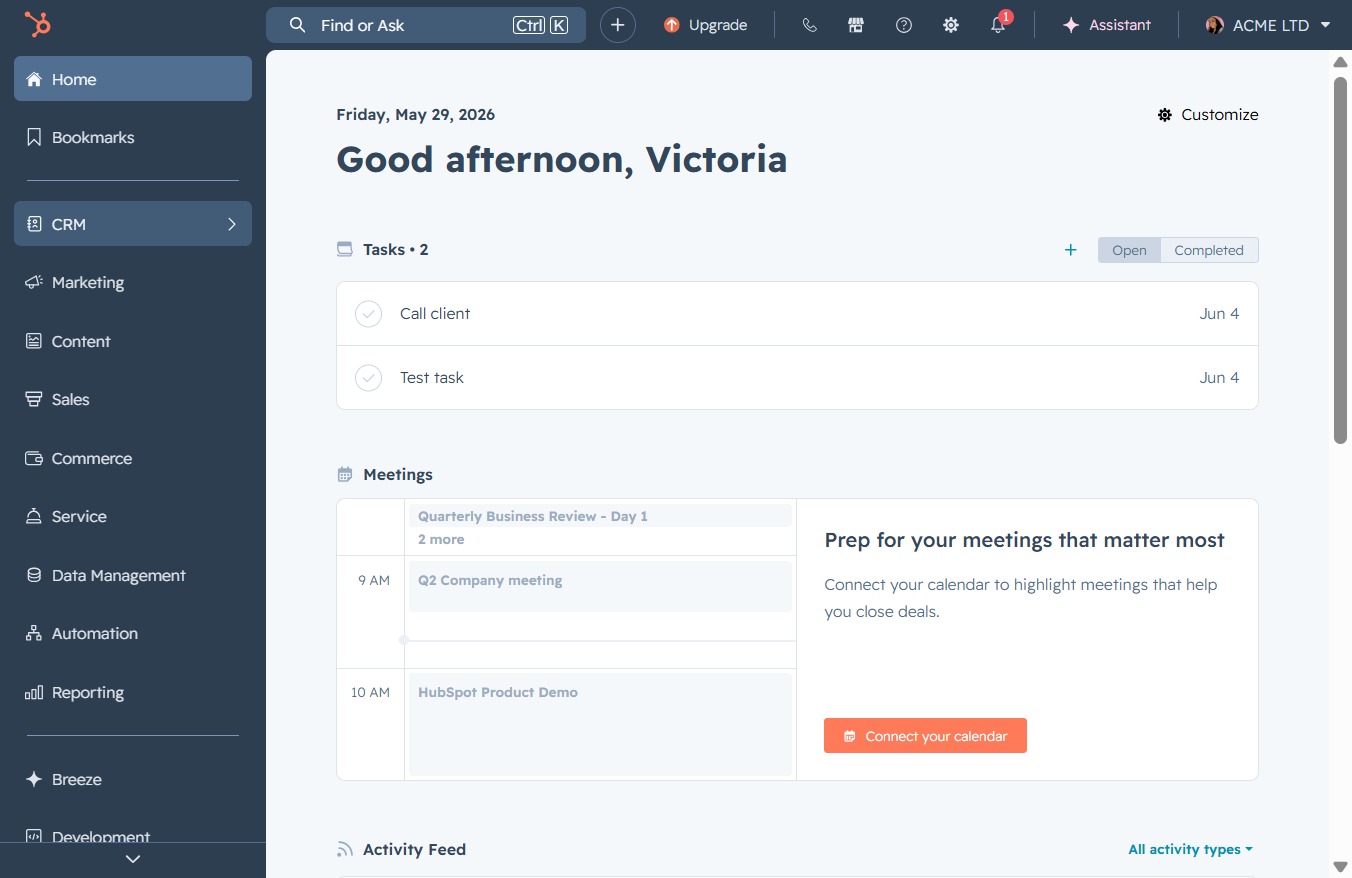
Click the CRM icon
This action will take you to the Customer Relationship Management section, where you can manage contacts, track interactions, and analyze customer data.
Loading screenshot…
100%
Create a meeting confirmation snippet in your CRM to streamline communication by using a shortcut for quick insertion of your confirmation message when interacting with clients.
 viktoria
Create a meeting confirmation snippet in your CRM to streamline communication by using a shortcut for quick insertion of your confirmation message when interacting with clients.
This action will take you to the Customer Relationship Management section, where you can manage contacts, track interactions, and analyze customer data.
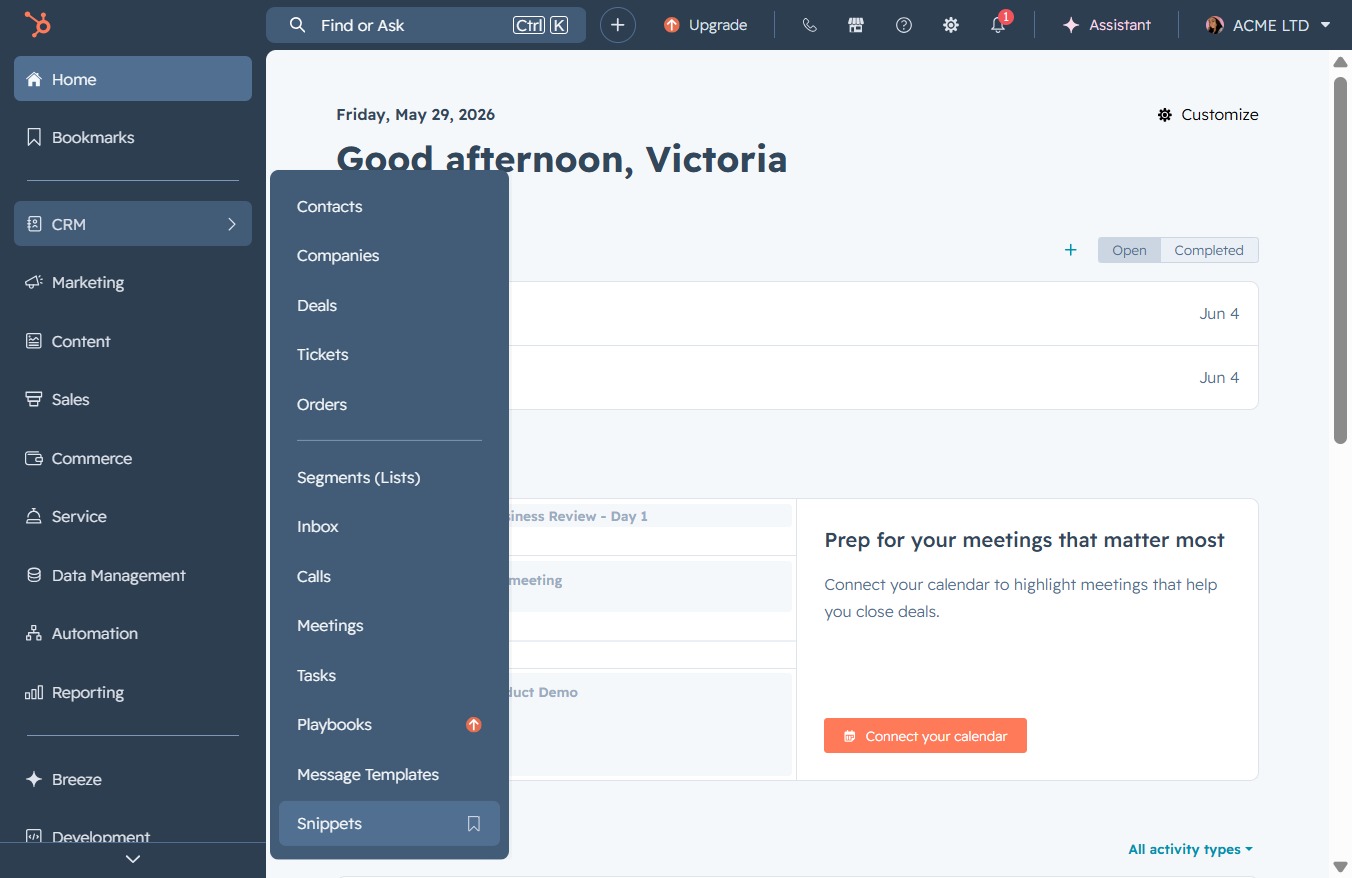
Selecting 'Snippets' opens the section where you can manage and access your saved snippets for quick reference during your interactions.
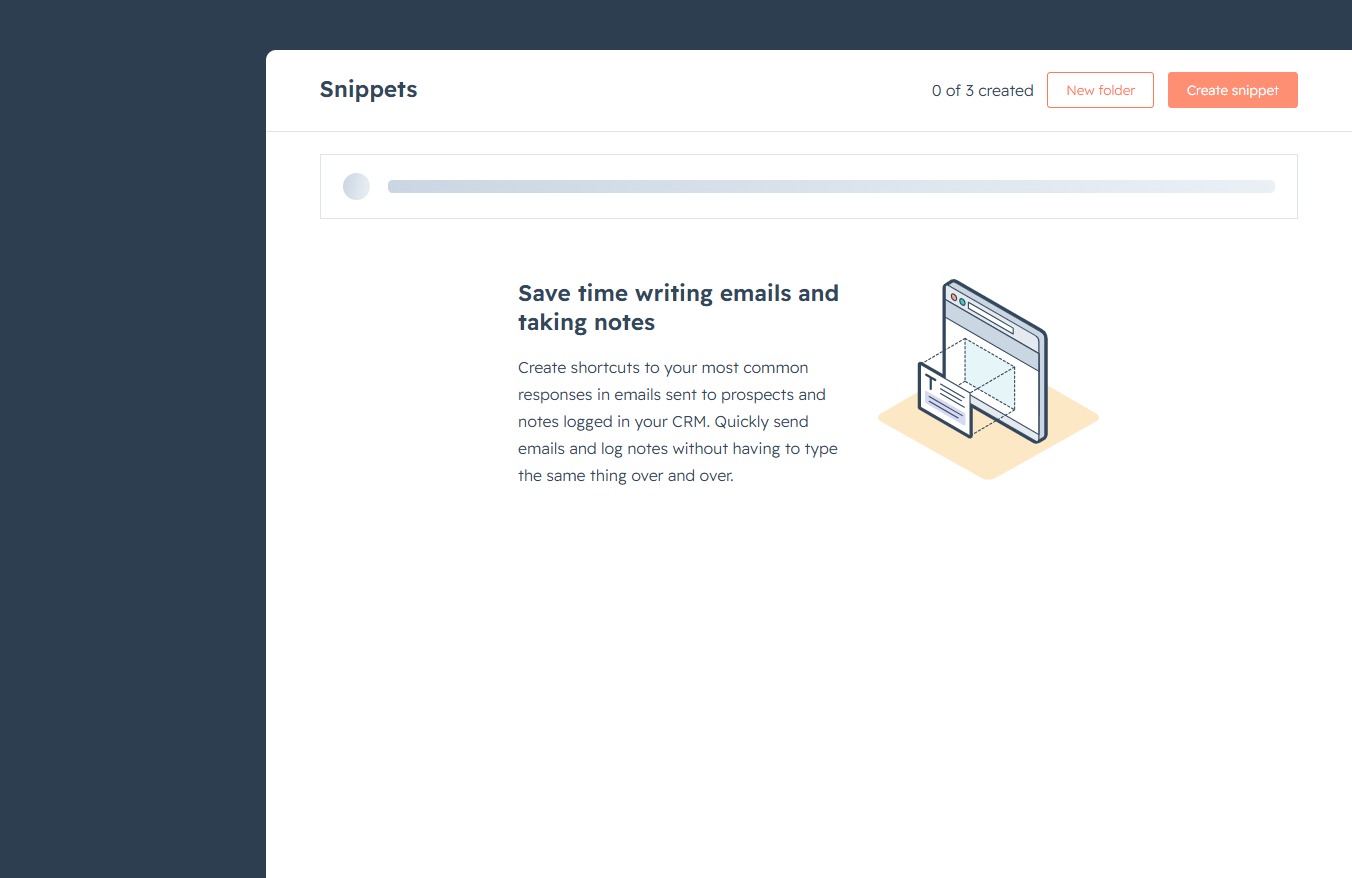
This action allows you to open the snippet creation form, where you can add shortcuts for common replies and notes in your CRM.
Clicking this button allows you to enter a word that will serve as a shortcut for using the snippet in the text editor.
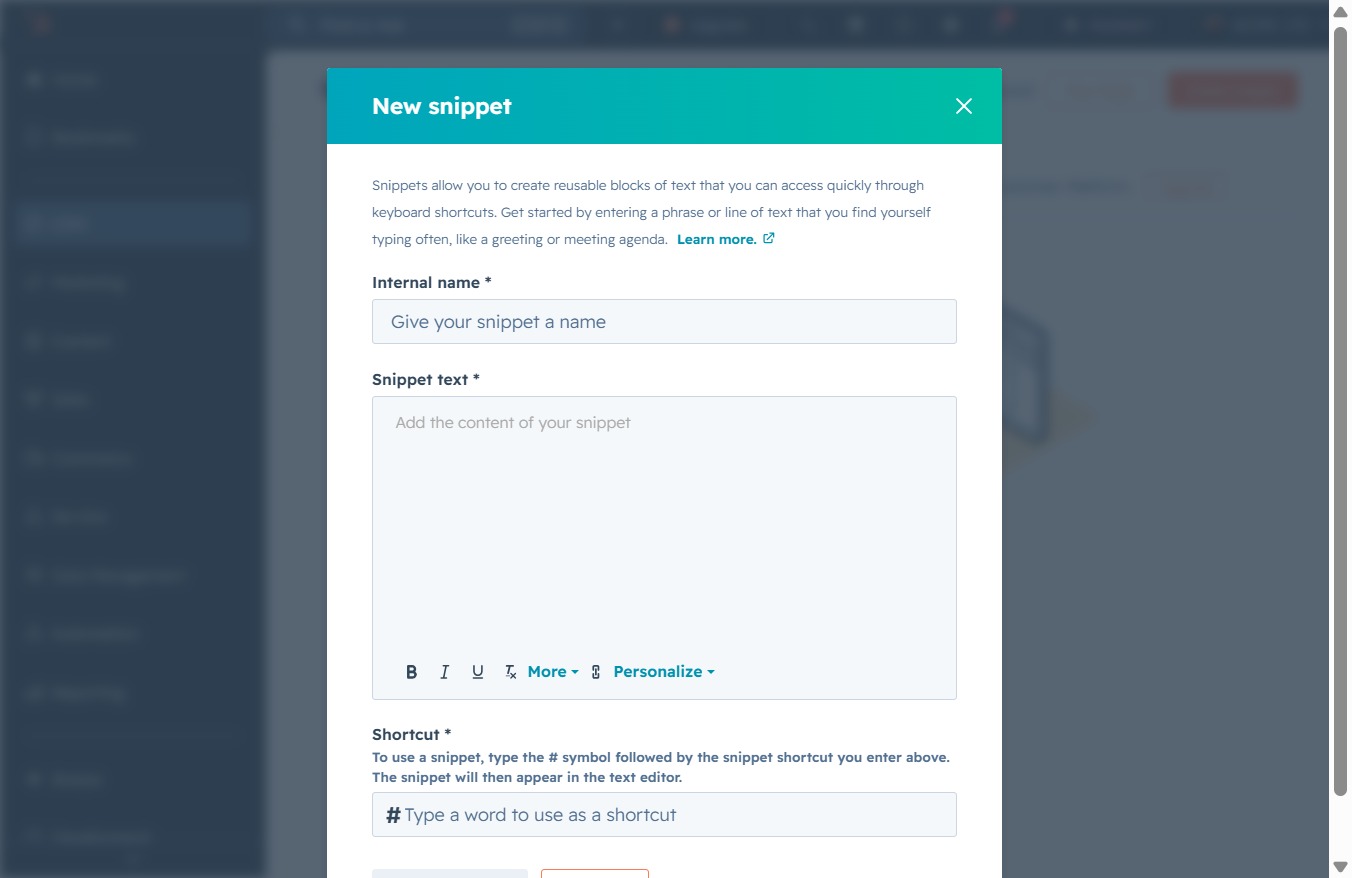
Clicking this link allows you to create a new snippet by entering an internal name and content. This action initiates the snippet creation process, enabling you to streamline your text input.
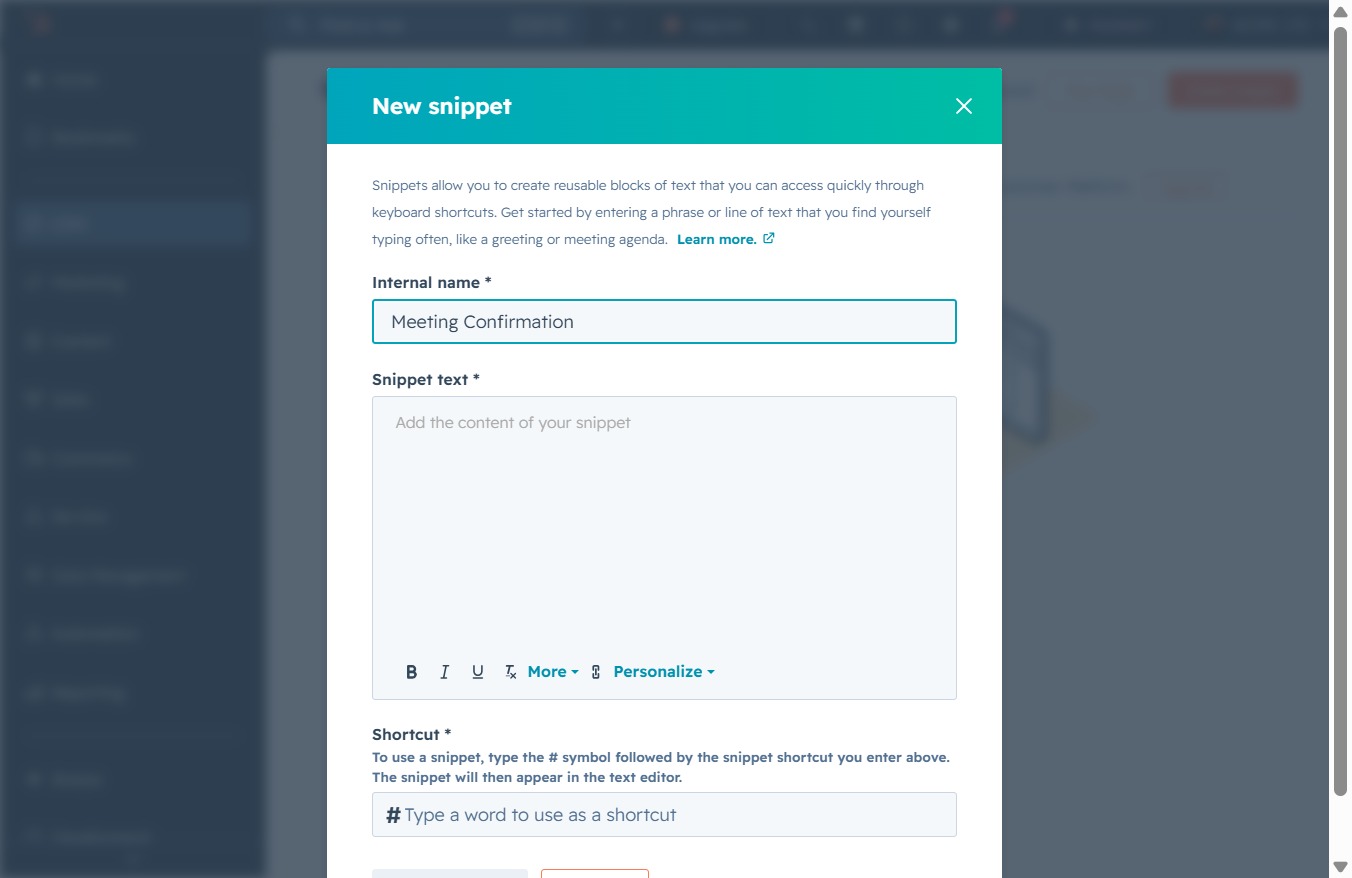
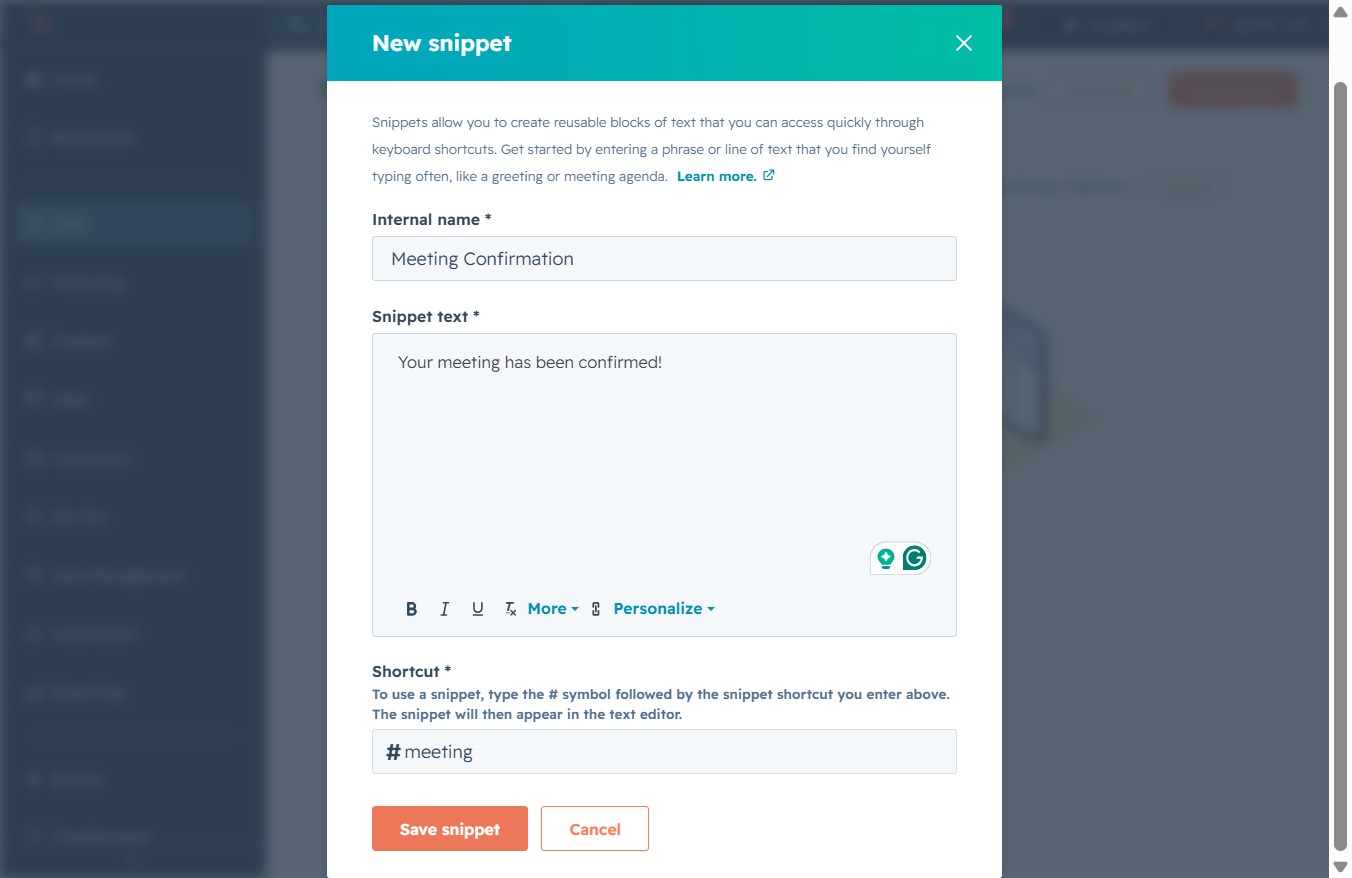
Clicking this button will save the new snippet you created for confirmation messages, allowing you to access it quickly in the future.
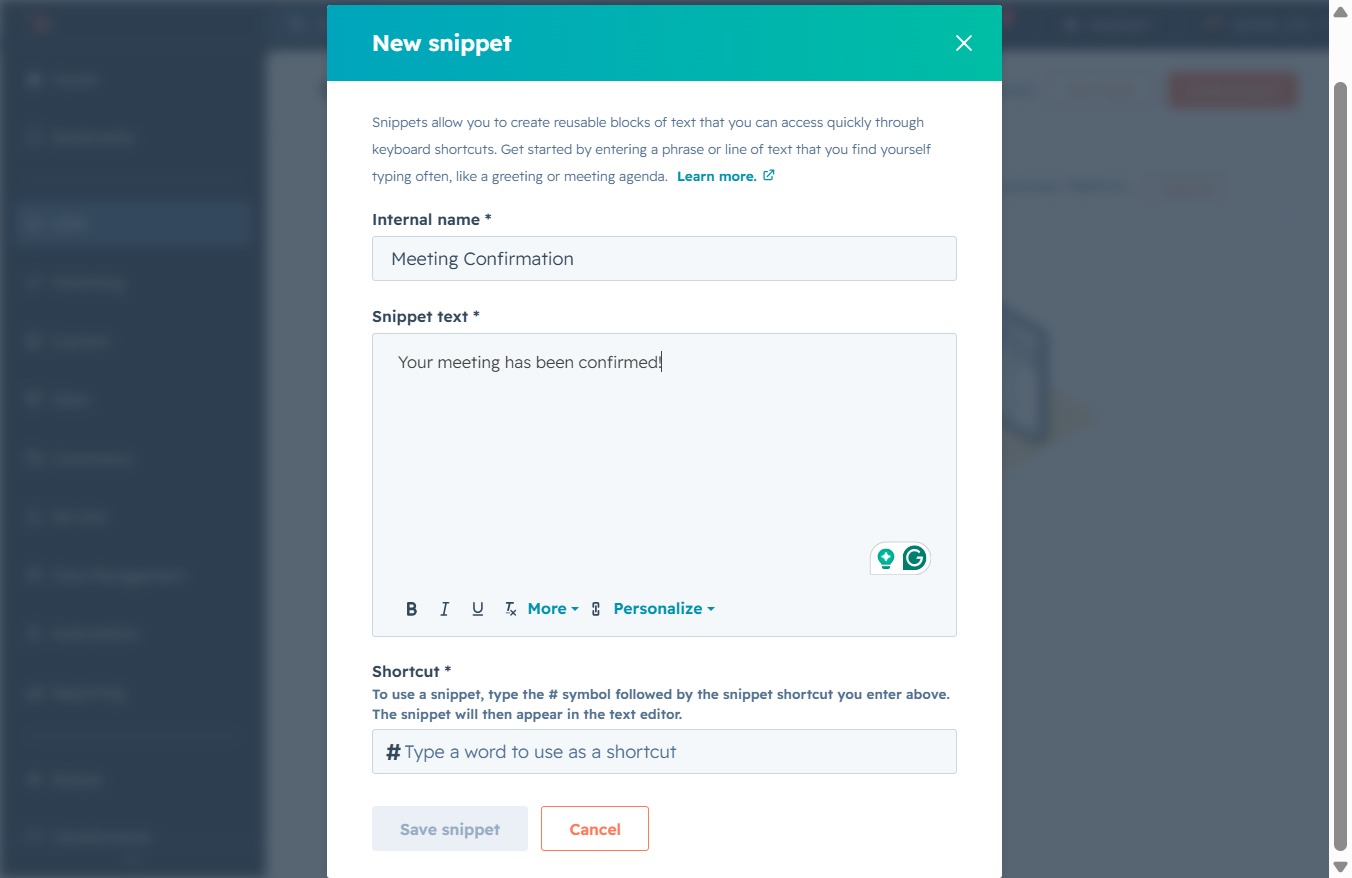
Enter 'meeting' in the Shortcut field to create a quick access keyword for your snippet. This will allow you to insert the snippet text faster when composing messages.

This action saves the contents of the snippet, allowing you to quickly access it later through keyboard shortcuts or during text editing.