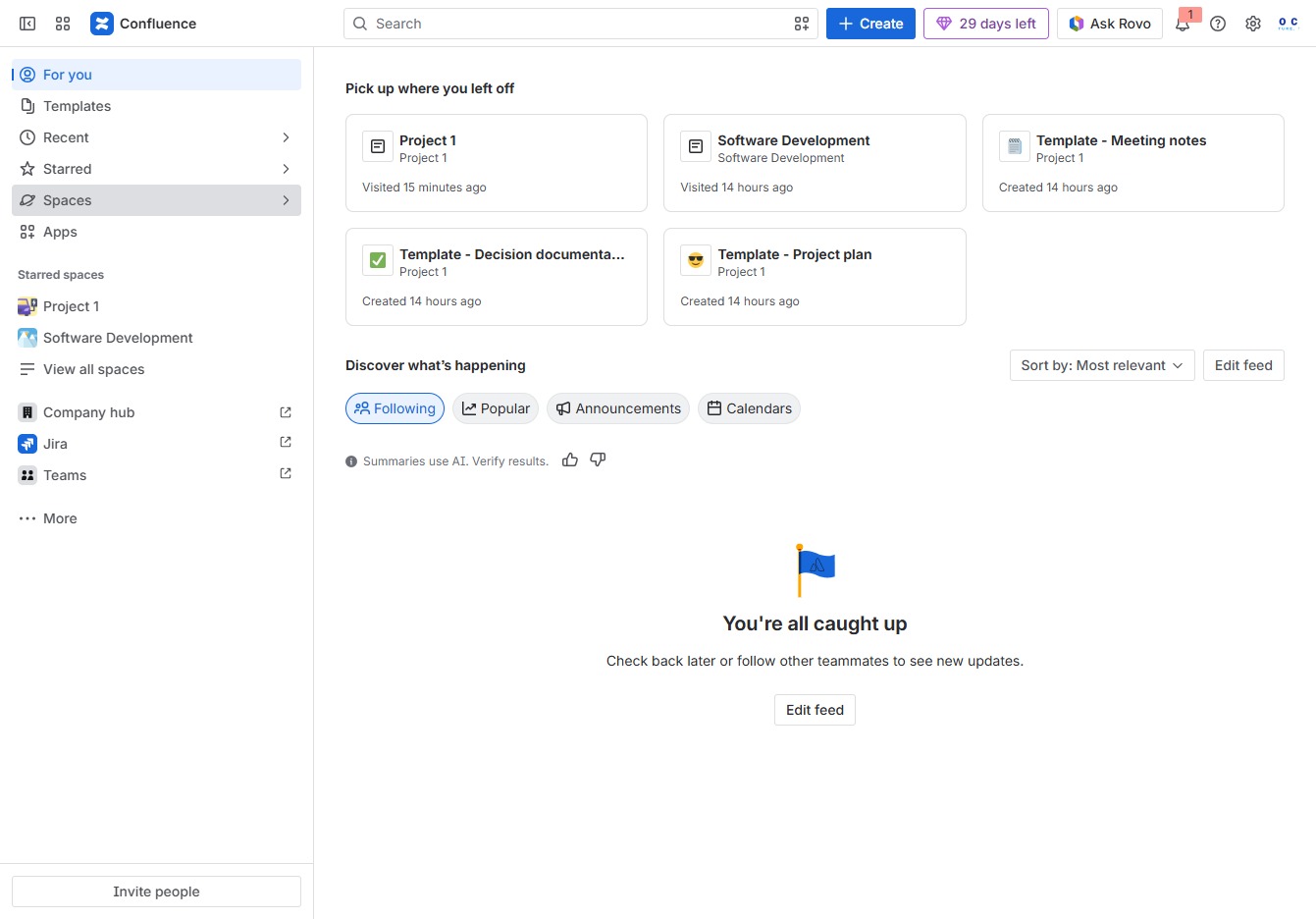
Click the Spaces link
This action will take you to the Spaces section where you can manage and view all your workspaces in Confluence.
Loading screenshot…
100%
This how-to guide walks you through the steps to create a private collaboration space in Confluence, from accessing the Spaces section to customizing settings and permissions…
 viktoria
This how-to guide walks you through the steps to create a private collaboration space in Confluence, from accessing the Spaces section to customizing settings and permissions tailored for your team. You'll learn how to establish a secure environment for effective teamwork, ensuring that only invited members have access to your new 'Sales' space.
This action will take you to the Spaces section where you can manage and view all your workspaces in Confluence.
This will open a form where you can initiate the creation of a new space in Confluence, allowing you to define its structure and purpose.

This action allows you to choose a specific type of space for collaboration, knowledge sharing, or custom configuration for your team.
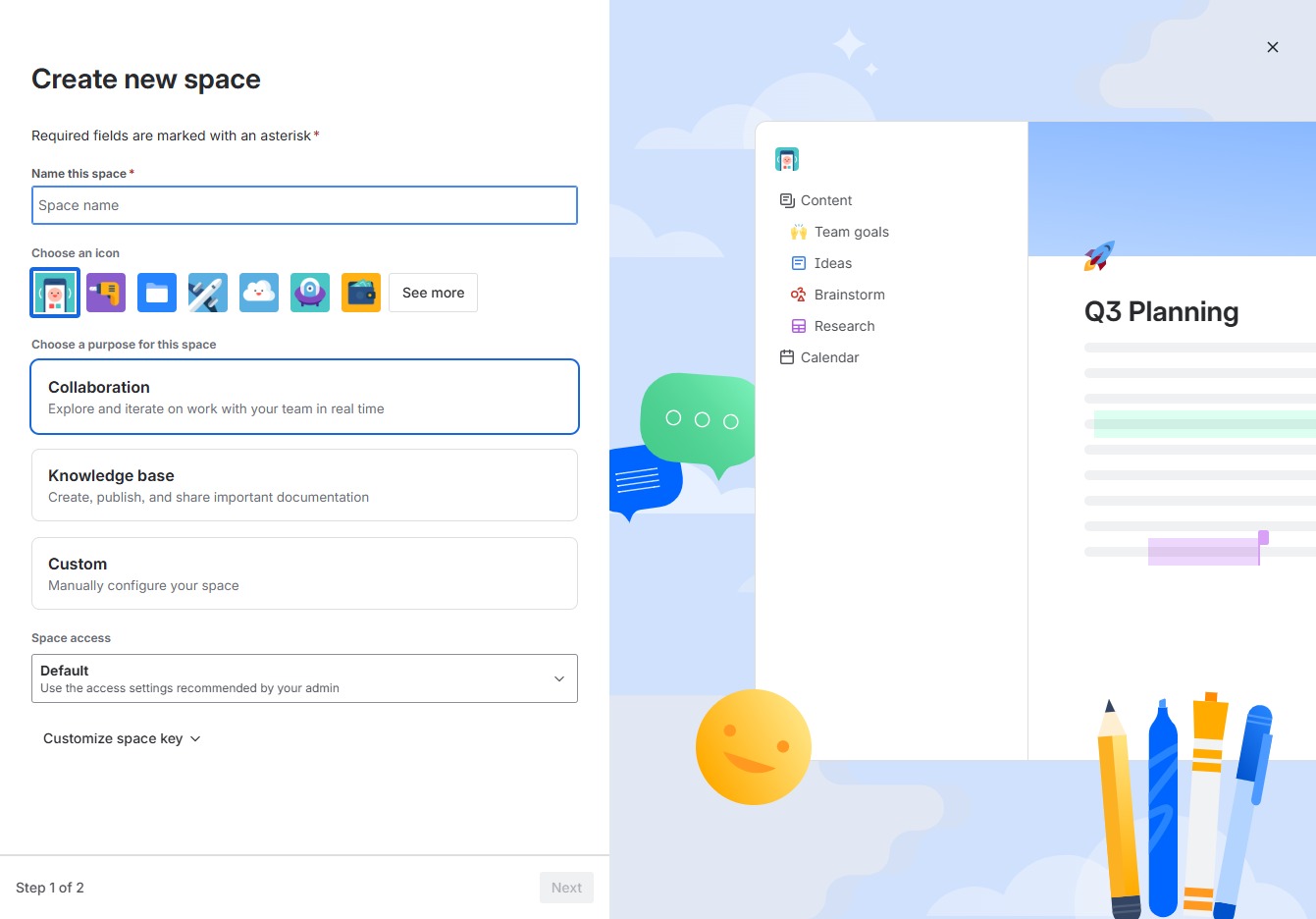
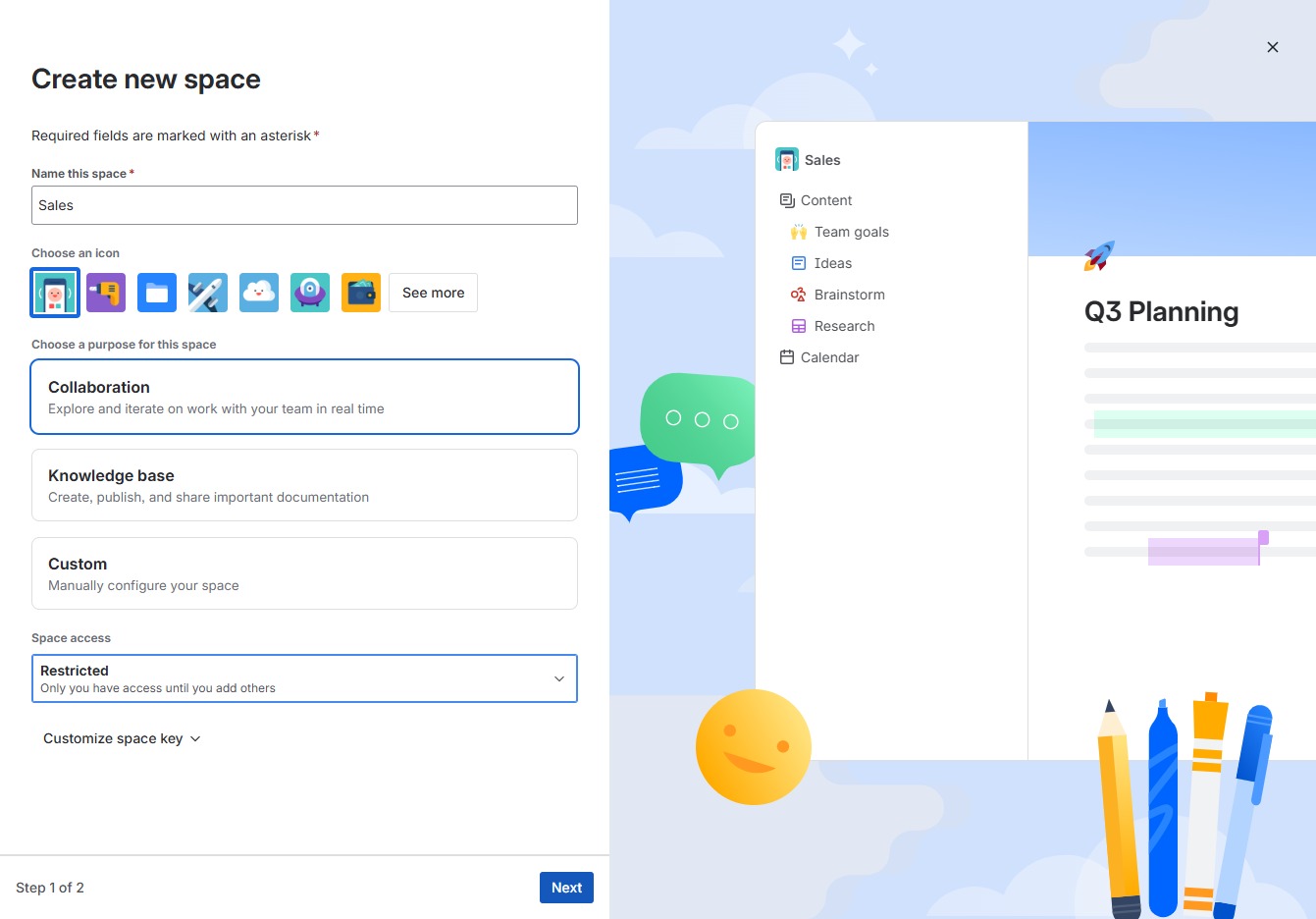
Enter 'Sales' in the 'Name this space' field to designate the purpose of the new space you are creating for your team. This name will help identify the space in your workspace.
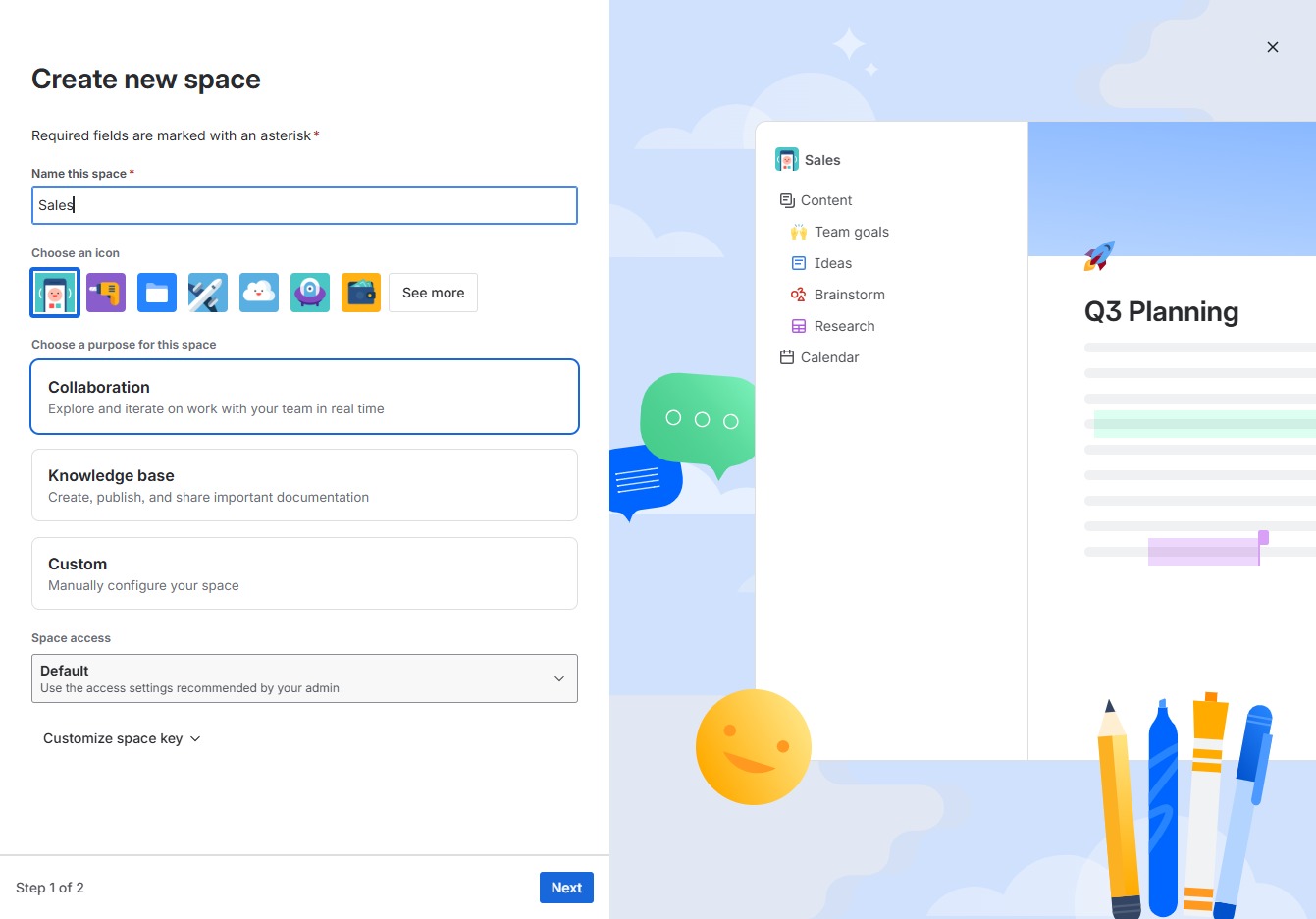
This action opens the space creation interface where you can customize the name and settings for your new space, allowing collaborative work for your team.
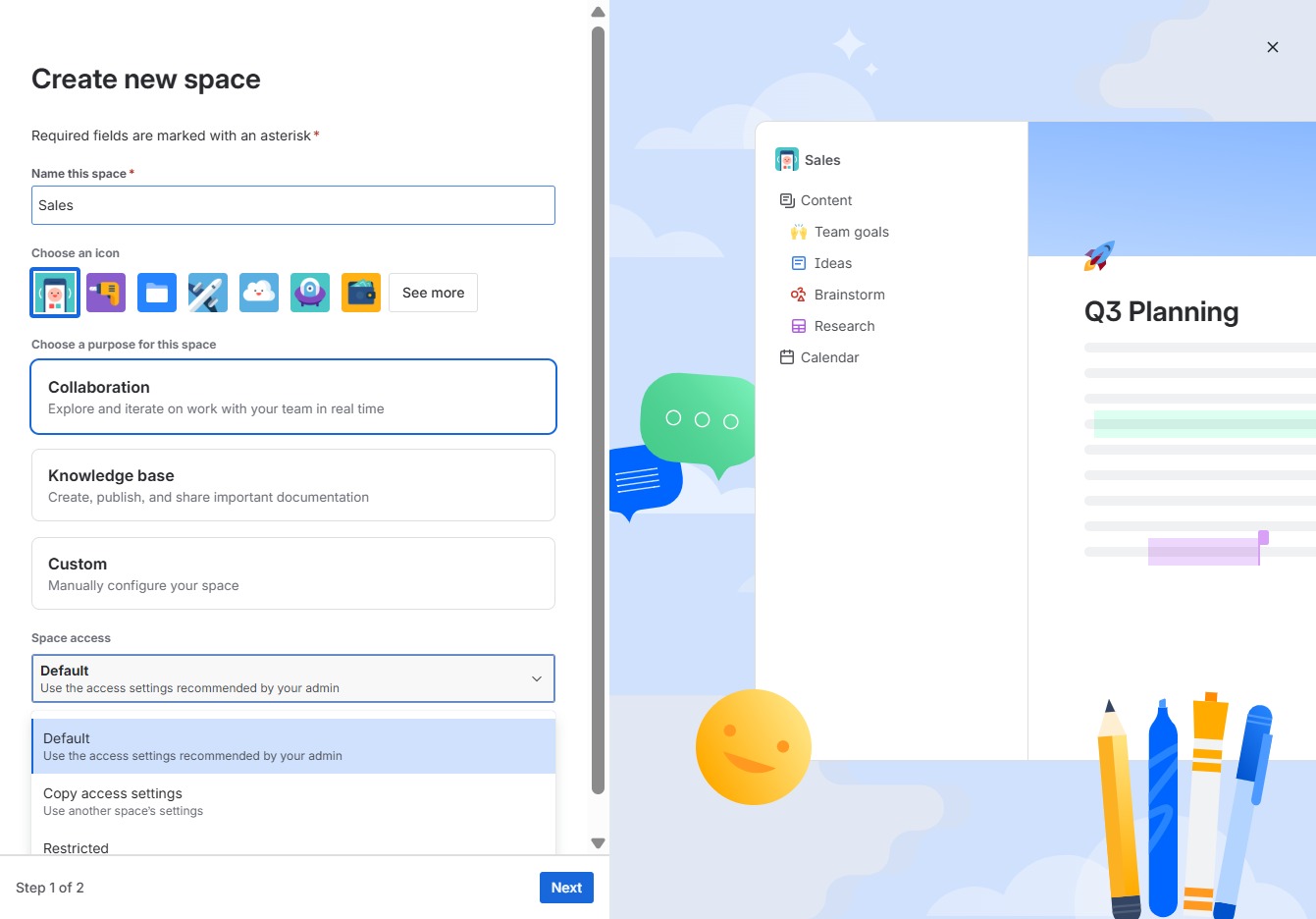
Clicking on the message 'Only you have access until you add others' allows you to adjust the access settings for your space, enabling you to invite team members and manage their permissions.

This will take you to the next step in creating your new space, where you can further configure your settings.
This action finalizes the setup of your collaboration space, enabling the features listed, such as live docs and visual brainstorming, for your team to use.
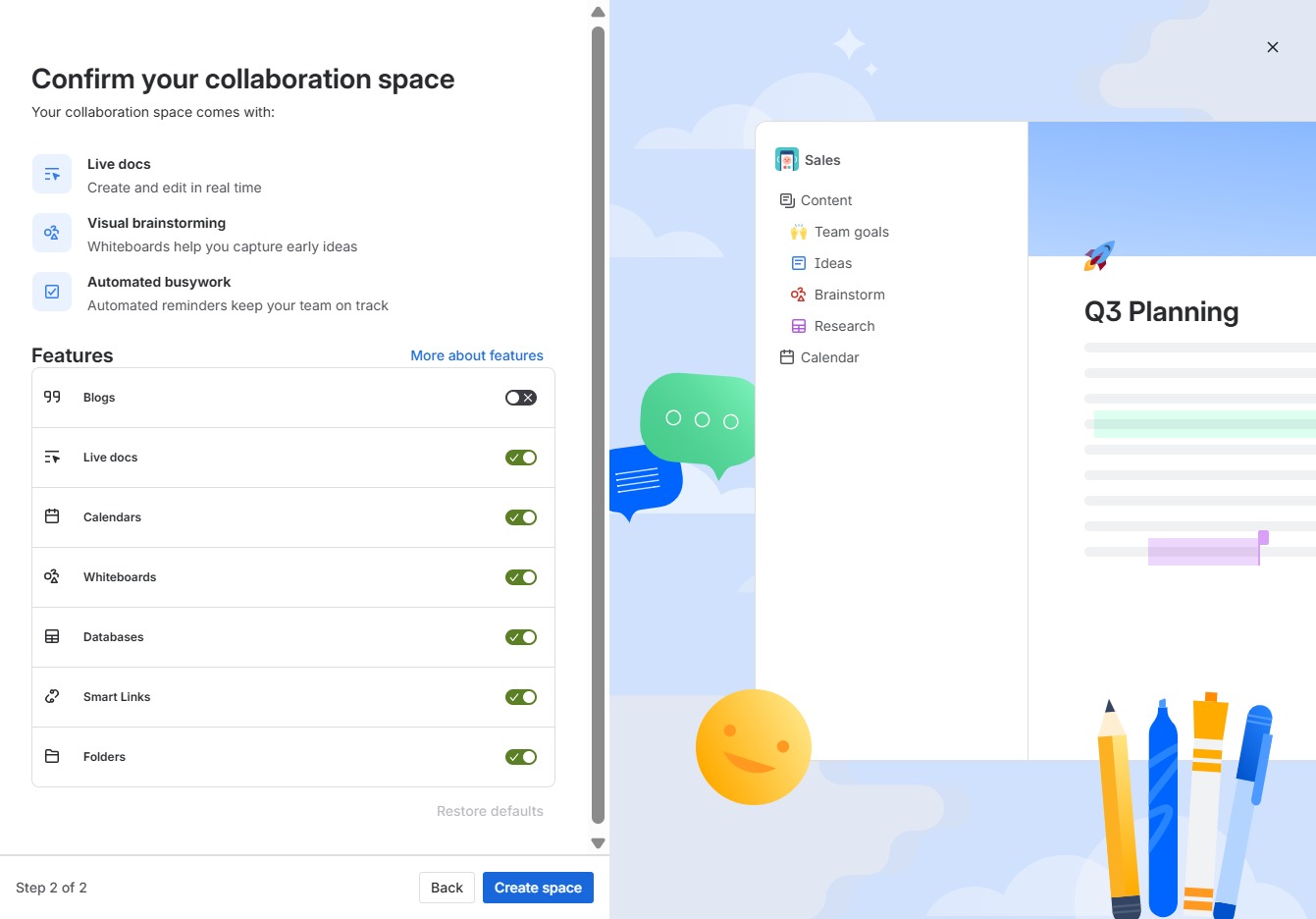
This action will finalize the setup of your collaboration space and enable the selected features for your team, allowing you to start working together effectively.
