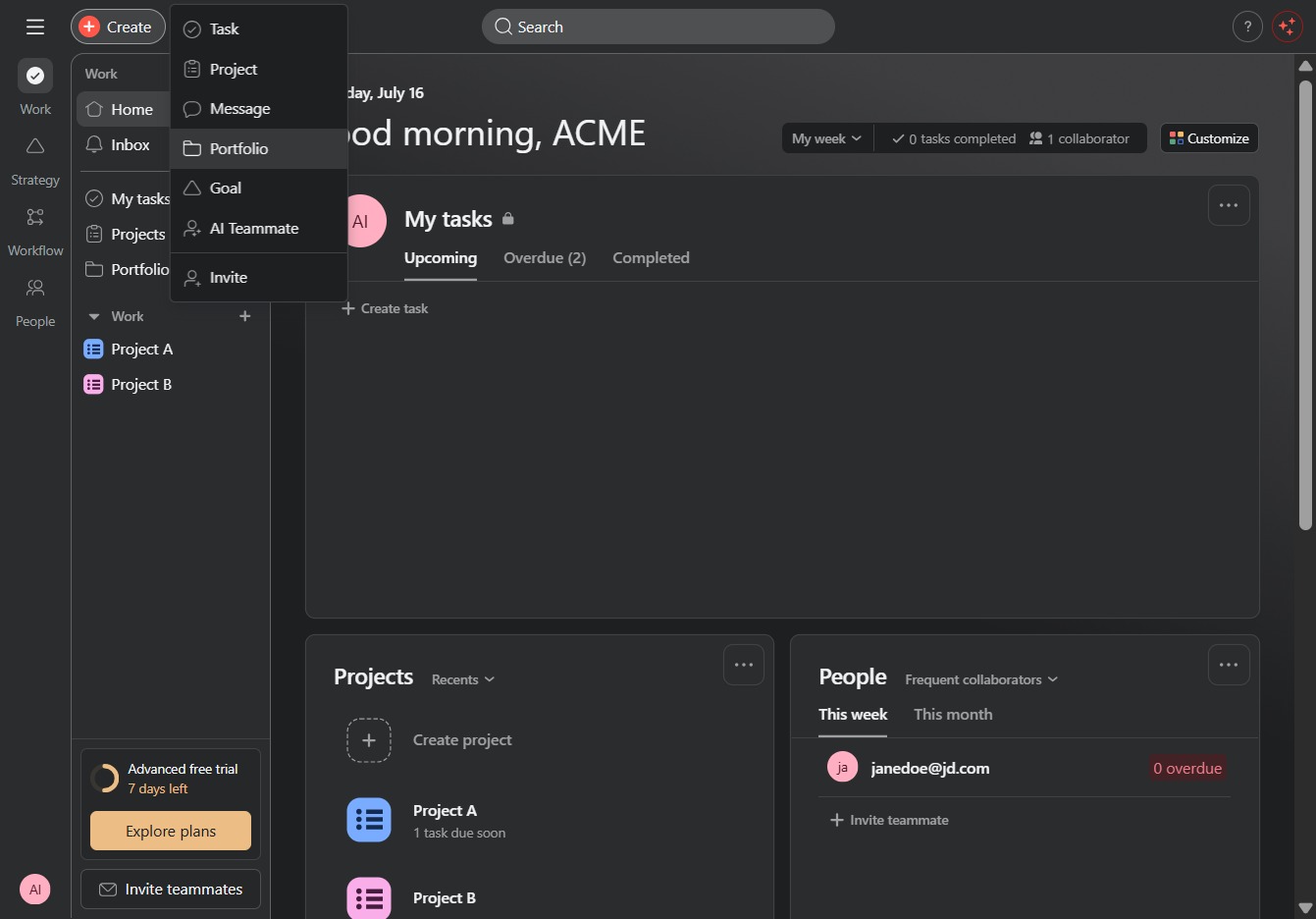
Click the Create button
Clicking the Create button allows you to initiate the process of adding a new task or project within your workspace.

Loading screenshot…
100%
Learn how to create a portfolio step-by-step by initiating the process in your workspace, naming your portfolio, and configuring its settings.
 viktoria
Learn how to create a portfolio step-by-step by initiating the process in your workspace, naming your portfolio, and configuring its settings. This guide will help you efficiently manage all your projects in the Portfolio section, ensuring a streamlined setup.
Clicking the Create button allows you to initiate the process of adding a new task or project within your workspace.
This will direct you to the Portfolio section where you can view and manage all your projects.
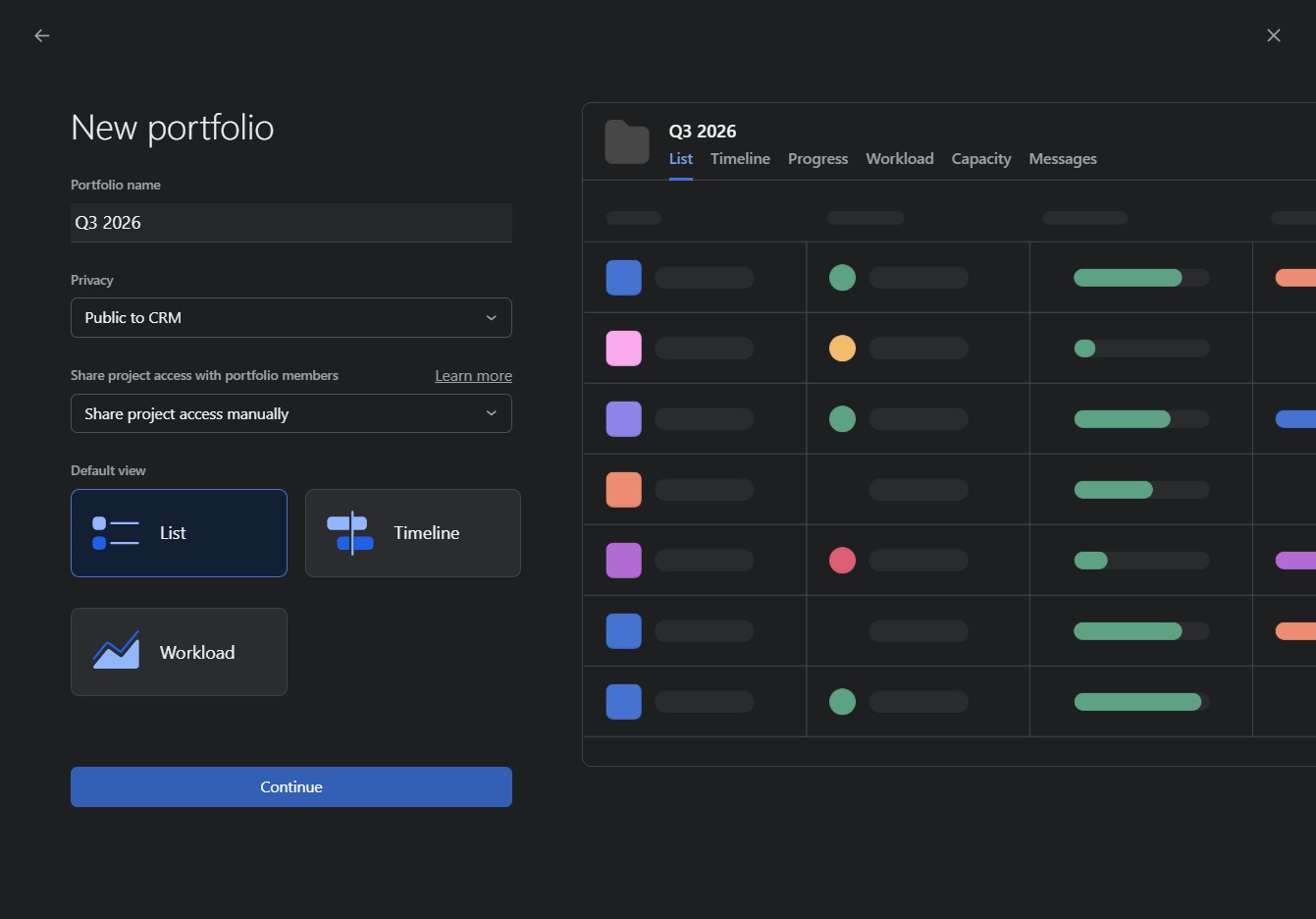
Enter 'Q3 2026' into the Portfolio name field to designate the name of your new portfolio. This name will be used to identify your project within the system.

Clicking 'Continue' will finalize the creation of your new portfolio and take you to the next setup step, where you can further configure your portfolio settings.
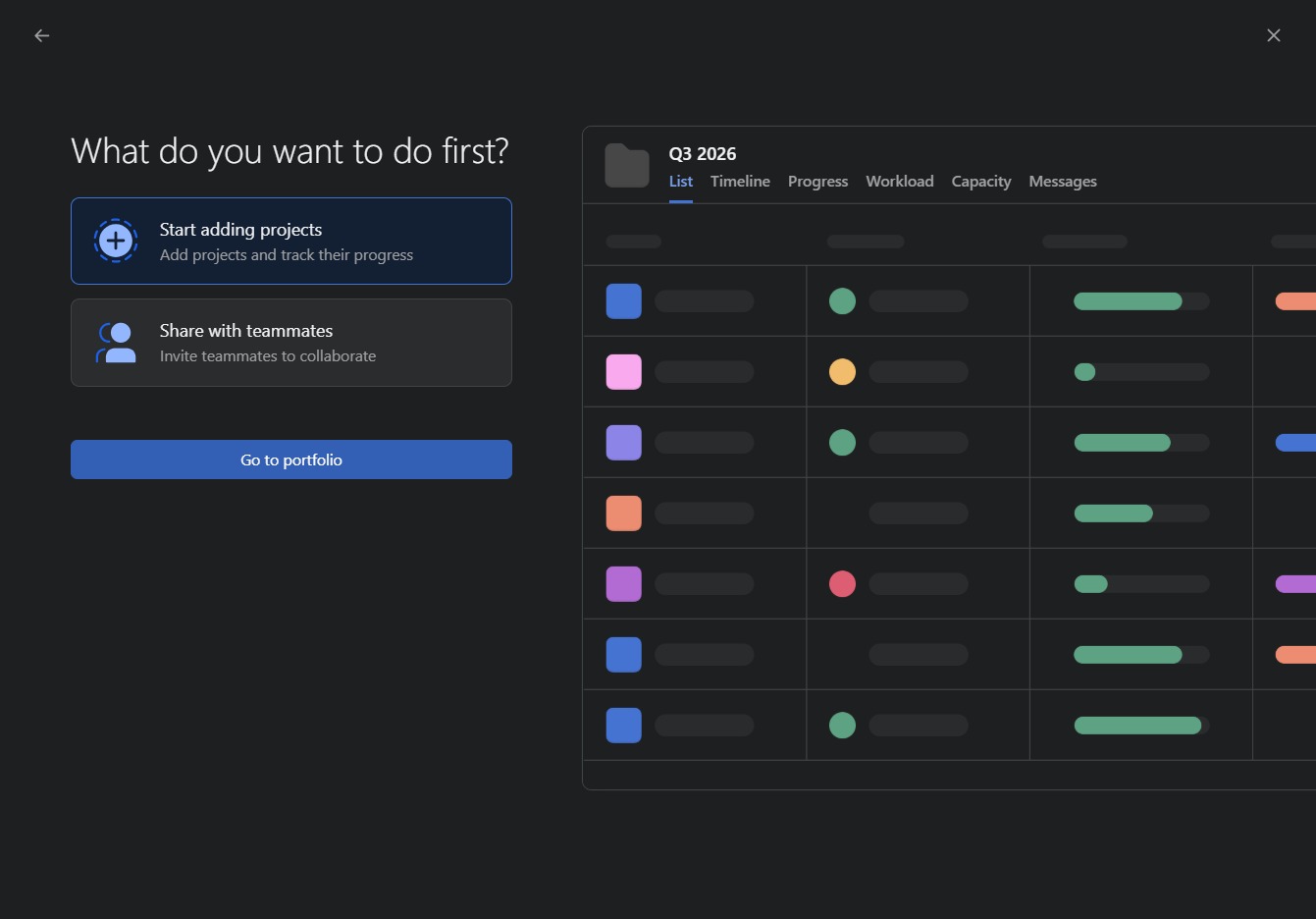
By clicking this link, you will navigate to your portfolio section, where you can view and manage your projects efficiently.