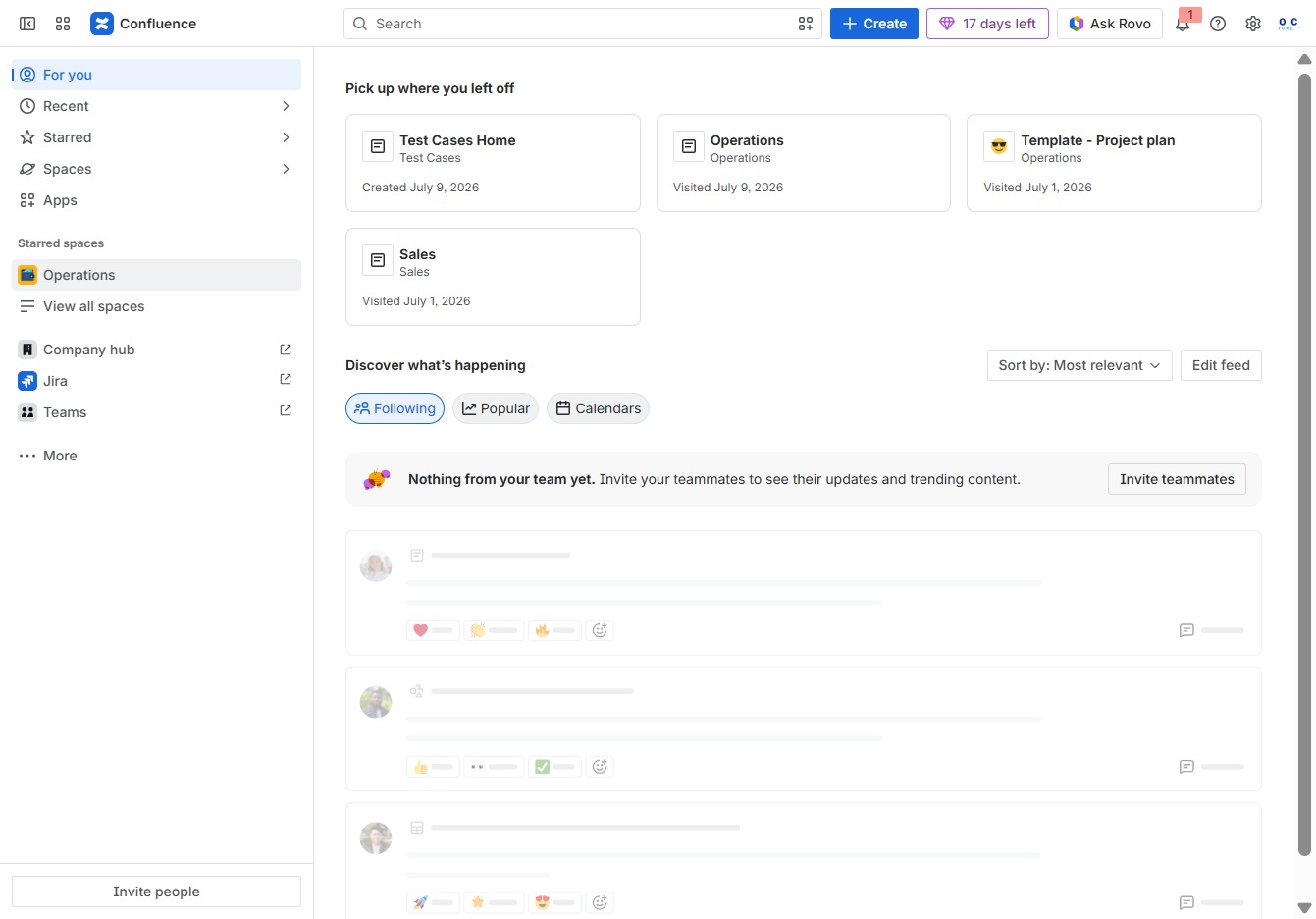
Click the Operations section
Clicking on the Operations section will display relevant operational documents and updates, allowing you to manage and review tasks effectively.
Loading screenshot…
100%
In this how-to guide, you'll learn to create a new page within the Operations space in Confluence, from navigating the menu to organizing content efficiently and publishing your…
 viktoria
In this how-to guide, you'll learn to create a new page within the Operations space in Confluence, from navigating the menu to organizing content efficiently and publishing your document. Follow the step-by-step process to effectively manage and share your operational tasks and notes.
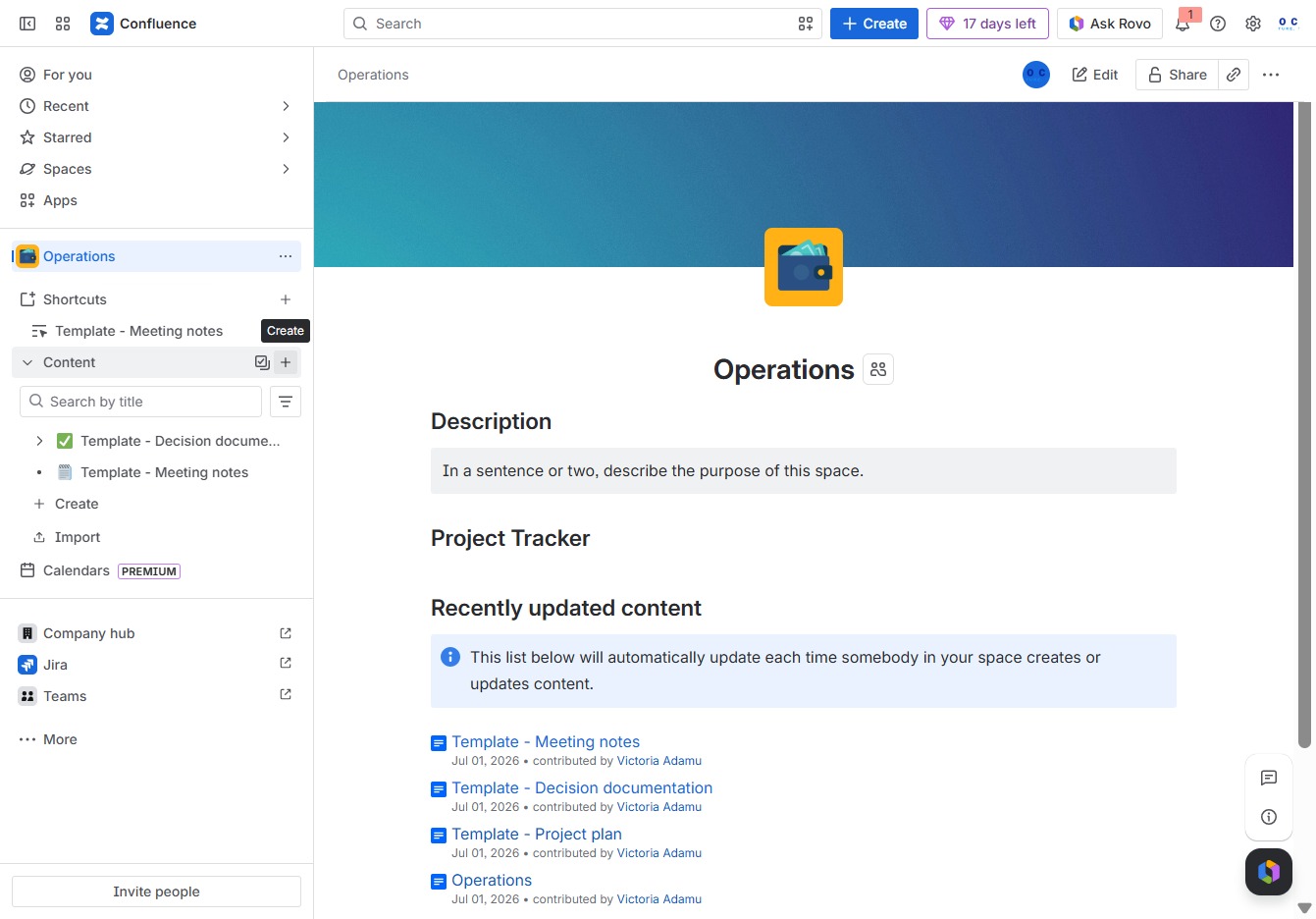
Clicking on the Operations section will display relevant operational documents and updates, allowing you to manage and review tasks effectively.
This action opens a menu where you can select the type of content you wish to create in your Confluence space, such as a document or meeting notes.
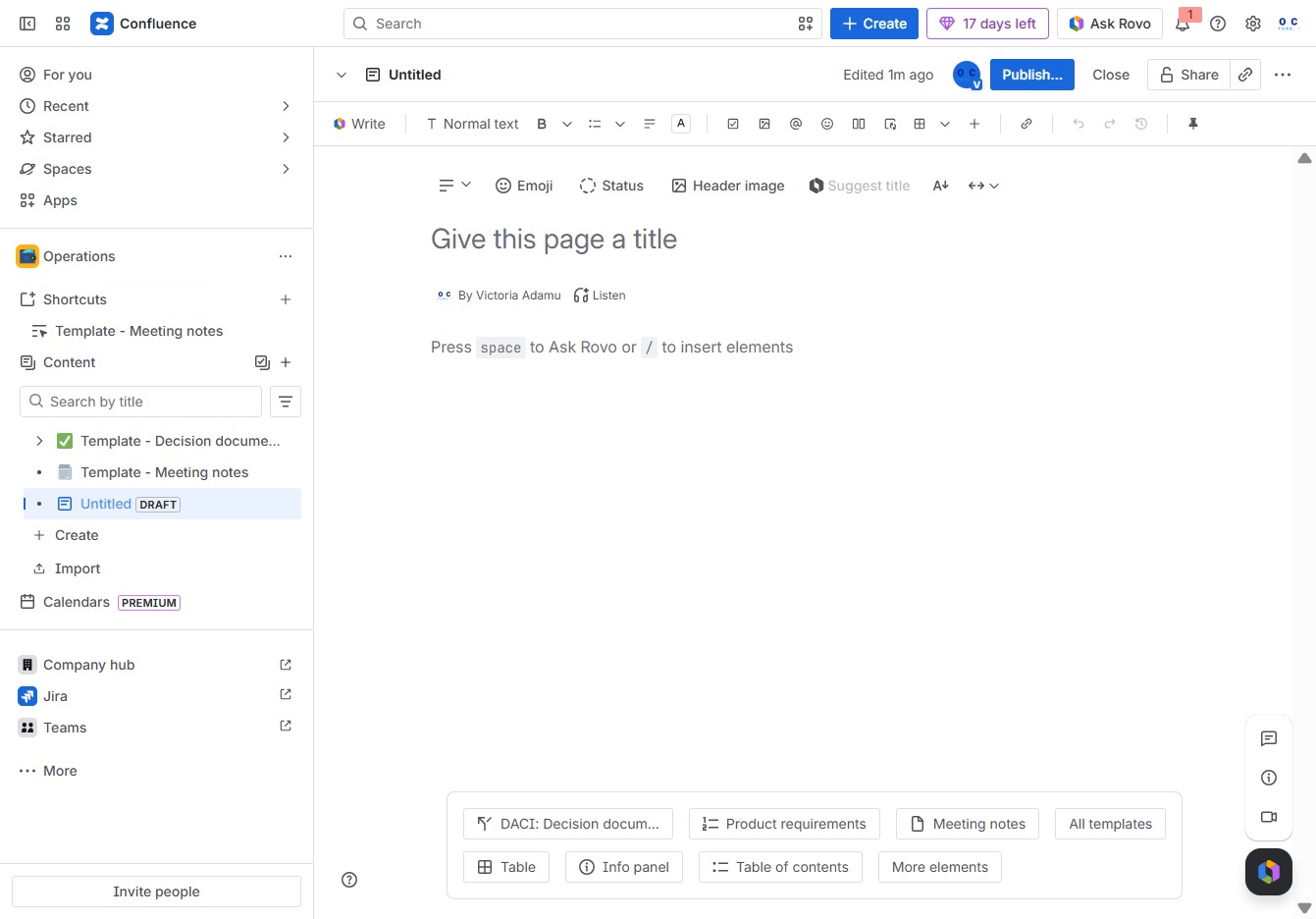
By clicking on the Page option, you will be able to create a new page within the Operations space in Confluence, enabling you to add and organize content efficiently.

Enter a descriptive title for your page in the 'Give this page a title' field to clearly indicate its content.
Enter 'Meetings' in the 'Give this page a title' field to designate the purpose of your page. This will help in organizing and identifying your content within the Confluence space.

This action opens options to include additional elements such as templates or meeting notes in your document.

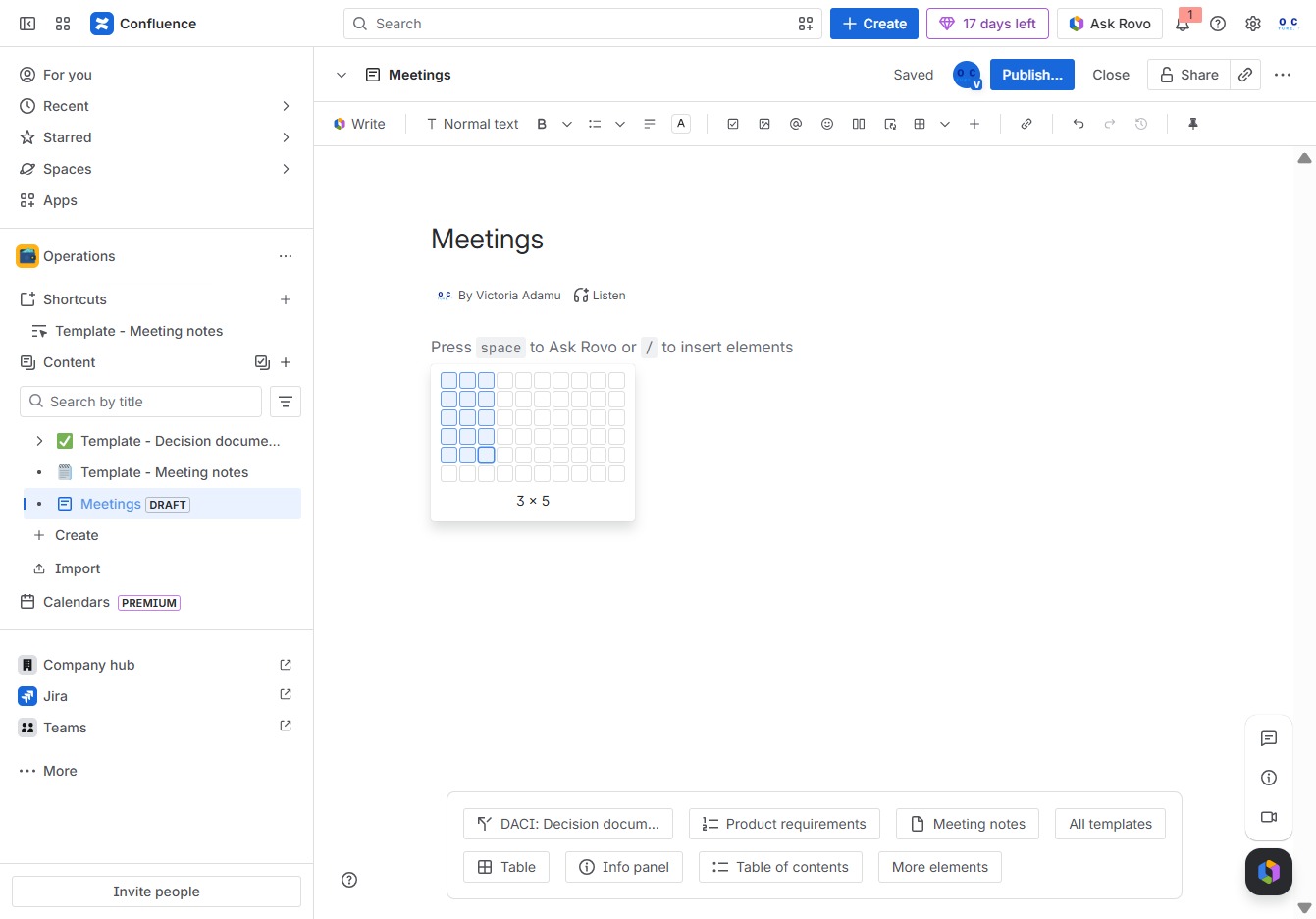
This action will insert a table into your document, allowing you to organize information in a structured format within your meeting notes.

This will insert a 3 by 5 grid into your document, allowing you to organize content in a structured format.
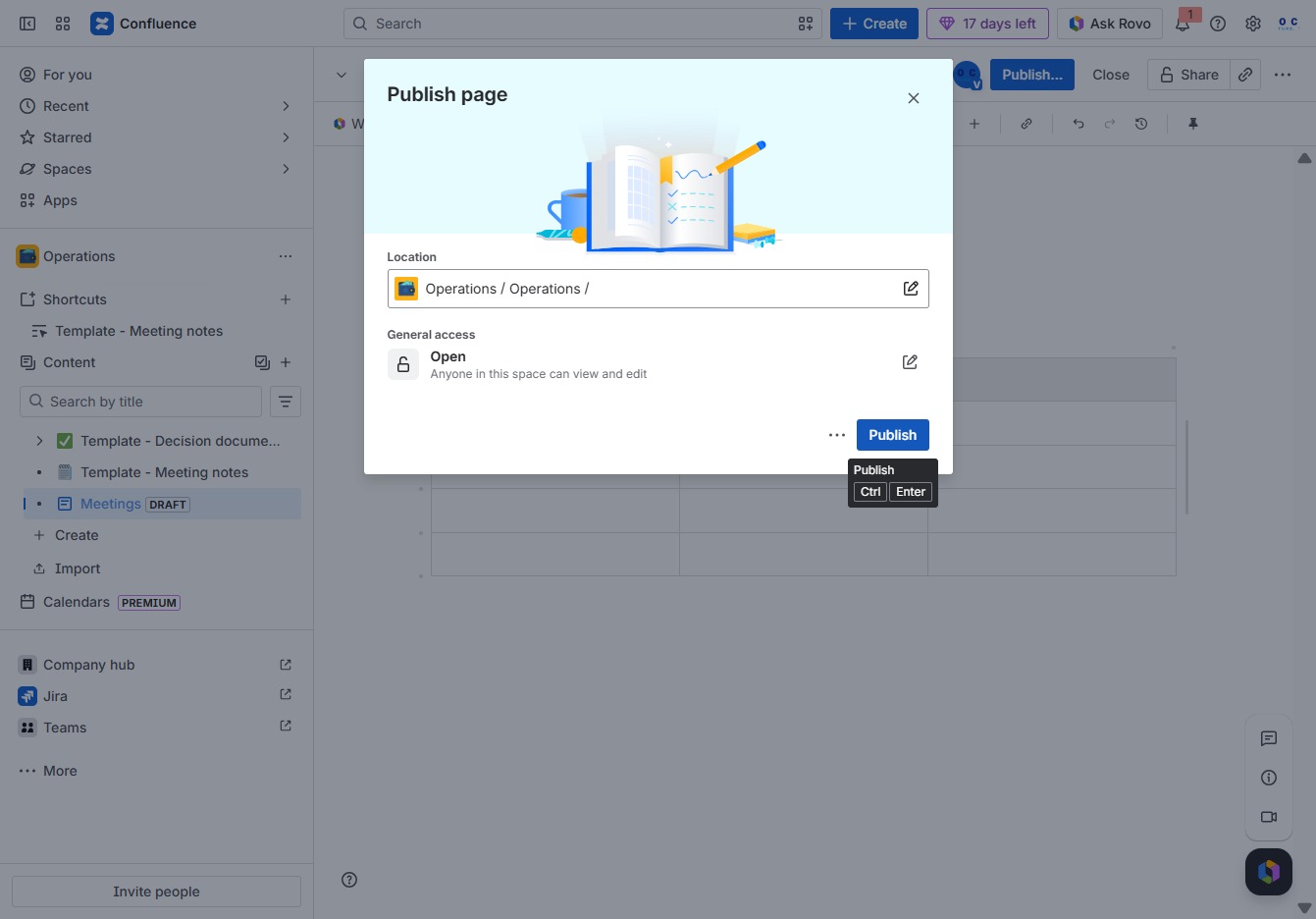
Clicking this button will publish your current document changes to the Meetings page, making them visible to other users.
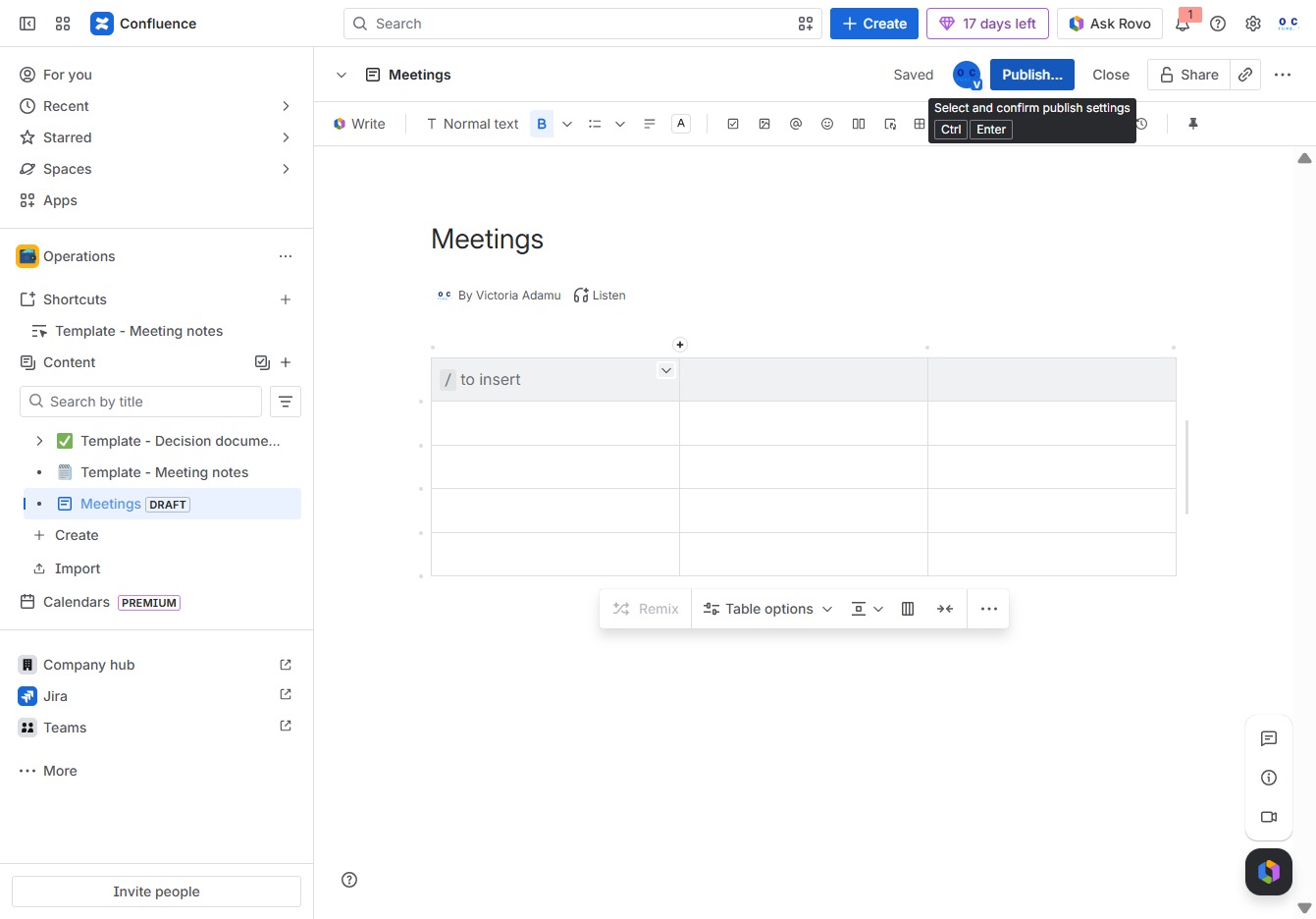
This action will finalize your changes and make the page visible to users with access in the specified location. Ensure all content is complete before proceeding.