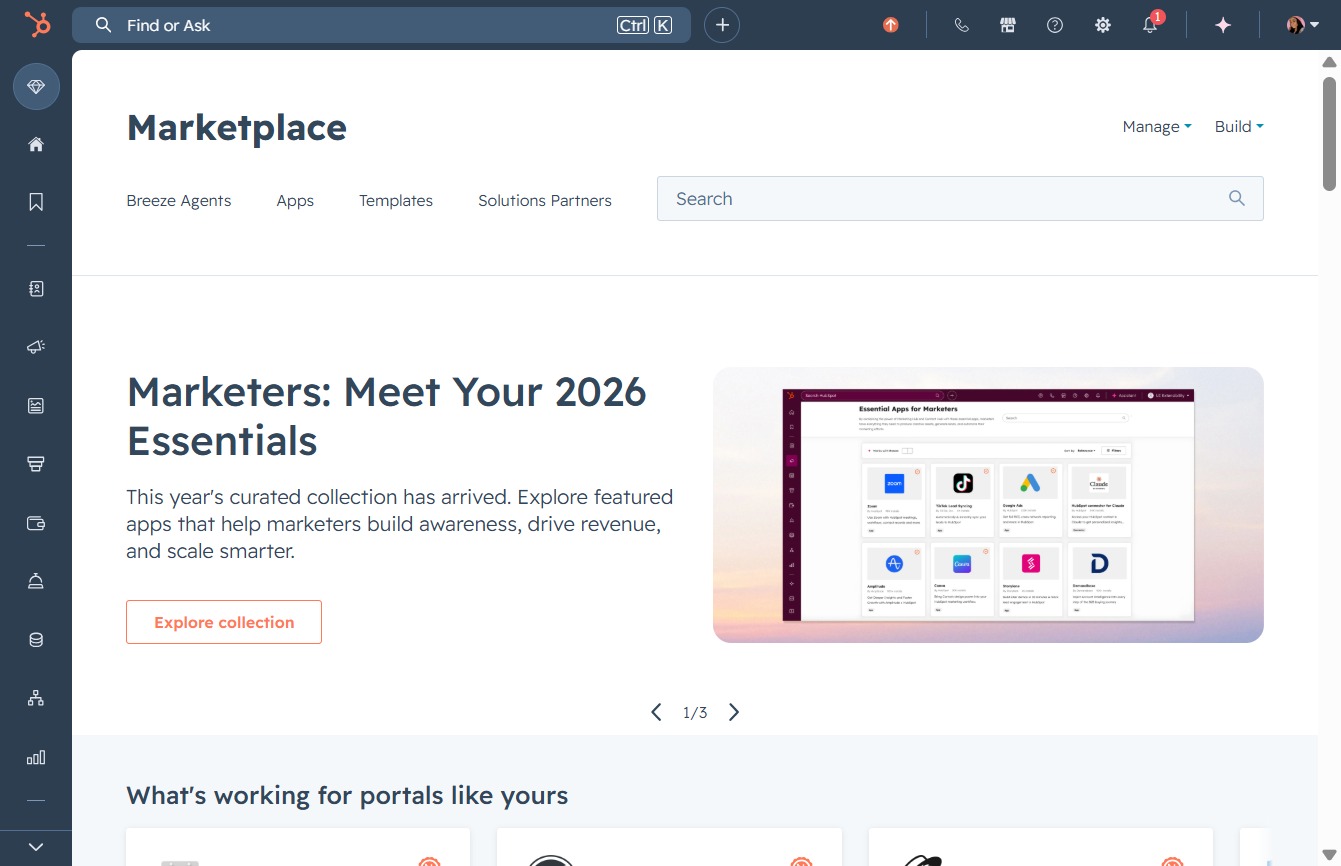
Click the Marketplace button
Clicking the Marketplace button opens the marketplace section, where you can explore products and services available for your account.
Loading screenshot…
100%
Connect HubSpot to Zapier for automating deal updates by configuring the 'Deal Property Change' trigger, facilitating seamless integration with thousands of applications.
 viktoria
Connect HubSpot to Zapier for automating deal updates by configuring the 'Deal Property Change' trigger, facilitating seamless integration with thousands of applications.
Clicking the Marketplace button opens the marketplace section, where you can explore products and services available for your account.
Clicking the HubSpot Marketplace link will direct you to a section where you can explore various integrations and add-ons available for your HubSpot account.

By clicking here, you can begin entering keywords or phrases to search for specific apps and templates within the Marketplace.
Entering 'zapier' in the Search field will filter the marketplace results to show relevant applications and connectors related to Zapier, allowing you to easily find and select the desired tool.

This action will open the Zapier integration page, allowing you to manage and create automations between various applications connected to your account.
This initiates the installation process for the Zapier app, allowing you to connect HubSpot with 8,000+ applications.

Initiating this action will allow you to integrate HubSpot with various applications through Zapier, enabling seamless automation and enhanced workflow capabilities.

Select the appropriate event from the dropdown menu to proceed with configuring your HubSpot connection.
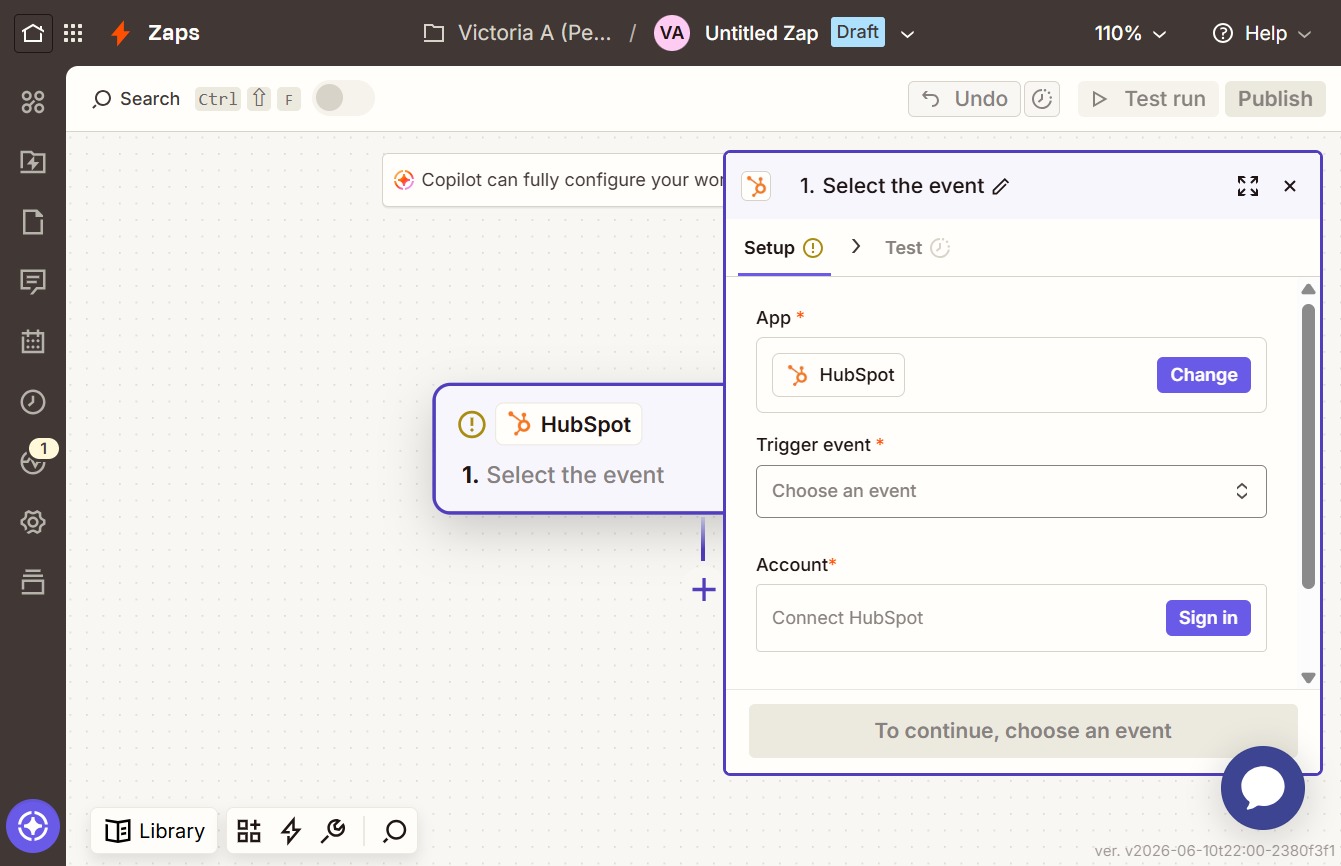
This action selects the 'Deal Property Change' trigger, which activates when a specified property is provided or updated on a Deal in HubSpot.
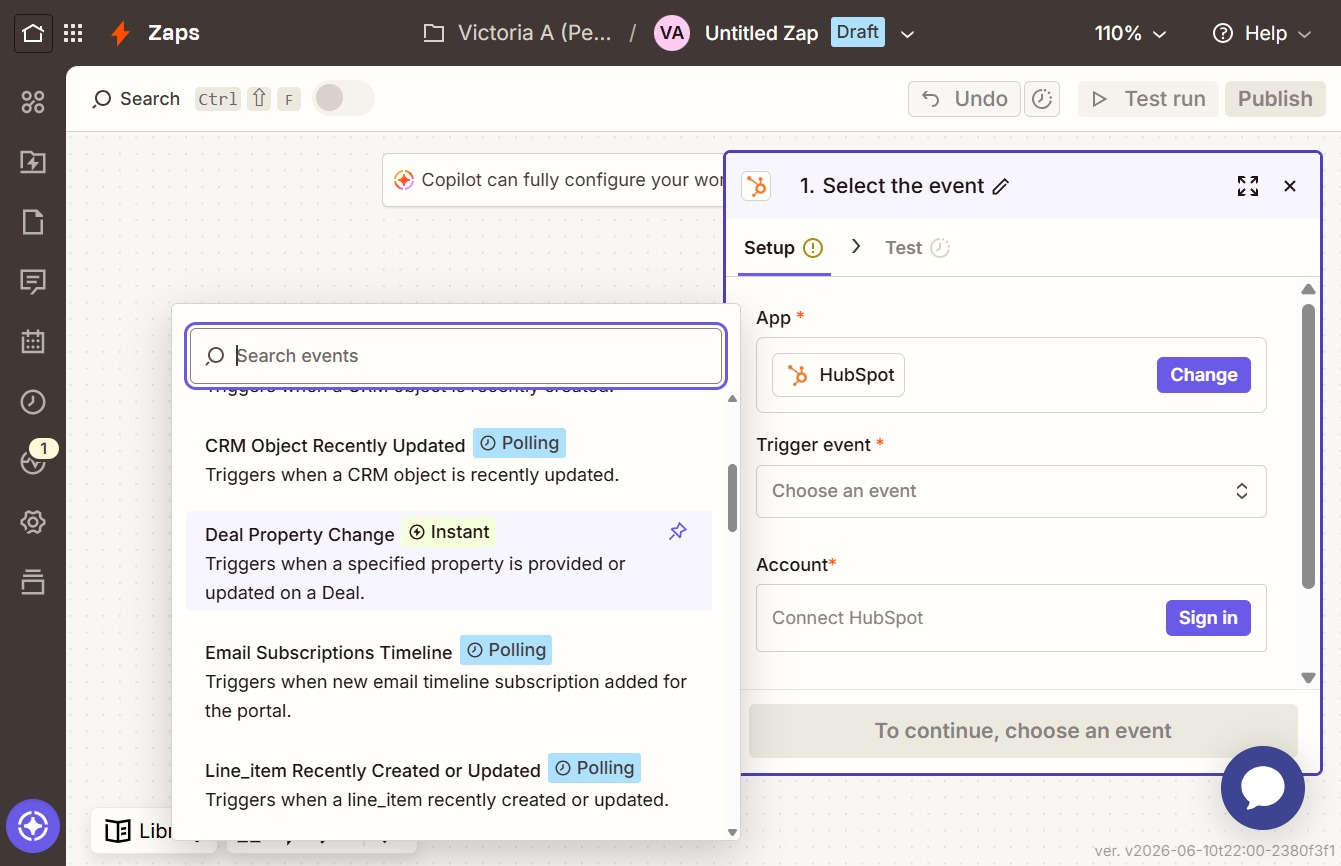
By clicking the Sign in button, you will be prompted to enter your HubSpot account credentials to connect your account and proceed with configuring the Deal Property Change trigger.

This will initiate the connection process to your HubSpot account via Zapier. Confirm your choice to link the two applications for automation.

Selecting this option allows you to connect a specific account from the list to integrate with HubSpot through Zapier.
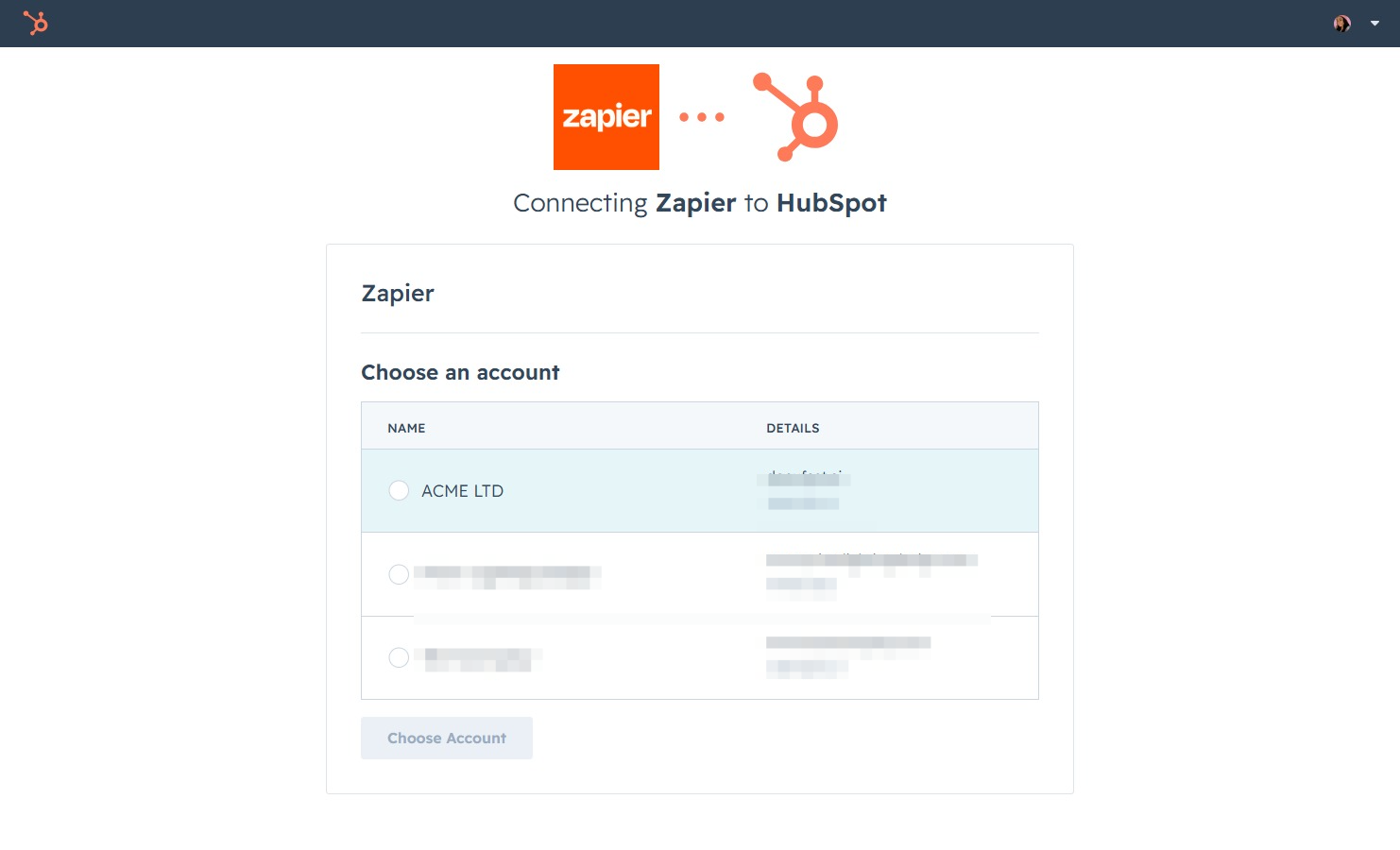
Select an account from the list to connect Zapier with HubSpot. This action will enable further configuration for your integration.

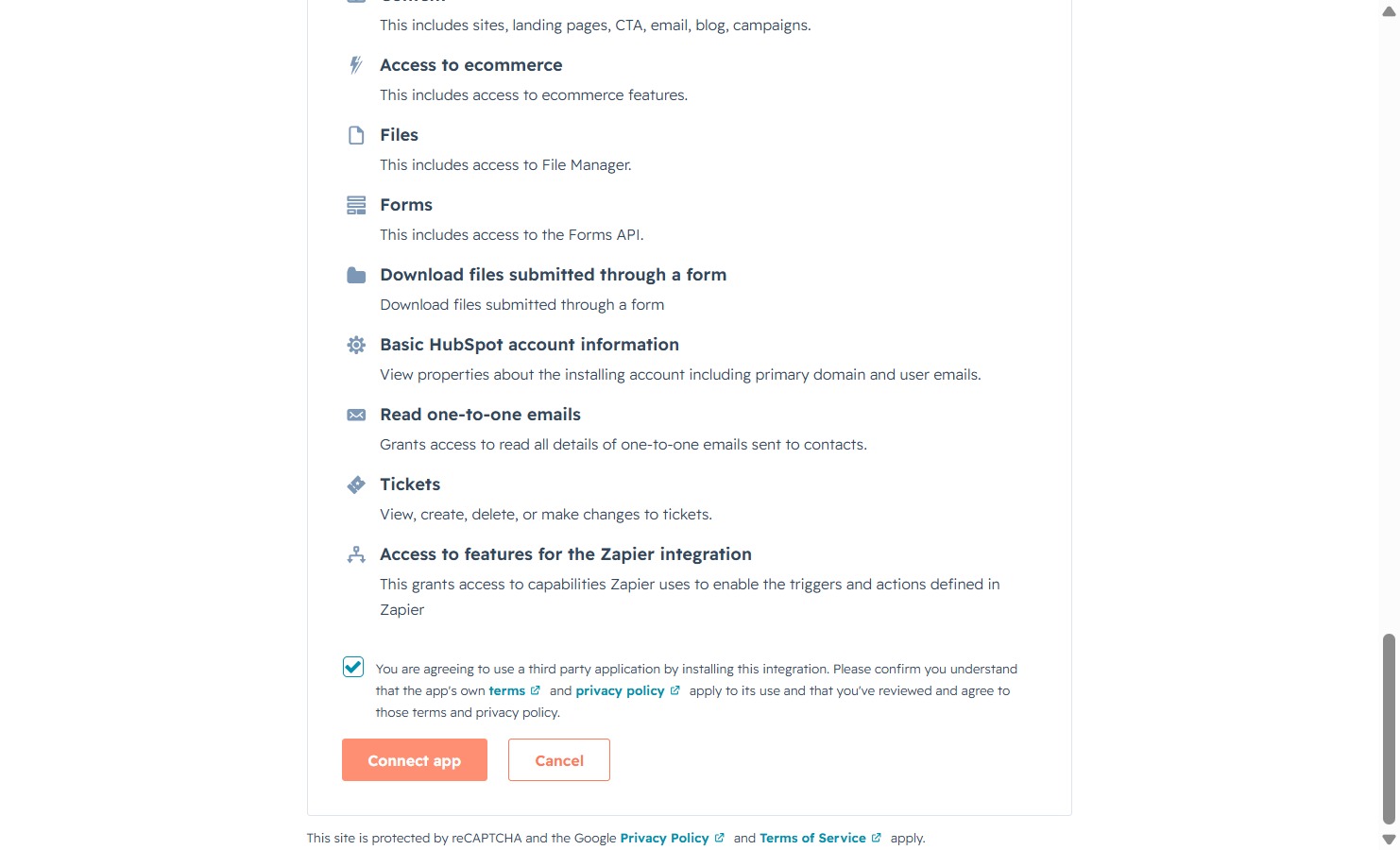
This action allows you to access files that have been submitted through various forms you've created, facilitating easy management of user uploads.

This action initiates the connection process for the application, allowing you to integrate with other services and enable additional features.