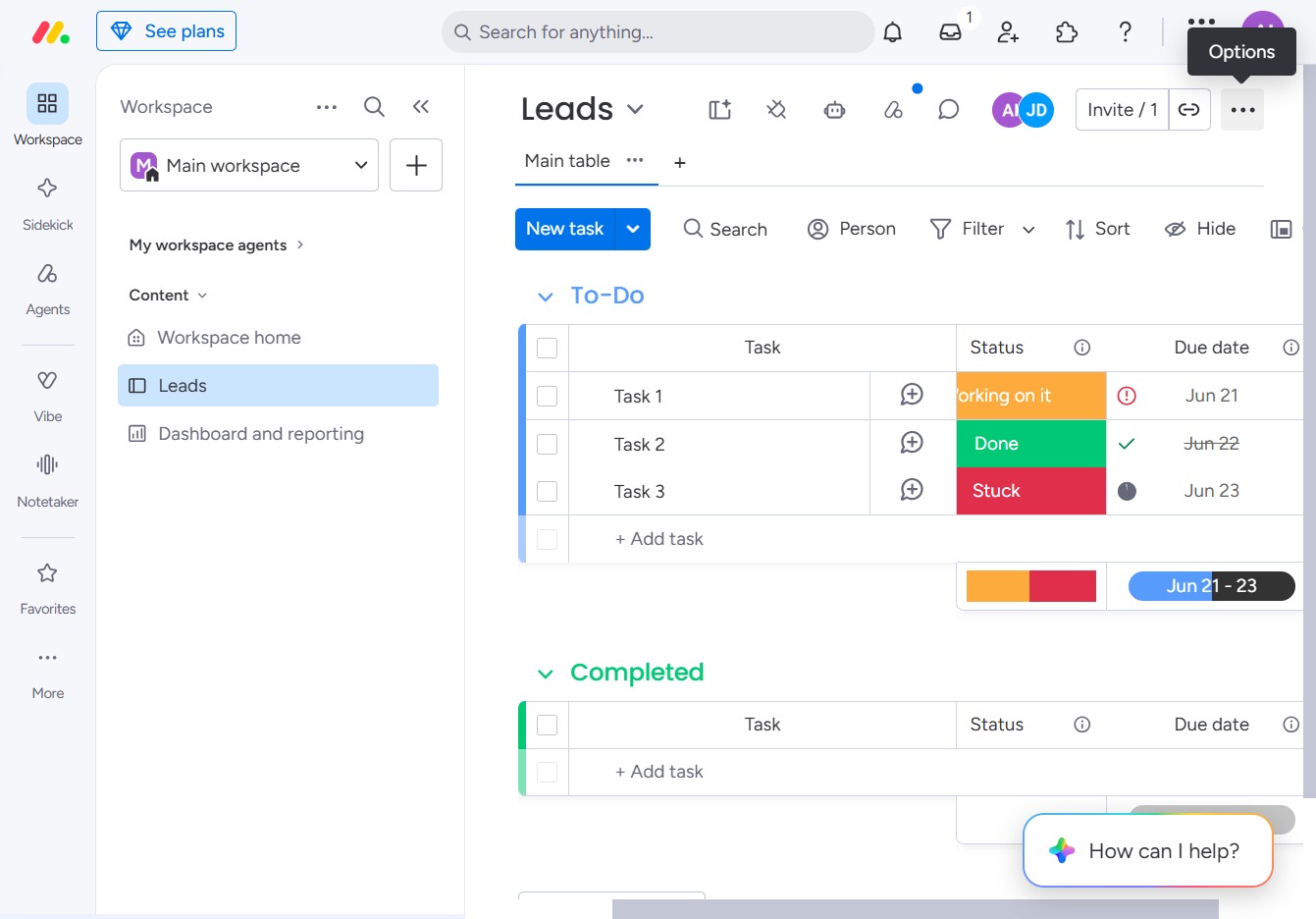
Click the BoardLeads section
This will take you to the Leads area where you can manage and view your lead information and activities.

Loading screenshot…
100%
In this how-to guide, you'll learn step-by-step how to configure board permissions within your workspace.
 viktoria
In this how-to guide, you'll learn step-by-step how to configure board permissions within your workspace. By following the instructions, you'll manage access and collaboration settings, ensuring only the designated users can edit specific tasks on your board.
This will take you to the Leads area where you can manage and view your lead information and activities.
Clicking the Options button will open a dropdown menu with additional settings and functionalities related to your Leads view, allowing you to customize your tasks and manage your workspace settings.
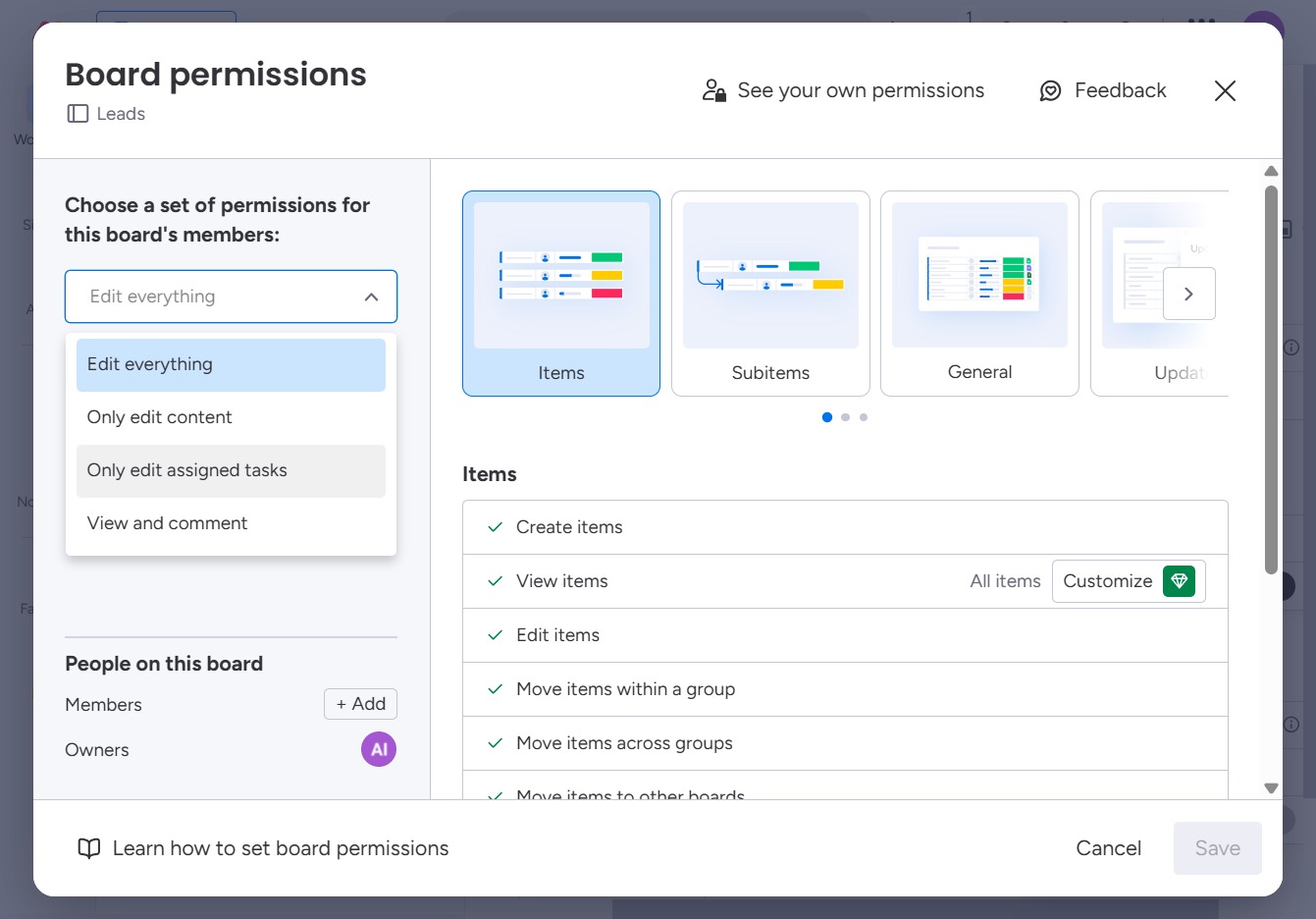
By clicking on the Permissions option, you will access settings that allow you to manage access and collaboration controls for the current board.

Clicking the Customize button will allow you to modify the permissions settings for the selected items within the board permissions interface.

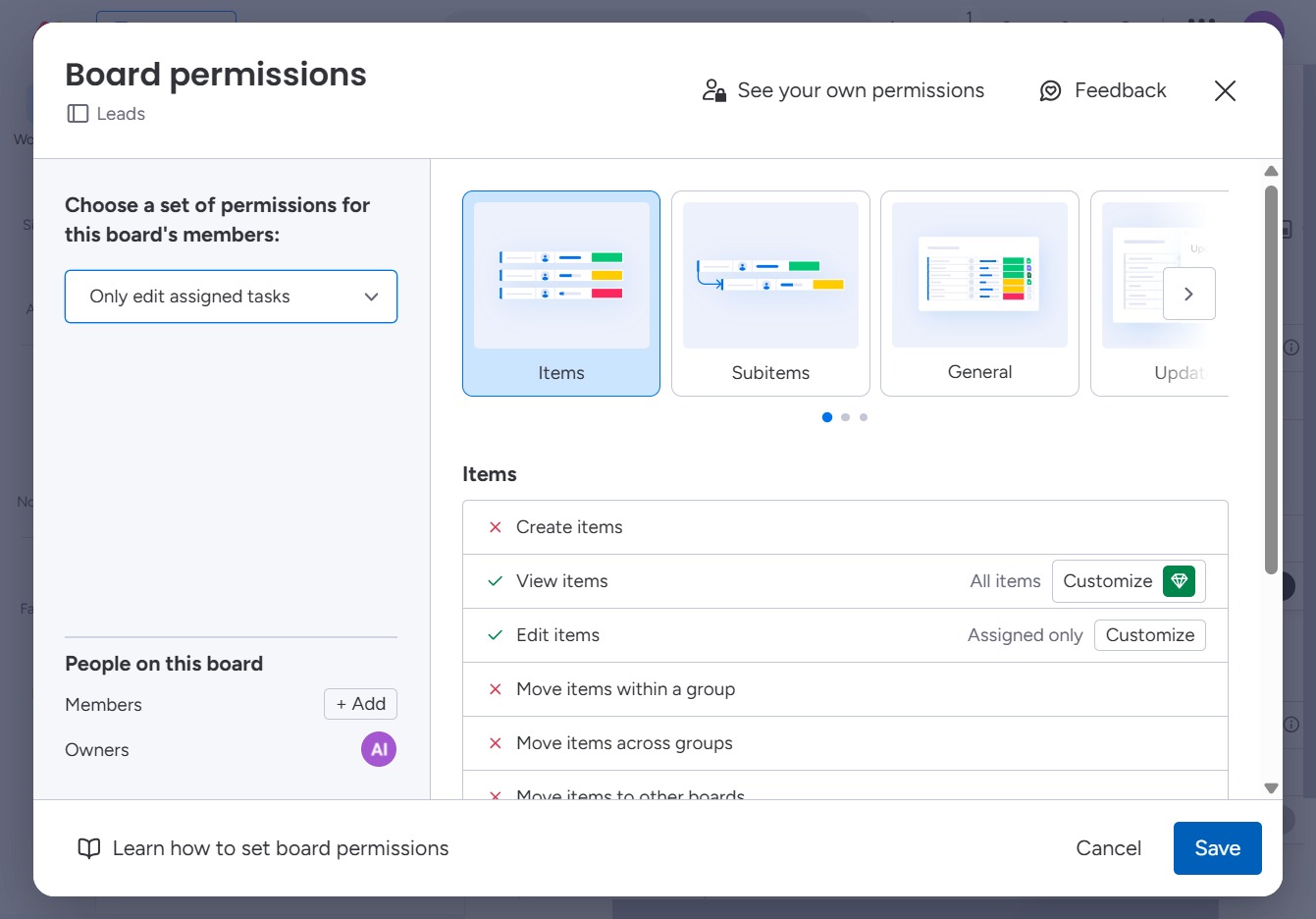
Selecting this option restricts editing permissions to only those tasks you are assigned to, ensuring that you do not make changes to tasks assigned to others.
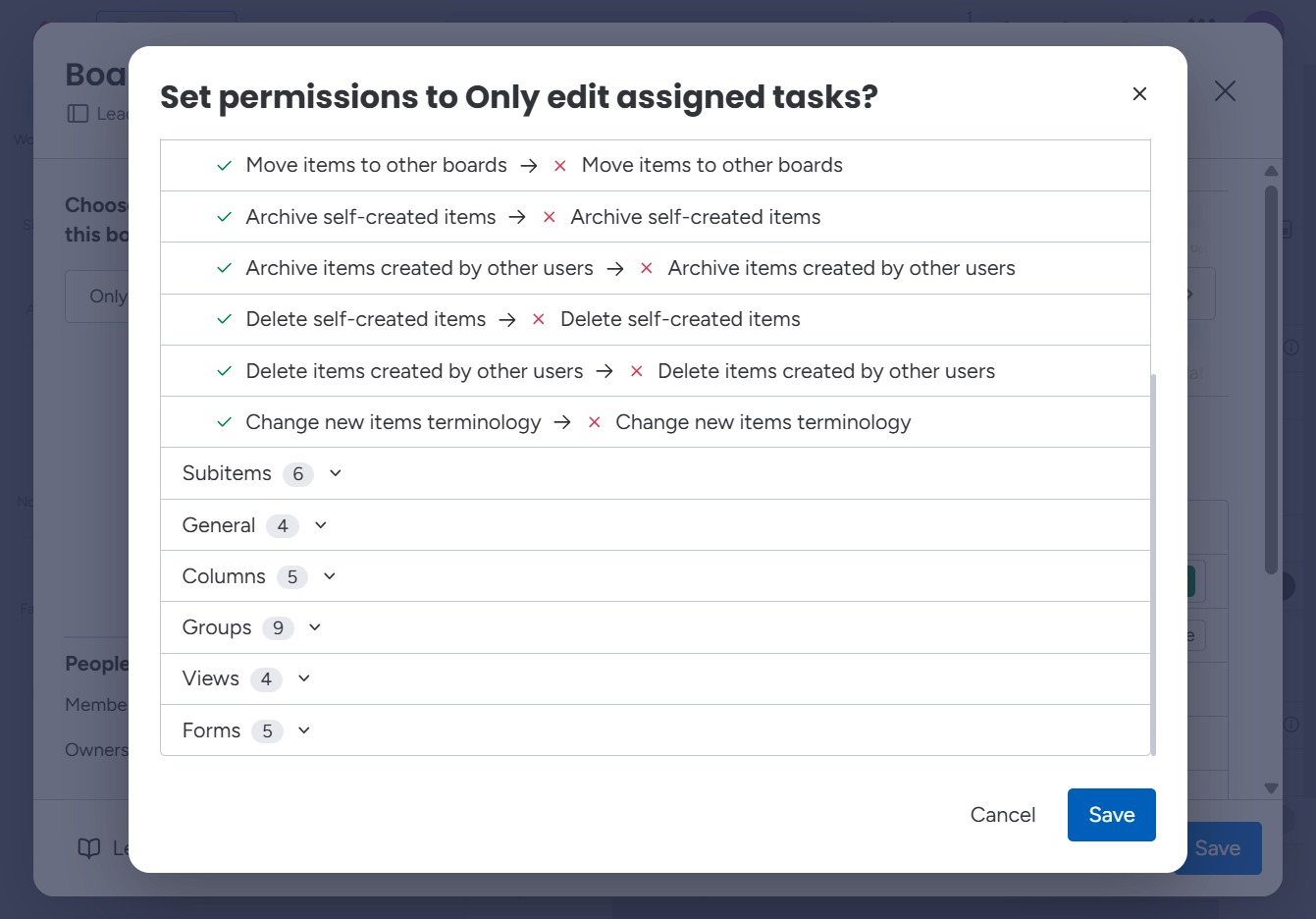
This action confirms and saves the current permissions settings for the board, ensuring that changes are applied to the members listed.
Clicking 'Save' will apply your chosen permissions for editing tasks and confirm the settings you specified for user access.