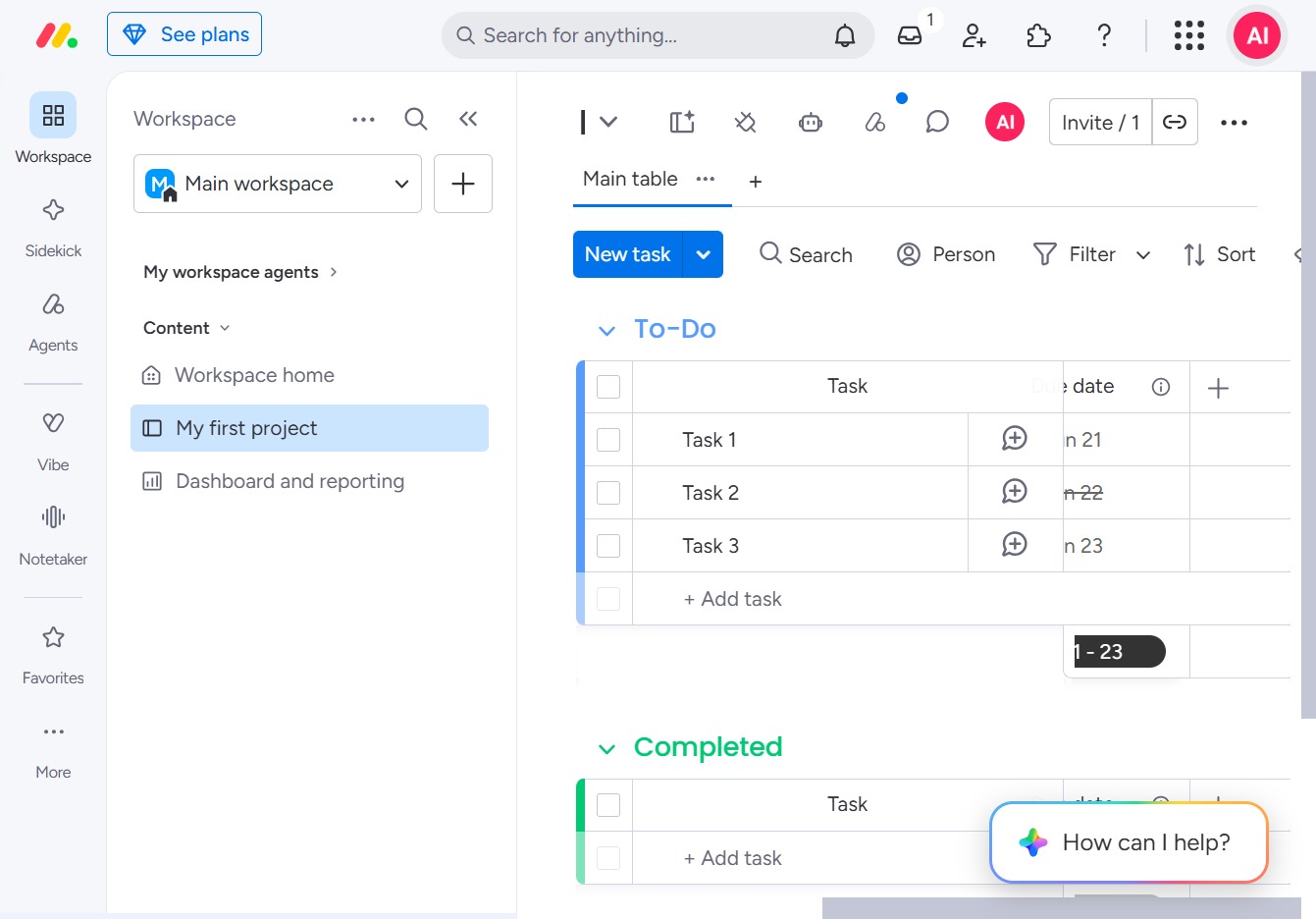
Click the ACME Inc logo
Clicking the ACME Inc logo will redirect you to the homepage of the ACME Inc website, allowing you to explore their services and offerings.
Loading screenshot…
100%
This how-to guide shows you the step-by-step process to complete your user profile on the ACME Inc website.
 viktoria
This how-to guide shows you the step-by-step process to complete your user profile on the ACME Inc website. Learn how to update your profile picture, manage account preferences, and enter your phone number and job title to enhance your professional presence.
Clicking the ACME Inc logo will redirect you to the homepage of the ACME Inc website, allowing you to explore their services and offerings.
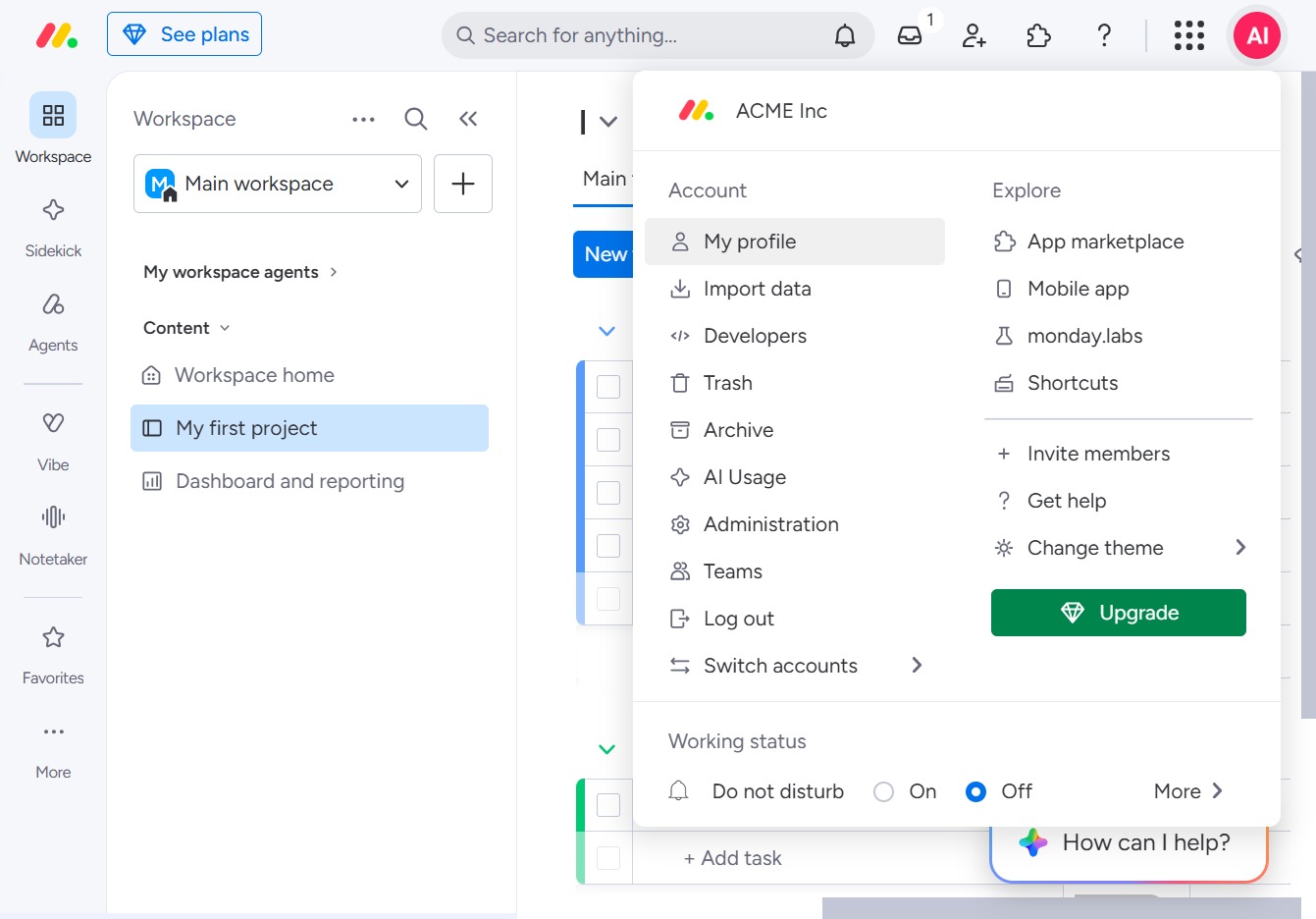
This action will open your personal profile settings, allowing you to edit your information, manage account preferences, and update your profile picture.
This action allows you to upload a new image to update your profile picture, enhancing your personal branding in the user interface.
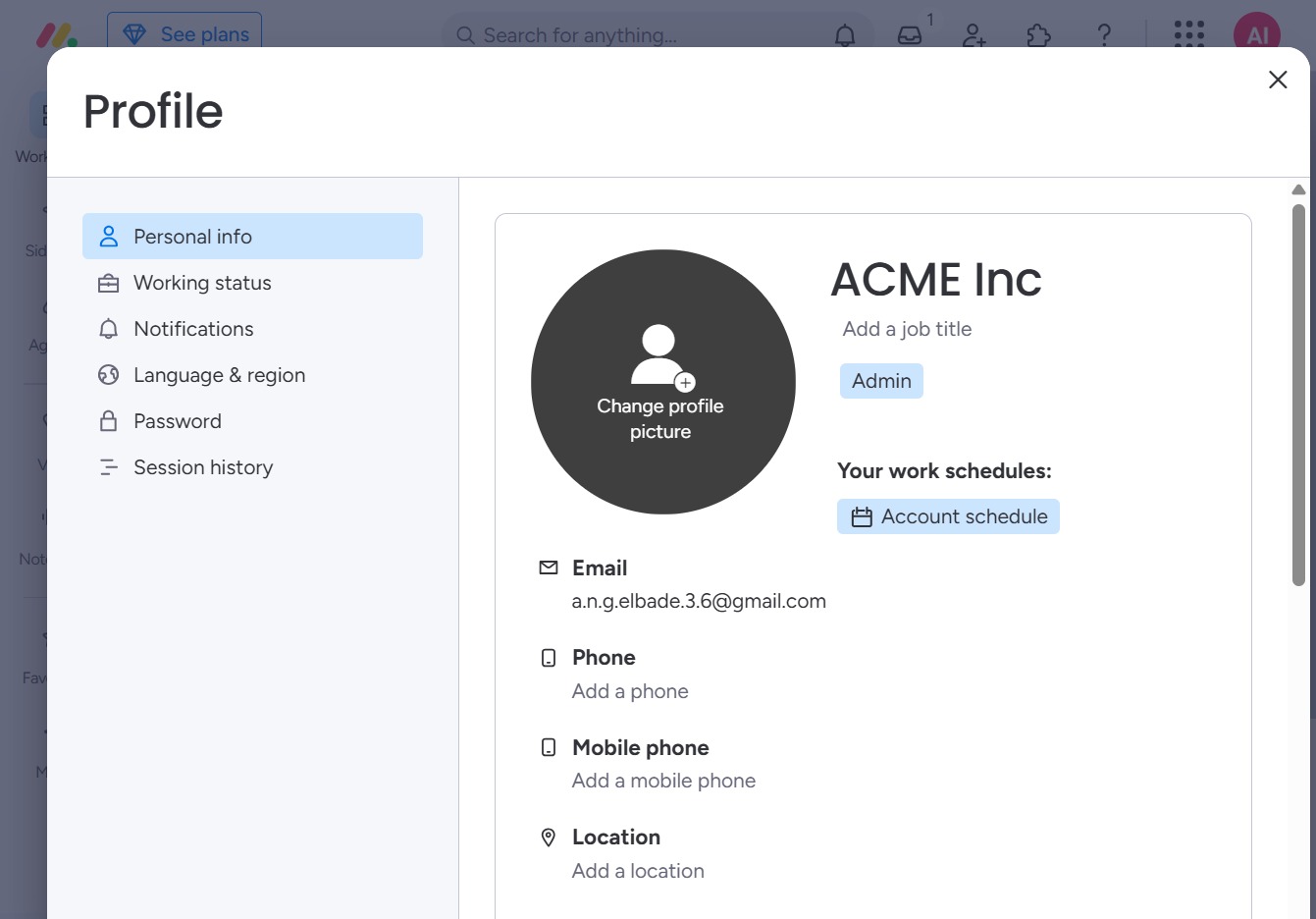
Clicking this option will prompt you to select a new image file from your device to update your profile picture.
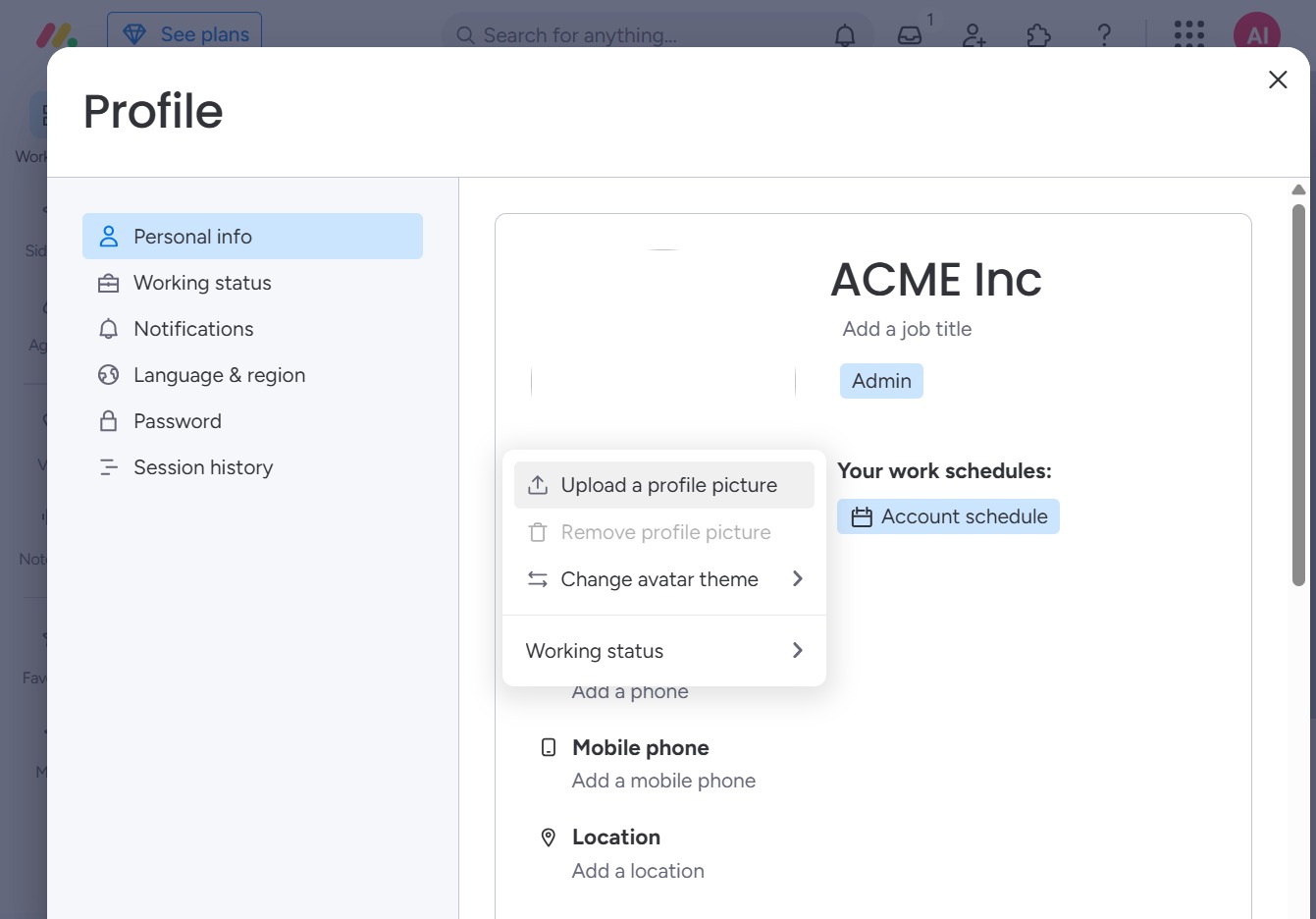
This action allows you to select and upload a new profile picture, helping your team members identify you more easily.

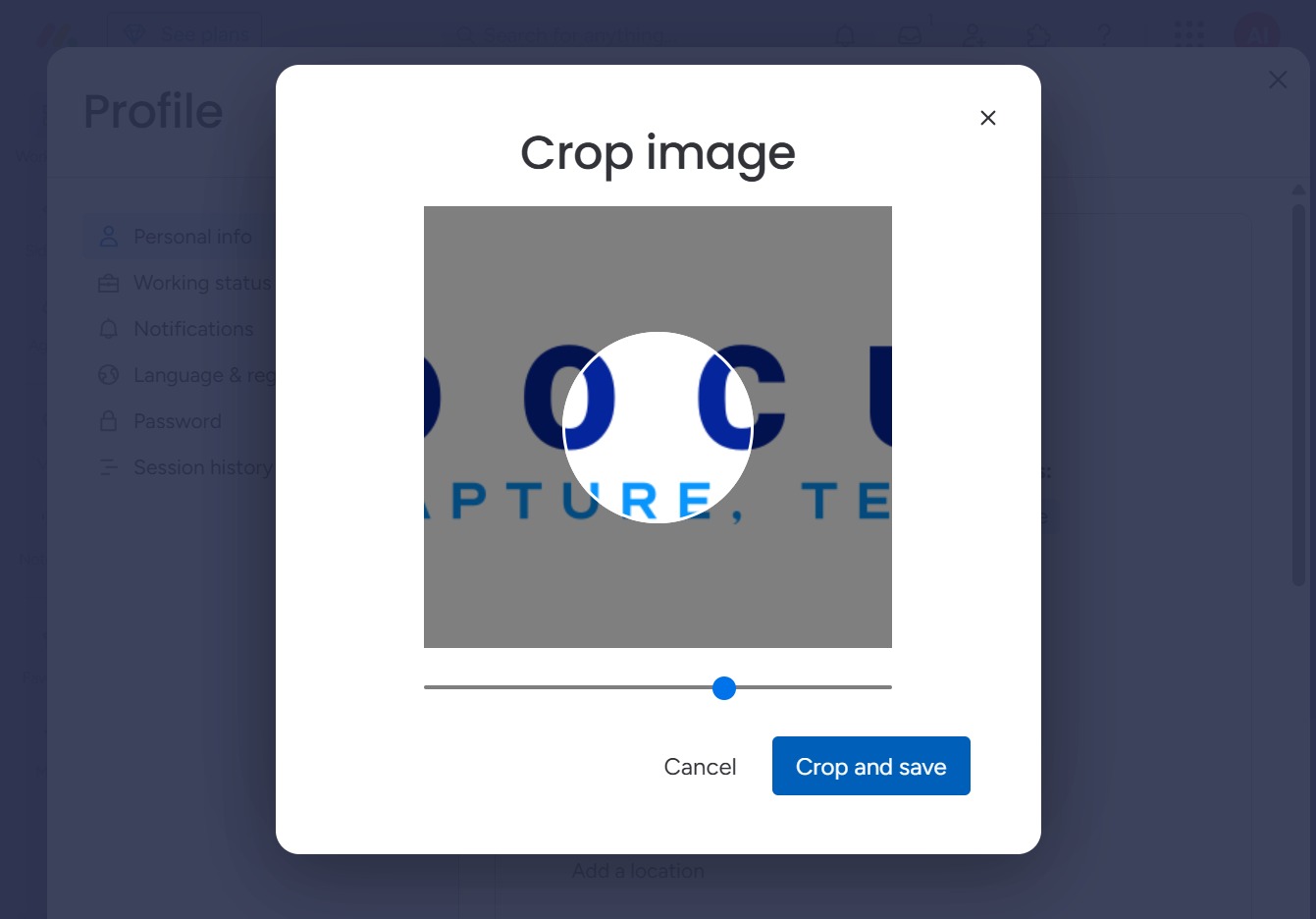
This action finalizes your cropping adjustments and saves the modified image to your profile. Ensure the desired area is selected before clicking.
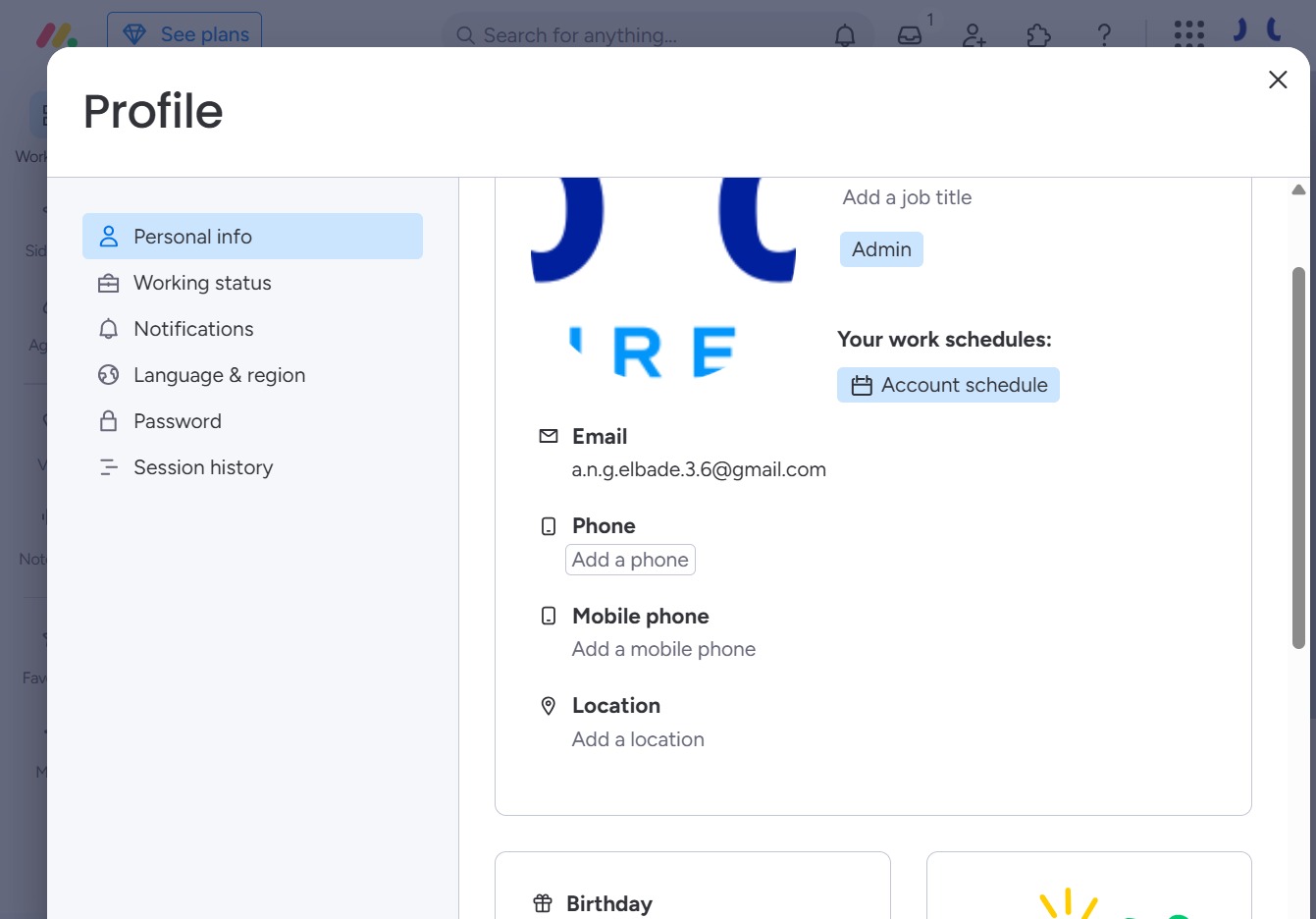
Selecting this option allows you to input a new phone number to your profile. This information will help keep your contact details updated.
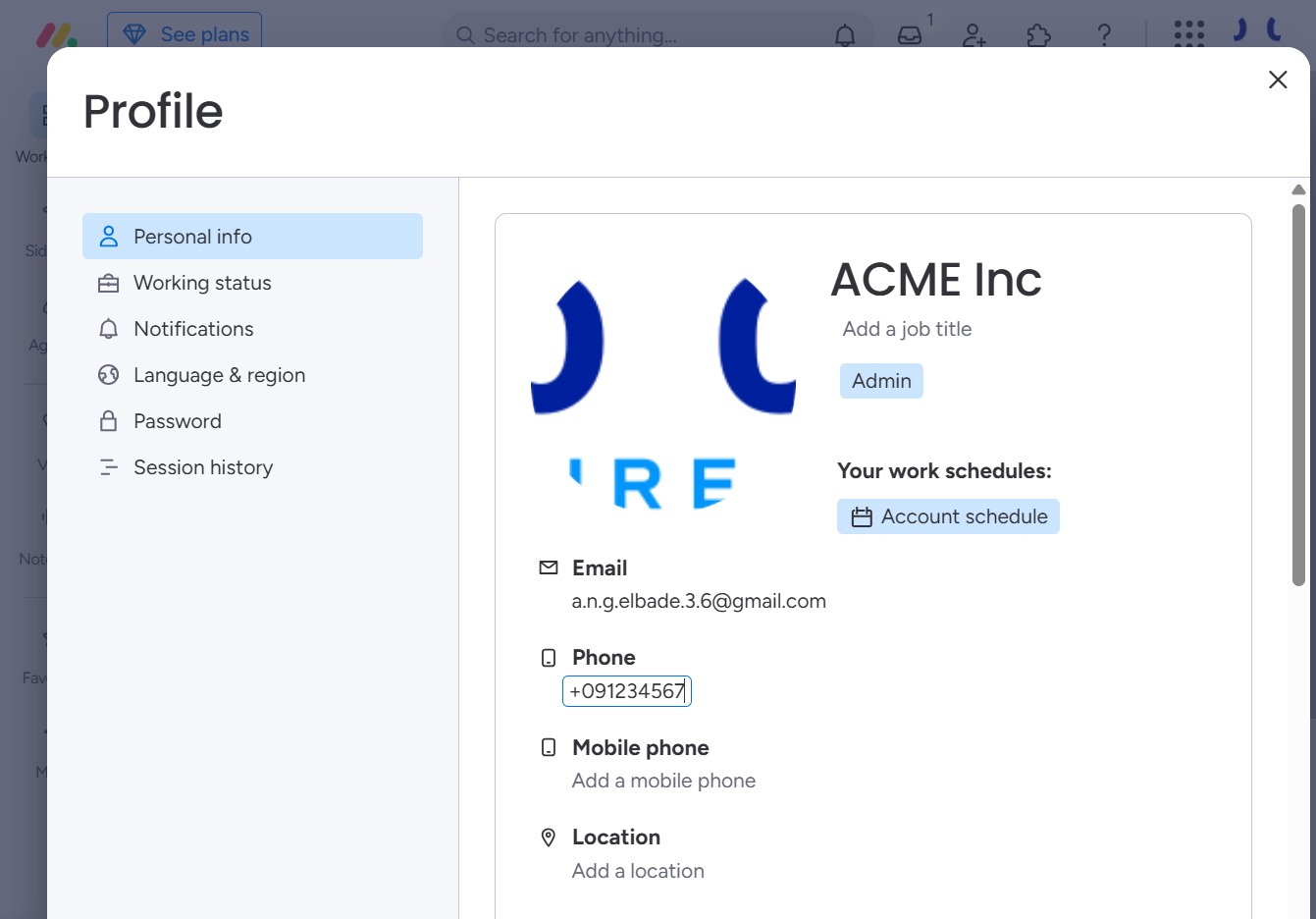
Enter the phone number you wish to associate with your profile in the 'Phone' field. This will update your contact information, allowing better communication and notifications.
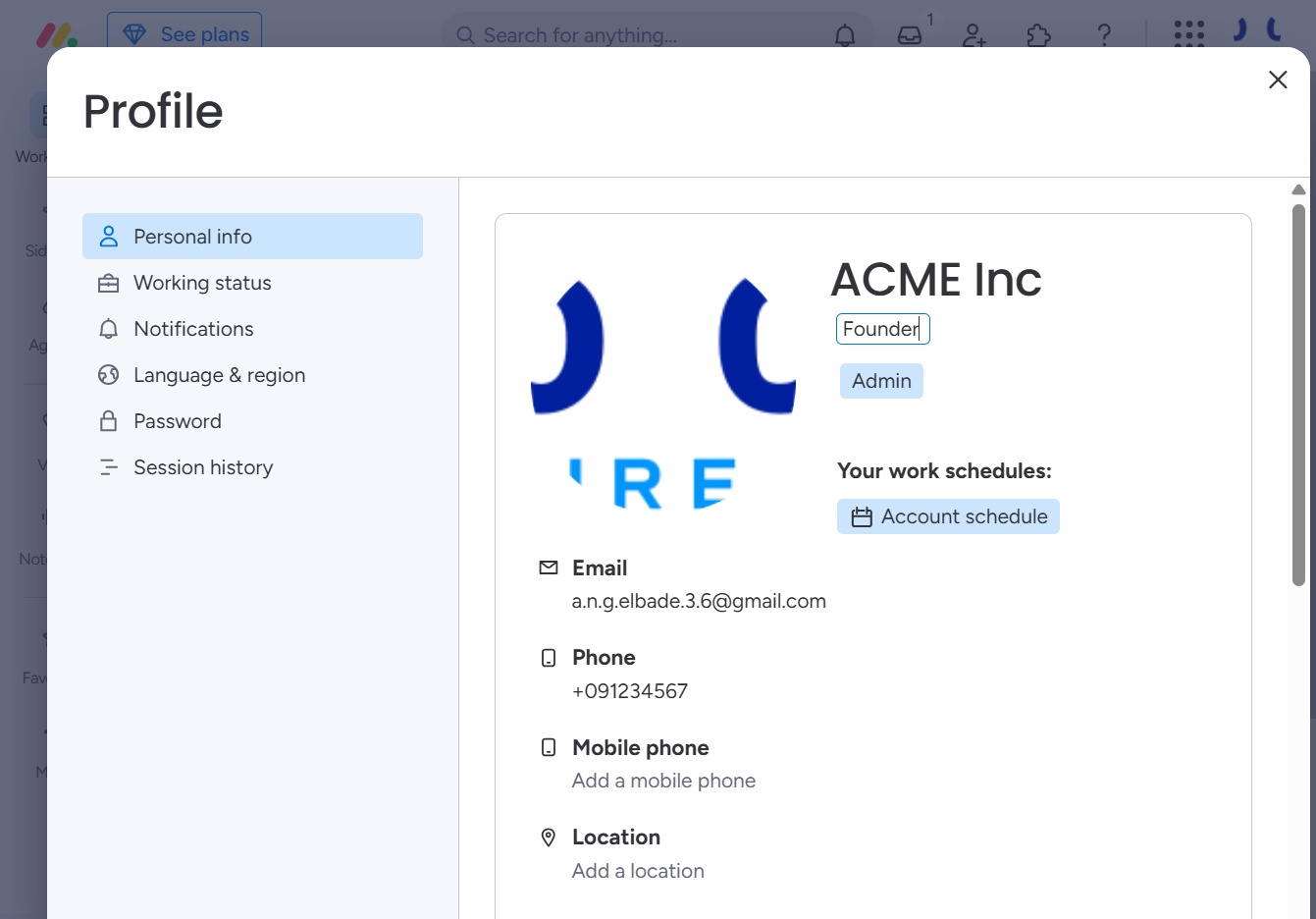
This allows you to input a new job title for your profile. Once you click, a field will appear for you to enter the desired title.
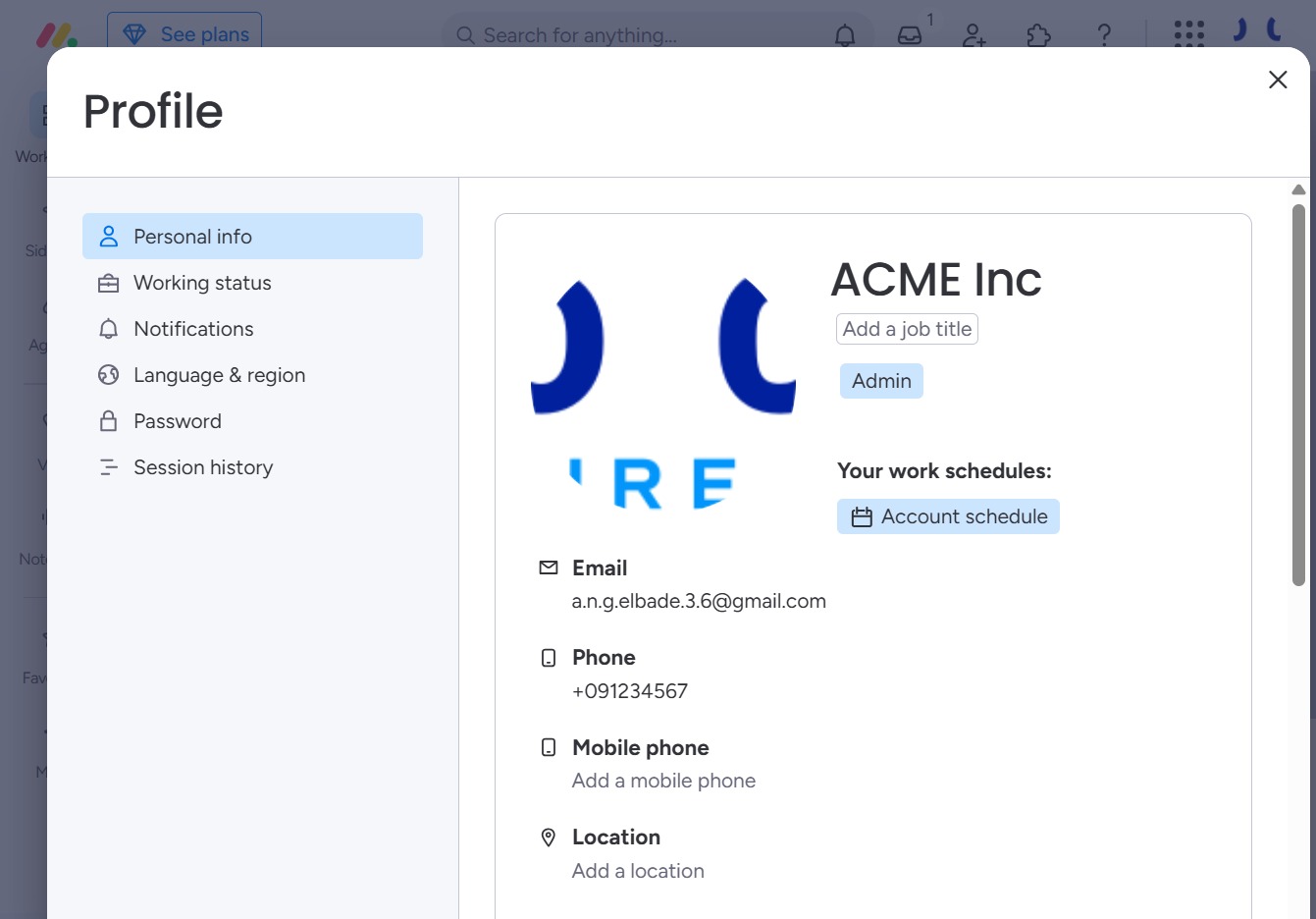
Input 'Founder' into the 'Add a job title' field to specify your position within the organization. This information will be saved to your profile and displayed to others.