Click the Operations section
By clicking the Operations section, you will access various operational documents and tasks that are currently managed within your Confluence workspace.

Loading screenshot…
100%
This how-to guide demonstrates the process of collaborating in real time using Confluence.
 viktoria
This how-to guide demonstrates the process of collaborating in real time using Confluence. You will learn how to access operational documents, manage sharing permissions, and invite users to collaborate on your projects efficiently.
By clicking the Operations section, you will access various operational documents and tasks that are currently managed within your Confluence workspace.
This action opens a menu with additional options related to the DevOps section, allowing you to manage child content and perform more specific tasks.

Clicking the profile image opens the user settings and account details for Victoria Adamu, allowing you to view and edit account information.
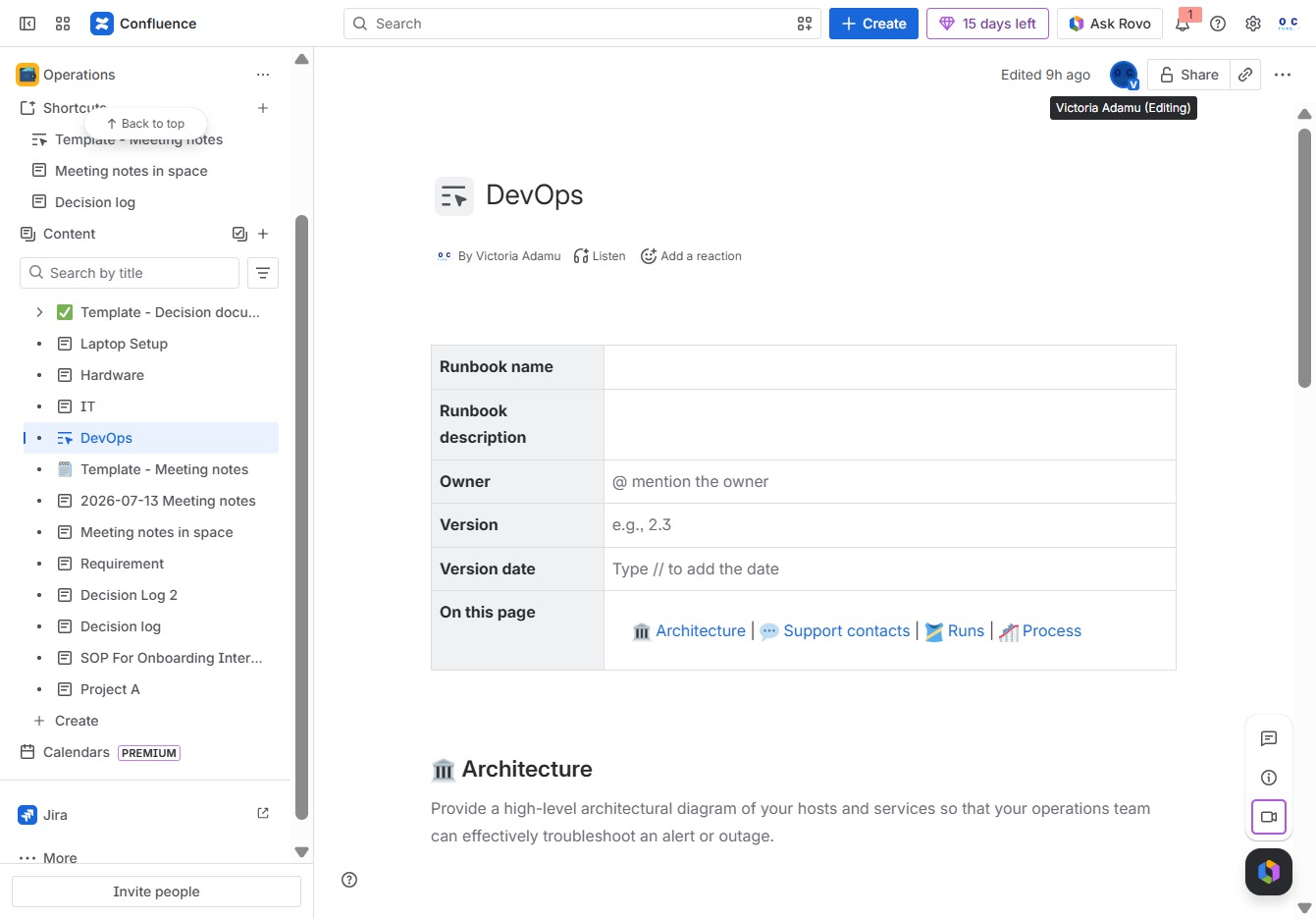
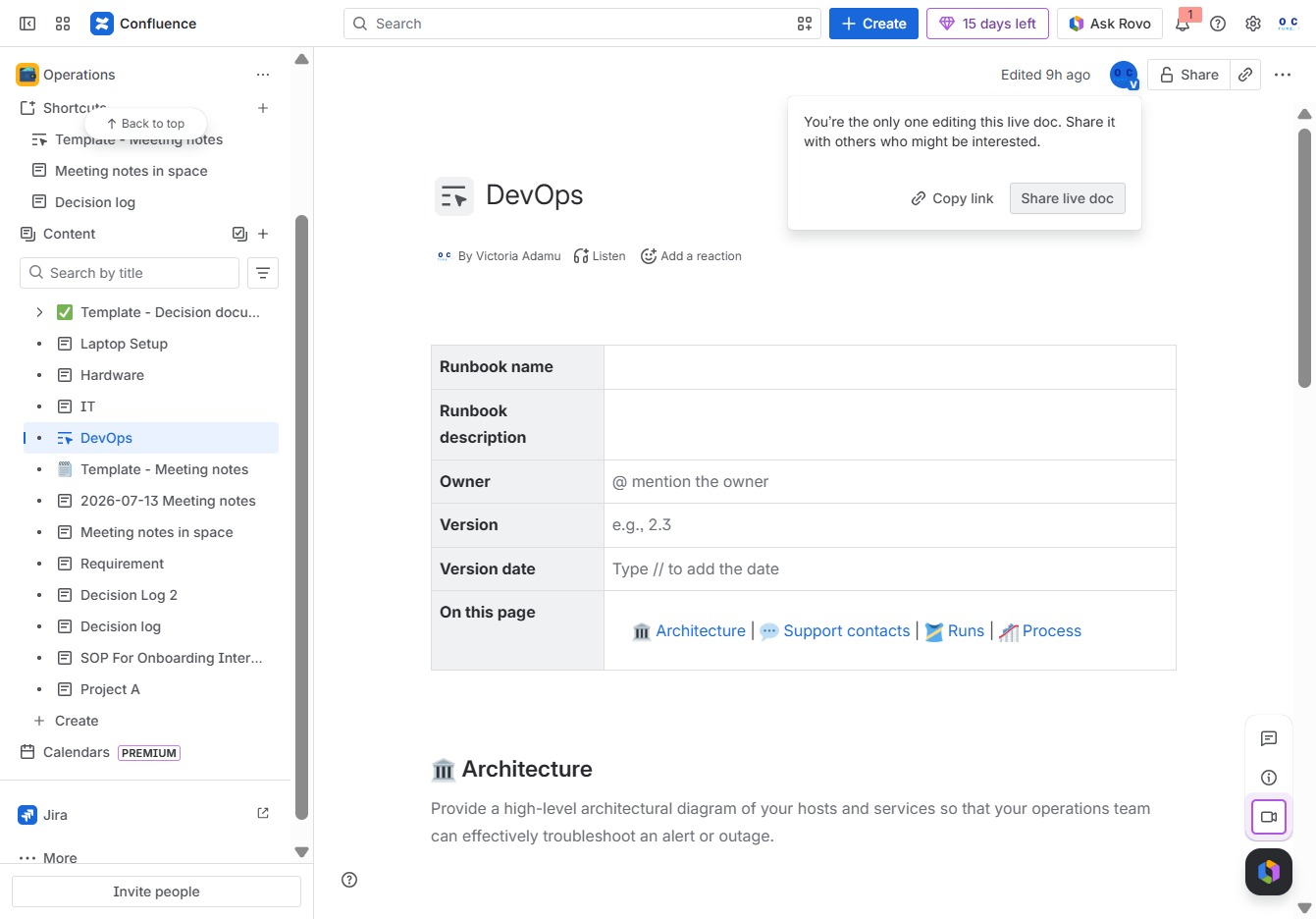
Share the document with others by generating a shareable link. This will allow collaborators to access the document in real-time.
This action allows you to manage sharing permissions for the selected user, 'janed', in the document sharing settings.

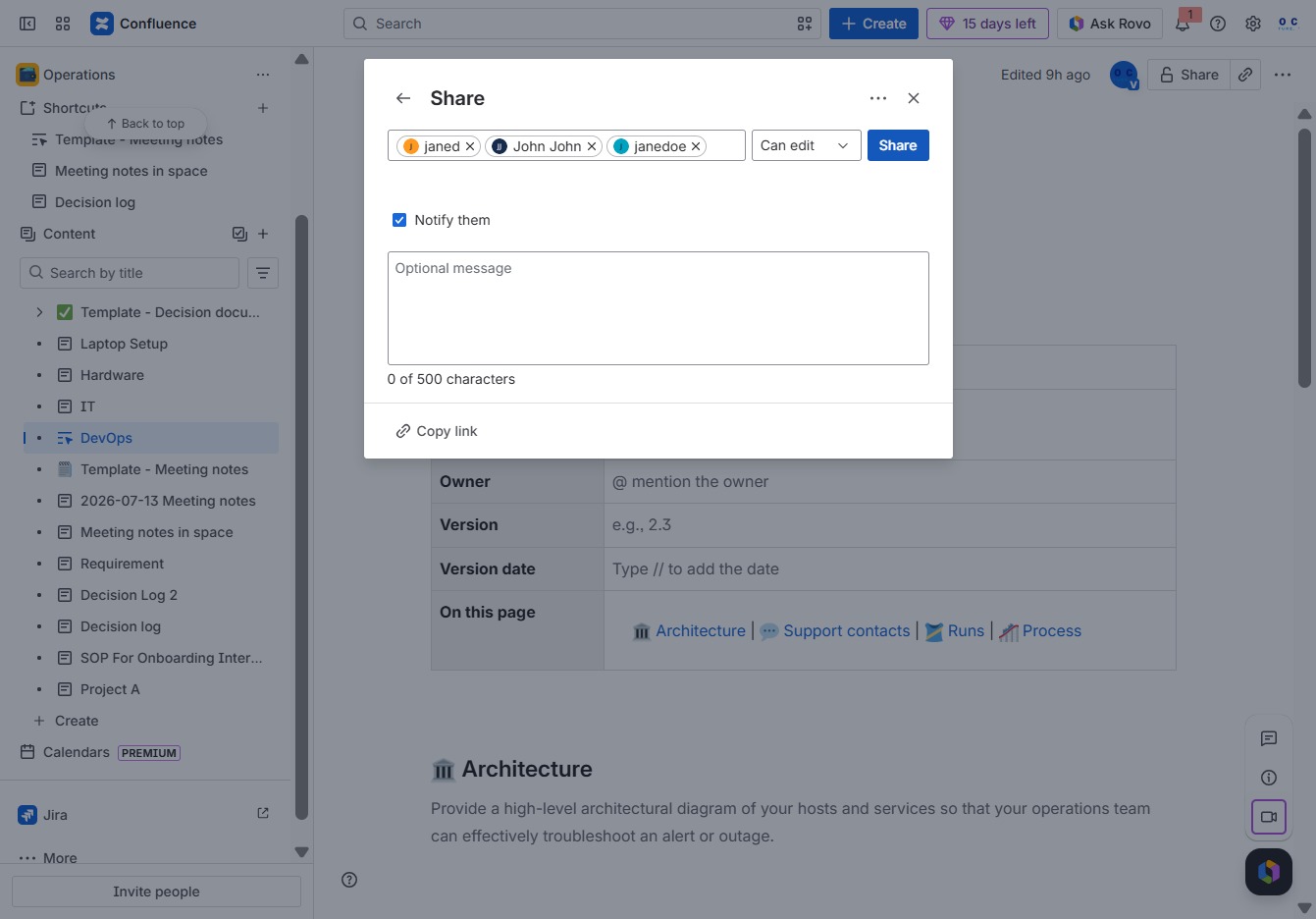
Clicking the 'John John' link allows you to select that user for sharing access to the document. This action enables you to specify their permission level and notify them about the shared content.
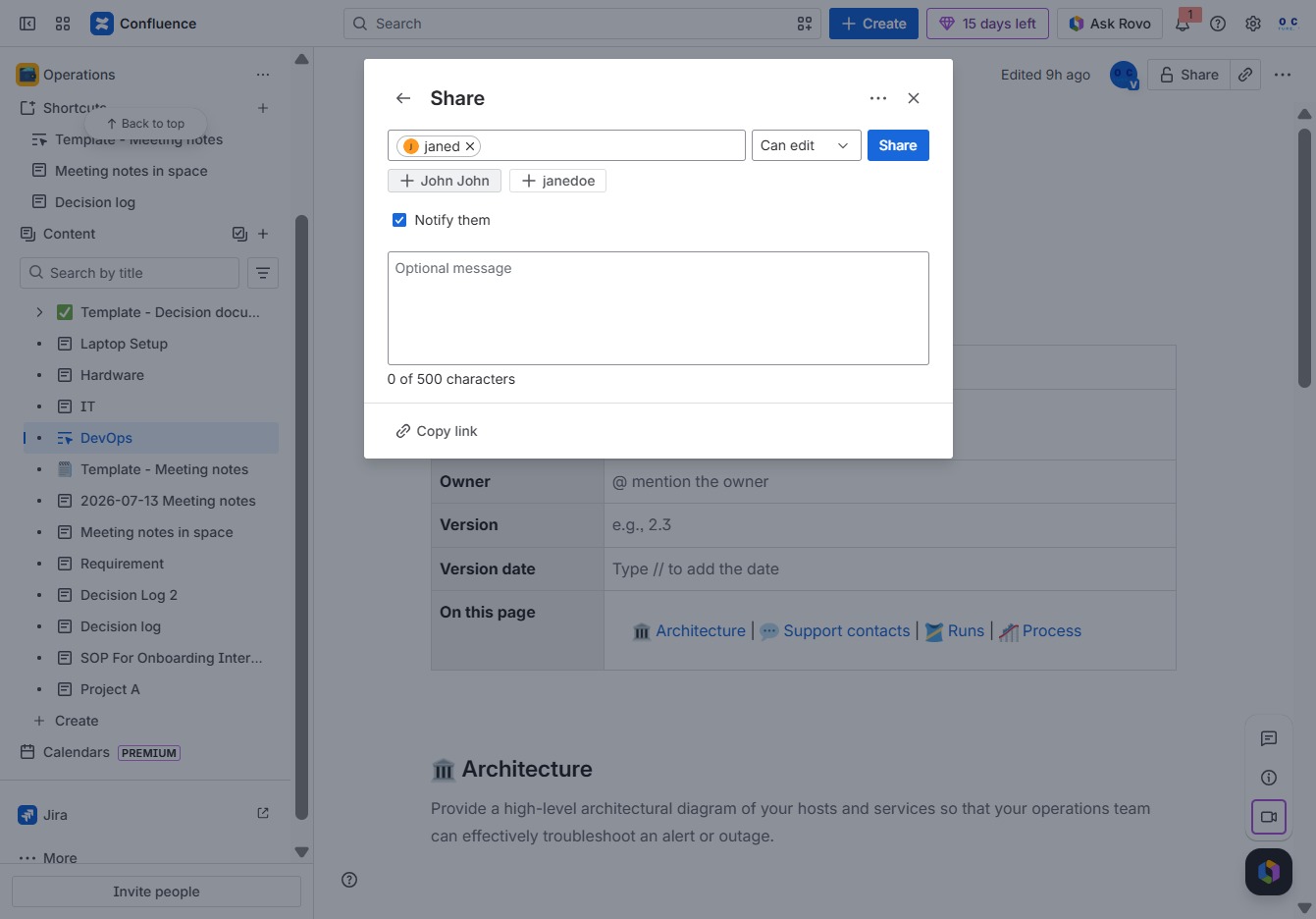
This allows you to input or select a user to share the document with. After clicking, you can type a name or email address to grant access.
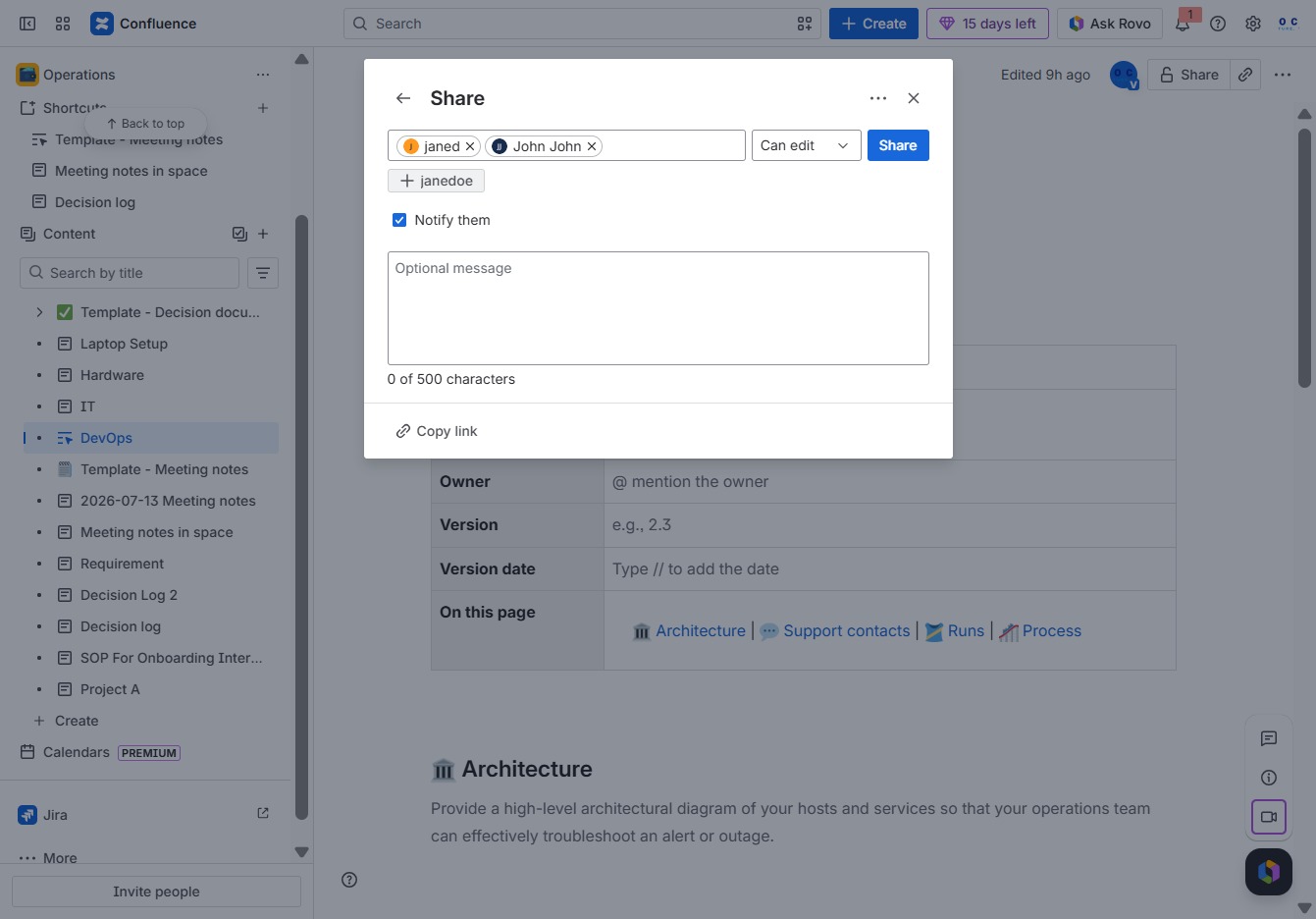
After clicking the Share button, a dialog will open allowing you to invite users by entering their names and optionally sending a message. You can also set their permissions and choose to notify them of the share.