Click the Projects link
Selecting the 'Projects' link will take you to the Projects section, where you can manage and view all your ongoing and completed projects in Asana.

Loading screenshot…
100%
In this how-to guide, you'll learn how to effectively choose and apply a project template in Asana.
 viktoria
In this how-to guide, you'll learn how to effectively choose and apply a project template in Asana. Follow the step-by-step instructions to navigate to the template gallery, create a new project, and set it up with predefined structures to streamline your team's workflow.
Selecting the 'Projects' link will take you to the Projects section, where you can manage and view all your ongoing and completed projects in Asana.
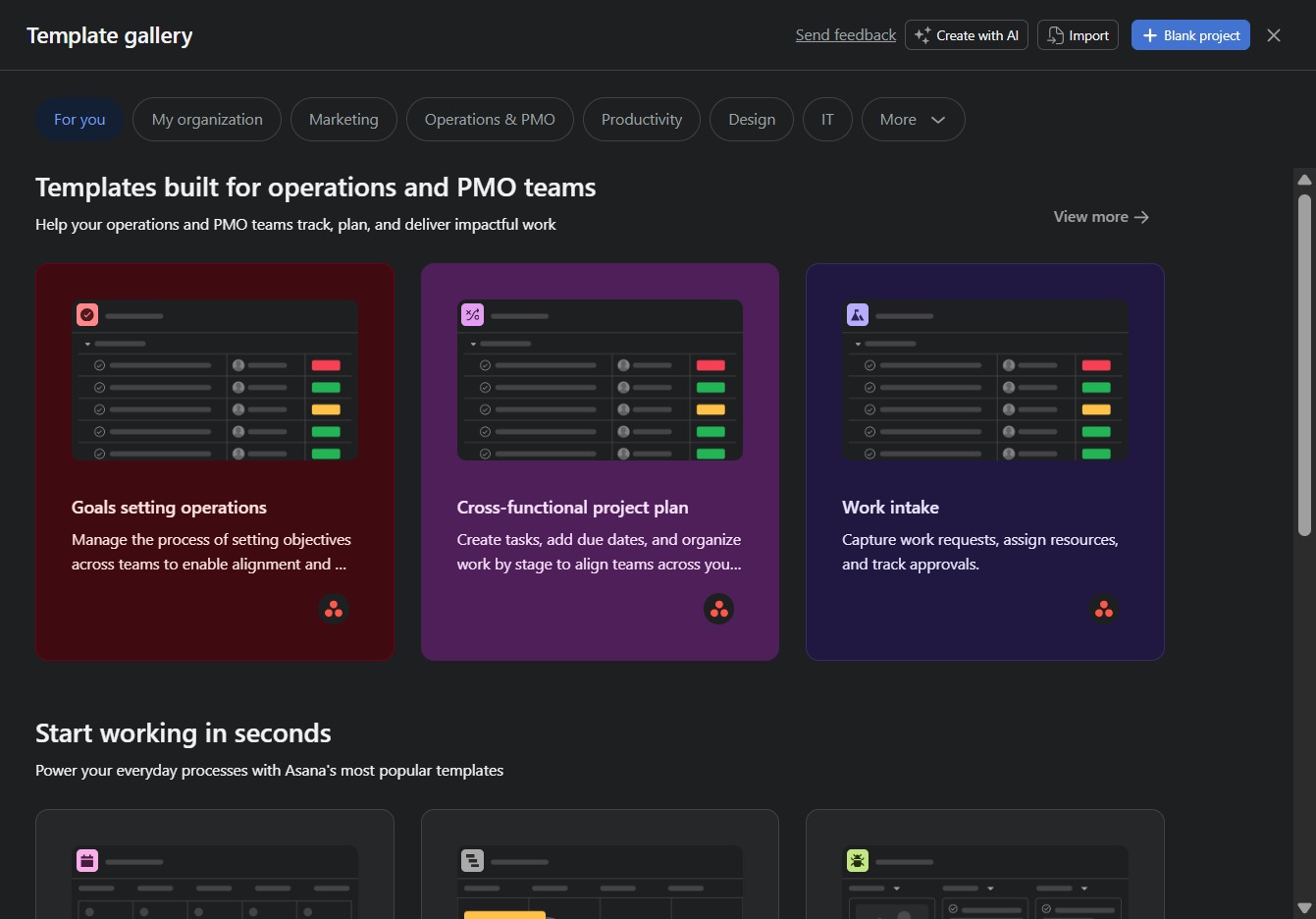
This action opens a gallery of ready-made templates designed to help you jumpstart your next project, offering various options such as goals setting operations and project plans.

Selecting this option will allow you to create tasks, assign due dates, and organize work by project stages to ensure alignment across teams in your organization.
Clicking this button will apply the selected template to your project, allowing you to create tasks and organize work using the predefined structure.

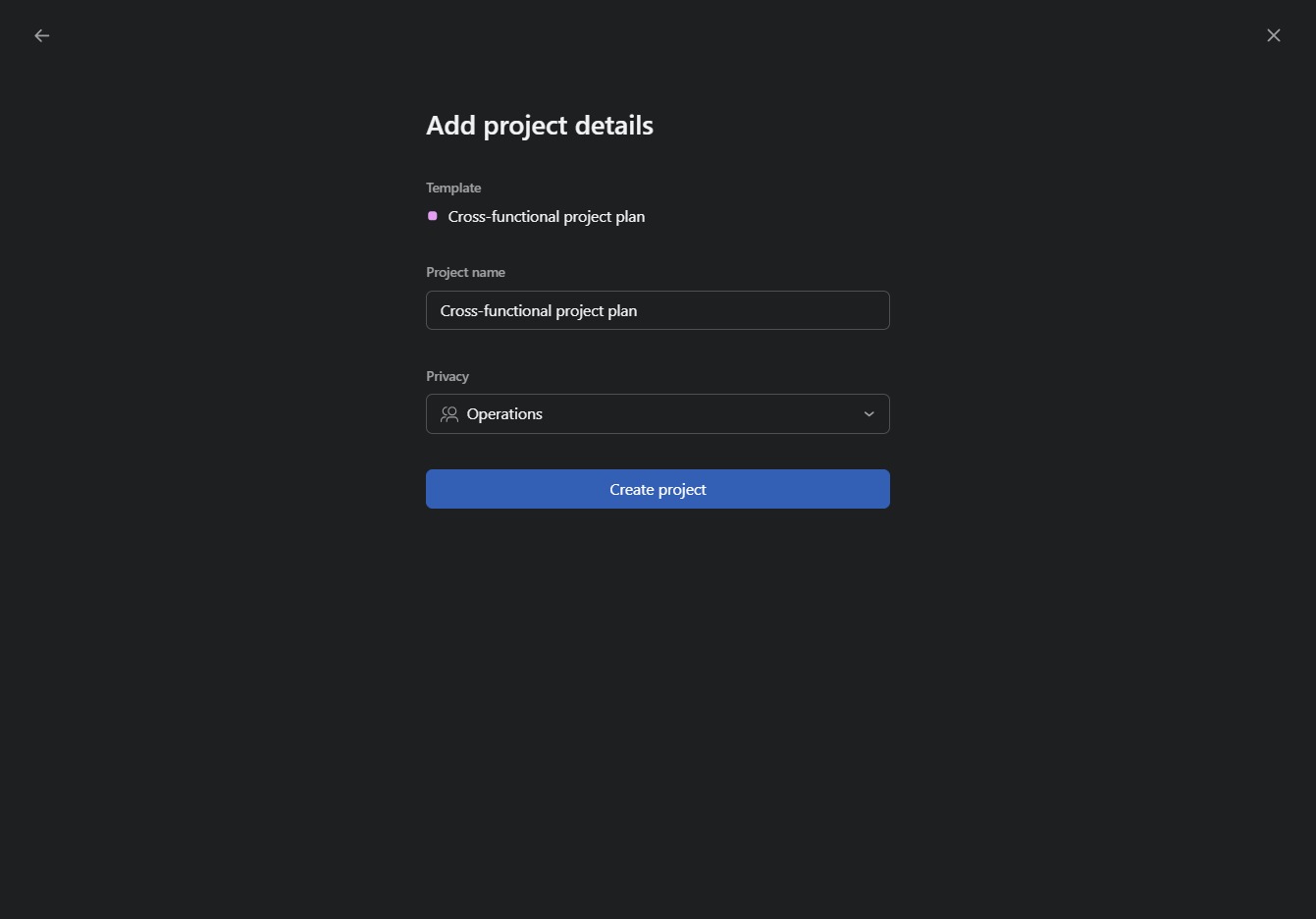
This action initiates the creation of a new project using the specified details such as project name and privacy settings.