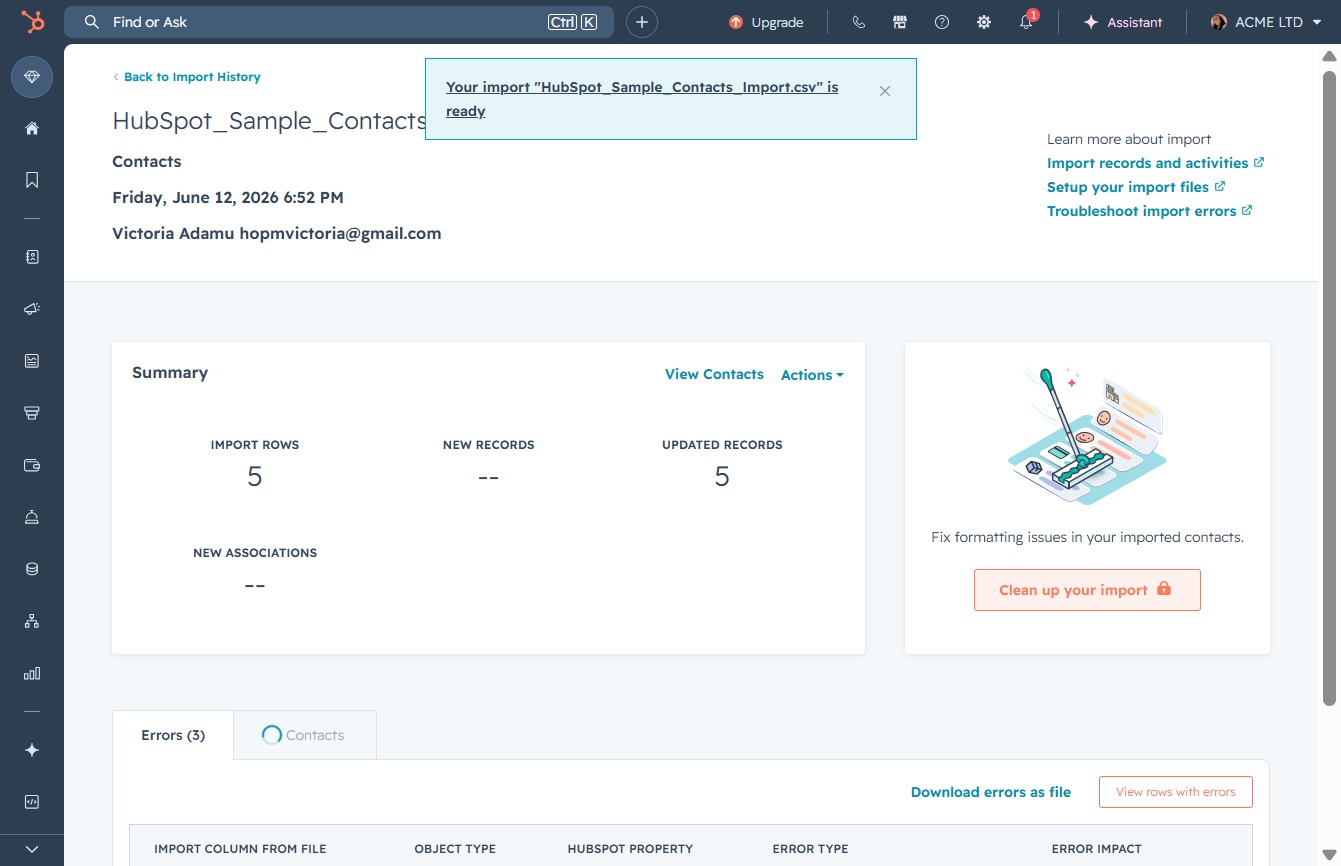
Click the Contacts option
Selecting 'Contacts' will display your list of contacts within the CRM, allowing you to manage and interact with your saved contacts.

Loading screenshot…
100%
Import and clean contact data in HubSpot by navigating through the Contacts section, uploading files, and finalizing import settings to ensure accurate and organized data…
 viktoria
Import and clean contact data in HubSpot by navigating through the Contacts section, uploading files, and finalizing import settings to ensure accurate and organized data integration.
Selecting 'Contacts' will display your list of contacts within the CRM, allowing you to manage and interact with your saved contacts.
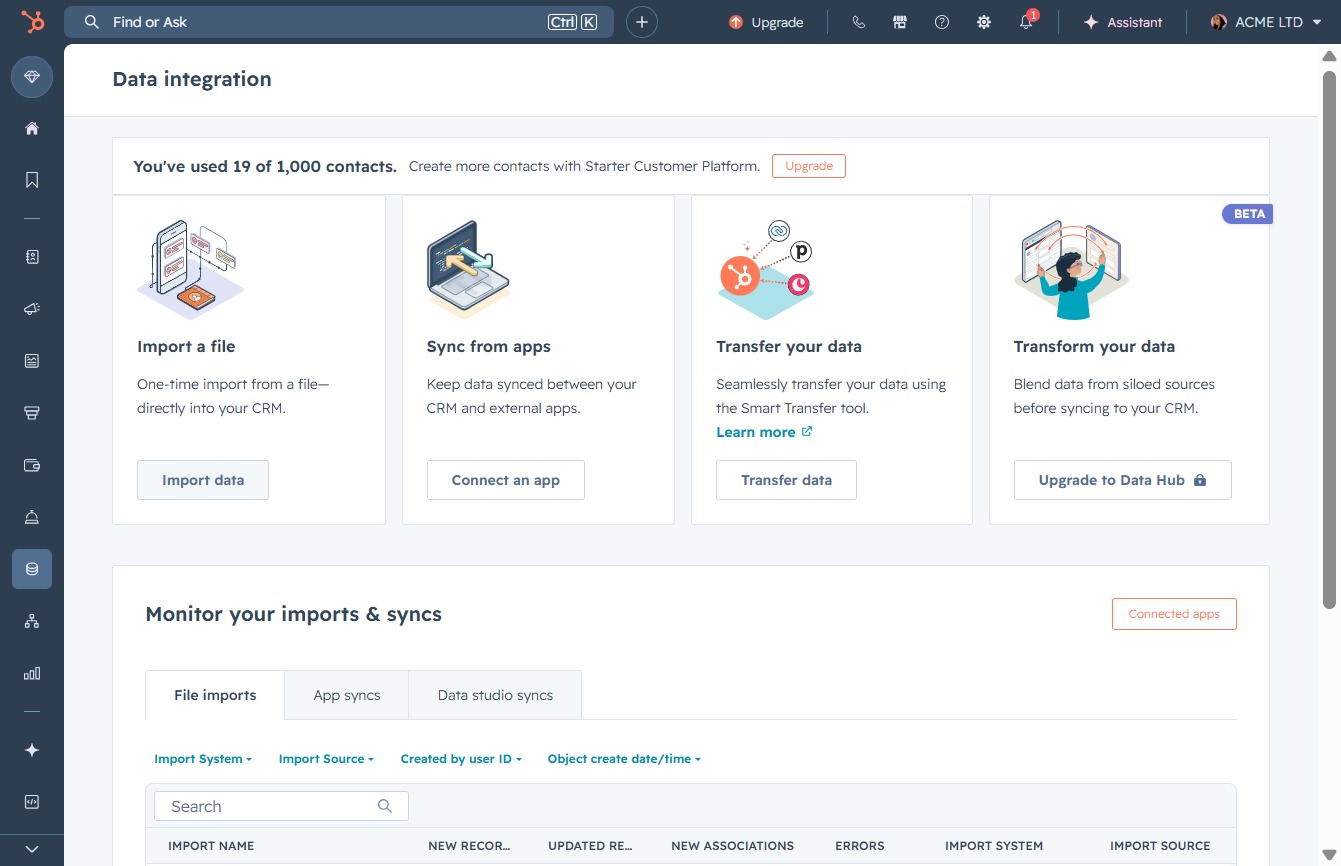
This action will initiate the process to import new contacts or data into the Contacts section. Follow the prompts that appear to complete the import procedure.

This action opens a dialog where you can upload a file directly into your CRM system for data integration.
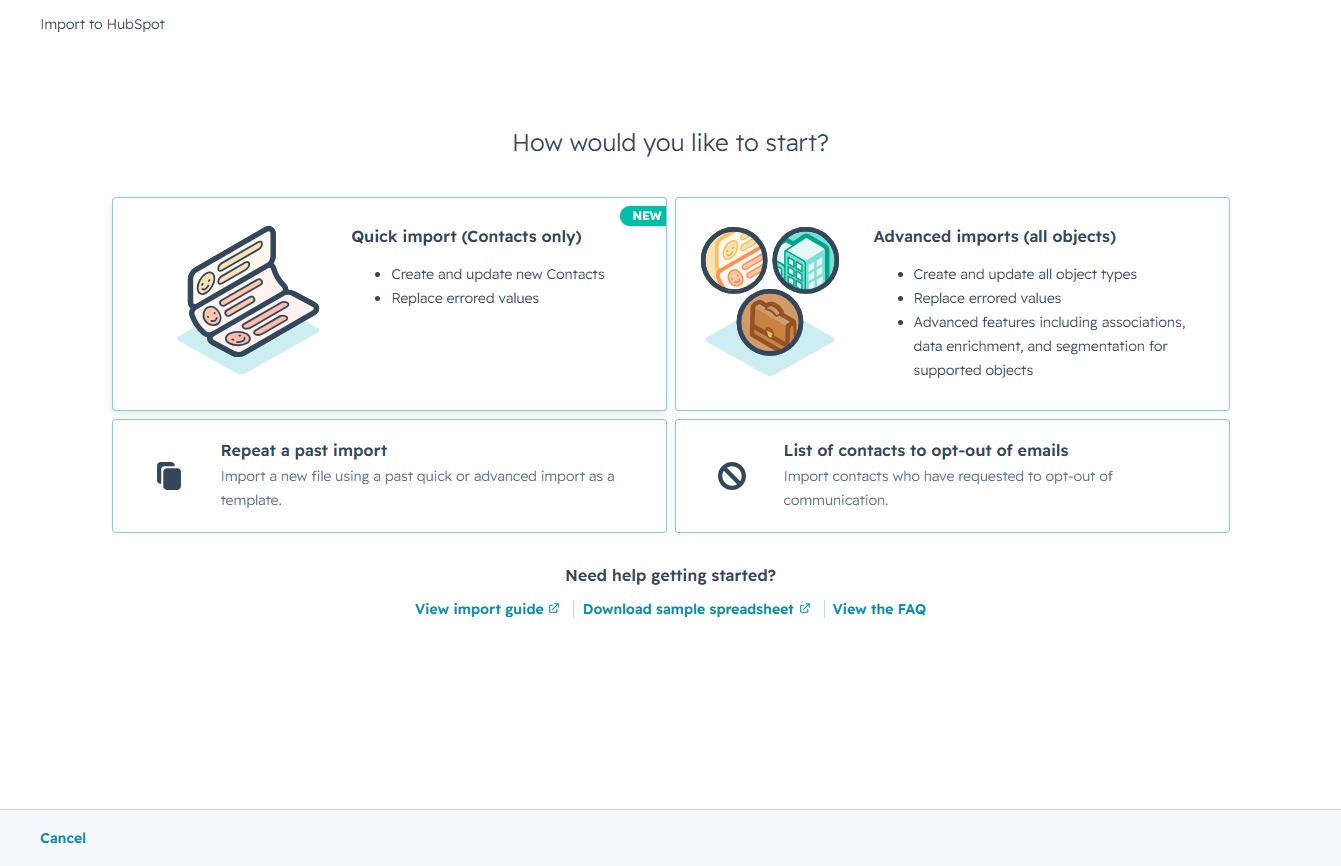
This action initiates the quick import process for creating and updating new contacts while replacing any errored values in your dataset.
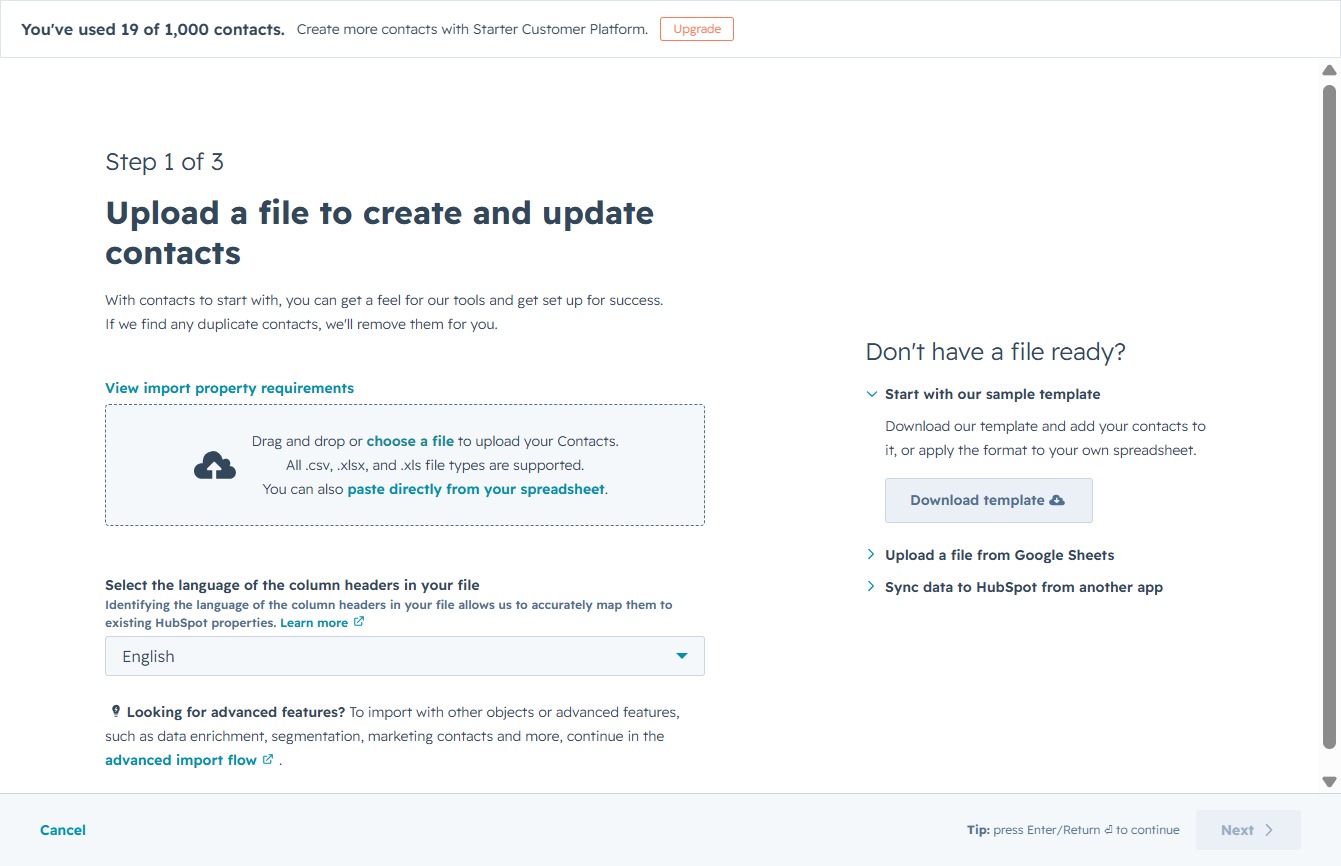
By clicking 'choose a file', you can select a file to upload your contacts into the system. Ensure that the file meets the import property requirements for successful processing.
After clicking the NextLoading button, you will proceed to the next step in the contact upload process, where you can finalize and confirm your contact import settings.
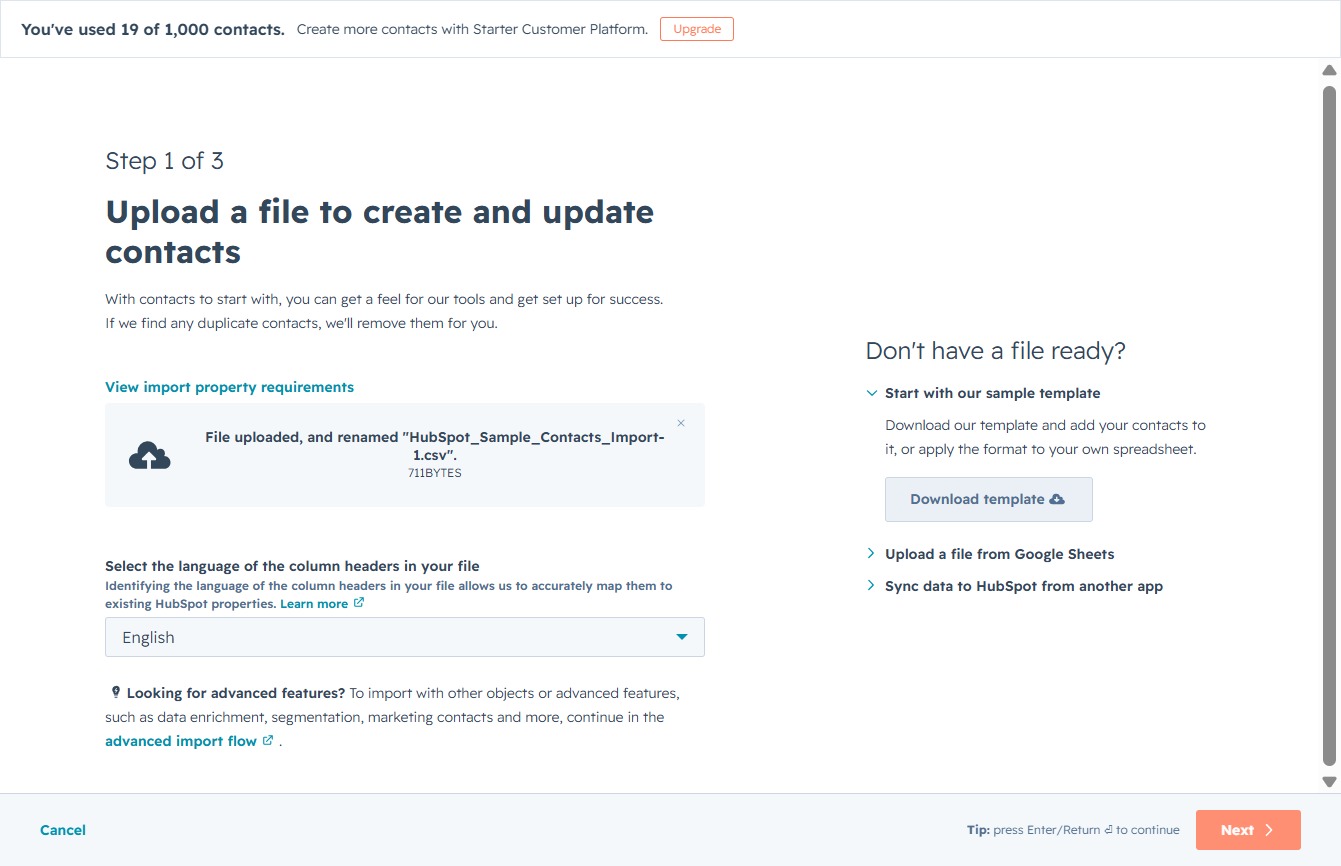
Proceed to the next step in the contact creation process, where you can review or finalize the entered information.

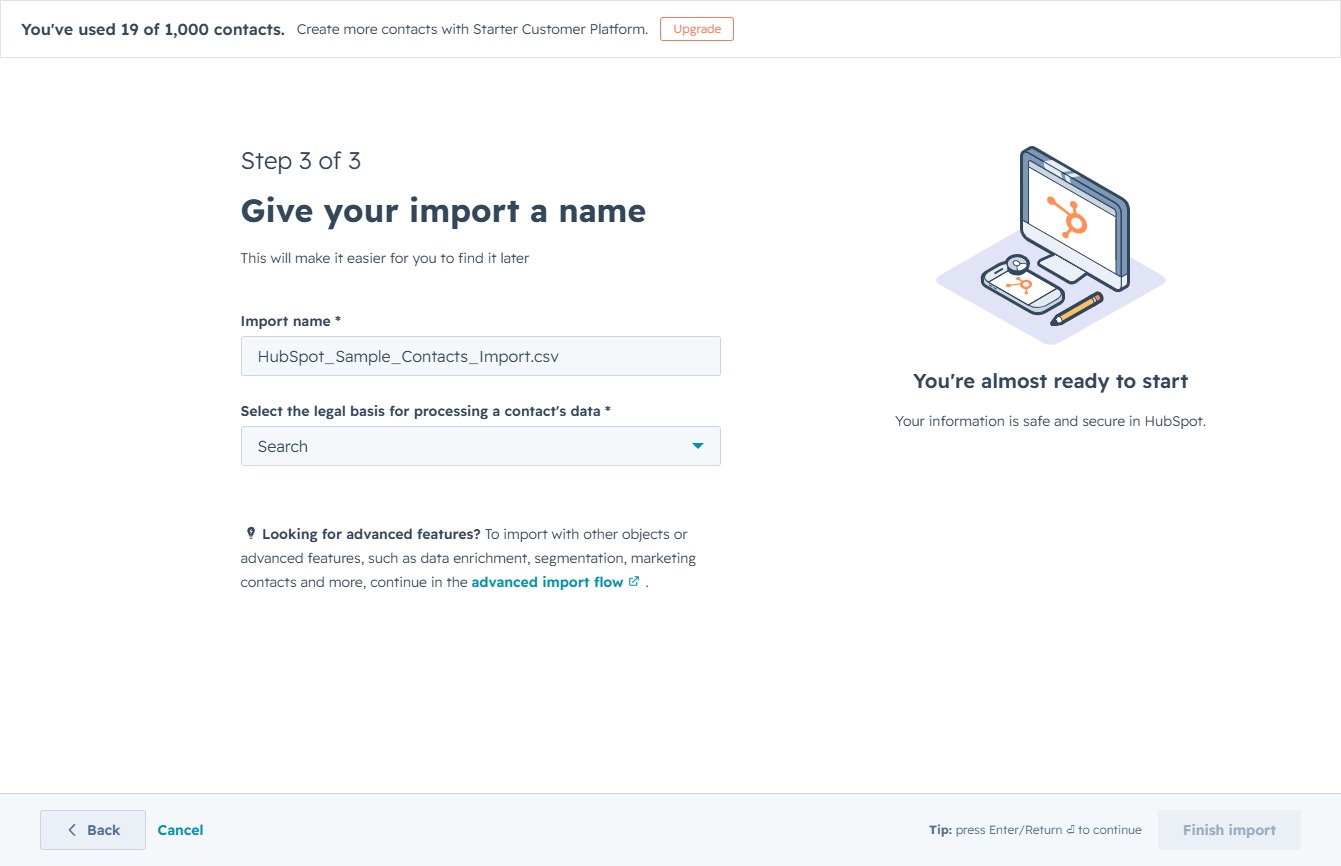
Clicking the Search field allows you to enter criteria to find specific legal bases for processing contacts' data during the import process.
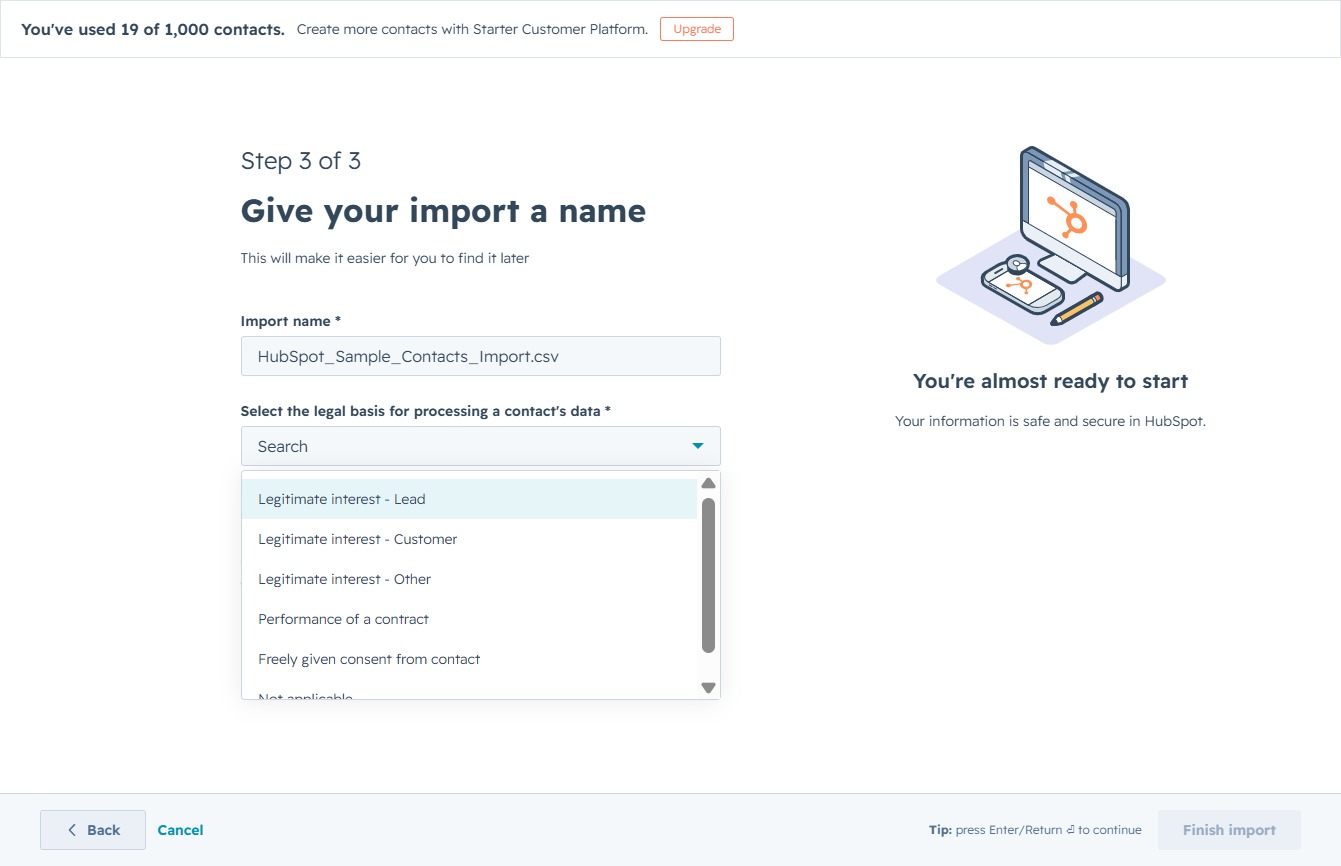
Selecting this option will set the legal basis for processing the contacts' data during your import. Make sure to confirm this is the appropriate choice for your contacts.
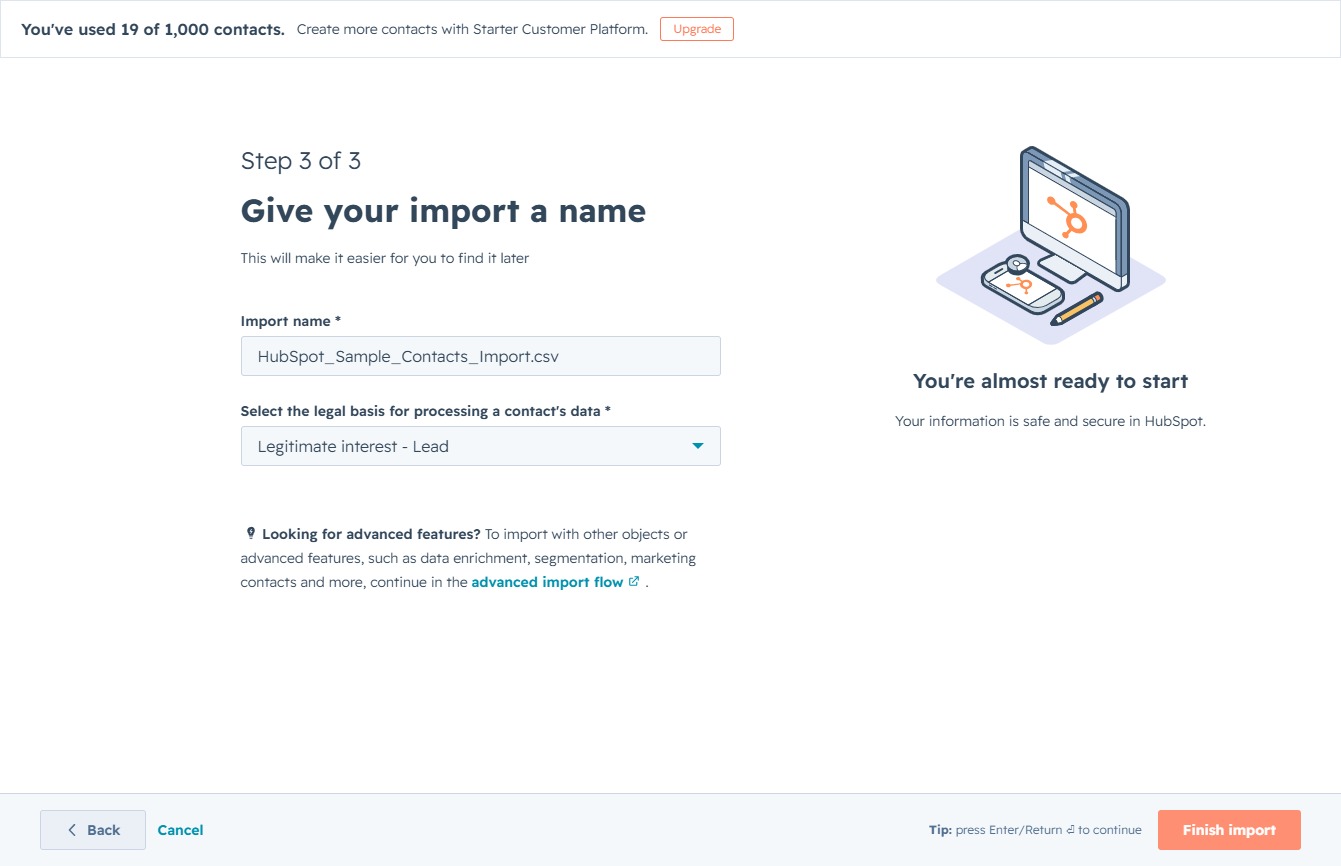
This action will finalize the contact import process in HubSpot, ensuring that your data is saved and ready for use.
This action will initiate the process to fix any formatting issues in your imported contacts, ensuring the data is correctly organized and usable.