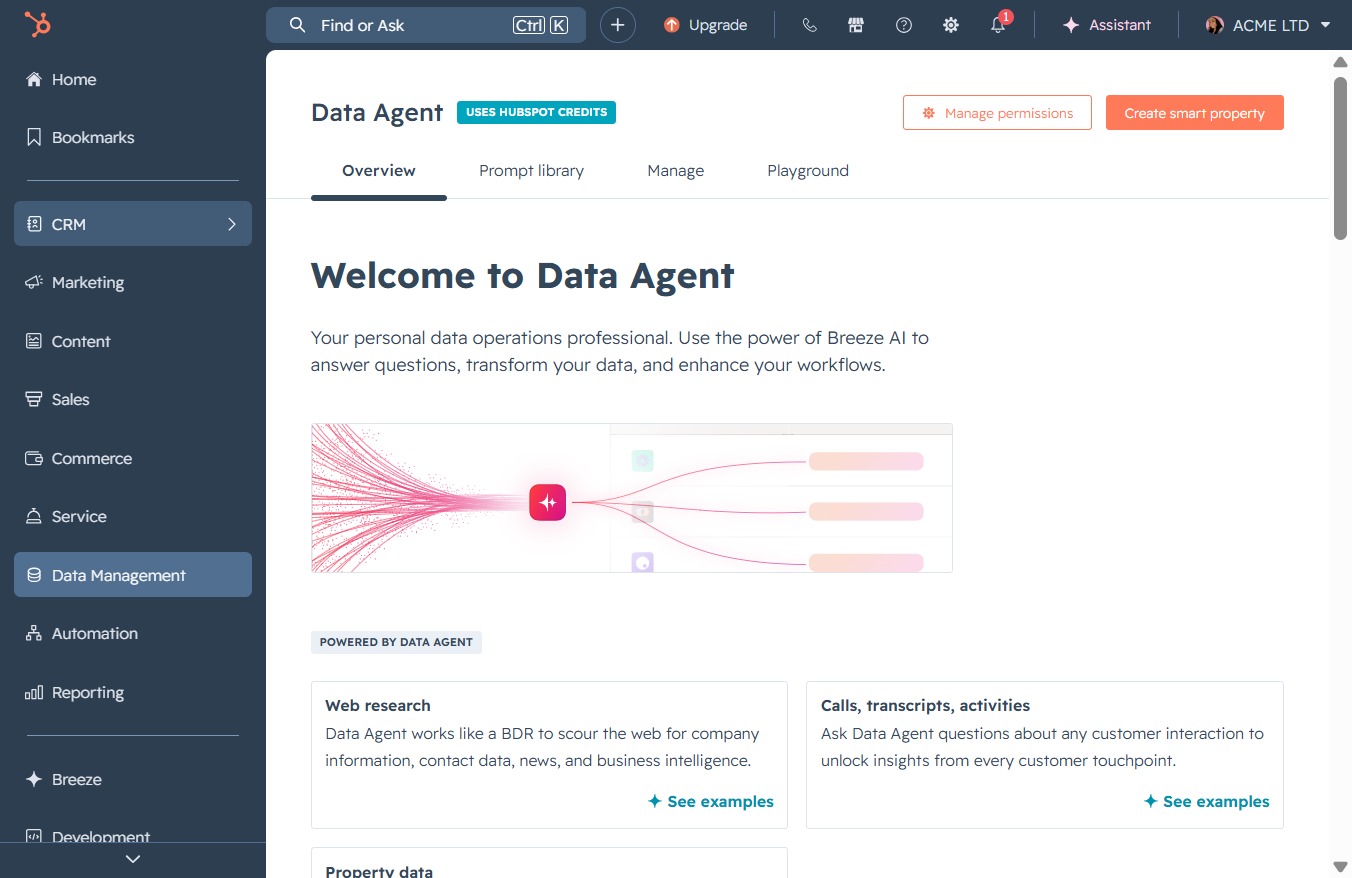
Click the CRM section
This will navigate you to the CRM management area, where you can access features related to customer relationship management and data operations.
Loading screenshot…
100%
Update deal priorities in your CRM by accessing the Deals section, selecting desired records, and modifying the Deal Priority to better manage your sales processes.
 viktoria
Update deal priorities in your CRM by accessing the Deals section, selecting desired records, and modifying the Deal Priority to better manage your sales processes.
This will navigate you to the CRM management area, where you can access features related to customer relationship management and data operations.
This will take you to the Deals section where you can manage and view all your deals related to your sales process.
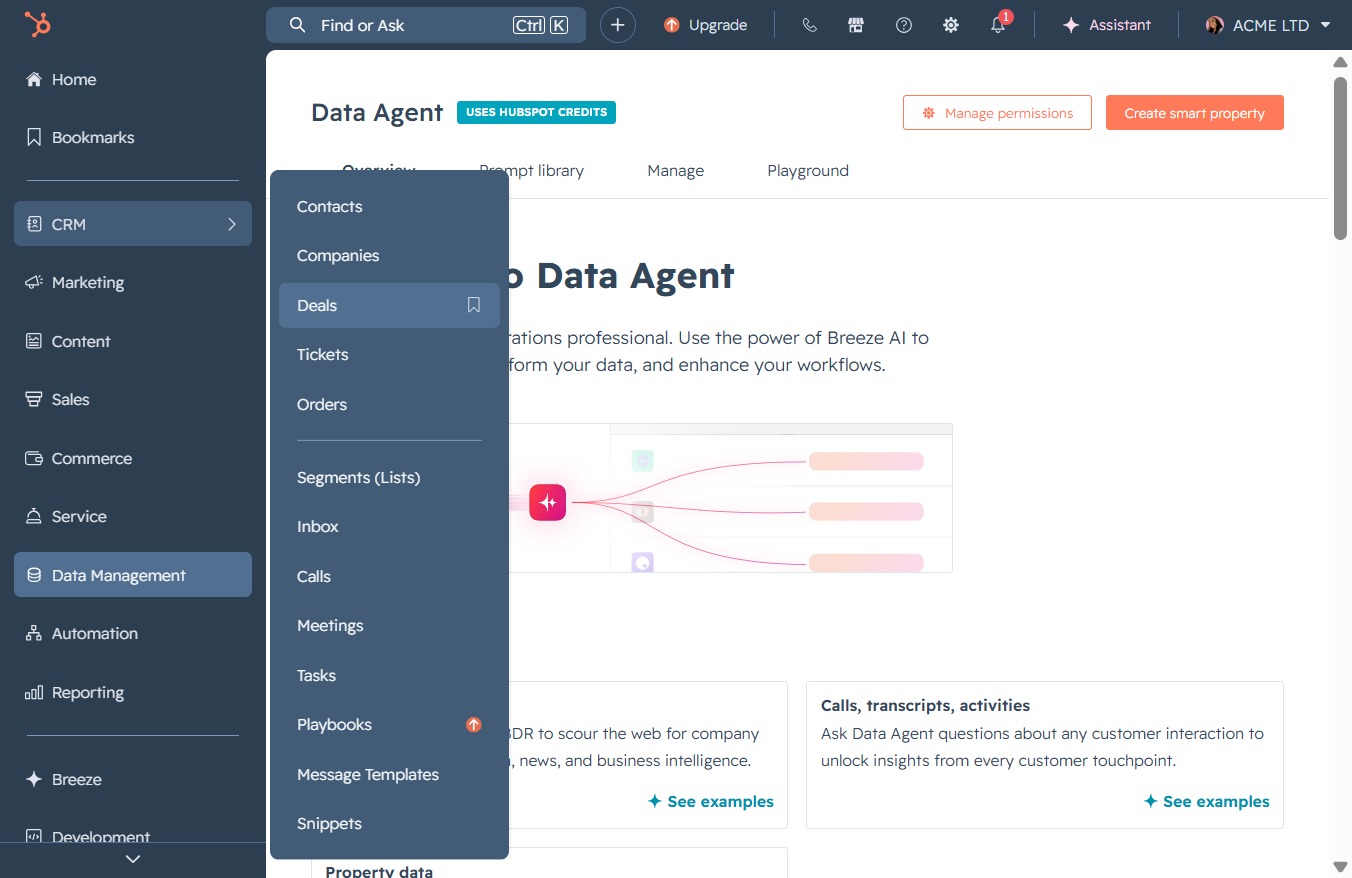
Clicking here will provide you with additional information or options related to the selected deal in the Deals section.

Clicking this icon will open the details of the selected deal, allowing you to review associated information and actions.

This action allows you to modify the selected deals' information, enabling updates to deal names, stages, or associated details.

This action opens a dropdown menu allowing you to choose which property you wish to modify for the selected records.
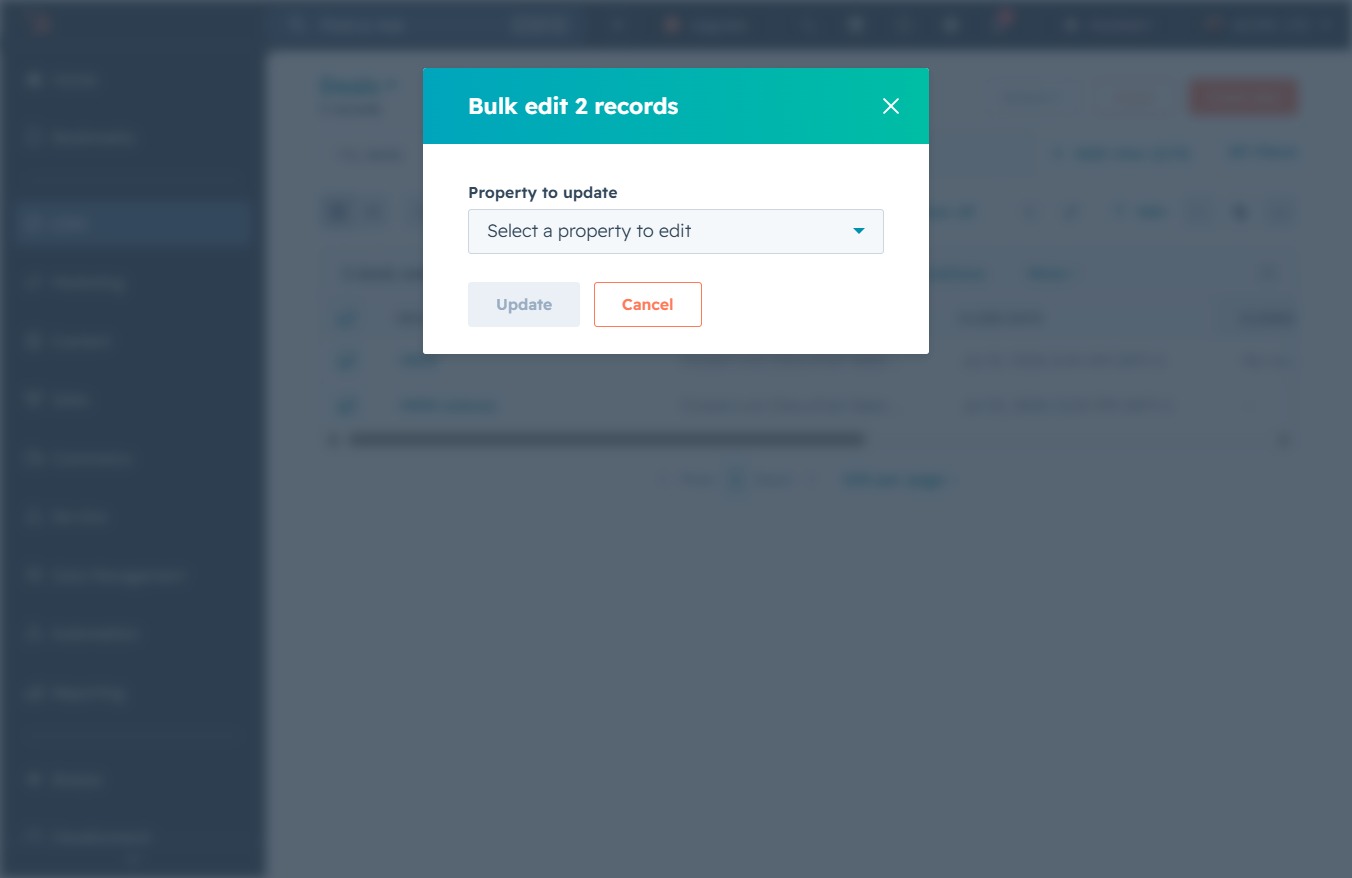
Select 'Deal Priority' from the dropdown to prioritize deals in the bulk edit feature. This allows you to set the importance level for multiple deal records at once.
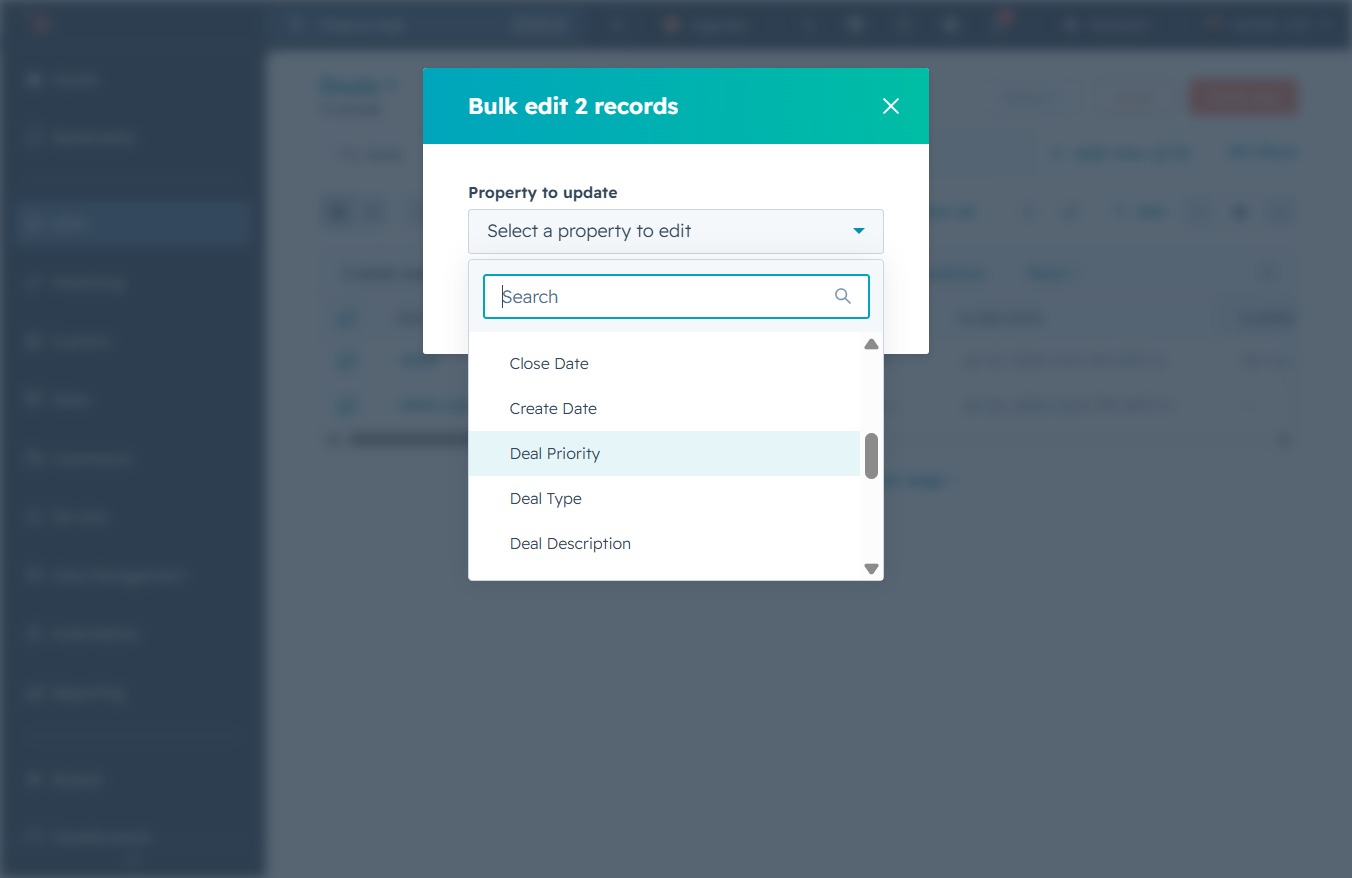
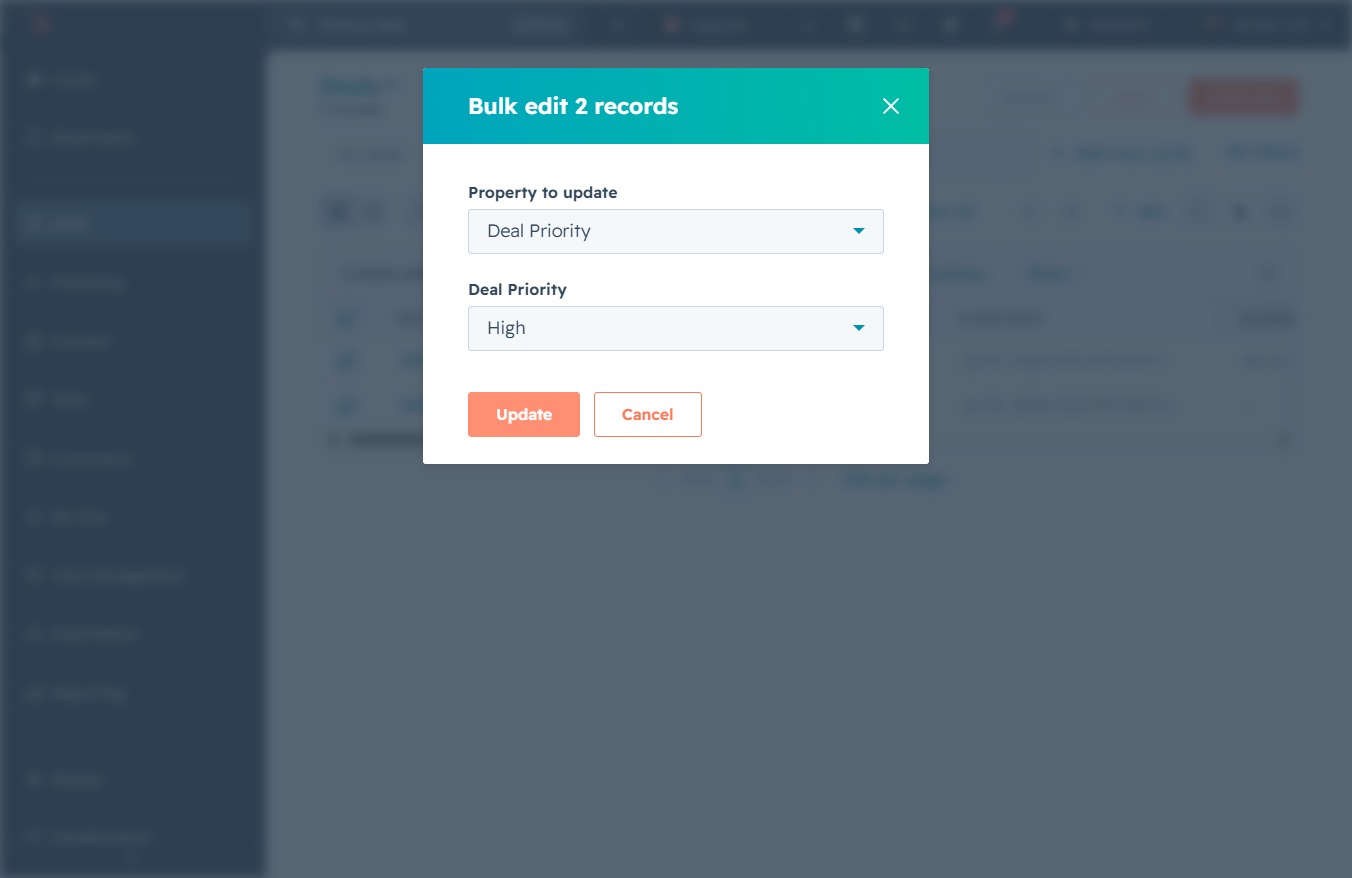
After clicking this button, the changes made to the 'Deal Priority' will be saved for the selected records.
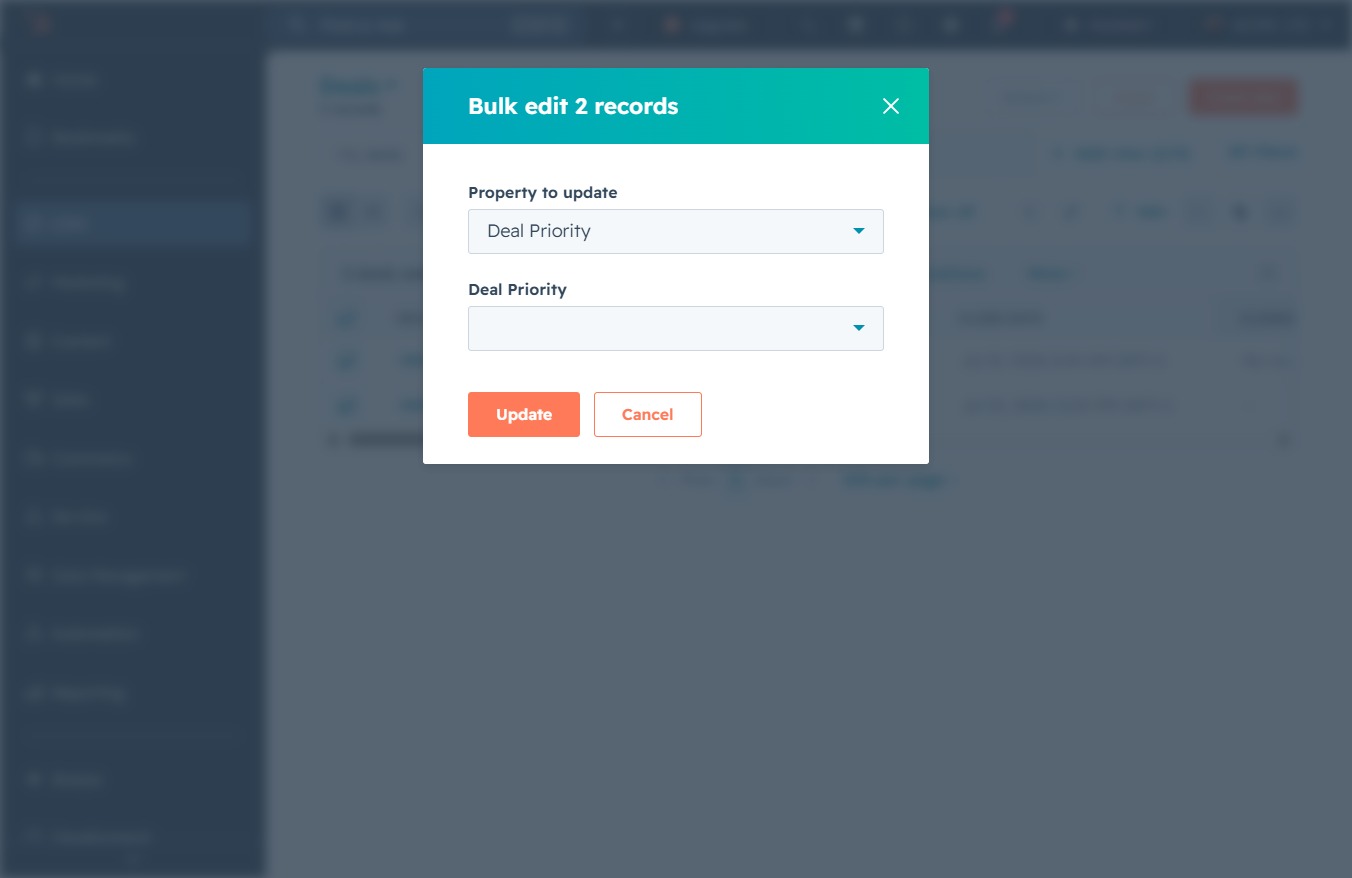
By selecting 'High' in the Deal Priority dropdown, you will set the priority level for the selected records to high in the bulk edit settings.
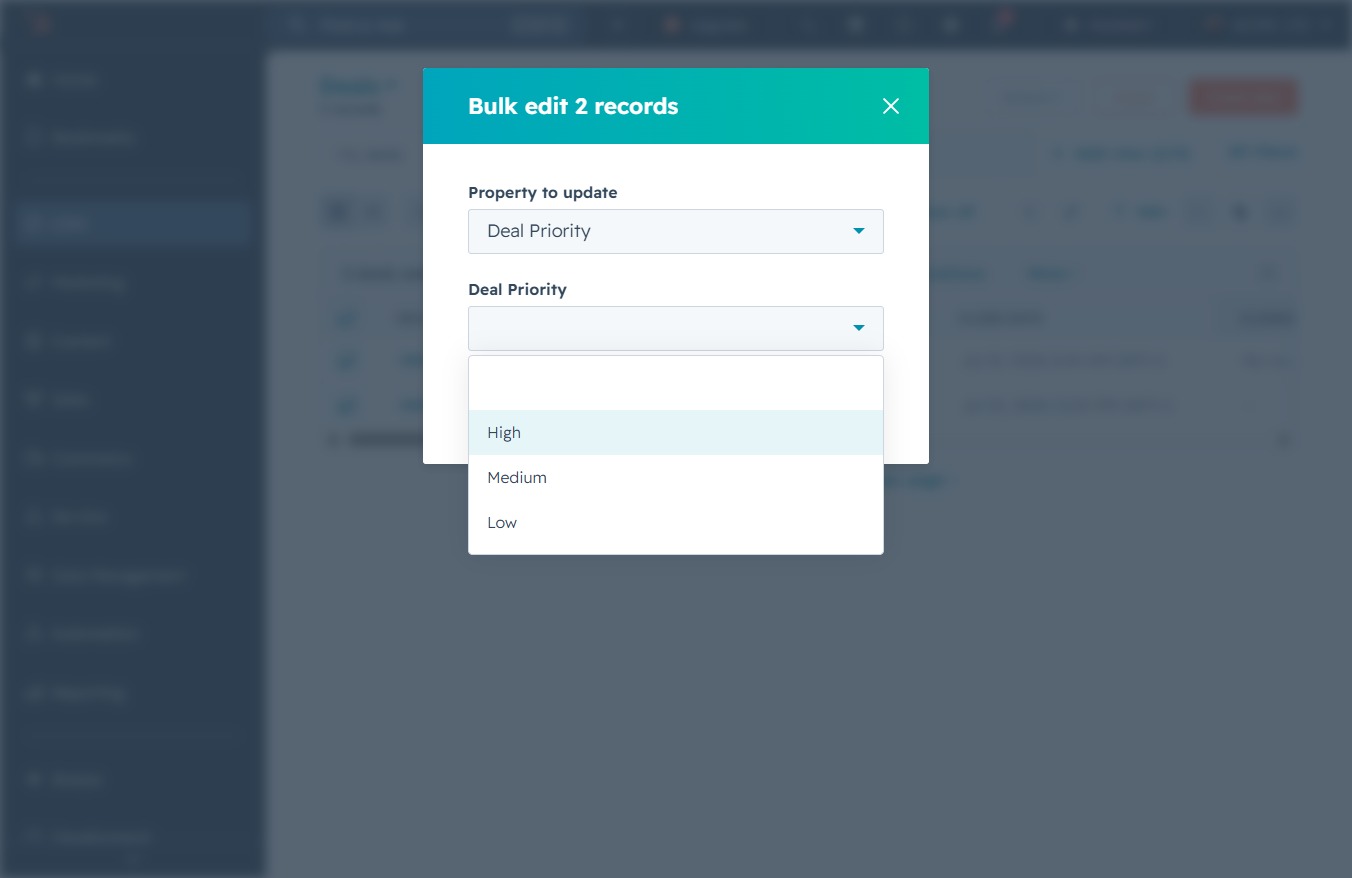
By clicking the Update button, you will apply the selected changes to the Deal Priority of the chosen records. This action updates the status of the deals to reflect the new priority level.