Geteilte Anleitung

How to back up your Pipedrive data

This guide offers a step-by-step approach to backing up your Pipedrive data, ensuring you securely save important CRM information.

victoriaworkflowsvictoriaworkflows
·30 Schritte·51 Aufrufe·Veröffentlicht

This guide offers a step-by-step approach to backing up your Pipedrive data, ensuring you securely save important CRM information. Follow the detailed instructions to easily navigate the settings and authorize your backup.

Step-by-step Guide30 Schritte
  1. Click on "Click here."
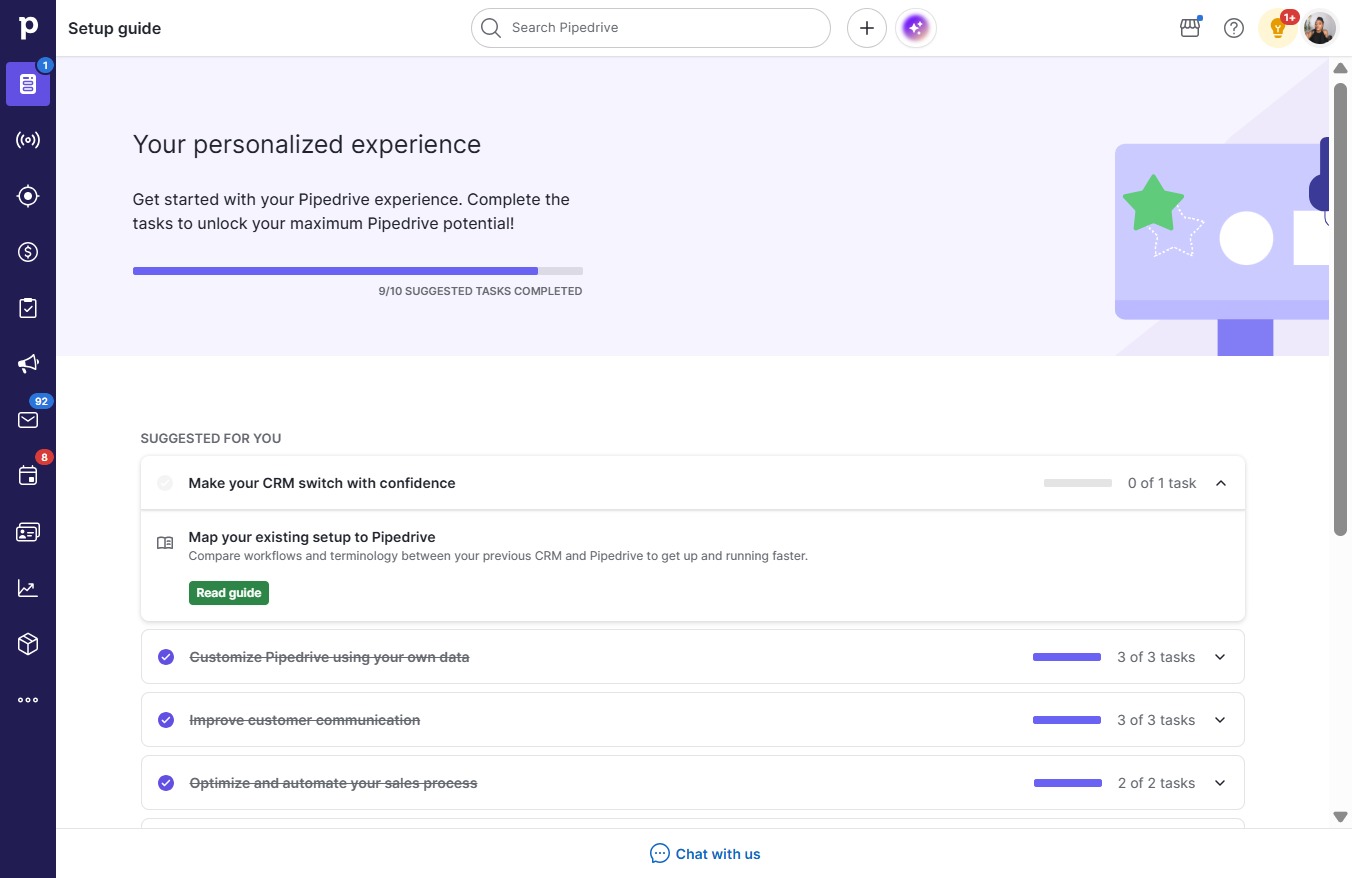
    Click on "Click here."
    Loading screenshot…
    100%
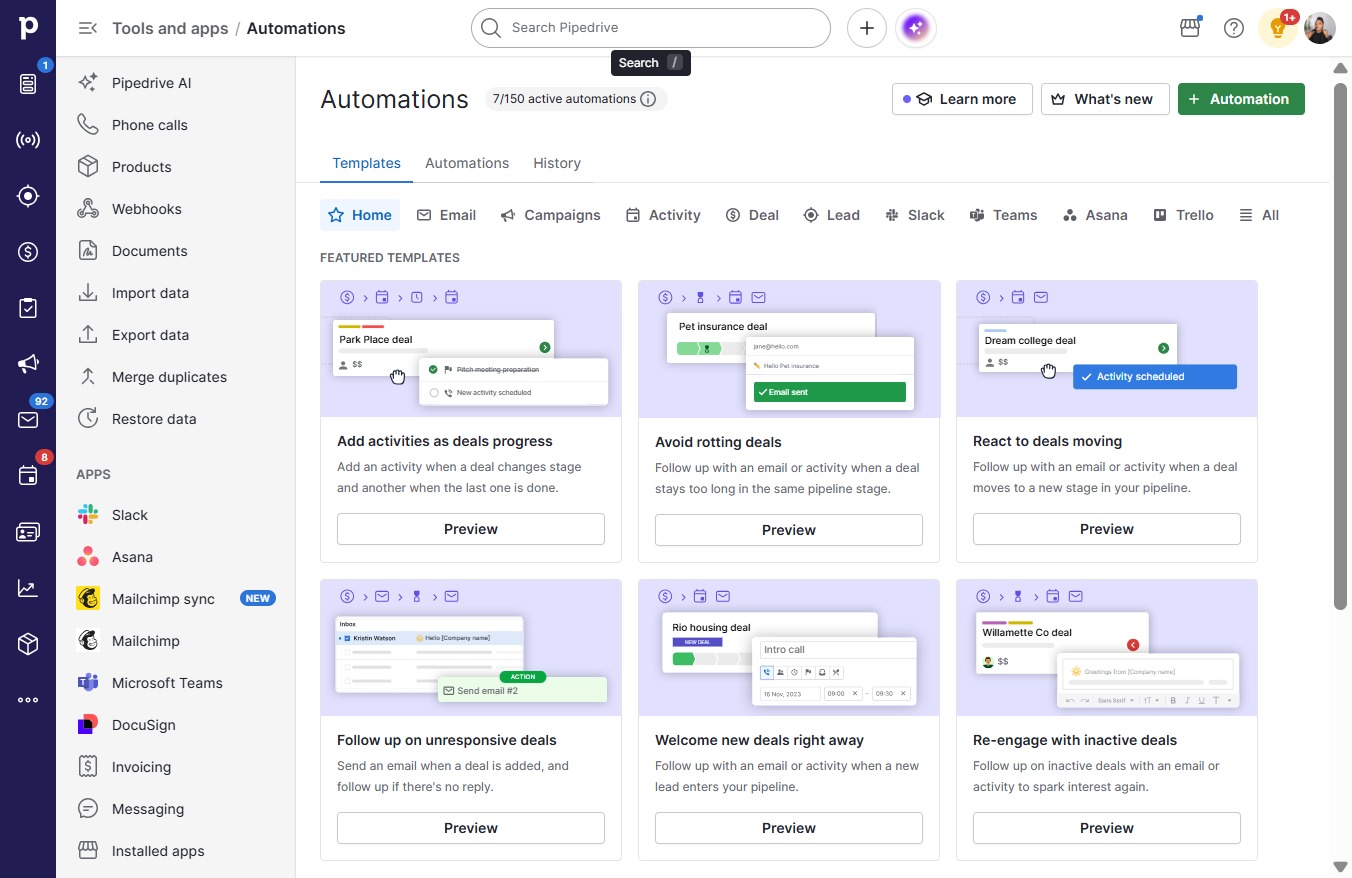
  2. Click Tools and apps

    Click Tools and apps
    Loading screenshot…
    100%
  3. Click on "Click here."

    Click on "Click here."
    Loading screenshot…
    100%
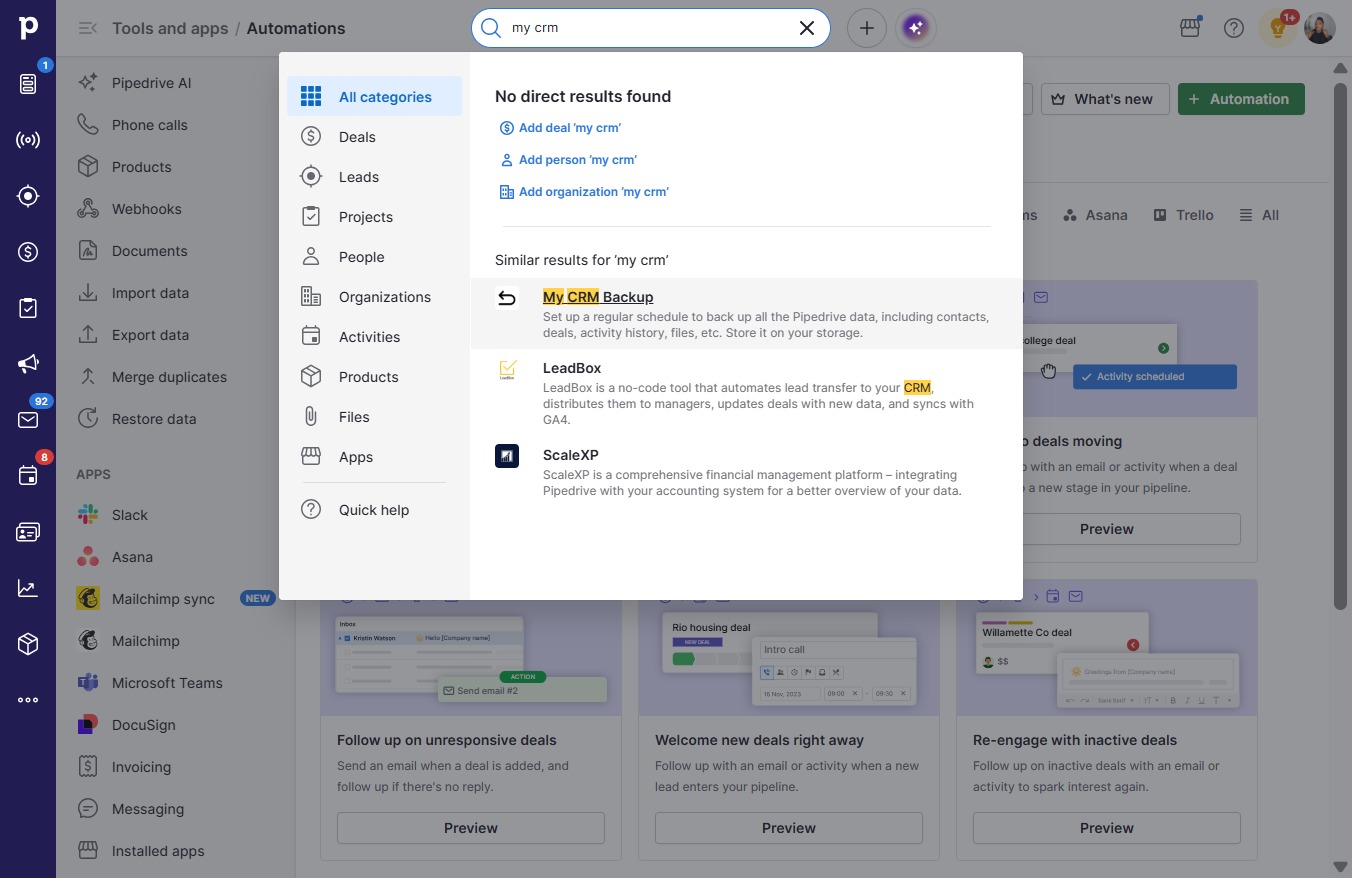
  4. Type "my crm" in Search Pipedrive

  5. Click My CRM Backup

    Click My CRM Backup
    Loading screenshot…
    100%
  6. Click Authorize

    Click Authorize
    Loading screenshot…
    100%
  7. Click on "Click here."

    Click on "Click here."
    Loading screenshot…
    100%
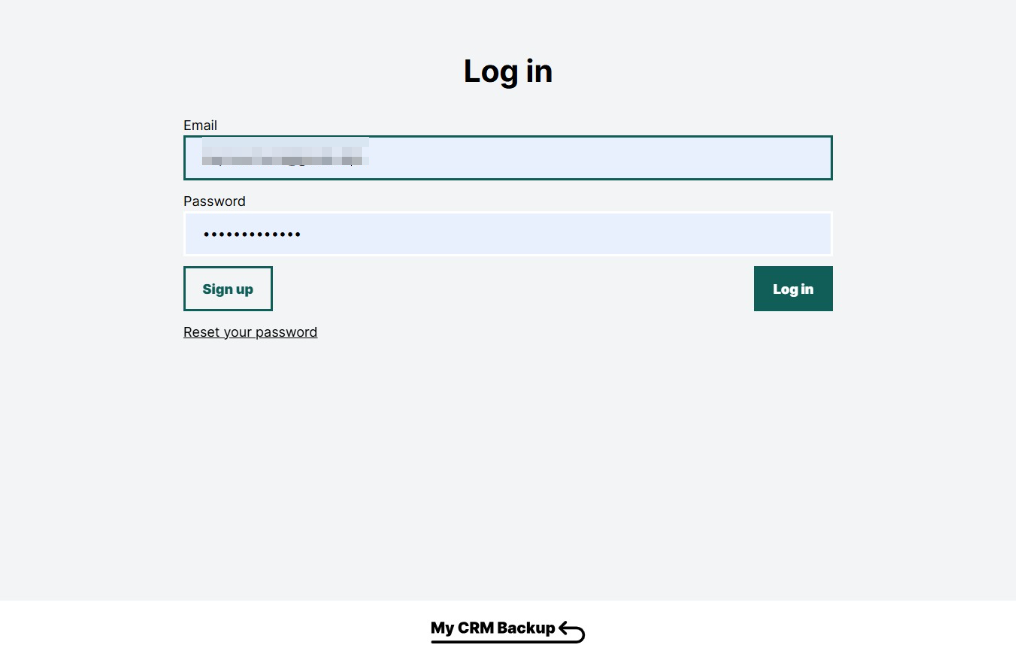
  8. Type your email in Email

  9. Click Sign up

    Click Sign up
    Loading screenshot…
    100%
  10. Click on "Click here."

    Click on "Click here."
    Loading screenshot…
    100%
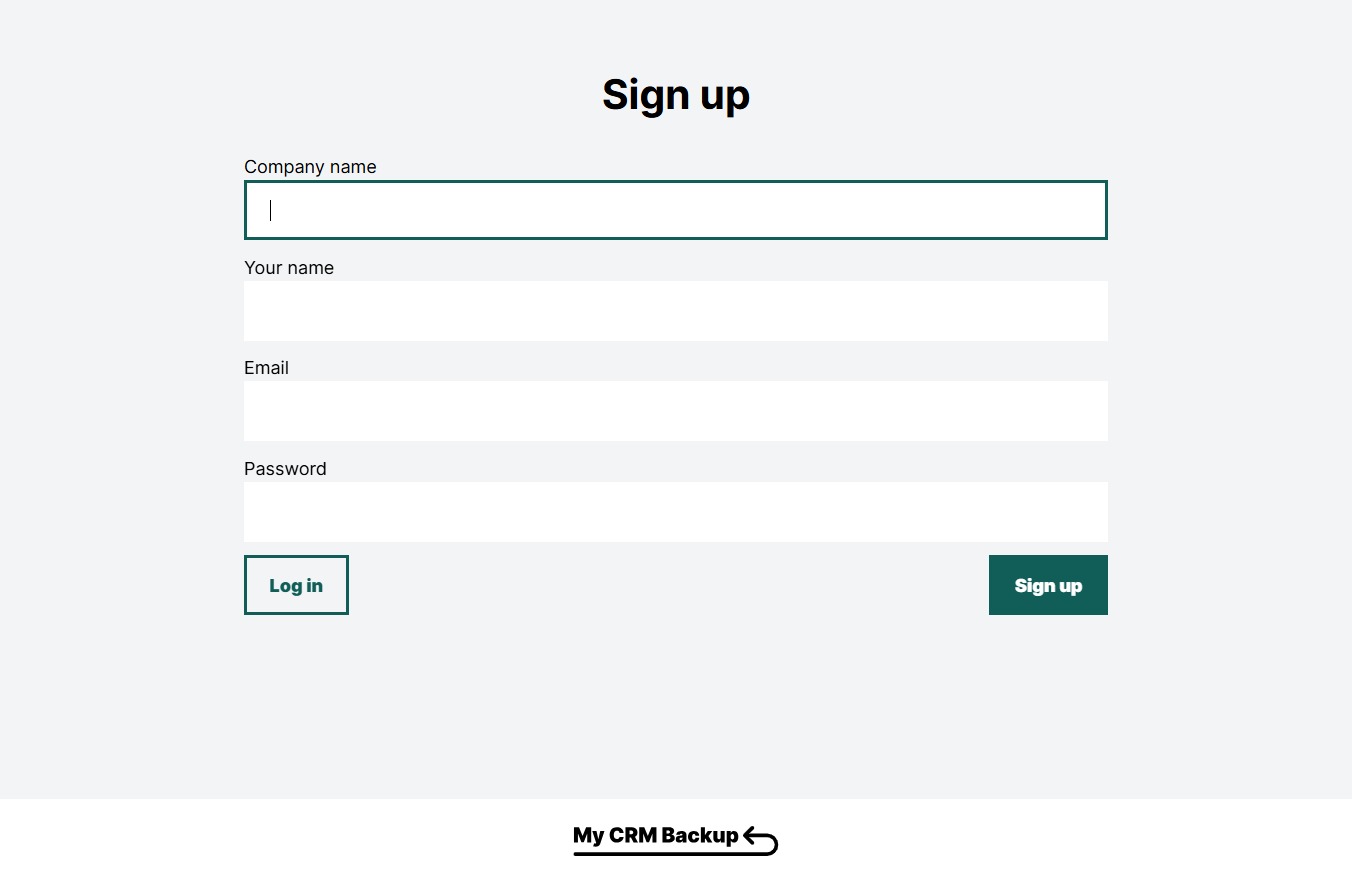
  11. Type "Concept" in Company name

  12. Click on "Click here."

    Click on "Click here."
    Loading screenshot…
    100%
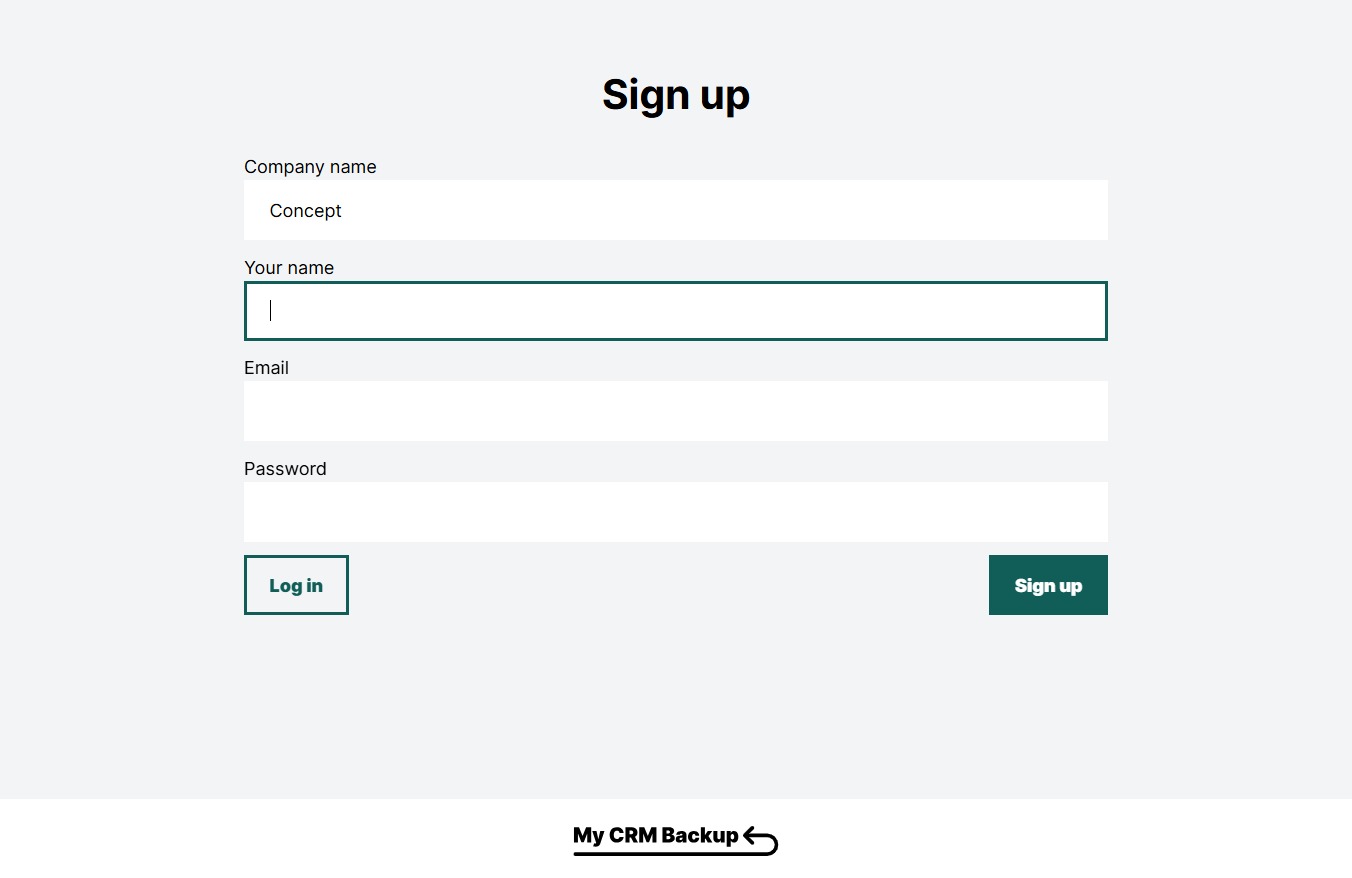
  13. Type "Victoria A" in Your name

  14. Click on "Click here."

    Click on "Click here."
    Loading screenshot…
    100%
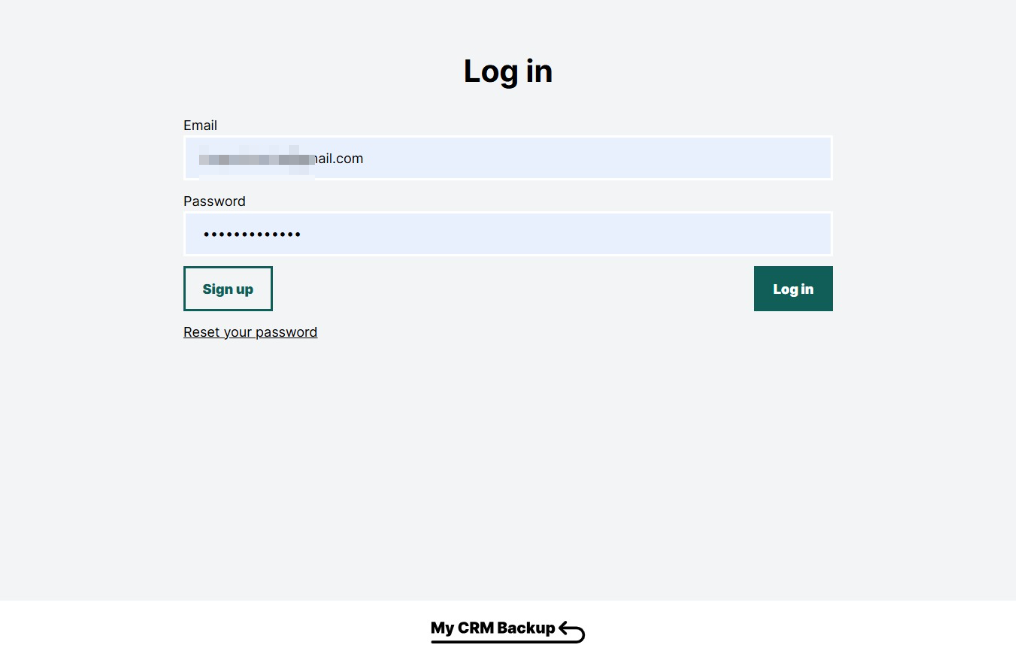
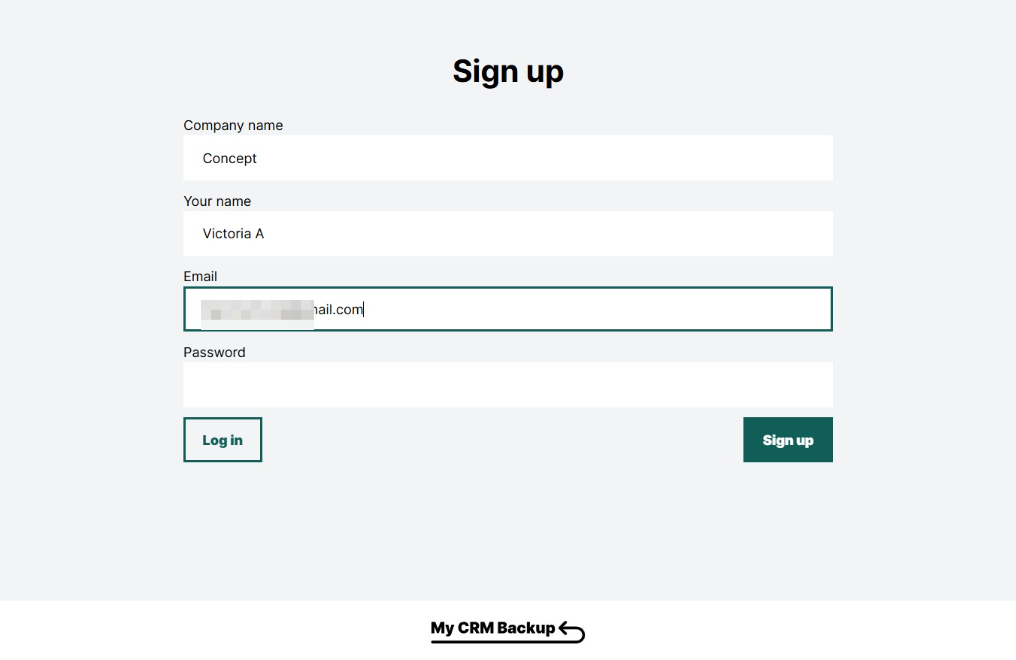
  15. Type your email in Email

  16. Click on "Click here."

    Click on "Click here."
    Loading screenshot…
    100%
  17. Click Sign up

    Click Sign up
    Loading screenshot…
    100%
  18. Click on "Click here."

    Click on "Click here."
    Loading screenshot…
    100%
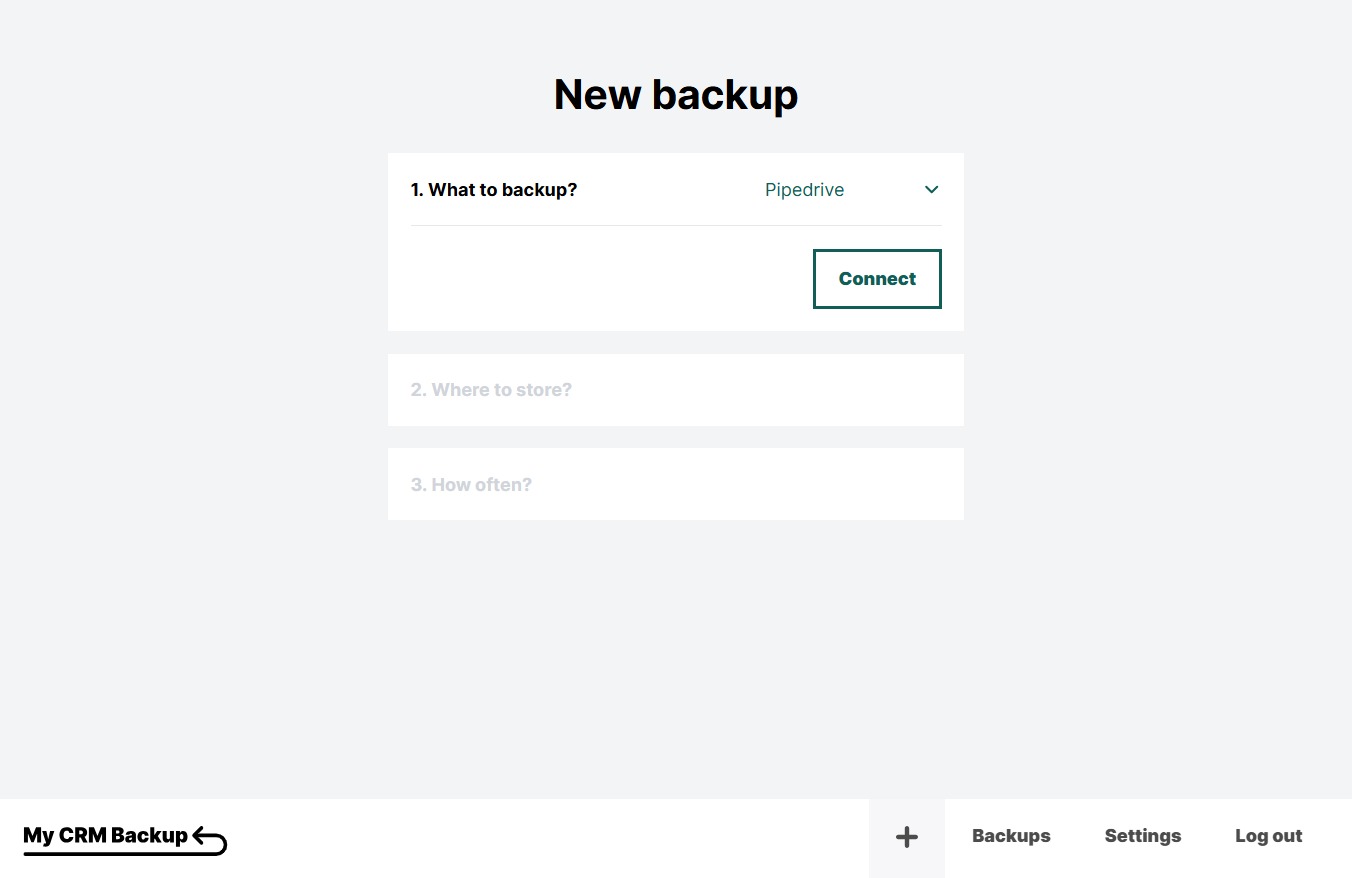
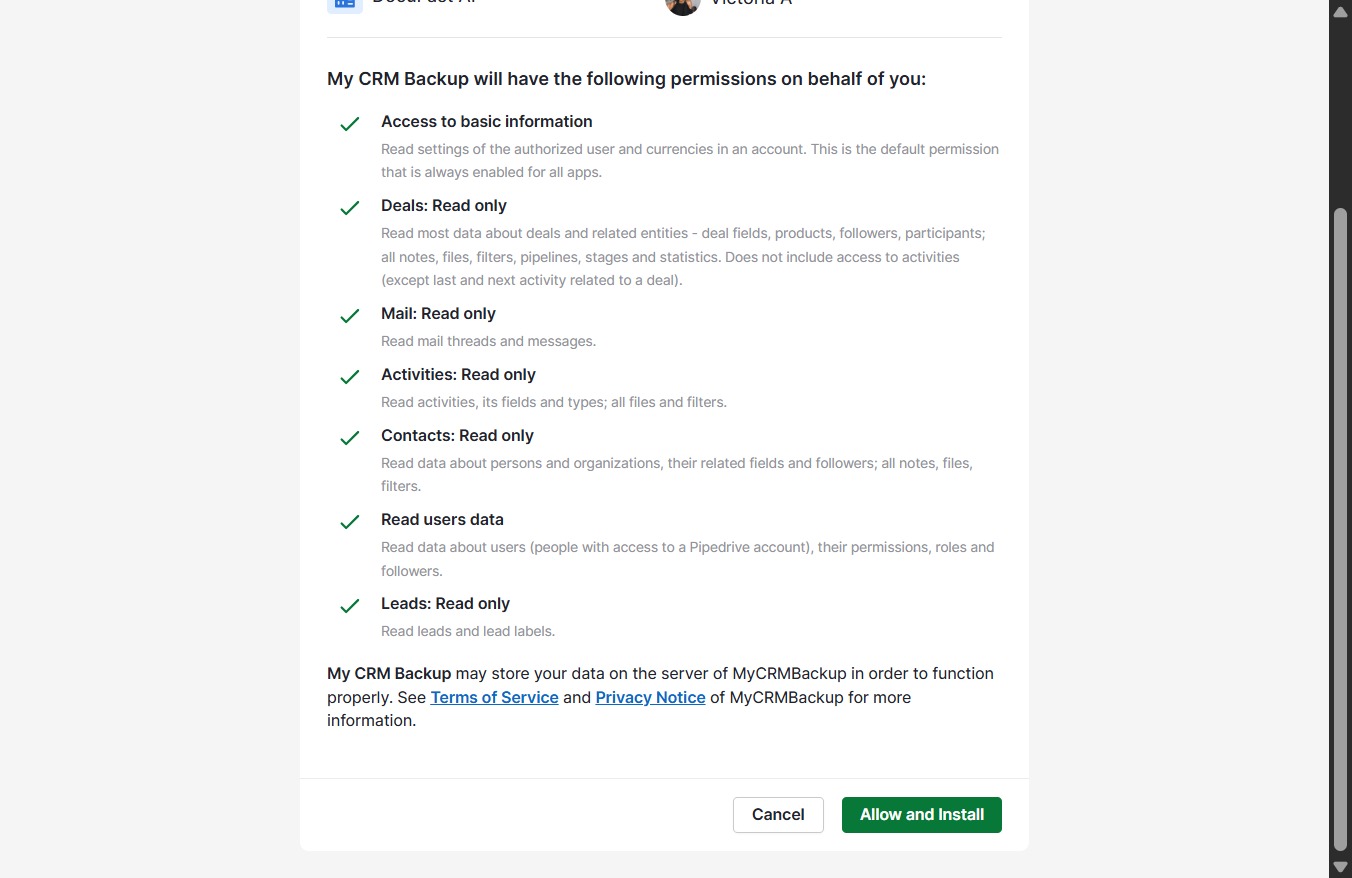
  19. Click Allow and Install

    Click Allow and Install
    Loading screenshot…
    100%
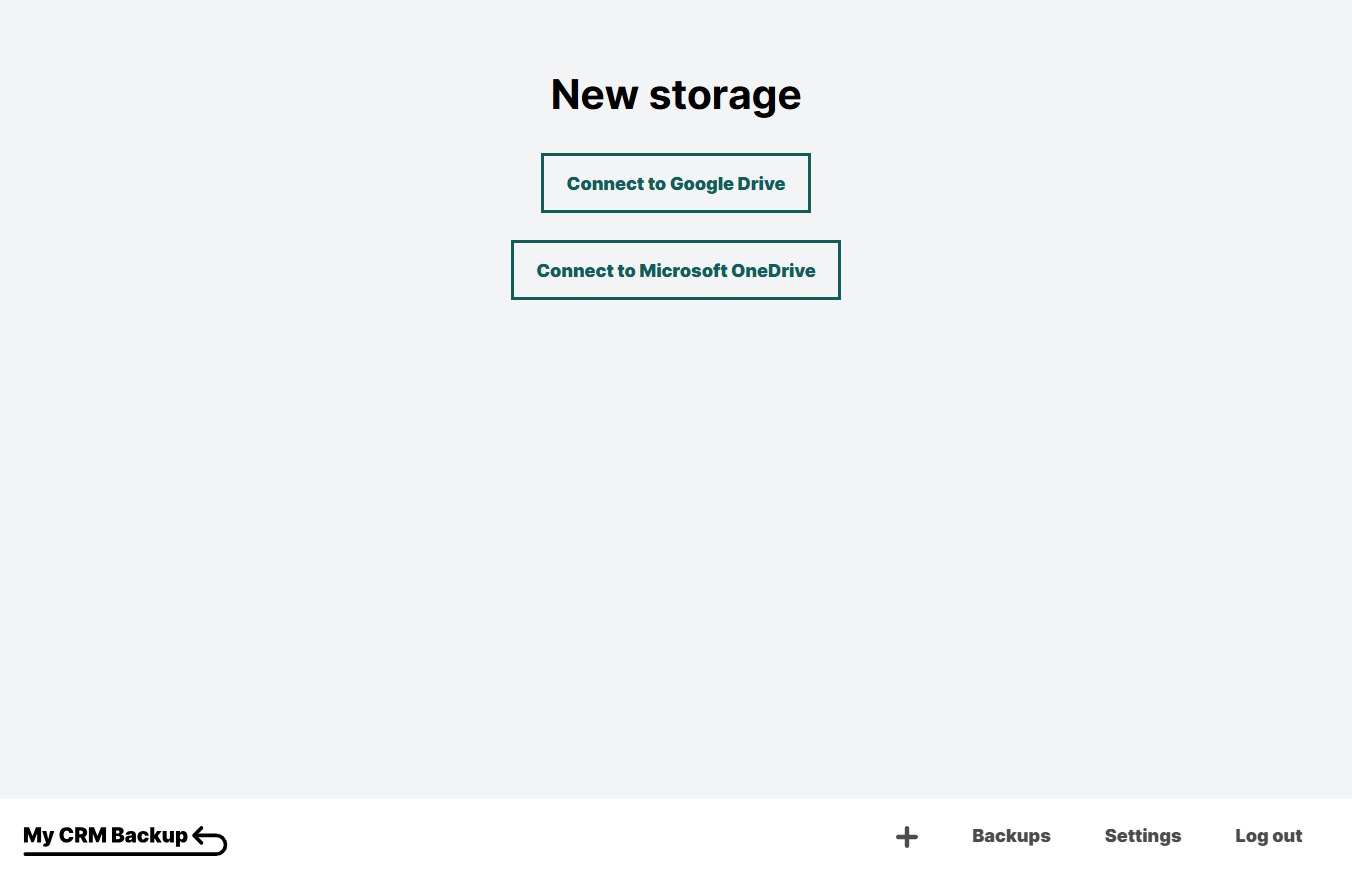
  20. Click Set up storage

    Click Set up storage
    Loading screenshot…
    100%
  21. Click Connect to Google Drive

    Click Connect to Google Drive
    Loading screenshot…
    100%
  22. Click hopmvictoria@gmail.com

    Click hopmvictoria@gmail.com
    Loading screenshot…
    100%
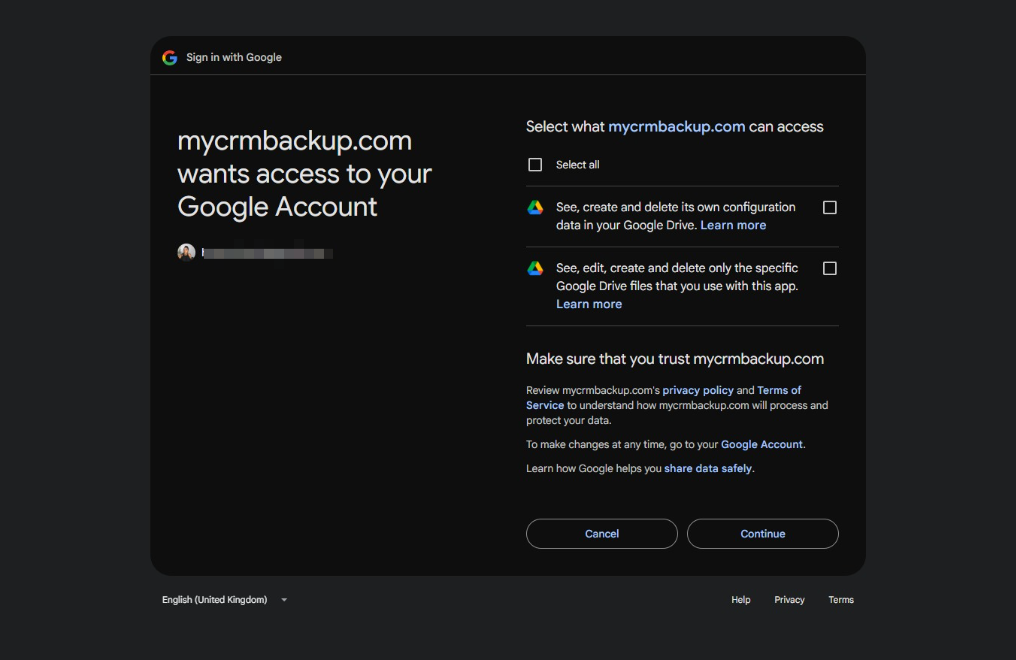
  23. Click Continue

    Click Continue
    Loading screenshot…
    100%
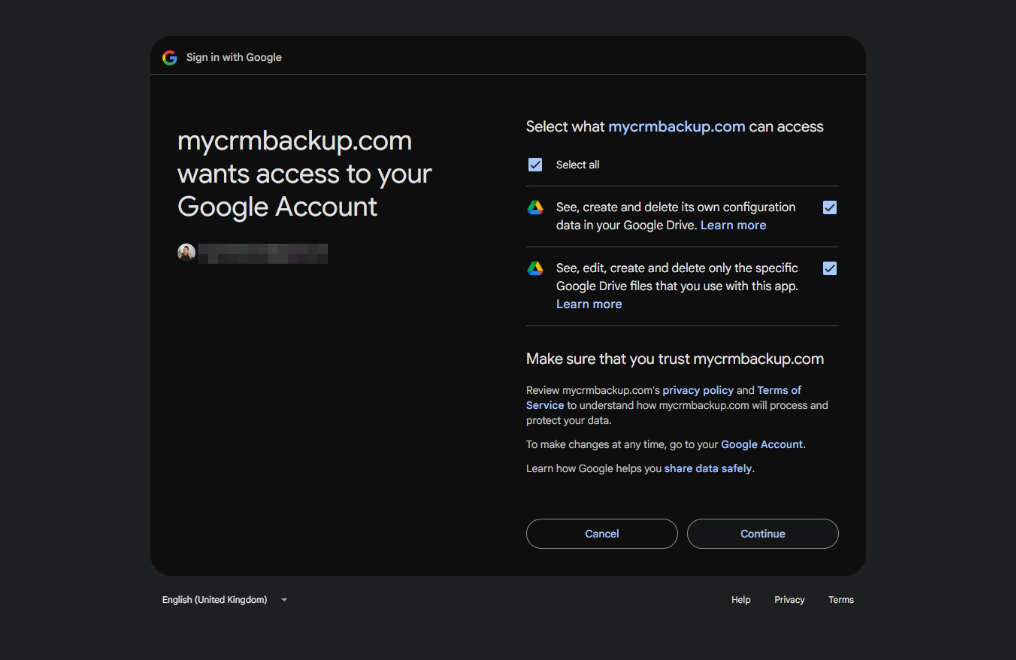
  24. Click Select all

    Click Select all
    Loading screenshot…
    100%
  25. Click Continue

    Click Continue
    Loading screenshot…
    100%
  26. Click on "Click here."

    Click on "Click here."
    Loading screenshot…
    100%
  27. Click weekly

    Click weekly
    Loading screenshot…
    100%
  28. Click on "Click here."

    Click on "Click here."
    Loading screenshot…
    100%
  29. Click on "Click here."

    Click on "Click here."
    Loading screenshot…
    100%
  30. Click on "Click here."

    Click on "Click here."
    Loading screenshot…
    100%