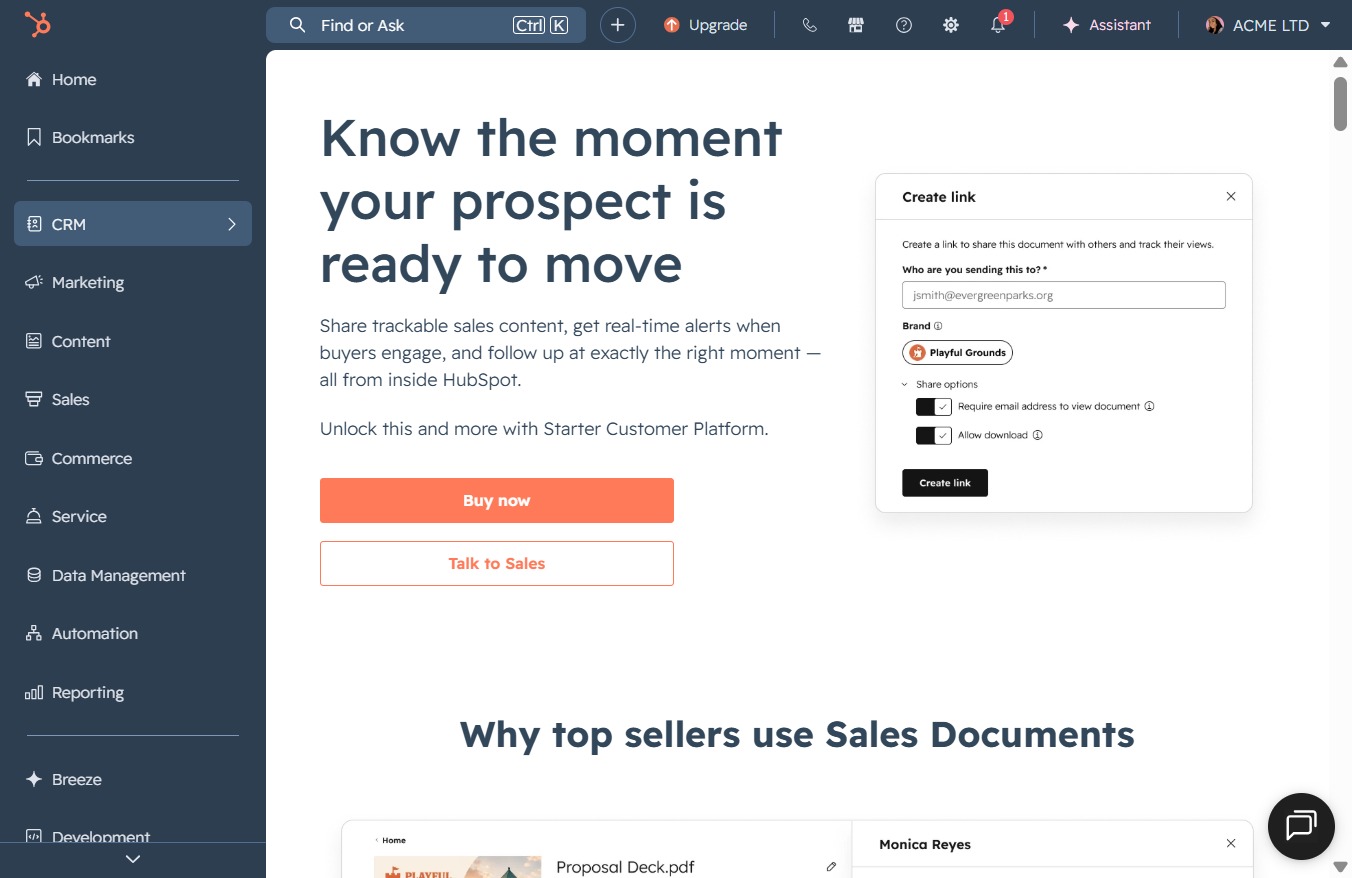
Click the CRM link
This action will navigate you to the CRM section of HubSpot, where you can manage customer relationships, track interactions, and access sales data.
Loading screenshot…
100%
Navigate to the CRM section in HubSpot to associate multiple contacts with a company, allowing for enhanced relationship management and tracking of all related interactions.
 viktoria
Navigate to the CRM section in HubSpot to associate multiple contacts with a company, allowing for enhanced relationship management and tracking of all related interactions.
This action will navigate you to the CRM section of HubSpot, where you can manage customer relationships, track interactions, and access sales data.
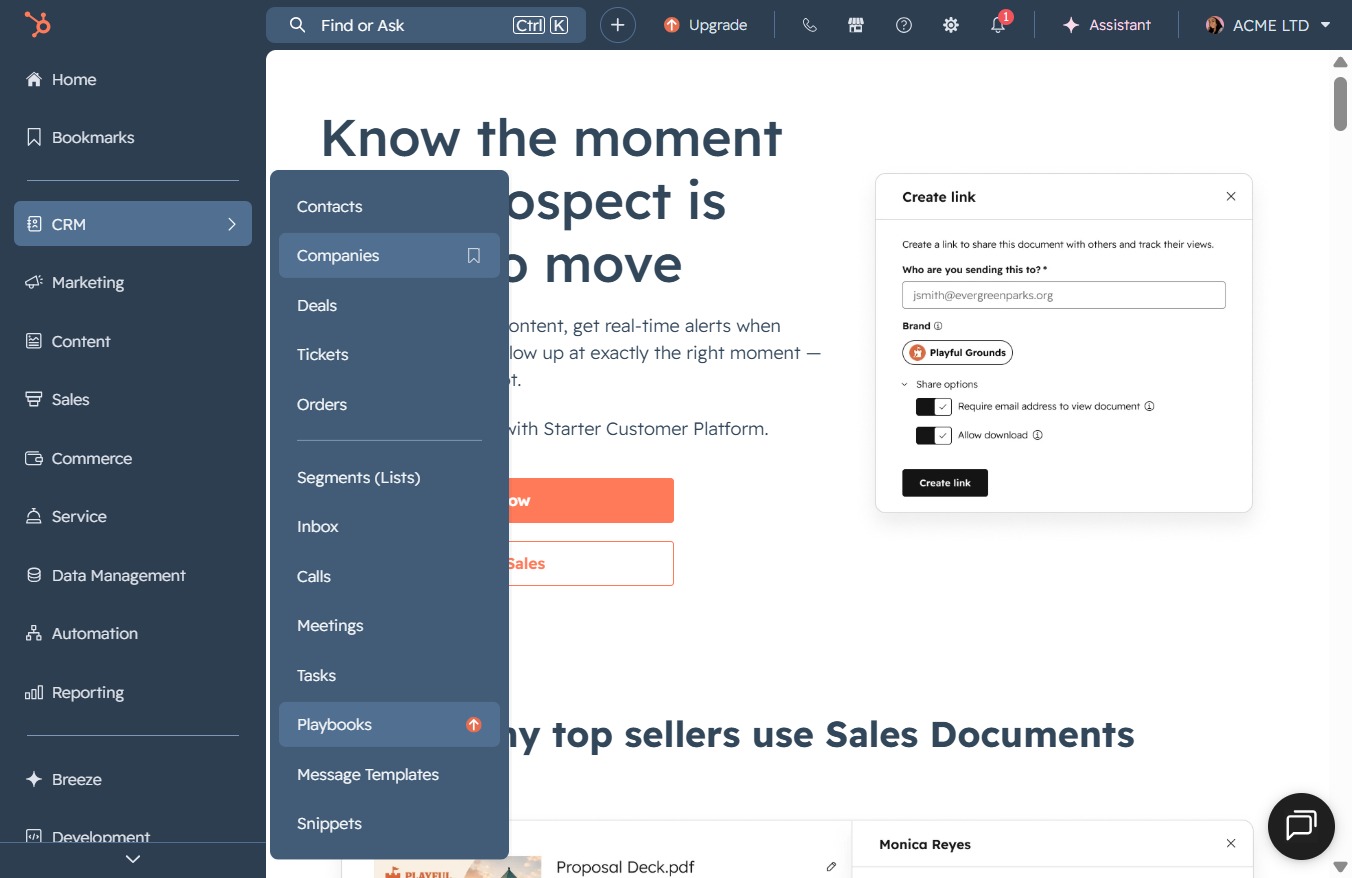
Clicking the Companies link will take you to the section where you can view and manage your company records within the CRM. This area allows you to access details about all companies associated with your contacts.
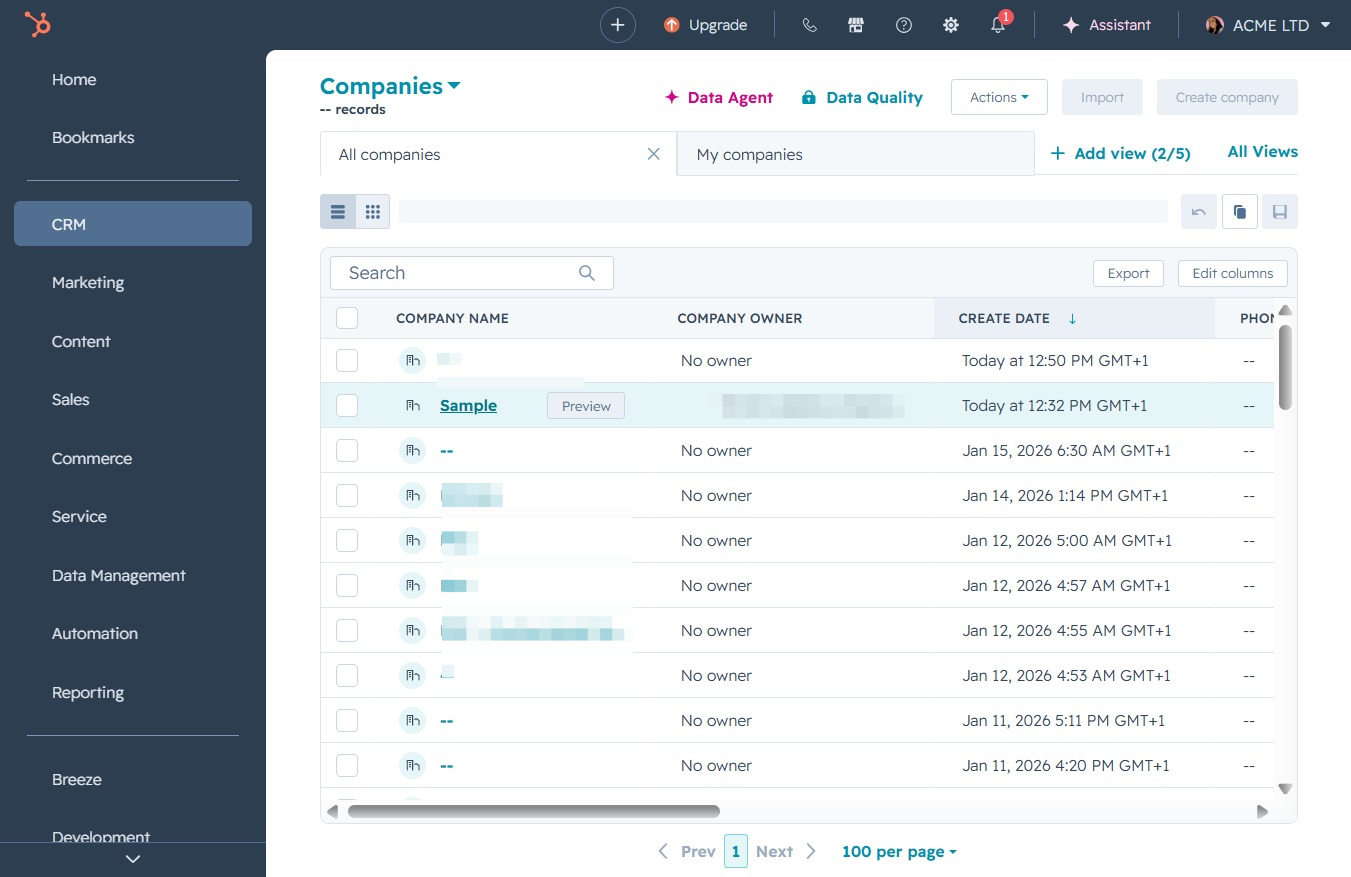
This action opens the detailed view of the selected company record, allowing you to edit or review its specific information.
Clicking the Add button will allow you to create a new record or activity, enabling you to input relevant details and track it within the CRM system.

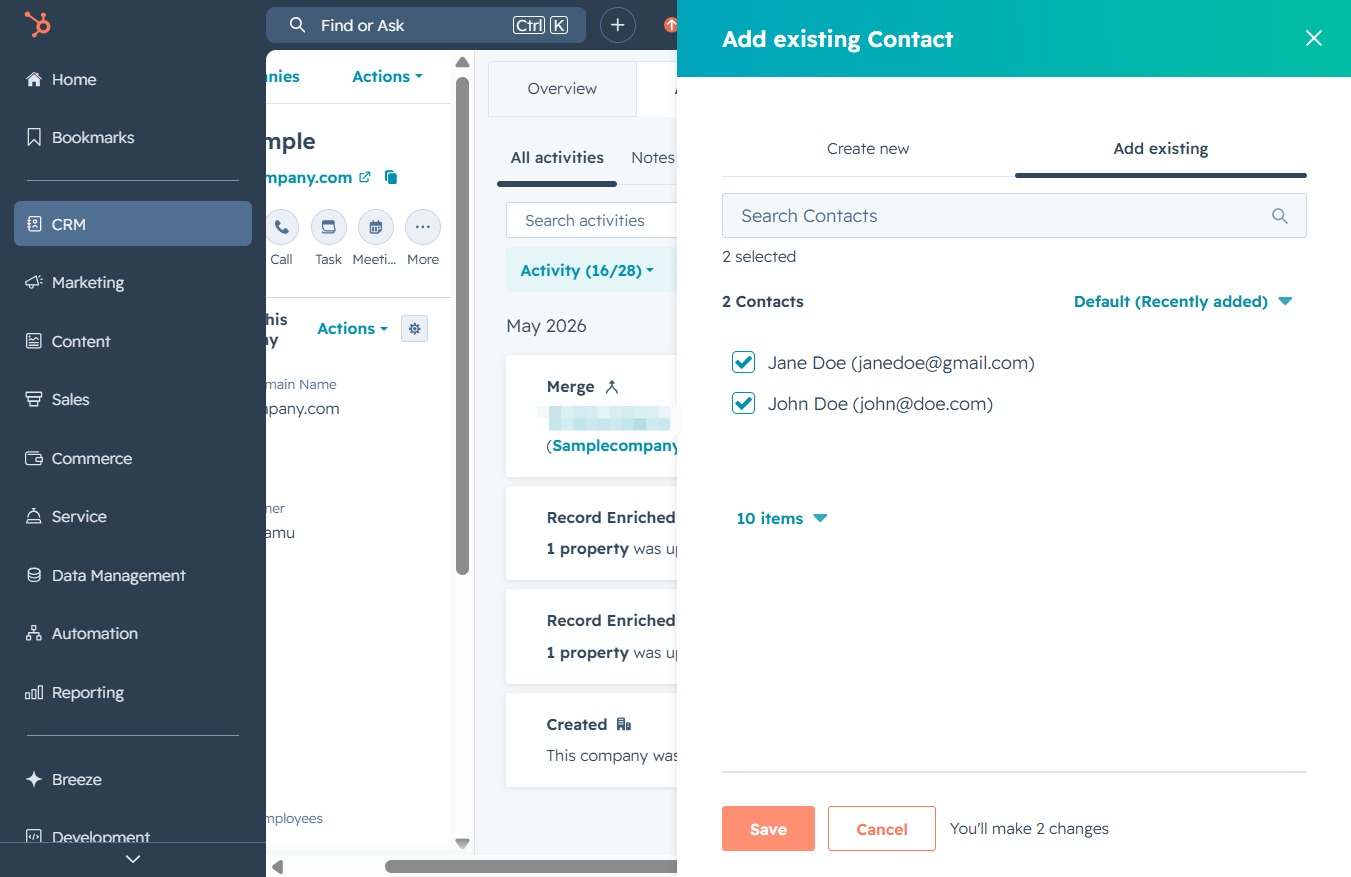
Select Jane Doe to add the contact to the company.
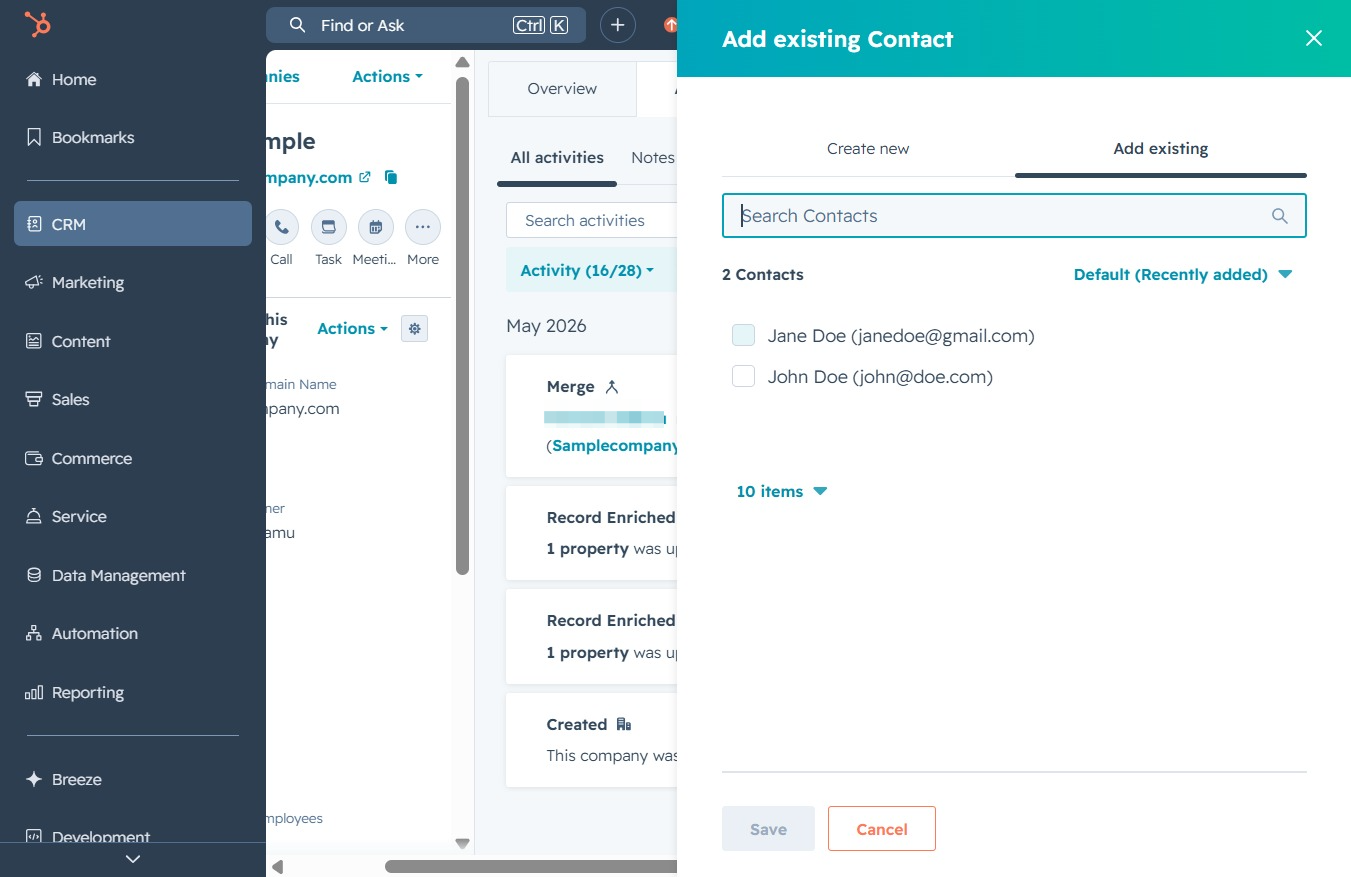
Select John Doe to add the contact to the company.
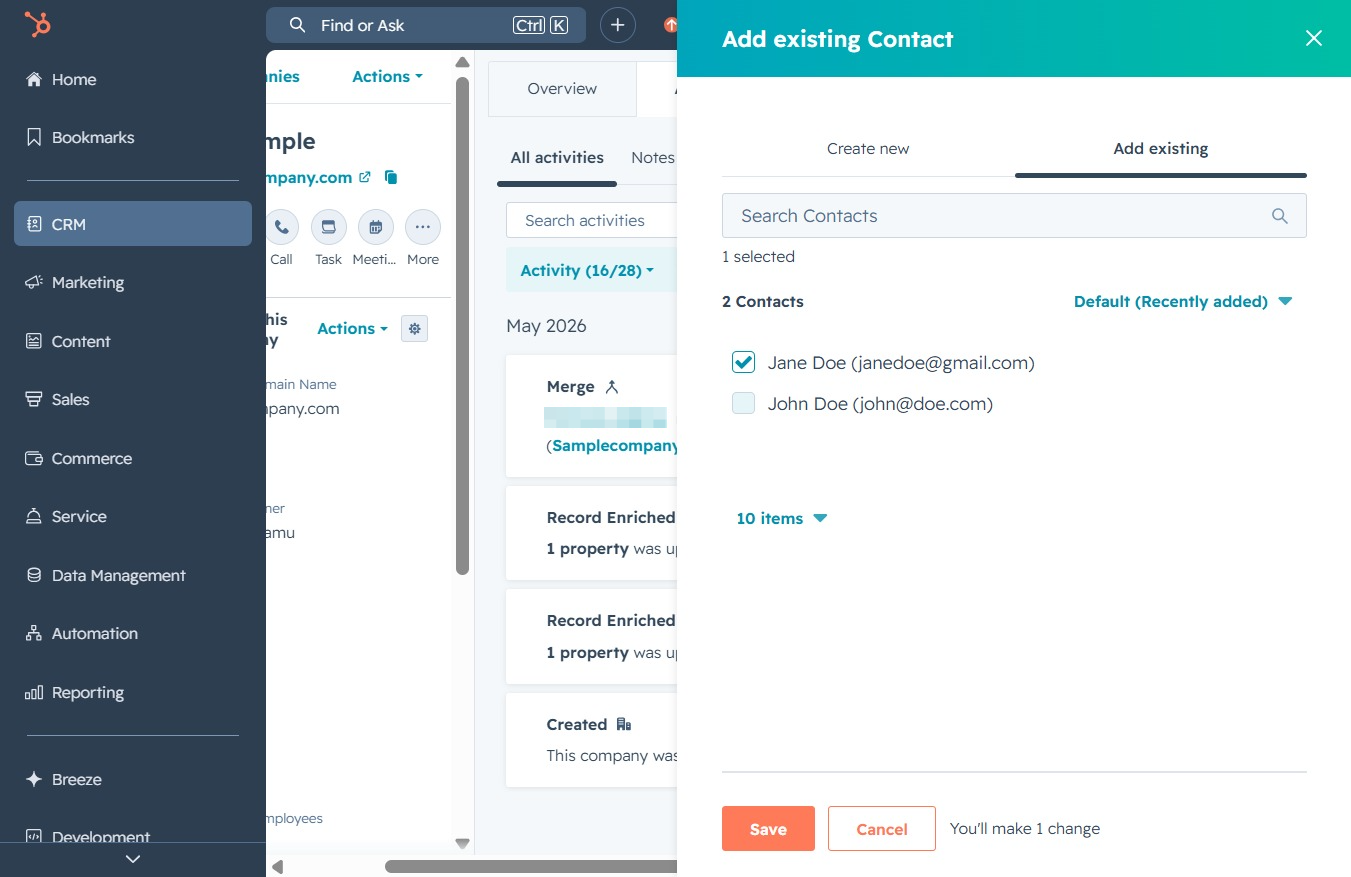
This action confirms and saves the selected contacts to your CRM. You will receive a notification indicating the successful addition of the contacts.