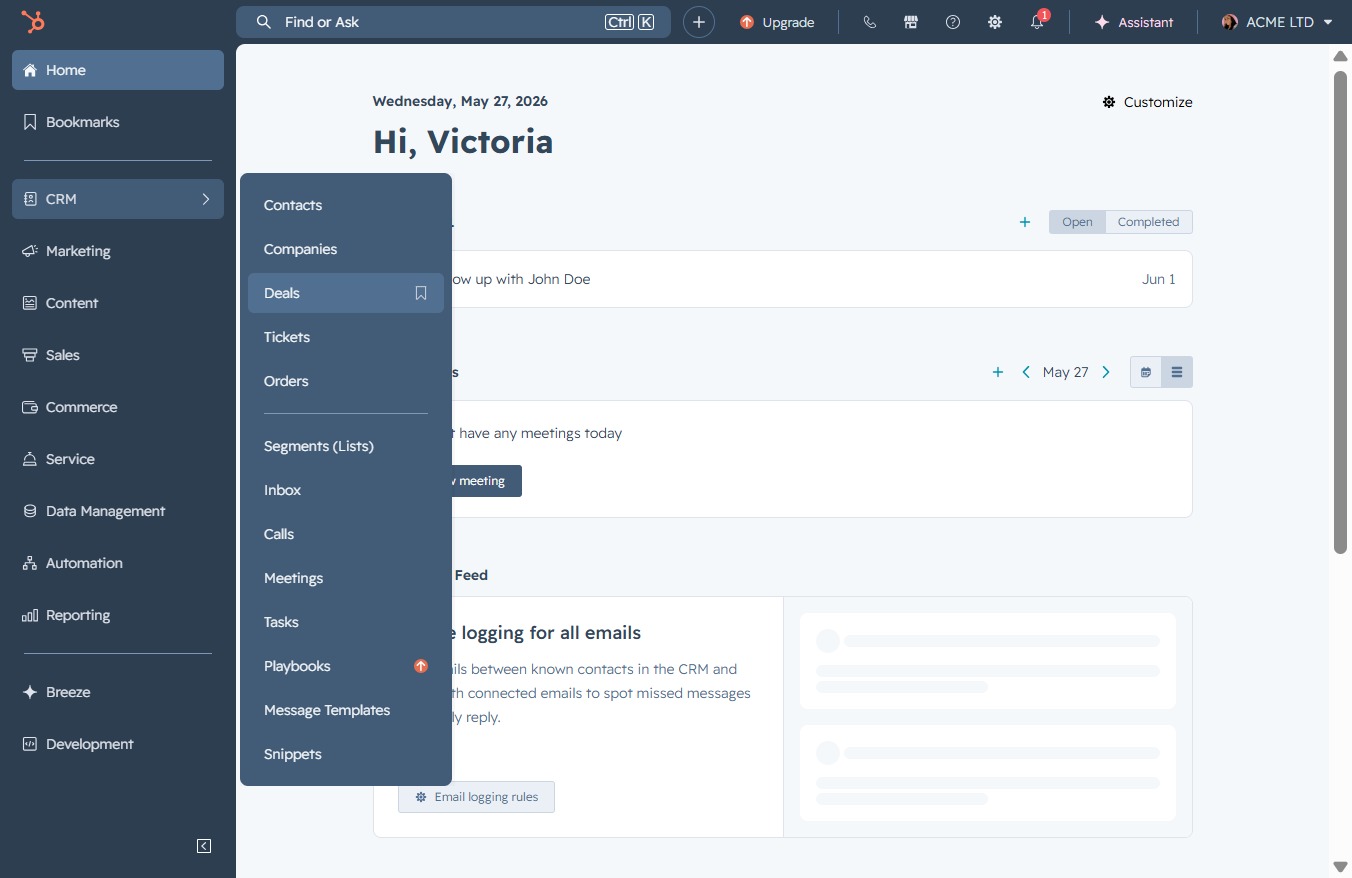
Click the CRM icon
Clicking the CRM icon opens the Customer Relationship Management section where you can manage interactions and data related to your clients.

Loading screenshot…
100%
Add existing contacts to a deal in the CRM by selecting from a list of contacts and saving your selections, ensuring that the deal reflects the most relevant client associations.
 viktoria
Add existing contacts to a deal in the CRM by selecting from a list of contacts and saving your selections, ensuring that the deal reflects the most relevant client associations.
Clicking the CRM icon opens the Customer Relationship Management section where you can manage interactions and data related to your clients.
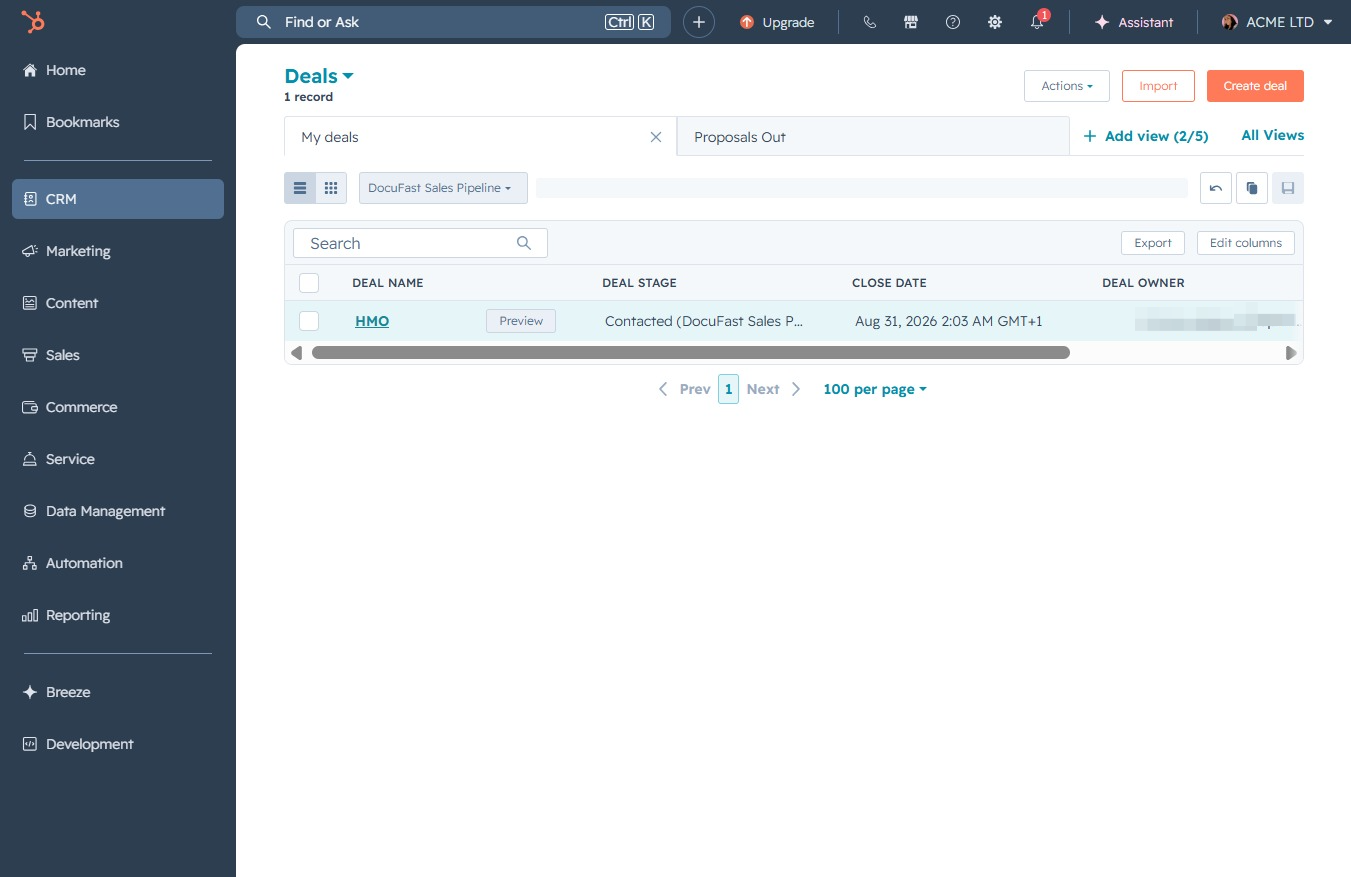
This action will take you to the Deals section, where you can view and manage your sales opportunities and pipeline.
This action opens the details of the HMO deal, allowing you to view or edit information related to the deal's current stage and associated tasks.
Clicking the 'Add' button allows you to create a new contact or company associated with the deal. This action opens a form where you can input relevant details for the new entry.

Clicking this link allows you to choose from a list of existing contacts to associate with the current deal. You can select multiple contacts by checking the boxes next to their names.
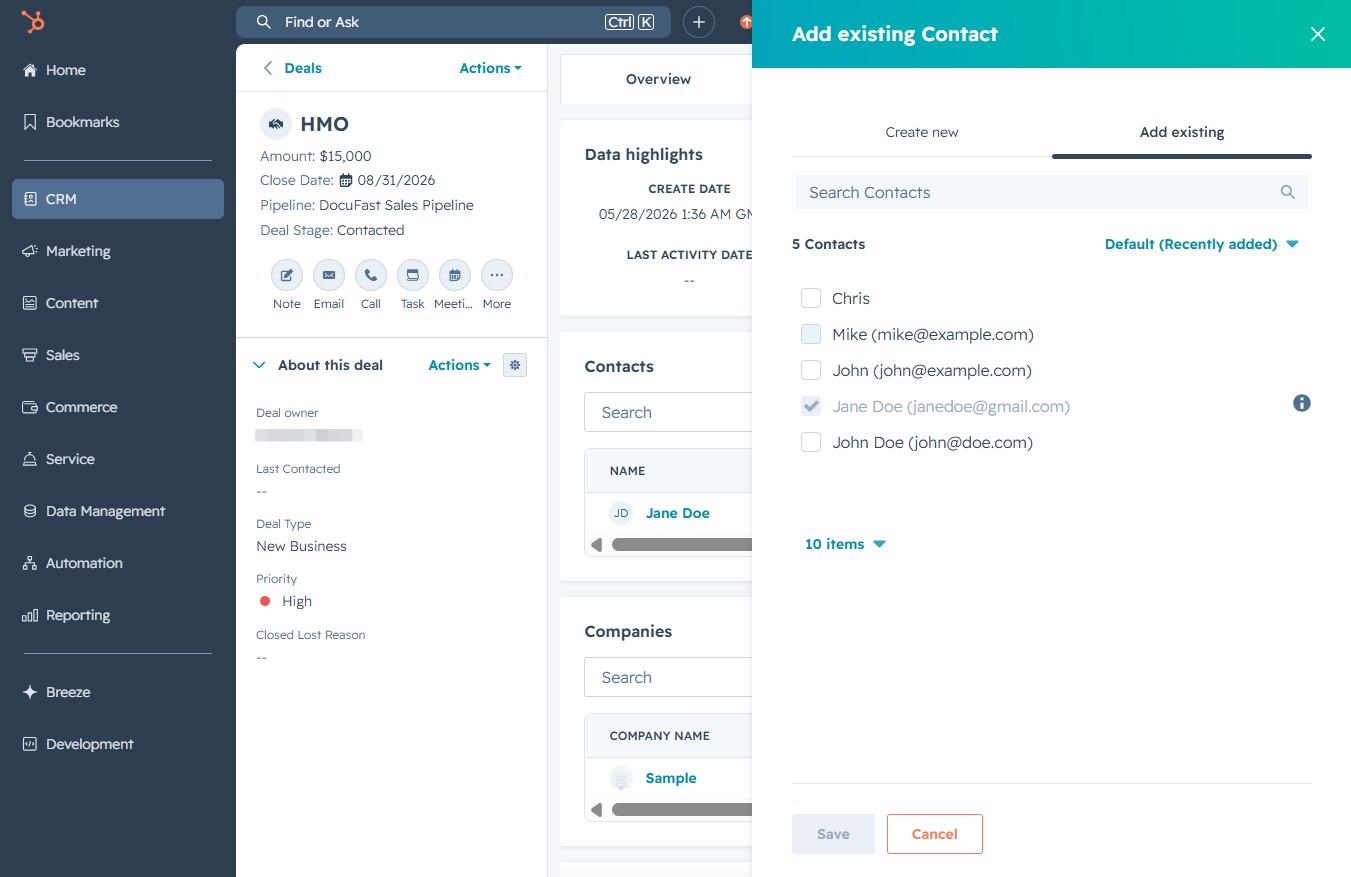
After selecting existing contacts, click the Save button to finalize the additions to the deal. This action updates the deal with the chosen contacts in the CRM.
