Click the Software Development section
This will navigate you to the documents and updates related to the Software Development project, allowing you to view recent contributions and discussions.

Loading screenshot…
100%
This how-to guide walks you through the process of assigning space administrators in Confluence, from navigating to the user management section to inviting and managing user…
 viktoria
This how-to guide walks you through the process of assigning space administrators in Confluence, from navigating to the user management section to inviting and managing user roles and access levels. Follow the steps to ensure effective collaboration and permissions management within your Software Development space.
This will navigate you to the documents and updates related to the Software Development project, allowing you to view recent contributions and discussions.
Clicking this button reveals additional options and settings specific to your current selection or area in the Confluence workspace.

This will take you to the Users management section where you can view and manage user access and permissions within the Software Development space.

This action opens a dialog where you can invite new users to your Confluence space. You can specify their roles and access levels within the space.
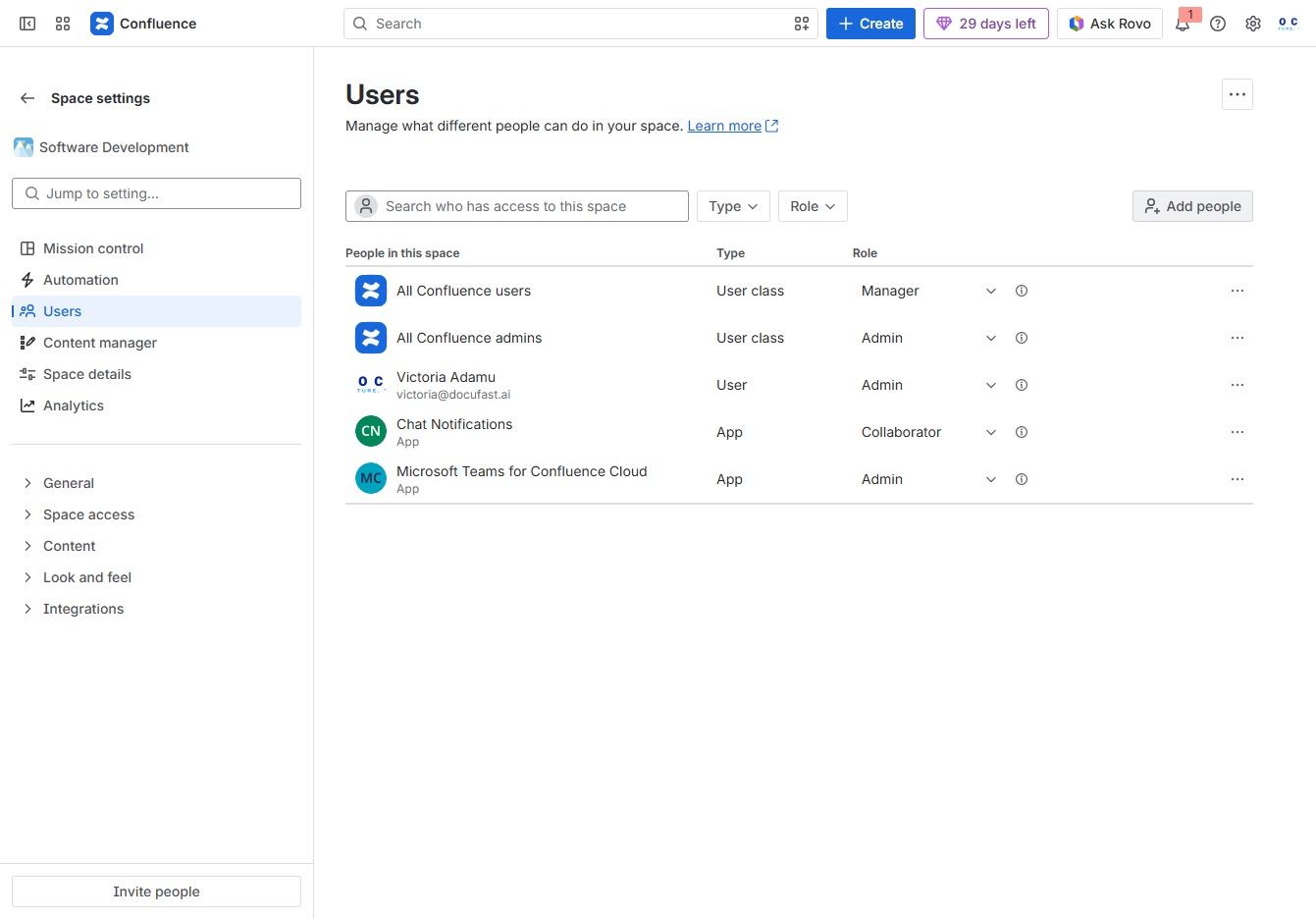
This action opens a dialog where you can search for and select users, teams, or groups to add to the space. Enter the relevant names in the provided field to manage access and collaboration settings.

Begin typing 'j' in the principal picker input to filter and select a member from the list of available users to add as a collaborator.
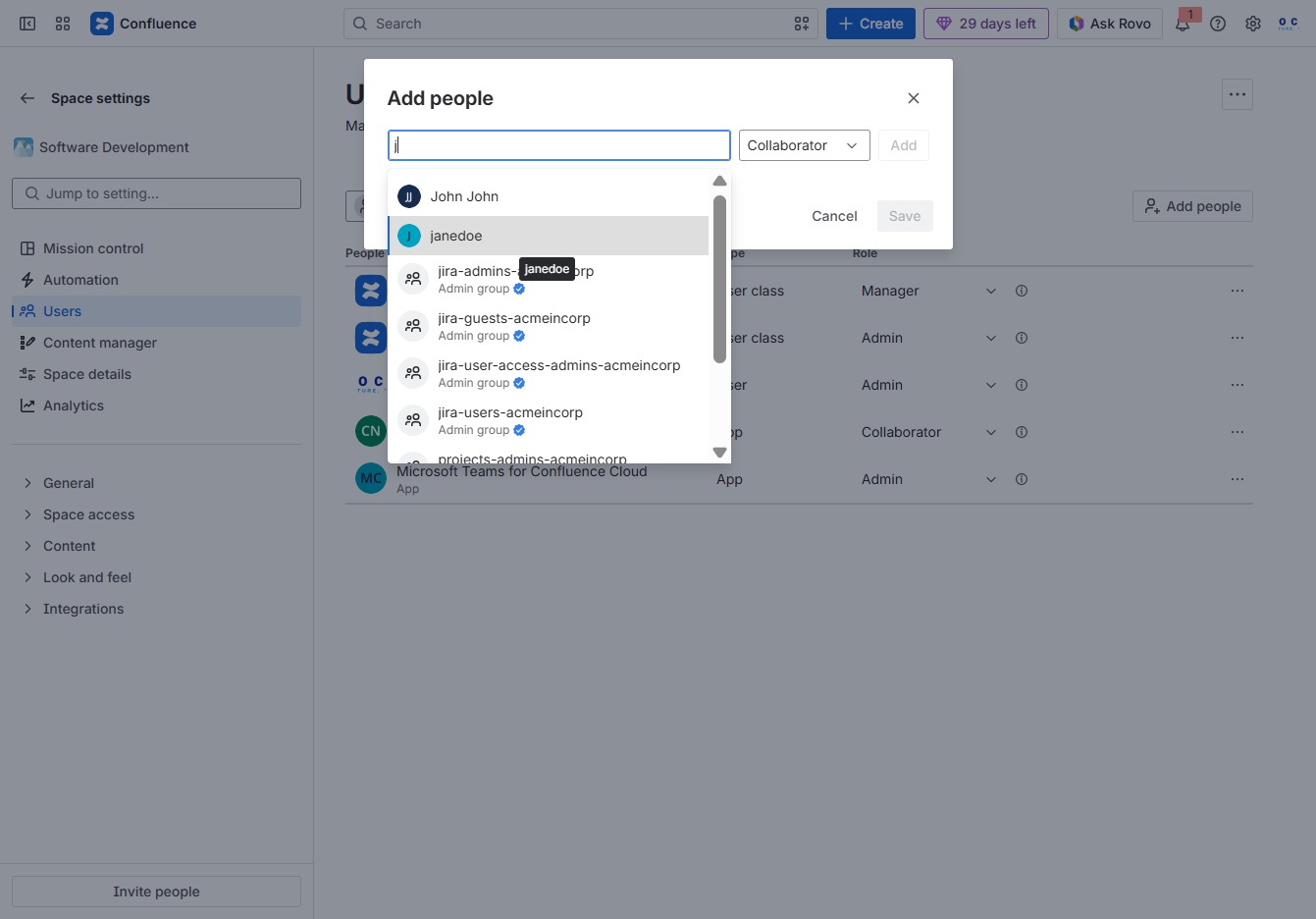
This action selects the user 'janedoe' from the list, allowing you to manage their access and roles in the Confluence space.
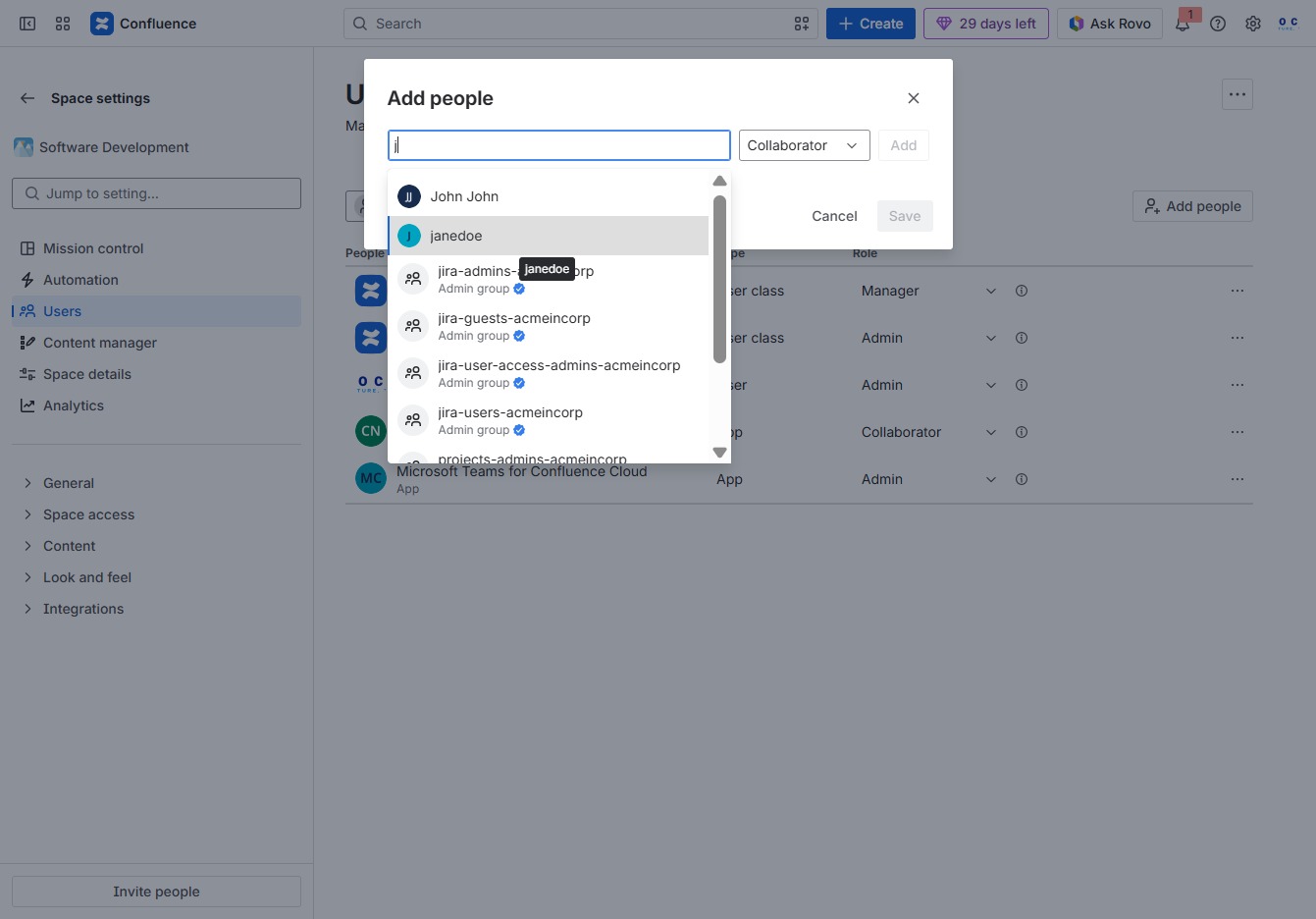
Clicking this link allows you to search for and invite collaborators to the project. Once you select a user, you can assign their role before confirming the addition.

Selecting the Collaborator option allows the user to grant permissions for managing content within the space, enabling broader collaboration with other team members.
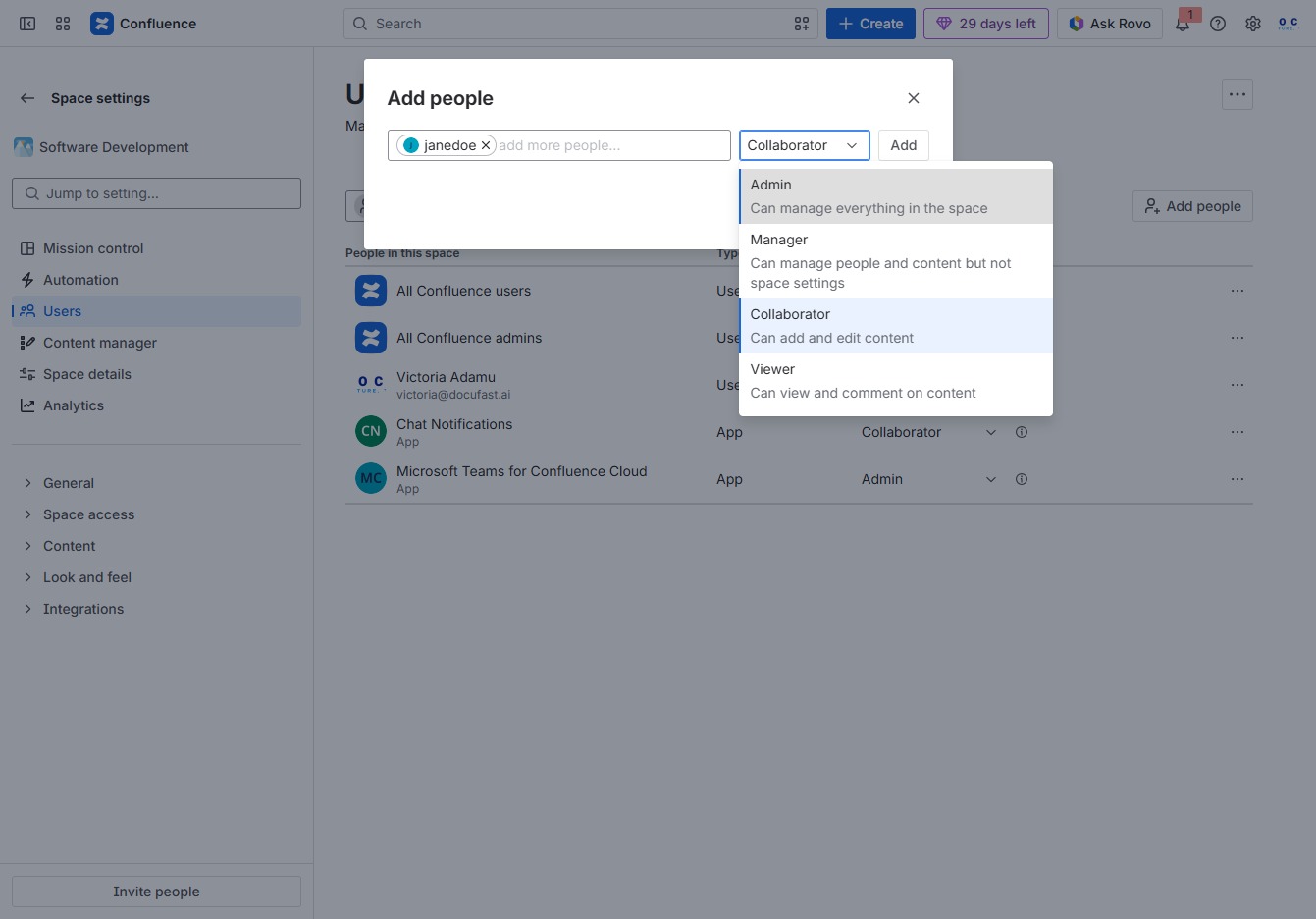
Clicking the 'Add' button will allow you to invite new users or admins to the Confluence space by providing their details in the designated input field.
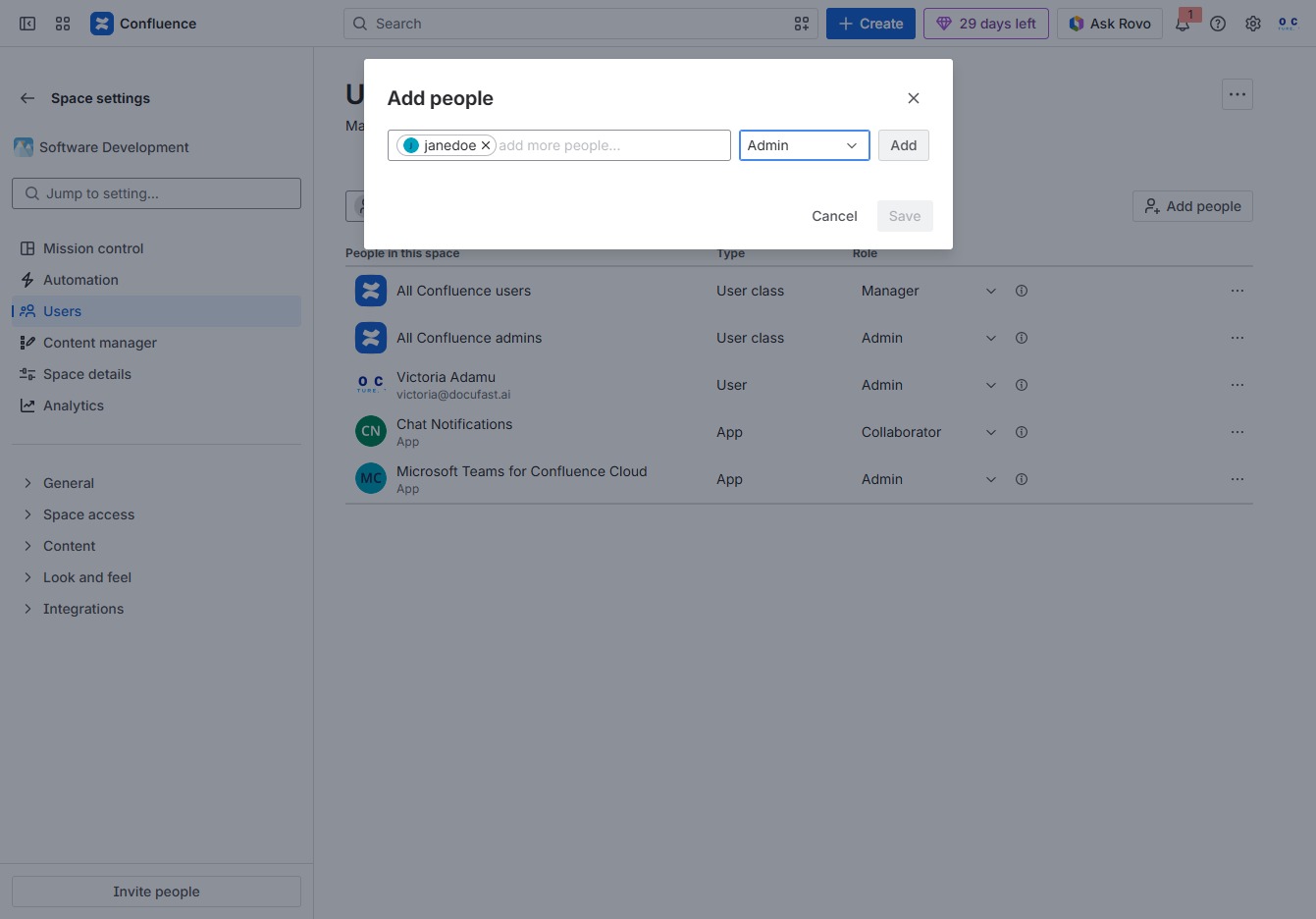
After selecting the users or groups to add, click 'Save' to finalize the changes and grant the specified permissions in your Confluence space.
