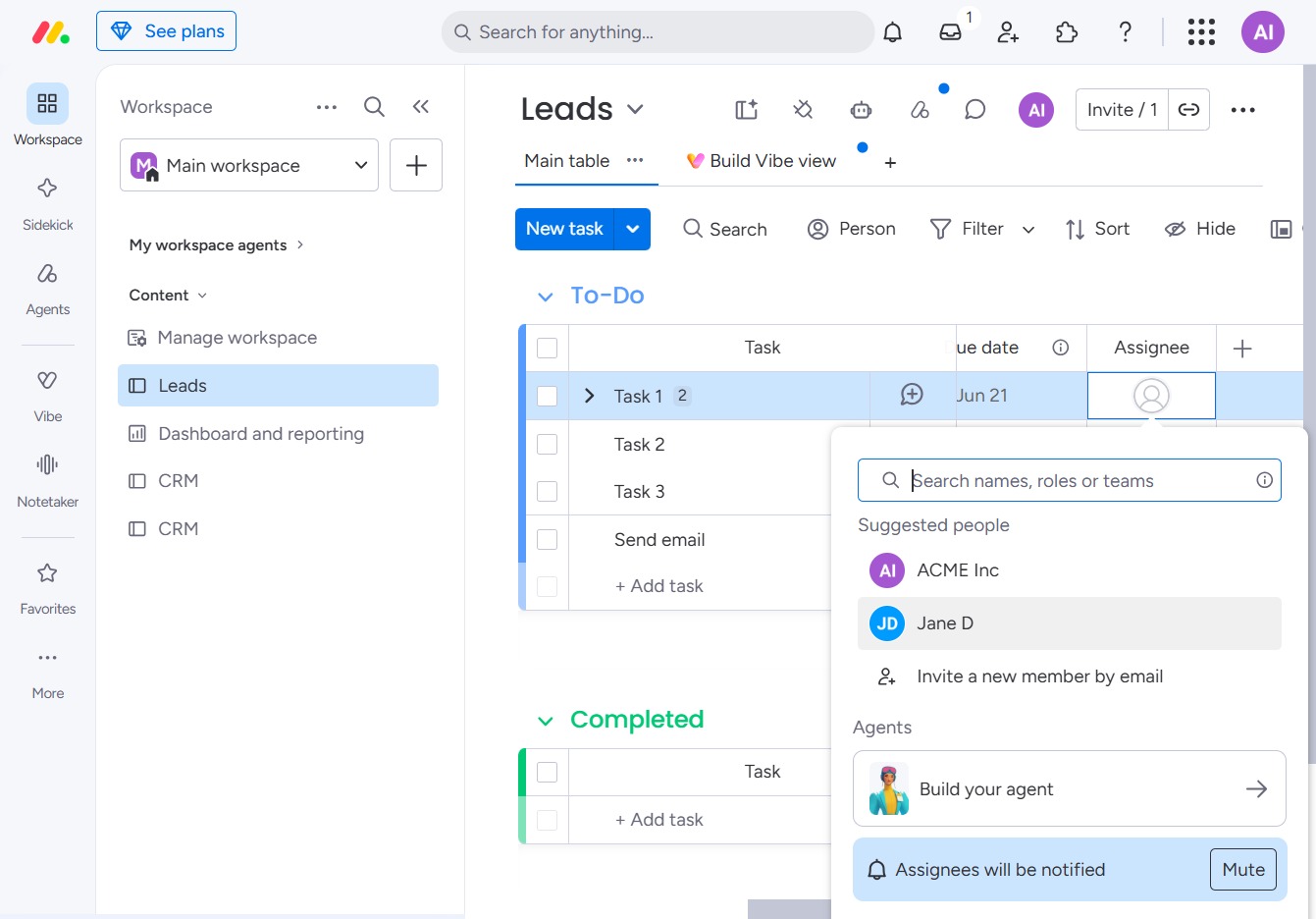
Click the BoardLeads section
This action opens the BoardLeads area where you can manage your leads and track progress within your workspace.

Loading screenshot…
100%
Learn how to efficiently assign tasks within your workspace by customizing your Leads table and managing user responsibilities.
 viktoria
Learn how to efficiently assign tasks within your workspace by customizing your Leads table and managing user responsibilities. This guide walks you through navigating to the BoardLeads area, adding a 'People' column, and assigning team members to streamline your task management process.
This action opens the BoardLeads area where you can manage your leads and track progress within your workspace.
This action opens a dialog where you can specify details for the new column, allowing you to customize your Leads table for better task organization.

This action adds a 'People' column to your leads table, allowing you to track team members involved in each task.
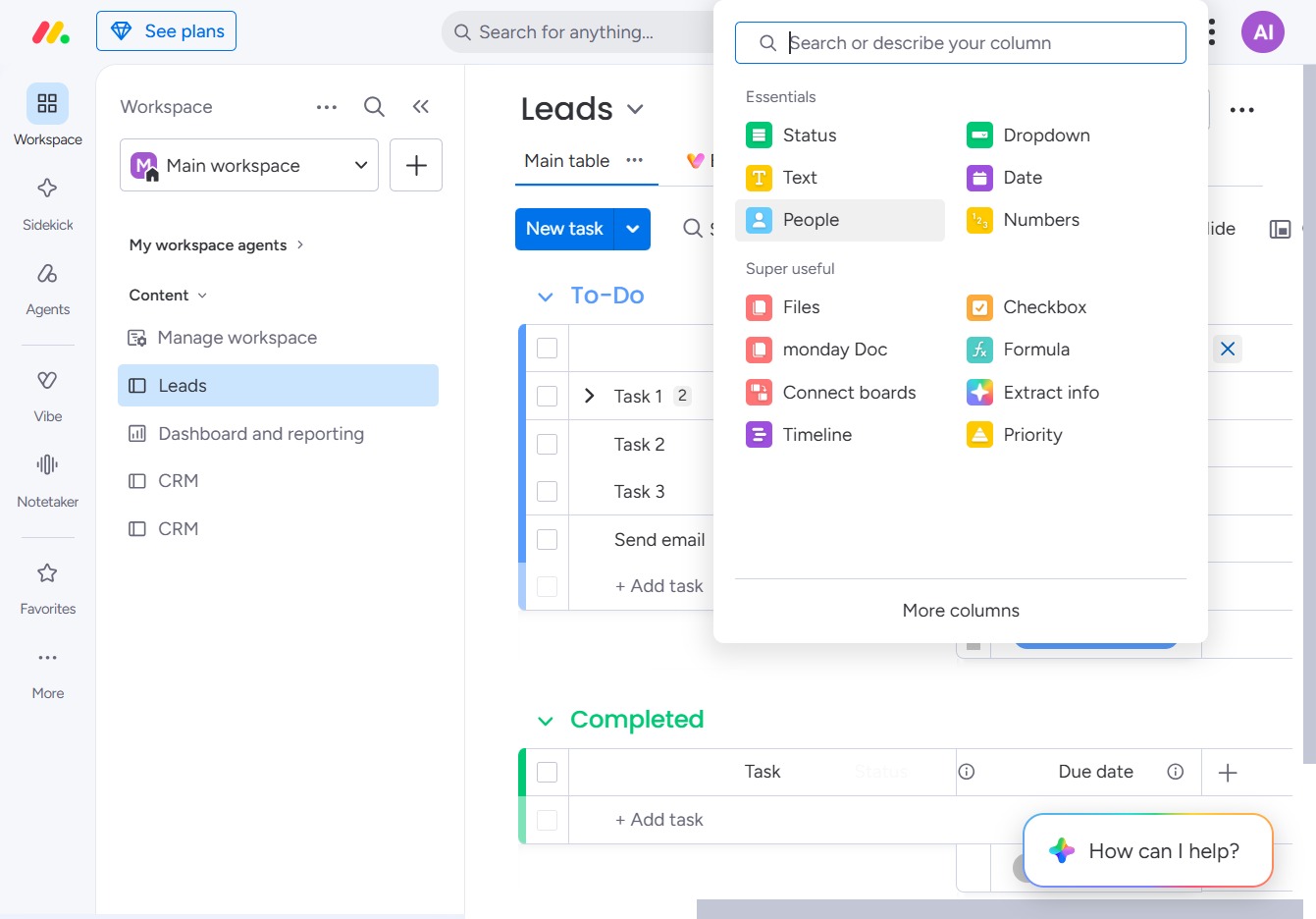
This action allows you to edit the user assignments for tasks in the Leads section, enabling you to manage team responsibilities effectively.

Enter the name of the person you want to assign the task to in the designated input field. This will help streamline task management by clearly indicating who is responsible for each item.
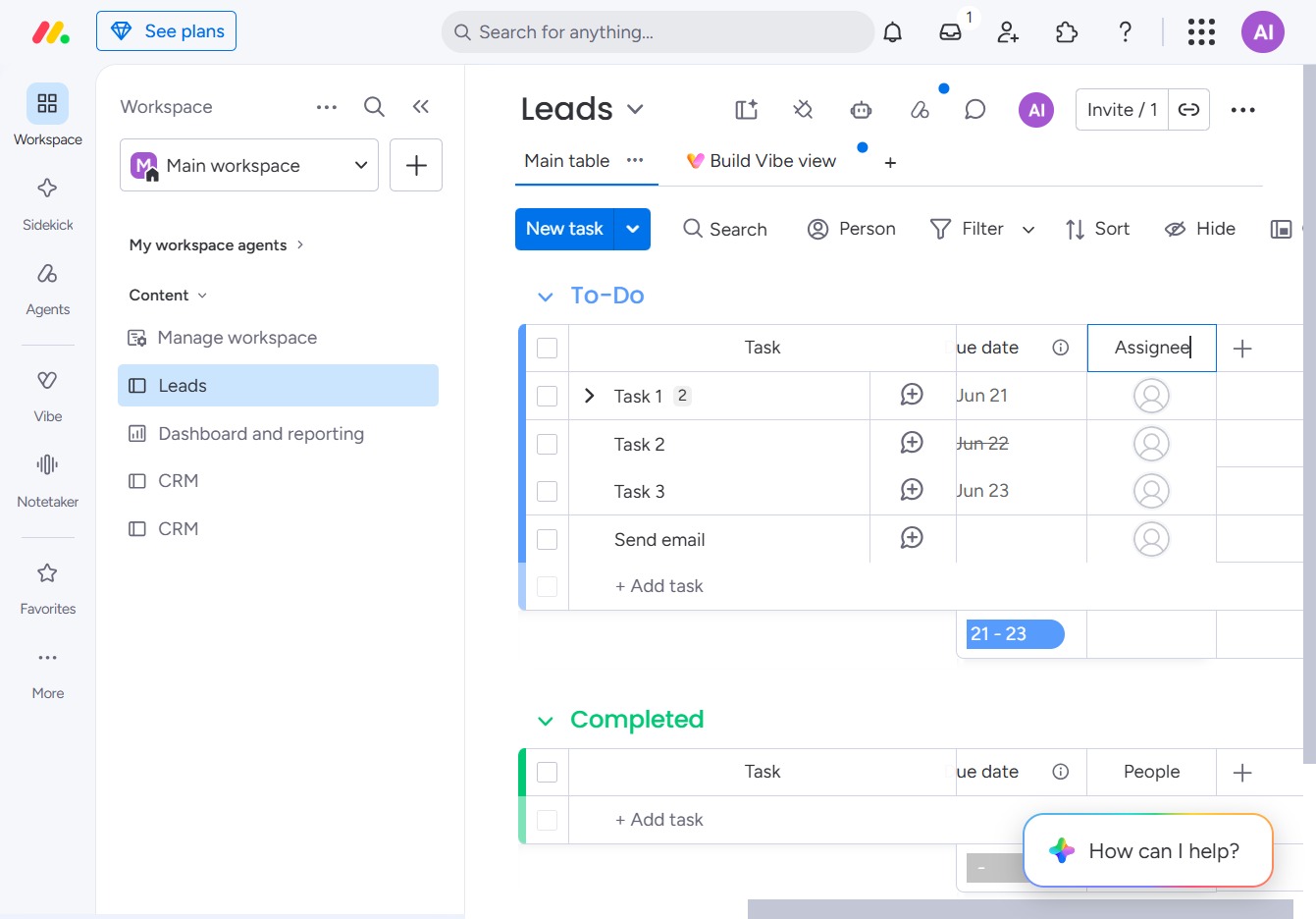
Clicking this link may lead you to additional resources or functionalities within the Leads section, helping you manage your tasks more effectively.

This action selects Jane D from the suggested people list, allowing you to assign tasks or communicate with this contact within the Leads section.