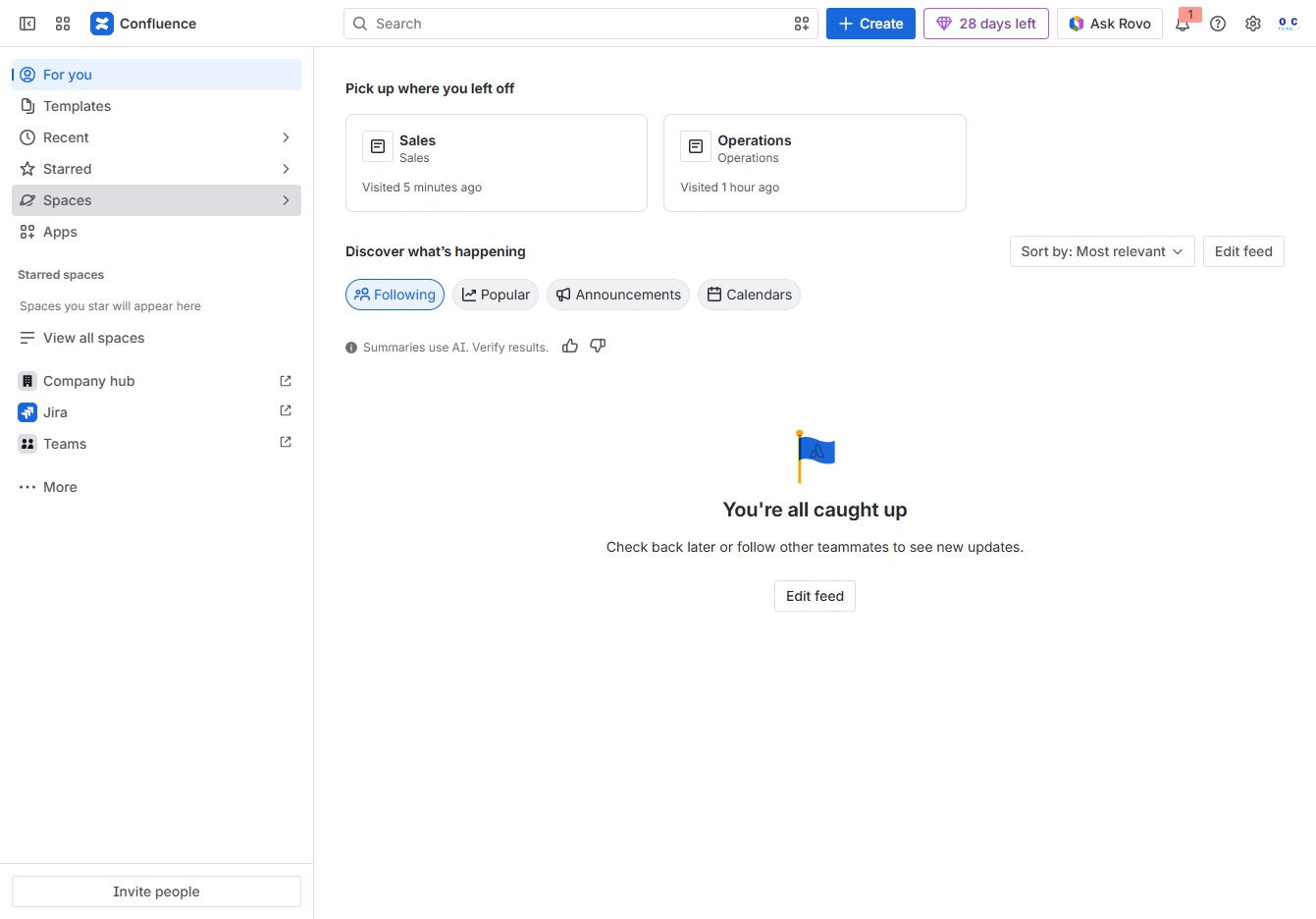
Click the Spaces section
This action opens the Spaces section where you can view and manage different collaborative spaces within Confluence.
Loading screenshot…
100%
Learn how to effectively archive a space in Confluence to declutter your workspace.
 viktoria
Learn how to effectively archive a space in Confluence to declutter your workspace. This guide walks you through navigating to the Operations space, accessing archiving options, and completing the process, ensuring you can manage and restore content as needed while keeping your focus on relevant materials.
This action opens the Spaces section where you can view and manage different collaborative spaces within Confluence.
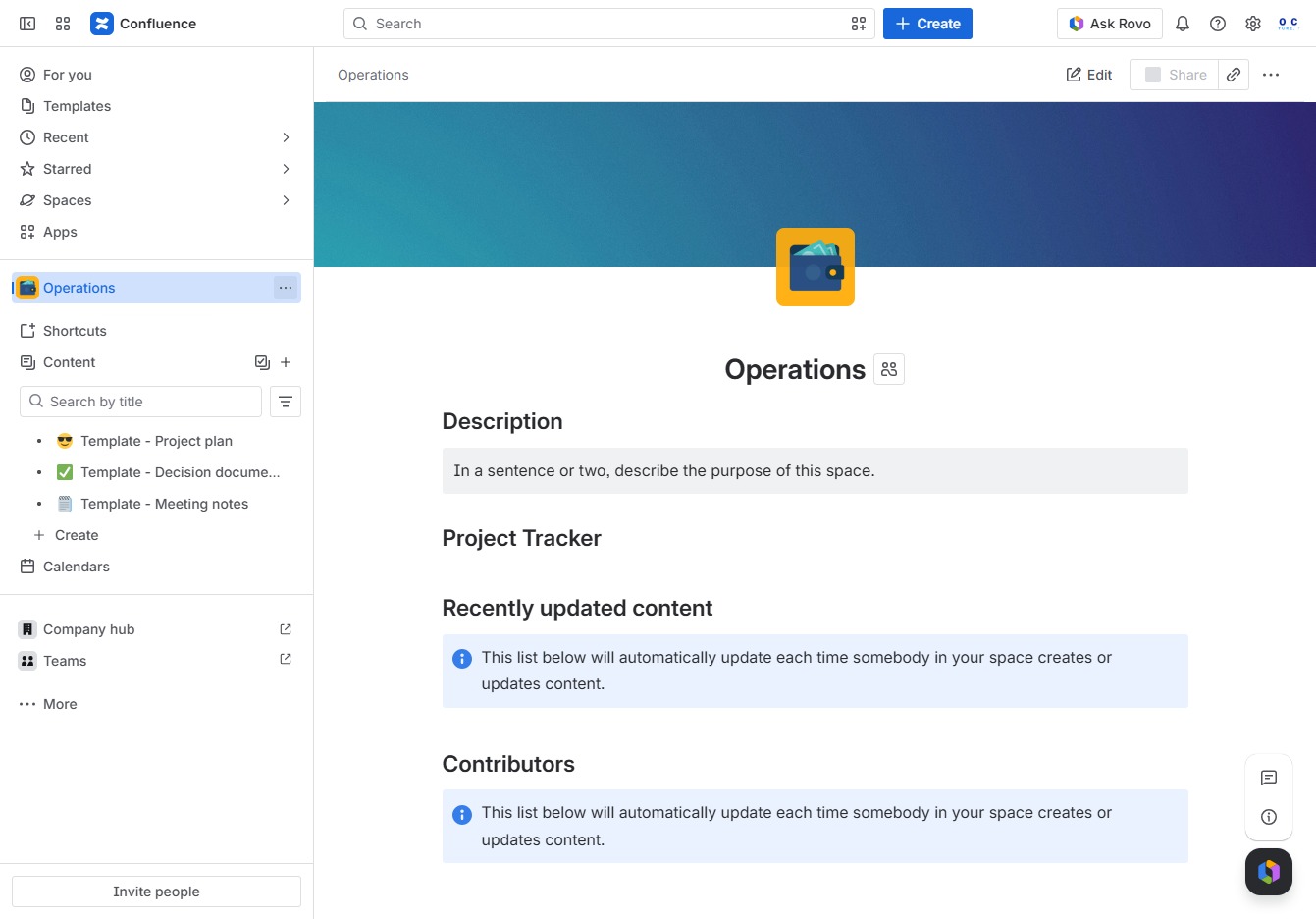
This action opens the Operations space, allowing you to manage and access all related content and tasks within that space.

This will reveal additional actions you can take related to the current space or content in Confluence.
Selecting the 'Archive space' option will allow you to initiate the archiving process for the current space, helping to declutter your workspace and manage content effectively.
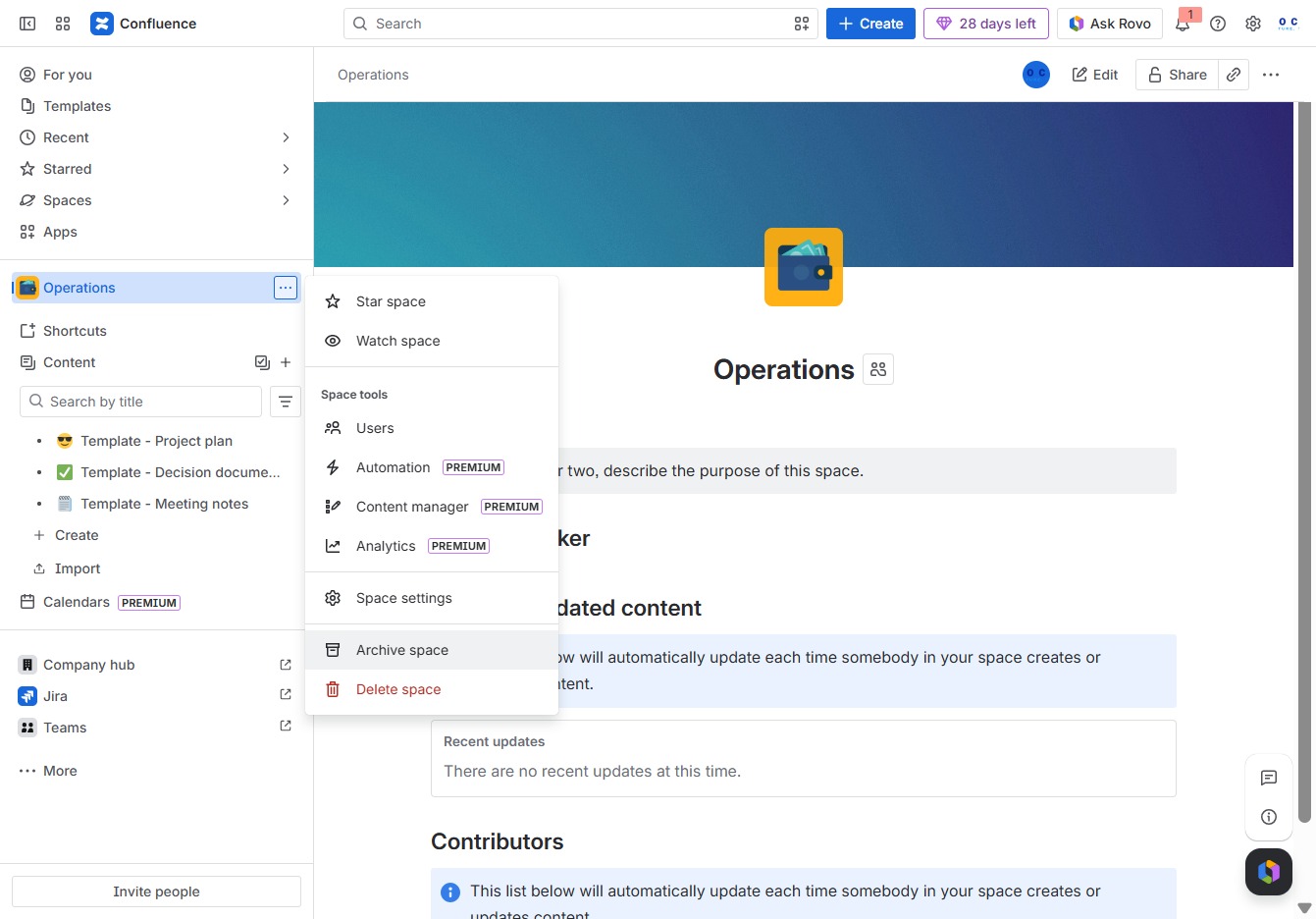
Clicking 'Archive space' allows you to remove unwanted spaces from navigation, helping to focus on the most relevant content while keeping the option to restore archived spaces later.
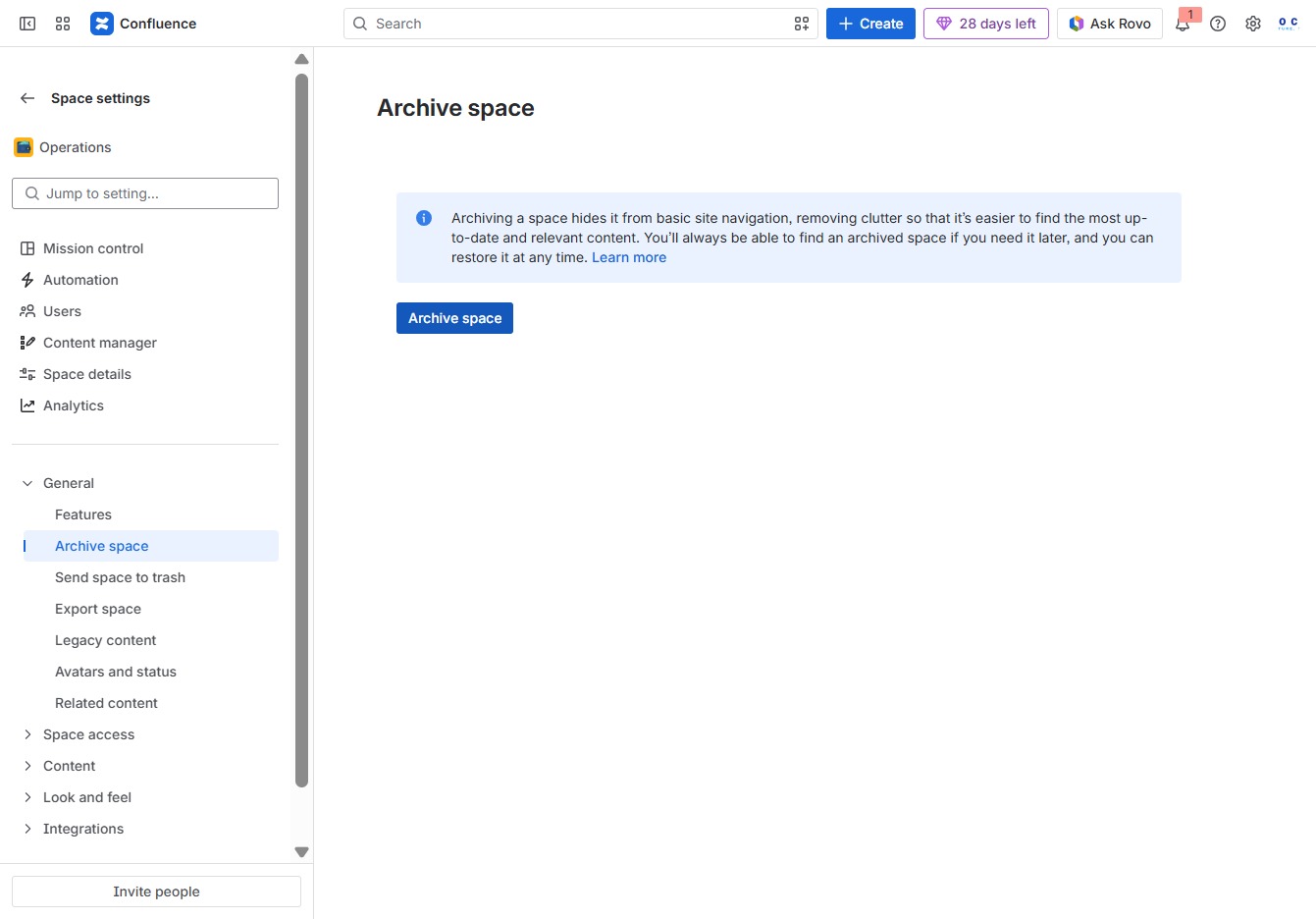
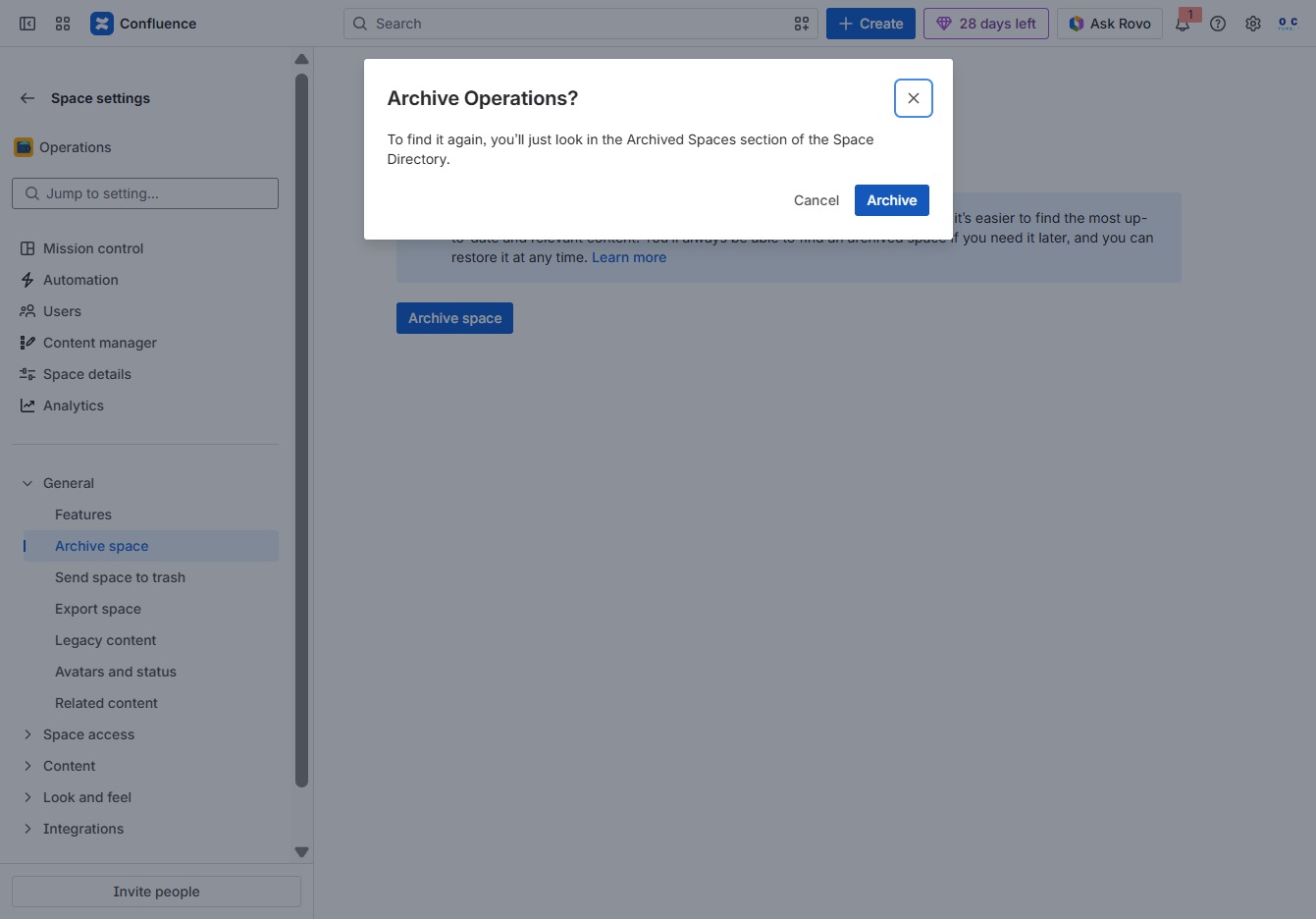
This action will permanently archive the selected space, moving it to the Archived Spaces section in the Space Directory. You can restore it later if needed.