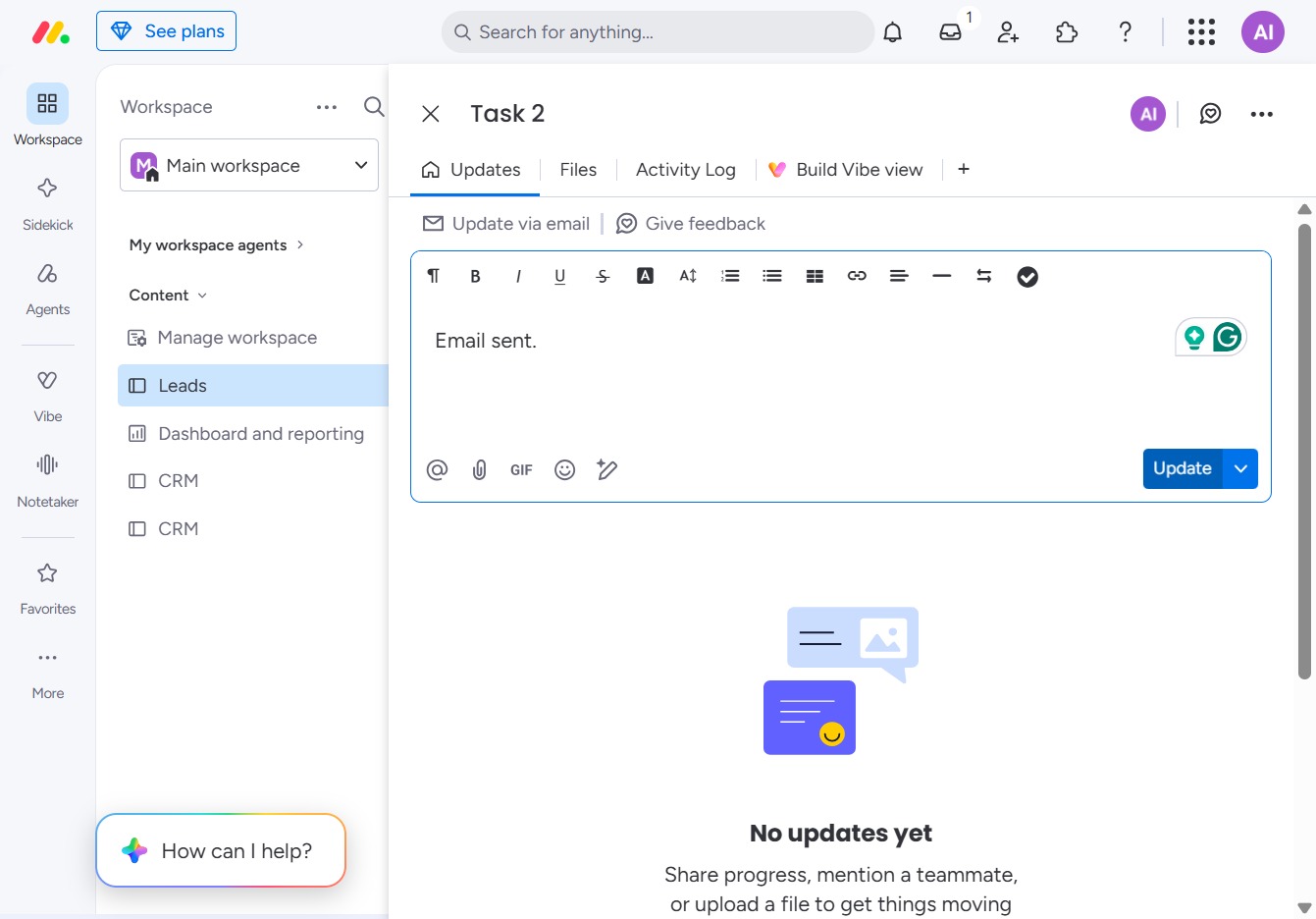
Click the BoardLeads section
This action navigates you to the BoardLeads area, allowing you to manage and analyze your leads effectively.
Loading screenshot…
100%
This how-to guide walks you through the process of adding updates to an item by navigating through relevant workspaces and boards, entering status updates, and saving changes.
 viktoria
This how-to guide walks you through the process of adding updates to an item by navigating through relevant workspaces and boards, entering status updates, and saving changes. By following these steps, you’ll effectively manage and communicate task progress to your team.
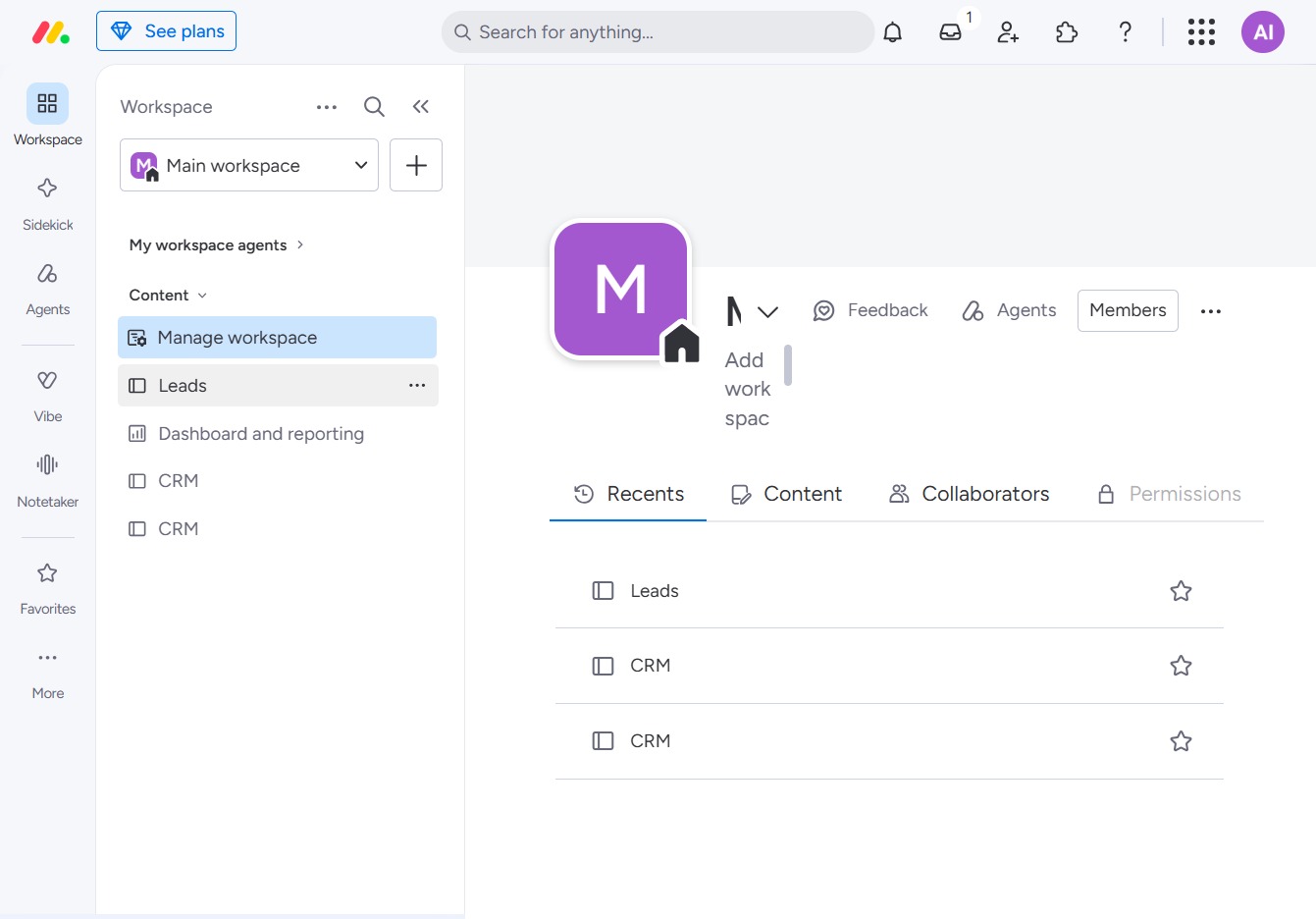
This action navigates you to the BoardLeads area, allowing you to manage and analyze your leads effectively.
Clicking this link will navigate you to the detailed Task page where you can view and manage the specific task's information and status.
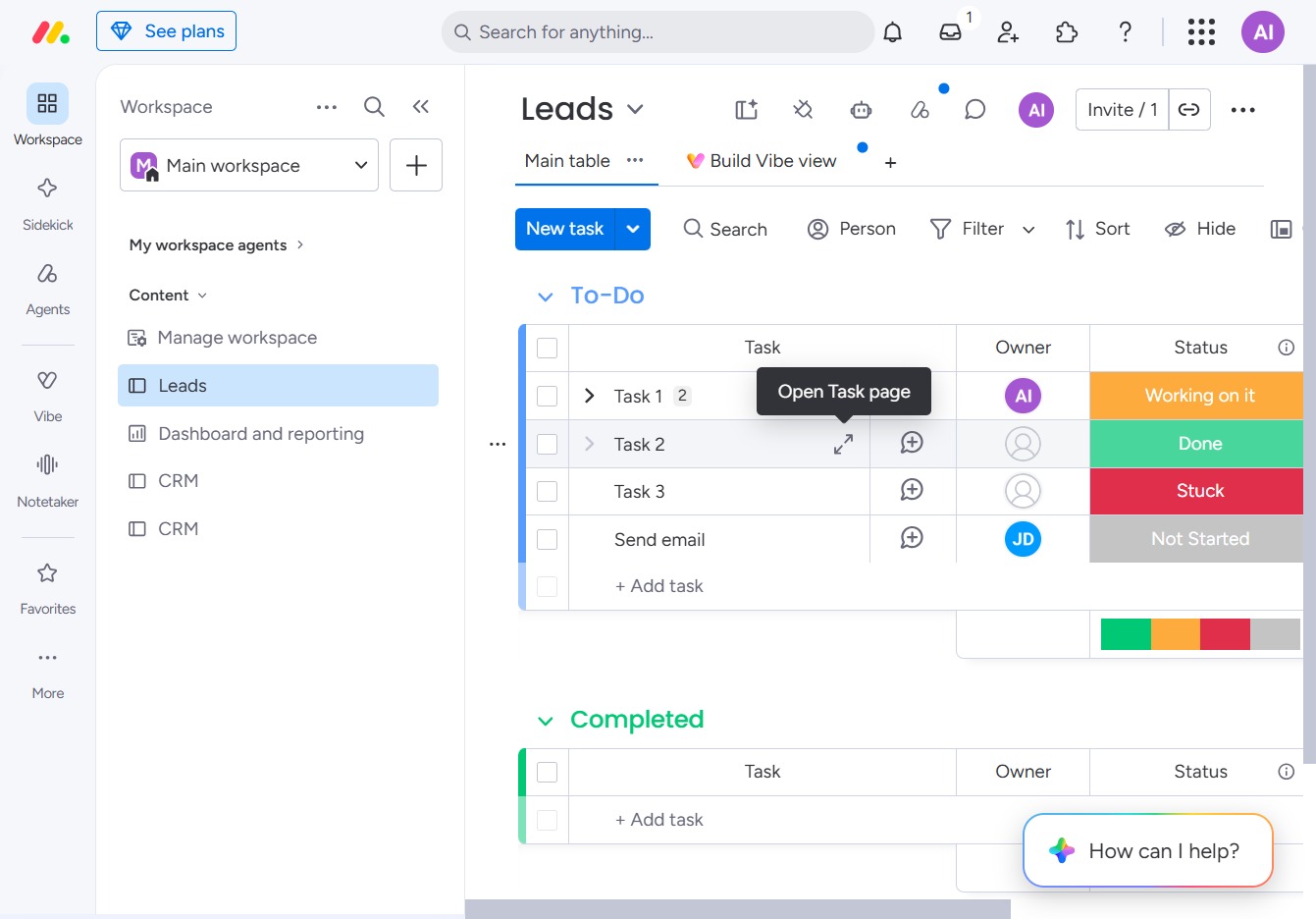
Clicking this link allows you to input updates related to your task. This feature enables you to share progress, mention team members, or attach files.
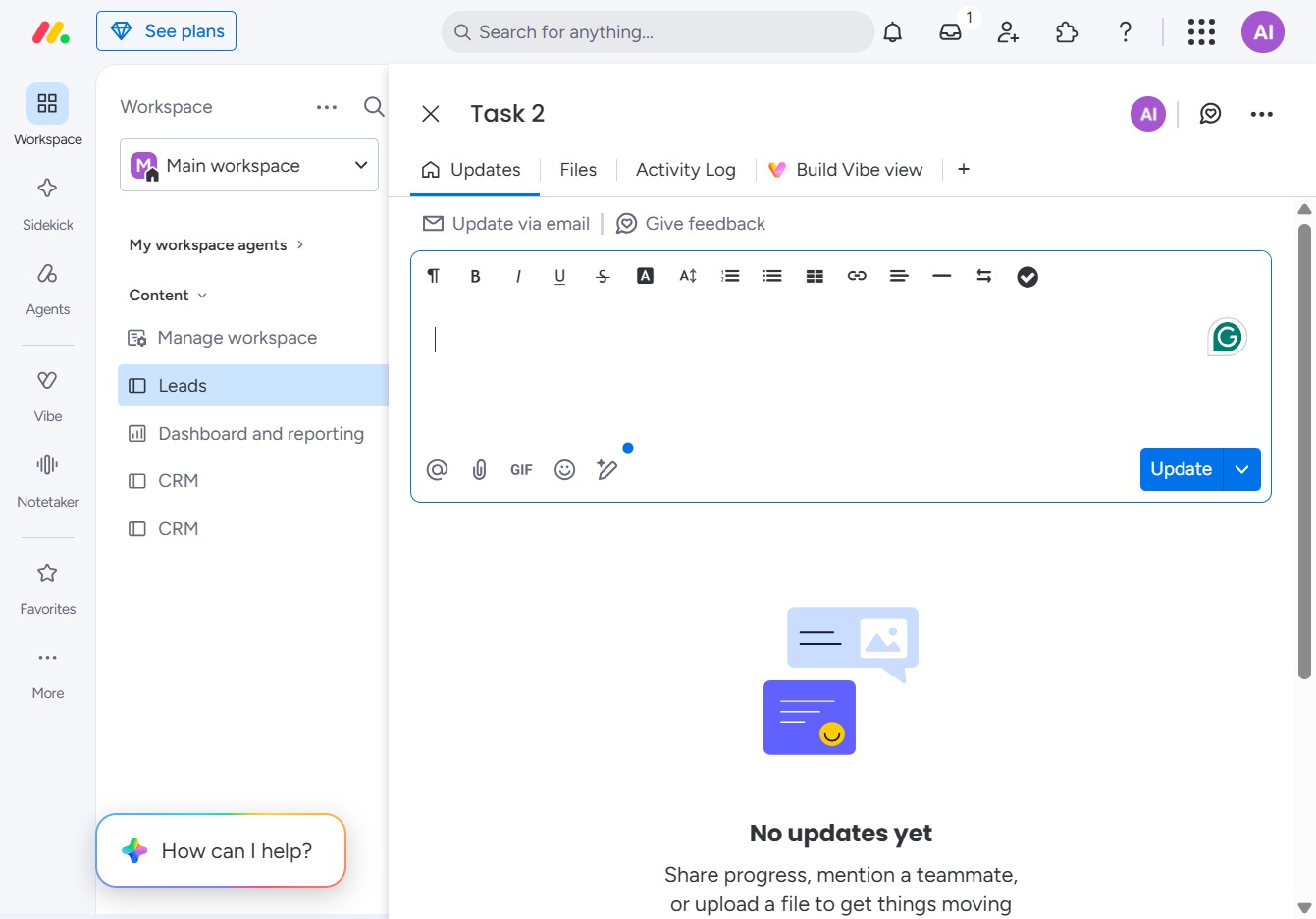
Enter 'Email sent.' in the text box to log the status update for this task. This update will notify team members of the current progress related to the task.
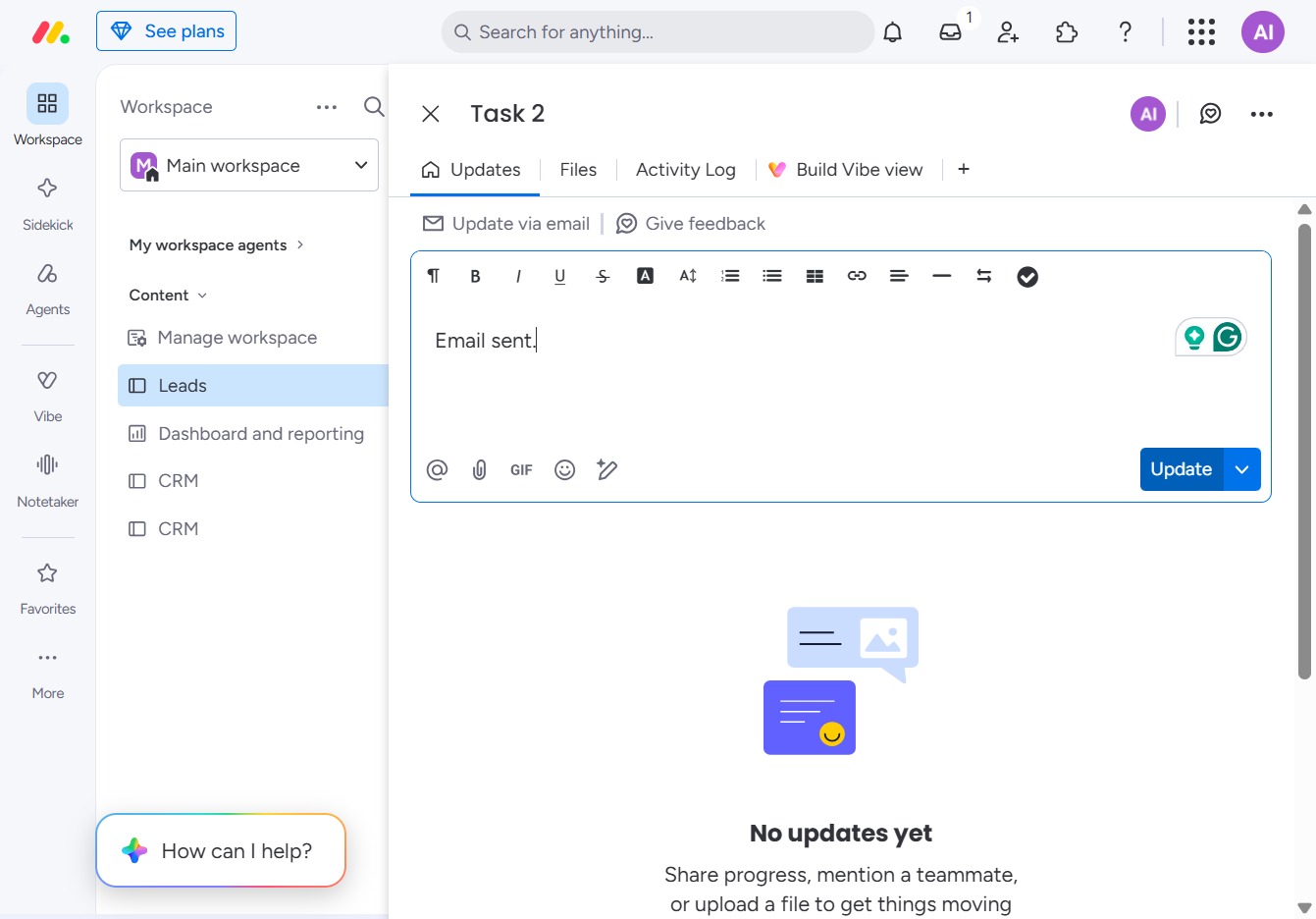
Clicking this button will save your current changes and update the task status to reflect that the email has been sent.