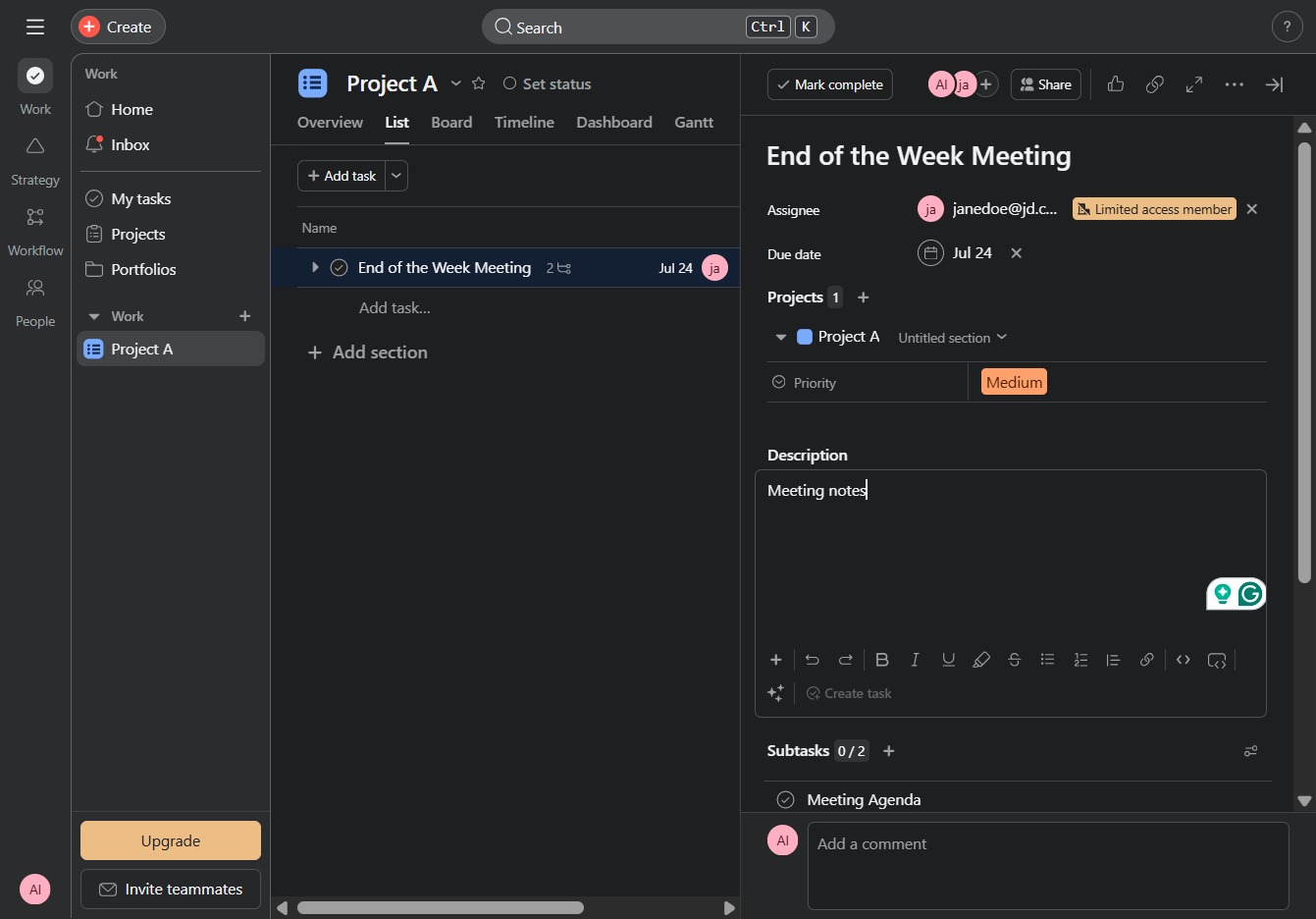
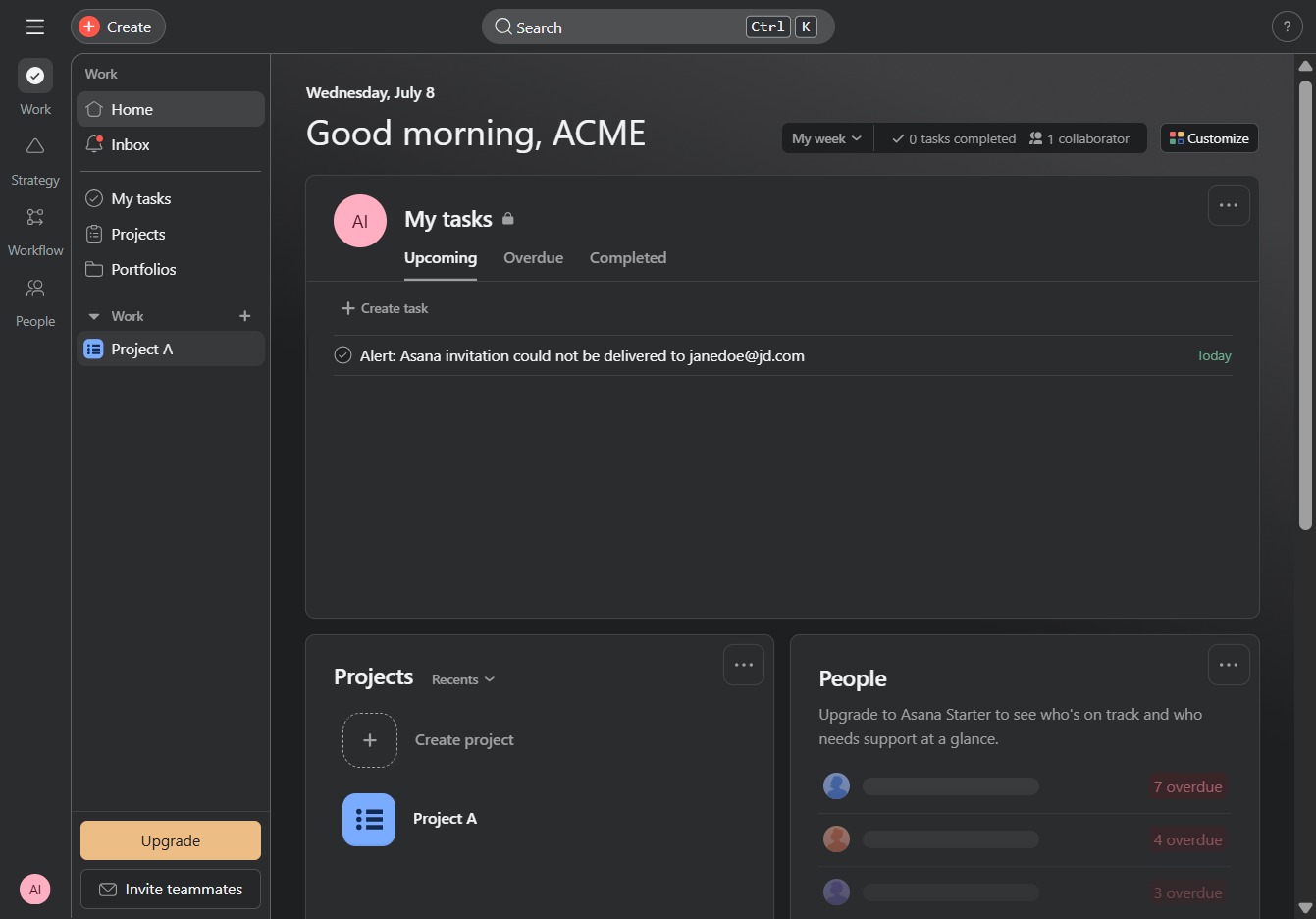
Click Project A to view details
Clicking on 'Project A' will take you to the project overview, where you can manage tasks, check progress, and access additional project settings.
Loading screenshot…
100%
This how-to guide walks you through the process of adding task descriptions in Project A, from navigating to the project overview to filling out essential details like name, due…
 viktoria
This how-to guide walks you through the process of adding task descriptions in Project A, from navigating to the project overview to filling out essential details like name, due date, and priority for your tasks, ensuring clear context for your team's meetings and responsibilities.
Clicking on 'Project A' will take you to the project overview, where you can manage tasks, check progress, and access additional project settings.
This action opens a form to create a new task in the Project A timeline, allowing you to input details such as name, due date, and priority.
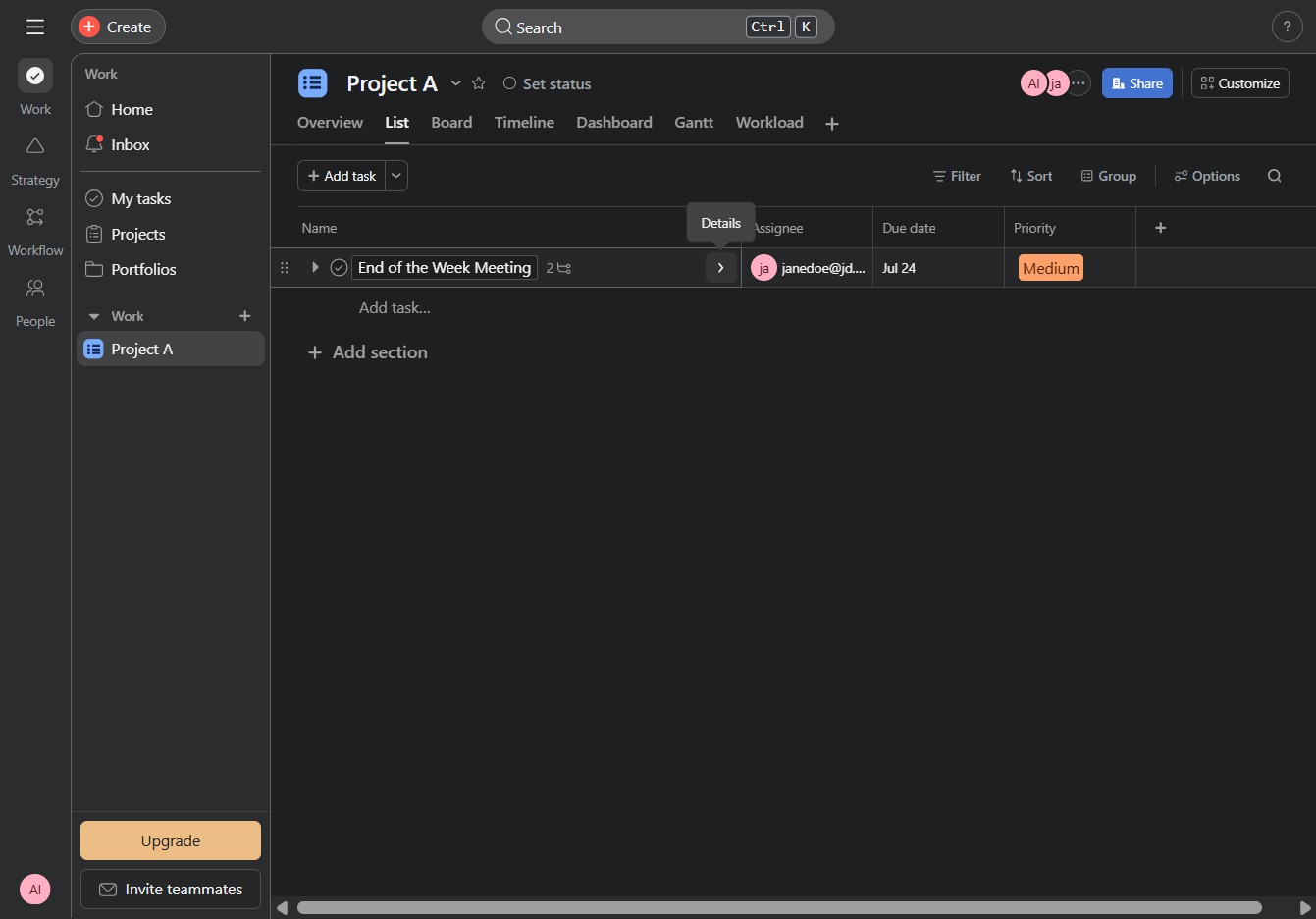
This action will prompt you to enter the details for a new task within the 'End of the Week Meeting' section of Project A.

In the Description field, type the meeting notes to provide context and details for the End of the Week Meeting task.