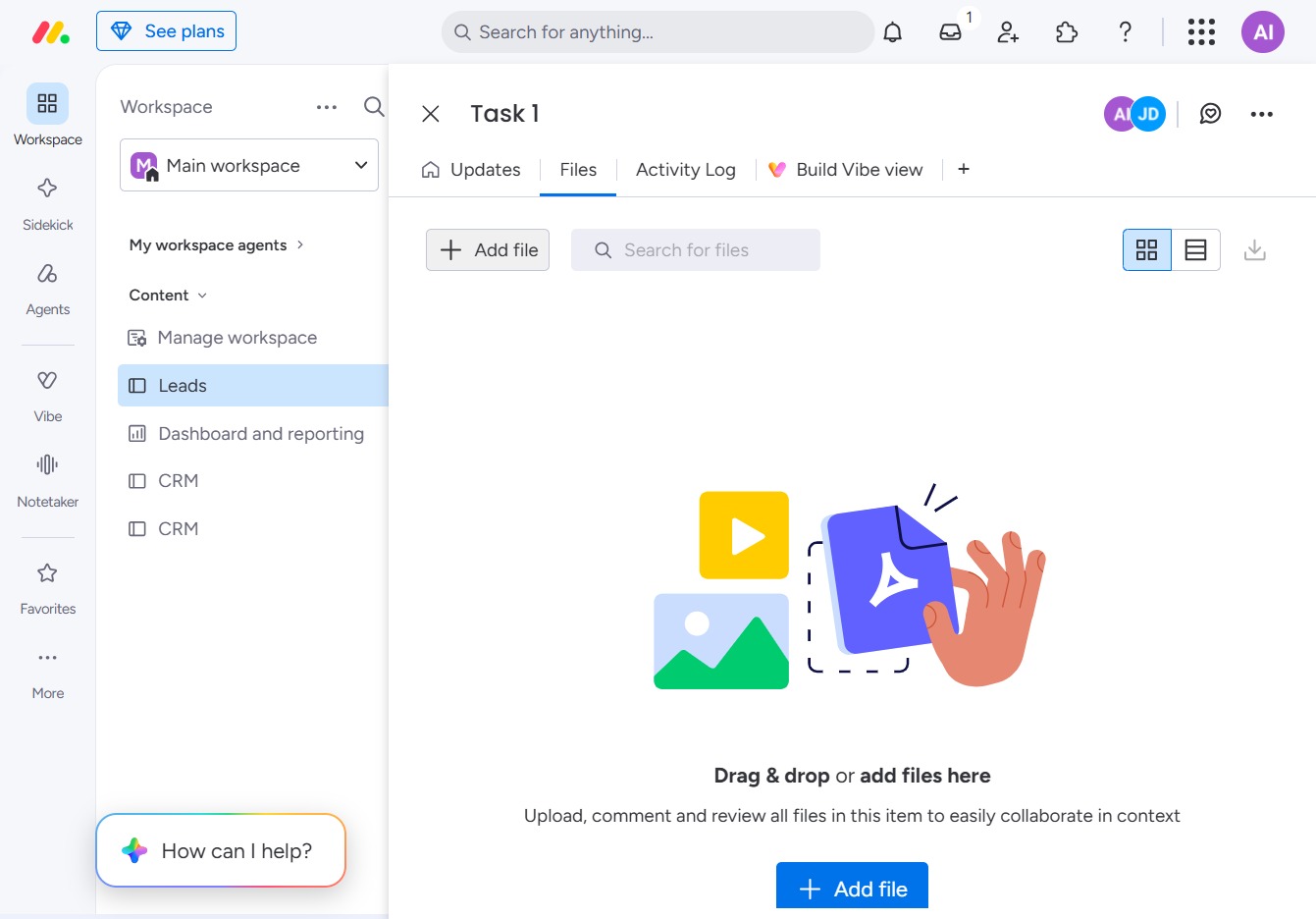
Click the BoardLeads section
This action will open the BoardLeads interface where you can manage leads and utilize reporting tools specific to your workspace.

Loading screenshot…
100%
This how-to guide provides a step-by-step process for adding files to specific tasks within the BoardLeads interface.
 viktoria
This how-to guide provides a step-by-step process for adding files to specific tasks within the BoardLeads interface. By following the outlined steps, you'll learn how to navigate through your workspace and efficiently upload documents for team collaboration and task management.
This action will open the BoardLeads interface where you can manage leads and utilize reporting tools specific to your workspace.
Clicking this link will open the detailed page for the selected task, allowing you to view or update its specific information and progress.
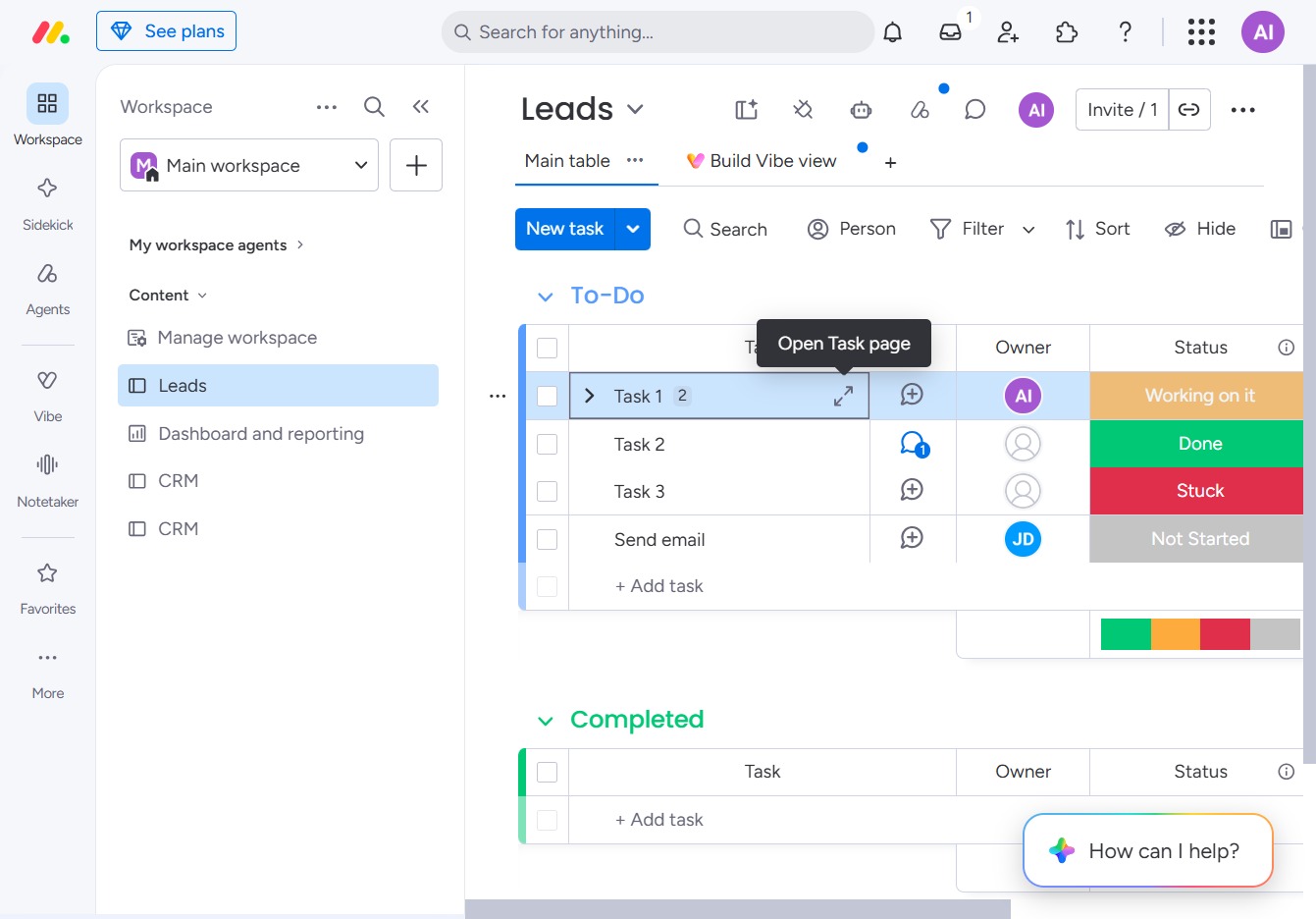
Access the Files section to upload documents, share progress, or mention teammates within the workspace.
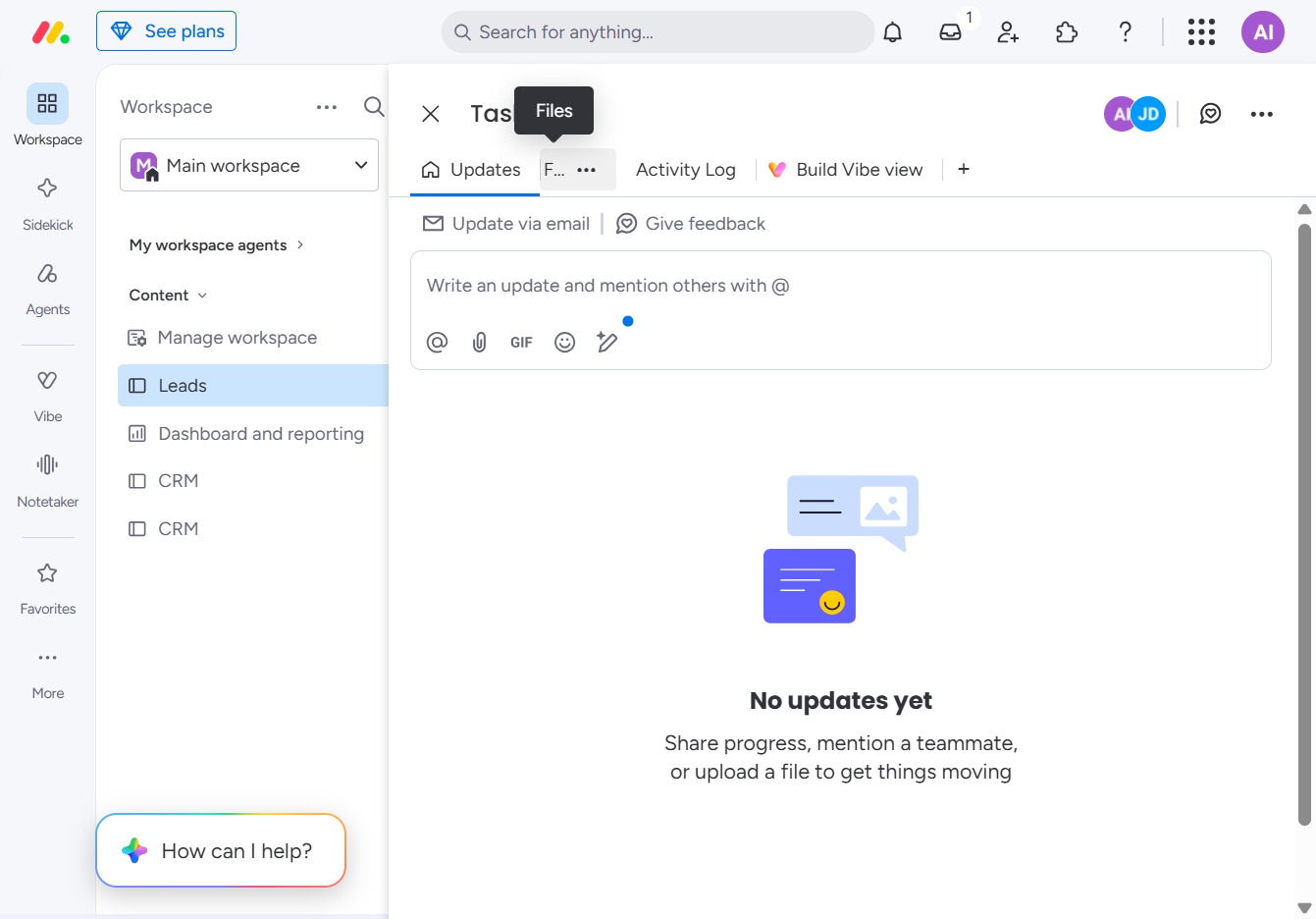
This action allows you to upload files related to the task. Once clicked, you can select files from your device to upload for collaboration.