Geteilte Anleitung

How to add custom fields to contacts

In this video guide, you'll learn how to efficiently add custom fields to your contacts, enhancing your organization and data management.

victoriaworkflowsvictoriaworkflows
·14 Schritte·66 Aufrufe·Veröffentlicht

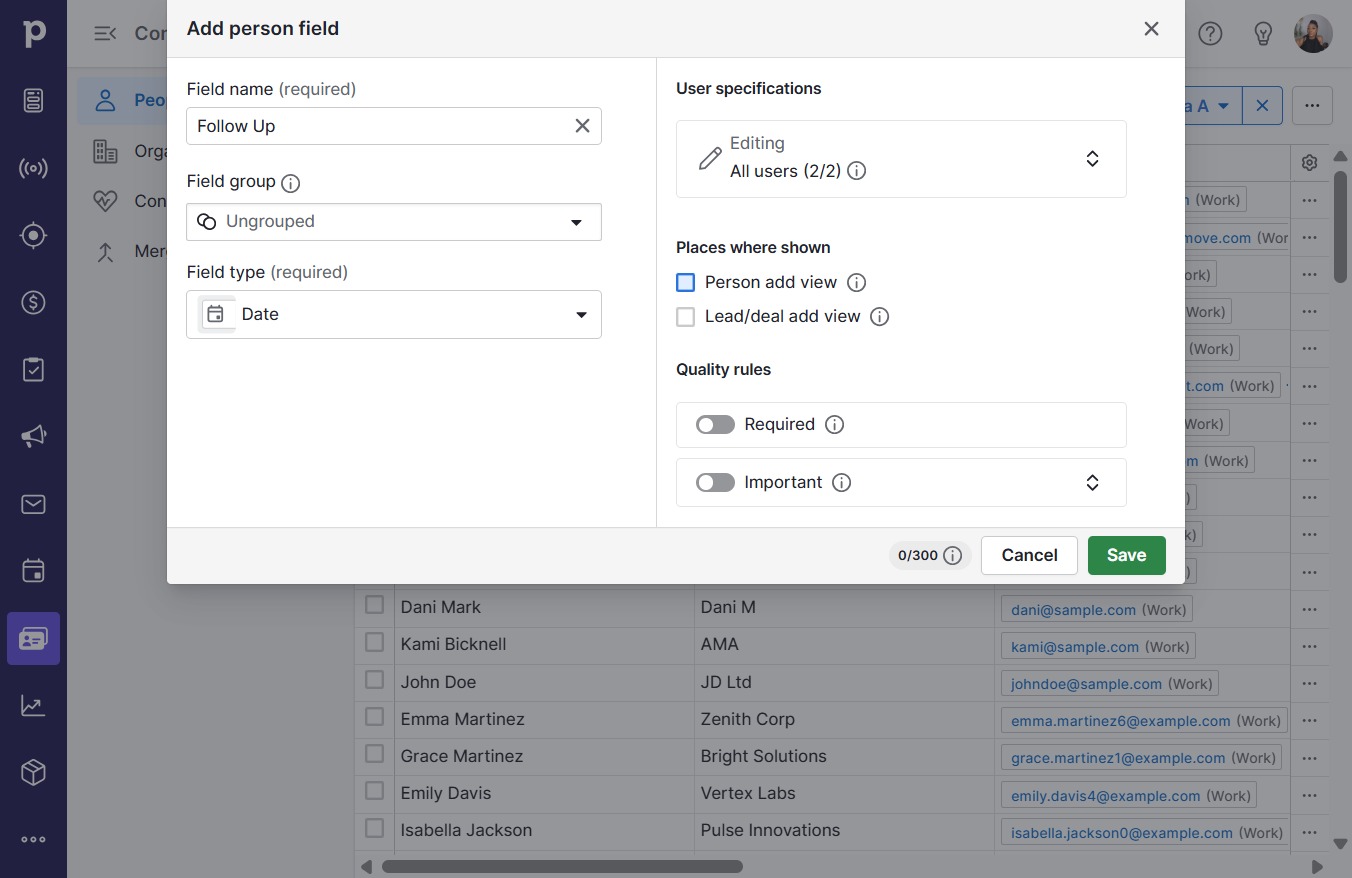
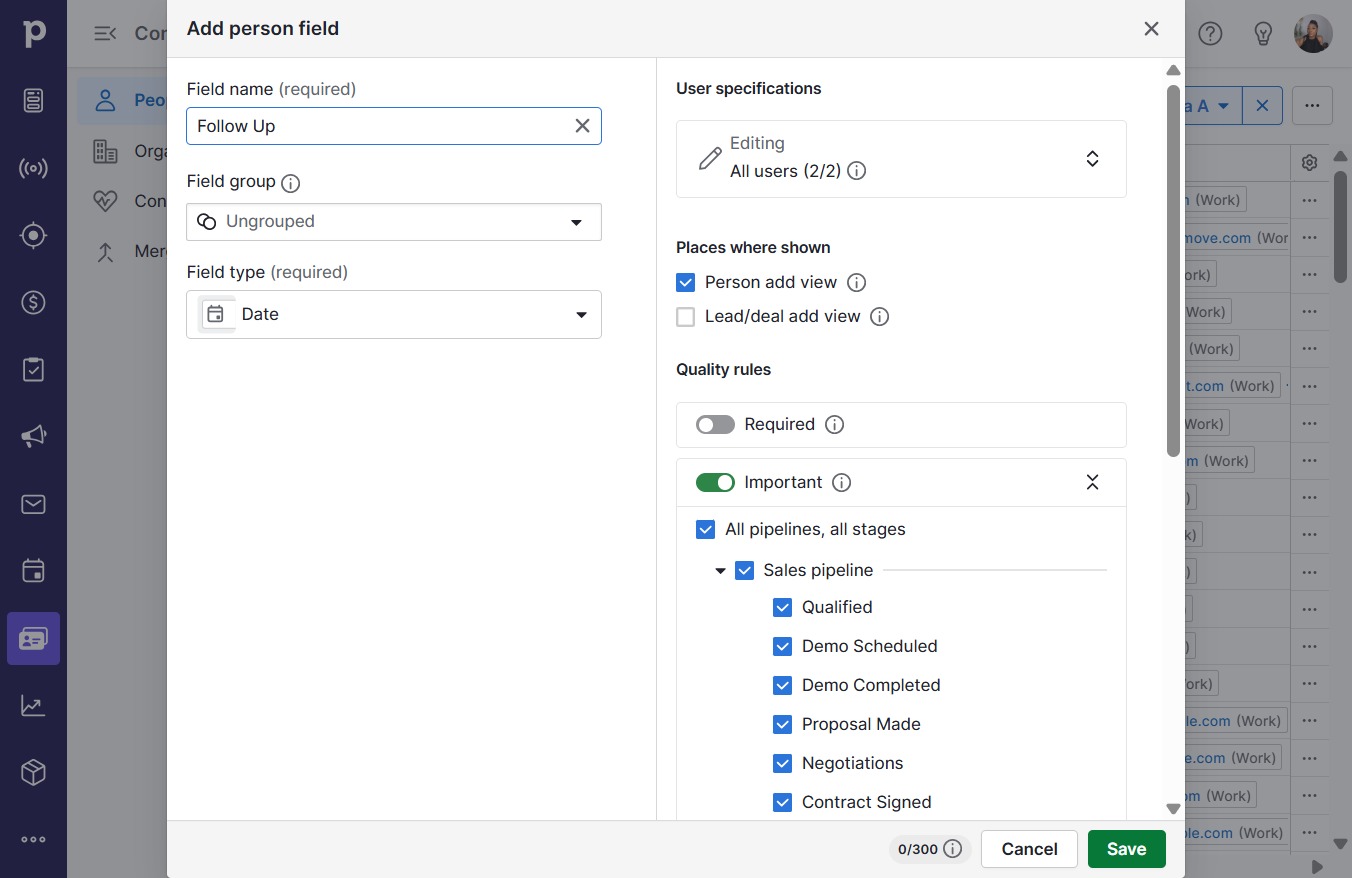
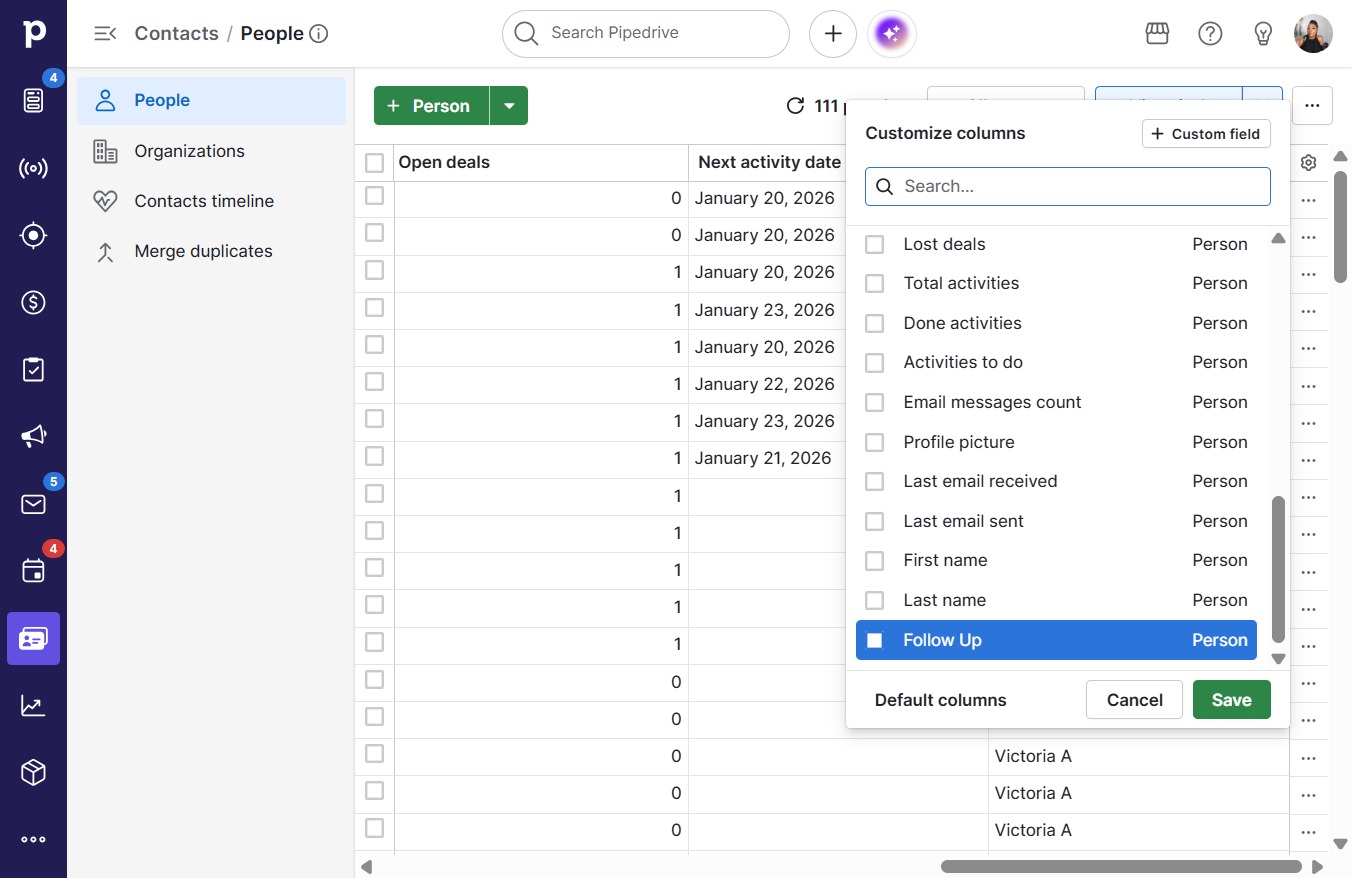
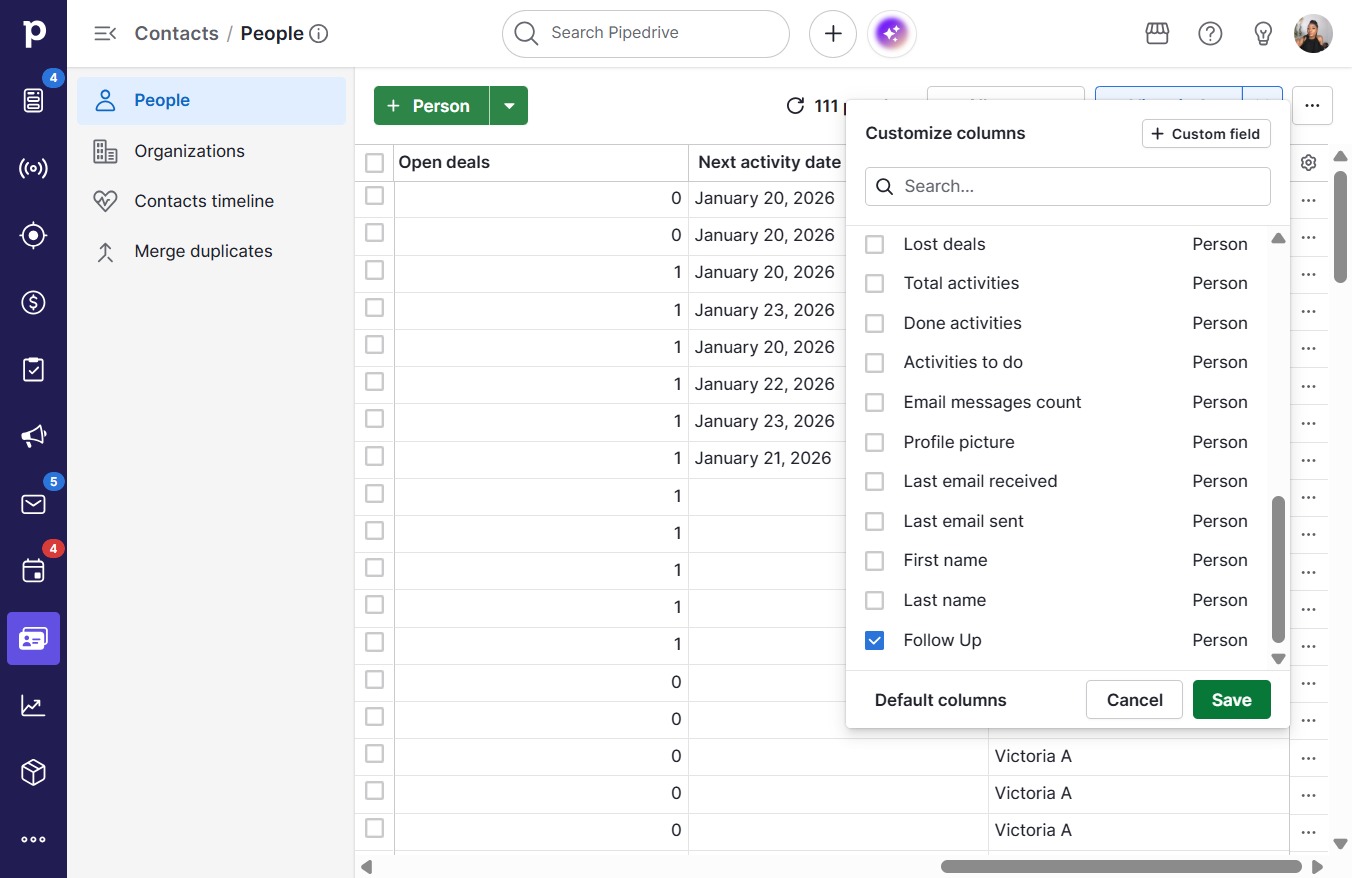
In this video guide, you'll learn how to efficiently add custom fields to your contacts, enhancing your organization and data management. Follow the step-by-step instructions to create a "Follow Up" date field and customize your contact columns for easy access and updates.

Step-by-step Guide14 Schritte
  1. Click on "Click here."
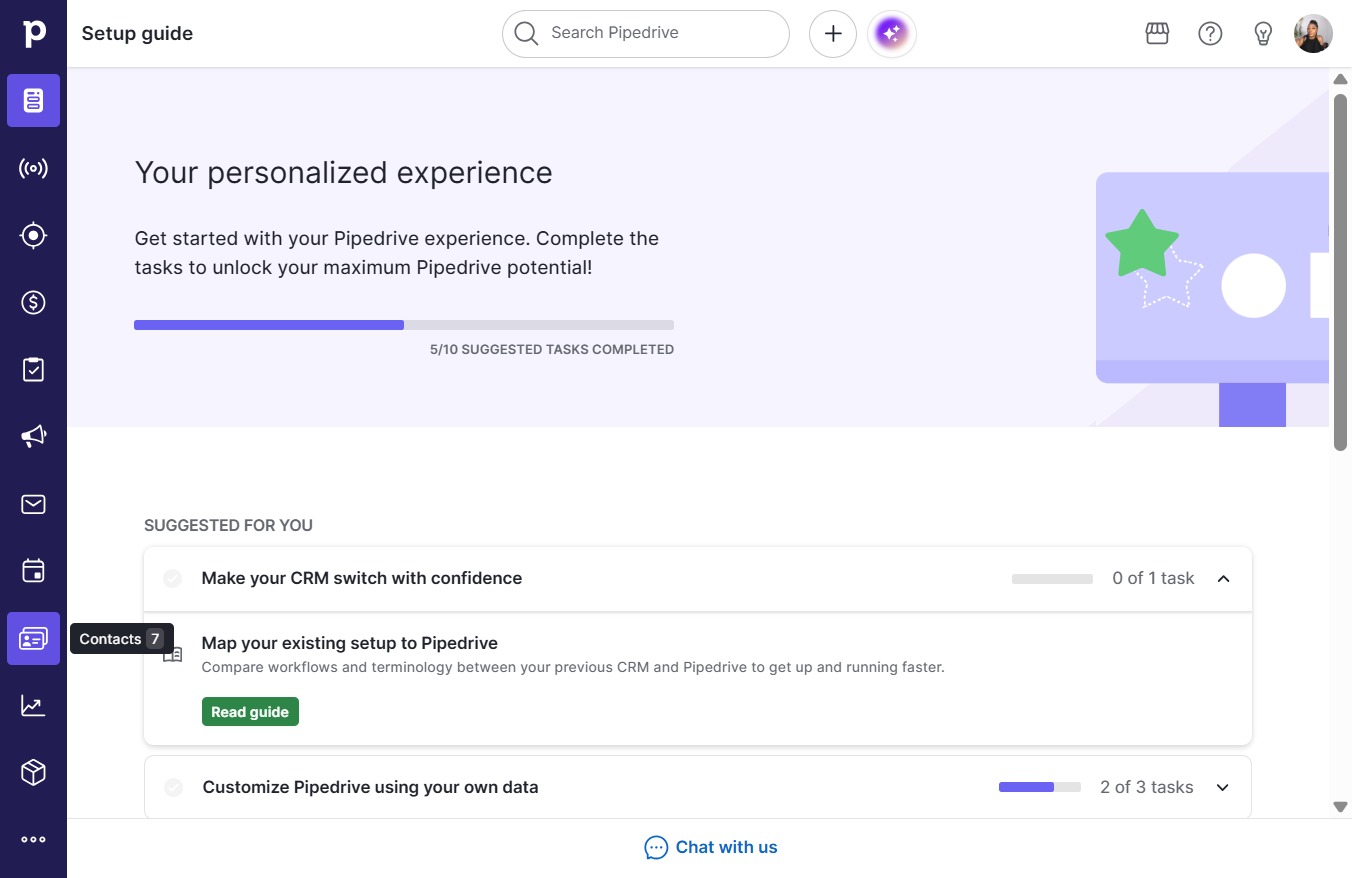
    Click on "Click here."
    Loading screenshot…
    100%
  2. Click on "Click here."

    Click on "Click here."
    Loading screenshot…
    100%
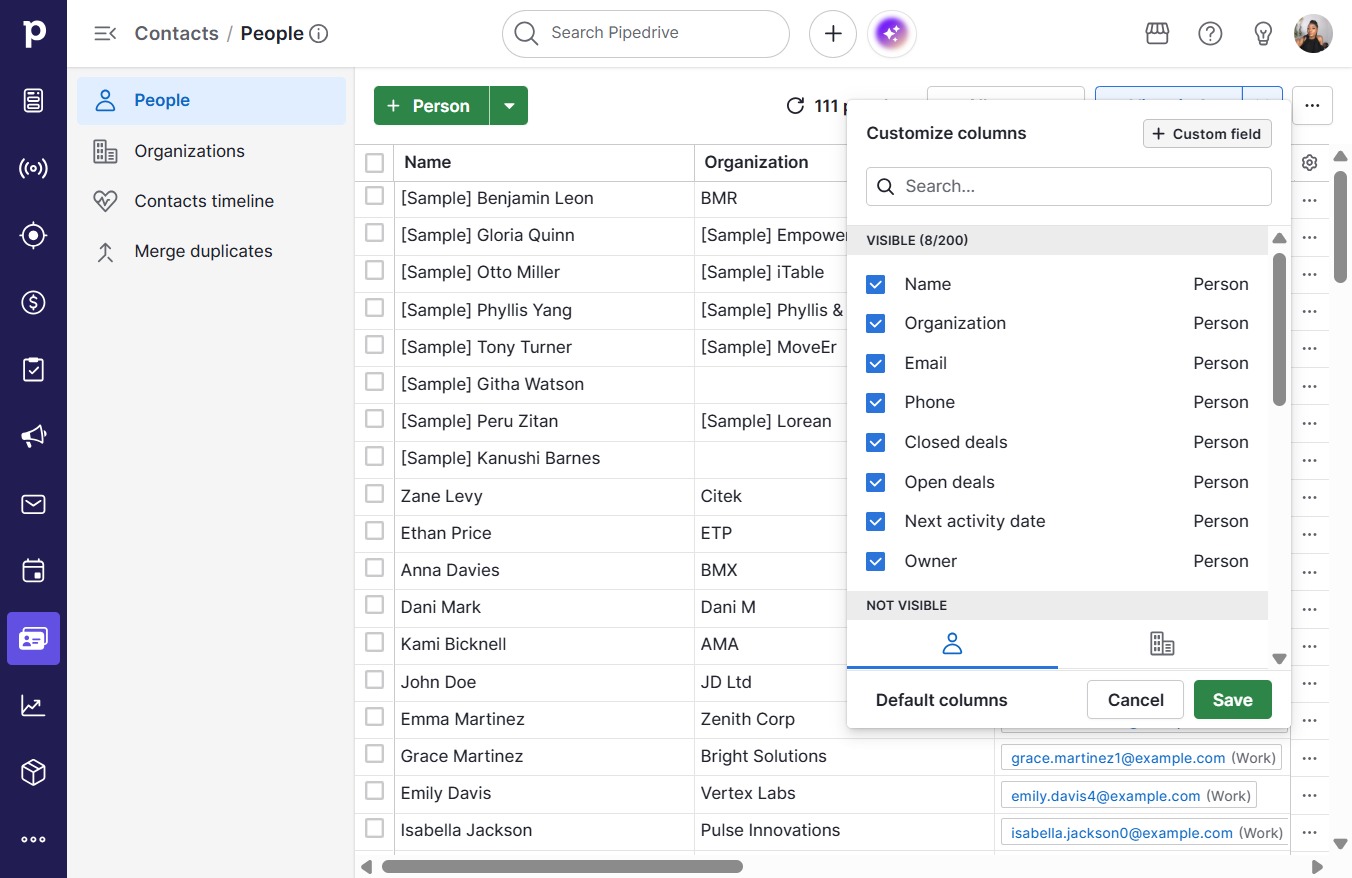
  3. Click Custom field

    Click Custom field
    Loading screenshot…
    100%
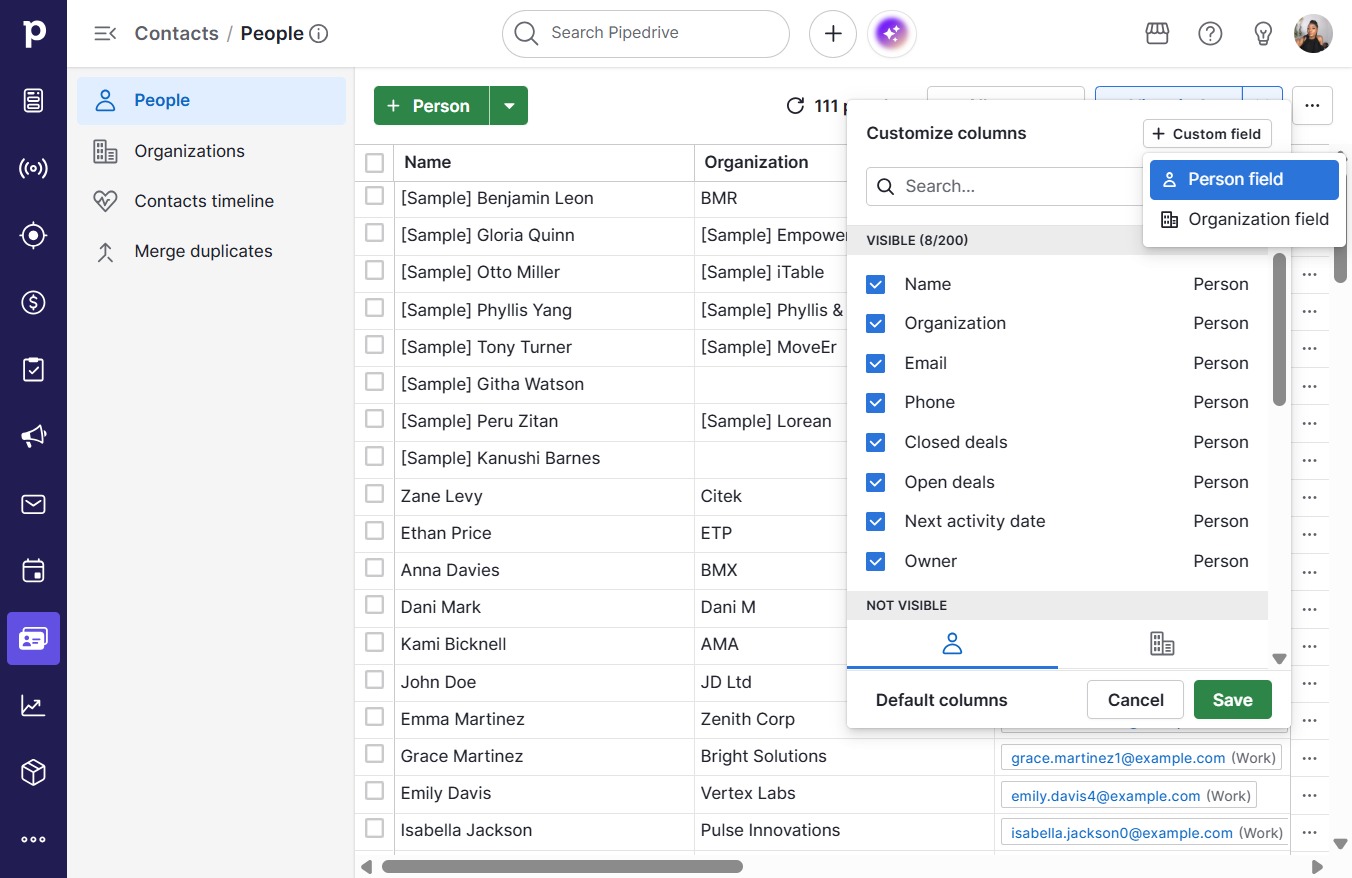
  4. Click Person field

    Click Person field
    Loading screenshot…
    100%
  5. Click on "Click here."

    Click on "Click here."
    Loading screenshot…
    100%
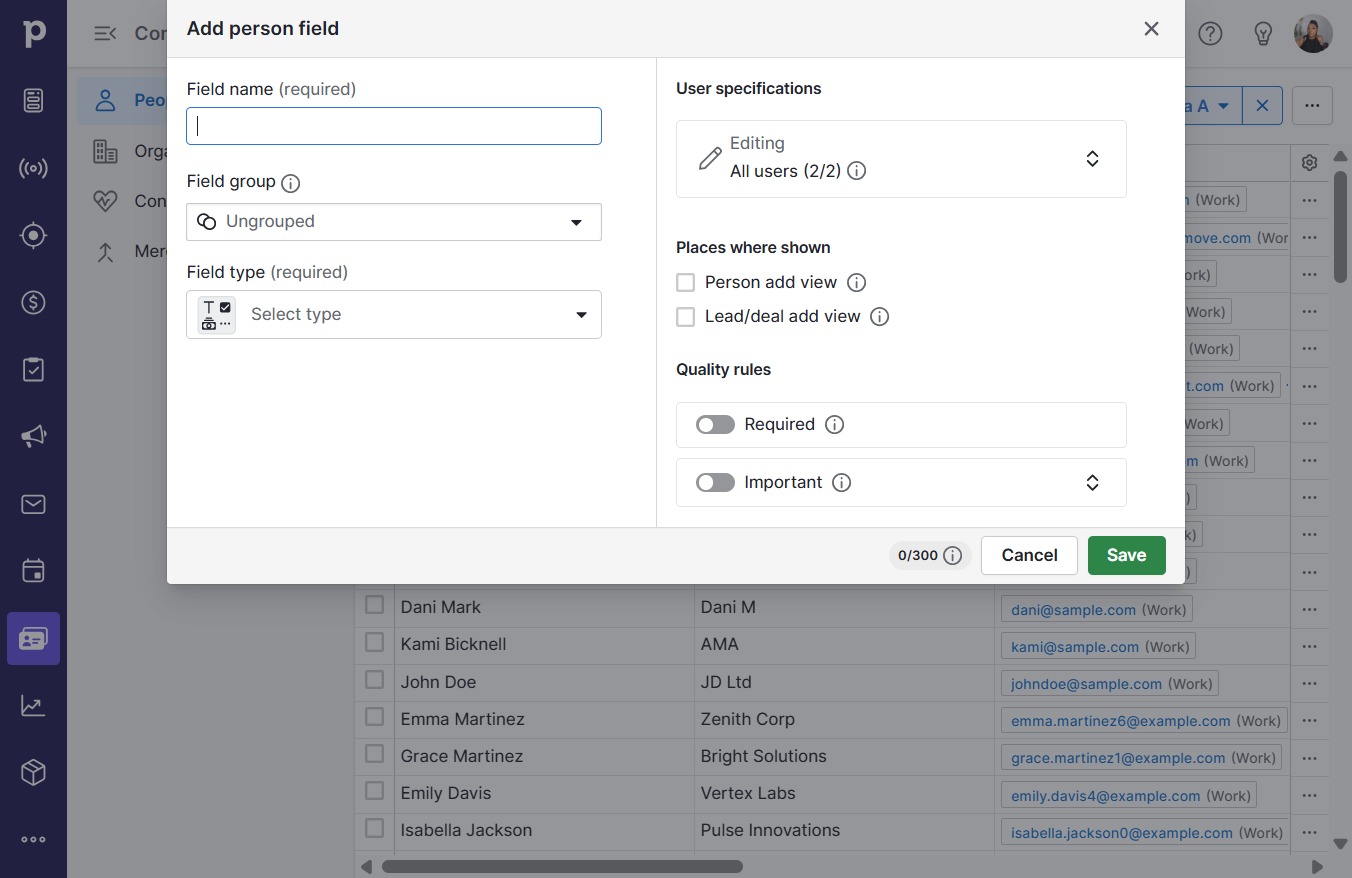
  6. Type "Follow Up"

  7. Click Select type

    Click Select type
    Loading screenshot…
    100%
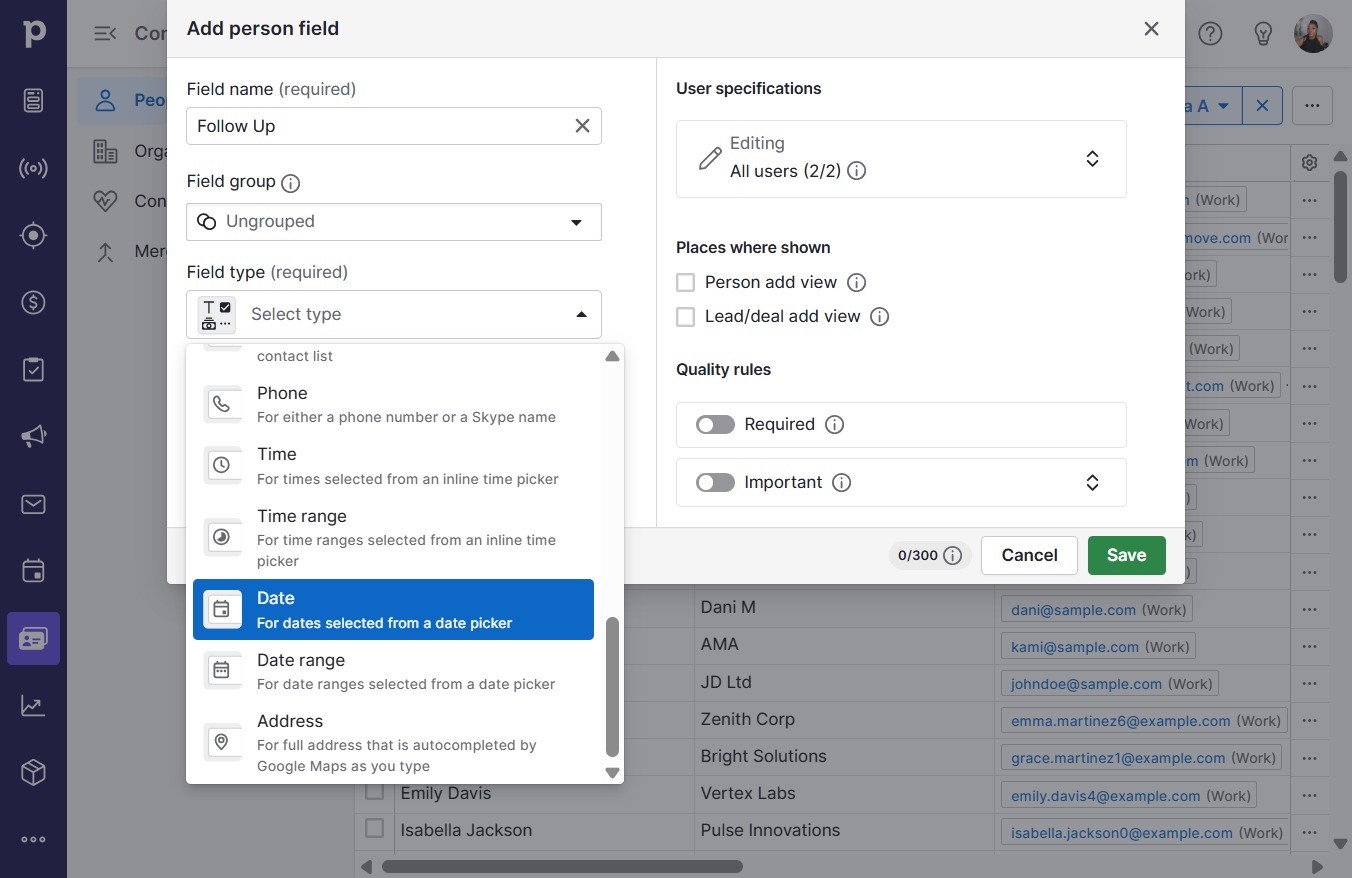
  8. Click Date

    Click Date
    Loading screenshot…
    100%
  9. Click on "Click here."

    Click on "Click here."
    Loading screenshot…
    100%
  10. Click on "Click here."

    Click on "Click here."
    Loading screenshot…
    100%
  11. Click Save

    Click Save
    Loading screenshot…
    100%
  12. Click Customize columns

    Click Customize columns
    Loading screenshot…
    100%
  13. Click on "Click here."

    Click on "Click here."
    Loading screenshot…
    100%
  14. Click Save

    Click Save
    Loading screenshot…
    100%