Geteilte Anleitung

How to add a new contact

This how-to guide provides a step-by-step process for adding a new contact, including entering the person's details and associating them with an organization.

victoriaworkflowsvictoriaworkflows
·14 Schritte·106 Aufrufe·Veröffentlicht

This how-to guide provides a step-by-step process for adding a new contact, including entering the person's details and associating them with an organization. Follow these easy instructions to efficiently save contact information and label them appropriately for future reference.

Step-by-step Guide14 Schritte
  1. Click on "Click here."

    Click on "Click here."
    Loading screenshot…
    100%
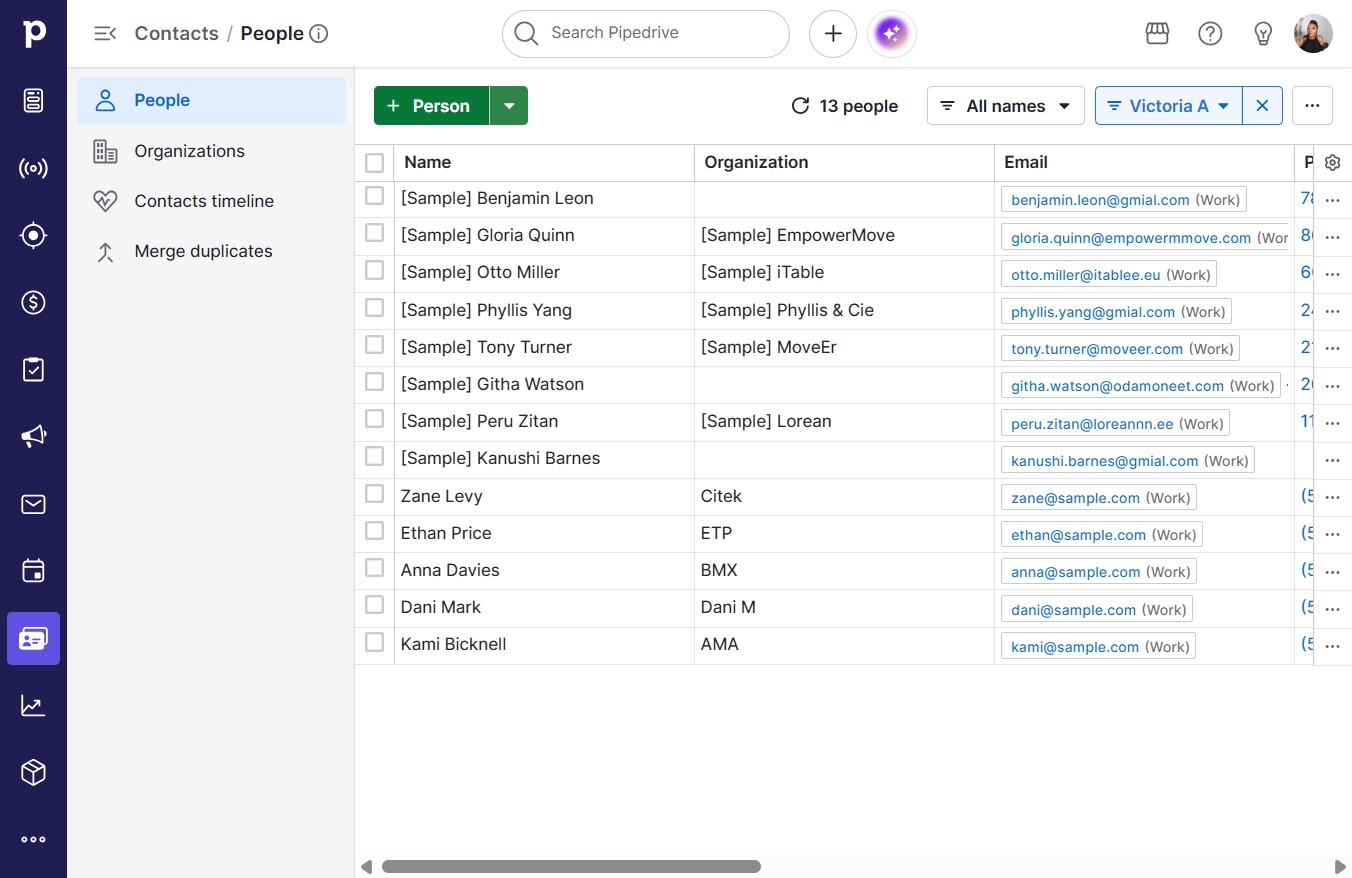
  2. Click Person

    Click Person
    Loading screenshot…
    100%
  3. Type "John Doe"

  4. Click on "Click here."

    Click on "Click here."
    Loading screenshot…
    100%
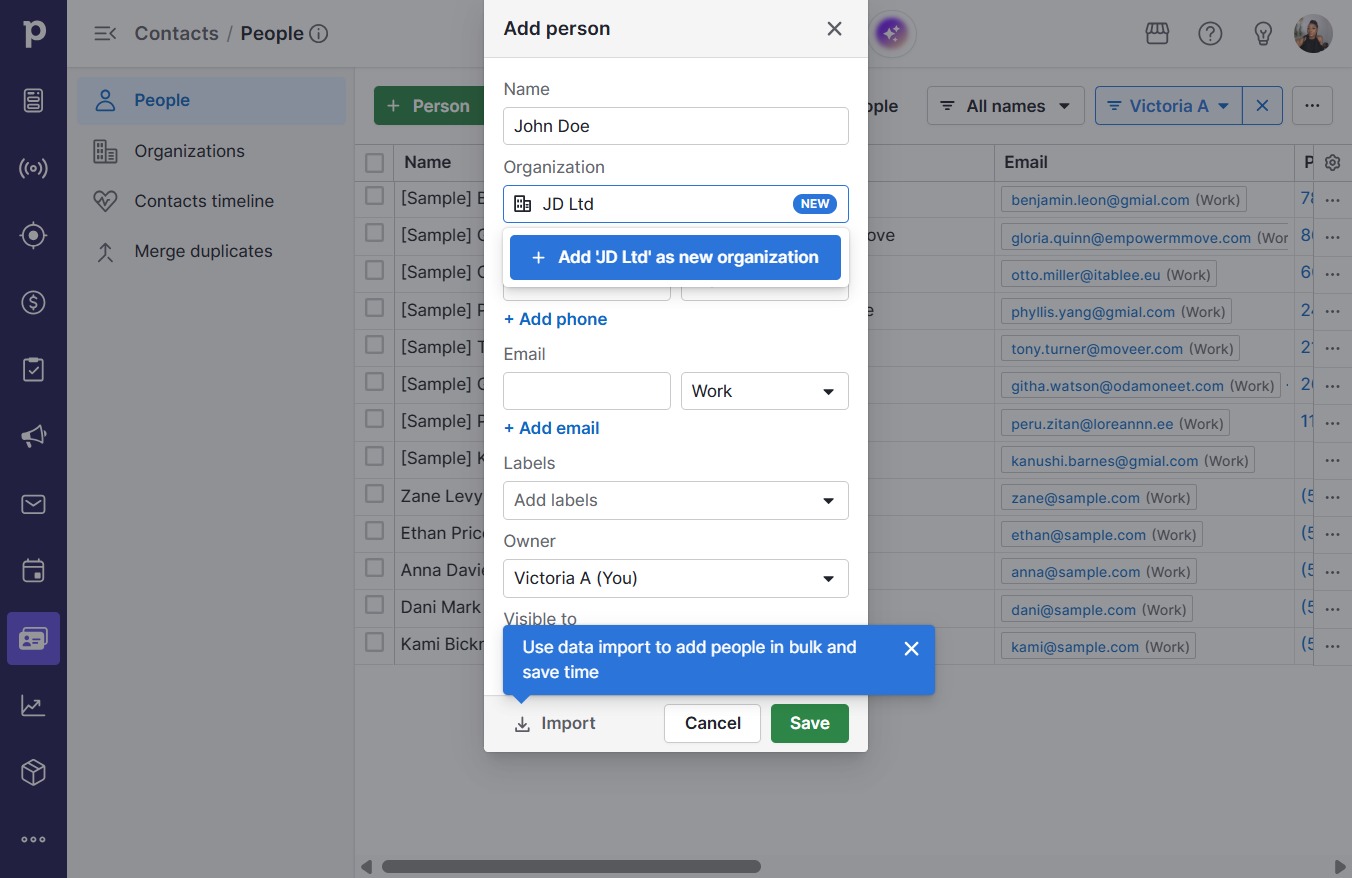
  5. Click Add 'JD Ltd' as new organization

    Click Add 'JD Ltd' as new organization
    Loading screenshot…
    100%
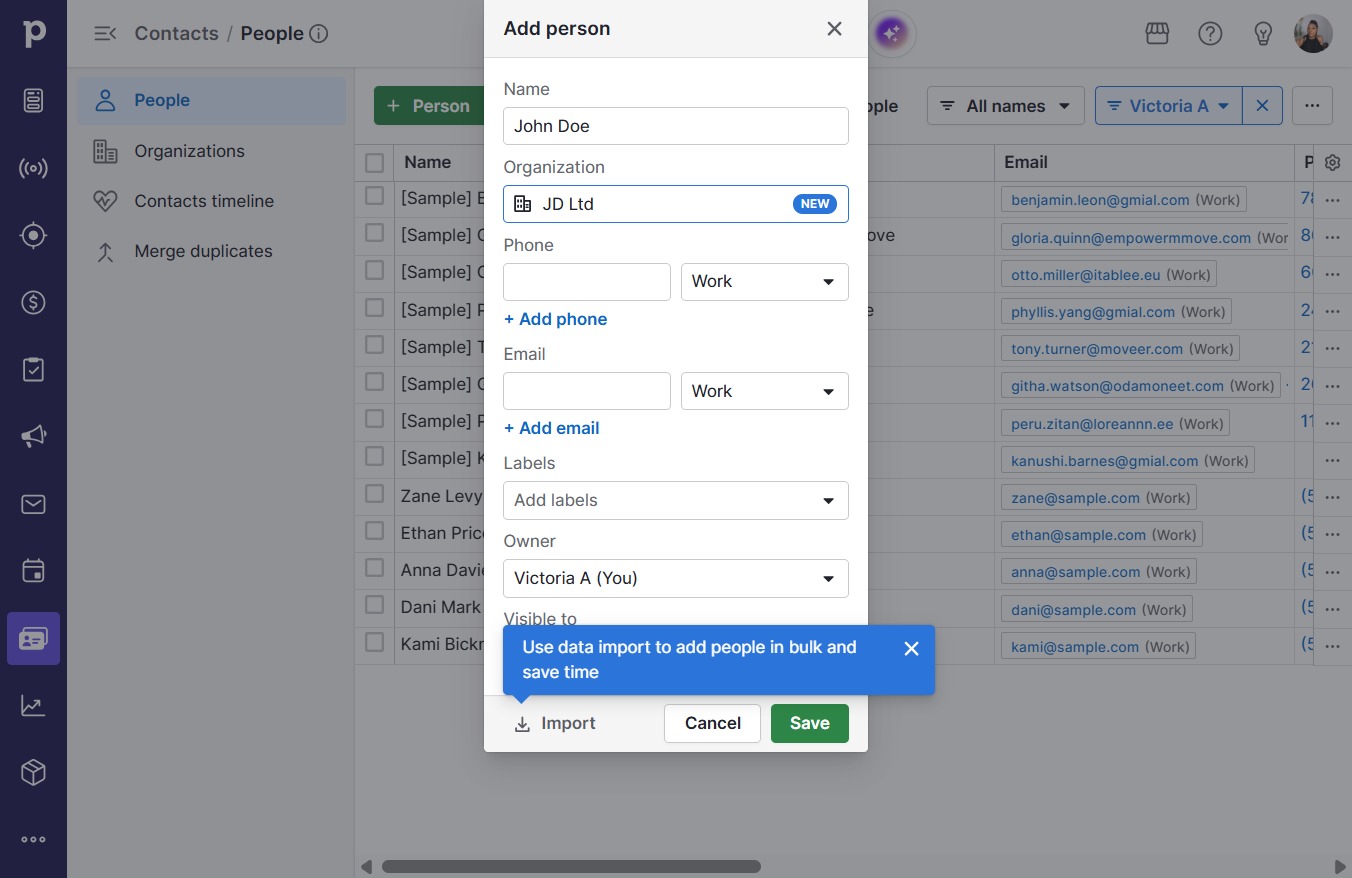
  6. Type "JD Ltd" in Downshift 0 input

  7. Click on "Click here."

    Click on "Click here."
    Loading screenshot…
    100%
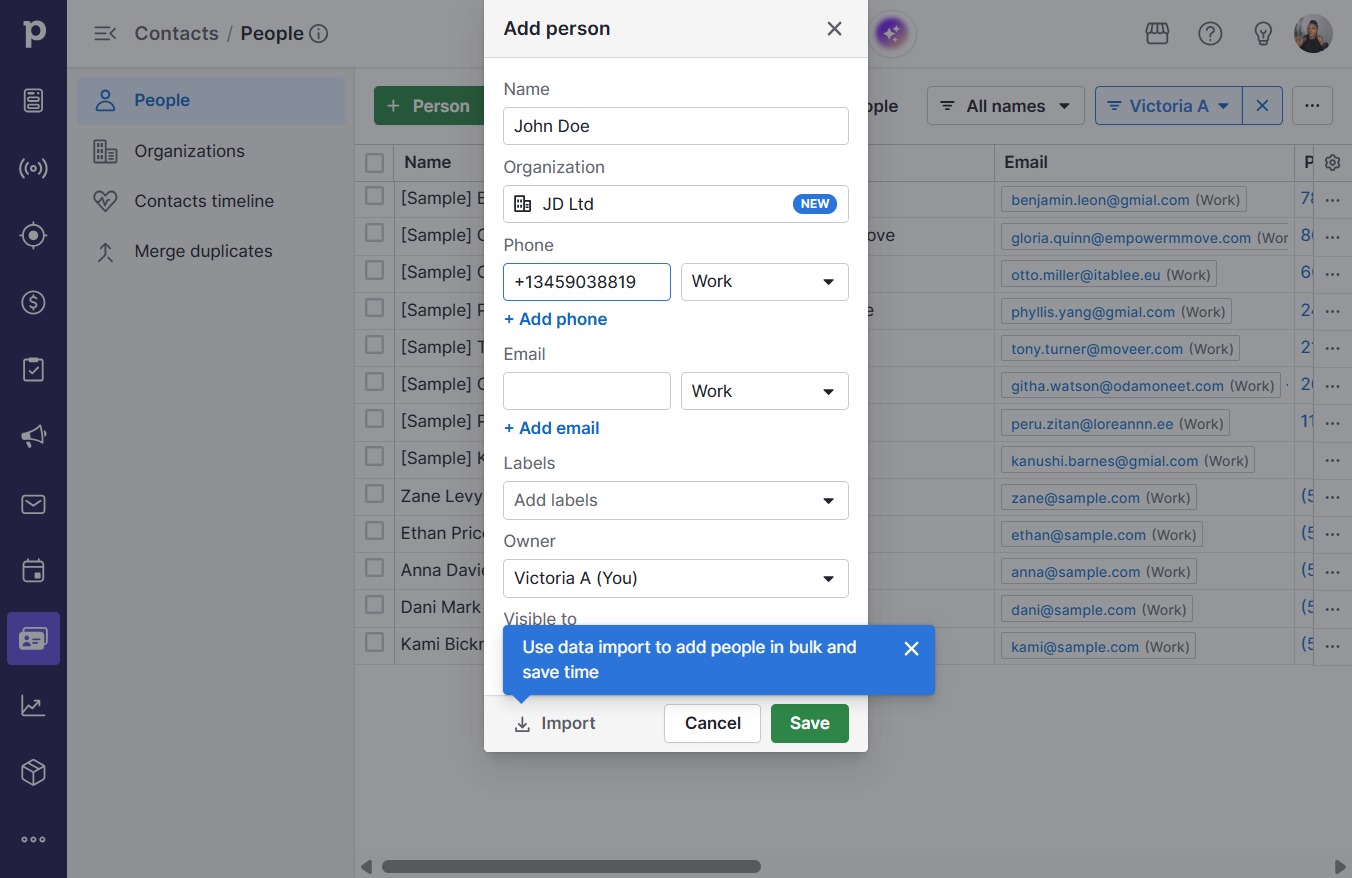
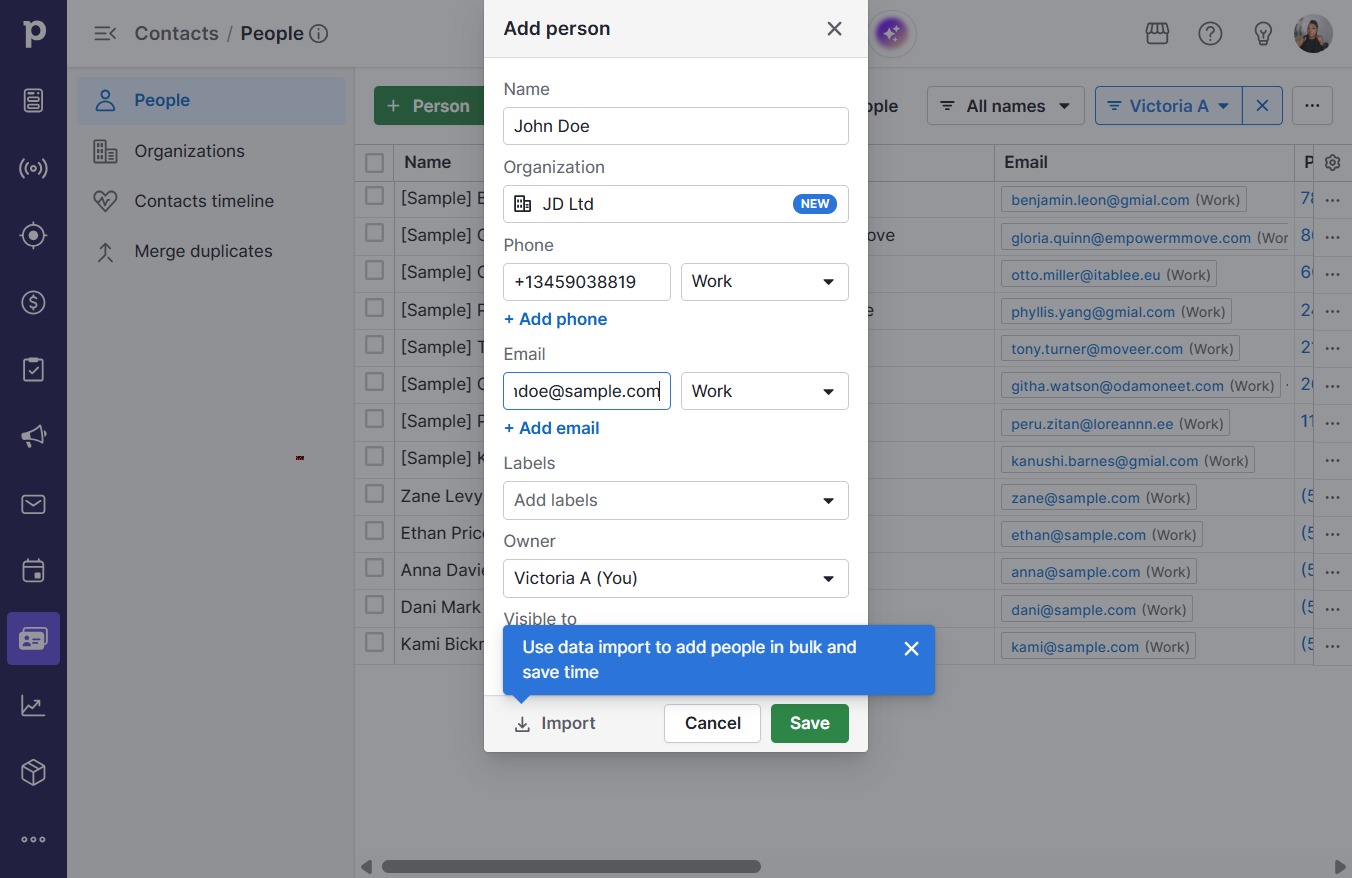
  8. Type "+13459038819"

  9. Click on "Click here."

    Click on "Click here."
    Loading screenshot…
    100%
  10. Type "johndoe@sample.com"

  11. Click Add labels

    Click Add labels
    Loading screenshot…
    100%
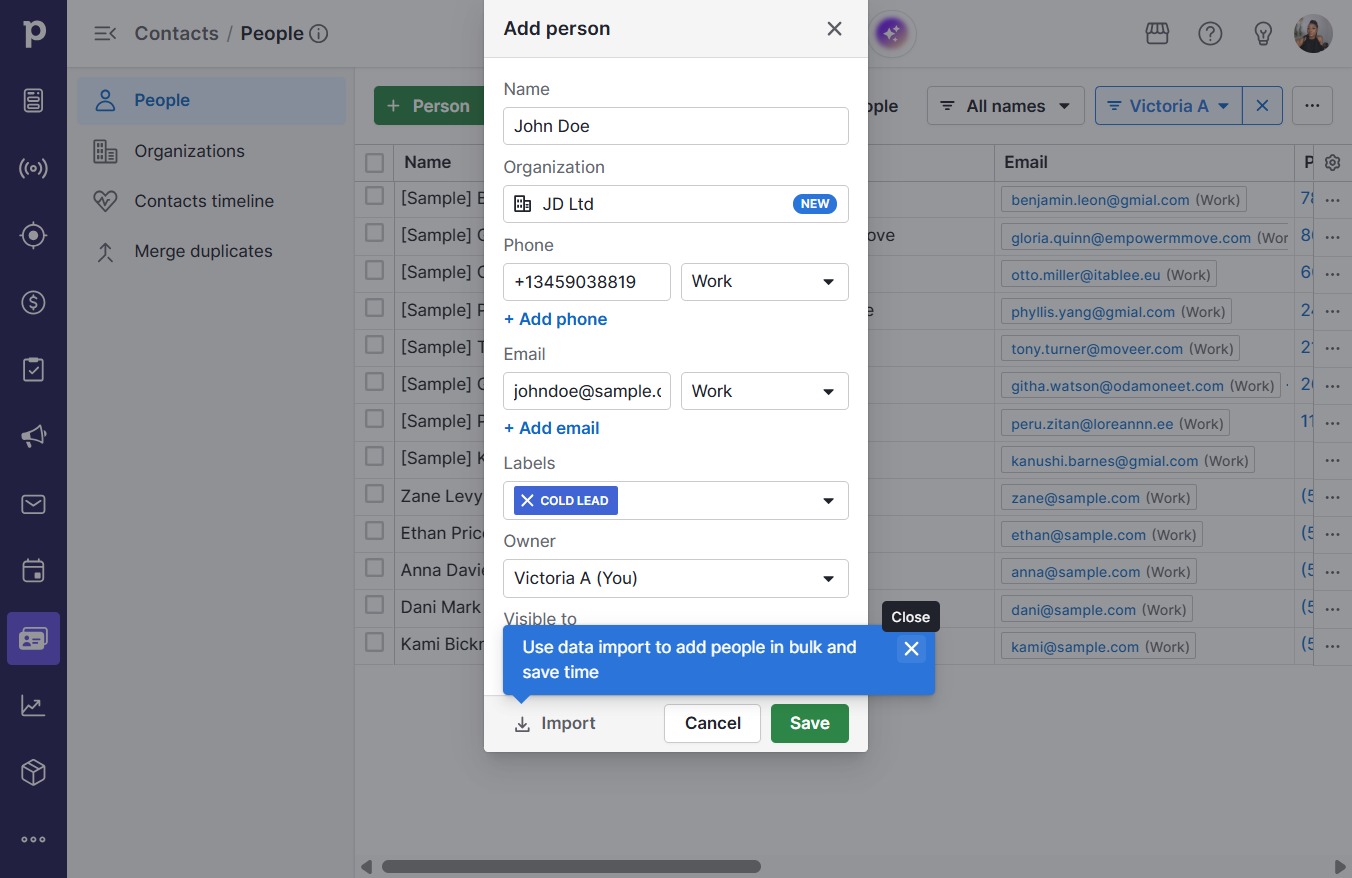
  12. Click Cold lead

    Click Cold lead
    Loading screenshot…
    100%
  13. Click on "Click here."

    Click on "Click here."
    Loading screenshot…
    100%
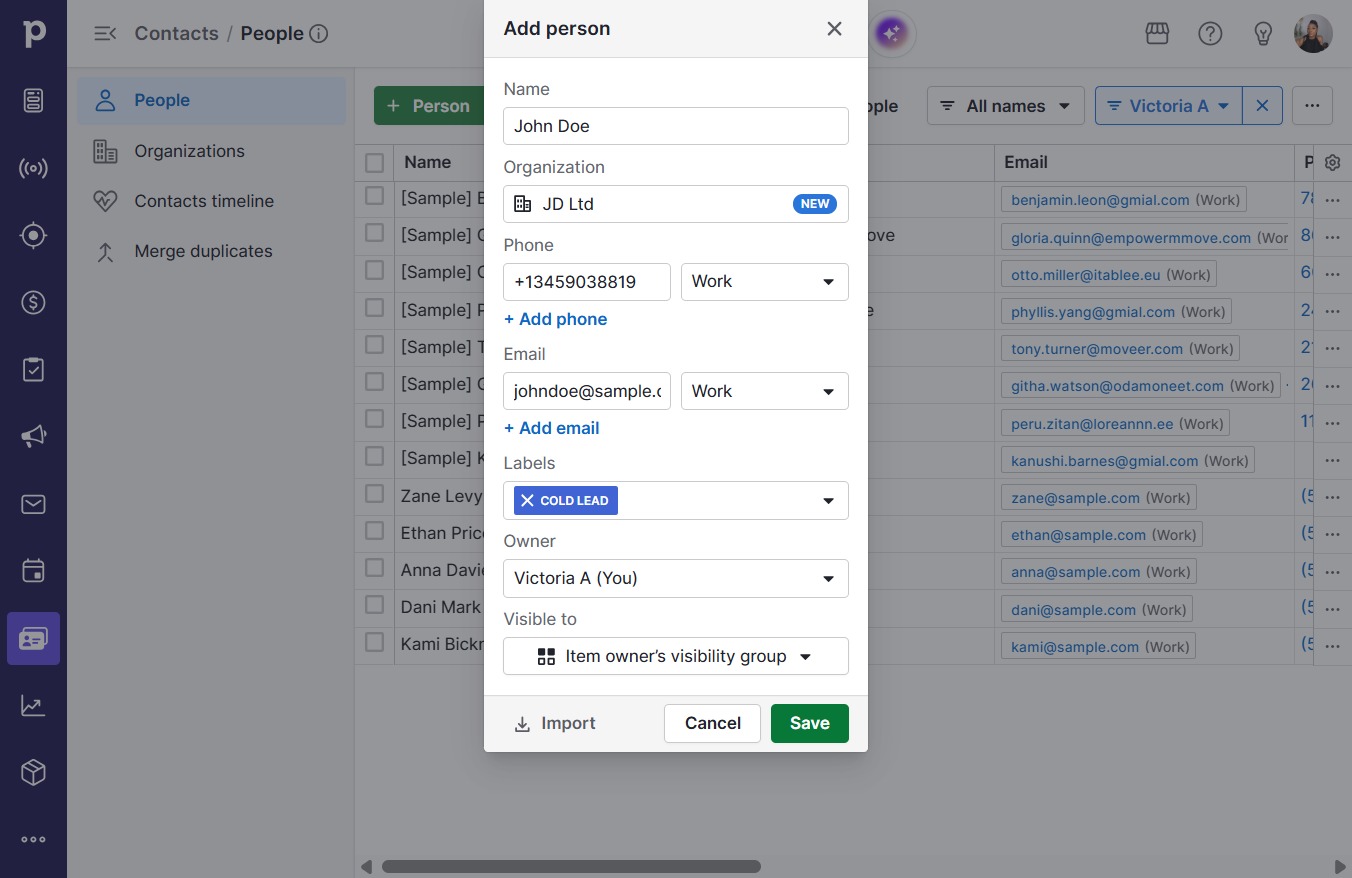
  14. Click Save

    Click Save
    Loading screenshot…
    100%